Map ShipBob shipping methods
When SKU.io sends a fulfillment order to ShipBob, it has to tell ShipBob which ShipBob service to ship by, such as Standard, 2-Day, or Overnight. The Shipping Methods tab pairs each ShipBob service with one of your SKU.io shipping methods. SKU.io reads the order's requested shipping method and sends the ShipBob service mapped to it.
How SKU.io picks the ShipBob service
For each fulfillment order, SKU.io tries these in order and uses the first one that works:
- The mapping on this tab. The ShipBob service mapped to the order's SKU.io shipping method.
- A name match. A ShipBob service whose name or service level matches the order's shipping method name. Case, punctuation, and extra spaces are ignored.
- The fallback. The Fallback ShipBob shipping method (under Default Shipping Method on Settings → General).
If none of these resolve, SKU.io doesn't send the order. The fulfillment order shows: "No ShipBob shipping method for order. Map its shipping method on the ShipBob Shipping Methods tab, or choose a Fallback ShipBob shipping method in Settings → General."
Mapping changes apply to new fulfillments only. An order already sent to ShipBob keeps the service it was sent with.
Before you begin
- Connect ShipBob. Its services are pulled when you connect.
- Create any SKU.io shipping methods you need. Only active shipping methods appear in the dropdowns.
The Shipping Methods tab
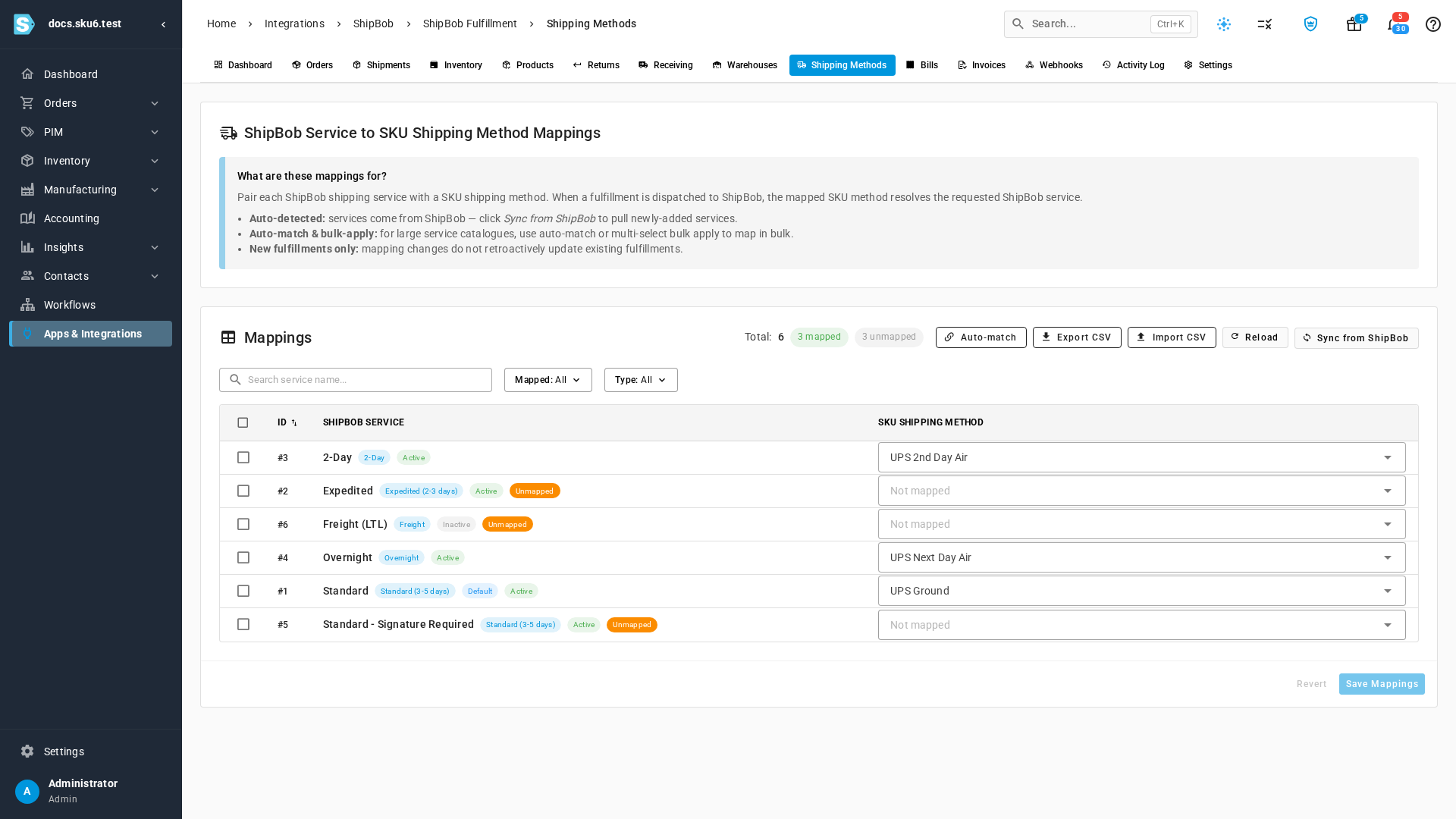
Each row is one ShipBob service:
| Column | What it shows |
|---|---|
| ID | The row's number, for example #3. Click the header to sort. This is the id in the CSV file. |
| ShipBob Service | The service name, then chips: its service level (for example Standard (3-5 days)), Default when it's the default service in your ShipBob account, Active or Inactive, and Unmapped when no SKU.io method is chosen. |
| SKU Shipping Method | The SKU.io shipping method this service is mapped to, or Not mapped. |
Above the table, Total counts the services and the chips count how many are mapped and unmapped. Use Search service name... to search by service or service level, Mapped to show All, Mapped, or Unmapped services, and Type to show All, Active, or Inactive ones.
Map services one at a time
- Go to Apps & Integrations, choose ShipBob, and click your connection under Instances.
- Click the Shipping Methods tab.
- In a service's SKU Shipping Method dropdown, choose a SKU.io shipping method.
- Repeat for the other services you use.
- Click Save Mappings.
What you'll see: a message such as 3 mappings saved. To undo unsaved changes, click Revert. To remove a mapping, clear the dropdown and click Save Mappings.
Auto-match by name
Click Auto-match. SKU.io pairs each unmapped service with a SKU.io shipping method whose name matches the ShipBob service, with or without its service level. Case, punctuation, and extra spaces are ignored. The message says how many it matched, for example 2 shipping method(s) auto-matched. Auto-match never changes a mapping you already made. Check the result, then map the rest by hand.
Map or clear several services at once
-
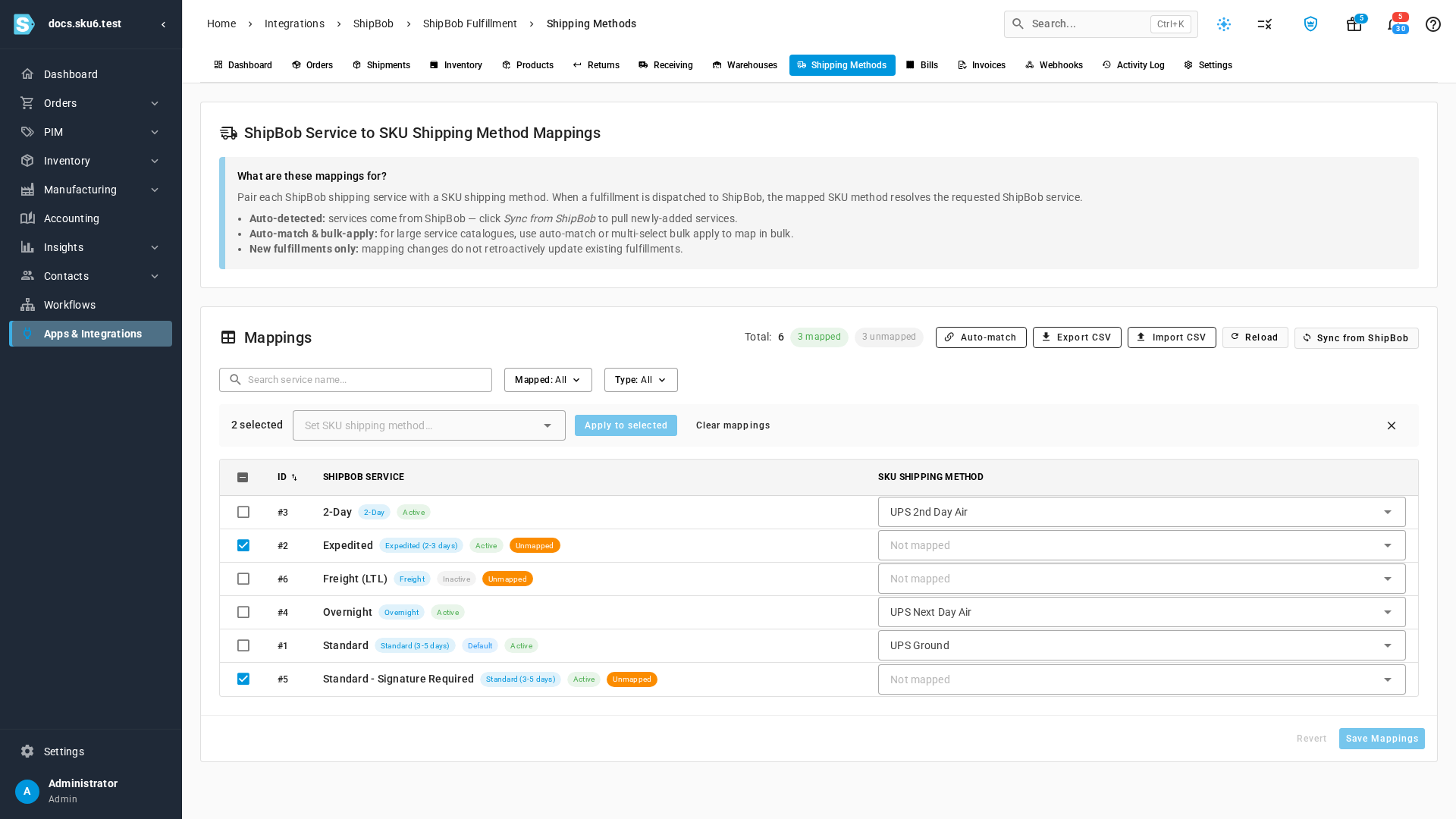
Select the checkbox next to each service. The header checkbox selects every service shown.
-
In Set SKU shipping method…, choose a SKU.io shipping method.
-
Click Apply to selected. It's unavailable until you choose a method.
To remove the mapping from every selected service instead, click Clear mappings. Both actions save straight away, without Save Mappings. Click the close icon to clear the selection.
Export and import mappings as CSV
A CSV suits a long list of services, or copying mappings between accounts.
Export
Click Export CSV. SKU.io downloads shipbob-shipping-methods-number.csv, with one row for every ShipBob service and its current mapping:
id,shipbob_shipping_method,service_level,shipping_method_id,shipping_method_name
3,2-Day,2-Day,1,"UPS 2nd Day Air"
2,Expedited,"Expedited (2-3 days)",,
1,Standard,"Standard (3-5 days)",5,"UPS Ground"
Import
- Edit the exported file. Change
shipping_method_nameto the SKU.io shipping method you want, and leaveshipping_method_idblank. - Click Import CSV. The Import Shipping Method Mappings dialog opens.
- Click CSV file and choose your file.
- Click Import.
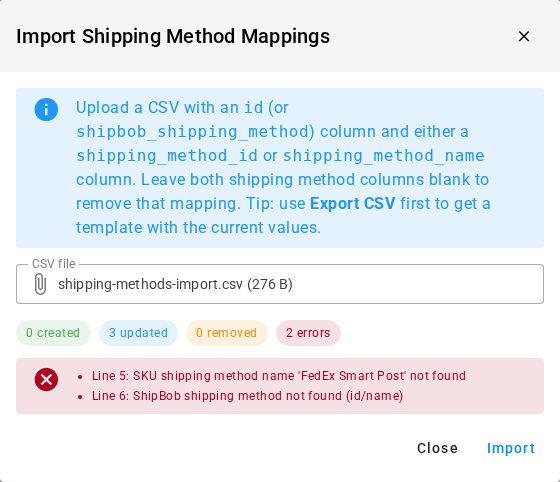
What you'll see: chips counting the mappings created, updated, and removed, plus an errors chip and a list of every row SKU.io couldn't apply. The rows without errors are saved even when others fail. The list on the tab refreshes behind the dialog. Click Close when you're done.
| Column | Required | Format | What it does |
|---|---|---|---|
id | One of id or shipbob_shipping_method | Number | The ShipBob service's number from the ID column. Takes priority over the name. |
shipbob_shipping_method | One of id or shipbob_shipping_method | Text | The ShipBob service name, used when id is blank or unknown. Not case-sensitive. The header name works too. |
service_level | No | Text | For reference only. Ignored on import. |
shipping_method_id | One of shipping_method_id or shipping_method_name | Number | A SKU.io shipping method number. Takes priority over the name when it matches an active method. |
shipping_method_name | One of shipping_method_id or shipping_method_name | Text | The SKU.io shipping method, by its full name as the dropdown shows it (for example UPS Ground) or its short name. Not case-sensitive. |
How the import treats each row:
- The match key is the ShipBob service:
idfirst, thenshipbob_shipping_method. The import never adds or deletes ShipBob services. It only changes their mappings. - Both SKU.io columns blank removes the service's mapping. It counts as removed only when the service had a mapping. A row for a service that was already unmapped changes nothing and isn't counted.
- A service that wasn't mapped counts as created. A service that was mapped counts as updated, even when the file maps it to the same method.
- Blank lines are skipped. Header names aren't case-sensitive, and files saved from a spreadsheet with a byte-order mark import normally.
- Files must be
.csvor.txt, up to 2 MB.
Row errors are listed in the dialog and name the file line. The header is line 1:
| Message | Cause |
|---|---|
| Line n: ShipBob shipping method not found (id/name) | Neither id nor shipbob_shipping_method matches a service on this tab. |
| Line n: SKU shipping method id 'value' not found | The number doesn't match an active SKU.io shipping method, and the name column doesn't either. |
| Line n: SKU shipping method name 'value' not found | No active SKU.io shipping method has that name. |
| The CSV file is empty — it needs a header row. Export CSV first to get a template. | The file has no header row. Nothing is imported. |
| The CSV is missing the required column(s): … Export CSV first to get a template. | A required column is missing. Nothing is imported. |
The last two problems stop the whole file, so they appear as a message at the top of the page rather than in the dialog, and the dialog shows no results. Read the message before it disappears, fix the header row, and import again.
Inactive services
A service with an Inactive chip is turned off in your ShipBob account. It stays on the tab, and you can still map it, but SKU.io doesn't stop you sending orders by it. Map your SKU.io methods to active services instead, because ShipBob may refuse an order sent by a service it has turned off. Use Type: Inactive to find them. Inactive services aren't offered as the fallback service.
Map each method to one service
Map each SKU.io shipping method to only one ShipBob service. If two services share a SKU.io method, SKU.io sends one of them and you can't choose which. Several SKU.io methods can share one ShipBob service.
Set the fallback service
- Click the Settings tab, then General.
- Under Default Shipping Method, choose a ShipBob service in Fallback ShipBob shipping method. The list shows your active ShipBob services.
- Click Save Changes.
SKU.io sends this service when an order's shipping method has no mapping and no name match. When the field is empty, it reads None — unmapped fulfillments are rejected: those fulfillment orders are rejected, and you submit them again after you map their shipping method or choose a fallback. See ShipBob settings reference.
When ShipBob adds a service
SKU.io checks for new ShipBob services every day. To check now, click Sync from ShipBob. Progress shows in the job tray. When it finishes, click Reload. New services arrive unmapped. If the tab is empty, it reads No shipping services found. Click Sync from ShipBob to pull them.
Next steps
- Map ShipBob products — pair ShipBob items with your products.
- How orders flow to ShipBob — what else SKU.io checks before it sends an order.
- Dispatch to a fulfillment provider — submit a fulfillment order.