Turn on ShipBob billing
Billing sync pulls every charge, credit, and payment ShipBob bills you, every 2 hours, and puts each fee on the order, product, or purchase order that caused it. You switch it on, and set how it behaves, on the connection's Financial settings tab. To learn where each fee lands before you start, read How ShipBob billing attribution works.
Billing sync needs a ShipBob access token with the billing_read permission. Tokens created with every permission ticked already have it. Without it, the Bills tab shows Billing access denied after the first sync. See If the token can't read billing.
Before you begin
- Connect ShipBob.
- You need permission to manage integrations.
- If you plan to post invoices to accounting, have an expense account ready for ShipBob fees, such as 6150 - 3PL Fulfillment & Warehousing.
Open the Financial settings
- Go to Apps & Integrations, open ShipBob, and choose your connection.
- Click the Settings tab.
- Click Financial.
The tab has three cards: Shipping cost, Billing sync, and Fee mapping.
Turn on billing sync
-
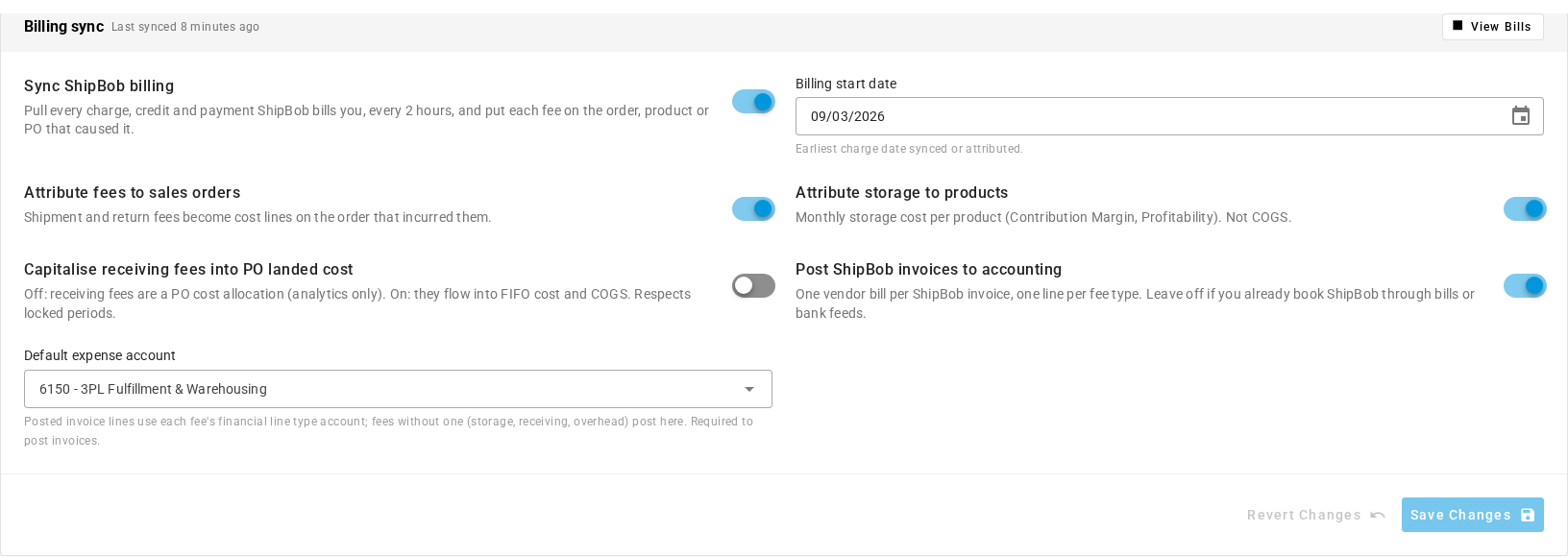
On the Billing sync card, turn on Sync ShipBob billing.
-
Set Billing start date, the earliest charge date SKU.io syncs or attributes. It starts at your connection's sync start date. Charges before it are never read.
-
Choose how fees are attributed. These switches are unavailable, with the tooltip Turn on Sync ShipBob billing first, until billing sync is on:
Switch Default When on When off Attribute fees to sales orders On Shipment and return fees become cost lines on the order that incurred them. Those fees are kept as unattributed overhead, with the reason Kept unattributed by fee mapping. Attribute storage to products On Each month's storage is allocated to the products it was charged for. It isn't part of cost of goods sold. Storage stays on the month's cost entry, unallocated. Capitalise receiving fees into PO landed cost Off Receiving fees become a cost line on the purchase order and flow into stock cost and cost of goods sold. A purchase order received in a locked accounting period can't take the cost, so the fee stays unattributed as Accounting period locked. Receiving fees are allocated to the purchase order for reporting only. Post ShipBob invoices to accounting Off Each reconciled ShipBob invoice posts as a supplier bill from ShipBob. Nothing is posted. Leave it off if you already enter ShipBob bills by hand or through a bank feed. -
If you turned on Post ShipBob invoices to accounting, choose a Default expense account in the field that appears. Fee lines post to the account of their cost line type, and fees without one (storage, receiving, and overhead) post here. You can't save without it: the field shows Choose a default expense account to post ShipBob invoices.
-
Click Save Changes.
SKU.io confirms with Financial settings saved. Revert Changes undoes anything you haven't saved.
Set the freight line type (optional)
The Shipping cost card decides how ShipBob's shipping cost reaches the sales order. The defaults work for most accounts, so change it only if you want freight on a different cost line type.

- Leave Record shipping costs on. It puts ShipBob's shipping cost on each SKU.io fulfillment.
- In Freight line type, choose the cost line type freight is written to on each sales order. Only types classified as Cost are listed. Auto (Shipping Cost) uses the default shipping cost type.
- Click Save Changes.
Freight source is read-only. It shows Estimate at ship time while billing sync is off, and Billed (billing sync on) once it's on, when the billed Shipping charge replaces the estimate on the same freight line.
Changing the freight line type later moves the existing freight lines on past orders to the new type, in the background.
What happens when you save
When you turn billing sync on, the first time or again later:
- If Freight line type was Auto (Shipping Cost), the default shipping cost type is filled in, so billed freight always reaches a margin line.
- A billing sync starts in the background. Follow ShipBob Billing Sync in the job tray. It reads every transaction and invoice from your billing start date, adds the fee names it finds to the Fee mapping card, and attributes each charge. Charges already stored are attributed again under your current settings.
- From then on, a sync runs every 2 hours. Each run re-reads at least the last 14 days, so charges ShipBob corrects or invoices late are picked up.
Changing any of the attribution switches while billing is on re-attributes every stored charge under the new rules, in the background. Turning on posting, or choosing a different Default expense account, makes SKU.io post your existing ShipBob invoices again under the new setup. Turning billing sync off stops new syncs. The bills already stored stay on the Bills tab, and Sync Bills, Backfill…, and Re-attribute all are unavailable with the tooltip Enable billing sync in Settings → Financial first.
To check the result, click View Bills on the Billing sync card. The card heading also shows when billing last synced.
If the token can't read billing
When ShipBob refuses the billing request, the Bills tab shows:
Billing access denied: the API token needs the
billing_readscope.
Nothing from that run is saved, and your other ShipBob syncs keep working. To fix it:
- In ShipBob, create a personal access token with
billing_readenabled. - In SKU.io, click Update token on the alert. It opens Settings → Connection.
- Paste the new token and save.
- Back on the Bills tab, click Retry sync.