Review ShipBob returns
When a customer sends a parcel back to a ShipBob fulfillment center, ShipBob records it as a return. The Returns tab lists every ShipBob return on your account so you can see what's on its way back, what has arrived, what ShipBob was asked to do with each item, and what ShipBob charged for handling it.
The tab is read-only. Returns are created in ShipBob, by you, by your returns app, or by ShipBob itself when a carrier sends a parcel back undelivered. SKU.io doesn't create, edit, or cancel them, and a return here doesn't change your SKU.io stock or create a sales order return.
Before you begin
- Connect ShipBob.
- Leave Returns switched on under Settings → Sync (it's on by default). SKU.io then pulls returns from ShipBob every hour. See the settings reference.
Find a return
-
Go to Apps & Integrations, open ShipBob, and choose your connection.
-
Open the Returns tab.
-
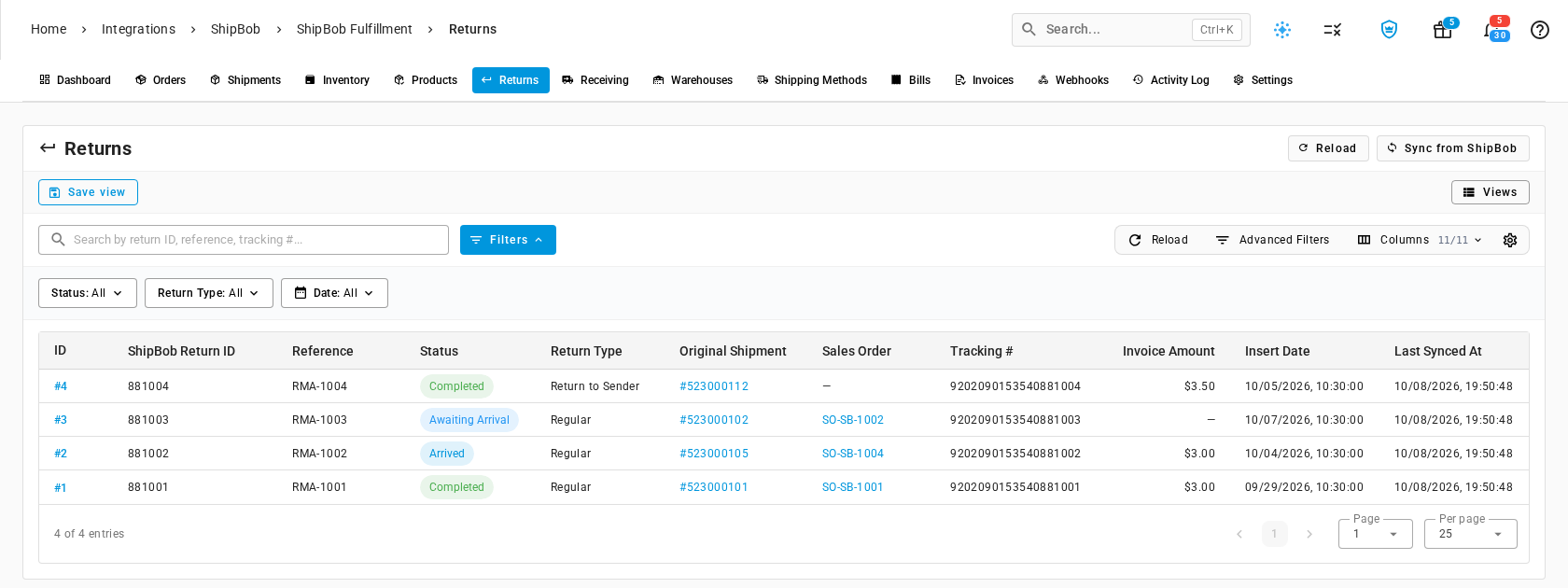
To narrow the list, type in Search by return ID, reference, tracking #, or use the Status, Return Type, and Date filters.
-
To pick up returns created or updated in ShipBob since the last hourly sync, select Sync from ShipBob. The sync runs in the background job tray. While one is running, the button is unavailable, and hovering it tells you why. The list refreshes when the job finishes. Reload only re-reads what SKU.io already holds, without contacting ShipBob.
-
Select the return's ID to open it.
The columns
| Column | What it shows |
|---|---|
| ID | SKU.io's number for the return. Opens the return |
| ShipBob Return ID | ShipBob's number for the return, the one ShipBob support asks for |
| Reference | The return reference (RMA) from you or your returns app |
| Status | Where the return is in ShipBob, see Statuses |
| Return Type | Regular for a customer return, Return to Sender for a parcel the carrier couldn't deliver |
| Original Shipment | The ShipBob shipment the items first went out on. Opens that shipment |
| Sales Order | The SKU.io sales order the return came from. Opens it. Empty when the original order isn't in SKU.io, for example an order from another ShipBob channel |
| Tracking # | The tracking number of the parcel coming back |
| Invoice Amount | What ShipBob charged to process the return. Empty until ShipBob bills it |
| Insert Date | When the return was created in ShipBob |
| Last Synced At | When SKU.io last refreshed the return from ShipBob |
Advanced Filters lets you combine conditions on the status, return type, reference, tracking number, ShipBob return ID, and the insert, completed, created, and updated dates.
Statuses
| Status | Meaning |
|---|---|
| Awaiting Arrival | ShipBob expects the parcel, but it hasn't reached the fulfillment center yet |
| Arrived | The parcel is at the fulfillment center, waiting to be processed |
| Processing | ShipBob staff are inspecting the items |
| Completed | ShipBob has finished and carried out the requested action for every item |
| Cancelled | The return was withdrawn before ShipBob processed it |
Read a return
The return opens with its reference as the title, its status chip, and its return type.
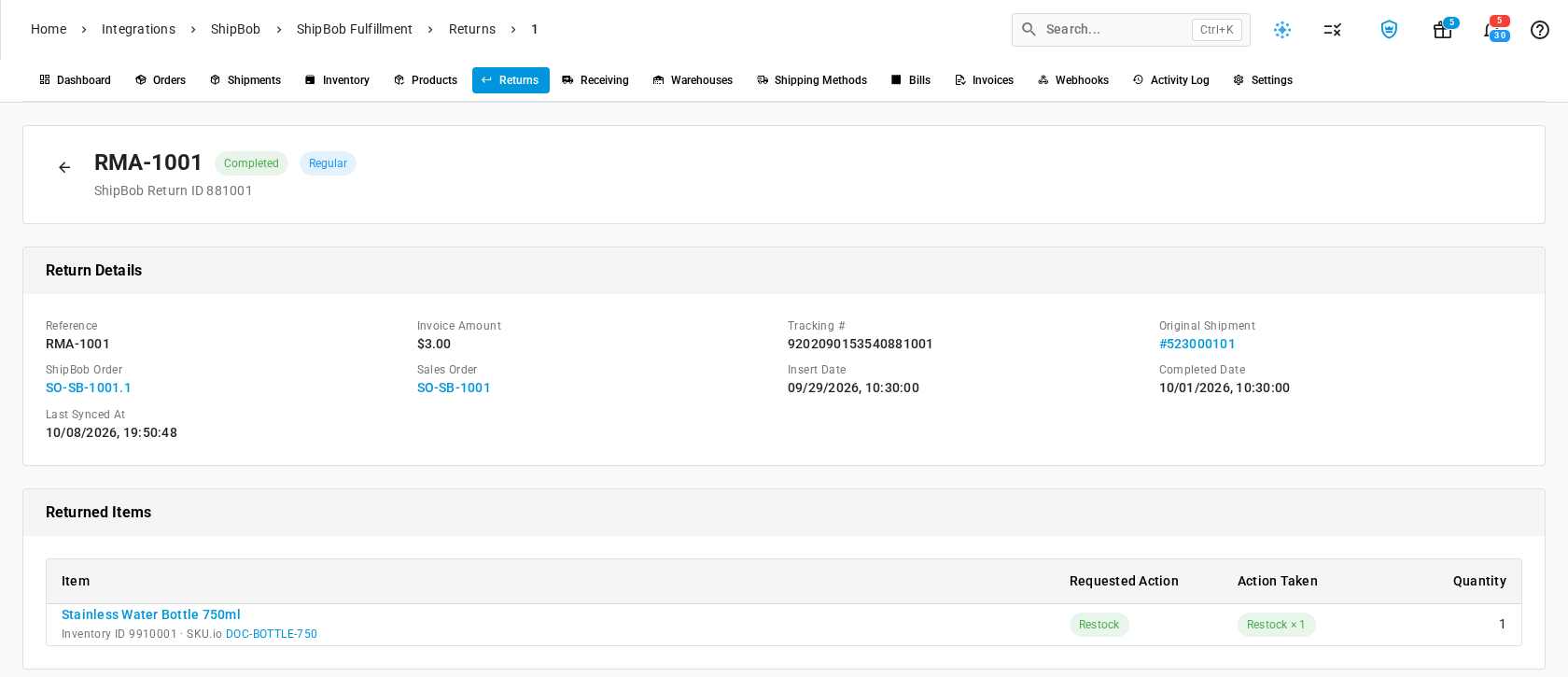
Return Details repeats the list's fields, including the Original Shipment and Sales Order links, and adds:
- ShipBob Order: the ShipBob order the original shipment belonged to, such as SO-SB-1001.1. Opens it on the Orders tab. For an order from another ShipBob channel, it shows that channel's order number, such as #1047.
- Completed Date: when ShipBob finished processing the return.
Returned Items lists each item in the parcel with its Quantity and two actions. The item's name opens the ShipBob product on the Products tab. Under the name are ShipBob's inventory ID and, when the ShipBob product is mapped, the SKU.io product's SKU, which opens that product.

The two actions are:
- Requested Action is the instruction ShipBob follows when the item arrives. Any instructions that came with the request show under it.
- Action Taken is what ShipBob actually did, and for how many units, for example Restock × 1. Until ShipBob processes the item, it shows Not processed yet. When ShipBob gives a reason, it shows under the action.
The requested actions are:
| Requested Action | What ShipBob does |
|---|---|
| Restock (green) | Puts the item back into sellable stock at the fulfillment center |
| Quarantine (amber) | Holds the item aside, unsellable, until you decide what to do with it |
| Dispose (red) | Throws the item away |
An item restocked raises ShipBob's on-hand count for that product. You see the change on the Inventory tab after the next inventory sync, and you choose whether to bring SKU.io into line with a stock take. Quarantined and disposed items never become sellable.
To follow the return back to the sale, select the Sales Order link. To see the parcel that went out, select Original Shipment.
Load Raw Data from ShipBob fetches the return exactly as ShipBob holds it now. Use it when ShipBob support asks about a field the page doesn't show.
Where the return fee goes
ShipBob bills each processed return, usually as a Return Processing Fee. When billing is on, SKU.io charges that fee to the sale the return came from:
- It follows the return to its original shipment, and from there to the SKU.io sales order. The fee becomes a cost line on that order, so the order's margin reflects the cost of the return.
- If the original order isn't in SKU.io, for example a return from an order placed through another ShipBob channel, the fee is split across the returned products, by quantity, in a monthly ShipBob Return Fees cost entry.
- If ShipBob bills a return that SKU.io hasn't synced yet, the charge is Pending with the reason Return not found, and SKU.io retries it on each billing run. If the return still can't be found 14 days after the charge date, the charge becomes Unattributed.
Find the charge on the Bills tab: its Reference is the ShipBob return ID. Attributed To shows the sales order, such as SO-SB-1004, or the monthly cost entry when the fee was split across products. For the full rules, see How ShipBob billing attribution works. To work through charges that didn't attach to anything, see Review ShipBob bills and fix unattributed charges.
Next steps
- Review ShipBob receiving orders: the other way stock arrives at ShipBob.
- Track ShipBob shipments and exceptions: the outbound shipments that returns point back to.
- Review ShipBob inventory: where restocked items show up.