Review ShipBob receiving orders
When a supplier ships stock to ShipBob, ShipBob needs a warehouse receiving order (WRO): a notice of what's coming, to which fulfillment center, in how many boxes. The Receiving tab lists every WRO on your ShipBob account, so you can see what's still on its way, compare what each delivery should contain with what ShipBob counted in, and print the labels for the boxes.
The tab is read-only. You create receiving orders in ShipBob, not in SKU.io, and SKU.io doesn't edit or cancel them. A completed WRO doesn't receive your SKU.io purchase order or add SKU.io stock. ShipBob's new counts reach the Inventory tab, and you receive the purchase order in SKU.io as you would for any other warehouse.
Before you begin
- Connect ShipBob.
- Leave Receiving switched on under Settings → Sync (it's on by default). SKU.io then pulls receiving orders from ShipBob every hour. See the settings reference.
- When you create the WRO in ShipBob, enter your SKU.io purchase order number as its purchase order number. That's how SKU.io links the delivery, and its receiving fee, to the right purchase order.
Find a receiving order
-
Go to Apps & Integrations, open ShipBob, and choose your connection.
-
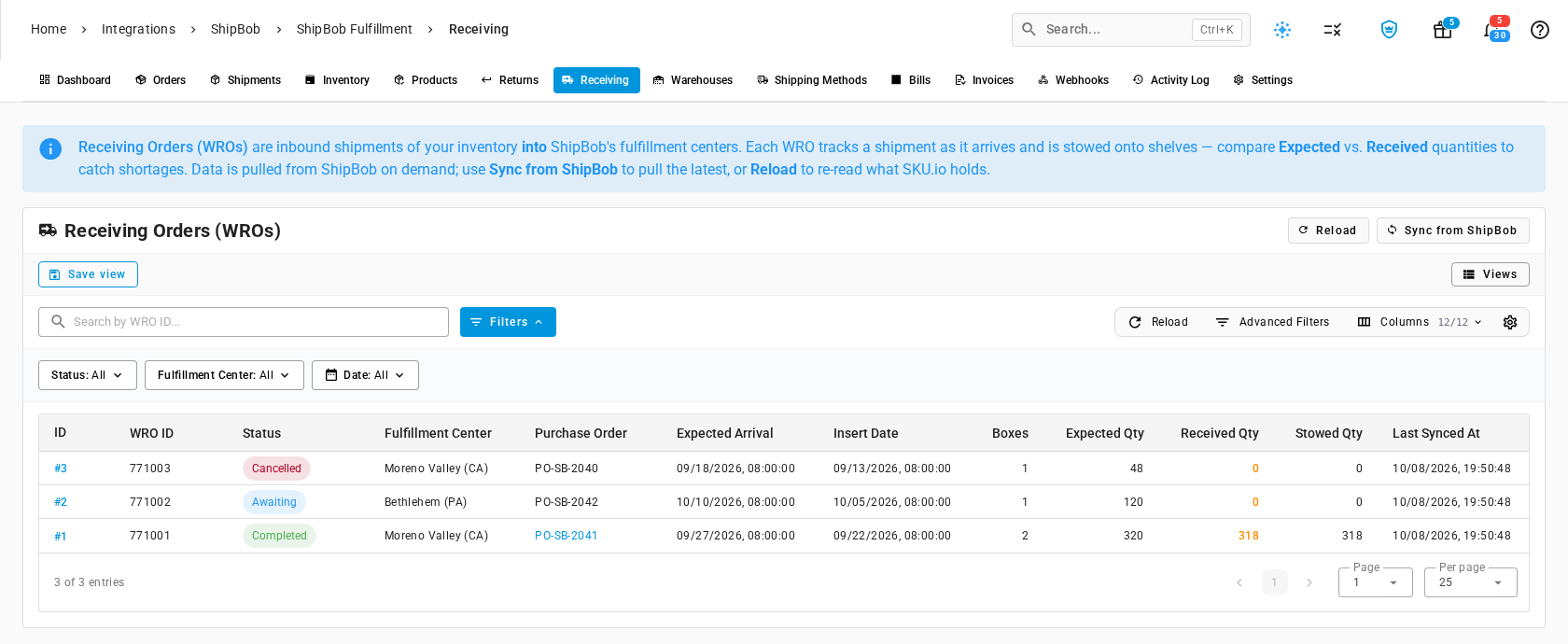
Select the Receiving tab. The list is headed Receiving Orders (WROs).
-
To narrow the list, type a WRO number in Search by WRO ID, or use the Status, Fulfillment Center, and Date filters.
-
To pick up receiving orders created or updated in ShipBob since the last hourly sync, select Sync from ShipBob. The sync runs in the background job tray. While one is running, the button is unavailable, and hovering it tells you why. The list refreshes when the job finishes. Reload only re-reads what SKU.io already holds, without contacting ShipBob.
-
Select the receiving order's ID to open it.
The columns
| Column | What it shows |
|---|---|
| ID | SKU.io's number for the receiving order. Opens it |
| WRO ID | ShipBob's number for the receiving order, the one ShipBob support and your supplier's paperwork use |
| Status | Where the delivery is in ShipBob, see Statuses |
| Fulfillment Center | The ShipBob fulfillment center the delivery is going to |
| Purchase Order | The purchase order number on the receiving order. It links to the SKU.io purchase order when exactly one has that number |
| Expected Arrival | When the delivery is due at the fulfillment center |
| Insert Date | When the receiving order was created in ShipBob |
| Boxes | How many boxes the delivery was sent in |
| Expected Qty | Total units the receiving order says are coming |
| Received Qty | Total units ShipBob has counted in. Shown in amber when it's less than expected |
| Stowed Qty | Total units ShipBob has put away on its shelves, ready to sell |
| Last Synced At | When SKU.io last refreshed the receiving order from ShipBob |
Statuses
| Status | Meaning |
|---|---|
| Awaiting | ShipBob is waiting for the delivery to arrive |
| Arrived | The delivery is at the fulfillment center, not yet counted |
| Partially Arrived | Some of the boxes have arrived |
| Processing | ShipBob is counting and putting the stock away |
| Completed | ShipBob has finished receiving. The received and stowed quantities are final |
| Cancelled | The receiving order was withdrawn in ShipBob before the stock arrived |
Check a delivery against what was expected
-
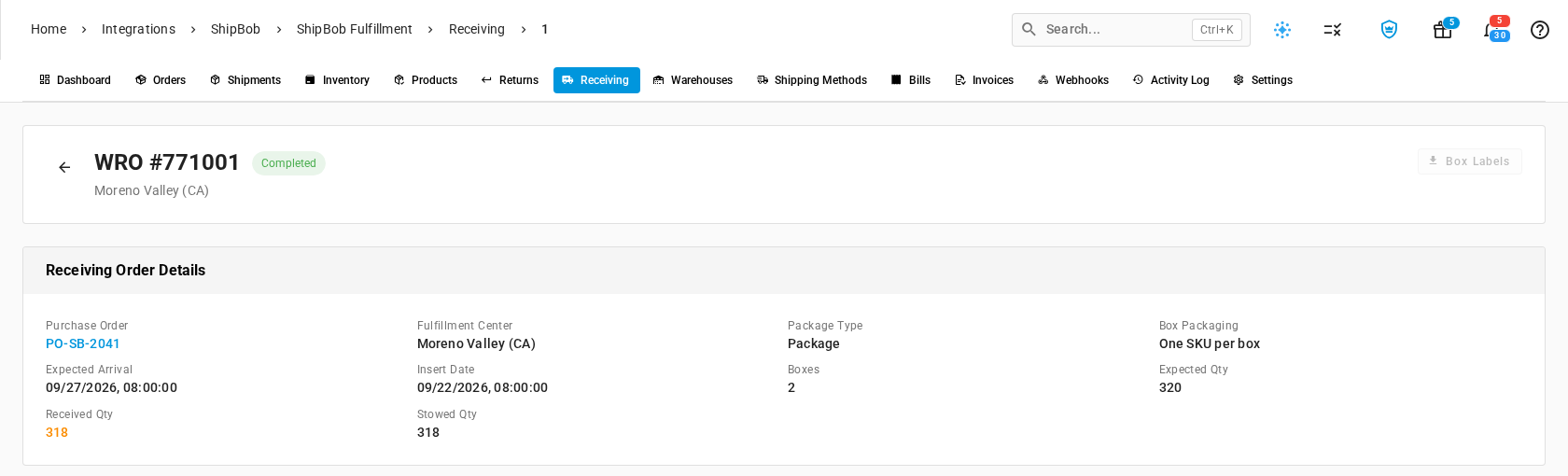
Open the receiving order. The page title is the WRO number, followed by its status and its fulfillment center.
-
Under Receiving Order Details, check Purchase Order. It links to the SKU.io purchase order whose number ShipBob holds for this delivery, such as PO-SB-2041. If no SKU.io purchase order has that number, the number shows without a link.
-
Compare Expected Qty with Received Qty. An amber received quantity means ShipBob counted in fewer units than the receiving order promised. The card also shows how the delivery was sent: Package Type and Box Packaging, such as One SKU per box.
-
Scroll to Item Variance (Expected vs Received) to see which products are short or over.

Each row shows the product with its Expected, Received, and Variance quantities. A short row is shaded, with the variance in red, for example -2 when 118 of 120 bottles arrived. An over-delivery shows in green, with a plus sign. The chip in the card's title counts the products with variance.
The product name opens the ShipBob product on the Products tab. Under it are ShipBob's inventory ID and, when the ShipBob product is mapped, the SKU.io product's SKU, which opens that product.
On an Awaiting or Cancelled receiving order, nothing has been counted in, so the card shows Not received yet instead of a shortfall, in its title and on every row.

While a delivery is being received, Received counts only what ShipBob has counted in so far, so read the variance as final once the receiving order is Completed.
-
Under Box Breakdown, check each box's Status and how many different products it holds (Items).
A shortfall here is between your supplier and ShipBob. Raise it with your supplier, and receive only what actually arrived when you receive the purchase order in SKU.io. If ShipBob's stock and SKU.io's then disagree, the difference shows on the Inventory tab, and you can correct SKU.io with a stock take.
Load Raw Data from ShipBob fetches the receiving order exactly as ShipBob holds it now. Use it when ShipBob support asks about a field the page doesn't show. When ShipBob provides a link to the receiving order in its own app, View in ShipBob opens it in a new tab.
Download the box labels
Every box in a delivery needs a ShipBob label so the fulfillment center can match it to the receiving order. You or your supplier print them before the boxes ship, so the labels are available only while the delivery is still to come. On a Completed or Cancelled receiving order, Box Labels is unavailable, and hovering it tells you why.
-
Open a receiving order that isn't completed or cancelled, such as one that's Awaiting.
-
Select Box Labels.

Your browser downloads the labels ShipBob generated for the receiving order as a PDF named after its WRO number, for example shipbob-wro-771002-box-labels.pdf. If ShipBob hands back a link to the labels instead of the file, SKU.io opens that link in a new tab.
If the labels can't be downloaded, a message explains why and nothing is saved:
| Message | What to do |
|---|---|
| Could not download the box labels: followed by ShipBob's reason | Act on ShipBob's reason. If the reason is that ShipBob didn't return a box-label PDF, download the labels in ShipBob instead |
| Could not reach ShipBob to download the box labels. Please try again. | Wait a moment and try again |
| ShipBob did not return a box-label PDF for this receiving order | ShipBob sent something other than a label file. Download the labels in ShipBob instead |
Where the receiving fee goes
ShipBob bills for receiving a delivery, usually as an Inbound Fee. When billing is on, SKU.io charges that fee to the purchase order the delivery belongs to:
- It finds the receiving order the fee is for and reads the purchase order number ShipBob holds for it. If no synced receiving order matches, it treats the fee's reference as a purchase order number instead.
- It looks for exactly one SKU.io purchase order with that number, such as PO-SB-2041.
- It adds the fee to that purchase order. How depends on Capitalise receiving fees into PO landed cost, under Settings → Financial:
- Off (the default): the fee is allocated to the purchase order, through the monthly ShipBob Receiving Fees cost entry, for reporting only. Your inventory value and cost of goods sold don't change.
- On: the fee becomes a cost line on the purchase order and part of its landed cost, so it flows into the cost of the units received and, as they sell, into cost of goods sold. A purchase order received in a locked accounting period can't take the cost, so the fee stays unattributed with the reason Accounting period locked.
If no SKU.io purchase order has that number yet, the charge is Pending with the reason Purchase order not found, and SKU.io retries it on each billing run, so a purchase order you create later still picks up the fee. If none matches 14 days after the charge date, the charge becomes Unattributed. When more than one SKU.io purchase order has the number, the charge is Unattributed with the same reason straight away. Give exactly one purchase order that number, then re-attribute the charge. Find the charge on the Bills tab, where Attributed To shows the purchase order or the reason.
For the full rules, see How ShipBob billing attribution works. To fix a charge that didn't attach to a purchase order, see Review ShipBob bills and fix unattributed charges.
Next steps
- Receive stock against a purchase order: record the delivery in SKU.io.
- Review ShipBob inventory: see the received stock in ShipBob's counts.
- Review ShipBob returns: the other way stock comes back into ShipBob.