Review ShipBob inventory
The Inventory tab shows whether SKU.io and ShipBob agree about what's on ShipBob's shelves.
The tab is a mirror. It doesn't control anything. SKU.io copies the stock ShipBob reports and compares it with its own on-hand stock, one SKU.io warehouse at a time. Nothing on this tab changes stock in SKU.io or at ShipBob. When the two disagree, the fix is a mapping, a question for ShipBob, or a stock take.
Before you begin
- Map your fulfillment centers to warehouses. Stock in an unmapped center is listed but never compared.
- Map your ShipBob products. Only mapped products are compared.
Open the tab and refresh it
- Open your ShipBob connection and go to the Inventory tab.
- Check the time after Last synced: under the heading. It shows Not synced yet. if the inventory has never been pulled.
- To pull current numbers, click Sync from ShipBob. You see Inventory sync queued — track its progress in the job tray. The sync also refreshes your ShipBob catalog and maps any new products it can.
- When the job finishes, click Reload.
While a sync is running, Sync from ShipBob is unavailable and its tooltip says An inventory sync is already running — track its progress in the job tray. Reload only re-reads what SKU.io already holds. It doesn't contact ShipBob.
SKU.io also syncs inventory every 15 minutes on its own. See Scheduled syncs reference.
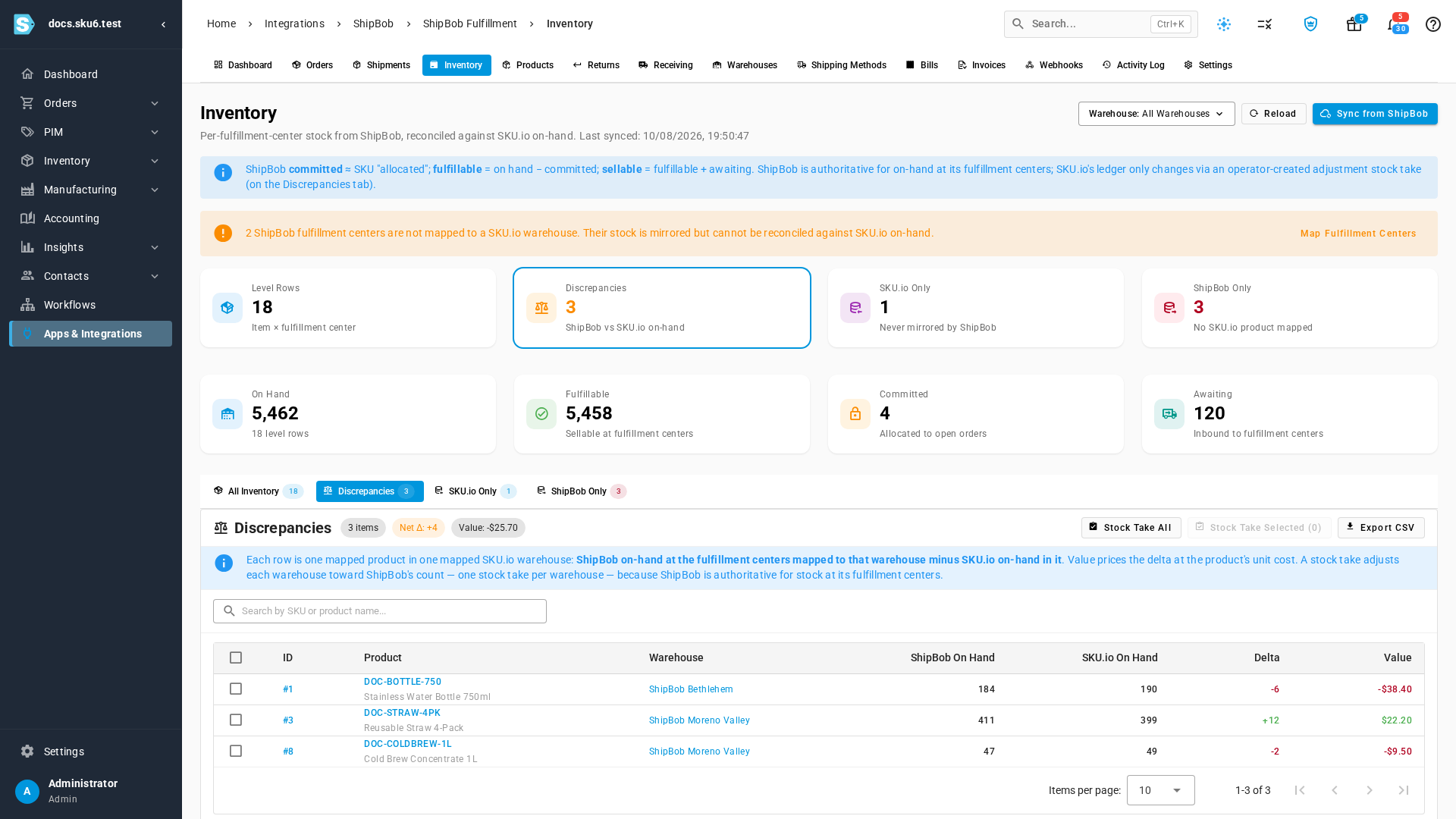
If any ShipBob fulfillment center has no SKU.io warehouse, a warning sits above the cards:
2 ShipBob fulfillment centers are not mapped to a SKU.io warehouse. Their stock is mirrored but cannot be reconciled against SKU.io on-hand.
Click Map Fulfillment Centers to fix it. Until you do, that center's stock still shows in the totals and in All Inventory, but it's left out of every comparison.
Read the cards
The first row of cards counts each sub-tab. Click a card to open its sub-tab.
| Card | Sub-label | Means |
|---|---|---|
| Level Rows | Item × fulfillment center | One row per product per fulfillment center |
| Discrepancies | ShipBob vs SKU.io on-hand | Product and warehouse pairs where the two counts differ. Turns amber above zero |
| SKU.io Only | Never mirrored by ShipBob | SKU.io products with stock in a mapped warehouse that no ShipBob product maps to |
| ShipBob Only | No SKU.io product mapped | ShipBob products with no SKU.io product mapped. Turns red above zero |
The second row totals ShipBob's stock: On Hand, Fulfillable, Committed, and Awaiting. These totals include unmapped fulfillment centers.
The Warehouse selector at the top scopes the cards, All Inventory, Discrepancies, and SKU.io Only to one mapped warehouse. ShipBob Only ignores it, because a product's mapping doesn't depend on a warehouse. Leave it on All Warehouses for the full picture.
The open sub-tab is saved in the page address, so you can bookmark or share a link to it. Switching to another sub-tab clears the search and filters you set on the one you left.
Find the discrepancies
Open the Discrepancies sub-tab. Each row is one mapped product in one mapped SKU.io warehouse. The note at the top explains it: Each row is one mapped product in one mapped SKU.io warehouse: ShipBob on-hand at the fulfillment centers mapped to that warehouse minus SKU.io on-hand in it.
| Column | Shows |
|---|---|
| ID | The ShipBob product, linked to its detail page |
| Product | The SKU.io SKU, linked to the product, with the ShipBob name under it |
| Warehouse | The SKU.io warehouse being compared, linked to it |
| ShipBob On Hand | ShipBob's on-hand at the fulfillment centers mapped to that warehouse |
| SKU.io On Hand | SKU.io's on-hand in that warehouse |
| Delta | ShipBob minus SKU.io |
| Value | The delta priced at the product's cost |
How to read the Delta:
- Negative, in red. ShipBob has less than SKU.io thinks. This is the risky direction, because SKU.io keeps selling stock that isn't there. In the demo data, the water bottle shows -6 at ShipBob Bethlehem (184 at ShipBob, 190 in SKU.io), and the cold brew -2 at ShipBob Moreno Valley.
- Positive, in green. ShipBob has more. You're under-selling, and often a receipt never made it into SKU.io. The straws show +12 at ShipBob Moreno Valley.
A product only has a row in the warehouses where the counts differ. The water bottle matches at ShipBob Moreno Valley (257 on both sides), so it has no row there. The 40 bottles at Cicero (IL) aren't compared at all, because that center isn't mapped to a warehouse.
The chips next to the heading sum up the list. {n} items counts the rows, Net Δ adds up every delta, and Value adds up every row's value. Both totals are a quick check, not a number to act on, because shortfalls and surpluses cancel each other out. In the demo data, Net Δ: +4 hides a shortfall of 8 units. The search box filters by SKU or product name.
A mapped product with nothing at ShipBob's mapped centers counts as zero there. So if SKU.io holds it in that warehouse and ShipBob doesn't, it shows up here with a negative delta.
When nothing differs, the tab says No discrepancies found: Mapped products all match SKU.io on-hand — or run a sync to pull stock from ShipBob. Check Last synced before you trust an empty list.
Before you assume ShipBob is wrong
Most discrepancies aren't counting errors. Work through these first:
| Check | Why |
|---|---|
| Is the data current? | A discrepancy against yesterday's numbers is yesterday's discrepancy. Sync first |
| Is the product mapped to the right SKU.io product? | A wrong mapping produces a large difference that means nothing |
| Is it a bundle? | Bundles hold no stock of their own. If one is mapped, its numbers aren't a real count |
| Is a fulfillment center unmapped? | Its stock is left out, so ShipBob's side looks short |
| Is stock in transit? | A receiving order that's still arriving, or an open transfer, can make the two disagree for a while |
| Are orders mid-shipment? | ShipBob removes stock when it ships. SKU.io removes it when the shipment comes back. A short gap is normal |
If the difference survives all of these, it's real. Correct SKU.io with a stock take, or ask ShipBob to recount.
The other sub-tabs
All Inventory
One row for each product in each fulfillment center:
| Column | Shows |
|---|---|
| ID | The row's number in SKU.io |
| Product | The ShipBob SKU, linked to the ShipBob product, and its name. Under them, the SKU.io product it maps to, linked, or an Unmapped chip |
| Fulfillment Center | The ShipBob center holding the stock |
| On Hand, Committed, Fulfillable, Awaiting, Internal Transfer | ShipBob's quantities for that product in that center |
| Last Synced | When the row was last refreshed |
The search box matches SKU, product name, inventory ID, or fulfillment center ID. Use the Fulfillment Center filter to see one center, for example to see what sits in an unmapped one. All Inventory has no export.
SKU.io Only
SKU.io products with stock in a mapped warehouse that no ShipBob product maps to. The tab says why that happens: Either the product does not exist at ShipBob, or it exists but is not yet mapped. Both cases look the same from here, so sync from ShipBob and check the Products tab before you assume stock is missing.
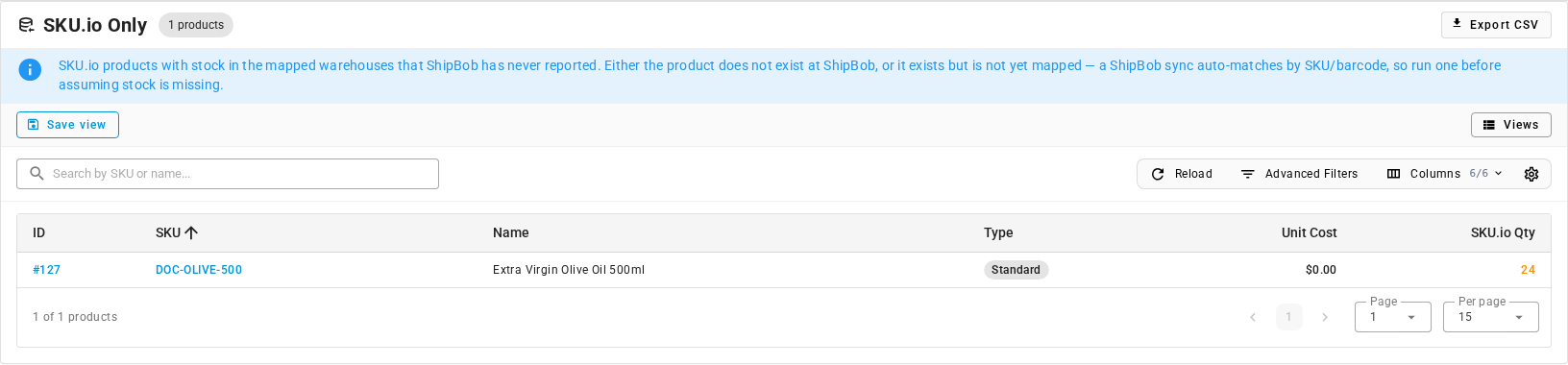
Columns: ID, SKU, Name, Type, Unit Cost, and SKU.io Qty (the stock in mapped warehouses). The search box matches SKU or name. In the demo data, Extra Virgin Olive Oil 500ml has 24 units in SKU.io and doesn't exist at ShipBob.
ShipBob Only
ShipBob products with no SKU.io product mapped. Their stock is invisible to SKU.io, and they're left out of discrepancies and stock takes until you map them.
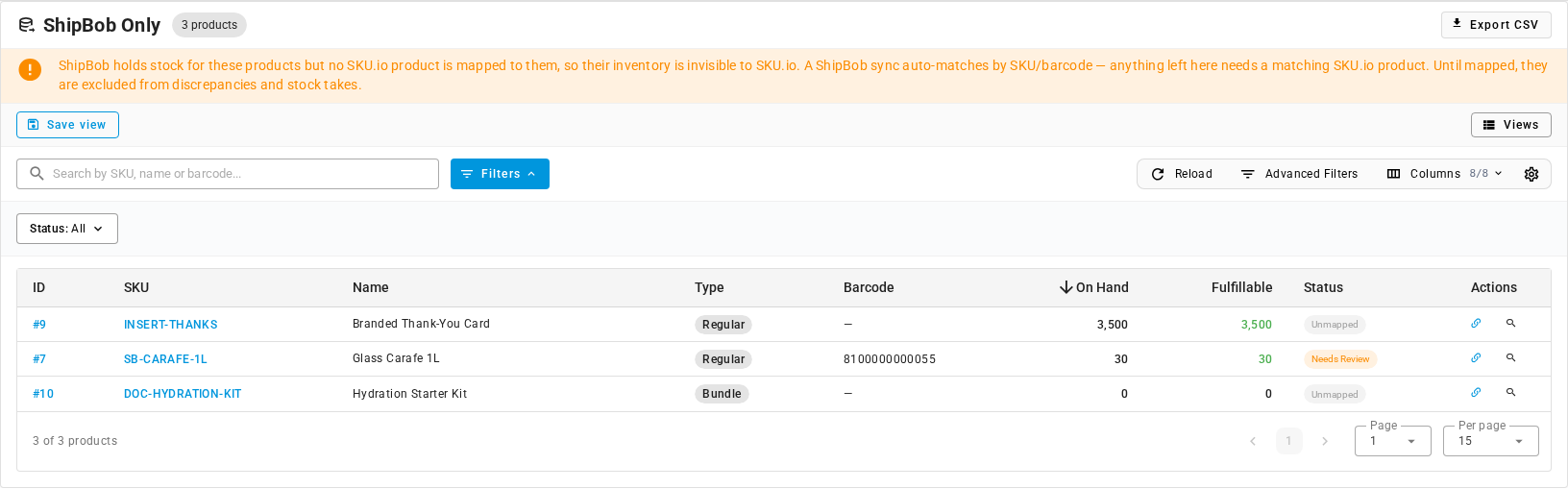
Columns: ID (links to the ShipBob product), SKU (opens your SKU.io product list, searched for that SKU), Name, Type (Regular or Bundle), Barcode, On Hand and Fulfillable (across all fulfillment centers), Status, and Actions. The search box matches SKU, name, or barcode.
Status is Needs Review when automatic matching found more than one SKU.io product, or Unmapped when it found none. The Status filter shows one or the other.
Each row has two actions:
- Map opens the Map ShipBob Product dialog, the same one as on the Products tab. See Map ShipBob products. Once you save, the product leaves this list.
- Search SKU.io Catalogue opens your SKU.io product list, searched for that SKU, so you can check whether the product exists.
Not everything here needs a mapping. A packing insert like Branded Thank-You Card or a bundle like Hydration Starter Kit is meant to stay here.
What the quantities mean
ShipBob uses its own stock words. The blue note on the tab sums them up: ShipBob committed ≈ SKU "allocated"; fulfillable = on hand − committed; sellable = fulfillable + awaiting.
| Quantity | Means | Where you see it |
|---|---|---|
| On Hand | Units physically in the fulfillment center | Everywhere |
| Committed | Units set aside for ShipBob orders that haven't shipped. About the same as allocated in SKU.io | Everywhere |
| Fulfillable | On hand minus committed: what ShipBob can still pick for new orders | Everywhere |
| Awaiting | Units on their way in on a receiving order and not yet received. In the demo data, 120 tumblers are awaiting at Bethlehem (PA), on receiving order WRO 771002 | Everywhere |
| Internal Transfer | Units moving between two ShipBob fulfillment centers | All Inventory |
| Backordered | Units ordered beyond what ShipBob has, so oversold at ShipBob | Product detail page |
| Exception | Units ShipBob is holding back, for example damaged stock | Product detail page |
| Sellable | Fulfillable plus awaiting | Product detail page |
The discrepancy comparison uses On Hand only.
Export the lists
Discrepancies, SKU.io Only, and ShipBob Only each have an Export CSV button. Each one downloads a CSV of what that sub-tab shows after your search and filters. These files are for spreadsheets and for sending to ShipBob. There's no matching import, and nothing you change in them comes back into SKU.io. Export CSV is unavailable when the list is empty, for example No discrepancies to export.
Discrepancies export
File: ShipBob_Inventory_Discrepancies.csv. It exports every row that matches your search and the Warehouse selector, on every page, and confirms with Exported {n} discrepancy records. A product short in two warehouses has two rows.
| Header | Format | Notes |
|---|---|---|
SKU | Text | The SKU.io SKU. If the product has none, the ShipBob SKU |
Product | Text | The product's name at ShipBob |
Warehouse | Text | The SKU.io warehouse compared |
ShipBob On Hand | Number | ShipBob's on-hand at the fulfillment centers mapped to that warehouse |
SKU.io On Hand | Number | SKU.io's on-hand in that warehouse |
Delta | Number | ShipBob minus SKU.io. Negative numbers have a minus sign, and positive numbers have no plus sign |
Value | Number | The delta priced at the product's cost. No currency symbol. Negative when ShipBob has less |
SKU.io Only export
File: ShipBob_SKUio_Only_Products.csv. It follows the Warehouse selector, your search, and your filters.
| Header | Format | Notes |
|---|---|---|
SKU | Text | The SKU.io SKU |
Name | Text | The SKU.io product name |
Type | Text | The product type, in lowercase, for example standard |
Unit Cost | Number, two decimals | No currency symbol. 0.00 when no cost is set |
SKU.io Qty | Number | Stock in the mapped warehouses |
ShipBob Only export
File: ShipBob_Only_Products.csv. It follows your search, filters, and Status filter.
| Header | Format | Notes |
|---|---|---|
SKU | Text | The ShipBob SKU |
Name | Text | The ShipBob product name |
Type | Text | Regular or Bundle |
Barcode | Text | Empty when ShipBob reports none |
On Hand | Number | ShipBob's on-hand across all fulfillment centers |
Fulfillable | Number | ShipBob's fulfillable across all fulfillment centers |
Status | Text | Needs Review or Unmapped |
The SKU.io Only and ShipBob Only exports hold up to 5,000 rows. If there are more, you get the first 5,000 and a warning: Exported the first 5000 of {n} products — narrow the filters to export the rest. Otherwise the message is Exported {n} products.
Next steps
- Create a stock take from discrepancies
- Map ShipBob products, for anything on ShipBob Only that should be mapped
- Review receiving orders, when Awaiting stock is involved