Review ShipBob bills and fix unattributed charges
The Bills tab lists every charge, credit, and payment ShipBob billed you, one row per charge, with where SKU.io put it. Use it to check that fees reach your orders and products, and to work through the charges that didn't. Some unattributed charges need no fix: fees for orders SKU.io never sees stay as overhead by design. This page helps you tell those apart from the ones you can fix.
Before you begin
- Turn on ShipBob billing. With billing sync off, the tab still shows bills already stored, under the alert Billing sync is off for your connection, but syncing and re-attributing are unavailable.
- It helps to know the terms on this page. See How ShipBob billing attribution works.
Read the summary cards
- Go to Apps & Integrations, open ShipBob, and choose your connection.
- Click the Bills tab.
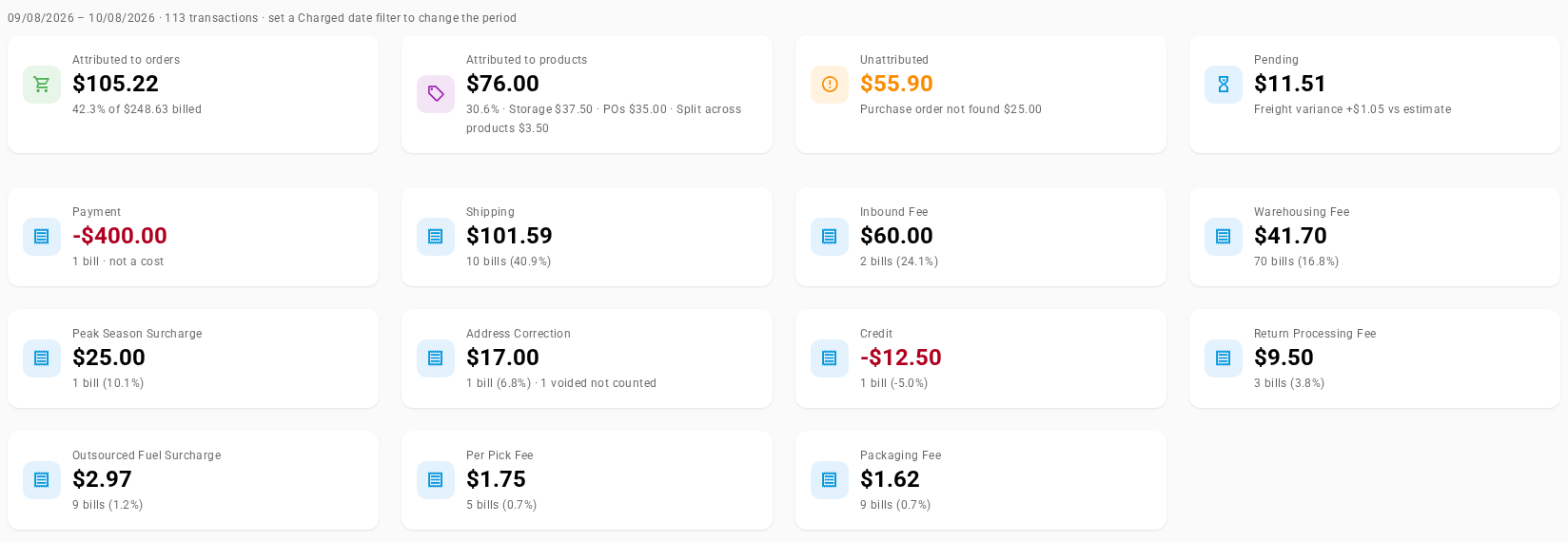
The line over the cards gives the period and the number of transactions in it. It covers the last 30 days. Set a Date filter on the charge date to summarize a different period.
The first row shows where the billed money landed. The four cards add up to the total billed in the period, which Attributed to orders names in its subtitle (for example 42.3% of $248.63 billed). Each card is also a filter: click one to show only its bills, and click it again to clear it. Only one card filter applies at a time.
| Card | Shows | Click to see |
|---|---|---|
| Attributed to orders | Shipment and return fees written as cost lines on the sales order that incurred them, and the share of the period's total bill | Bills attributed to a sales order |
| Attributed to products | Everything allocated to products rather than one order: Storage allocated each month, receiving fees on purchase orders (POs), and return fees Split across products when the original order isn't in SKU.io | Bills attributed to a single product |
| Unattributed | Fees that couldn't be tied to an order, product, or purchase order, kept as overhead. The subtitle names the largest reason, and the tooltip lists every reason with its amount | Unattributed bills |
| Pending | Fees still waiting for something to sync. The subtitle shows Freight variance: billed freight minus the ship-time estimates, when they differ | Pending bills |
Below them, one card per fee type shows its total, its number of bills, and its share of the total. A payment shows not a cost. Voided charges are left out of these totals, and the card says how many it skipped, such as 1 voided not counted. These cards aren't filters.
Find bills
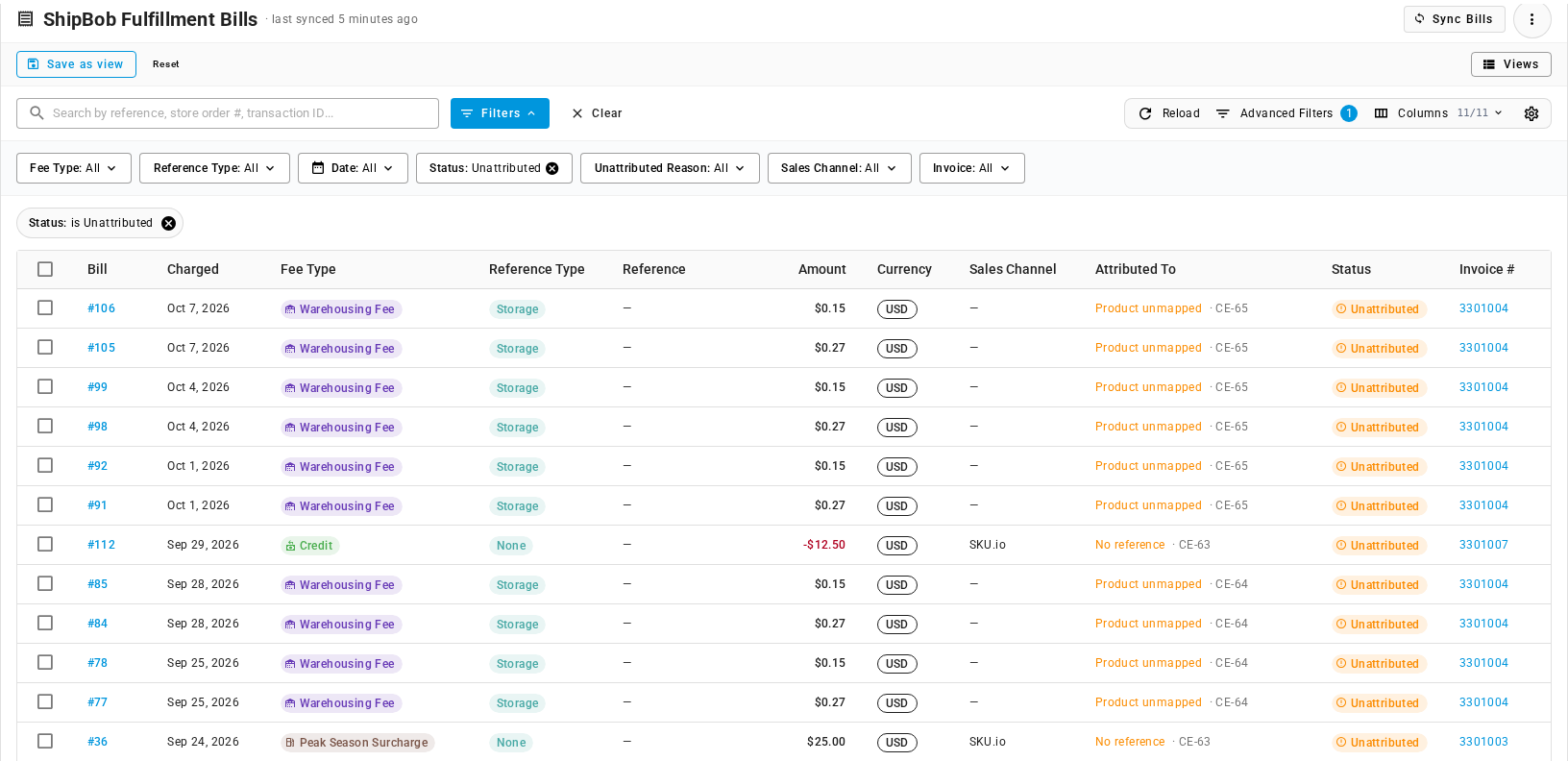
The table has one row per ShipBob charge.
| Column | Shows |
|---|---|
| Bill | The bill number. Click it to open the bill. |
| Charged | The charge date. |
| Fee Type | The ShipBob fee name, colored by family. |
| Reference Type | Shipment, Return, Storage, Receiving, or None. |
| Reference | The ShipBob shipment or return number. Click it to open it in ShipBob. |
| Amount | The charge. Credits and payments show as negative, in red. |
| Currency | The currency ShipBob billed in. |
| Sales Channel | The sales channel ShipBob recorded for the order. |
| Attributed To | The sales order, product SKU, purchase order, or cost entry the charge landed on, as a link. If it didn't land on one, the reason instead, followed by the overhead cost entry that counts it, such as · CE-63. |
| Status | Attributed, Pending, Unattributed, Excluded, Voided, or Re-attributing while it's being redone. |
| Invoice # | The ShipBob invoice the charge is on, or Not invoiced if ShipBob hasn't invoiced it yet. Click it to see the invoice on the Invoices tab. |
The footer shows how many bills are listed and the Page total of the bills on screen.
To narrow the list:
- Search by bill number, reference, store order number, ShipBob transaction ID, or fee type.
- Use the filters: Fee Type, Reference Type, Date (the charge date), Status, Unattributed Reason, Sales Channel, and Invoice.
- Click Advanced Filters to combine conditions, including Attributed To (sales order, product, purchase order, cost entry, or nothing) and amount.
- Click Save view to keep a filter set you use often.
Open a bill
Click a bill number to open its drawer.
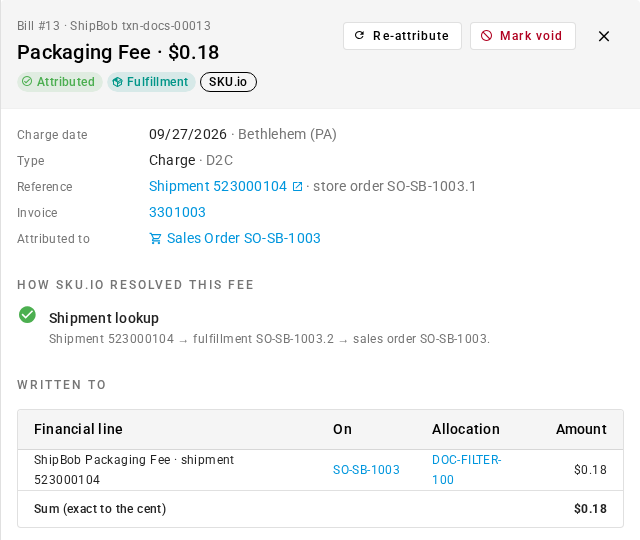
The drawer has four parts:
- The facts. Charge date (with the storage period and fulfillment center), Type (Charge, Credit, or Payment, and D2C or B2B), Reference (with the store order number), Invoice (or Not invoiced yet), and Attributed to.
- How SKU.io resolved this fee. Each lookup SKU.io tried, in order, with a green tick where it matched and a red cross where it didn't, and why. Read this first when a charge didn't land where you expected.
- Written to. The cost lines written from this charge: the line, the order it's on, the order line or allocation it's spread over, and the amount, with a Sum (exact to the cent) row. A shipping charge shows Fulfillment freight (shared, net), because one freight line carries every freight charge for that shipment. Storage, receiving, and overhead charges show the monthly cost entry instead, such as Cost Entry CE-66 — monthly entry (left unallocated as overhead).
- Raw ShipBob payload. Exactly what ShipBob sent. Copy JSON copies it, for example to send to ShipBob support.
Press Esc or click the close button to close the drawer. You can share a bill directly: its link opens the Bills tab with that bill's drawer open.
Fix unattributed charges
Filter Status to Unattributed, or click the Unattributed card, then work through the reasons. To work one reason at a time, use the Unattributed Reason filter. Open a bill to see the lookups that failed.
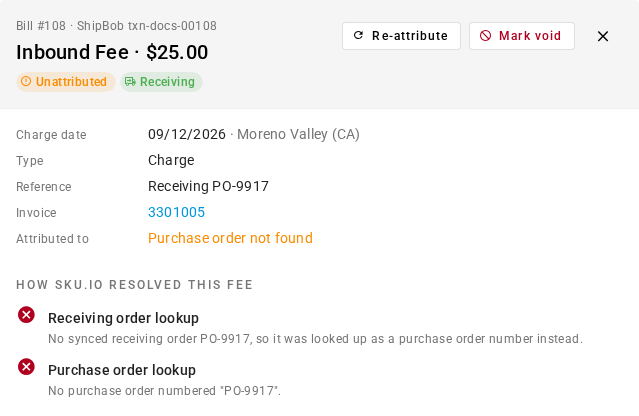
Each reason has one label, used in the Attributed To column, the drawer, the Unattributed card, and the Unattributed Reason filter alike.
| Reason | What it means | What to do |
|---|---|---|
| Order not imported | The shipment belongs to an order SKU.io never sent to ShipBob. Usually it came from a sales channel you don't import into SKU.io, such as a store ShipBob fulfills directly. Attributed To adds the channel name, such as Order not imported · Shopify. | If the channel should be in SKU.io, connect it, import the order, then re-attribute. Otherwise leave it: it's counted as overhead on purpose, so it never lowers the margin of products it didn't come from. |
| Shipment not found | The charge names a shipment that isn't synced to SKU.io yet, and the order number didn't match either. | Click Sync from ShipBob on the Shipments tab, check that the order exists in SKU.io, then re-attribute. |
| Order not found | SKU.io matched the charge to a sales order, but couldn't write the cost to it, usually because the order was deleted. | Nothing to fix on the order. Leave it as overhead. |
| Return not found | The return isn't in SKU.io, or it lists no returned items. | Click Sync from ShipBob on the Returns tab, then re-attribute. |
| Product unmapped | A storage charge for a ShipBob product that isn't mapped to a SKU.io product, such as a ShipBob-only insert card. | Map the ShipBob product. Its storage charges are re-attributed automatically when you map it. For an item that has no SKU.io product, leave it as overhead. |
| Purchase order not found | The receiving order's purchase order number matches no SKU.io purchase order, or matches more than one. | Make sure exactly one SKU.io purchase order carries that number, then re-attribute. See Review ShipBob receiving orders. |
| Ambiguous order | The store order number matches more than one sales order from the same channel. | Find the duplicate orders and remove or correct the duplicate, then re-attribute. Otherwise it stays as overhead. |
| No reference | ShipBob sent no shipment, return, product, or receiving reference, so there's nothing to match. Account-level fees and some credits and surcharges arrive this way. | Nothing to match. To make that deliberate, map the fee to Keep unattributed. |
| Kept unattributed by fee mapping | The fee is mapped to Keep unattributed, or Attribute fees to sales orders or Attribute storage to products is off. | Change the fee's treatment or turn the switch back on. Both re-attribute for you. |
| Accounting period locked | Capitalise receiving fees into PO landed cost is on, and the purchase order's receipts fall in a locked accounting period, so the fee can't be added to the stock's cost. | Reopen the month, or turn capitalising off, then re-attribute. See Reopen a closed month. |
| Exchange rate missing | The charge is in another currency and that day's exchange rate isn't published yet. It shows as Pending, not unattributed, and never expires. | Nothing. It's attributed once the rate arrives. |
| Voided manually | Someone marked the charge void. | See Void a charge ShipBob dropped. |
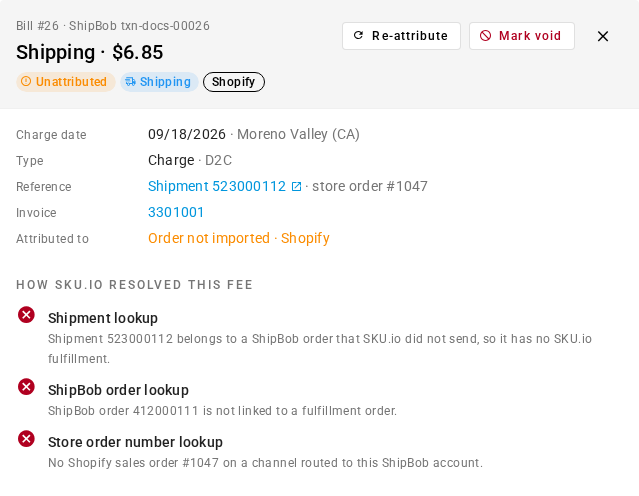
Pending charges need no action at first. They show the reason they're waiting followed by retrying, such as Order not imported · retrying, and SKU.io retries them on every billing run for 14 days after the charge date. After that, they become unattributed with the same reason.
When charges are waiting for an exchange rate, an alert at the top of the tab says how many are awaiting a charge-date exchange rate. They join the totals once the rate is published.
Re-attribute
Re-attributing runs the lookups again and rebuilds whatever the charge wrote. Run it after you fix the cause.
- One bill: open it and click Re-attribute.
- Several bills: tick them in the table, then click Re-attribute selected in the bar that shows how many are selected and their total.
- Every bill: click the more actions button (⋮) next to Sync Bills, choose Re-attribute all, and click Re-attribute to confirm. Every bill on or after your billing start date is redone. Existing cost lines and allocations are rebuilt, and each order is recalculated once.
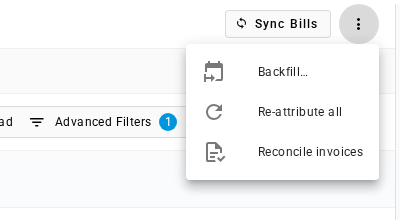
Re-attributing runs in the background as ShipBob Billing Attribution in the job tray, and the table refreshes when it finishes. It's unavailable while another attribution is running (Bills are already being attributed — see the job tray).
Void a charge ShipBob dropped
Syncs add and update charges, but they can't tell when ShipBob deletes one. If ShipBob drops a charge, such as a duplicate address correction it refunded by removing, SKU.io keeps it, and the invoice won't add up. Mark void removes it.
- Open the bill.
- Click Mark void.
- In the Mark bill #… void? confirmation, read the warning and click Mark void.
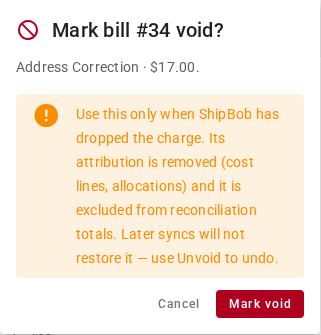
The bill's cost lines and allocations are removed, its order is recalculated, and it's excluded from the invoice's totals. Its status becomes Voided, Attributed To reads Voided — not counted, and later syncs don't bring it back.
Void only a charge ShipBob has dropped. A charge you'd rather not see on an order is a mapping question: map its fee to Keep unattributed or Exclude instead.
To undo a void, open the bill, click Unvoid, and confirm. SKU.io confirms with Bill #… restored — re-attributing, and the bill counts toward reconciliation again. Re-attribute stays unavailable on a voided bill until you click Unvoid.
Sync and backfill
Billing syncs every 2 hours on its own. To pull new charges now, click Sync Bills. To read further back:
- Click the more actions button (⋮), then Backfill….
- In From date, choose the earliest charge date to re-read. It must be on or after your billing start date.
- Click Start backfill.
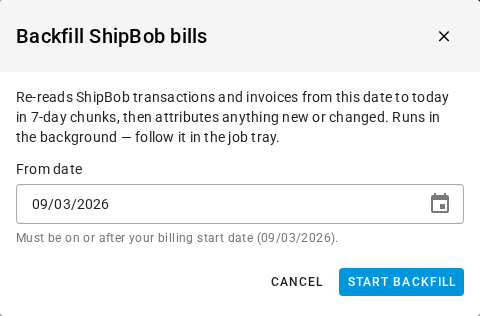
SKU.io re-reads transactions and invoices from that date to today, a week at a time, then attributes anything new or changed. Both run in the background as ShipBob Billing Sync in the job tray. While one runs, Sync Bills is unavailable with A bill sync is already running — see the job tray.
If you've just turned billing on and nothing has synced yet, the tab says Billing sync is on. Run the first sync. Click Run first sync, or Choose a different start date… to backfill from another date. If the last sync failed, an alert starting Last billing sync failed: gives the reason.