Compare 3PL inventory with SKU.io
A 3PL counts the stock on its shelves, and SKU.io keeps its own count of the same stock. When the two drift apart, you either sell stock that isn't there or hide stock you could sell. The 3PL comparison checks them against each other every day, warehouse by warehouse, and shows you which products are off, why, and by how much. Where the 3PL is right, you accept its count and SKU.io creates the stock takes to match.
It works the same way for every 3PL you connect: Odoo 3PL, ShipBob, ShipHero, Shipfusion, Trackstar and VeraCore.
Before you begin
- Connect your 3PL and map each of its locations, or fulfillment centers, to a SKU.io warehouse. A warehouse with nothing mapped to it isn't compared. Until something is mapped, the comparison says No warehouses mapped and offers Map warehouses.
- Map the 3PL's products to your SKU.io products. A 3PL item with no SKU.io product shows as 3PL only and isn't compared.
- To run a comparison yourself, you need the Integrations → Sync permission.
- To accept a 3PL count, you need permission to count inventory, the same permission stock takes use.
- To change the comparison settings, you need the Integrations → Edit permission. To export, you need permission to export inventory.
Steps
- Go to Inventory → 3PL Comparison. Each row is one 3PL connection, with its latest comparison, its Agreement, the trend over the last 30 Days, how many products are Off By More than your tolerance, and any Warehouse Alerts.
- Click the connection's name. Its Comparison tab opens on the latest comparison.
- To compare right now instead of waiting for the daily run, click Run comparison now.
- Click Off by more to list only the products further apart than your tolerance.
- Click a row to see SKU.io's movements around the comparison and the hints that explain the gap.
- Where the 3PL is right, tick those rows and click Accept 3PL count, or click Accept all matching filters. Choose Closed (apply now) or Draft, and create the stock takes.
The sections below explain each step.
Open the comparison
You can also open the tab from the 3PL itself. Open the integration, go to its Inventory page and click Comparison.
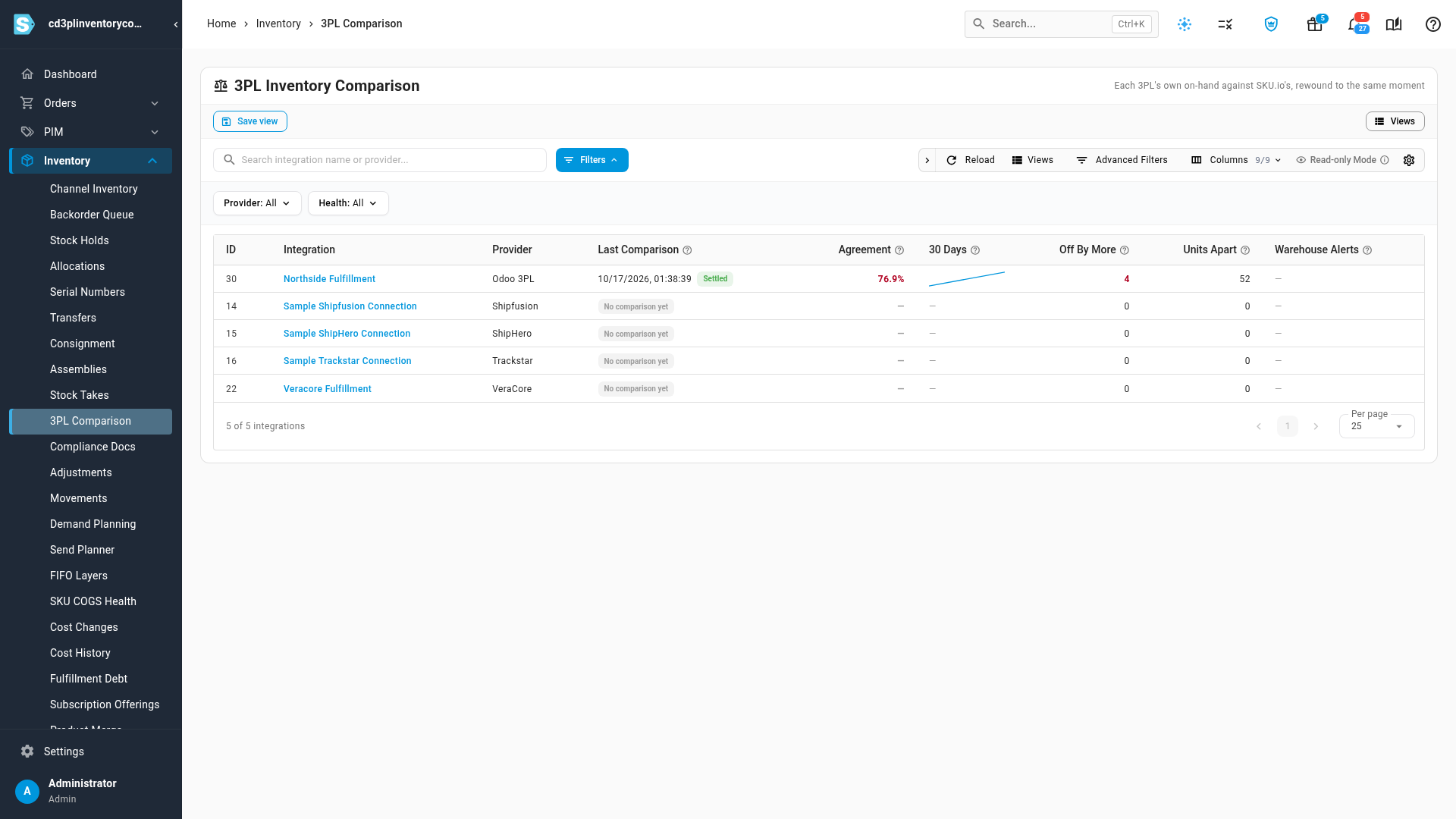
Use Health on the list to find the connections that need you: Has warehouse alerts, Below 98% agreement, Stale or never run or Healthy. Provider narrows the list to one kind of 3PL.
How a comparison is taken
Each comparison takes the 3PL's on-hand count at one moment and compares it with what SKU.io had at that same moment. SKU.io's side is rewound to the time on the comparison, so a shipment or a receipt recorded afterwards never shows up as a difference.
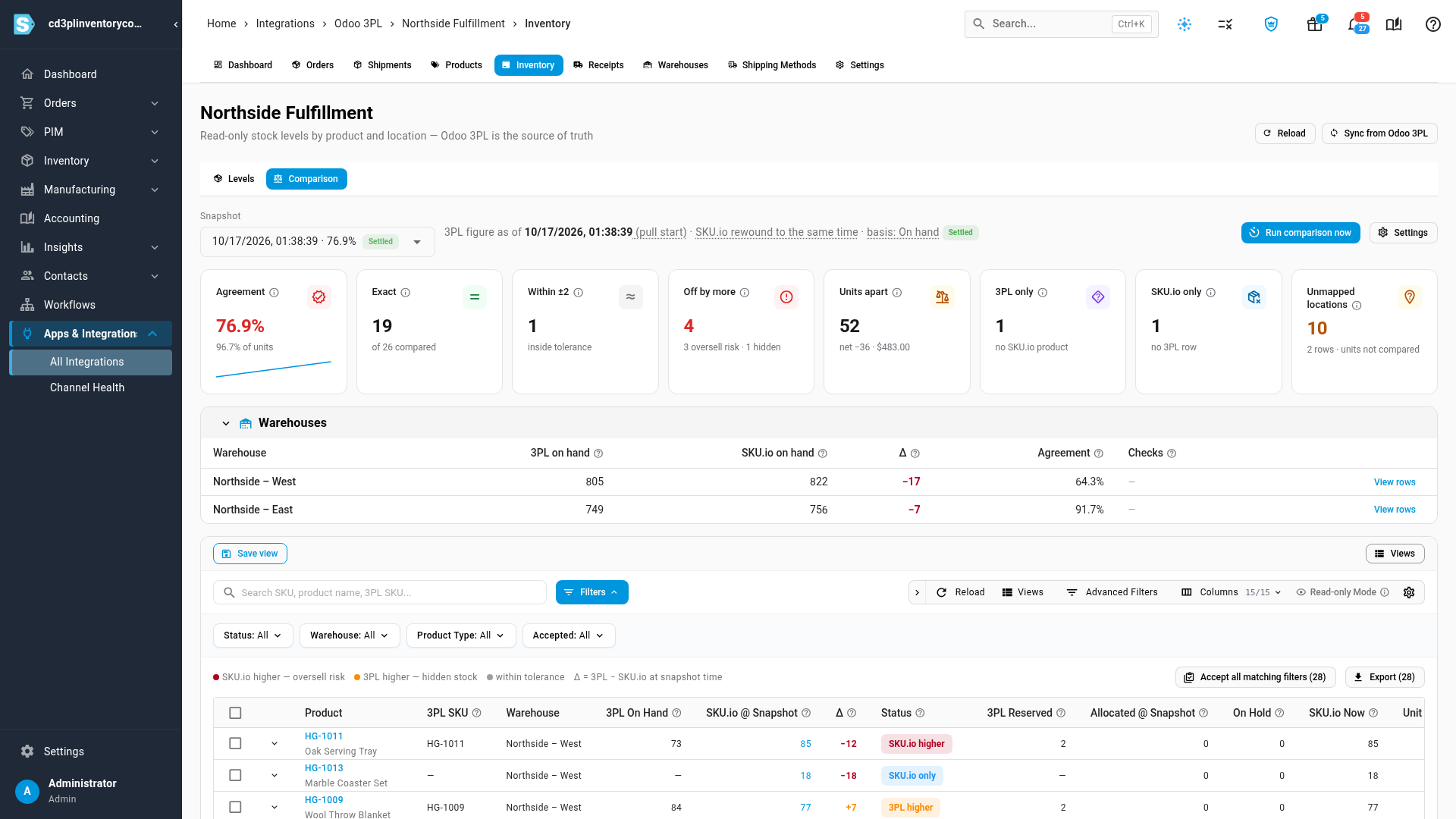
The line at the top of the tab says when the 3PL's figures are from, after 3PL figure as of. When the 3PL doesn't say when it counted, the comparison uses the moment SKU.io started pulling them, marked (pull start). basis says what both sides count. For most 3PLs it's On hand: every unit physically in the warehouse, including units already allocated to orders. VeraCore reports the stock it can sell, so its basis is Sellable on hand, and SKU.io leaves out its own held and non-sellable units to match.
A new comparison is Provisional at first. After a waiting period, SKU.io recalculates its own side once more, to catch shipments recorded late, and the comparison becomes Settled. Trends and alerts only use settled comparisons.
Run a comparison now
SKU.io compares each 3PL daily, at 06:00 in your timezone, on its own. You can change the schedule in Settings.
To compare right now, click Run comparison now. SKU.io pulls the 3PL's inventory in the background. You can follow it in the job tray, and the page refreshes when it's done.
Run comparison now is unavailable while a comparison is already running, and until at least one 3PL location is mapped to a warehouse. Scheduled comparisons pause when automatic sync is off for the integration. Run comparison now still works then.
To look at an earlier comparison, choose it from the Snapshot list. Each entry shows its time, its agreement and whether it's Settled, Provisional or Failed. If the latest run failed, a red banner says why and shows the previous comparison, with a Retry button.
Read the summary
The cards sum up the comparison. Click a card to filter the rows below to it, and click it again to clear the filter.

| Card | Shows |
|---|---|
| Agreement | The share of compared products whose counts match, exactly or within your tolerance. The line under it is the same idea by units: how much of SKU.io's stock the 3PL's counts confirm. The small chart is the last 30 days |
| Exact | Products where both counts are the same |
| Within ±2 | Products slightly off, but within your tolerance, so they count as agreeing. The number follows your tolerance |
| Off by more | Products further apart than your tolerance. The line under it splits them into oversell risk and hidden stock |
| Units apart | Every product's difference added up, whatever its direction. The line under it is the net difference and its value at cost |
| 3PL only | Items the 3PL reports that aren't mapped to any SKU.io product |
| SKU.io only | Products SKU.io holds in a mapped warehouse that the 3PL doesn't report at all |
| Unmapped locations | Units the 3PL holds in locations that aren't mapped to any SKU.io warehouse, so they aren't compared |
When everything agrees, a green banner says Everything matches.
Check each warehouse
Under the cards, Warehouses lists each mapped warehouse with the 3PL's on-hand, SKU.io's on-hand, the difference and the warehouse's own agreement. Click View rows to filter the rows to that warehouse.

The Checks column flags problems that affect a whole warehouse. Hover a chip for the details.
| Check | Means |
|---|---|
| 3PL reports 0 · SKU.io holds … | The 3PL reports no stock at all in the warehouse while SKU.io holds some. Orders sent there can't ship. A red banner above the cards says the same, with View rows. Check the warehouse mapping first |
| … negative SKU.io | Some products have negative stock in SKU.io for the warehouse: more was shipped than SKU.io had on record. Usually a missed receipt or a late adjustment |
| … shipped from empty | Products shipped from the warehouse in the 24 hours before the comparison, while the 3PL reports none of them. Usually the wrong warehouse, or a stale 3PL count |
Find what's off
Each row is one product in one warehouse. Δ is the 3PL's count minus SKU.io's, at the comparison time.
- Click Off by more to list only the products further apart than your tolerance.
- Read the Status of each row. Red is the risky direction: SKU.io thinks it has more than the 3PL holds, so you could oversell. Amber means the 3PL holds stock SKU.io doesn't know about, so you could sell more.
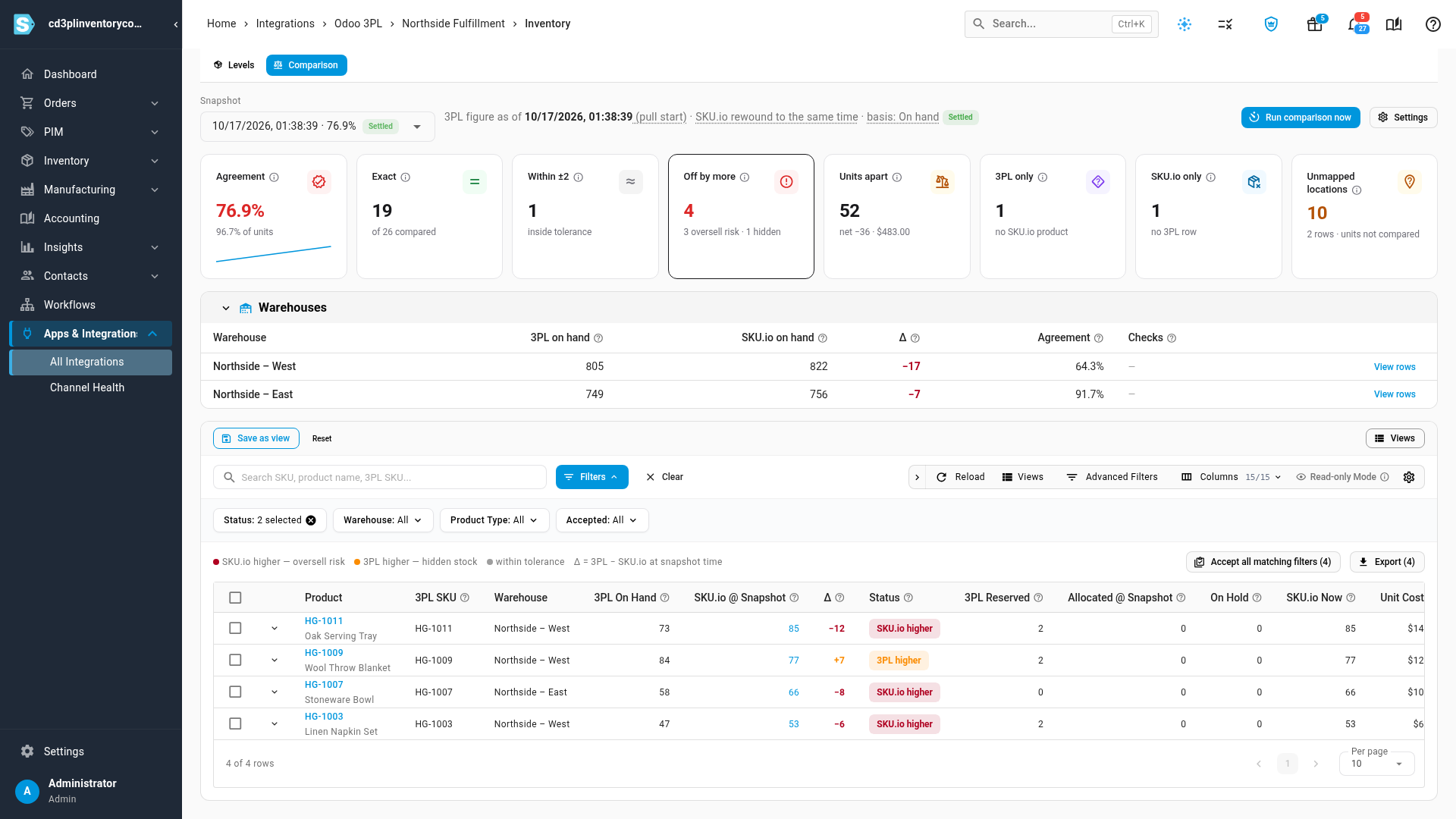
| Status | Means |
|---|---|
| Exact | Both counts agree exactly |
| Within tolerance | Slightly off, within your tolerance, so it counts as agreeing |
| SKU.io higher | SKU.io has more than the 3PL. Orders may be accepted for stock that isn't there |
| 3PL higher | The 3PL has more than SKU.io knows about, so sellable stock is hidden from your channels |
| 3PL only | The 3PL reports the item, but it isn't mapped to a SKU.io product |
| SKU.io only | SKU.io has stock of the product in the warehouse, and the 3PL reports nothing for it |
| Unmapped location | The 3PL holds the stock in a location that isn't mapped to a SKU.io warehouse. Map the location to include it |
| Not comparable | The row can't be compared like for like, so it's left out of the agreement |
The 3PL's count adds up all of its bins and docks in that warehouse. Locations lists them. 3PL Reserved, Allocated @ Snapshot and On Hold are there for context and aren't part of the difference. SKU.io Now is SKU.io's stock right now. Value Δ prices the difference at the product's cost, roughly what accepting the 3PL's count would adjust.
Search by SKU, product name or the 3PL's SKU, and filter by Status, Warehouse, Product Type and Accepted. Kits are left out unless you turn on Compare kit products in Settings, because 3PLs usually stock a kit's components rather than the kit.
See why a count differs
Click anywhere on a row, or the arrow at its start, to open its details. Click again to close them.

- SKU.io movements lists the product's stock movements in that warehouse from 48 hours before the comparison until now. A line marks where the comparison was taken. Click a movement to open its stock take, order or transfer.
- Since the snapshot adds up what was shipped and received after the comparison, and the net change. These movements aren't part of the difference.
- Δ over recent snapshots shows the difference at each of the product's last comparisons. A bar that keeps coming back points to a recurring cause.
- Hints show what usually explains a gap: units on fulfillment orders that haven't shipped yet, units on open purchase orders, and units in transit on a transfer. Hints explain a difference, and never change it.
- Product inventory and Movements tally open the product's stock and its full movement history.
Before you accept the 3PL's count, rule out the usual causes: a product mapped to the wrong SKU.io product, a 3PL location mapped to the wrong warehouse, or a receipt or shipment the 3PL recorded and SKU.io hasn't yet.
Accept the 3PL's count
When the 3PL is right, accept its count. SKU.io creates one stock take per warehouse, which moves SKU.io to the 3PL's count.
- Tick the rows to accept and click Accept 3PL count. To accept every row the filters show, click Accept all matching filters instead.
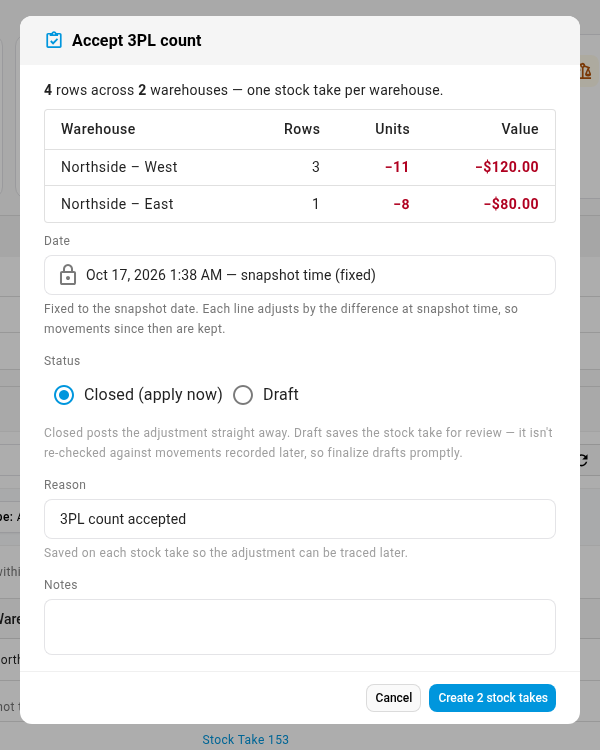
- Check the totals. Accept 3PL count lists each warehouse with its rows, units and value. Rows that can't be accepted are skipped and counted under the table: rows already accepted, rows already resolved by movements recorded since the comparison, and exact, 3PL only, unmapped-location and not-comparable rows.
- Choose a Status. Closed (apply now) posts the adjustment straight away. Draft saves the stock takes for you to review first.
- Keep or change the Reason, and add Notes if you like. The reason is saved on each stock take.
- Click Create stock takes. The button counts them, for example Create 2 stock takes.
Stock takes created lists each new stock take, with its warehouse, items, value and status. Click one to open it. Back in the table, each accepted row shows Accepted and a link to its stock take.
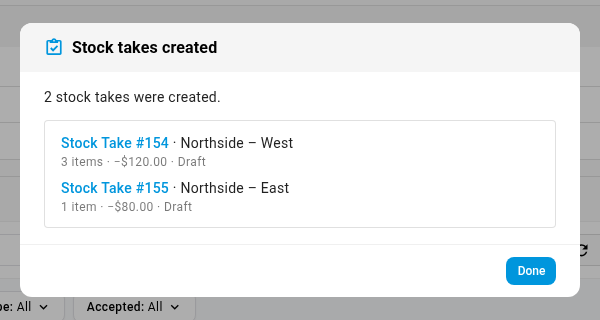
The stock takes are dated at the comparison time, and each line adjusts by the difference at that moment. So anything that moved since then stays as it is. A draft isn't checked again against later movements, so finalize drafts promptly. See Finalize a stock take.
You can only accept counts on the latest comparison. On an older one, the button says "A newer snapshot exists — switch to it before accepting counts".
Export the comparison
Click Export to download every row matching your filters as a CSV file, or tick rows and click Export selected. Exports of more than 1,000 rows run in the background. You download them from the job tray when they're ready. There's no import, and nothing you change in the file comes back into SKU.io.
| Column | Contains |
|---|---|
Line ID | The row's number in this comparison |
SKU | The SKU.io SKU |
Product | The SKU.io product name |
3PL SKU | The item's SKU at the 3PL |
Warehouse | The SKU.io warehouse compared |
3PL Locations | The 3PL locations added together for the row, separated by | |
3PL On Hand | The 3PL's count |
SKU.io On Hand at Snapshot | SKU.io's count at the comparison time |
Difference (3PL − SKU.io) | The 3PL's count minus SKU.io's. Negative means SKU.io is higher |
Status | The row's status, as in the table |
3PL Reserved | Units the 3PL set aside for orders |
SKU.io Allocated at Snapshot | Units SKU.io had allocated to orders at the comparison time |
SKU.io On Hold at Snapshot | Units SKU.io had on hold at the comparison time |
SKU.io On Hand Now | SKU.io's count when you exported |
Unit Cost | The cost used to value the difference |
Value Difference | The difference priced at the unit cost |
Not Comparable Reason | Why a row couldn't be compared, when it couldn't |
Accepted Stock Take | The number of the stock take that accepted the row, if any |
Snapshot As Of | The comparison time, in your timezone. The heading names the timezone |
Settled | Yes or No |
Change the schedule, tolerance and alerts
Click Settings on the Comparison tab. The settings apply to that 3PL connection, from its next comparison.
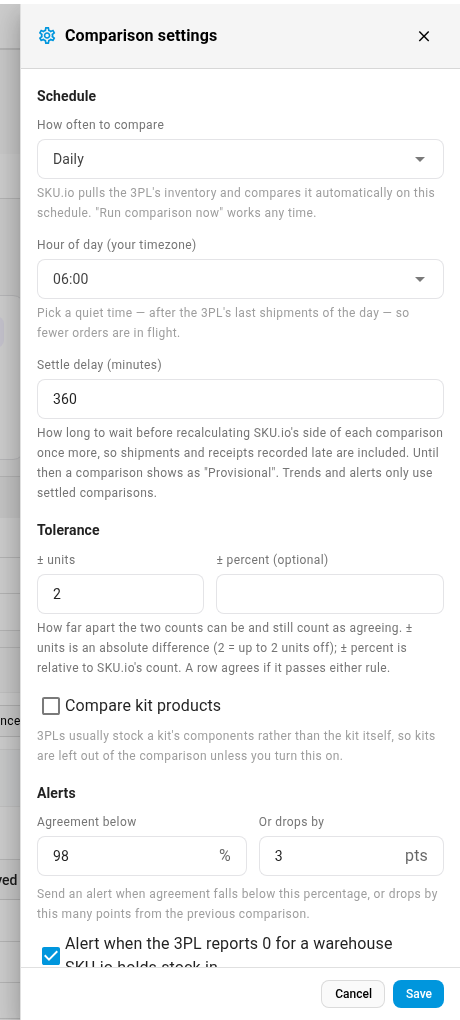
| Setting | Does |
|---|---|
| How often to compare | Hourly, Every 6 hours or Daily. Daily is the default |
| Hour of day (your timezone) | When the daily comparison runs. Pick a quiet time, after the 3PL's last shipments of the day |
| Settle delay (minutes) | How long to wait before SKU.io recalculates its side once more and the comparison becomes Settled |
| ± units and ± percent (optional) | How far apart two counts can be and still agree. A row agrees if it passes either rule. ± units starts at 2 |
| Compare kit products | Compares kits as well. Off by default |
| Agreement below and Or drops by | Sends an alert when agreement falls below this percentage, or drops by this many points from the previous comparison |
| Alert when the 3PL reports 0 for a warehouse SKU.io holds stock in | Sends an alert for the 3PL reports 0 check above. Usually means a wrong mapping, or the 3PL has lost track of the stock |
Who receives the alerts, and how, is set in Settings → Alerts.
SKU.io keeps every comparison's rows for 14 days, then the last comparison of each day for 90 days. The headline figures stay for 13 months, so the trend still works.
Next steps
Video transcript
To check your 3PL's stock against SKU.io, go to Inventory, then 3PL Comparison. Each row is one 3PL connection. It shows the latest agreement, the trend over thirty days, and how many products are off. To open one connection, click its name in the Integration column. Every 3PL you connect has this same tab on its own Inventory page. Each comparison takes the 3PL's on-hand count at one point in time. SKU.io's stock is rewound to that exact moment. So shipments recorded afterwards never show up as differences. A new one runs every day on its own. To compare right now, click Run comparison now. It pulls the 3PL's inventory in the background, and the page refreshes when it's done. Pick an older comparison from the Snapshot list. The cards sum up the comparison. Agreement is the share of products whose counts match, exactly or within tolerance. Off by more is how many are further apart than your tolerance. 3PL only, SKU.io only and Unmapped locations show stock that can't be compared. Below, each mapped warehouse has its own totals and agreement. The Checks column flags a warehouse-wide problem, like the 3PL reporting zero. Click View rows to see just that warehouse. Click the Off by more card to list only those products. Red means SKU.io thinks it has more than the 3PL holds, so you could oversell. Amber is the opposite: stock at the 3PL that you can't sell yet. To see why a count differs, click anywhere on its row. It lists the stock movements from two days before the comparison until now. The hints show open orders, purchase orders and transfers that can explain a gap. When the 3PL is right, take its number. Tick rows and click Accept 3PL count, or accept every row that matches your filters. SKU.io creates one stock take per warehouse, dated at the comparison. Closed applies the adjustment as soon as you create the stock takes. Draft keeps them for you to review first. Keep or change the reason, add notes if you like, and click Create. The window lists each new stock take, and a link to open each stock take. When you've read the list, click Done to close the window. Each accepted row now links to its stock take. To download the rows you see as a spreadsheet file, use the Export button. To change how the comparison works for this 3PL, click the Settings button at the top. Choose how often to compare. By default, it runs daily at six in the morning. Under Tolerance, set how far apart two counts can be and still agree. The default is two units. Under Alerts, choose when to get an alert, for example when agreement falls below a level you set.