Monitor and manage the NuORDER connection
The NuORDER dashboard tells you at a glance whether orders, the catalog, stock and shipments are moving, and where something needs you. Check it now and then, and whenever a retailer says something is missing.
Before you begin
- Connect NuORDER.
- Changing settings needs permission to change integrations, and starting a refresh needs permission to run syncs. See Create a role.
Open the dashboard
- Go to Apps & Integrations → All Integrations and open NuORDER.
- If you have more than one portal, pick one in the selector at the top of the page. The Dashboard opens.
At the top, choose the period the revenue figures cover (All, Today, Last 7 Days or Last 30 Days). Two buttons reload the figures:
- Refresh from Database recalculates the dashboard from what SKU.io already has.
- Refresh from NuORDER fetches new and changed orders and products from NuORDER now, and the dashboard reloads when they finish.

Below them, the dashboard shows when Orders and Products last synced, the NuORDER Portal card with the portal's Authorization and NuORDER Warehouses, a Financial Summary of revenue and units for the period, Entity Counts, and Sync Status.
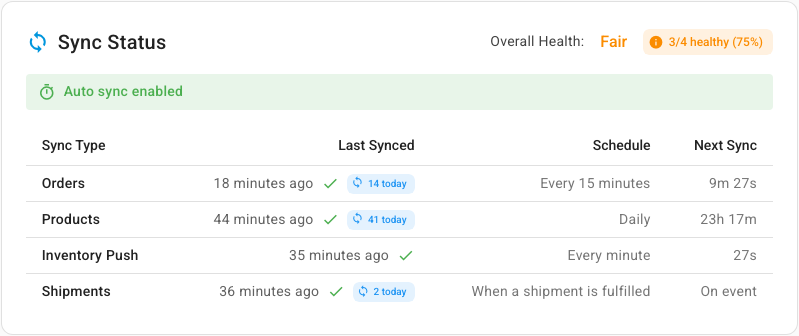
Sync Status lists each sync's last run, schedule and next run. Its Overall Health sums up the Sync Health card further down: it counts the syncs that have run and how many of them are healthy, so the two always agree. In this example, Shipments sent is failing, so it says Fair with 3/4 healthy (75%).
Read the banners
When the connection needs you, a banner at the top of the dashboard says so, with a button that takes you to the fix:
| Banner | When it shows | Button |
|---|---|---|
| This NuORDER portal isn't connected | The connection was created but never finished, for example because NuORDER rejected the keys or you left the setup page early | Connect portal opens Settings → Authentication. See Connect NuORDER |
| Waiting for you to approve SKU.io in NuORDER | You clicked Finish later on the approval step | Finish connecting. See Finish later |
| Choose which SKU.io warehouses feed NuORDER — nothing is pushed until you do. | The portal is connected, but no NuORDER warehouse receives stock from SKU.io yet. A new connection starts this way | Choose stock warehouses opens the Inventory Sync tab. See Map NuORDER warehouses and send stock |

While a portal isn't connected, Refresh from NuORDER is greyed out and nothing imports.
Read the cards
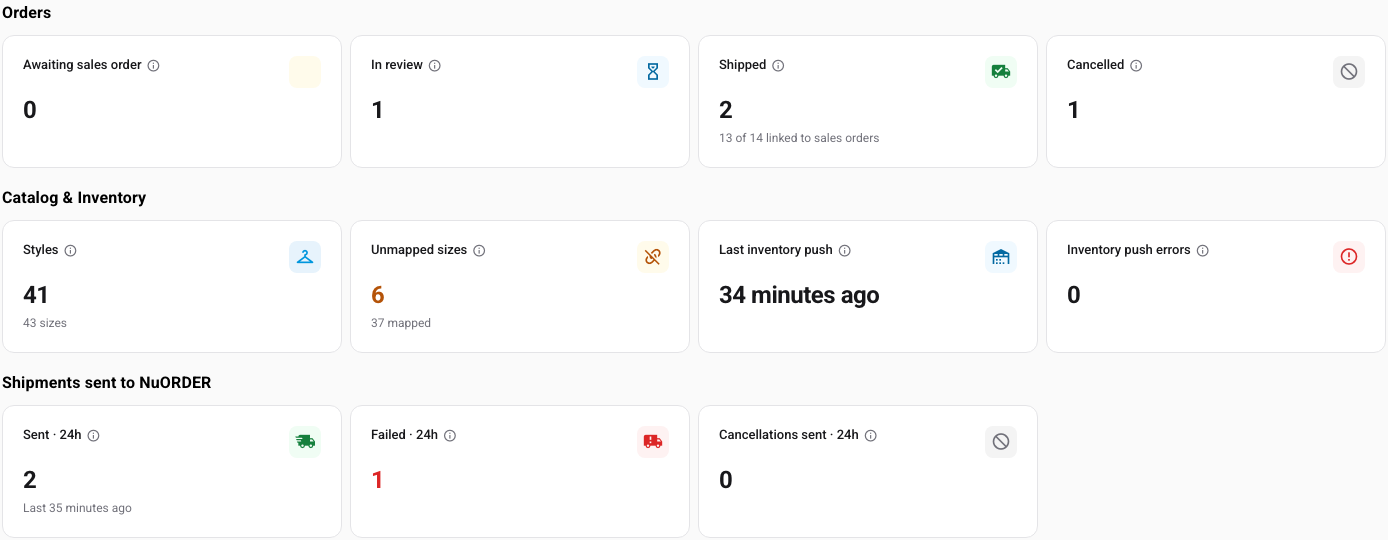
Three rows of cards sum up what needs attention. Click a card to open the matching list, already filtered.
| Card | What it counts | Opens |
|---|---|---|
| Awaiting sales order | Orders at your create-at status that have no SKU.io sales order yet, for example while automatic sales order creation is off, or when creating it failed. | Orders, so you can create them. See Create a sales order. |
| In review | Orders still in review or pending in NuORDER, waiting for you to approve them there. | Orders |
| Shipped | Orders NuORDER reports as fully shipped. The line below says how many orders are linked to sales orders, for example 13 of 14 linked to sales orders. | Orders |
| Cancelled | Orders cancelled in NuORDER. | Orders |
| Styles | NuORDER styles and colors imported into SKU.io, with the number of sizes under them. | Products |
| Unmapped sizes | Sizes not linked to a SKU.io product. Orders containing them still create a sales order, but those lines aren't linked to a product, and no stock is pushed for them. | Products. See Link NuORDER sizes to SKU.io products. |
| Last inventory push | When SKU.io last sent available-to-sell to NuORDER. | Inventory |
| Inventory push errors | Products whose last inventory push to NuORDER failed. | Inventory, where each row shows the error. See Map NuORDER warehouses and send stock. |
| Sent · 24h | Shipments with tracking that SKU.io sent to NuORDER in the last 24 hours. | Fulfillments |
| Failed · 24h | Sends NuORDER rejected in the last 24 hours. | The Failed tab of Fulfillments, where each shows the error and can be retried. See Retry or dismiss a send NuORDER refused. |
| Cancellations sent · 24h | Cancelled quantities SKU.io recorded on NuORDER orders in the last 24 hours. | — |
Hover over the i next to a card's name for the same explanation.
Check Sync Health
NuORDER has no webhooks, so SKU.io checks it on a schedule. The Sync Health card has one row for each job SKU.io runs against NuORDER: Orders import, Catalog import, Inventory push and Shipments sent.

| Column | What it shows |
|---|---|
| State | Healthy, or Failing when the last run failed after the last success, or Running while a run is in progress. |
| Last Success | When the sync last finished without an error. |
| Last Failure | When it last failed, with NuORDER's or SKU.io's error message. |
| Schedule | How often it runs: Every 15 minutes for orders, Daily for the catalog, Every minute for inventory, and When a shipment is fulfilled for shipments. A note shows here when the sync won't run, for example because it's paused. |
When a row is Failing, read Last Failure and go to the page it's about. For Shipments sent, that's the Failed tab on Fulfillments. For reading sync health on any connection, see Check a connection's sync health.
Follow the Activity Log
The Activity Log records order, product and connection changes for the portal, including what SKU.io sent to NuORDER and every change it couldn't apply.
- In the NuORDER menu, under Setup, click Activity Log.
- Narrow the list:
- Type in Search activity... to find an order number or a word in the details.
- Set Event to one kind of entry, such as Shipment sent, Shipment failed, Cancellation sent, Order cancelled in NuORDER, Change not applied or Updated (changes to an order or to the connection's settings).
- Set Source to Shipments & cancellations sent to NuORDER, Order updates from NuORDER, Other changes made by people or Other automatic changes. A send to NuORDER is listed under Shipments & cancellations sent to NuORDER even when a person started it.
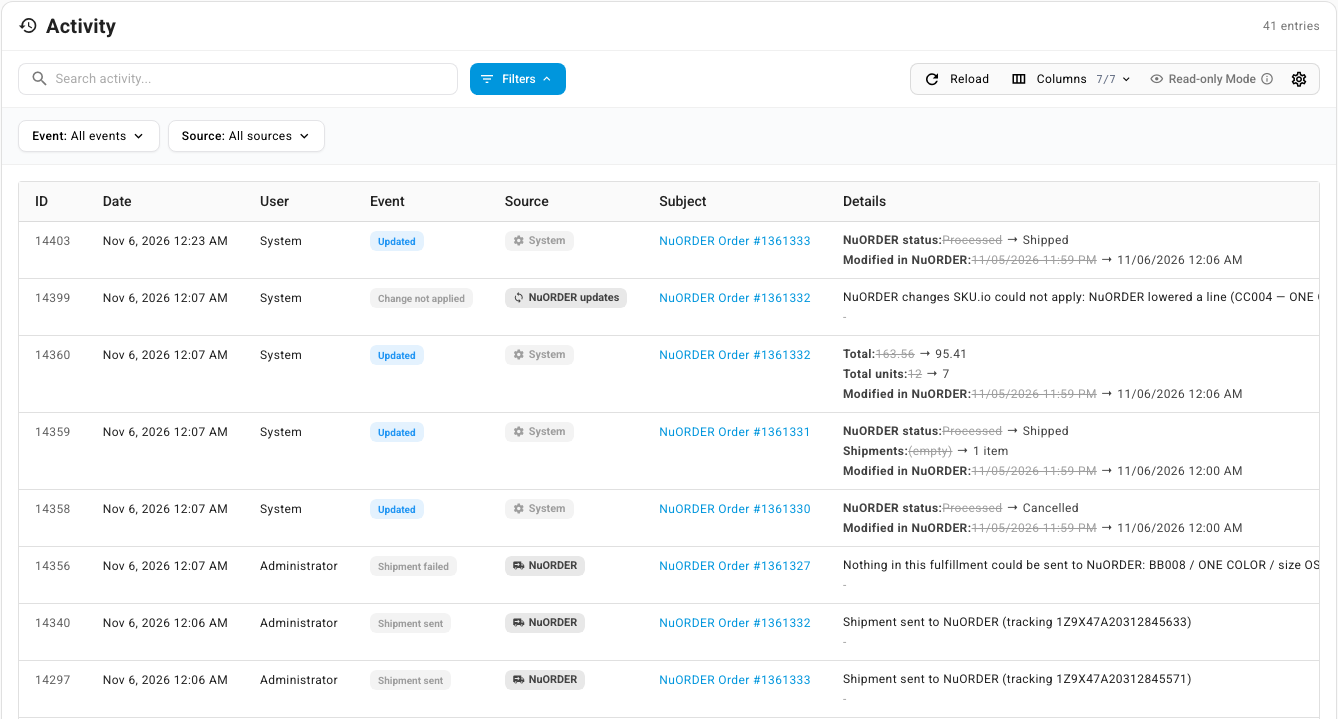
Each entry shows the Date, the User (System for changes the sync made), the Event, the Source, the Subject it's about, and the Details. Details names each changed field in plain words with its old and new value, for example NuORDER status from Processed to Shipped, or Modified in NuORDER with the date and time in your account's time zone. A settings change names warehouses rather than their IDs, for example Warehouse mapping · West Coast DC changing to Newark Distribution Center. Click the subject to open the order.
Each NuORDER order page also has its own Activity Log panel with just that order's entries. For the Activity Log in general, see Track changes in the activity log.
Test the connection
- Go to NuORDER → Settings → Authentication.
- Click Test connection.
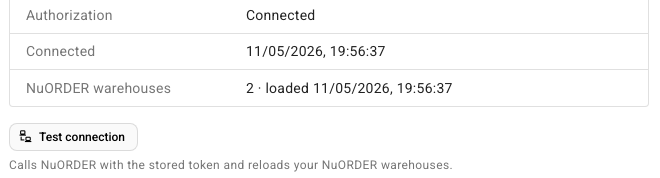
SKU.io calls NuORDER with the stored connection and reloads your NuORDER warehouses. When it works, it says, for example, Connected to NuORDER — 2 NuORDER warehouse(s) found.
The chip next to Connection shows the portal's state, such as Connected, Awaiting approval or Not connected. A portal that isn't connected has no Test connection button; finish connecting it instead. See Connect NuORDER.
If NuORDER no longer accepts the connection, for example because someone revoked SKU.io in NuORDER or rotated the API key, reconnect it. See Reconnect with new keys. Your settings, mappings and orders are kept.
Pause sync or turn one direction off
To stop everything for a while, or only one kind of sync:
- Go to NuORDER → Settings → Sync.
- Under Sync Schedule, click Paused, then Pause sync to confirm. Scheduled jobs don't run until you click Active again. Syncs you start by hand still run, as the tab says: Refresh from NuORDER, Push Now and Send to NuORDER still work.
- To stop one direction instead, use the switches under What syncs:
- Import from NuORDER: Import orders from NuORDER, Create SKU sales orders from NuORDER and Import products from NuORDER.
- Send to NuORDER: Submit tracking to NuORDER and Push inventory to NuORDER.
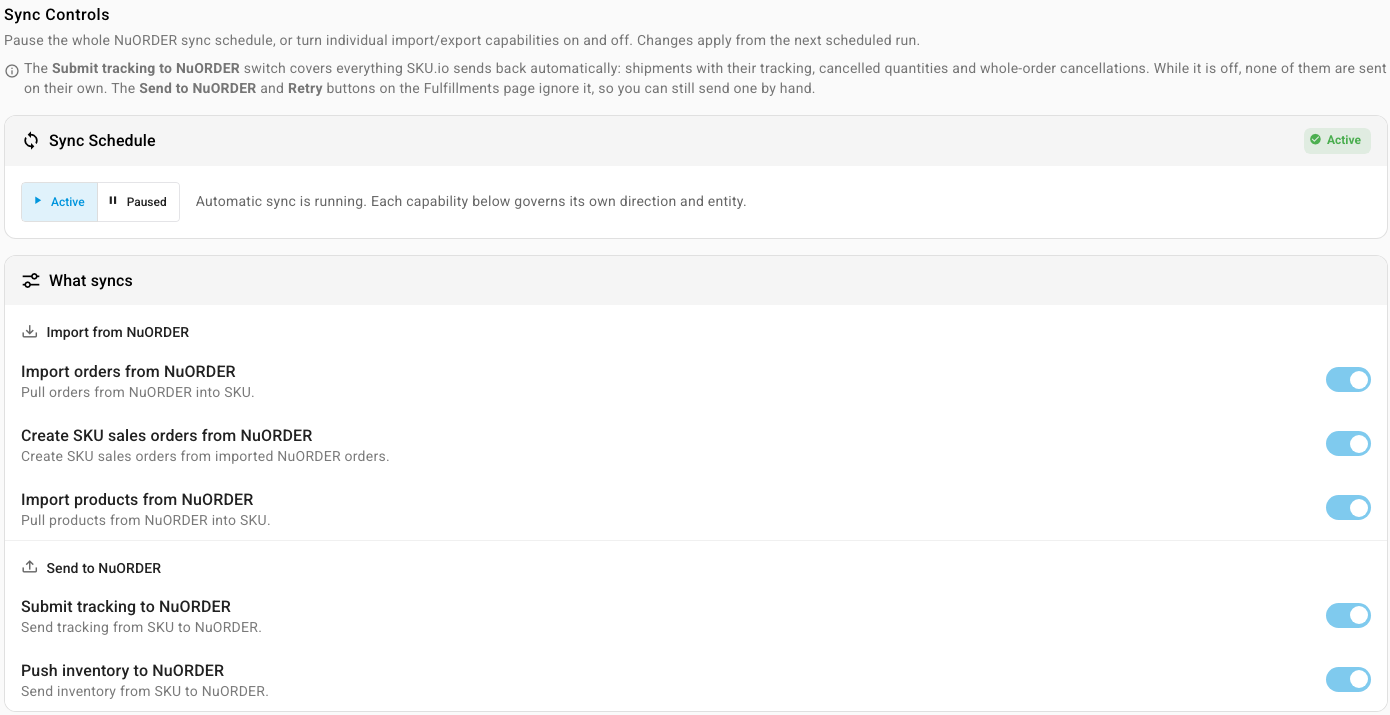
Changes apply from the next scheduled run. Submit tracking to NuORDER covers shipments, cancelled quantities and whole-order cancellations together; the Send to NuORDER and Retry buttons on Fulfillments still work while it's off.
Automatic Sync on Settings → General is the same switch as Sync Schedule. For pausing any connected app, see Manage a connected app.
Follow refreshes and sends in the job tray
Refreshes, bulk sales order creation and updates, pre-start-date imports, inventory pushes and manual sends all run in the background. They appear in the job tray at the top of the app, for example as Refresh NuORDER Orders, Refresh NuORDER Products or Create SKU Orders from NuORDER, and say what they did when they finish. See Follow background jobs.
Delete the connection
Deleting removes the NuORDER connection and its imported orders and products from SKU.io. Sales orders SKU.io already created are kept, and nothing changes in NuORDER. You can't undo it, so pause the sync instead if you only want it to stop for a while. See Delete the connection.
Troubleshooting
| What you see | What to do |
|---|---|
| The dashboard says This NuORDER portal isn't connected, or the Orders page shows Not connected | Click Connect portal and finish connecting. See Connect NuORDER. |
| An order you expect isn't on the Orders list | Click Refresh from NuORDER on the list and search for its number. Check that it was created after your Order Import Start Date; older orders come in with Import Pre-Start-Date. See Handle NuORDER orders. |
| Awaiting sales order isn't 0 | Open the card and create the sales orders. If Create SKU sales orders from NuORDER is off on Settings → Sync, turn it back on. |
| Unmapped sizes isn't 0 | Link the sizes. See Link NuORDER sizes to SKU.io products. |
| An order page says Some NuORDER changes could not be applied to the SKU order | See Fix a change SKU.io couldn't apply. |
| Failed · 24h isn't 0, or Shipments sent is Failing | Open the Failed tab on Fulfillments, read the error, then Retry or Dismiss. See Send shipments and cancellations to NuORDER. |
| Inventory push errors isn't 0, or Inventory push is Failing | Open the card to see each error on Inventory. See Map NuORDER warehouses and send stock. |
| Orders import or Catalog import is Failing | Read Last Failure, then click Test connection on Settings → Authentication. If it fails, reconnect. See Reconnect with new keys. |
| Nothing has synced for a while and Sync Health shows no failures | Check Settings → Sync: the Sync Schedule may be Paused or a switch under What syncs turned off. |
Next steps
- Handle NuORDER orders
- Send shipments and cancellations to NuORDER
- How NuORDER works with SKU.io
- NuORDER orders and customers reference, including the Customers page that lists your retailers