Check a connection's sync health
When orders stop arriving or stock looks wrong on a channel, the first question is whether the connection is still syncing. Each connection answers it in three places: its status on Apps & Integrations, the Sync Status card on its Dashboard, and its Activity Log. Shopify and NuORDER connections also have a Sync health card, which checks every 5 minutes that stock is going out and orders are coming in, and can alert you when either stops.
Before you begin
- The connection exists. See Manage a connected app.
- This guide uses an eBay connection. Shopify, WooCommerce, BigCommerce, Walmart and TikTok Shop connections have the same Dashboard and Activity Log tabs, with the sync types that channel uses.
- The Sync health card and its alerts cover Shopify and NuORDER connections.
- To turn alerts on, you need permission to change alert preferences. Administrators have it.
Check the connection's status
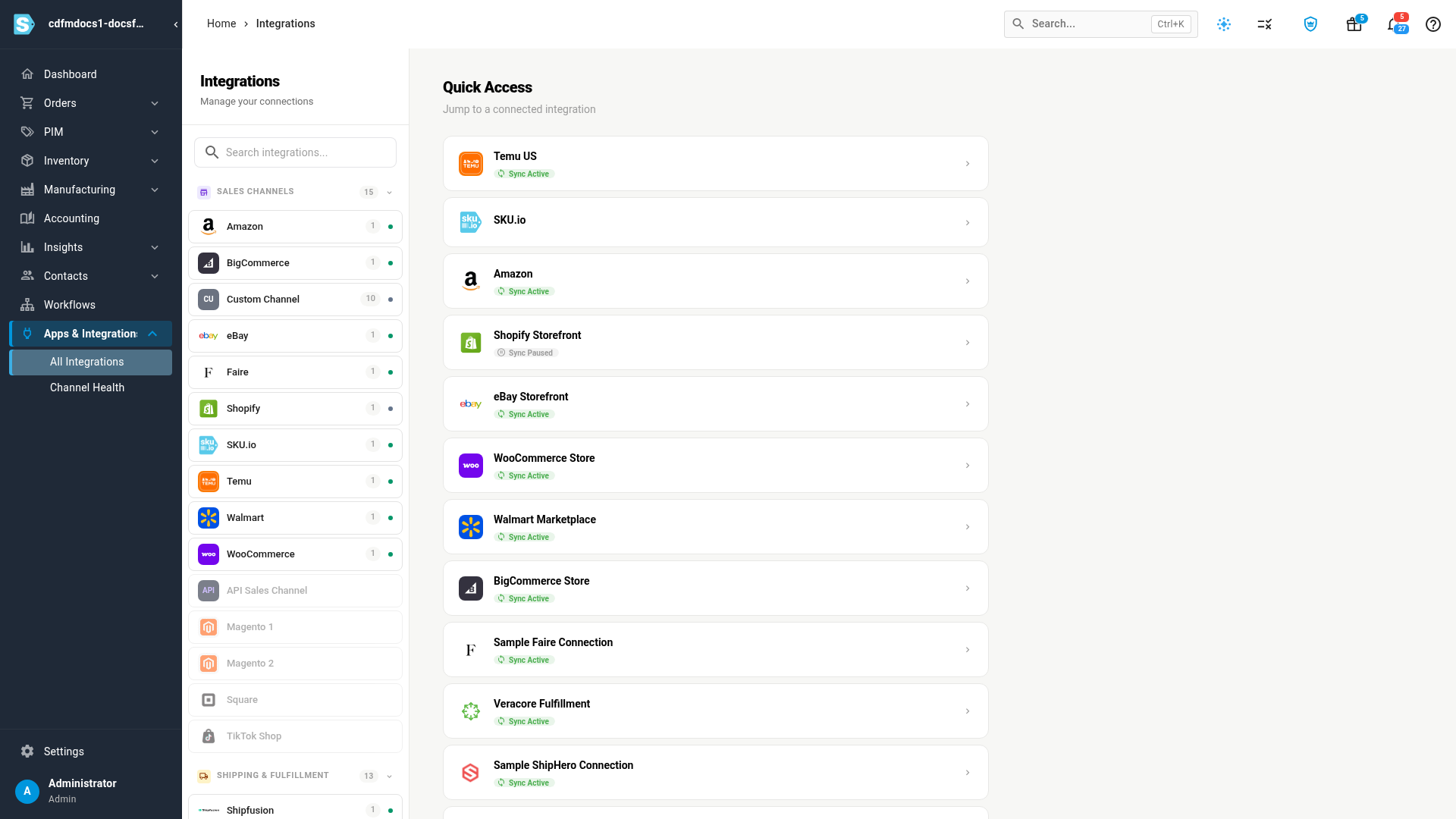
Go to Apps & Integrations. Under Quick Access, each connection shows its status:
| Status | What it means | What to do |
|---|---|---|
| Sync Active | The connection syncs on its schedule. | Nothing. |
| Sync Paused | Someone switched the connection's schedule off. Nothing syncs automatically. | Turn the Sync Schedule back on. See Manage a connected app. |
| Reconnect Required | The channel rejected SKU.io's access, for example because the authorization expired. SKU.io stops calling the channel until you reconnect, and emails you that the authorization expired. The email's link opens the connection in SKU.io. | Open the connection's Settings, then Authentication, and reconnect. |
Read the Dashboard
Click a connection to open its Dashboard.
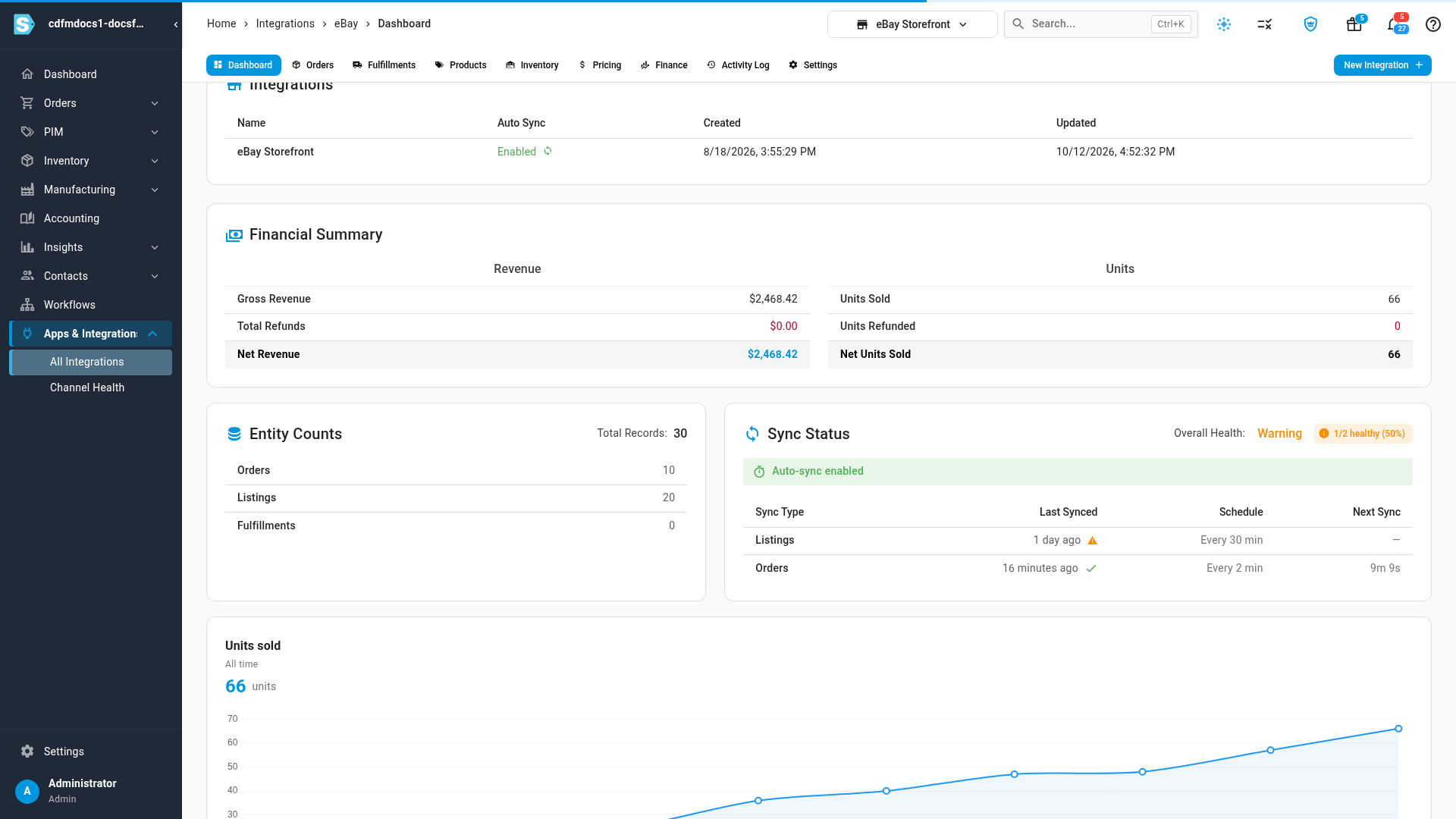
- The cards at the top show when Orders and Products last synced. A ✓ means within the last day. A warning sign means that data hasn't synced for more than a day, or ever.
- Integrations shows whether Auto Sync is Enabled for the connection.
- Financial Summary and Entity Counts total what the connection has brought in. Use All, Today, Last 7 Days, Last 30 Days or Last 90 Days to change the period.
Sync Status
The Sync Status card rates the connection as a whole and lists each kind of data it syncs.
| Part | What it shows |
|---|---|
| Overall Health | Healthy when every sync type has synced within the last day, Warning when some haven't, and Critical when none have. The chip beside it counts the healthy sync types. |
| Auto-sync enabled / Auto-sync disabled | Whether the connection syncs on its own. When it's off, the banner says to enable it in the connection's settings. |
| Sync Type | Each kind of data the connection syncs, such as Listings and Orders |
| Last Synced | How long ago that data last synced. Hover over it for the exact date and time. A warning sign marks data that hasn't synced for more than a day. |
| Schedule | How often that data syncs automatically |
| Next Sync | A countdown to the next automatic sync. Shown while auto-sync is on. |
Refresh now
- Refresh from eBay starts an order and product sync from the channel right away. Follow it in the job tray. For a date range, the From and To dates are whole days in your SKU.io timezone.
- Refresh from Database recalculates the Dashboard's figures from what SKU.io already holds. It doesn't contact the channel.
Read the Activity Log
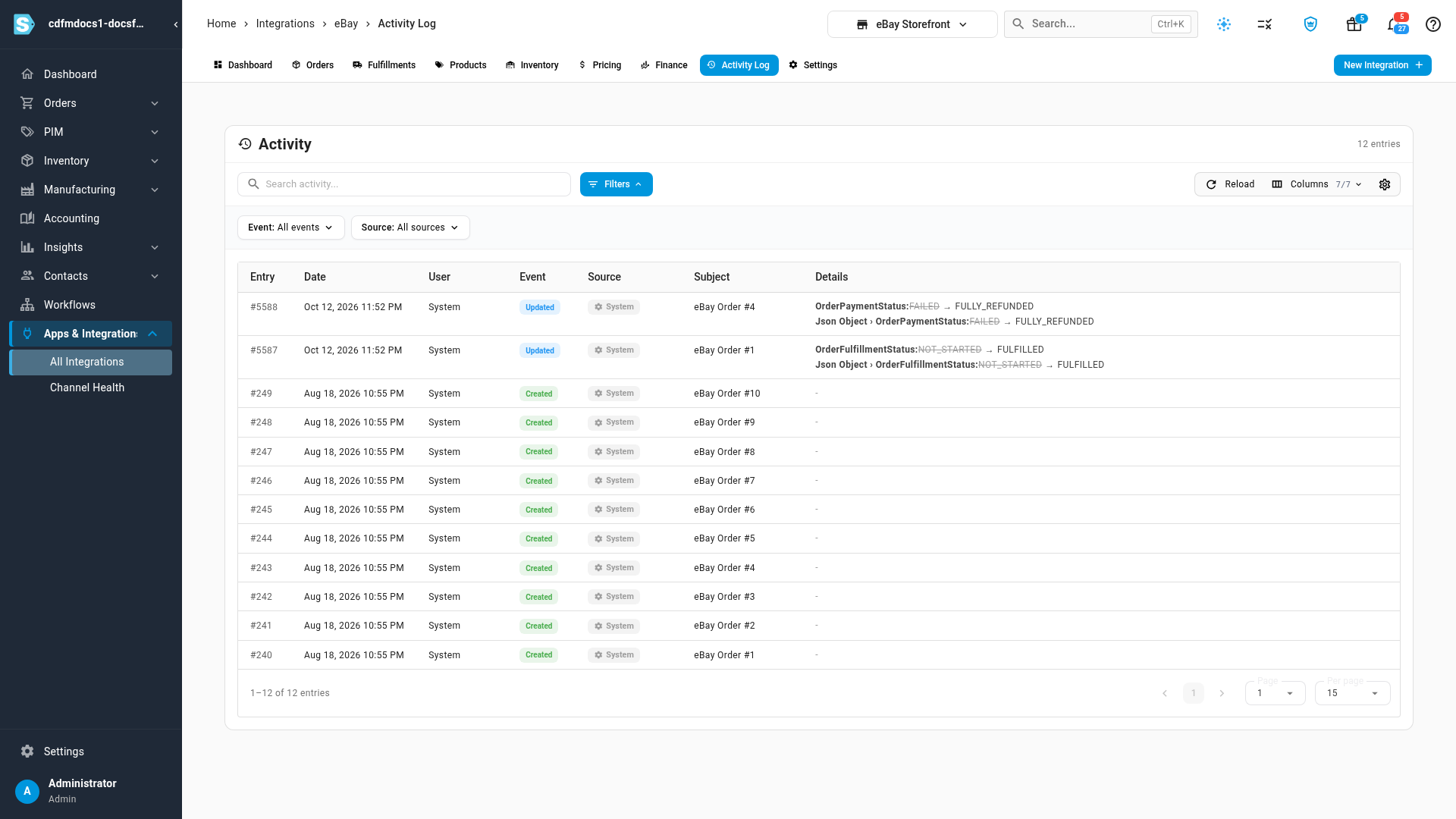
Open the connection's Activity Log tab. It lists every change to the connection's orders as they came in from the channel, newest first.
| Column | What it shows |
|---|---|
| Entry | The entry's number |
| Date | When the change was recorded |
| User | The person who made the change, or System for a change that came from a sync |
| Event | What happened, such as Created, Updated or Deleted |
| Source | What made the change. Changes a person made show Manual. |
| Subject | The channel order that changed |
| Details | Each changed value, from the old value to the new one |
To narrow the list, use Event and Source, or type in Search activity… to find a value such as an order number.
Check that stock and orders are flowing
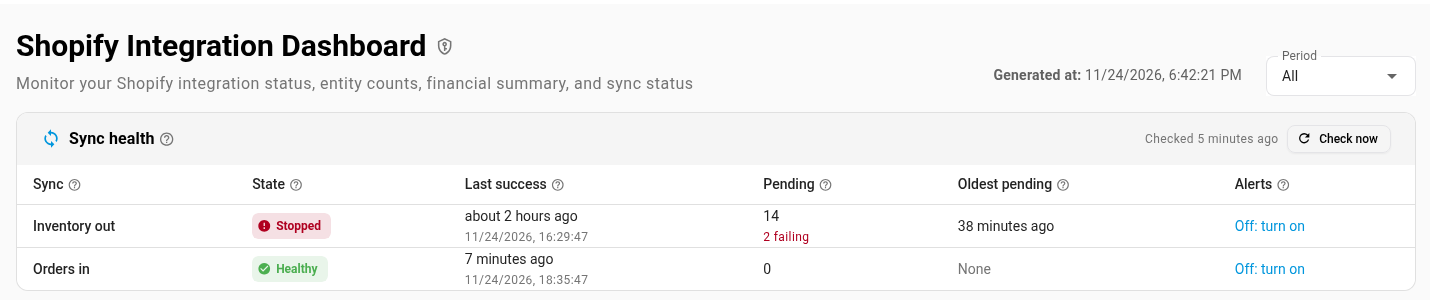
Shopify and NuORDER connections have a Sync health card on their Dashboard. Every 5 minutes, SKU.io checks two things for the connection:
- Inventory out: are the stock quantities SKU.io sends reaching the channel?
- Orders in: are orders arriving from the channel?
It judges by how long work has been waiting, not by how long the channel has been quiet. A store with nothing to send stays Healthy, however long ago it last sent something.
-
Go to Apps & Integrations and open your Shopify or NuORDER connection. Its Dashboard opens.
-
Find the Sync health card. Each row is one direction, with these columns:
Column What it shows Sync Inventory out or Orders in State How that direction is doing. See the states below. Hover over the state for what it means on this row. Last success Inventory out: when the channel last accepted a quantity. Orders in: when SKU.io last finished checking for orders, or handled an order notice from the channel. Never if it hasn't yet. Pending Inventory out: quantities waiting to be recalculated or sent. Orders in: order notices received and not handled yet. See below for retrying and failing. Oldest pending How long the oldest pending item has waited since SKU.io last tried to move it on. None when nothing is waiting. Alerts Off: turn on until you turn the alert on, then After 30 minutes (or the minutes you set). Click it to open that alert's settings. -
Read the State:
State What it means Healthy Inventory out: nothing is waiting to be sent. Orders in: order checks are succeeding. Waiting Inventory out: updates are waiting, all for less than the alert's minutes. Orders in: order checks are succeeding, and some order notices are still being handled. Catching up Updates are going out, but some have waited longer than the alert's minutes, as when a large catalog change is still sending. It counts as Stopped if one waits four times the alert's minutes. Stopped Inventory out: updates have waited longer than the alert's minutes and nothing is sending them. Orders in: no order check has succeeded for the alert's minutes. When SKU.io knows why, a line under the row says so. Paused Sync is off on purpose, so nothing is expected and no alert is sent. A line under the row says why, for example that inventory sync is turned off in Settings, or that the store must be reconnected. The wait starts again when sync resumes. Not checked yet The first check runs within 5 minutes. To run it now, click Check now. The alert's minutes set when a state changes, even while the alert itself is off: 30 minutes for Inventory out and 60 for Orders in, unless you change them. While a connection's first order import is still running, Orders in says so under the row and doesn't count as Stopped.
Under Pending you may also see:
- retrying: quantities sent at every sync without the channel accepting or rejecting them, for example an item the channel doesn't stock at that location. They aren't counted as pending.
- failing: listings whose stock the channel rejected. They aren't counted as pending either, because they have their own alert. Click the link to open Sync errors on the Shopify Inventory tab, where you can retry them. See Check Shopify stock on the Inventory tab.
To run the check straight away, click Check now at the top of the card. Checked beside it shows when the last check ran. Check now needs permission to sync integrations.
Get an alert when sync stops
Three alerts watch the same things as the Sync health card. All three are off until you turn them on.
| Alert | When it's raised |
|---|---|
| Inventory Not Going Out | Once per Shopify or NuORDER connection, when a stock update has waited longer than its minutes without reaching the channel. 30 minutes unless you change it. |
| Orders Not Arriving | Once per Shopify or NuORDER connection, when no order check or order notice has succeeded for its minutes. 60 minutes unless you change it. It watches checks, not orders, so a quiet store never raises it. |
| NuORDER: Inventory Sync Failing | When NuORDER rejects a style's stock. It lists each style with NuORDER's error, and links to the connection's Inventory tab. |
To turn one on:
- On the Sync health card, click the row's link in Alerts. Or go to Settings → Alerts & Notifications → Alert Preferences, and search for the alert. Alert Preferences opens on that alert and highlights it.
- Switch Enabled on.
- Optional: in Alert after, type how many minutes the problem must last before you're alerted, from 5 to 1440. Leave it empty to use the default shown in the box.
- Choose who receives it, by email or Slack, as for any alert. See Choose which alerts your team gets.
- Click Save Changes at the top of the page.
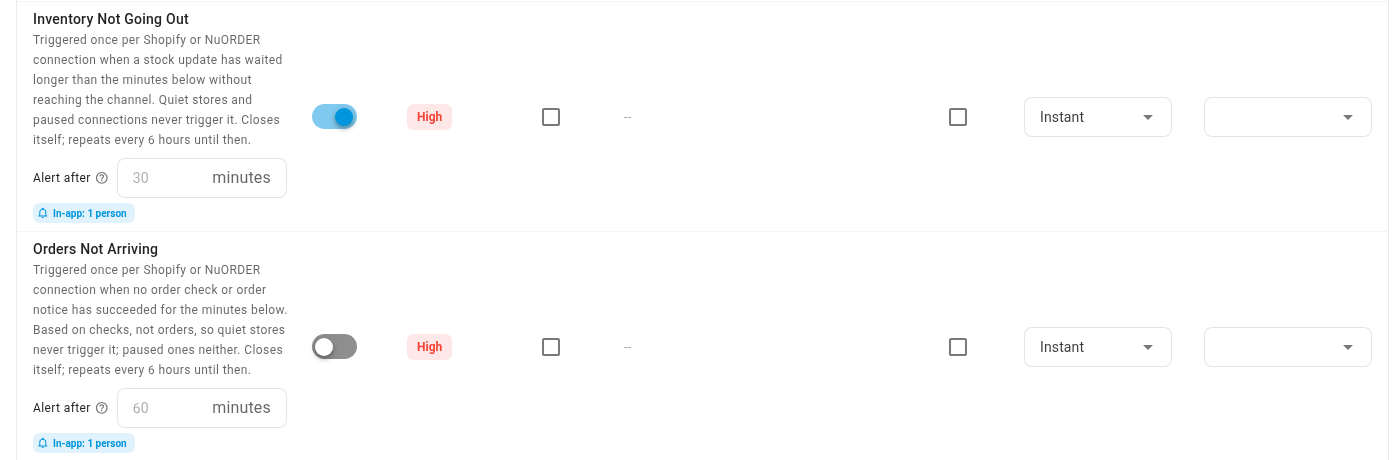
How these alerts behave:
- One alert per stall. While the problem lasts, the open alert's numbers update without another email or Slack post. A reminder follows every 6 hours until it's over.
- It closes itself when sync recovers, when you pause the connection, when you turn the alert off, or when the connection is deleted.
- Paused connections and quiet stores never raise it. Only work that is waiting counts.
- NuORDER: Inventory Sync Failing is raised when a style first fails, and again every 6 hours while it still fails. It closes once NuORDER accepts every style.
Next steps
- Manage a connected app: pause, resume or stop parts of a connection's syncing.
- Integrations reference: every sync status and control in one place.
- Choose which alerts your team gets: who receives each alert, by email or Slack.
- Check Shopify stock on the Inventory tab: compare quantities and retry the ones Shopify rejected.
- Monitor channel health: Amazon and Walmart seller-performance metrics.
Video transcript
Apps and Integrations lists every connection, each with its sync status. Sync Active means the connection runs on its schedule. Sync Paused means someone has switched its schedule off. Click a connection to see its details. The cards at the top show when its orders and products last synced. A warning sign means that data hasn't synced for over a day. Further down, Sync Status rates the connection's overall health. Each sync type lists when it last ran, how often it is scheduled, and when it runs next. Products haven't synced for over a day, so the health shows Warning. To sync right away instead of waiting, use Refresh from eBay at the top of the Dashboard. Refresh from Database only recalculates these figures from data you already have. For a history of changes, open the Activity Log tab, in the row of tabs along the top. It lists every change to the connection's orders, newest first. Each row shows the order, with every old and new value. Filter by Event or Source to narrow the log. Search finds a single value. Shopify connections also check whether stock and orders are flowing. To see that, go back to Apps and Integrations. Then open a Shopify connection from the list. On the Dashboard, the Sync health card runs its check every five minutes. Inventory out asks whether stock updates are reaching the channel. Orders in asks if orders are arriving. Here, inventory shows Stopped. Fourteen updates are waiting, the first for over half an hour, and nothing is sending those updates. Two listings are failing, and this link opens Sync errors. Orders in is Healthy, with nothing waiting. Check now runs the check without waiting for the schedule. Beside it, the card shows when it last checked. The Alerts column shows that both alerts are off. Click the link to open Alert Preferences. Inventory Not Going Out alerts after 30 minutes by default. Orders Not Arriving alerts after 60. Switch on the alerts you want, and change the minutes where needed. Then save your changes. You get one alert for each stall, and it closes itself when sync recovers.