Link NuORDER sizes to SKU.io products
SKU.io brings in your NuORDER catalog one size at a time. A size that's linked to a SKU.io product can allocate stock on NuORDER orders, and SKU.io pushes its available quantity to NuORDER. A size that isn't linked does neither. This page shows how sizes get linked automatically, how to link the rest yourself, and how to fix a size that stays unlinked.
Before you begin
| Requirement | Why it's needed |
|---|---|
| NuORDER is connected | See Connect NuORDER. |
| A store is chosen on Settings → General | Sizes can't be linked until the portal has a store. |
| Your SKU.io products carry the NuORDER UPC as their Barcode, or their SKU matches NuORDER's | That's what automatic matching looks for. To load barcodes in bulk, use Import products from a spreadsheet. |
| Permission to change integrations | Needed to map, archive and save settings. Refreshing from NuORDER needs permission to run syncs. |
What the catalog sync brings in
NuORDER organizes its catalog by style, season and color. In SKU.io, each size of a style and color is one row on the NuORDER Products page. For each size you see:
- Style # and the style's name
- Derived SKU: NuORDER has no SKU for each size, so SKU.io builds one from the style, color and size, for example BT-9003-COGNAC-M. When a part is blank, it's left out, and spaces inside a part become hyphens, for example DOC-COMMUTER-SET-ONE-COLOR-OS for the color ONE COLOR.
- Colour (with its color code), Season, Size, UPC (or No UPC), Wholesale and Retail price
- Inventory Push and the style's NuORDER Status
The size's detail page adds the style's description, division, department, category, availability dates and order closing date. Prepacks aren't catalog rows: they arrive on order lines.
The sync only reads from NuORDER. Nothing you do on this page changes your NuORDER catalog.
To see which columns and statuses mean what, see the NuORDER products, inventory and fulfillments reference.
Let SKU.io match sizes automatically
Two settings decide what happens to new sizes after each catalog sync.
Auto Match on Import (on by default) links each new size to the SKU.io product with the same UPC or barcode. If none matches, it tries the product whose SKU equals the size's Derived SKU. One-size styles also match on the style number. Matching ignores upper and lower case, and it skips any size where two SKU.io products would match, and archived products.
Auto Create Products (off by default) goes one step further. A new size that still matches nothing gets a new SKU.io product, built with your field mappings. It doesn't create products for sizes that were already synced. For those, use bulk Map.
To check or change these settings:
-
Go to NuORDER → Settings → Products (in the Catalog group). Auto Match on Import is on the Catalog Import card.

-
Go to NuORDER → Settings → General (in the Connection group). Auto Create Products is under Automation.

-
Click Save Changes.
You can also flip Auto Create Products from the switch in the header of the Products page. It's the same setting, so a change in one place shows in the other.

Sizes that were already linked keep their link. Matching never changes a size you mapped by hand.
Link one size by hand
-
Go to NuORDER → Products.
-
To list only the sizes still waiting for a product, click the unmapped chip next to the Products title, for example 6 unmapped.
-
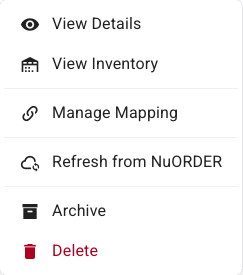
On the size's row, click Map in the SKU Product column. You can also open the row's ⋮ menu and choose Manage Mapping.
-
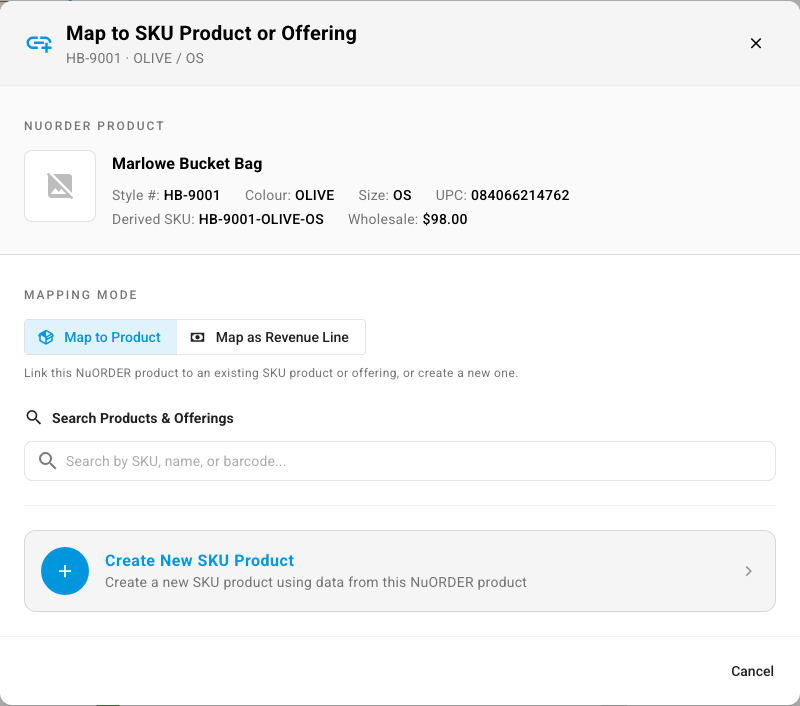
In Map to SKU Product or Offering, check the size's details at the top, then type the product's SKU, name or barcode in Search Products & Offerings. (An offering is a subscription offering, if you sell subscriptions.)
-
Select the product.
-
Click Map Product.
The row now shows the linked product's SKU and name, and the unmapped count drops by one. Order lines for this size that were imported while it was unlinked are linked too, so they can allocate stock.
You can link a size to a bundle. Orders for the size then sell the bundle's components.
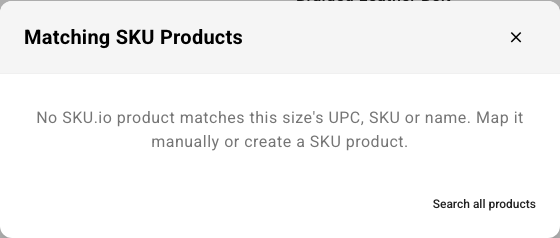
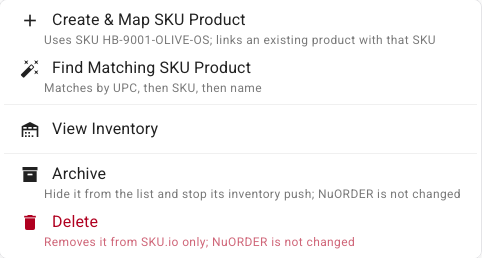
From the size's detail page you can also click Map to SKU Product in the header. To see what SKU.io would match, open More and choose Find Matching SKU Product. It checks the UPC first, then the SKU, then the name. When nothing matches, it says so and offers Search all products.
Create a SKU.io product from a size
When the product doesn't exist in SKU.io yet, create it from the size:
-
Open the size's Map dialog as in Link one size by hand.
-
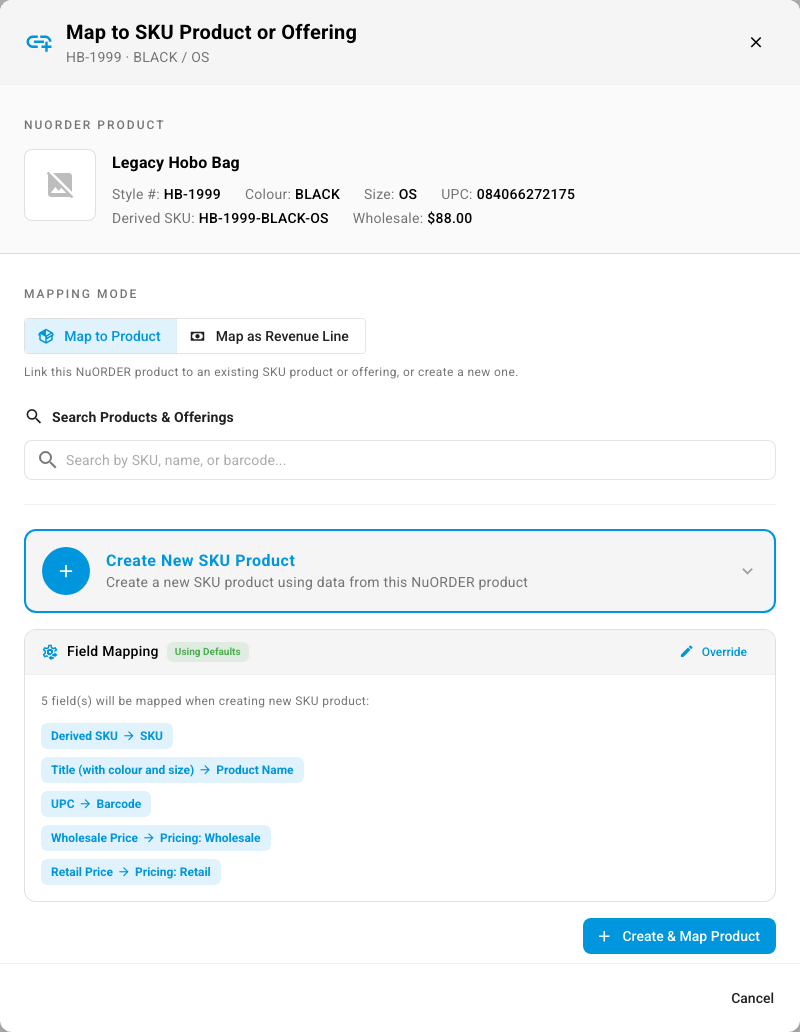
Click Create New SKU Product. The Field Mapping panel lists the fields the new product gets. Using Defaults means your saved field mappings apply.
-
To change the mappings for this product only, click Override.
-
Click Create & Map Product.
The new product's SKU is the size's Derived SKU. If a SKU.io product with that SKU already exists, SKU.io links the size to it instead of creating a second one.
On the size's detail page the same action is More → Create & Map SKU Product.
Link many sizes at once
-
On the Products page, select the sizes' checkboxes. To act on every size that matches your search and filters, click All Filtered in the bar that appears.

-
Click Map.
-
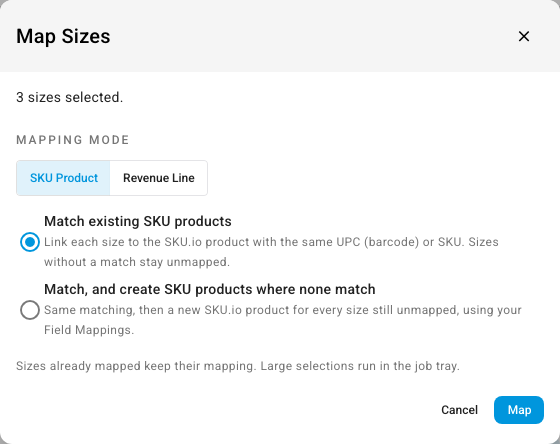
In Map Sizes, keep SKU Product as the Mapping mode and choose one:
- Match existing SKU products links each size to the product with the same UPC or SKU. Sizes with no match stay unmapped.
- Match, and create SKU products where none match does the same, then creates a product for every size still unmapped, using your field mappings.
-
Click Map.
Sizes that are already mapped keep their mapping. The work runs in the background: follow it in the job tray. When it finishes, the job reports how many of the sizes were linked. The Create SKU Products button in the bar does the same as the second choice.
Map a size to a revenue line
Some NuORDER styles are charges rather than stock, such as a sample fee or a freight surcharge. Map those sizes to a revenue line, so orders for them book revenue instead of a product line that has to be picked and shipped.
-
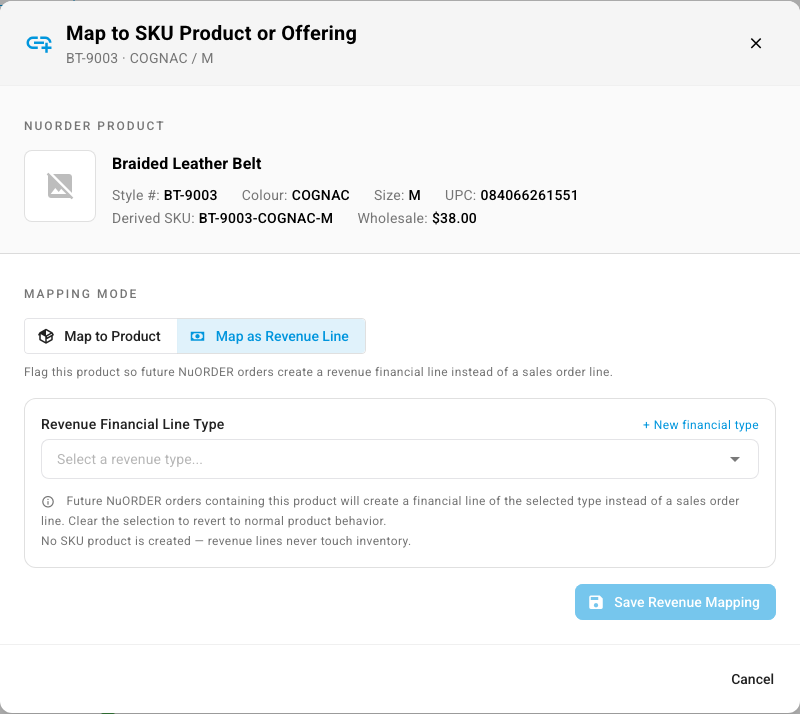
For one size: open its Map dialog, click Map as Revenue Line, choose a Revenue Financial Line Type, and click Save Revenue Mapping.
-
For many sizes: select them, click Map, set Mapping mode to Revenue Line, choose Map to a revenue line, pick the type, and click Map to Revenue. To undo it, choose Clear revenue mapping instead.
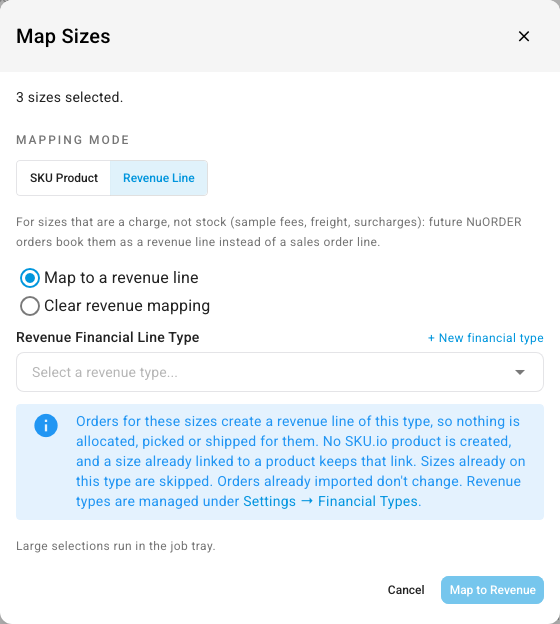
The change applies to orders imported afterwards. Orders already in SKU.io don't change, and a size linked to a product keeps that link. To add a revenue type, see Manage financial line types.
Change or remove a link
Open the size's Map dialog. A linked size shows Change SKU Product Mapping with its CURRENT MAPPING.
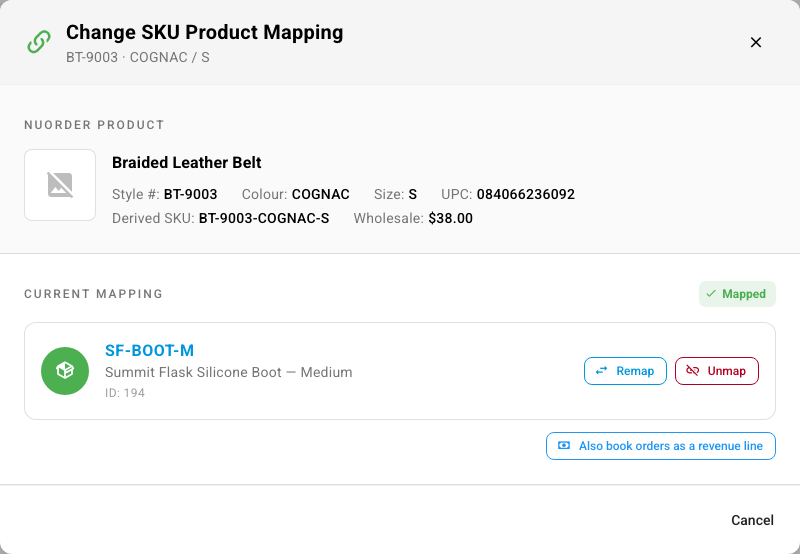
- To link it to a different product, click Remap and pick the new product.
- To remove the link, click Unmap. On the detail page, use Unmap Product in the header.
After you unmap a size, new orders for it can't allocate stock and SKU.io stops pushing its inventory. Sales orders already created keep their lines. You can only unmap one size at a time. If Auto Match on Import is on, the next catalog sync can link the size again when its UPC or SKU still matches.
Choose which NuORDER fields fill new products
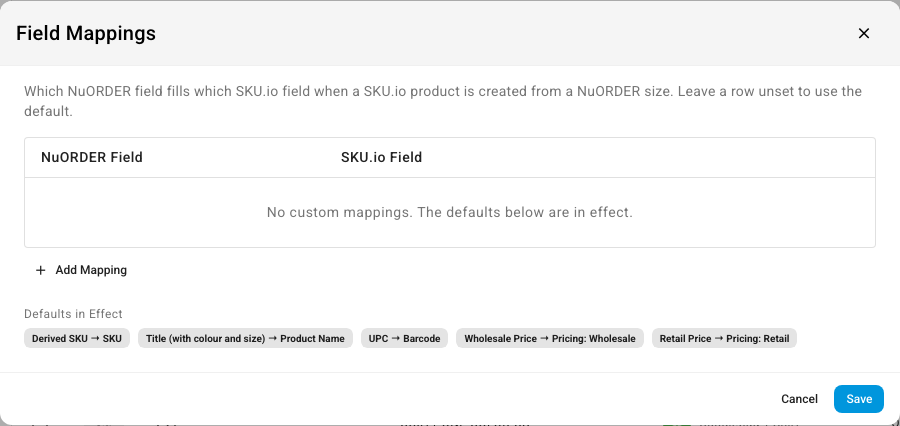
Field mappings decide what a product created from a NuORDER size contains. They apply to products created afterwards, by Create & Map Product, bulk Map, or Auto Create Products.
-
On the Products page, click Field Mappings.
-
Click Add Mapping, then pick a NuORDER Field and the SKU.io Field it fills.
-
Click Save.
With no custom mappings, the Defaults in Effect apply: Derived SKU → SKU, Title (with colour and size) → Product Name, UPC → Barcode, Wholesale Price → Pricing: Wholesale and Retail Price → Pricing: Retail. So NuORDER's wholesale price fills your wholesale pricing tier, and its retail price fills your Retail tier, or your default tier if you have no Retail tier. If you don't have a wholesale tier yet, SKU.io creates one named Wholesale the first time it creates a product from a size. A row left half-filled isn't saved. For how channel field mappings work in general, see Map channel fields to SKU products.
Bring catalog changes in sooner
SKU.io checks NuORDER for new and changed styles on a schedule. The header shows when the next check runs, for example Next NuORDER refresh in 3h 47m. To bring changes in now:
-
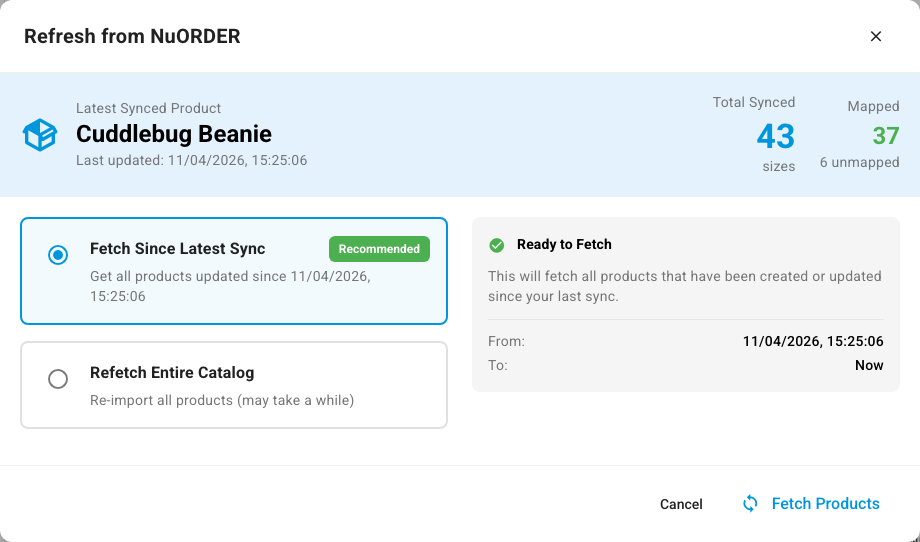
On the Products page, click Refresh from NuORDER.
-
Choose Fetch Since Latest Sync (recommended) for styles changed since the last sync, or Refetch Entire Catalog to download every style again.
-
Click Fetch Products. The refresh runs in the job tray, and automatic matching runs after it.
To refresh a single style, open a size's ⋮ menu and choose Refresh from NuORDER, or click Refresh from NuORDER on its detail page. Every size of that style is updated.
Only a full refresh with Refetch Entire Catalog notices styles that NuORDER no longer lists, and marks them Removed from NuORDER. A full refresh also brings back sizes you deleted in SKU.io, if NuORDER still lists them.
Archive or delete sizes you don't sell
Archive hides a size from the list and stops its inventory push. Its mapping and order history stay, and NuORDER isn't changed. Delete removes the size and its mapping from SKU.io only. The SKU.io product stays, and the size comes back on the next full catalog refresh if NuORDER still lists it.
Both are in the row's ⋮ menu, in the bulk bar, and under More on the detail page. Large selections run in the job tray.
SKU.io also archives a size on its own when NuORDER stops listing it on a style, and restores it if NuORDER lists it again. A size you archived yourself stays archived.
The Status filter and the All | Active | Archived toggle under the list are different things: the filter reads the style's status in NuORDER, and the toggle uses SKU.io's own archive. See Archived in NuORDER or archived in SKU.io.
Why a size stays unmapped
| Cause | What to do |
|---|---|
| The size has no UPC (No UPC), and its Derived SKU isn't the SKU of any SKU.io product | Map it by hand, or create a product from it |
| Its UPC isn't the Barcode of any SKU.io product | Add the UPC to the product's barcode, by hand or with Import products from a spreadsheet, then run bulk Map → Match existing SKU products |
| Two SKU.io products share the barcode or SKU | Remove the duplicate barcode or archive the product you don't use |
| The matching SKU.io product, or the size, is archived | Unarchive it, then match again |
| Auto Match on Import is off | Turn it on, or map the size yourself |
What an unmapped size does to orders
A NuORDER order with an unmapped size still becomes a SKU.io sales order. The unmapped lines can't allocate stock, and the order shows how many sizes are unmapped, for example 1/3 sizes mapped, with a Map button on each one. When you map the size, the order's lines for it are linked and can allocate. For how to work those orders, see Handle NuORDER orders.
Unmapped sizes also show Not mapped under Inventory Push, because SKU.io has no stock to send for them.
Next steps
- Set up NuORDER order, shipping and email settings
- Export NuORDER products
- Link a channel listing to a product, for how mapping works on other channels