Map NuORDER warehouses and send stock
NuORDER keeps orders and stock per NuORDER warehouse, the warehouses set up in your NuORDER portal under Admin → Warehouses. SKU.io keeps your stock in its own warehouses. For each NuORDER warehouse you decide two things, on two settings tabs:
- Warehouse Mappings: which SKU.io warehouse ships the order lines NuORDER assigns to that warehouse.
- Inventory Sync: which SKU.io warehouses' stock retailers can order against in that NuORDER warehouse, and any rules that adjust the quantity sent.
The two settings are separate. Use Warehouse Mappings on Inventory Sync copies a NuORDER warehouse's mapped SKU.io warehouses into its Stock Warehouses, but changing a mapping afterwards doesn't change the stock that's pushed. Check both tabs.
A new connection sends NuORDER no stock. Each NuORDER warehouse starts with Neither as its Master of Stock, and until at least one has SKU.io as master of stock with stock warehouses chosen, the NuORDER Dashboard says Choose which SKU.io warehouses feed NuORDER — nothing is pushed until you do. Its Choose stock warehouses button opens the Inventory Sync tab. Set this up before retailers start ordering, so NuORDER shows them stock you can ship.
Before you begin
- Connect NuORDER.
- You need permission to change integrations to save these settings, and permission to run syncs to push stock by hand.
- If you have more than one NuORDER portal, pick the right one from the selector at the top of the page first.
Stock is only pushed for sizes that are linked to SKU.io products. You link them in the next step, Link NuORDER sizes to SKU.io products, so it's fine if nothing is pushed yet.
Map each NuORDER warehouse to a SKU.io warehouse
- Go to NuORDER → Settings → Warehouse Mappings. Each NuORDER warehouse is listed with its Code and a Mapped or Unmapped status. Total shows how many are mapped.
- If a warehouse you added in NuORDER is missing, click Refresh NuORDER warehouses. Edits you haven't saved are kept.
- For each NuORDER warehouse, choose one or more SKU.io Warehouses. Only the first warehouse you choose ships that NuORDER warehouse's order lines. Add more only if you want Use Warehouse Mappings on Inventory Sync to copy them into the warehouse's stock. Fulfillment-network warehouses, such as Amazon FBA, aren't offered, because they can't ship NuORDER orders.
- Click Save Changes. SKU.io confirms with Warehouse mappings saved successfully.
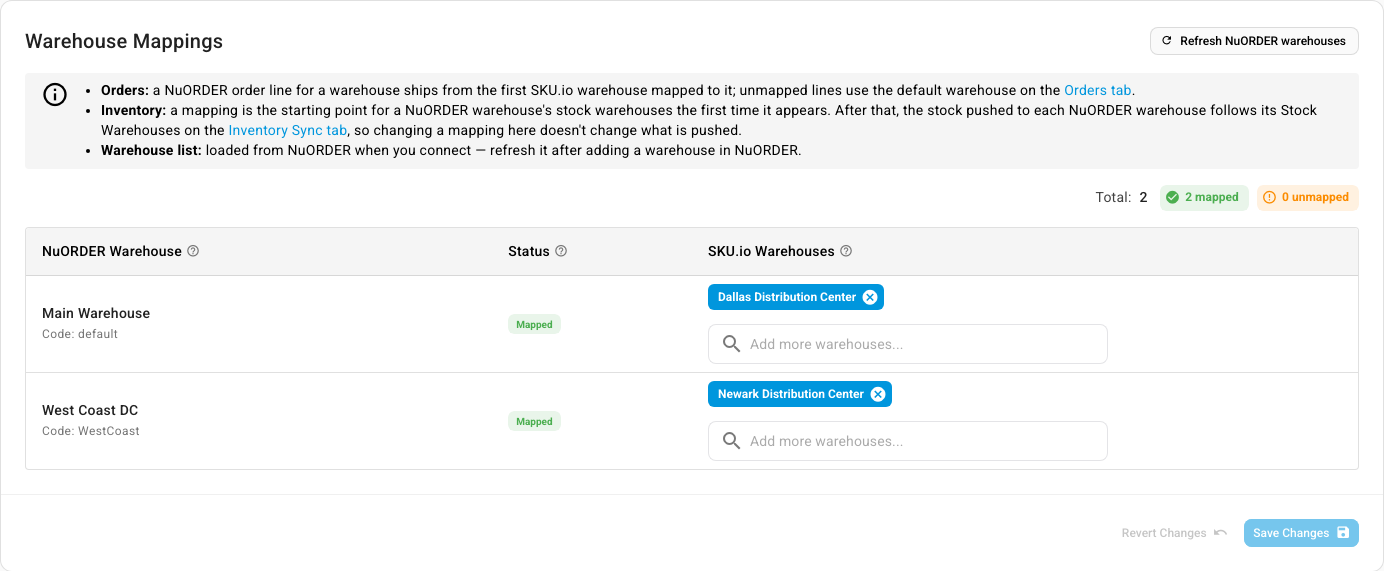
Order lines from a NuORDER warehouse you don't map ship from the Default Warehouse on the Orders tab, or by your warehouse routing priority when that's blank. See Set up NuORDER order, shipping and email settings.
Saving replaces every mapping for this portal with what's on screen. A new mapping applies to orders imported from now on.
Choose the stock each NuORDER warehouse is offered
-
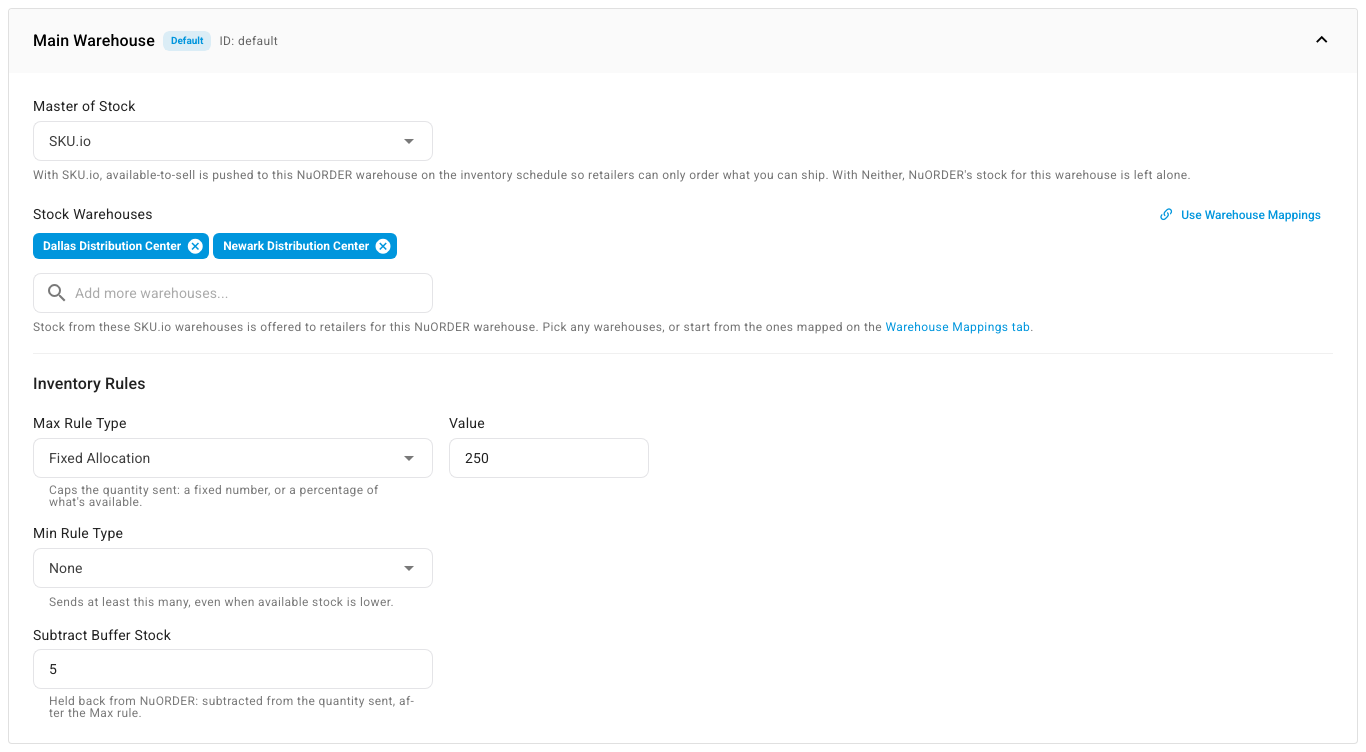
Go to NuORDER → Settings → Inventory Sync. Under Warehouse-Specific Settings, each NuORDER warehouse has its own panel. The first one is marked Default.
-
Open a NuORDER warehouse's panel.
-
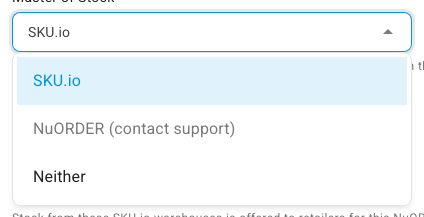
Choose its Master of Stock:
- SKU.io: SKU.io pushes available-to-sell to this NuORDER warehouse on the inventory schedule, so retailers can only order what you can ship.
- Neither: NuORDER's stock for this warehouse is left alone. The panel shows Not synced. A new NuORDER warehouse starts here.
- NuORDER (contact support) would leave NuORDER in charge of this warehouse's stock. You can't choose it yourself; contact SKU.io support if you need it.
-
Under Stock Warehouses, choose the SKU.io warehouses whose stock is offered to retailers for this NuORDER warehouse. You can pick any of your own warehouses. To start from the ones on the Warehouse Mappings tab, click Use Warehouse Mappings.
-
If you want to adjust the quantity sent, set the Inventory Rules: a Max Rule Type with its Value, a Min Rule Type, and Subtract Buffer Stock. Each rule type can be Fixed Allocation, % of Available or None. For example, a Max Rule Type of % of Available with a Value of 80 offers retailers 80% of your available stock and holds the rest back for your other channels.
-
Repeat for each NuORDER warehouse, then click Save Changes.
If a NuORDER warehouse with SKU.io as master of stock has no stock warehouses, the panel warns you that nothing is pushed to it until you choose at least one:

The rules work the same way as on every other sales channel, except that you set them per NuORDER warehouse instead of once for the whole channel. For what each rule does and the order they apply in, see Set the stock each channel sees and How the stock each channel sees is calculated.
If you connect more than one NuORDER portal, check that two portals don't offer the same SKU.io warehouses' stock, unless you want them to share it.
Offer stock that's still on the way
Wholesale buyers often order ahead for a future season. NuORDER can show them dated quantities, such as "+120 on Jan 5", as well as stock on hand. SKU.io can fill those in from your open purchase orders.
- On Inventory Sync, under Future Availability, turn on Push Future Available-to-Sell from Open Purchase Orders.
- Set Look-ahead (days). Only purchase orders expected within this many days are pushed, from 1 to 730. A shorter window keeps far-off, less certain deliveries out of NuORDER.
- Click Save Changes.
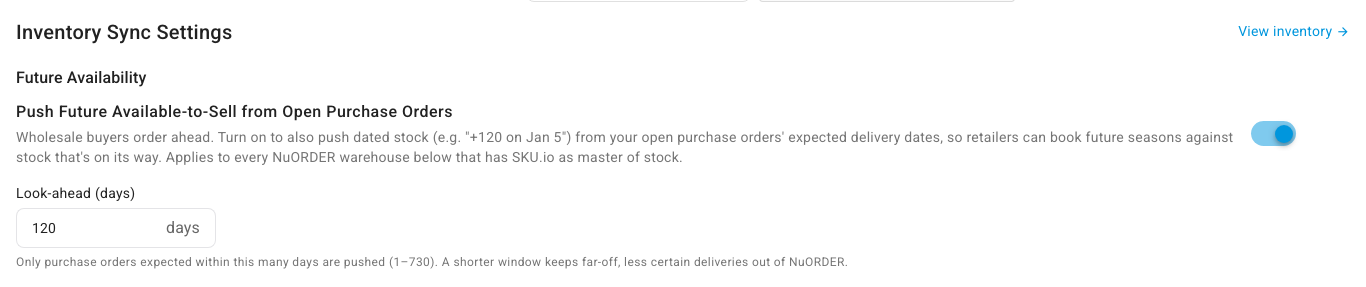
This applies to every NuORDER warehouse that has SKU.io as master of stock. The dates come from each purchase order's expected delivery date, so keep them up to date. A purchase order whose expected date has passed isn't offered until you update it; the Inventory page counts those units under Overdue Incoming. See Purchase orders.
Check and push stock
Go to NuORDER → Inventory, or click View inventory on the Inventory Sync tab. The page compares, for each size and NuORDER warehouse, the stock in SKU.io (SKU Qty) with what SKU.io sends (Push Qty). Last Pushed shows the quantity NuORDER was last sent, for example 12 units, and when. Future ATS and Overdue Incoming sit next to them.
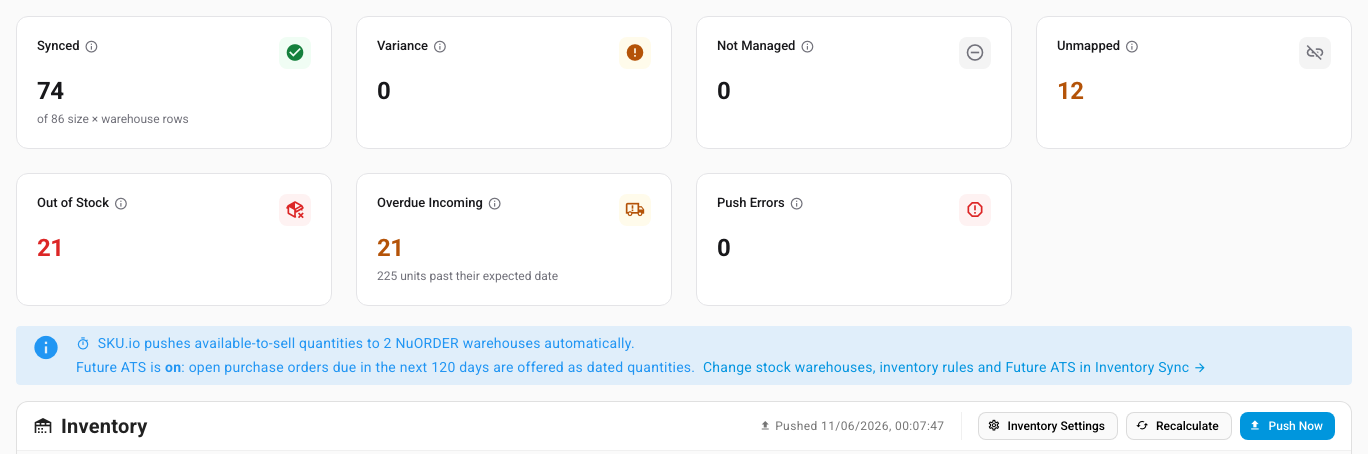
- The cards at the top (Synced, Variance, Not Managed, Unmapped, Out of Stock, Overdue Incoming and Push Errors) count the rows in each state. Click a card to filter the list to it.
- The banner under the cards says how many NuORDER warehouses SKU.io pushes to automatically, and whether future stock is offered. SKU.io pushes a size whenever its quantity changes.
- Recalculate works out the quantities again from your current stock and settings, without sending anything to NuORDER.
- Push Now sends the current quantities straight away. It runs in the background, and you can follow it in the job tray; see Follow background jobs.
- Sizes that aren't linked to a SKU.io product are listed as Unmapped. SKU.io leaves their stock in NuORDER alone rather than setting it to zero.
- When more units are on open orders (backordered) than the stock warehouses hold, SKU Qty is negative and shown in red, and its info icon explains why. Push Qty is 0, so NuORDER never shows a negative quantity.
- Inventory Settings opens the Inventory Sync tab.
When SKU.io can't push, the banner says why and links to the fix. For example, when no NuORDER warehouse has SKU.io as master of stock with stock warehouses chosen, it says No NuORDER warehouse receives stock yet, shows the quantities for reference only, and offers Set up Inventory Sync. It also says so when inventory sync is turned off on the Sync tab.
To find out why a size's numbers differ, see Check and fix channel stock mismatches.