Follow background jobs
Some work takes longer than a page load: pulling orders from a sales channel, importing a spreadsheet, exporting a large list, rebuilding ledger entries. SKU.io runs that work in the background so you can keep working, and reports on it in the Background Jobs tray at the top of every screen. From the tray you can watch a job's progress, cancel it, retry it if it fails, download the file it produced, and read what it did.
Before you begin
- The tray shows the jobs you started. Each finished job stays in the tray for about 30 minutes; older ones are on the Background Jobs list.
- You can close the tray, or leave the page, while a job runs. The job carries on without you.
Open the tray
The tray button sits in the top bar, to the left of the alerts bell:
- While jobs are running, its icon spins and a blue badge counts them.
- When nothing is running but a job has failed, a red badge counts the failures.
- When you start a new job, the button bounces to show the job has joined the tray.
Click the button to open the tray.
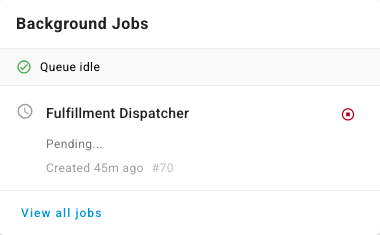
The line under the title shows how busy SKU.io is: Queue idle when nothing is waiting, or the number of jobs waiting with an estimated wait, such as ~2m wait.
Watch a job's progress
Each job shows its name and its state:
| State | What you see |
|---|---|
| Waiting to start | Pending... |
| Running, with a known size | A progress bar with items done out of the total, such as 120 / 400 items, and a percentage |
| Running, with no fixed size | A moving bar and a running count, such as 85 processed — normal for syncs that page through a channel until nothing is left |
| Running in stages | A checklist of stages, with the current stage spinning and the done ones ticked |
| Finished | A summary, such as 400/400 items, with (3 failed) added when some items couldn't be processed |
| Failed | (FAILED) after the name, and the error message in red |
| Cancelled | (CANCELLED) after the name |
Below the state you see how long ago the job started or finished and the job's number, such as #70. Quote that number when you contact support about a job.
Cancel a job
To stop a job that is waiting or running, click the red stop icon on the right of its row. The job is marked (CANCELLED). Whatever it had already finished stays done; nothing is rolled back.
Retry a failed job
- Read the red error message under the job's name. Click Details for the full error.
- Fix the cause if the message points to one, such as a disconnected app or a bad row in an import file.
- Click Retry. SKU.io starts the job again as a new entry in the tray.
Read what a finished job did
When a job finishes:
- Click Details to open Job Details: the counts the job recorded (for a sync, how many orders or products it retrieved and saved), what changed status, and any errors.
- Click Download to save the file a job produced, such as an export.
- Click View activity, when it's offered, to open the Activity Log filtered to exactly the records the job changed.
Many finished jobs also send you an alert, such as Job Completed: Brand report… 9/9 items processed, so you hear about them even when the tray is closed.
Clear the tray
Click × on a finished or failed job to remove it from the tray, or Dismiss all to clear every finished job at once. Running jobs stay until they finish.
See every recent job
Click View all jobs at the bottom of the tray. It opens Settings → General → Background Jobs, a list of every recent job with its status, how long it took, and when it was attempted, completed, and created. Filter it by Status or Type, or search by job number or name.
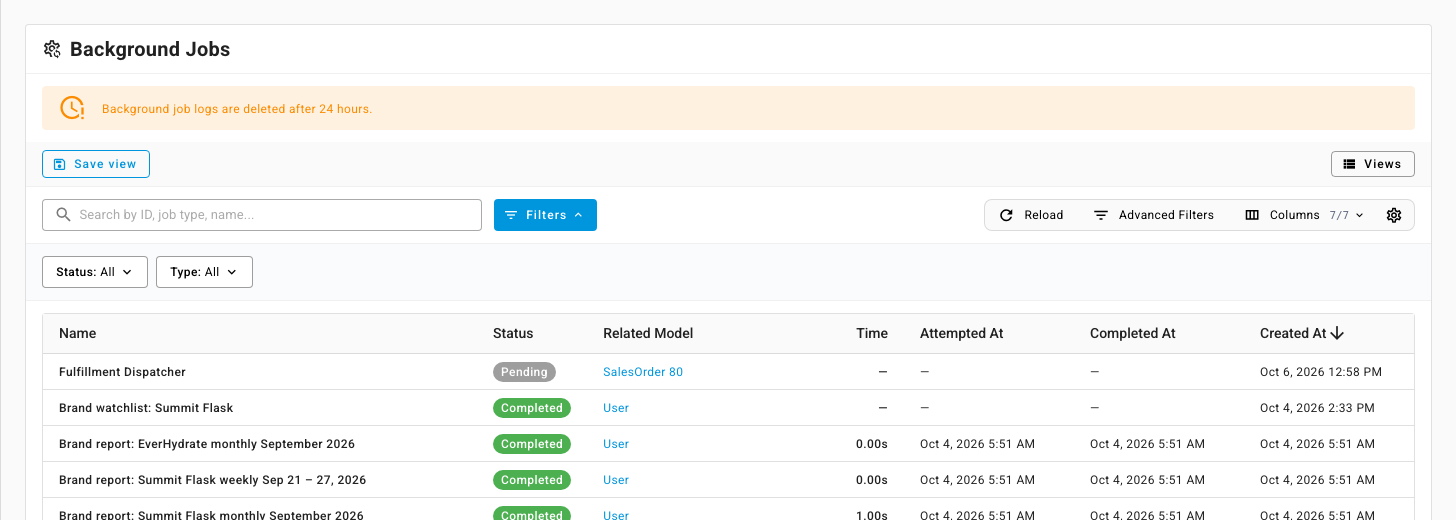
Job records are kept for 24 hours. What a job changed stays in the Activity Log after that.
Next steps
- Track changes in the activity log — see each record a job changed.
- Read and act on alerts — where the job-finished alerts land.