Connect NuORDER
Connect your NuORDER brand portal once, and SKU.io starts bringing in your styles, colors and sizes and your retailers' wholesale orders. You connect with an API key from your own NuORDER portal, then approve SKU.io inside NuORDER. SKU.io never sees your NuORDER password.
Before you begin
- You need a consumer key and consumer secret from your NuORDER portal. In NuORDER, go to Admin → API Management and create an API key, or copy an existing one.
- You need to know which NuORDER portal the key belongs to: your live Production portal (next.nuorder.com), or a NuORDER sandbox (sandbox1.nuorder.com) that NuORDER set up for you. You can't change this choice after you connect.
- You need to be able to sign in to NuORDER as an admin, to approve SKU.io under Admin → API Management → Pending Applications.
- You need permission to add integrations in SKU.io.
- Set up the store your NuORDER orders should belong to. Its branding appears on packing slips and emails. See Set up your stores.
- Set your inventory start date. NuORDER orders placed before it aren't imported, unless you choose a later date while you connect.
Open the connection form
- Go to Apps & Integrations → All Integrations.
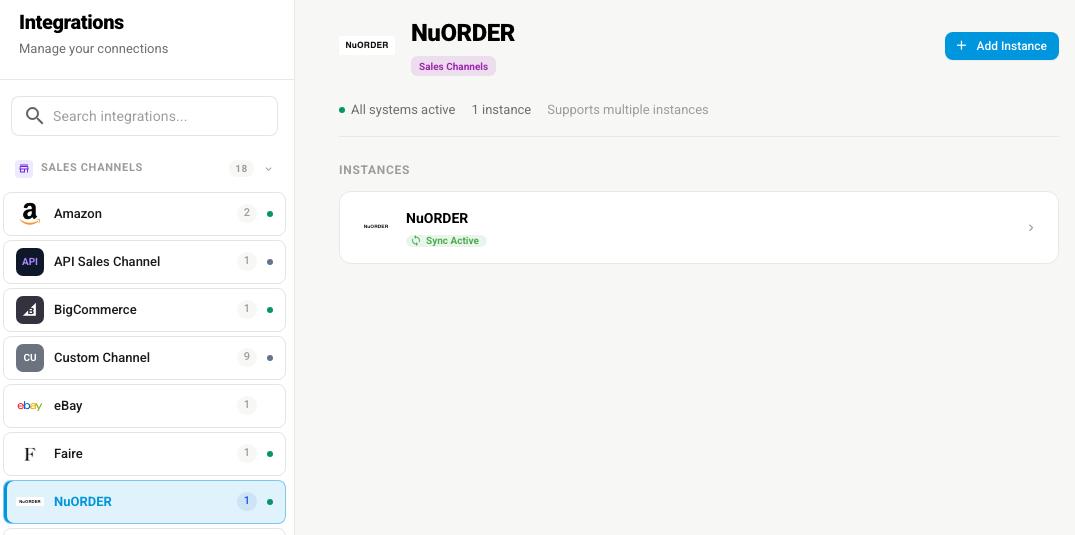
- Type NuORDER in Search integrations..., and choose NuORDER under Sales Channels.
- Click the button at the top of the NuORDER panel to add a connection. Once you have a NuORDER portal connected, it's Add Instance. You can also click New Integration at the top of any NuORDER page. The New NuORDER Integration page opens.
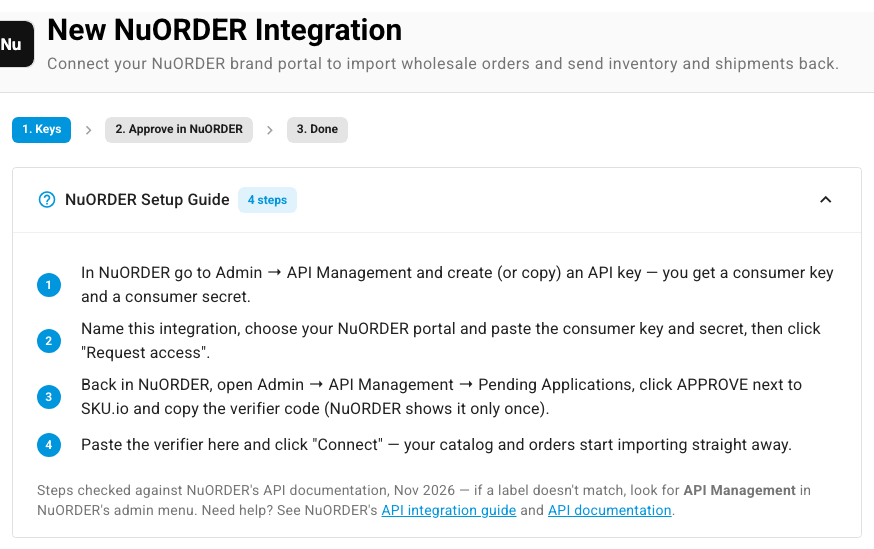
The page walks you through three steps: 1. Keys, 2. Approve in NuORDER and 3. Done. Open NuORDER Setup Guide to see the same steps in four parts, as NuORDER names them, with links to NuORDER's API integration guide and API documentation.
Enter your keys
-
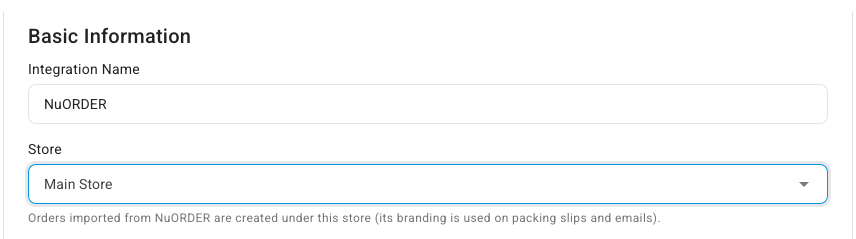
Leave Integration Name as NuORDER, or type a name you'll recognize, such as the brand's name. Each NuORDER connection needs its own name.
-
Check the Store that NuORDER orders are created under. It starts on your default store. You can change it later on Settings → General.
-
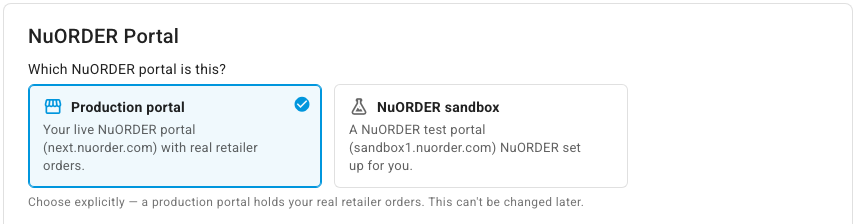
Under Which NuORDER portal is this?, choose Production portal or NuORDER sandbox. Choose carefully: a production portal holds your real retailer orders, and you can't switch a connection to the other portal later.
-
Paste your Consumer key and Consumer secret. SKU.io stores them encrypted and never shows the secret again.

-
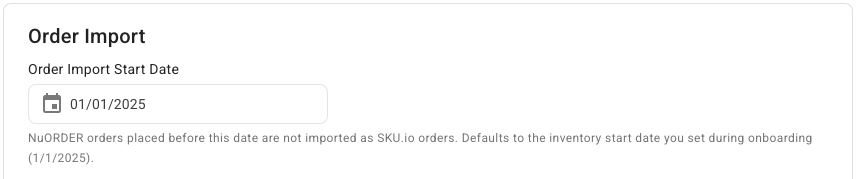
Check the Order Import Start Date. It starts at your inventory start date. NuORDER orders placed before this date aren't imported as SKU.io sales orders, so orders you already handled elsewhere stay out. You can't pick a date before your inventory start date, and you can change this date later on the Orders settings tab.
-
Click Request access. SKU.io creates the connection and asks NuORDER for access, and the page moves on to 2. Approve in NuORDER.

If Request access is greyed out, point at it to see what's missing, for example Choose your production portal or your NuORDER sandbox or Enter the consumer secret from NuORDER.
If another NuORDER connection already uses the name, SKU.io renames this one for you and says so, for example: An integration named "NuORDER" already exists. Renamed to "NuORDER 2" — adjust it if you like, then request access again. Click Request access again.
If NuORDER rejects the keys, the page says so, for example NuORDER rejected the consumer key or secret. Copy them again from NuORDER → Admin → API Management. Fix the key or secret and click Request access again. While you stay on the page, SKU.io reuses the connection it already created, so you don't end up with two.
The first Request access creates the connection, so after it the portal choice is locked. To connect the other portal, cancel and start again. You can still change Integration Name and Store: SKU.io saves the change when you click Request access again.
If you click Cancel after NuORDER rejected the keys, SKU.io asks Delete the unfinished connection? Click Delete to remove it, so no half-made connection is left behind, or Keep it to finish connecting later from Settings → Authentication.
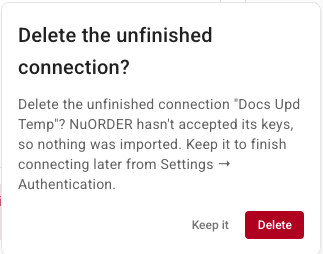
A connection you keep, or leave by going to another page, stays as Not connected. Its Dashboard shows a banner and greys out Refresh from NuORDER, and the Orders page shows Not connected where the refresh countdown would be:

Click Connect portal to finish it on Settings → Authentication, or delete it if you don't need it.
Approve SKU.io in NuORDER
- In NuORDER, go to Admin → API Management → Pending Applications.
- Click APPROVE next to SKU.io. NuORDER shows a verifier code.
- Copy the verifier code. NuORDER shows it only once.
- Back in SKU.io, paste the code into Verifier code.
- Click Connect.
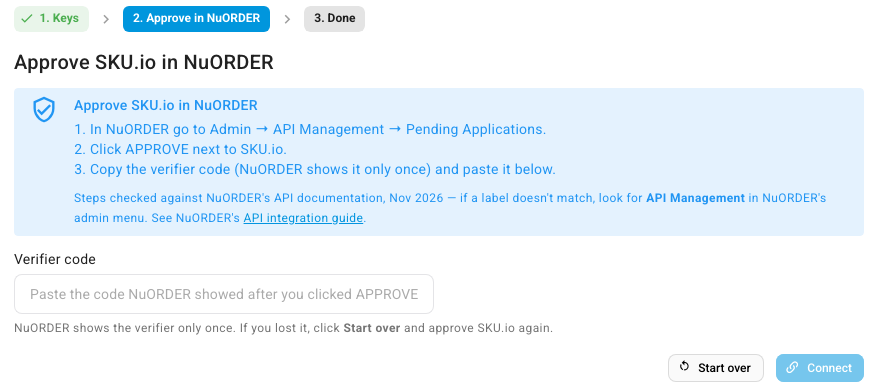
SKU.io exchanges the code for a permanent connection, loads your NuORDER warehouses, and opens the NuORDER Dashboard. Your catalog and your orders start importing straight away. The first import runs once for each portal, and you can follow it in the job tray. See Follow background jobs.
Stock doesn't go to NuORDER yet. A new connection sends no stock until you choose which SKU.io warehouses feed each NuORDER warehouse, and until then the Dashboard says so, with a Choose stock warehouses button:

See Map NuORDER warehouses and send stock.
If you lost the verifier code, or NuORDER doesn't accept it, click Start over. SKU.io sends NuORDER a fresh access request, and the old code stops working. Approve SKU.io again in Pending Applications and paste the new code.
If SKU.io is already approved in your NuORDER portal
If your NuORDER admin already approved SKU.io and can give you its token, you can skip the approval step:
- On the keys step, turn on I already have an approved token.
- Paste the Token and Token secret from NuORDER's Admin → API Management → Approved Applications.
- Click Connect.

SKU.io checks the token by loading your NuORDER warehouses. If NuORDER rejects it, copy the token and token secret again from Approved Applications.
Finish later
If you can't approve SKU.io in NuORDER right away, click Finish later on the approval step. SKU.io opens the new connection's Dashboard, where it waits as Awaiting approval with a reminder:

Until you finish, SKU.io can't import anything from NuORDER. To finish, approve SKU.io in NuORDER, click Finish connecting on the banner, and paste the verifier code on NuORDER → Settings → Authentication, as the banner says.
Set it up
Before your first orders arrive, work through the rest of the set-up guides in order: map your warehouses first, then link sizes, then choose how orders import. The Accounting settings tab only points you to Channel Accounting; see Use different accounts per sales channel.
Check the connection
Go to NuORDER → Settings → Authentication. The chip next to Connection shows the portal's state, for example Connected, Awaiting approval or Not connected. The card also lists the NuORDER portal, the Authorization state, when it Connected, and how many NuORDER warehouses SKU.io loaded. For a portal that isn't connected yet, it also shows the Consumer key (masked) and the Portal URL.
Click Test connection at any time. It calls NuORDER with the stored connection and reloads your NuORDER warehouses. To read the dashboard and fix a connection that needs attention, see Monitor and manage the NuORDER connection.
Reconnect with new keys
If you rotate your API key in NuORDER, or NuORDER stops accepting the current one, request access again from NuORDER → Settings → Authentication:
- Under Consumer key & secret, enter the new Consumer key and Consumer secret. To reuse the stored keys, leave both blank.
- Click Request access.
- Approve SKU.io again in NuORDER under Admin → API Management → Pending Applications, then paste the new verifier code on Settings → Authentication to finish connecting.

If NuORDER rejects the keys, the card says so under the fields. Your settings, mappings and imported orders are kept, and reconnecting never repeats the first catalog and order import.
Delete the connection
To stop the connection for a while instead, pause it; see Pause sync or turn one direction off.
- Go to NuORDER → Settings → General.
- Under Danger Zone, click Delete.
- In the confirmation that appears, click Delete.
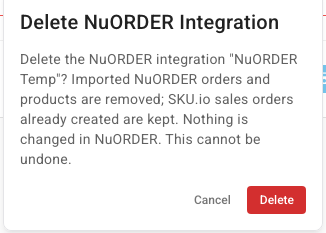
Deleting removes the imported NuORDER orders and products from SKU.io. Sales orders SKU.io already created are kept, but they no longer get updates from NuORDER or send shipments back. Nothing changes in NuORDER, and SKU.io stays listed under Approved Applications in your NuORDER portal until you remove it there. You can't undo a delete. To move a connection between your production portal and a sandbox, delete it and connect again.
Connect more than one portal
You can connect more than one NuORDER portal, for example one for each brand. Each portal is its own connection with its own settings, warehouses and orders. When you have more than one, the NuORDER Dashboard shows a card for each portal; click Select to work on one, or switch with the selector at the top of the page. Make sure two portals don't send stock from the same SKU.io warehouses unless you mean them to share it. See Connect more than one store or account.
Next steps
- Map NuORDER warehouses and send stock, before retailers start ordering.
- Link NuORDER sizes to SKU.io products
- Set up NuORDER order, shipping and email settings
- How NuORDER works with SKU.io
Video transcript
To connect NuORDER, open Apps and Integrations from the menu on the left. Type NuORDER into the search box, and choose NuORDER under Sales Channels. Then click Connect NuORDER at the top of the panel, and the connection form opens. Give the connection a name you'll recognize, or keep NuORDER. Then check which store receives these orders. Your default store is already chosen. Next, choose whether this is your Production portal or a sandbox. You can't change that choice later. Create an API key in NuORDER, under Admin and API Management. Paste its consumer key and consumer secret into these two fields. SKU.io stores them encrypted. Older orders stay out, thanks to the order import start date. When everything looks right, click Request access at the bottom of the form. This saves the connection and sends the request. A moment later, the approval step opens. Then sign in to your portal's admin, and find Pending Applications. Click Approve next to SKU.io, and copy the verifier code. NuORDER shows it only once, so paste it straight into the Verifier code field. Then click Connect, and give it a moment to finish connecting your portal. Your NuORDER portal is connected, and its dashboard opens. SKU.io starts importing your catalog and orders in the background. No stock is sent until you choose stock warehouses. Do that next, before retailers start ordering.