Track changes in the activity log
SKU.io keeps an audit trail of the changes made to your records. Every time a record is created, updated, or deleted, the change is written to the Activity Log with the date, the person or process behind it, and the before-and-after value of each field that changed. Use it when a number looks wrong and you need to know when it changed, who changed it, and what it was before.
Before you begin
- The Activity Log covers every record type at once. When you only care about one record, open that record instead; most records have their own Activity tab showing the same trail for that record alone (see Check one record's history).
Open the activity log
The Activity Log has no menu entry of its own. Reach it from the search bar:
- Click Search... at the top of the screen, or press ⌘K (Ctrl+K on Windows).
- Type
activity. - Select Activity Log.
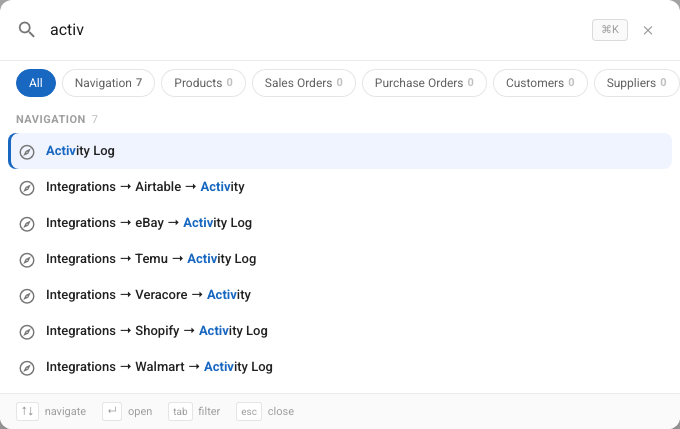
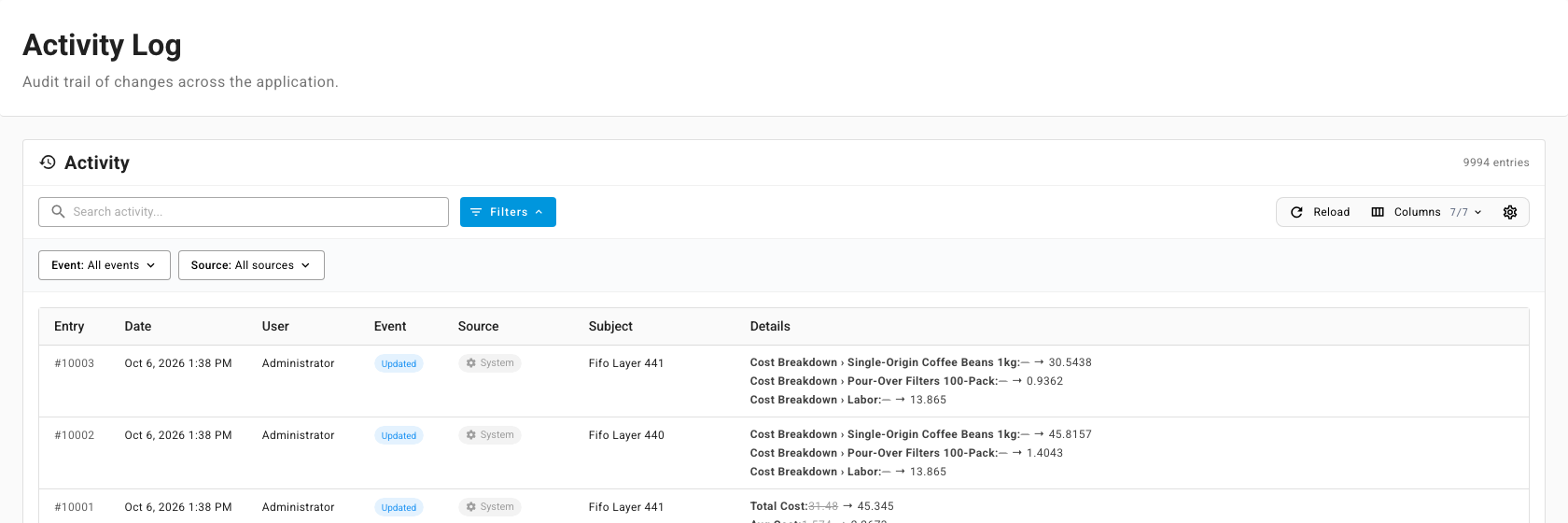
The newest change is at the top. The count in the top-right corner of the Activity card is the number of entries the current filters match.
Read an entry
Each row is one change.
| Column | What it tells you |
|---|---|
| Entry | The entry's number, such as #9975. Quote it when you ask support about a change. |
| Date | When the change was made, in your account's time zone. |
| User | The person who made the change, or System when no person did, such as an automatic sync. |
| Event | What happened: Created, Updated, Deleted, or a step in sending an order to a fulfillment partner (Dispatched, Dispatch Succeeded, Dispatch Failed, and so on). |
| Source | The process or channel that made the change, such as Amazon, Shopify, Import, Stock Take, or PO Receipt. |
| Subject | The record that changed. |
| Details | Each field that changed, as old → new. The old value is struck through. A dash before the arrow means the field was empty before. |
To hide a column you don't need, open Columns and clear it.
Narrow the list
The trail grows fast, so filter it down to what you're looking for:
- Event — show only one kind of change, for example Deleted to find out when a record disappeared.
- Source — show only the changes from one channel or process, for example Shopify for everything a Shopify sync changed, or Import for changes that came from a spreadsheet upload.

You can also type in Search activity... to narrow the list. Click Reload to pull in changes made since you opened the page.
Follow a bulk operation
When one action changes many records at once — an order import, a channel sync, a bulk edit — SKU.io records those changes as a batch. A batch shows as a single row that says what happened and how many records it touched, for example Created × 15 · Amazon · 15 Sales Order Lines, with the time and who started it on the right.
- Click the batch row to expand it.
- Read the individual changes listed beneath it, one row per record.
- Click the row again to fold it away.
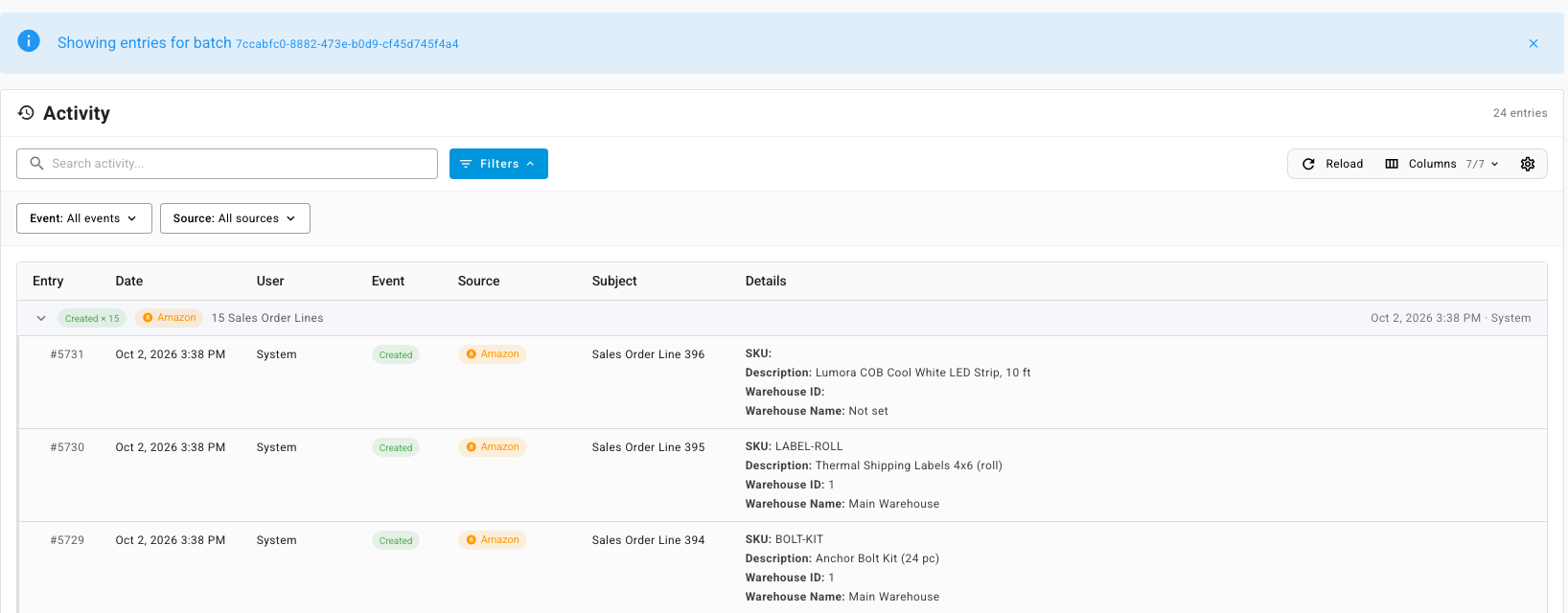
When a long-running job in the background jobs tray finishes, it can carry a View activity link. That link opens the Activity Log filtered to that job's batch, with a Showing entries for batch banner across the top. Close the banner with × to go back to the full log.
Check one record's history
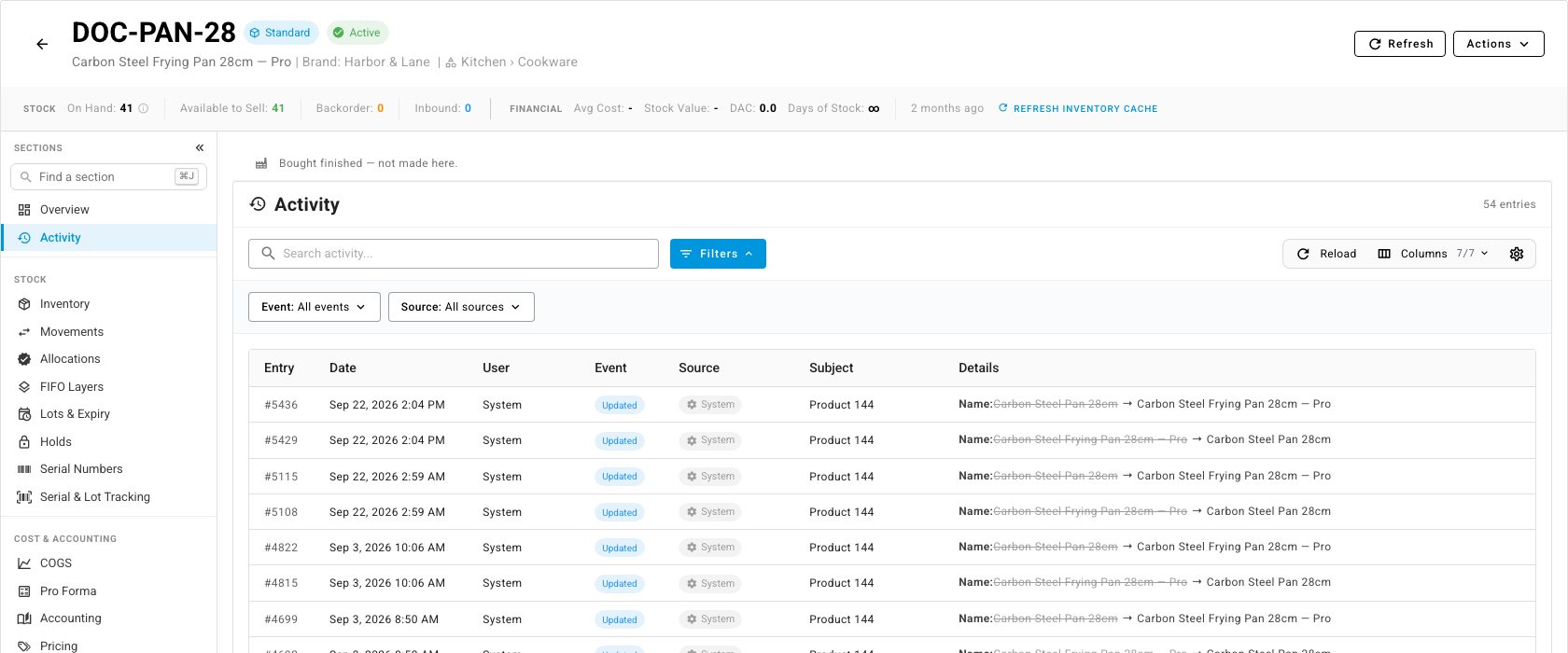
Products, purchase orders, sales orders, stores, connected apps, and most other records keep their own activity trail. It's the same table, already filtered to that record and the records that belong to it — a purchase order's trail also includes its lines and invoices.
- Open the record.
- Open its Activity tab. On a connected app, the tab is called Activity Log.
Changes that also record why
The activity log tells you what changed. Some decisions also record why, because the reason matters as much as the number:
- Cost revaluations. Every time a FIFO layer's cost is revalued, the change carries a Revaluation Reason and optional notes. Read them in the Cost History ledger.
- Late cost changes. When a cost arrives after the stock it belongs to was received, you decide on Inventory → Cost Changes whether to restate the earlier months or apply it going forward, and you can add a note. Each decision is kept on the cost change under Decision history: what was decided, by whom, when, and your note.
- Supplier confirmations. When you record a supplier's confirmation of a purchase order, the order shows who recorded it, when, and the note you typed, such as "Confirmed by phone — ships Friday."
Next steps
- Follow background jobs — watch long jobs run, and jump from a finished job to the changes it made.
- Keyboard shortcuts and the command palette — the fastest way to open the Activity Log and any other page.
- Revalue COGS — change a layer's cost with a recorded reason.