Handle NuORDER orders
Most NuORDER orders need nothing from you: SKU.io imports them, creates the sales order and allocates stock, and keeps the sales order in step as the retailer edits the order in NuORDER. This page covers the moments that need you, such as a size SKU.io doesn't recognize, an order you want to create early, or a change from NuORDER that SKU.io couldn't apply.
Before you begin
- Connect NuORDER.
- Choose when an order becomes a sales order, the order import start date and the default warehouse. See Set up NuORDER order, shipping and email settings.
- Link your NuORDER sizes to SKU.io products, so order lines know which product to ship. See Link NuORDER sizes to SKU.io products.
- Creating, updating and refreshing orders needs permission to run integration syncs. See Create a role.
Find your NuORDER orders
- Go to Apps & Integrations → All Integrations and open NuORDER. If you have more than one portal, pick it in the selector at the top of the page.
- In the NuORDER menu, under Sales, click Orders.
The NuORDER Orders list shows every imported order with its NuORDER Status, the Retailer and Buyer, the PO #, the Ship Window and the order's Units and Total. SKU SO # shows the sales order SKU.io created, or + Create when there isn't one yet. The header counts down to the next order check (Next NuORDER refresh in); SKU.io checks NuORDER for new and changed orders every 15 minutes.
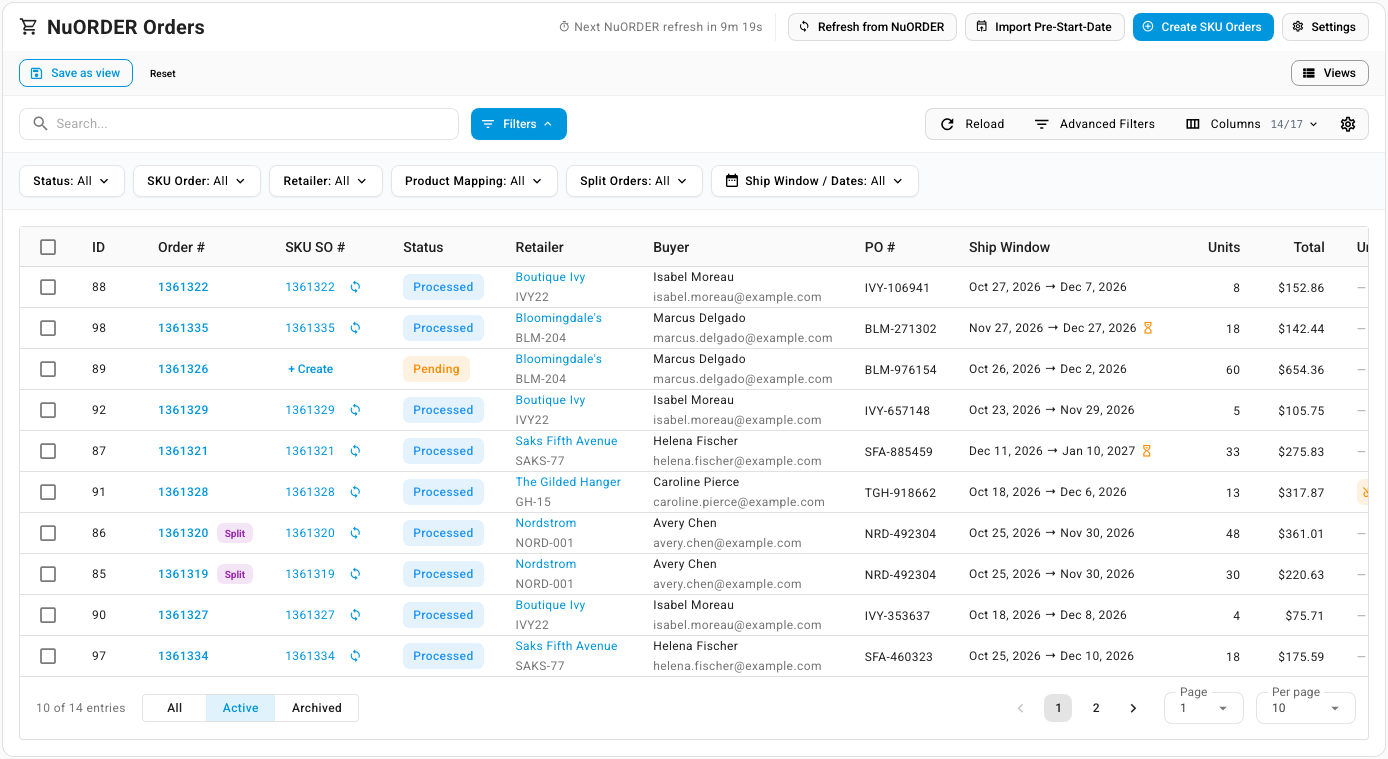
A few markers on the list point to orders that need a look:
- A Split chip next to the order number: NuORDER split the retailer's order by ship window. See Find split orders.
- An hourglass after the ship window: the sales order is held until the start ship date. See Ship a held order before its start date.
- An orange N unmapped chip in the Unmapped column: some sizes on the order aren't linked to a product. See Link a size SKU.io doesn't recognize.
Click an order number to open the order page. For every status, column and filter on this list, see NuORDER orders and customers reference.
Create a sales order
SKU.io creates the sales order on its own once the order reaches the status you chose under Create SKU.io sales orders when a NuORDER order is on Settings → Orders: Approved (recommended) or Pending. It also allocates stock and, if you left those switches on, marks the order Processed in NuORDER and writes the sales order number back to it.
An order below that status waits. To create its sales order now, for example for a Pending order you've agreed with the retailer:
-
Open the order.
-
Click Create SKU Order.

SKU.io creates the sales order and says SKU order created. The SKU Order card and the SKU Sales Order panel now show its number, status and payment. Click View Sales Order to open it.
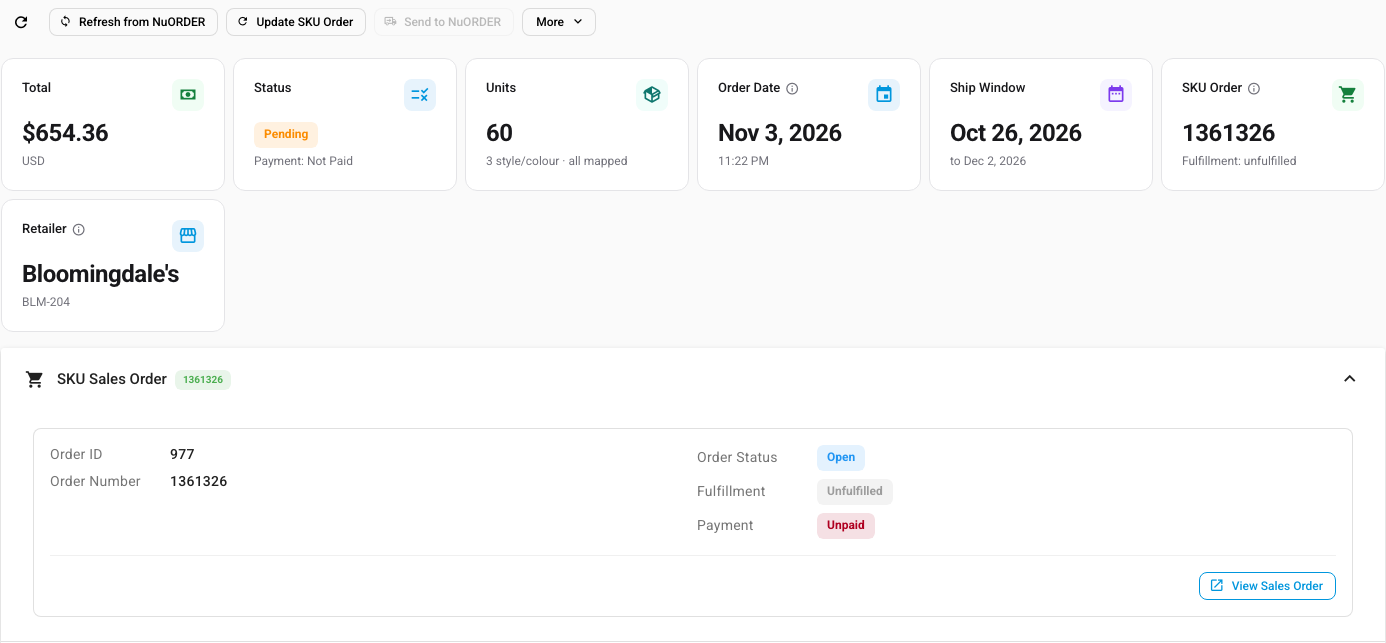
You can also create sales orders from the list:
- Click + Create in an order's SKU SO # column.
- Tick several orders, then click Create SKU Orders in the bar above the list. The bar says how many you ticked, for example 1 order selected. Choose Selected Only or All Filtered to set which orders it applies to.
- Click Create SKU Orders at the top of the list to create one for every active order at your chosen status or later that doesn't have one yet. Confirm with Create.
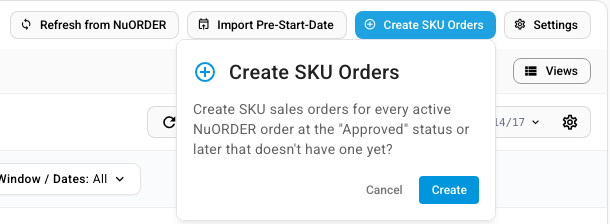
The bulk buttons run in the background; follow them in the job tray. See Follow background jobs. When nothing qualifies, the job says No eligible NuORDER orders to create (already linked, archived, or not at the "create sales orders at" status).
Archived orders, cancelled orders and unsubmitted carts never become sales orders.
Link a size SKU.io doesn't recognize
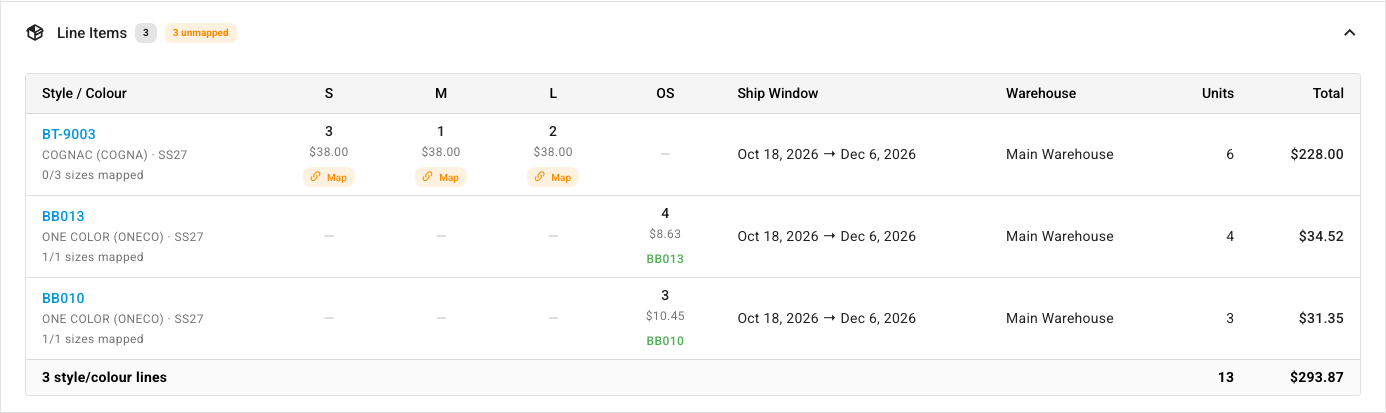
When a retailer orders a size that isn't linked to one of your products, SKU.io still imports the order and creates its sales order, but that line has no product. It can't be allocated or shipped, and stock for that size isn't sent to NuORDER. Link the size once, and every order that uses it is fixed.
-
On the Orders list, set Product Mapping to Missing Mappings. Only orders with an unlinked size are left, each with an orange N unmapped chip.
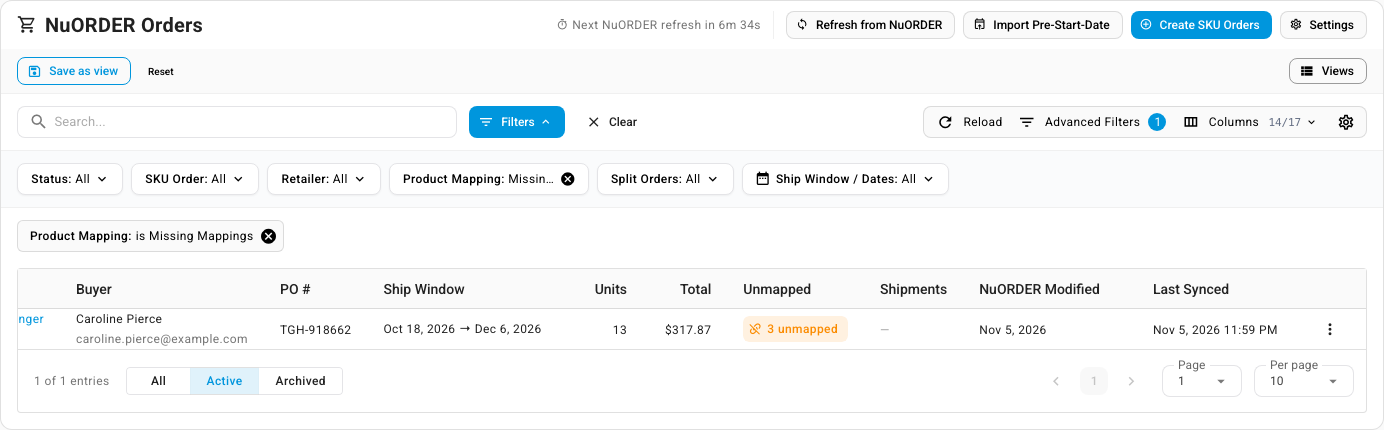
-
Click the order number. Under Line Items, each style and color has one row and each size has its own column. An unlinked size shows a Map button instead of a product.
-
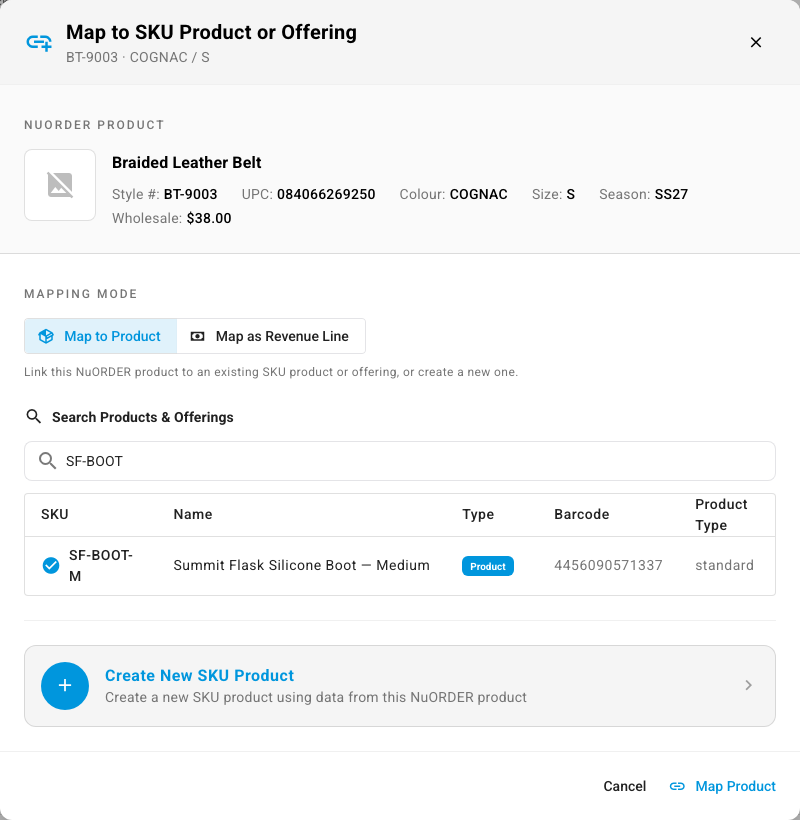
Click Map under the size. The Map to SKU Product or Offering window shows the NuORDER size you're linking, with Map to Product chosen under Mapping Mode.
-
Under Search Products & Offerings, search for your product by SKU, name or barcode, and select it.
-
Click Map Product.
The size now shows the SKU of the product it's linked to, and the order's unmapped count goes down. Repeat for each size still showing Map.
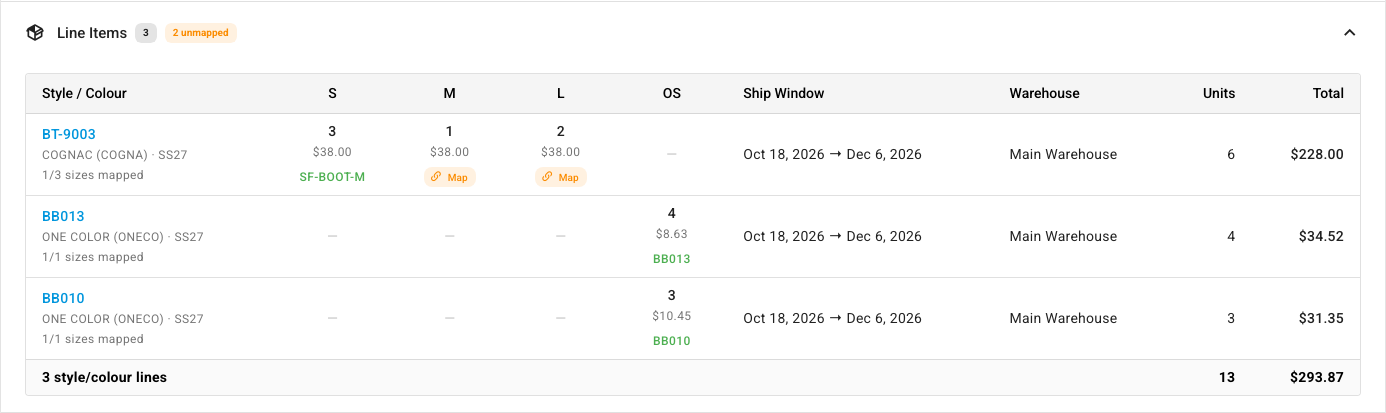
The link is saved for the size, not just this order. SKU.io then links the matching lines on sales orders that already exist, in the background, and allocates stock for them. Until it has, the sales order shows Some line items aren't linked to products.
If no product exists yet, click Create New SKU Product in the same window to create one from the NuORDER size. To book the size to a revenue line instead of a product, click Map as Revenue Line under Mapping Mode; see Map a size to a revenue line. To link many sizes at once, or to set up automatic matching, see Link NuORDER sizes to SKU.io products.
Bring in an order or a change now
You don't need to wait for the next order check.
For one order you already have: open it and click Refresh from NuORDER to pull NuORDER's latest version of the order into SKU.io. On the list, the row menu's Refresh from NuORDER (Refresh order data & update SKU order) does that and also updates the sales order in one go.
For new orders, or orders by number:
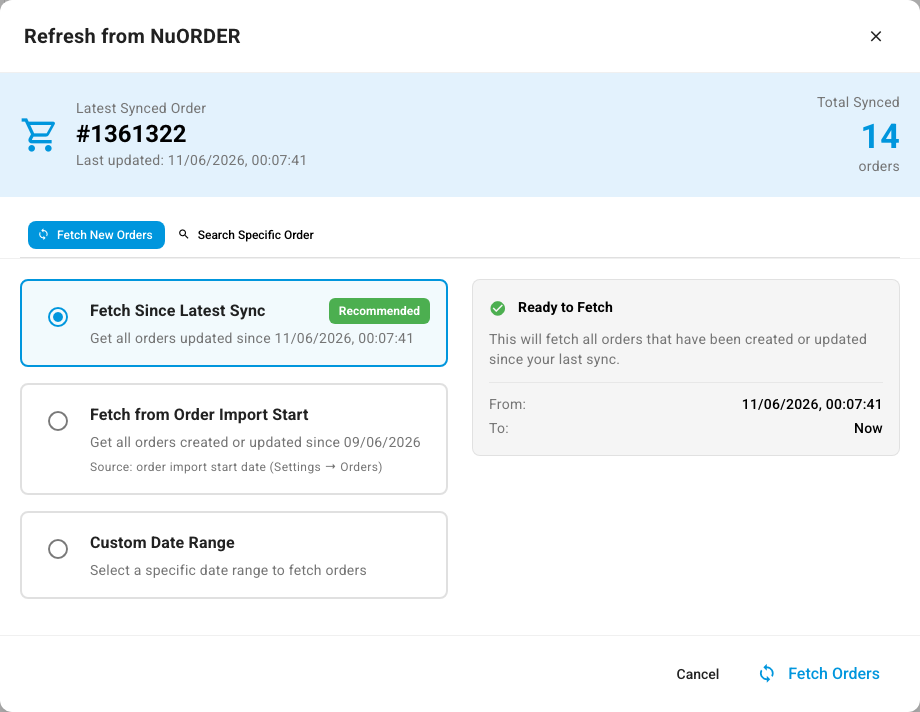
- On the Orders list, click Refresh from NuORDER.
- Choose what to fetch:
-
On Fetch New Orders, pick Fetch Since Latest Sync (recommended), Fetch from Order Import Start (every order created or updated since your Order Import Start Date), or Custom Date Range, then click Fetch Orders.
-
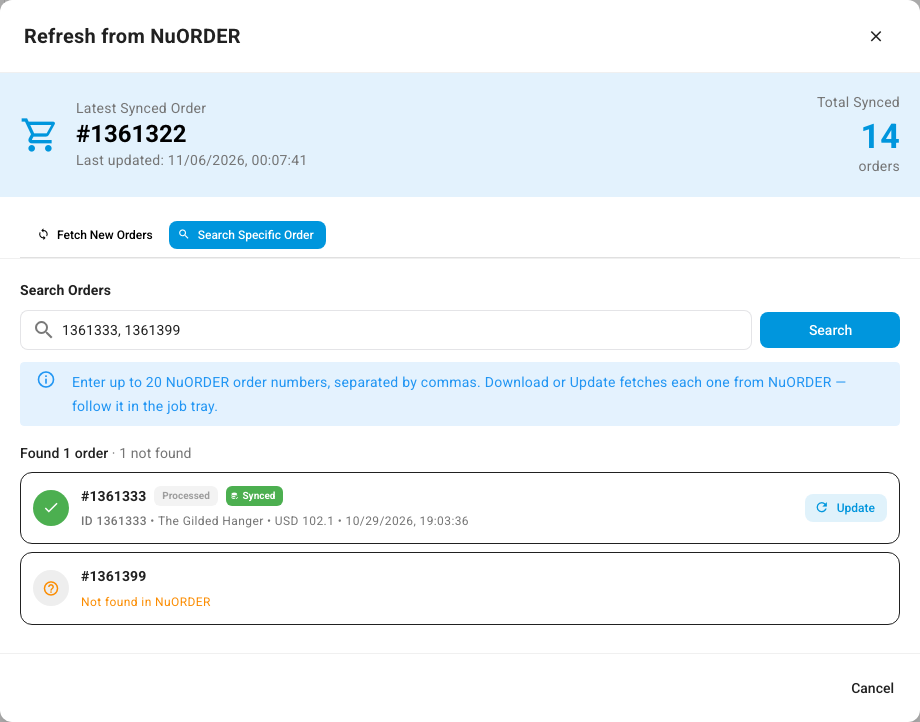
On Search Specific Order, enter up to 20 NuORDER order numbers, separated by commas, and click Search. Click Download to bring in an order SKU.io doesn't have yet, or Update for one it already has. A number NuORDER doesn't have shows Not found in NuORDER and has no button.
-
The refresh runs in the background; follow it in the job tray. Download and Update say so when you click them, for example Updating #1361333 — follow it in the job tray. While a refresh of the portal's orders is running, Refresh from NuORDER on the list is greyed out; hover over it to see why.
Update a sales order from NuORDER
When a retailer or your rep changes an order in NuORDER, SKU.io applies the change to the sales order at the next order check. To apply NuORDER's latest version right away:
- On the order page, click Update SKU Order. SKU.io says SKU order updated from NuORDER.
- To update several, tick them on the list, click Update SKU Orders, then confirm with Update N Orders. Orders without a sales order are skipped, and progress shows in the job tray.

The message after an update tells you how it went:
| Message | What it means |
|---|---|
| SKU order created. | Create SKU Order made the sales order |
| SKU order updated from NuORDER. | Every change from NuORDER was applied to the sales order |
| SKU order updated from NuORDER, but some NuORDER changes could not be applied — see the order page. | Some changes were applied, and the order page shows a banner with the rest. See Fix a change SKU.io couldn't apply |
| Order refreshed from NuORDER. | Refresh from NuORDER on the order page got NuORDER's latest version of the order. If the order has a sales order, click Update SKU Order to apply it there |
What an update changes, and what it leaves alone, is explained in How NuORDER works with SKU.io.
Fix a change SKU.io couldn't apply
SKU.io never takes back units that already shipped. If NuORDER lowers or removes a line below what has already shipped or been committed to a fulfillment, SKU.io keeps those units and shows a banner on the NuORDER order page that says exactly what it couldn't do. For example: NuORDER lowered a line to 7 units, but 9 are already shipped.

Decide which side is right:
- If NuORDER is right and the extra units shouldn't ship:
- Click Open SKU Order in the banner. The button carries the sales order number, for example Open SKU Order 1361332.
- Void the fulfillment that holds the extra units. See Void, restore or reset a shipment.
- Go back to the NuORDER order and click Update SKU Order in the banner.
- If what you shipped is right, change the order in NuORDER to match it. The next update applies cleanly.
The banner clears once an update applies without a conflict. Each conflict is also recorded in the order's Activity Log panel as Change not applied.
Ship a held order before its start date
While an order's start ship date is still ahead, SKU.io holds its sales order until then, and an hourglass marks the order's ship window on the Orders list. On the sales order, the hold is the Hold Until date:
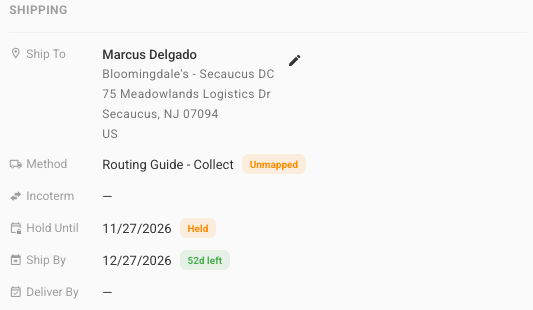
To ship before the start date, for example when the retailer agrees to take the goods early, change the ship window in NuORDER. The next update moves or clears the hold to match. If you clear Hold Until on the sales order yourself while NuORDER still shows a later start date, the next update from NuORDER puts the hold back.
For how the ship window and prebook lines work, see The ship window. To plan around held orders, see Plan shipments with the ship-by and release schedules.
Find split orders
NuORDER can split one retailer order into several orders by ship window, and each part gets its own sales order. To list only those, set the Split Orders filter to Split Orders. How a split order shows on its order page is in Split orders. A NuORDER size linked to a bundle works as described in Bundles.
When an order is cancelled
Cancelled in NuORDER: SKU.io cancels the sales order at the next order check, and the order page says This NuORDER order is cancelled. To cancel the sales order right away, click Update SKU Order on the order.

The sales order then shows This order has been cancelled. All inventory allocations have been cancelled.

A cancelled NuORDER order doesn't accept shipments, and SKU.io doesn't send this cancellation back to NuORDER.
Cancelled in SKU.io: when you cancel units or the whole sales order, SKU.io records the cancellation on the NuORDER order. See Send shipments and cancellations to NuORDER.
Import orders placed before your start date
The order check skips orders created before the Order Import Start Date, so orders you handled elsewhere stay out of SKU.io. To bring in older orders that still need fulfilling:
-
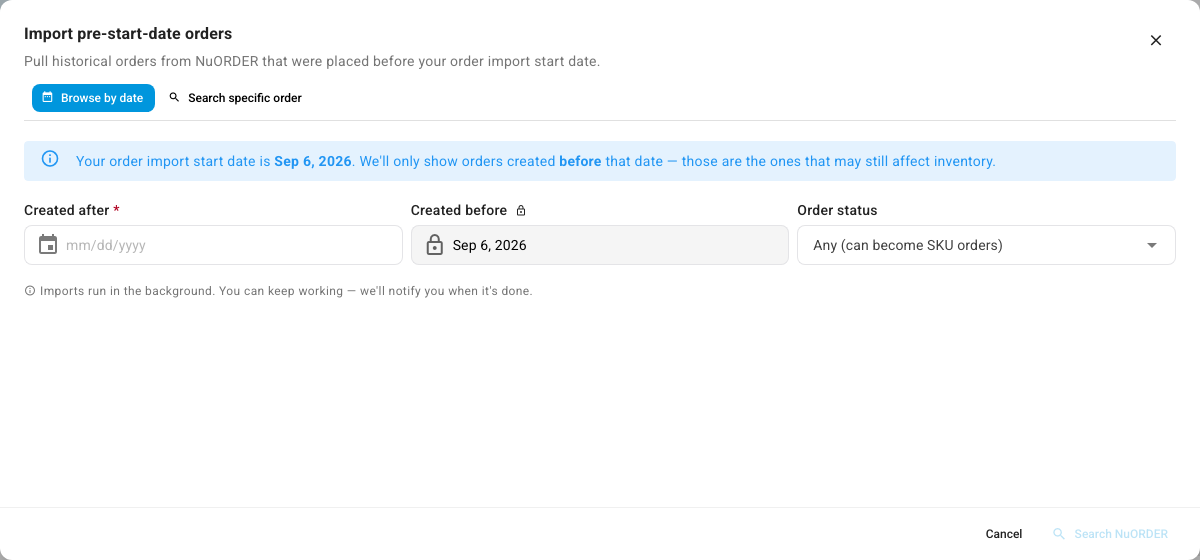
On the Orders list, click Import Pre-Start-Date. The Import pre-start-date orders window opens.
-
On Browse by date, set Created after. Created before is locked to your Order Import Start Date, which the window names, for example Your order import start date is Sep 6, 2026. Optionally pick an Order status.
To find one order instead, click Search specific order and enter its number.
-
Click Search NuORDER. The results line shows how many orders were found, how many are eligible and how many are already imported, and the orders are split across the All, Eligible and Ineligible tabs. No orders found matching your criteria. means nothing in NuORDER matches; widen the dates.
-
Tick the orders you want and click Import N Orders, where N is how many you ticked.
The import runs in the background. From then on, the imported orders sync like any other order. Orders that were shipped before you started tracking stock in SKU.io can be closed without taking stock out; see Close orders that shipped before tracking.
There's no file import for NuORDER orders.
Archive or delete an order
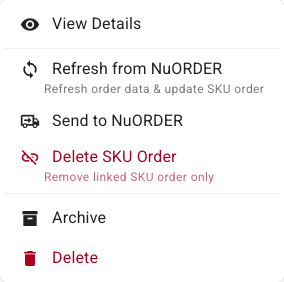
Open an order's More menu, or the row menu on the list, or tick several orders and use the bar above the list.
| To… | Use | What happens |
|---|---|---|
| Hide an order and stop it becoming a sales order | Archive | The order moves to the Archived view at the bottom of the list, and syncs skip it. Unarchive brings it back. Archiving from the bar above the list asks you to confirm first. |
| Remove only the sales order and keep the NuORDER order | Delete SKU Order | Deletes the linked sales order for good. |
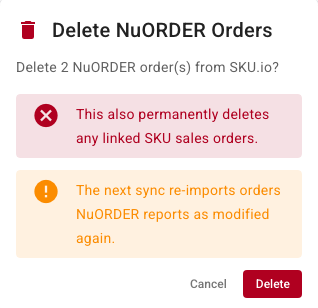
| Remove the NuORDER order from SKU.io | Delete | Deletes the order and its linked sales order. |
To delete only the sales order:
- Choose Delete SKU Order (Remove linked SKU order only).
- To stop SKU.io creating the sales order again, tick Also archive the NuORDER order (prevents re-creation on the next sync).
- Type YES and click Delete SKU Order.
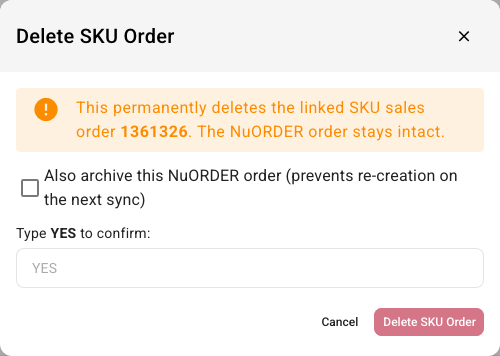
Delete SKU Orders in the bar above the list deletes several sales orders at once. It has the same option, Also archive the NuORDER orders (prevents re-creation on the next sync), and you confirm by typing YES and clicking Delete N SKU Orders. Orders without a sales order are skipped. If you leave the option off, SKU.io creates those sales orders again at the next order check.
Deleting an order from SKU.io doesn't change it in NuORDER. The next sync re-imports orders NuORDER reports as modified again, so archive an order you want to keep out for good.
Next steps
- Send shipments and cancellations to NuORDER
- Monitor and manage the NuORDER connection
- How NuORDER works with SKU.io
- How channel orders sync
Video transcript
Orders your retailers place in NuORDER come in on their own, every fifteen minutes. The list lives under Orders, in the NuORDER menu on the left. Each order shows its status, the retailer, the ship window, and its sales order. Sometimes a retailer orders a size that isn't linked to one of your products. To find those orders, set Product Mapping to Missing Mappings. Only orders with a size that isn't linked are left, and this one has three. Click the order number, and the order opens on its own page. Under Line Items, each size has its own column. A size that isn't linked has no product yet. Click Map under the first size, and the mapping window opens. Search your catalog by name or barcode, then choose the product you want from the results. Then click Map Product, and the window closes once the link is saved. In Line Items, the size now shows the code of your product. The link is saved for every future order with this size. Go back to the Orders list in the menu on the left. An order becomes a sales order on its own once you approve it in NuORDER. To create one early, open an order that's still marked Pending in the Status column. Its SKU Order card says Not created. Click Create SKU Order, and the sales order is made in a few seconds. The SKU Order card then shows the new sales order's number. Retailers can keep editing an order in NuORDER, even after it ships. To check one, go back to the Orders list. Type the order number or PO in the search box, then open the order. Here, NuORDER lowered a line to seven units, but nine had already shipped. SKU.io never takes back shipped units, so it keeps them and explains what it couldn't apply. If the retailer's change is right, void the extra shipment on the sales order first. Then click Update SKU Order here to apply the change. If what you shipped is right, correct the order in NuORDER instead.