Export NuORDER products
You can download the sizes on the NuORDER Products page as a spreadsheet, for example to review which sizes still need a SKU.io product or to compare UPCs with your own catalog. The file has one row per size and follows the list as you see it: the same search, filters, sort, archive view and columns.
The products export is the only NuORDER file. There's no NuORDER import file: sizes, orders and stock come in through the connection itself. See There's no NuORDER import file.
Before you begin
- Connect NuORDER and let its catalog sync. Export is greyed out while the list is empty.
Steps
-
Go to NuORDER → Products.
-
Narrow the list to the sizes you want. Use the search box, the filters, and the All | Active | Archived toggle under the list. The Archived view exports archived sizes.
-
To export only some sizes, select their checkboxes. Ticks clear when you switch between All, Active and Archived, so tick them after you choose the view.
-
To choose the file's columns, click Columns and show or hide columns. Hidden columns aren't exported.
-
Click Export in the page header.

-
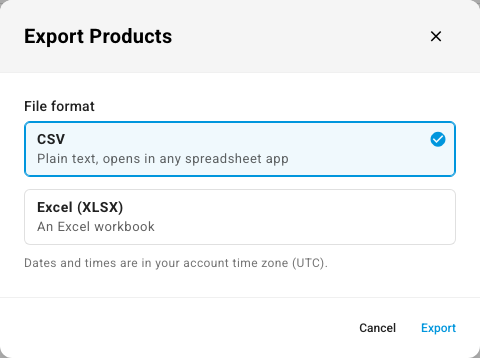
In Export Products, choose the File format: CSV or Excel (XLSX). The line under it names the time zone the file's dates and times use, for example Dates and times are in your account time zone (UTC).
-
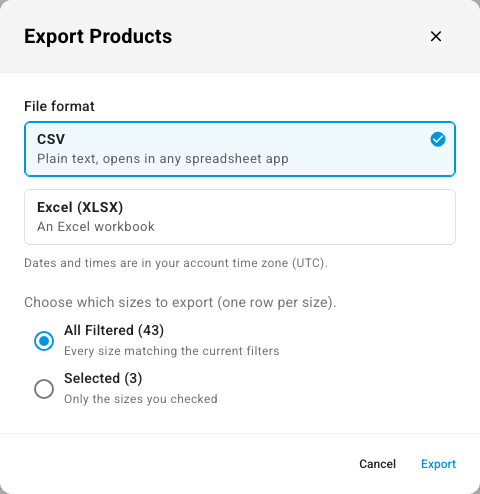
If any sizes are ticked, the dialog also asks which sizes to export. It starts on All Filtered, every size that matches the current filters. Choose Selected for only the sizes you checked.
-
Click Export.
Up to 1,000 rows, the file downloads straight away as nuorder-products-export.csv (or .xlsx) and you see Export downloaded. A larger export is built in the background instead: download it from the job tray when it finishes.
Columns in the file
The file always starts with Sr No. and ID. The other columns follow the order of the visible columns on the Products page. With the default columns, the file has these headers, in this order:
| Header | What it holds |
|---|---|
| Sr No. | The row number in the file, starting at 1 |
| ID | The size's SKU.io ID, the number in its detail page address |
| Style # | NuORDER style number |
| Name | The style's name in NuORDER |
| Derived SKU | The SKU that SKU.io builds from style, color and size, for example BT-9003-COGNAC-M. Spaces become hyphens, so ONE COLOR gives CC011-ONE-COLOR-OS |
| SKU Product | SKU of the linked SKU.io product or subscription offering. Blank when the size isn't linked |
| SKU Product Name | Name of the linked product or offering, or the revenue type for a size mapped to a revenue line |
| Mapping Type | Product, Subscription Offering or Revenue Line. Blank when the size isn't linked |
| Colour | NuORDER color name, without the color code |
| Season | NuORDER season, for example SS27 |
| Size | The size, for example M or OS |
| Size Group | NuORDER's size group, for example ALPHA |
| UPC | The size's UPC in NuORDER. Blank when it has none |
| Wholesale | Wholesale price, as a plain number without a currency sign |
| Retail | Retail price, as a plain number |
| Inventory Push | Pushed, Never pushed, Not pushed (the style's NuORDER status stops pushes), Not mapped (the size isn't linked), or the last push error. The same values as on the Products page |
| Last Inventory Push | Date and time of the style's last inventory push. The header names your account's time zone, for example Last Inventory Push (UTC) |
| Status | The style's status in NuORDER, for example Active or Archived |
If you show the Last Modified column on the Products page, the file adds a Last Modified column (when the style last changed in NuORDER) in that position, with the time zone in its header as well.
A few things differ from the screen:
- The image isn't exported.
- Every linked size of the same style and color shares the same Inventory Push and Last Inventory Push values, because SKU.io pushes stock per style and color.
- Empty values are blank cells. An unlinked size, for example, has a blank SKU Product.
There's no NuORDER import file
You can't upload a file to the NuORDER pages: there's no import for NuORDER sizes, mappings, orders or inventory. To get sizes linked in bulk, prepare your SKU.io products so automatic matching finds them:
- In the exported file, note each unlinked size's UPC (or Derived SKU).
- Put those values into your SKU.io products' Barcode (or SKU) with Import products from a spreadsheet. A barcode must belong to only one active product to match.
- On the NuORDER Products page, select the sizes, click Map, and run Match existing SKU products. See Link many sizes at once.
Sales orders created from NuORDER orders are ordinary SKU.io sales orders, so you export them from the sales orders list like any other order.