Check ShipBob webhooks and activity
ShipBob tells SKU.io about orders, shipments, returns, and receiving orders the moment they change, through notifications called webhooks. This page shows you how to check that those notifications are arriving, fix a subscription that failed, and replay an event that didn't process. It also covers the Activity Log tab, which records changes to the connection and its records.
Webhooks are the fast path, but they aren't the only one. Scheduled syncs pull orders, shipments, and tracking every 15 minutes, so a missed notification delays an update rather than losing it. See ShipBob scheduled syncs reference.
Before you begin
- Connect ShipBob. See Connect ShipBob.
- You don't set anything up for webhooks. SKU.io subscribes to every ShipBob notification it uses when you connect. There's no signing secret to enter and no per-topic switch.
Check webhook health on the dashboard
- Go to Apps & Integrations, open ShipBob, and choose your connection. The Dashboard tab opens.
- Find the Webhook Health line at the bottom of the Sync Status card.
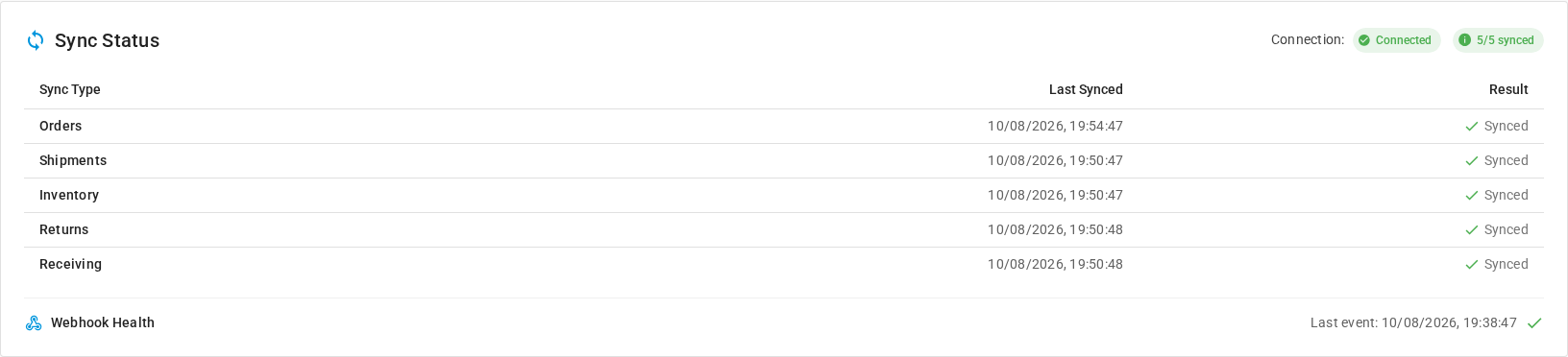
| What the line shows | What it means |
|---|---|
| Last event: a date, with a green check | ShipBob delivered a notification within the last 24 hours. |
| Last event: a date, with an amber warning | No notification has arrived for more than 24 hours. On a quiet day that can be normal. If orders are shipping, check the subscriptions below. |
| Last event: None received | No notification has ever arrived for this connection. |
The table over the line shows when Orders, Shipments, Inventory, Returns, and Receiving last synced. Never synced means that data type hasn't completed a sync yet.
Review the webhook subscriptions
- Click the Webhooks tab. The Configuration view opens.
- Read the Webhook Endpoint URL. SKU.io registered this address with ShipBob for you, so there's nothing to change. It's shown so ShipBob support can confirm it. Click Copy to copy it.
- In Webhook Subscriptions, read the Status column. There's one row for each of the 13 notifications SKU.io uses.
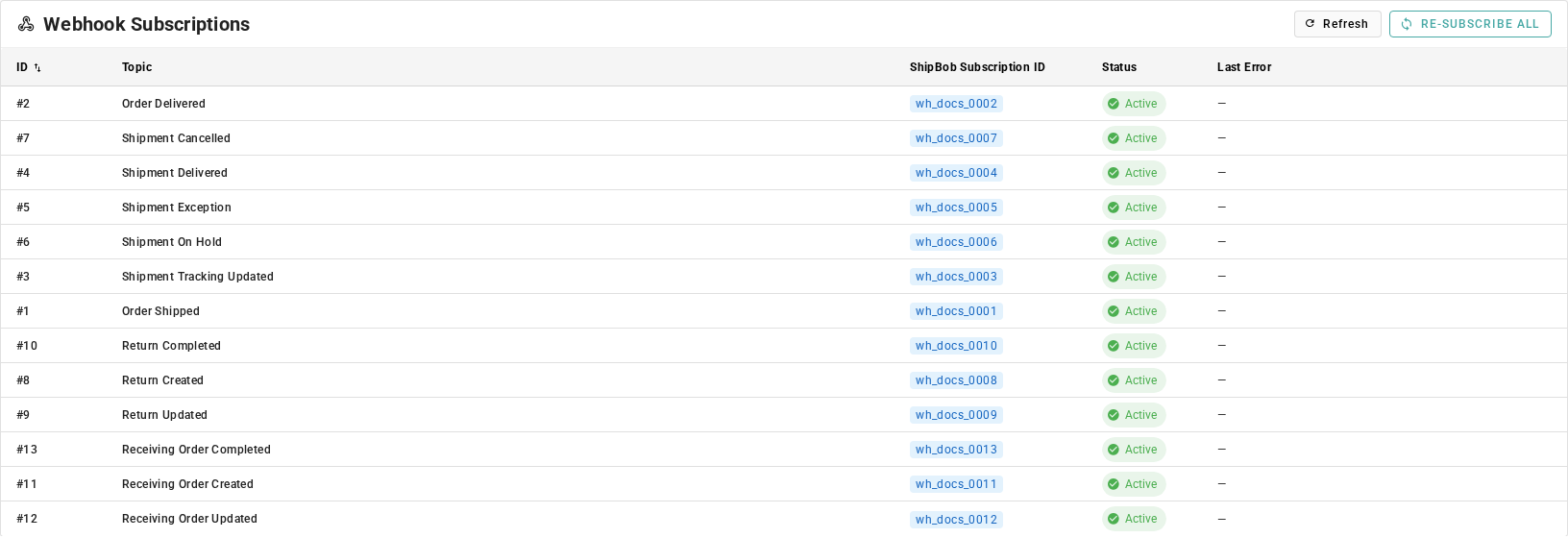
| Column | What it shows |
|---|---|
| ID | The subscription's number in SKU.io. Click the header to sort. |
| Topic | The ShipBob notification, in plain words, such as Order Shipped or Return Completed. |
| ShipBob Subscription ID | ShipBob's own reference for the subscription. Quote it to ShipBob support. |
| Status | Active, Pending, or Failed. See Webhook subscription statuses. |
| Last Error | Why ShipBob refused the subscription, or — if it didn't. |
Re-subscribe
If a topic shows Failed, or a topic is missing:
- Click Re-subscribe All. SKU.io registers every topic with ShipBob again.
- Click Refresh to reload the list.
- Check that every row shows Active. If a row still shows Failed, its Last Error says what ShipBob rejected. Send that text to ShipBob support.
Re-subscribing is safe to repeat. It updates the subscriptions you already have rather than adding duplicates.
Review webhook events
Every notification ShipBob delivers is kept as an event, so you can see exactly what arrived and whether SKU.io acted on it. SKU.io first checks that each delivery really came from ShipBob, and refuses one that fails the check, so it never appears in the list.
- On the Webhooks tab, click Events.
- Read the list. The newest event is at the top.
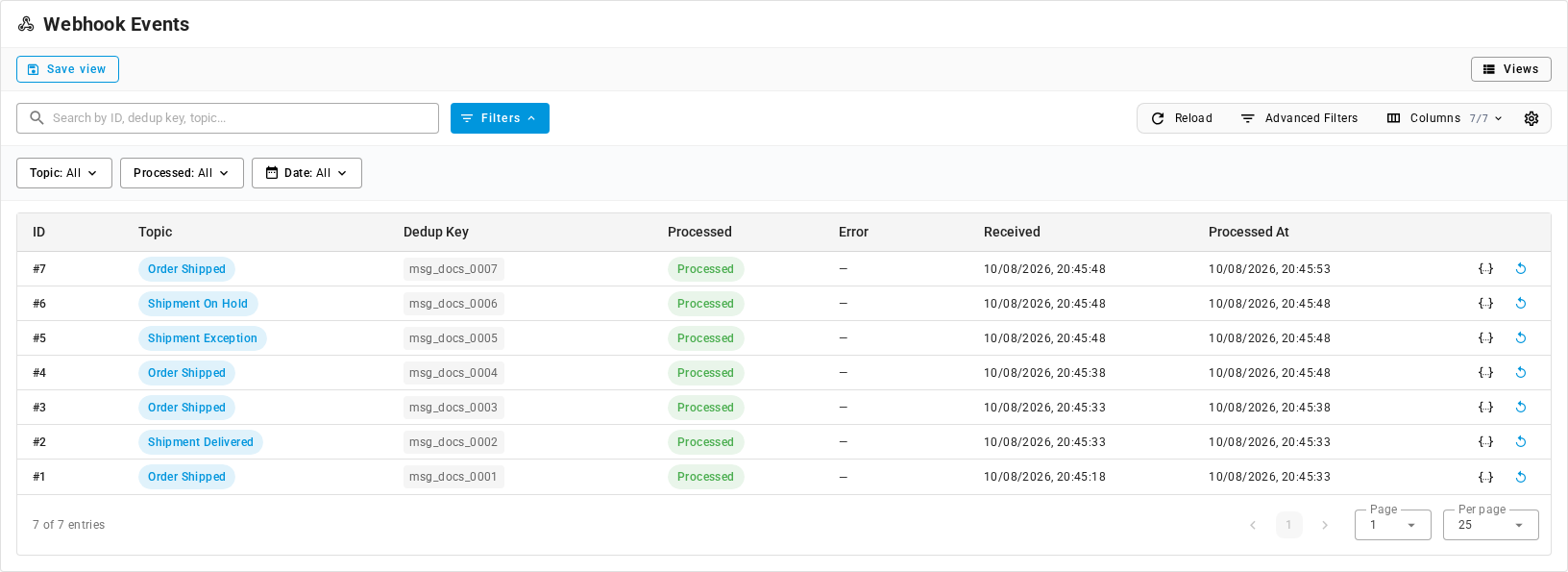
| Column | What it shows |
|---|---|
| ID | The event's number in SKU.io. |
| Topic | Which notification it was, in plain words, such as Order Shipped or Shipment On Hold. Hover the chip to see ShipBob's name for it, such as order.shipped. |
| Dedup Key | ShipBob's unique delivery reference. If ShipBob sends the same delivery twice, SKU.io keeps one event and ignores the repeat. |
| Processed | Processed, Pending, or Failed. See Webhook event statuses. |
| Error | For a failed event, an Error chip. Hover it to read what went wrong. — when nothing went wrong. |
| Received | When the delivery arrived. |
| Processed At | When SKU.io finished acting on it. |
At the end of each row, the braces icon opens Webhook Payload, which shows exactly what ShipBob sent. The other icon replays the event.
To narrow the list:
- Topic lists the 13 notifications by their plain names, such as Order Shipped or Receiving Order Completed.
- Processed offers Processed and Not Processed. Not Processed covers both pending and failed events.
- Date limits the list to when events arrived.
- Search by ID, dedup key, or topic, or click Advanced Filters to combine conditions.
What SKU.io does with each event depends on its topic:
- Order and shipment topics update the ShipBob order and its shipments. When a shipment ships, SKU.io records it as a fulfillment on the sales order and passes the tracking number back.
- Return and receiving-order topics are kept for reference. The hourly returns and receiving syncs bring the changes in.
Replay an event
Replay an event that shows Failed, or one stuck at Pending, after you've fixed what stopped it. Replaying is safe: SKU.io recognizes a shipment it has already recorded and doesn't record it twice.
- Find the event in the Events list.
- Click the replay icon at the end of its row. You can also right-click the row and click Replay.
- Replay Webhook Event asks you to confirm, for example Process webhook event #7 (Order Shipped) again?, and explains: SKU.io applies the notification ShipBob sent again. Changes it already made are not made twice. Click Replay. A message confirms Webhook event queued for replay.
- Click Reload after a few seconds and check the Processed column.
You often don't need to replay. Every hour, SKU.io replays unprocessed Order Shipped, Order Delivered, Shipment Delivered, and Shipment Tracking Updated events from the last 14 days on its own.
The Tester view is for SKU.io's test environments. It isn't part of monitoring your account.
Read the activity log
The Activity Log tab lists changes to the connection and the ShipBob records it holds. That includes settings saves, mapping changes, and the changes ShipBob's syncs and notifications make to orders, such as a new status. Routine sync bookkeeping, such as when an order was last refreshed, isn't logged.
- Click the Activity Log tab.
- Read the list. The newest entry is at the top.
| Column | What it shows |
|---|---|
| Entry | The entry's number. |
| Date | When the change happened. |
| User | The person who made the change. A change that a ShipBob sync or notification made has no person, so it shows System. |
| Event | What kind of change it was, such as Created, Updated, or Deleted. |
| Source | Where the change came from. Manual is a change someone made on screen. ShipBob is a change a ShipBob sync or notification made, such as an order's status moving to Fulfilled. |
| Subject | The record that changed, in plain words, such as ShipBob connection or ShipBob order SO-SB-1003.1. |
| Details | Each field that changed, with the old value, an arrow, and the new value. For a settings save, only the settings you changed. |
To narrow the list, use the Event and Source filters, or type in Search activity.... To find a settings change, set Source to Manual. To see only what ShipBob changed, set it to ShipBob. Use Columns to hide columns you don't need.
Next steps
- ShipBob troubleshooting: what to do when events fail or shipments don't arrive.
- Track ShipBob shipments and exceptions: follow a shipment once its notification lands.
- ShipBob scheduled syncs reference: the scheduled pulls that back up webhooks.