Dispatch to a fulfillment provider
When a warehouse doesn't ship its own orders, you hand the fulfillment order to a provider — a carrier or 3PL. Push providers (ShipStation-style) receive the order from SKU.io; download-style 3PLs pull it themselves through SKU.io's 3PL API. Either way, dispatch starts on the fulfillment order.
Before you begin
- A provider connection must exist under Apps & Integrations (push providers like Shipfusion or Trackstar), or a 3PL API connection provisioned for a download-style partner.
- A shipping method must exist and be set on the order — the submit dialog blocks until one is ("No shipping method is set for this order, and D3 needs one").
- The provider comes from the warehouse default, a routing rule for the order's shipping method, or a choice you make on the order itself.
Set the provider and method
- Open the fulfillment order and click Edit Details.
- Under Shipping provider, the provider the order would use is already selected — tagged Routing rule or Warehouse default in the list. Pick a different connection to override it for this order only. The dialog notes these details travel with the order when it's submitted and stay editable until it's sent.
- Pick the Shipping method (and optionally a Requested ship date and Notes).
- Click Save Changes. The order's lifecycle updates to match the provider — push connections show the push journey, D3-style connections the pull journey.
To drop an override, open Edit Details again, click Clear override, and save. The order goes back to its routing rule or the warehouse default.
See which provider will ship an order
The Dispatch panel on the fulfillment order shows the Shipping provider and Resolved by — the step that chose it. The first match wins, in this order:
| Resolved by | What it means |
|---|---|
| Per-order override | Someone picked a provider for this order in Edit Details. It wins over routing rules and the warehouse default. |
| Routing rule | The warehouse sends this shipping method to a specific provider. The edit rules link opens the rule. |
| Warehouse default | No rule matches the method, so the warehouse's own shipping provider applies. The warehouse settings link opens it. |
| Dispatched | The order is already with its provider. Later rule or default changes don't move it. |
| Pickup | The shipping method is a pickup method: the customer collects, so nothing is dispatched. |
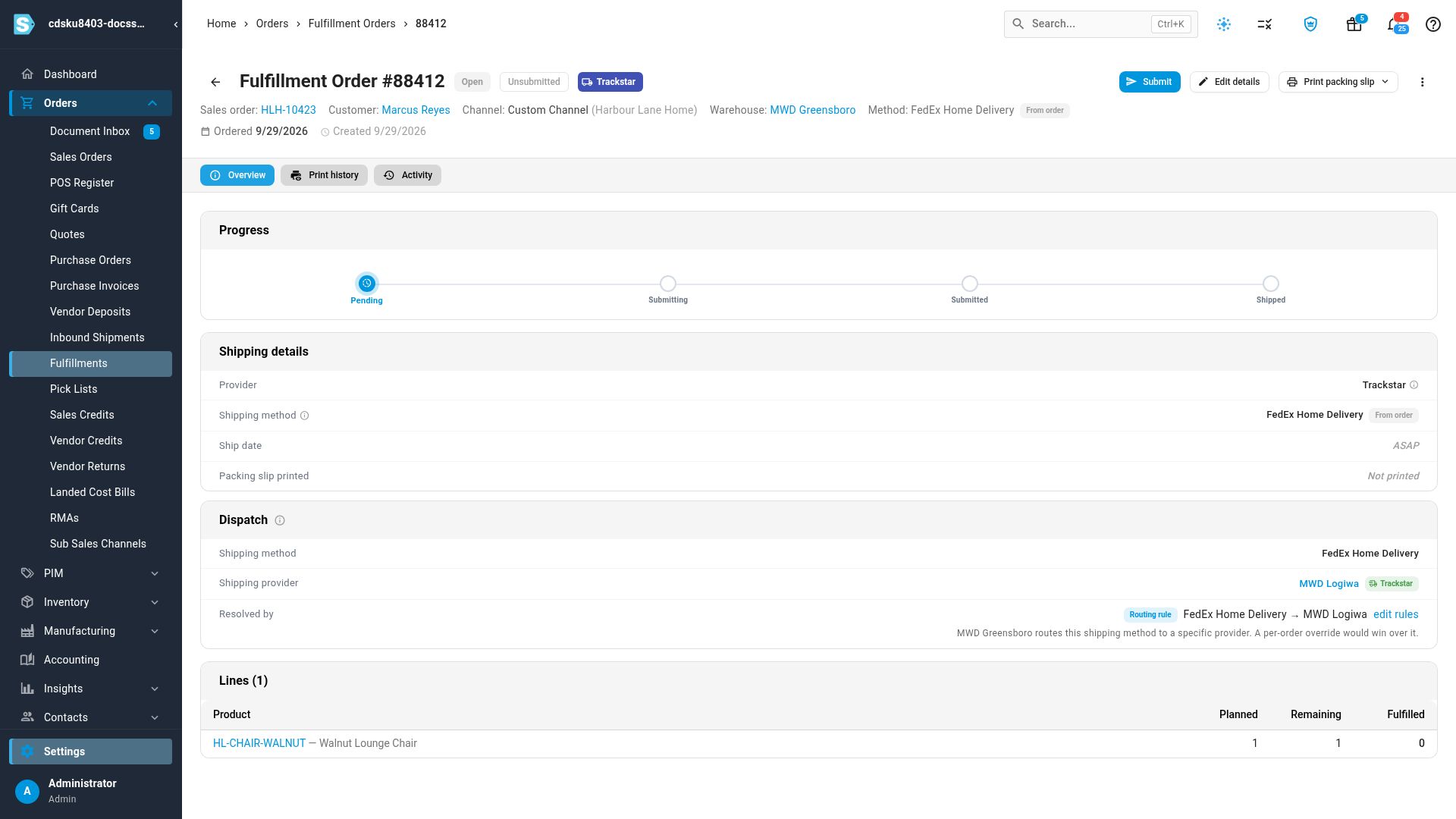
Route shipping methods to a different provider
Each warehouse has one default shipping provider. A routing rule sends one shipping method from that warehouse to a different provider — or to Manual — so, for example, a 3PL's FedEx parcels go through its warehouse system while its home deliveries go to a delivery carrier.
- Go to Settings, open Fulfillment, then Fulfillment Dispatch.
- Find the warehouse. Under its Shipping Provider & Routing, click No routing rules (or the rule count) to open its routing rules.
- Click Add routing rule, choose the Shipping method, then the provider to Route to. The Then column says what takes over at that provider — its own shipping-method or delivery-type mapping.
- To see the effect first, click Preview. It lists the warehouse's most recent fulfillment orders with the provider each uses Today and With these rules, and counts how many would change. Nothing is saved from the preview.
- Click Save at the top of the page.
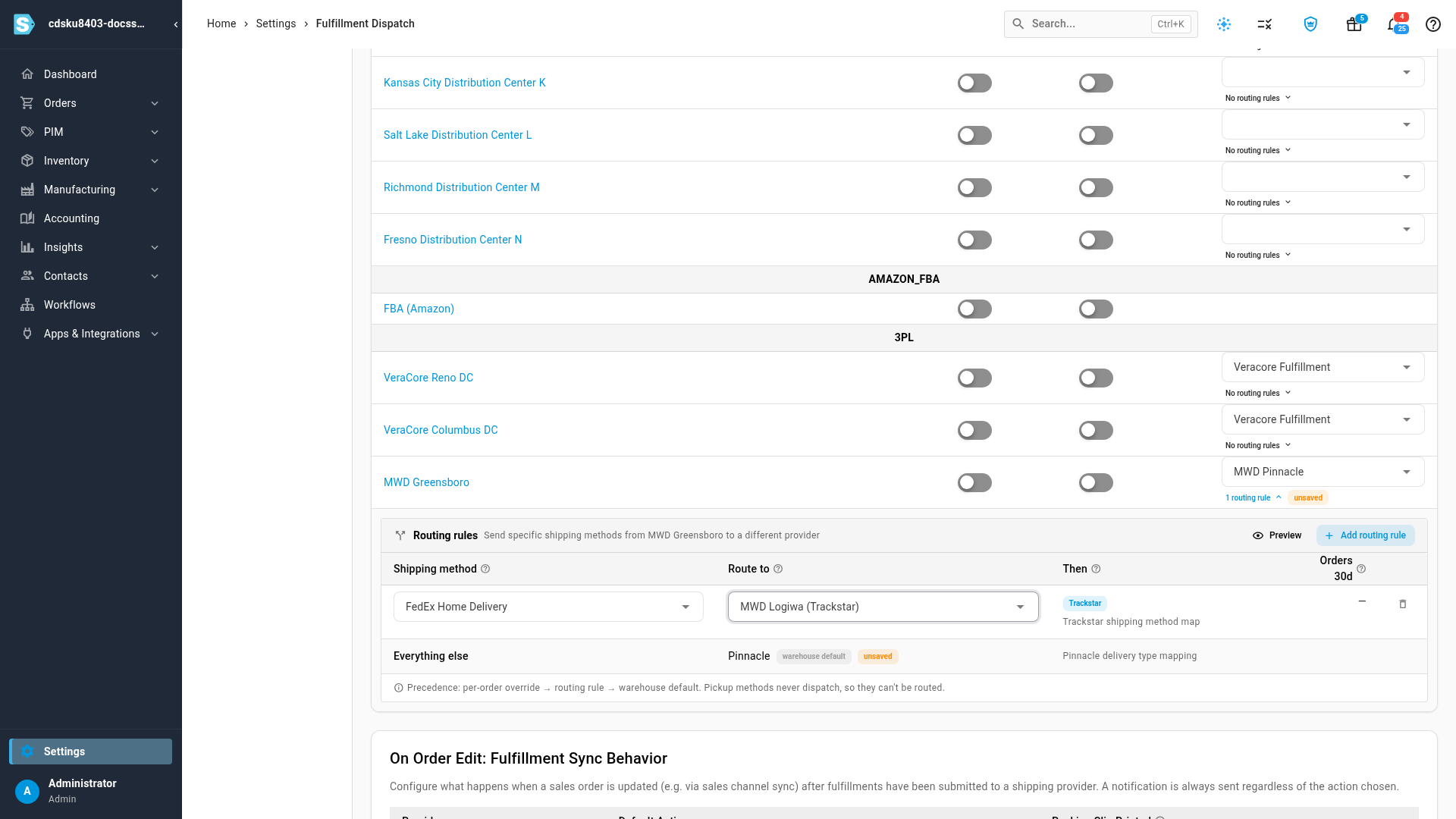
- The Everything else row always shows where the other shipping methods go: the warehouse default.
- Each shipping method can have one rule per warehouse. Pickup methods aren't offered — they never dispatch.
- A provider marked Not mapped isn't set up for this warehouse yet. Map the warehouse in that provider's own settings first.
- Orders 30d counts the warehouse's fulfillment orders on that method in the last 30 days, for saved rules.
- Rules apply to orders that haven't been sent yet. An order already with its provider keeps it.
For a full example — Pinnacle for home deliveries, with FedEx parcels routed to Trackstar — see Set up Pinnacle (MWD) deliveries.
Submit the order
Click Submit (top right). The dialog spells out what's about to happen — "This hands Fulfillment Order #N to the provider for dispatch using the details configured on it" — with the fulfillment journey (Pending → Submitting → Submitted → Shipped), the ship-from warehouse, method, date, and every line going. Submit partial… lets you send only some lines.
- Push providers: the order moves Submitting → Submitted — it's with the provider, who picks, packs, and ships. As the dialog notes, the shipment is recorded when the provider actually ships — until then the order sits "Submitted — awaiting shipment", and the provider may return one or several shipments.
- Pull (download-style) 3PLs: submitting releases the order. The provider polls SKU.io's 3PL API on its own schedule, downloads the order (it moves to Accepted), and reports the shipment back — tracking number included — which records the shipment and closes the fulfillment order automatically.
Fixing and reversing
- Details are editable until the order is sent; after that, changes go through the provider.
- Cancelling is deliberately conservative: only never-submitted or provider-rejected orders cancel (releasing their reserved inventory). For anything already with the provider, cancel it with them and void the shipment.
- A rejected submission lands the order in the board's Needs attention column — fix the details and resubmit, or cancel.
Next steps
- Set up fulfillment dispatch — which warehouses dispatch automatically, and each warehouse's default provider.
- Work the fulfillment board — watch dispatched orders move through their stages.
- How fulfillment lifecycles work
- Set up Pinnacle (MWD) deliveries
Video transcript
To hand an order to a provider, open the fulfillment order and click Edit Details. Pick the shipping provider — or keep the warehouse default — and a shipping method. Click Submit. The dialog shows the journey and exactly what's going — submit partial if you need to. Push providers take the order from here. Download-style 3PLs work in reverse: submitting releases the order, and the provider pulls it through the 3PL API on its own schedule. When the provider ships, the shipment flows back automatically — tracking and all — and the fulfillment order closes itself.