Map ShipBob products
A mapping tells SKU.io which of its products a ShipBob product is. Most of your catalog maps itself when it syncs. This page covers the rest: products that matched more than one SKU.io product, products whose SKU is different at ShipBob, bundles, and items that only exist at ShipBob.
A mapping does three jobs:
- Orders. When SKU.io sends an order, it sends a mapped product under its ShipBob SKU, so ShipBob ships it from the stock it already holds.
- Inventory. Only mapped products are compared with SKU.io stock on the Inventory tab. An unmapped product's stock is listed but never compared.
- Billing. ShipBob's storage charges are matched to products through the mapping.
Before you begin
- Connect ShipBob and map your fulfillment centers to warehouses.
- Make sure the product exists in SKU.io. You can only map a ShipBob product to an existing, sellable SKU.io product.
Find the products to map
Open your ShipBob connection and go to the Products tab. It lists every product in your ShipBob catalog, one row per variant.
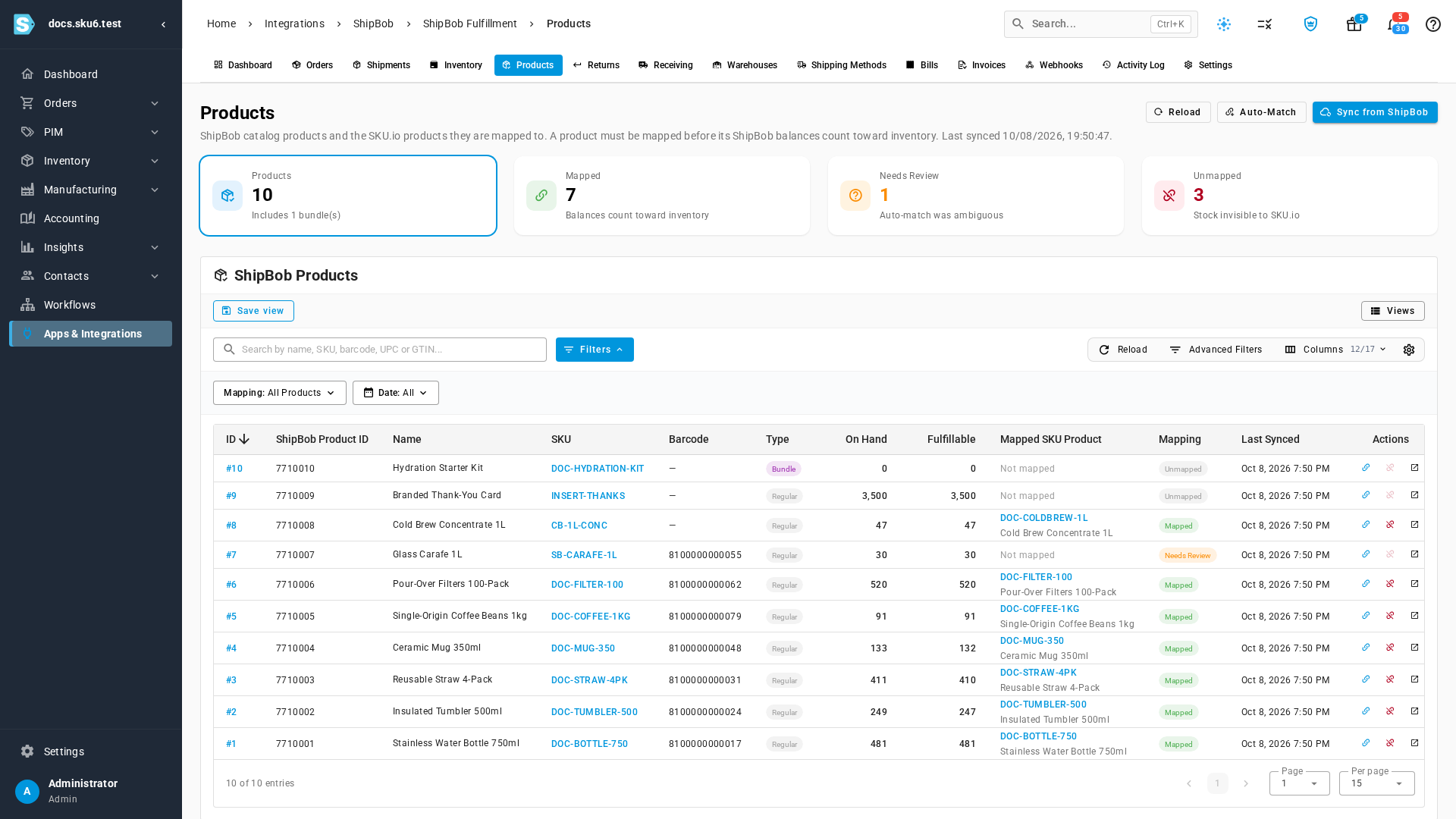
The four cards at the top count the catalog. Click a card to filter the table to it.
| Card | Sub-label | Means |
|---|---|---|
| Products | Includes {n} bundle(s) | Every ShipBob product SKU.io holds |
| Mapped | Balances count toward inventory | Linked to a SKU.io product |
| Needs Review | Auto-match was ambiguous | More than one SKU.io product matched, so nothing was linked |
| Unmapped | Stock invisible to SKU.io | No SKU.io product is linked. This count includes Needs Review |
The Mapping filter above the table offers the same views, plus Bundles. The Mapping column shows a chip for each row: Mapped, Needs Review, or Unmapped. Click the chip to open the Map ShipBob Product dialog. The Mapped SKU Product column shows the linked SKU.io product and links to it. The search box matches the name, SKU, barcode, UPC, or GTIN.
Each row has three actions: map or change the mapping, unmap, and open the product's detail page.
Resolve a product that needs review
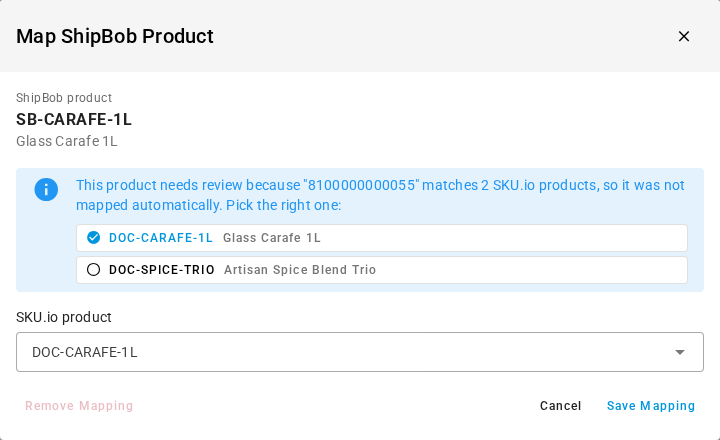
In the demo data, Glass Carafe 1L needs review. Its barcode, 8100000000055, belongs to two SKU.io products.
-
Click the Needs Review card.
-
In the Glass Carafe 1L row, click the Needs Review chip. The Map ShipBob Product dialog opens. It says what matched more than one product, for example This product needs review because "8100000000055" matches 2 SKU.io products, so it was not mapped automatically. Pick the right one:, and lists those products under it.
-
Click the right product, DOC-CARAFE-1L. It's ticked and filled in under SKU.io product.
-
Click Save Mapping. You see Mapping saved, and the row changes to Mapped.
If none of the listed products is right, search for another one in SKU.io product instead.
Two SKU.io products sharing a barcode is usually a mistake in SKU.io. Once you've mapped the ShipBob product, fix the barcode on the other SKU.io product so the next new product matches cleanly.
Map a product whose SKU is different at ShipBob
When ShipBob and SKU.io use different SKUs and ShipBob reports no barcode, nothing matches, so the product stays Unmapped until you map it by hand.
In the demo data, ShipBob stocks Cold Brew Concentrate 1L as CB-1L-CONC, and SKU.io sells it as DOC-COLDBREW-1L. That product is already Mapped: its Mapped SKU Product column shows DOC-COLDBREW-1L. It was mapped with these steps, which you follow for any Unmapped product of your own:
- In the product's row, click the map action, or the Unmapped chip.
- In SKU.io product, type part of the SKU.io SKU, for example
COLDBREW. The search needs at least two characters and matches SKU, name, and barcode. - Click the SKU.io product, for example DOC-COLDBREW-1L.
- Click Save Mapping. You see Mapping saved, and the row changes to Mapped.
Save Mapping stays unavailable until you pick a product: Pick a SKU.io product to map this ShipBob product to.
One SKU.io product, one ShipBob product
A SKU.io product can be mapped to only one ShipBob product. If you pick a SKU.io product that's already mapped, the dialog says which ShipBob product has it, and Save Mapping stays unavailable. In the demo data, picking DOC-COLDBREW-1L for Branded Thank-You Card shows:
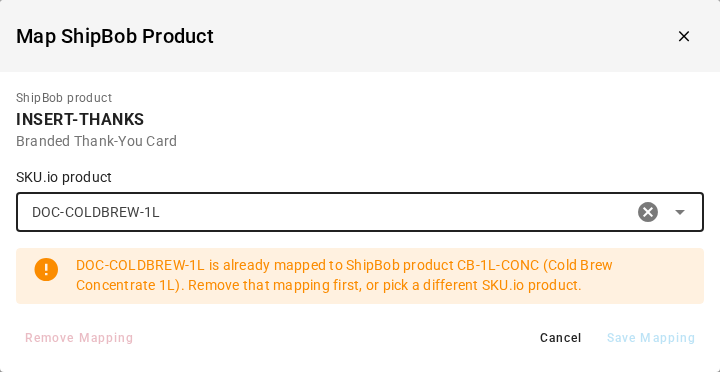
DOC-COLDBREW-1L is already mapped to ShipBob product CB-1L-CONC (Cold Brew Concentrate 1L). Remove that mapping first, or pick a different SKU.io product.
Remove the other mapping first if this is the right ShipBob product, or pick a different SKU.io product. Automatic matching follows the same rule and skips SKU.io products that are already mapped.
Why this matters when orders ship
Because the product is mapped, when an order for DOC-COLDBREW-1L is sent to ShipBob, SKU.io sends that line as CB-1L-CONC. ShipBob recognizes its own product and picks it from the stock on its shelves. The ShipBob order shows the ShipBob SKU on its line:

An unmapped product is sent under its SKU.io SKU and name. If ShipBob has no product with that SKU, it creates a new one with no stock, and the order waits at ShipBob for stock that never arrives. How orders flow to ShipBob explains the dispatch in full.
Mapping the product fixes the orders you send from then on, not an order that's already at ShipBob. For an order that's stuck that way, either change the item to the right product in ShipBob, or cancel the order and submit it again once the product is mapped.
Change or remove a mapping
To point a ShipBob product at a different SKU.io product, open the mapping dialog. It shows the current link, Currently mapped to DOC-COLDBREW-1L. Saving replaces that mapping., with that product already filled in. Pick the new product and click Save Mapping. There's no need to unmap this ShipBob product first, but the new SKU.io product must not be mapped to another ShipBob product.
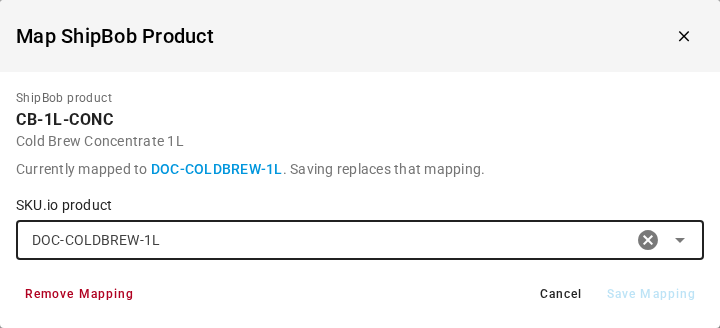
To remove a mapping, use either of these:
- In the table, click the unmap action.
- In the dialog, click Remove Mapping.
Either way, SKU.io asks first, Unmap this product?, and names the ShipBob SKU, for example CB-1L-CONC will stop counting toward SKU.io inventory until it is mapped again. Click Unmap to remove the mapping, or Cancel to keep it.

You see Mapping removed. Unmapping deletes nothing. The product moves to Unmapped, drops out of the inventory comparison, and its next order line is sent under the SKU.io SKU again.
Bundles
A bundle is a ShipBob product made of other ShipBob products. It shows a Bundle chip in the Type column. ShipBob ships a bundle by picking its components, and it tracks stock on the components, not on the bundle.
When you open the mapping dialog for a bundle, it warns you:
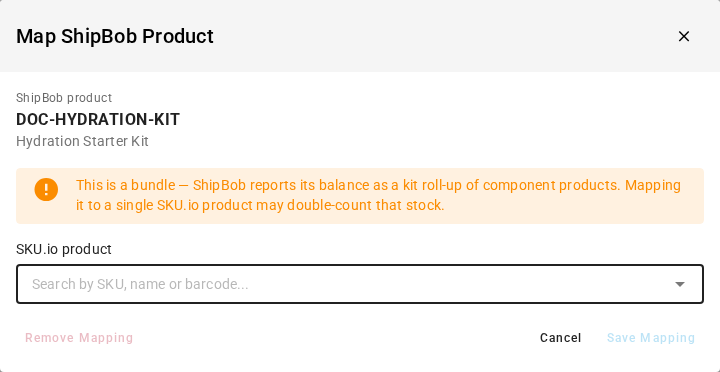
This is a bundle — ShipBob reports its balance as a kit roll-up of component products. Mapping it to a single SKU.io product may double-count that stock.
The warning doesn't stop you, but in most cases you should leave a bundle unmapped and map its components instead. In the demo data, Hydration Starter Kit is a bundle and stays unmapped, while the bottle and straws inside it are mapped.
Items that only exist at ShipBob
Some things ShipBob stores aren't products you sell, like packing inserts. In the demo data, Branded Thank-You Card is one. There's nothing in SKU.io to map it to, so leave it Unmapped. It's listed on the Inventory tab's ShipBob Only sub-tab and kept out of the comparison, which is what you want.
You can also map from that sub-tab: its Map action opens the same Map ShipBob Product dialog. See Review ShipBob inventory.
How automatic matching works
SKU.io tries to match every product that isn't mapped yet each time it refreshes the catalog from ShipBob. That happens once a day, after every inventory sync (every 15 minutes while Inventory syncing is on), and when you click Sync from ShipBob on the Products tab. For each unmapped product:
- SKU.io takes the identifiers ShipBob reports for it: barcode, UPC, GTIN, and SKU.
- It looks for SKU.io products whose SKU or barcode equals any of them, leaving out SKU.io products already mapped to another ShipBob product.
- If exactly one SKU.io product turns up, the two are mapped.
- If more than one turns up, the product is marked Needs Review and left unmapped. SKU.io never guesses between candidates.
- If none turns up, the product stays Unmapped.
The candidates are pooled across all four identifiers. So if a product's barcode matches one SKU.io product and its SKU matches another, that's two candidates, and it needs review.
Matching only looks at unmapped products. Once a product is mapped, by the matcher or by you, a later refresh never changes it. If a mapping is wrong, fix it on this tab.
To run the matcher without waiting, click Auto-Match. It uses the catalog SKU.io already holds and reports how many products it mapped, for example 2 product(s) auto-matched. To pull the latest catalog from ShipBob first, click Sync from ShipBob. You see Product sync queued, and the sync runs in the background and shows in the job tray. Click Reload when it finishes.
Check a product's details
Click a product's ID, or its open action, to see everything ShipBob reports for it.
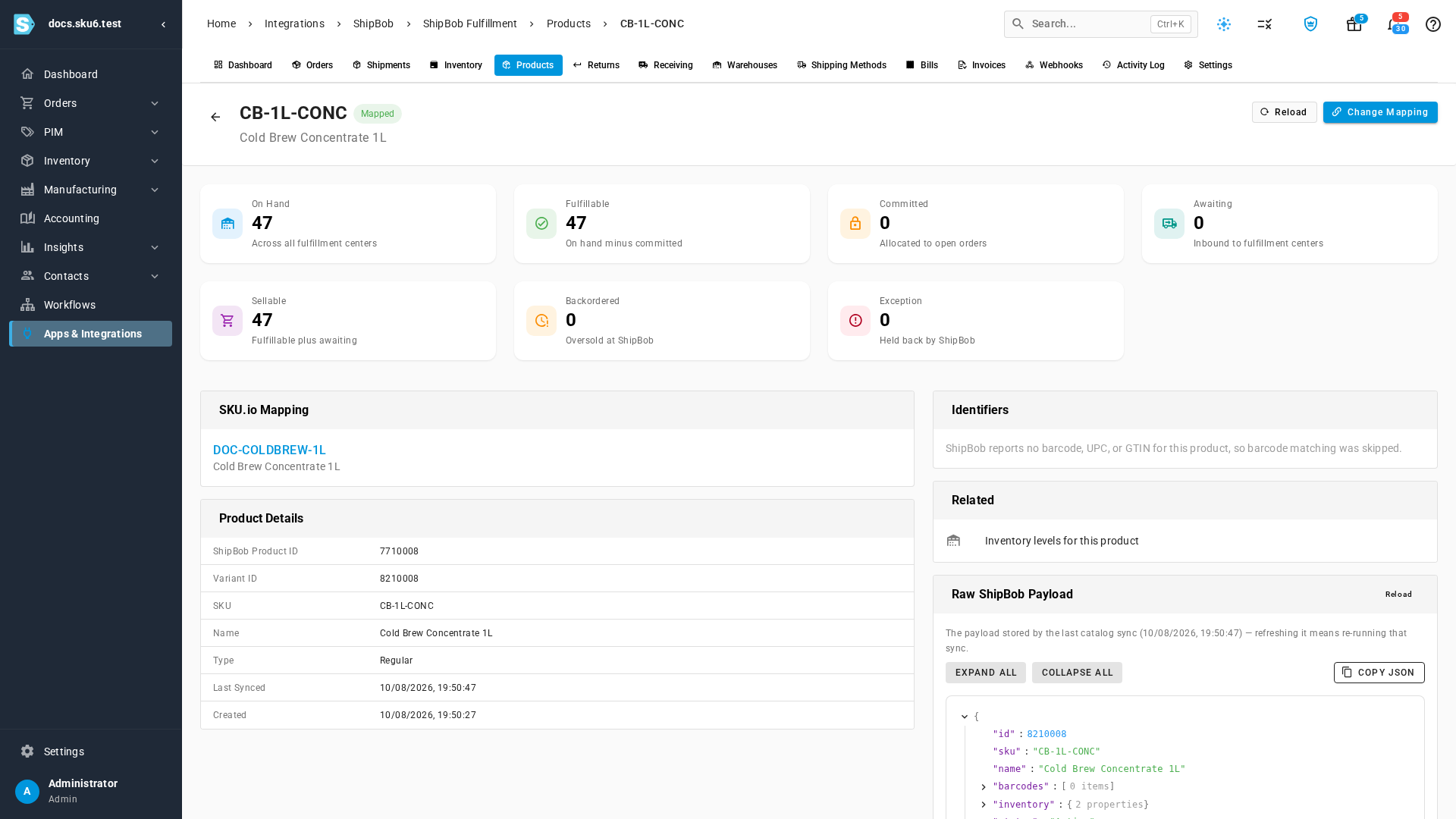
- The heading shows the ShipBob SKU, the mapping chip, and the name. Map Product, or Change Mapping when it's mapped, opens the same dialog.
- The stock cards total the product across all fulfillment centers: On Hand, Fulfillable, Committed, Awaiting, Sellable, Backordered (Oversold at ShipBob), and Exception (Held back by ShipBob). What the quantities mean explains each one.
- SKU.io Mapping links to the mapped product. When there isn't one, it says why: automatic matching found more than one product, or nothing is mapped yet.
- Product Details lists the ShipBob product and variant IDs, SKU, name, type, and when it was last synced and created.
- Identifiers lists the barcode, UPC, and GTIN ShipBob reports. If there are none, it says ShipBob reports no barcode, UPC, or GTIN for this product, so barcode matching was skipped.
- Related has Inventory levels for this product, which opens the Inventory tab filtered to this product's rows, one per fulfillment center.
- Raw ShipBob Payload shows exactly what ShipBob sent at the last catalog sync, with Copy JSON for a support ticket.
Next steps
- Review ShipBob inventory. Newly mapped products now show up in the comparison.
- How orders flow to ShipBob
- Dispatch to a fulfillment provider