Find and review ShipBob orders
The Orders tab lists every order in your ShipBob account. It includes the ones SKU.io sent and the ones from your other ShipBob channels. Use it to check what ShipBob did with an order, jump to the fulfillment order behind it, or pull an update without waiting for the next sync. Nothing on this tab changes an order at ShipBob.
Before you begin
- Connect ShipBob and map at least one fulfillment center to a warehouse. See Connect ShipBob and Map ShipBob fulfillment centers to warehouses.
- Know how an order reaches ShipBob and comes back. See How orders flow to ShipBob.
Find an order
-
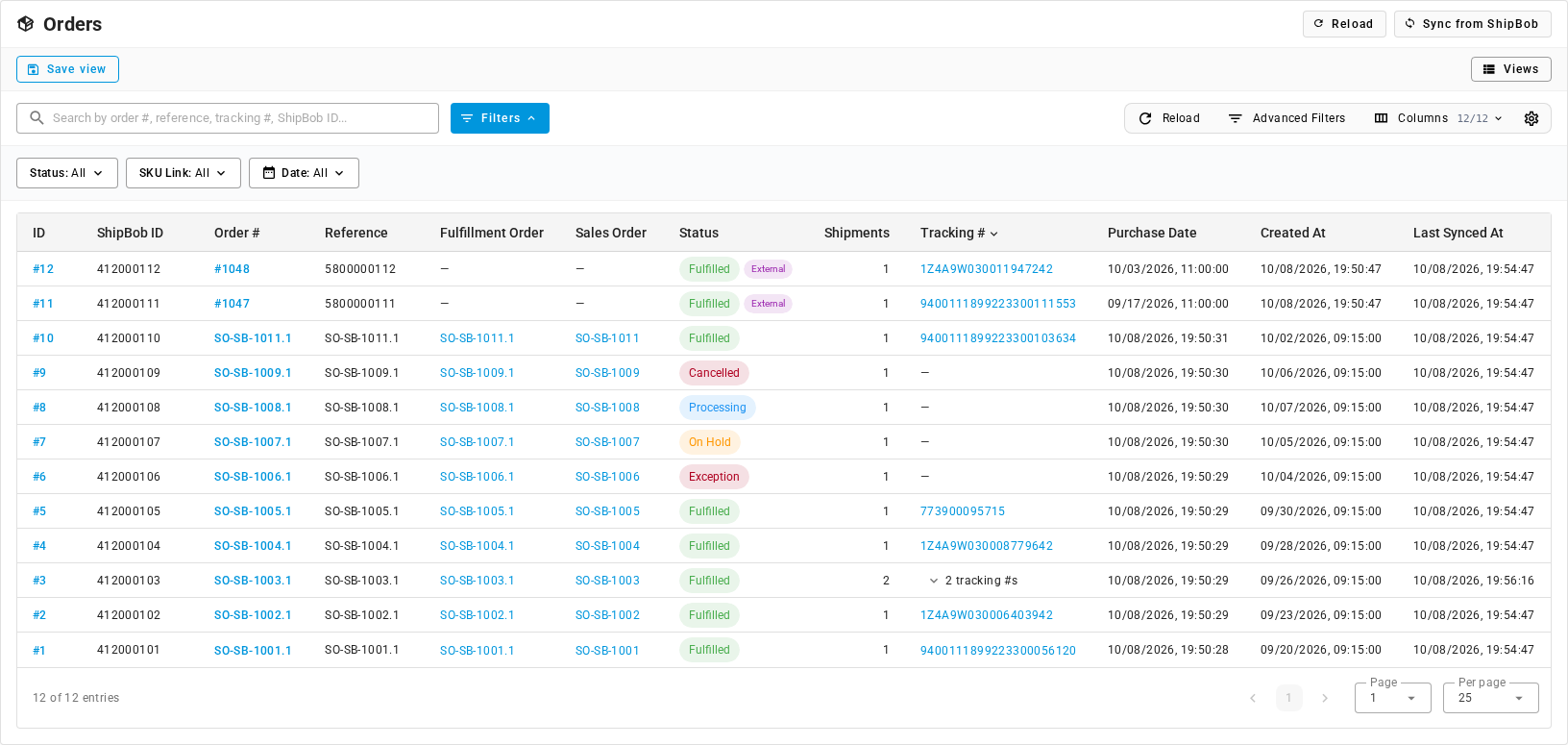
Go to Apps & Integrations, open ShipBob, and click the Orders tab.
-
To find one order, type its order number, reference, a tracking number of any of its parcels, or its ShipBob ID in the search box.
-
To narrow the list, use the quick filters under the search box:
- Status: Processing, Exception, On Hold, Partially Fulfilled, Fulfilled, Cancelled, or Import Review.
- SKU Link: Linked shows orders SKU.io sent, which have a fulfillment order and a sales order. Unlinked shows orders that reached ShipBob some other way, such as from your Shopify store's own ShipBob connection.
- Date: limits the list to a purchase date range.
-
For anything else, click Advanced Filters. You can filter on Status, Order #, Reference ID, Order Type, External Channel, SKU Link, ShipBob ID, ID, and the Purchase Date, Created At, and Updated At dates.
Click Save view to keep a filter combination you use often, and Views to switch back to it.
The columns
| Column | What it shows |
|---|---|
| ID | SKU.io's number for this ShipBob order. Opens the order. |
| ShipBob ID | ShipBob's own order number. Use it when you contact ShipBob support. |
| Order # | The order number in ShipBob. For an order SKU.io sent, it's the fulfillment order's number, for example SO-SB-1003.1. Opens the order. |
| Reference | The reference ShipBob holds for the order. For an order SKU.io sent, it matches Order #. |
| Fulfillment Order | The SKU.io fulfillment order this ShipBob order belongs to, or — for an order from another channel. |
| Sales Order | The sales order behind that fulfillment order. |
| Status | ShipBob's order status. Orders from your other ShipBob channels also carry an External chip. |
| Shipments | How many parcels ShipBob has created for the order. |
| Tracking # | The tracking number, linked to the carrier's tracking page. An order with several parcels shows 2 tracking #s: click it to list them all. |
| Purchase Date | The order date ShipBob holds. |
| Created At / Last Synced At | When SKU.io first saw the order, and when it last refreshed it from ShipBob. |
Right-click a row, or use its menu on a phone, to View Order, Copy Order #, or Copy Tracking #.
Orders from your other ShipBob channels
An order with an External chip came from another app connected to your ShipBob account, not from SKU.io. In the demo data, #1047 and #1048 came from the merchant's Shopify store. SKU.io shows these orders so you see everything ShipBob ships, but they're read-only. They have no fulfillment order or sales order, and SKU.io never records stock or fulfillments from them. Orders SKU.io sent are never marked External.
Sync orders from ShipBob
SKU.io updates orders on its own: ShipBob notifies SKU.io when an order changes, and an orders sync runs every 15 minutes. Sync by hand when you can't wait, or after the connection was paused.
-
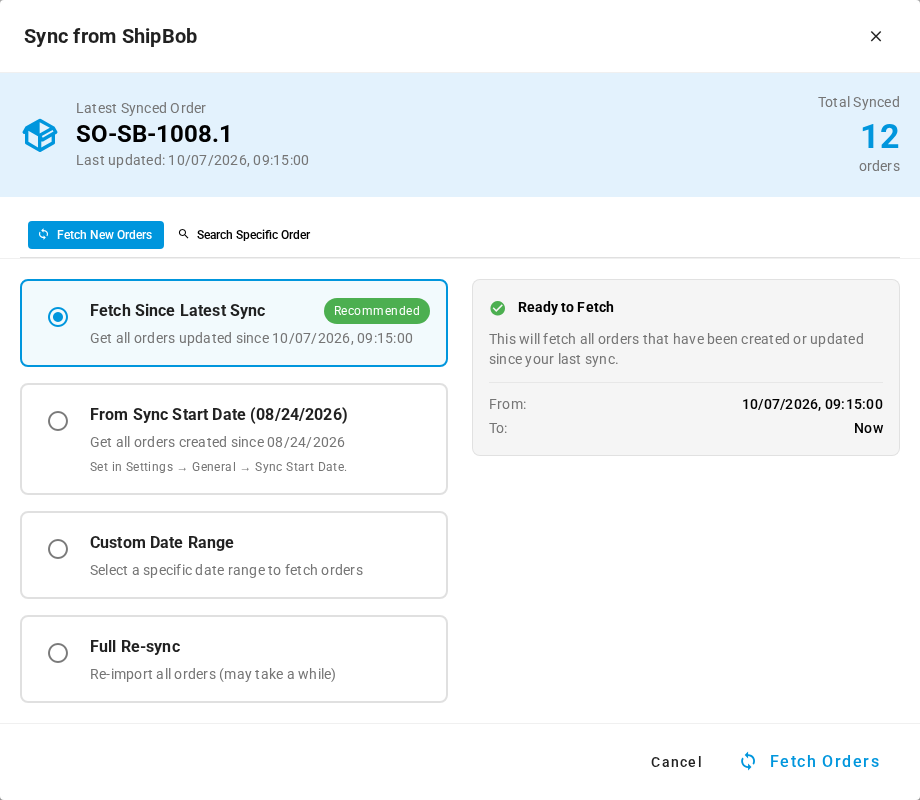
Click Sync from ShipBob. The top of the dialog shows the Latest Synced Order and the Total Synced count.
-
Under Fetch New Orders, choose how far back to fetch:
- Fetch Since Latest Sync (recommended) fetches every order created or updated since the last sync.
- From Sync Start Date fetches every order created since your connection's Sync Start Date. The option shows the date in brackets, for example From Sync Start Date (08/24/2026), with the note Set in Settings → General → Sync Start Date. When the setting is blank, SKU.io goes back 30 days.
- Custom Date Range fetches orders between two dates you pick.
- Full Re-sync fetches every order again. It takes a while on a large account.
-
Click Fetch Orders.
The sync runs in the background. Follow it in the job tray, under Sync ShipBob Orders. While it runs, Sync from ShipBob is unavailable, and its tooltip tells you an orders sync is already running. The list reloads when the sync finishes.
Reload, next to it, only re-reads the list SKU.io already holds. It doesn't contact ShipBob.
Pull one order from ShipBob
To fetch a single order, for example one a sync skipped:
-
Click Sync from ShipBob, then Search Specific Order.
-
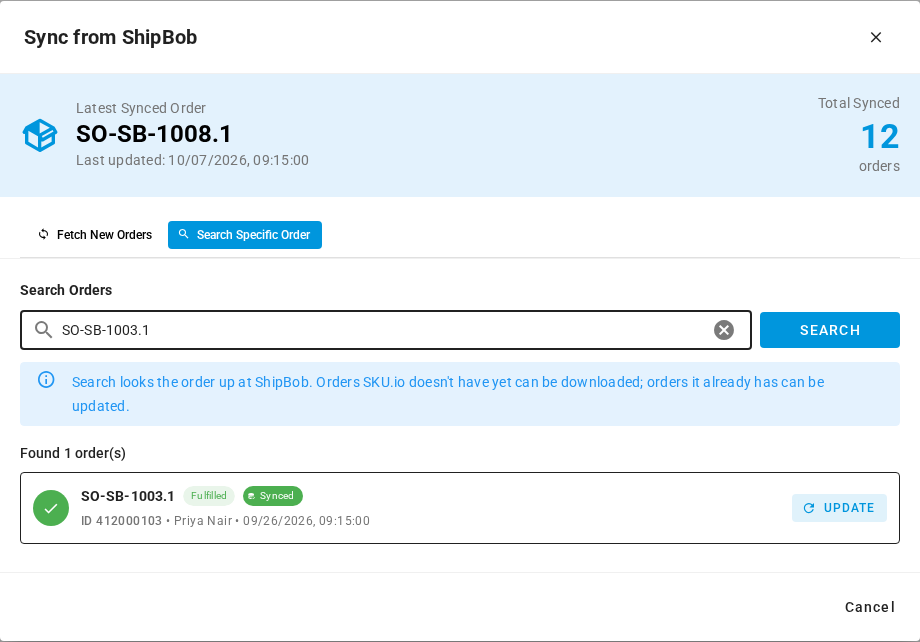
In Search Orders, type the order's reference or order number, for example SO-SB-1003.1 or #1047.
-
Click Search. SKU.io looks the order up in ShipBob and lists what it finds. An order SKU.io already has carries a Synced chip.
-
Click the button next to the order. It reads Download for an order SKU.io doesn't have yet, which SKU.io fetches and adds to the Orders tab, and Update for one it already has, which SKU.io refreshes from ShipBob.
Open an order
Click an order number to open it. The header shows the order number and its status. Under them are the ShipBob ID, Reference, Type, and when SKU.io last synced the order.

The buttons on the right:
| Button | What it does |
|---|---|
| View Fulfillment Order | Opens the SKU.io fulfillment order this ShipBob order belongs to. Its number shows on the button. Not shown on an order from another channel. |
| View in ShipBob | Opens your ShipBob orders in ShipBob's own app, in a new tab. Search there for the ShipBob ID to work the order in ShipBob. |
| Sync from ShipBob | Fetches this one order from ShipBob now and records any parcel that has shipped. Use it when a status looks out of date. |
The Overview tab shows four cards: Status, Shipments (how many parcels), Purchase Date, and Fulfillment Order. The last one links to the fulfillment order by its number, and to its Sales Order below it. On an order from another channel, it reads Not Linked. Below the cards are three panels:
- Recipient: the name, address, email, and phone ShipBob ships to.
- Products: each SKU, its name, and the quantity ordered.
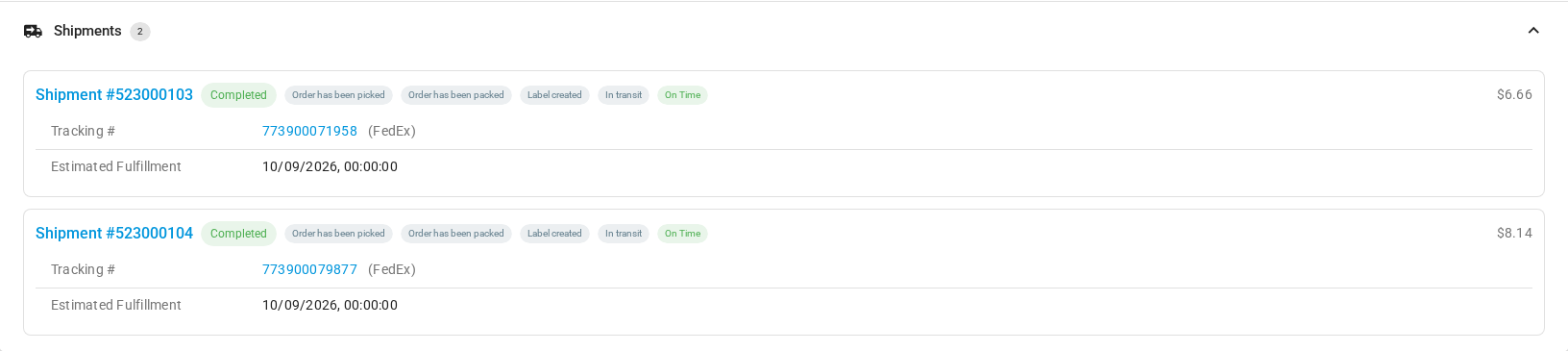
- Shipments: one card per parcel, with its shipment number, status, progress chips such as Order has been picked and Label created, whether it's On Time or Late, its invoice amount, tracking number and carrier, and estimated fulfillment date. A problem shows here as a sentence, for example One or more items are out of stock at the fulfillment center. Click the shipment number to open the shipment, where you also see which fulfillment center ships it. See Track ShipBob shipments and exceptions.
An order from another channel shows an External Channel chip and has no View Fulfillment Order button:

See exactly what ShipBob holds
When a field on the order looks wrong, check whether SKU.io misread it or ShipBob has it that way.
- Click the Raw JSON tab.
- Click Load Raw Data from ShipBob. SKU.io fetches the order from ShipBob as it stands now. It doesn't use the copy SKU.io already holds.
- Click the arrows to open sections such as recipient, products, and shipments, or click Expand All.
- To share it with ShipBob support, click Copy JSON.
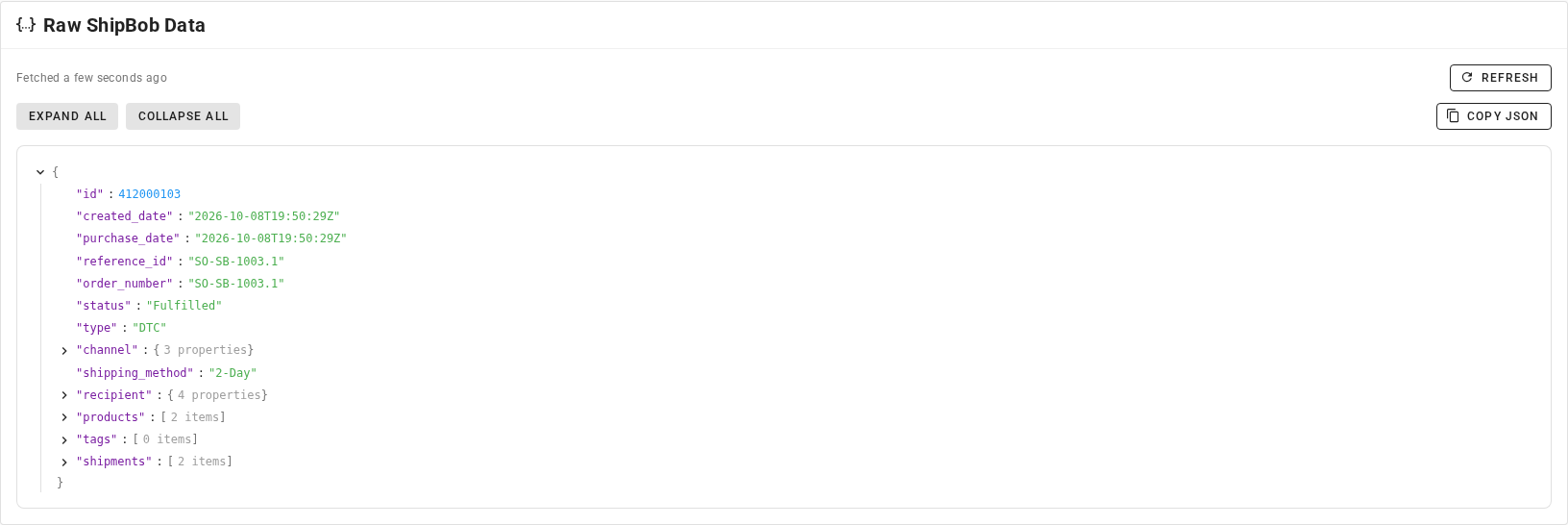
Click Refresh to fetch it again.
The Activity Log tab lists each change SKU.io recorded on the order, with when it happened and who or what made it.
Fix an order ShipBob rejected
This fix happens on the fulfillment order, not on the Orders tab. A fulfillment order that SKU.io couldn't send to ShipBob shows Rejected. It never reached ShipBob, so it isn't on the Orders tab. You find it on the fulfillment order, with the date it was rejected in its header, and in the fulfillment board's Needs attention column. The red banner says who refused it: SKU.io didn't send this fulfillment order to ShipBob. when SKU.io's own check stopped it, or ShipBob rejected this fulfillment order. when ShipBob refused it. Under that, it says what to fix.

- Open the rejected fulfillment order and read the banner.
- Fix what it names:
- ShipBob needs a country on the shipping address: open the sales order from the Sales order link, add the country to the shipping address, and save. See View and edit a sales order.
- No ShipBob shipping method for…: map the order's shipping method to a ShipBob service, or set a Fallback ShipBob shipping method under Settings → General. See Map ShipBob shipping methods.
- Any other message comes from ShipBob itself. Fix what it describes, for example a product ShipBob doesn't accept.
- Return to the fulfillment order and click Re-submit.
The fulfillment order moves to Submitting, then Submitted, and the new ShipBob order appears on the Orders tab. If it's rejected again, the banner shows the new reason. For more on resubmitting and cancelling, see Dispatch to a fulfillment provider.