Change or cancel a ShipBob order
Once a fulfillment order is with ShipBob, you change or cancel it from SKU.io, and SKU.io passes the change on. How much you can still change depends on how far ShipBob has got. Before a parcel is picked, ShipBob accepts a new address or a cancellation. After that, it refuses both.
Before you begin
- The fulfillment order must be Submitted to ShipBob. A fulfillment order that was never sent, or was Rejected, isn't at ShipBob yet. Edit or cancel it like any other. See Dispatch to a fulfillment provider.
- Check how far the order has got. On the Shipments tab, a Status Detail of Picked, Packed, Labeled, or later means ShipBob won't accept changes. See Track ShipBob shipments and exceptions.
What you can change after submitting
| Change | Reaches ShipBob? |
|---|---|
| Shipping address | Yes, until the first parcel is picked. |
| Lines or quantities | No. ShipBob still ships what it was sent, so SKU.io flags the difference (see below). Make the change in ShipBob too, or cancel the fulfillment order and submit the new one SKU.io creates. |
| Shipping method | No. ShipBob keeps the service it was sent, and SKU.io flags the difference. Change it in ShipBob, or cancel the fulfillment order and submit the new one SKU.io creates. |
When an edit can't reach ShipBob
When you change an order's lines, quantities, or shipping method after it was submitted, SKU.io sends ShipBob the address and then compares the ShipBob order with the fulfillment order. If they differ, SKU.io doesn't report the change as done:
- It adds a note to the sales order and raises an Order Updated After Fulfillment Submitted alert, naming each difference, for example Reusable Straw 4-Pack: ShipBob has 1, the fulfillment order needs 2.
- Sync to ShipBob shows the same message as an error.
The message ends with what to do: cancel the fulfillment order and submit it again, or make the same change in ShipBob.
Correct the shipping address
When you save a new shipping address on the sales order, SKU.io sends it to ShipBob in the background. That covers most corrections, such as an order on hold for Invalid Address.
- Open the sales order and correct the shipping address. See View and edit a sales order.
- Save the order.
If SKU.io can't deliver the new address, for example because ShipBob has already picked the order, it adds a note to the sales order so you can follow up. See Order events and automation.
To send the address again by hand, for example after fixing a problem the note describes:
-
Open the fulfillment order.
-
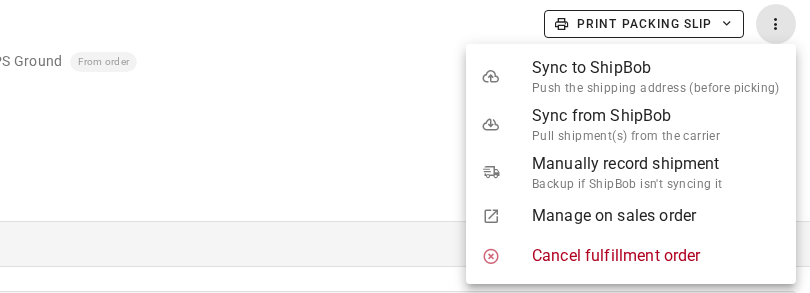
Click the More actions menu (the three dots, top right).
-
Click Sync to ShipBob. Its subtitle, Push the shipping address (before picking), says what it sends.
SKU.io sends the sales order's current shipping address, and only the address, to every parcel of the ShipBob order, then reloads the order from ShipBob. If any parcel has already been picked, ShipBob refuses and nothing changes:

At that point the parcel ships to the address ShipBob already has. To stop it, contact ShipBob, or try cancelling it, as described next.
Cancel a ShipBob order
Cancel the fulfillment order in SKU.io, and SKU.io cancels the ShipBob order with it. ShipBob calls this a recall.
-
Open the fulfillment order.
-
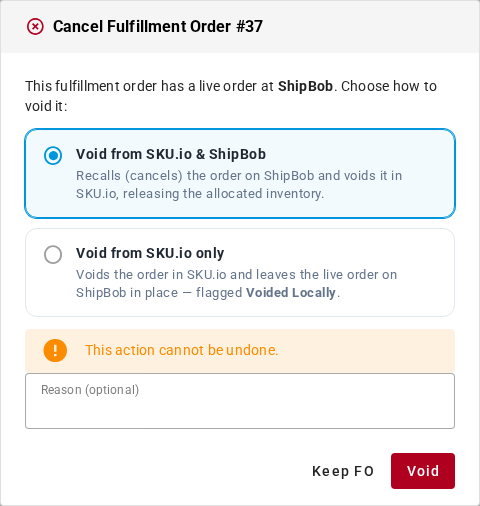
Click the More actions menu, then Cancel fulfillment order.
-
Keep Void from SKU.io & ShipBob selected.
-
(Optional) Enter a Reason.
-
Click Void.
Cancelling the whole sales order also recalls its ShipBob orders, in the background. See Close, cancel, archive, and delete.
What happens next
ShipBob answers in one of three ways.
ShipBob cancels the whole order. This happens when no parcel has been picked yet. The fulfillment order shows Cancelled and Cancellation Succeeded, and the ShipBob order shows Cancelled on the Orders tab. SKU.io then creates a new, unsubmitted fulfillment order for the same lines, so the sales order isn't left without one. Submit it again later, or cancel the sales order if the customer no longer wants it. In the demo data, SO-SB-1009 was cancelled this way. Fulfillment Order #38 is the cancelled one, and Fulfillment Order #39 is its new, unsubmitted fulfillment order.

ShipBob refuses. ShipBob refuses when the order has already been picked or shipped, or is already finished. Nothing changes in either system. The dialog stays open and switches to Void from SKU.io only:
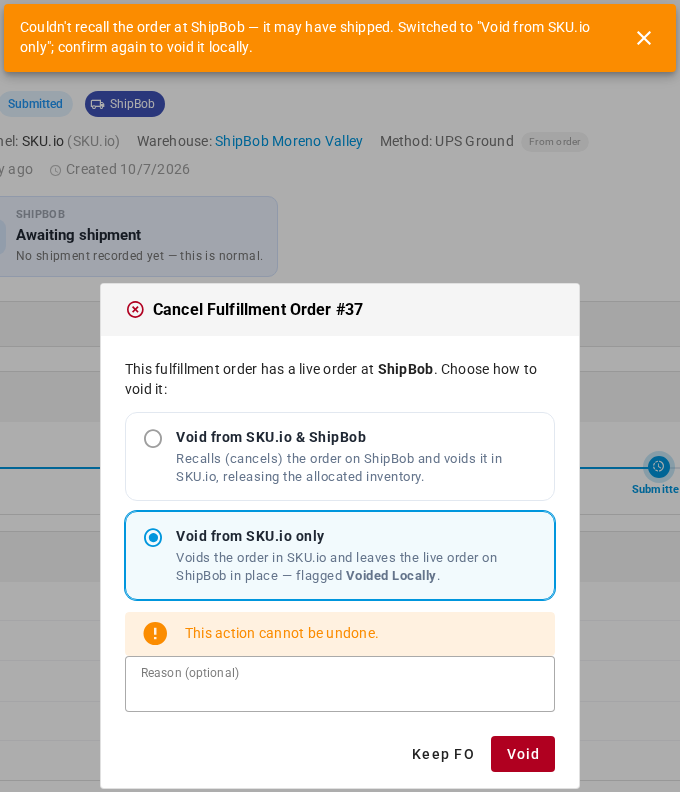
Then choose one:
- Click Keep FO to leave everything as it is. This is usually right: the parcel ships, and SKU.io records it as normal.
- Click Void to cancel the fulfillment order in SKU.io only. It's flagged Voided Locally, because the ShipBob order is still live and may ship. If it does, SKU.io doesn't record a fulfillment for it, so stop it in ShipBob or plan for a return.
ShipBob cancels part of the order. On a split order, ShipBob can cancel the parcels it hasn't picked yet while the others carry on. The fulfillment order is cancelled in SKU.io, and the recalled parcels show Cancelled in the ShipBob order's Shipments panel. A warning then appears as a banner on the fulfillment order page and on the sales order's fulfillment card:
ShipBob only partially cancelled this order. These shipments could not be recalled and may still ship: …
The warning ends with ShipBob shipment numbers. Those parcels are still live and may ship. Find them on the Shipments tab, and contact ShipBob if they must stop too.
If someone cancels an order in ShipBob's own app, you don't need to cancel it in SKU.io. SKU.io applies the cancellation the next time it reads the order. If nothing had shipped, it cancels the fulfillment order and creates a new, unsubmitted one for the same lines. If some parcels had shipped, it moves only the units that didn't ship to a new, unsubmitted fulfillment order. See Orders cancelled in ShipBob.
Next steps
- Find and review ShipBob orders
- Void, restore, or reset a shipment for a parcel that has already shipped
- How fulfillment lifecycles work