Set up NuORDER order, shipping and email settings
These settings decide how each wholesale order from NuORDER turns into a SKU.io sales order, and what SKU.io tells NuORDER and the retailer afterwards. You set them on three tabs under NuORDER → Settings: Orders, Shipping and Customer Emails. Each tab saves on its own with Save Changes, and Revert Changes undoes edits you haven't saved.
For how SKU.io handles orders from every sales channel, including later edits and cancellations, see How channel orders sync.
Before you begin
- Connect NuORDER.
- Map your NuORDER warehouses, so you know which order lines the Default Warehouse covers.
- You need permission to change integrations to save these settings. To save shipping method mappings, you also need permission to manage sales channel mappings; without it, the Shipping tab has no Save Changes button.
- If you have more than one NuORDER portal, pick the right one from the selector at the top of the page first. Every portal has its own settings.
Choose when an order becomes a sales order
- Go to NuORDER → Settings → Orders.
- Under Create SKU.io sales orders when a NuORDER order is, choose:
- Approved (recommended): SKU.io creates the sales order only once you approve the order in NuORDER. Until then, retailers can still edit pending orders.
- Pending: SKU.io creates the sales order once the order reaches Pending in NuORDER. Choose this if your brand skips NuORDER's approval step.
- Click Save Changes.

When SKU.io creates the sales order, it also allocates stock for it. Every submitted order shows on the NuORDER Orders page, whatever its status, but an order still in Review in NuORDER never gets a sales order on its own, with either choice. Edits the retailer makes after the sales order exists are applied to it. You can still create a sales order by hand for an order that hasn't reached your chosen status; see Handle NuORDER orders.
Set the start date and the default warehouse
- Go to NuORDER → Settings → Orders.
- Check the Order Import Start Date. NuORDER orders placed before this date aren't imported, so orders you already handled elsewhere stay out of SKU.io. The date can't be earlier than your inventory start date. If you clear it, SKU.io uses your inventory start date. Effective start date under the field shows the date SKU.io is using.
- Choose a Default Warehouse. Order lines whose NuORDER warehouse is mapped on the Warehouse Mappings tab ship from that mapped warehouse. Every other line ships from the Default Warehouse. Leave it blank to let your warehouse routing priority decide instead.
- Click Save Changes.

A new start date or default warehouse applies to orders SKU.io imports from now on. It doesn't change sales orders that already exist. To bring in orders placed before the start date, click Import Pre-Start-Date on the Orders page. To fetch every order from the start date again, use Fetch from Order Import Start in the Orders page's Refresh from NuORDER. See Handle NuORDER orders.
Choose what SKU.io writes back to NuORDER
Two switches on NuORDER → Settings → Orders, both on for a new connection, tell NuORDER that SKU.io picked an order up:
- Mark Imported Orders Processed in NuORDER moves each order to Processed in NuORDER once its SKU.io sales order exists. Your team can see it was picked up, and no other system imports it twice.
- Write the SKU.io Order Number Back to NuORDER saves the SKU.io sales order number on the NuORDER order, so your reps can look an order up from either side.
Turn either one off if you don't want it, then click Save Changes.

Both act on your live NuORDER orders. An order that has no SKU.io sales order yet is left as it is.
Choose what happens with shipments and cancellations
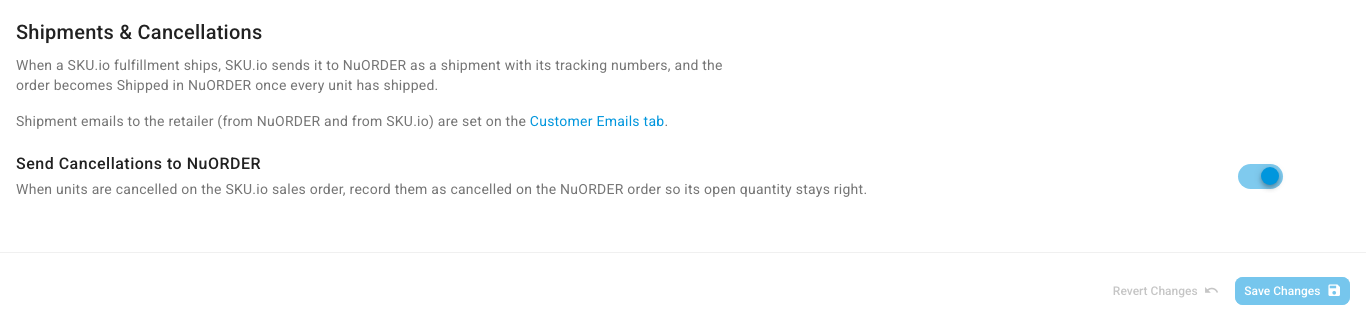
Lower on NuORDER → Settings → Orders, under Shipments & Cancellations, SKU.io explains what it sends: when a SKU.io fulfillment ships, it goes to NuORDER as a shipment with its tracking numbers, and NuORDER marks the order Shipped once every unit has shipped.
- Leave Send Cancellations to NuORDER on so that units you cancel on the sales order are recorded as cancelled on the NuORDER order, and its open quantity stays right. Turn it off if you'd rather record cancellations in NuORDER yourself.
- Click Save Changes.
Shipments and cancellations are sent automatically only while Submit tracking to NuORDER is on, on the Sync tab; see Pause sync or turn one direction off. For how sends work and how to retry one that failed, see Send shipments and cancellations to NuORDER.
Map NuORDER shipping services to your shipping methods
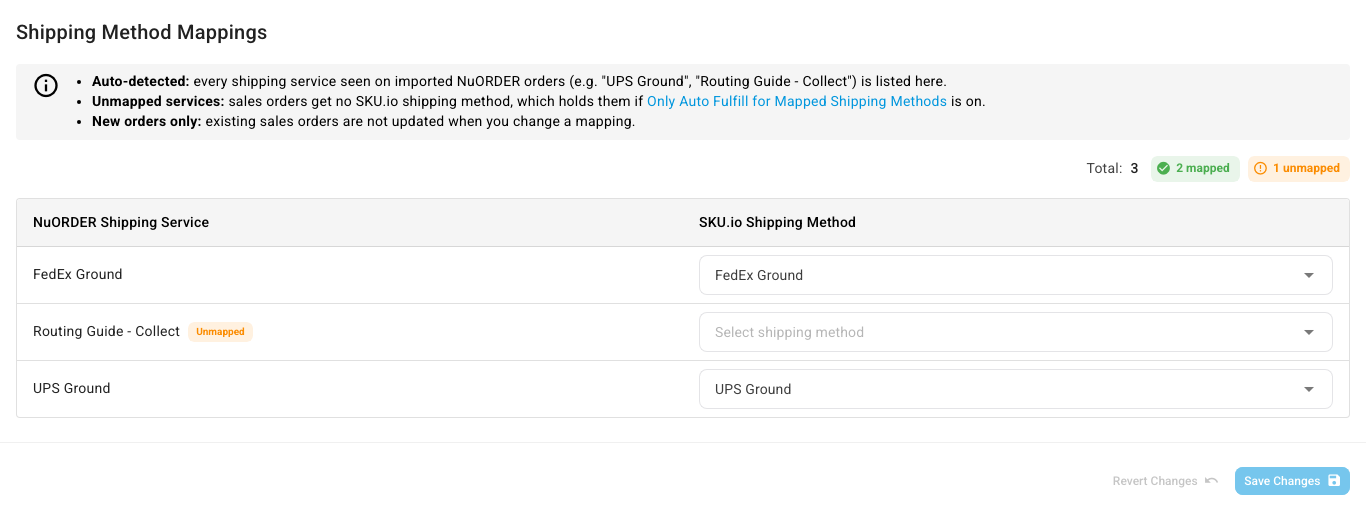
Each NuORDER order carries a shipping service, such as UPS Ground or Routing Guide - Collect. A mapping turns it into one of your SKU.io shipping methods, which is what your warehouse ships with.
- Go to NuORDER → Settings → Shipping. Every shipping service SKU.io has seen on an imported NuORDER order is listed under NuORDER Shipping Service. Total shows how many are mapped and unmapped.
- For each service, choose a SKU.io Shipping Method.
- Click Save Changes.
Keep in mind:
- A service shows up only after the first order that uses it is imported. Before then, the tab says No shipping services found yet. Check back after your first orders arrive.
- A sales order from an unmapped service gets no shipping method. If Only Auto Fulfill for Mapped Shipping Methods is on, that order is held until you set one. See Set up shipping methods and Set up fulfillment dispatch.
- Mappings apply to new orders only. Existing sales orders keep the shipping method they already have.
Choose which shipment emails retailers get
A retailer can hear about a shipment from NuORDER, from SKU.io, or both. Aim for one shipping email per shipment.
- Go to NuORDER → Settings → Customer Emails.
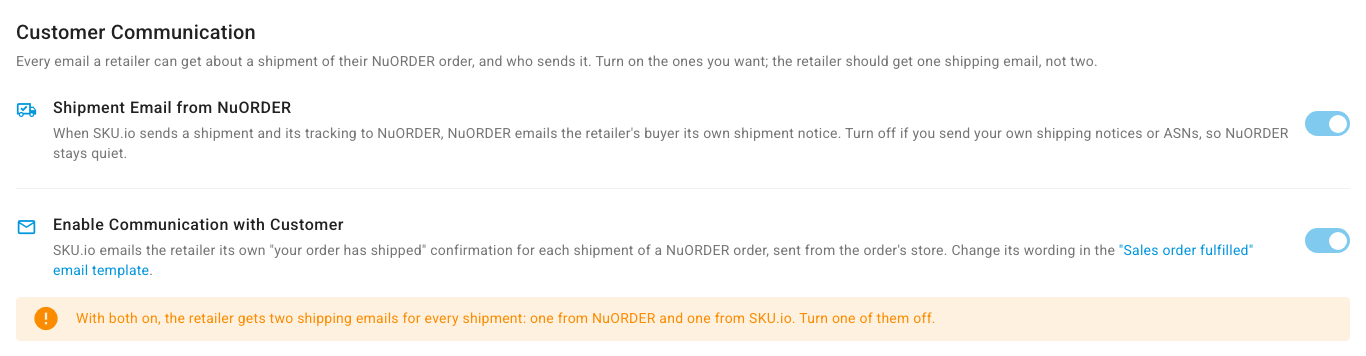
- Set Shipment Email from NuORDER. While it's on, NuORDER emails the retailer's buyer its own shipment notice when SKU.io sends it a shipment. Turn it off if you send your own shipping notices or advance ship notices.
- Set Enable Communication with Customer. While it's on, SKU.io emails the retailer its own "your order has shipped" confirmation for each shipment, from the order's store. To change the wording, click the "Sales order fulfilled" email template link. See Customize email templates.
- Click Save Changes.
With both switches on, the page warns you that the retailer gets two shipping emails for every shipment. Turn one of them off.
Next steps
- Handle NuORDER orders — create and update sales orders, and fix a change SKU.io couldn't apply.
- Send shipments and cancellations to NuORDER
- Map NuORDER warehouses and send stock