Set your warehouse routing priority
When an order comes in, SKU.io picks the warehouse each line ships from. Settings → Fulfillment → Warehouses controls how it picks: the order your warehouses are tried in, whether one order may ship from several warehouses, and whether the warehouse closest to the customer goes first.
Before you begin
- You need access to Settings.
- A warehouse can only be in the priority list if automatic routing is turned on for it on the warehouse itself.
- Orders that a sales channel fulfills itself, such as Amazon FBA orders, skip this list. They go straight to that channel's warehouse.
- The settings apply to lines that haven't been given a warehouse yet. A line you've placed in a warehouse by hand, or one that has started shipping, keeps its warehouse. See Warehouse routing and the warehouse lock.
Open Warehouse Settings
- Click Settings at the bottom of the left sidebar.
- Click the Fulfillment card to expand it, then click Warehouses.
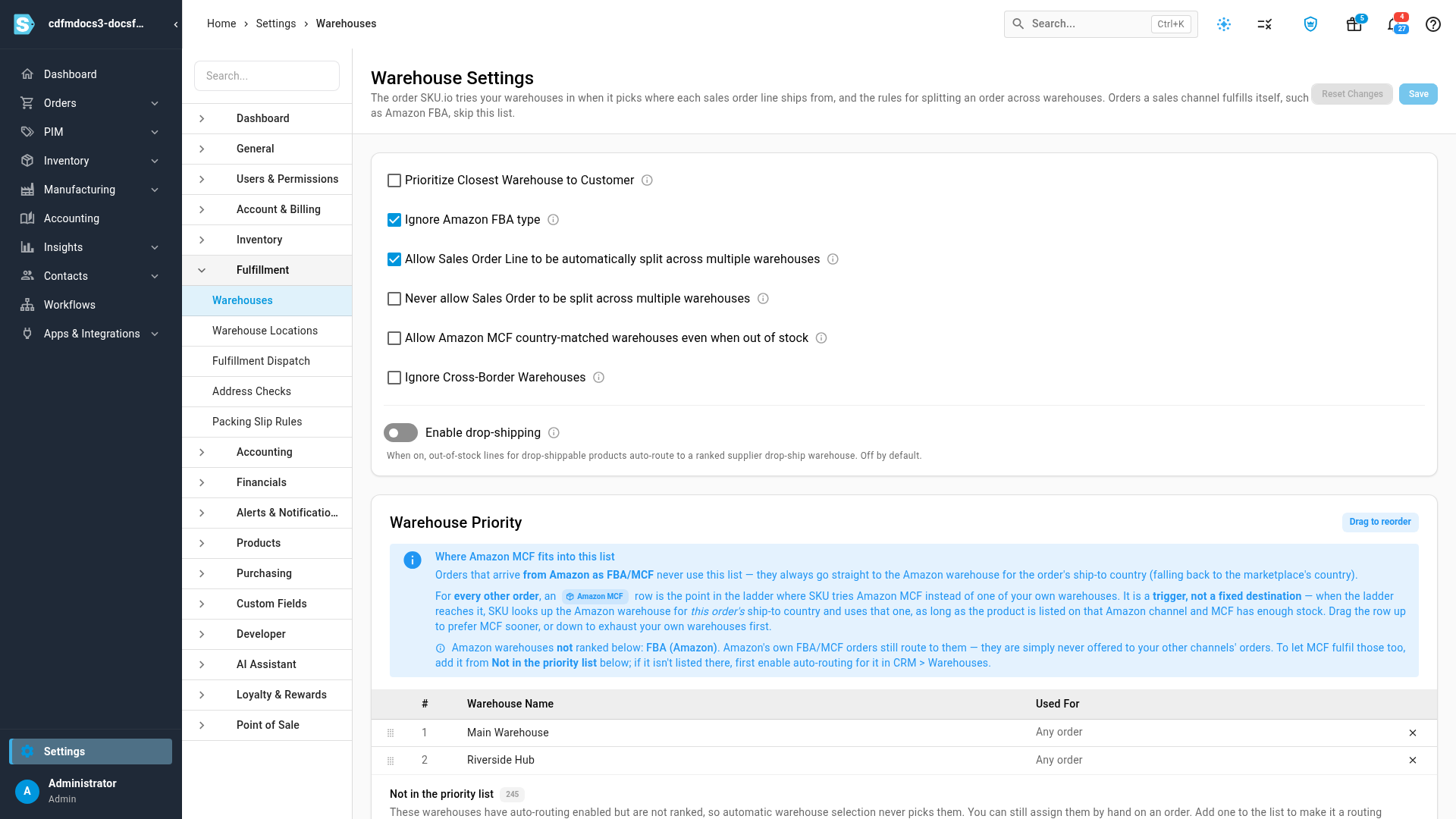
How a warehouse is chosen
With the default settings, SKU.io works down Warehouse Priority from the top for each order line:
- The line goes to the first warehouse with enough stock for the whole line.
- If no single warehouse has enough, and Allow Sales Order Line to be automatically split across multiple warehouses is on, the line is split across the warehouses that have stock.
- If no warehouse has stock, or splitting is off, the line goes to the first warehouse on the list, and the shortfall is backordered there.
Two settings change this: Never allow Sales Order to be split across multiple warehouses and Prioritize Closest Warehouse to Customer. Both are described below.
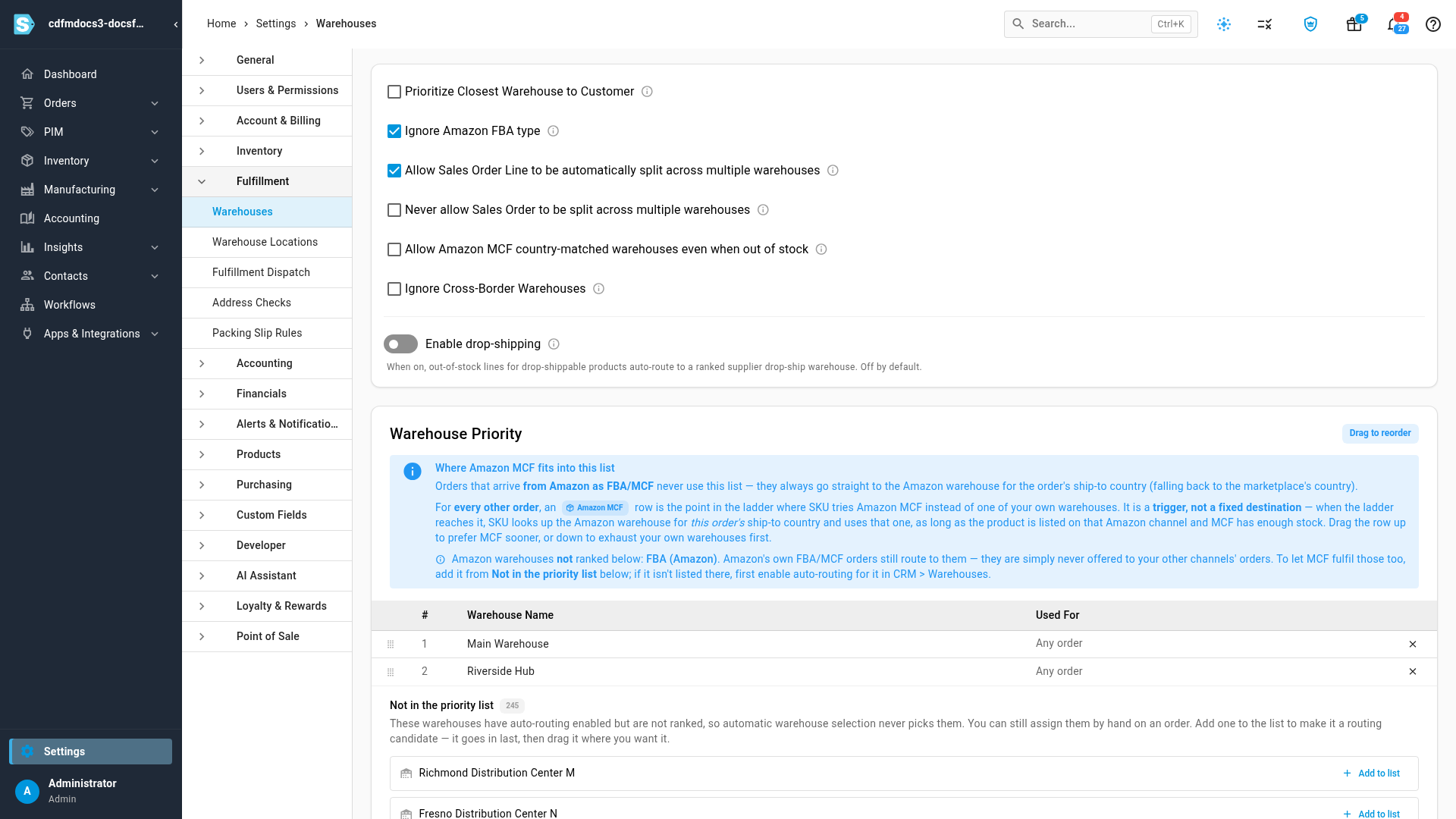
Order the priority list
- Scroll down to Warehouse Priority.
- Drag a row by the handle on its left to move it up or down. The warehouse at the top is tried first.
- To take a warehouse out of automatic routing, click the × at the end of its row. Orders are then never sent there automatically, but you can still pick it by hand on an order.
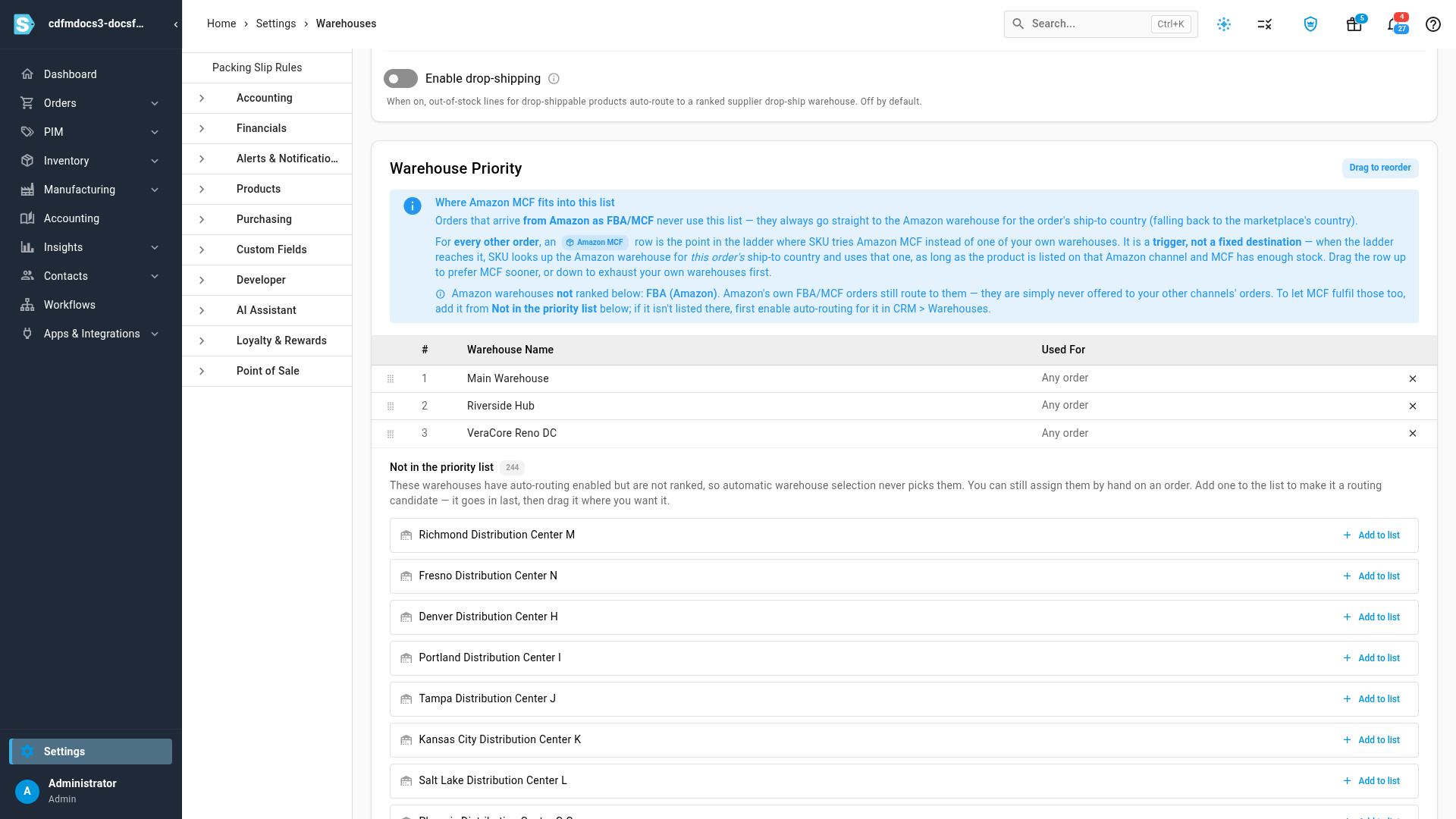
Add a warehouse to the list
Warehouses under Not in the priority list have automatic routing turned on but aren't ranked, so they're never picked automatically.
- Find the warehouse under Not in the priority list.
- Click Add to list. It joins the bottom of Warehouse Priority.
- Drag it to where you want it.
If you sell on Amazon, the list can also hold Amazon MCF rows. When routing reaches one, SKU.io sends the line to Amazon multi-channel fulfillment for the order's ship-to country, as long as the product is listed on that Amazon channel and Amazon has enough stock. The note above the list explains this in detail.
Decide whether an order can split
| Setting | What it does |
|---|---|
| Allow Sales Order Line to be automatically split across multiple warehouses | When no single warehouse can cover a line, the line is split across the warehouses that have stock, instead of going to the first warehouse with the rest backordered. On by default. |
| Never allow Sales Order to be split across multiple warehouses | Every line of an order ships from one warehouse. The order goes to the highest-priority warehouse that has stock of any product on the order, even if it can't cover every line. Lines it's short on are backordered there. If no warehouse has stock of anything on the order, it goes to your first-priority warehouse. |
While Never allow… is on, the automatic-split setting has no effect, so it's greyed out. Turning Never allow… off again restores it as it was.
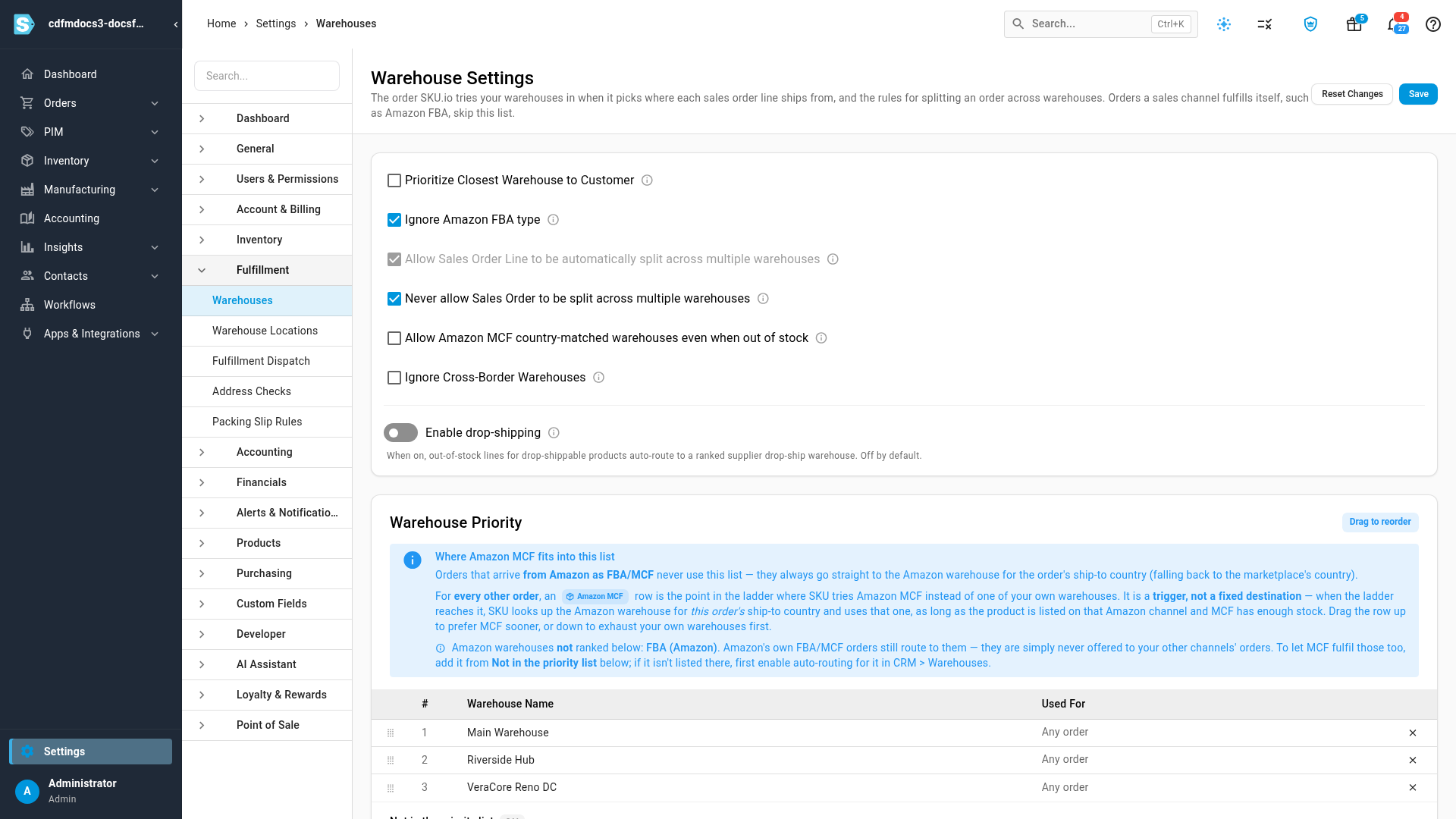
An order has two lines: a water bottle and a tumbler. Main Warehouse is first on your list and has neither; Riverside Hub is second and has the tumbler only. With Never allow… on, both lines go to Riverside Hub, and the water bottle is backordered there.
Ship from the closest warehouse to US customers
Turn on Prioritize Closest Warehouse to Customer to try warehouses nearest-first for orders shipping to a US address:
- The distance is worked out from ZIP codes, so it uses your own and 3PL warehouses that have a ZIP code in their address. Amazon FBA warehouses aren't included.
- For those orders, the distance order replaces your Warehouse Priority order. Each line still goes to the nearest warehouse that has enough stock; only when none has enough is it placed at the nearest one.
- Orders shipping outside the US keep using your Warehouse Priority list.
Point at the info icon beside the setting for the same summary.
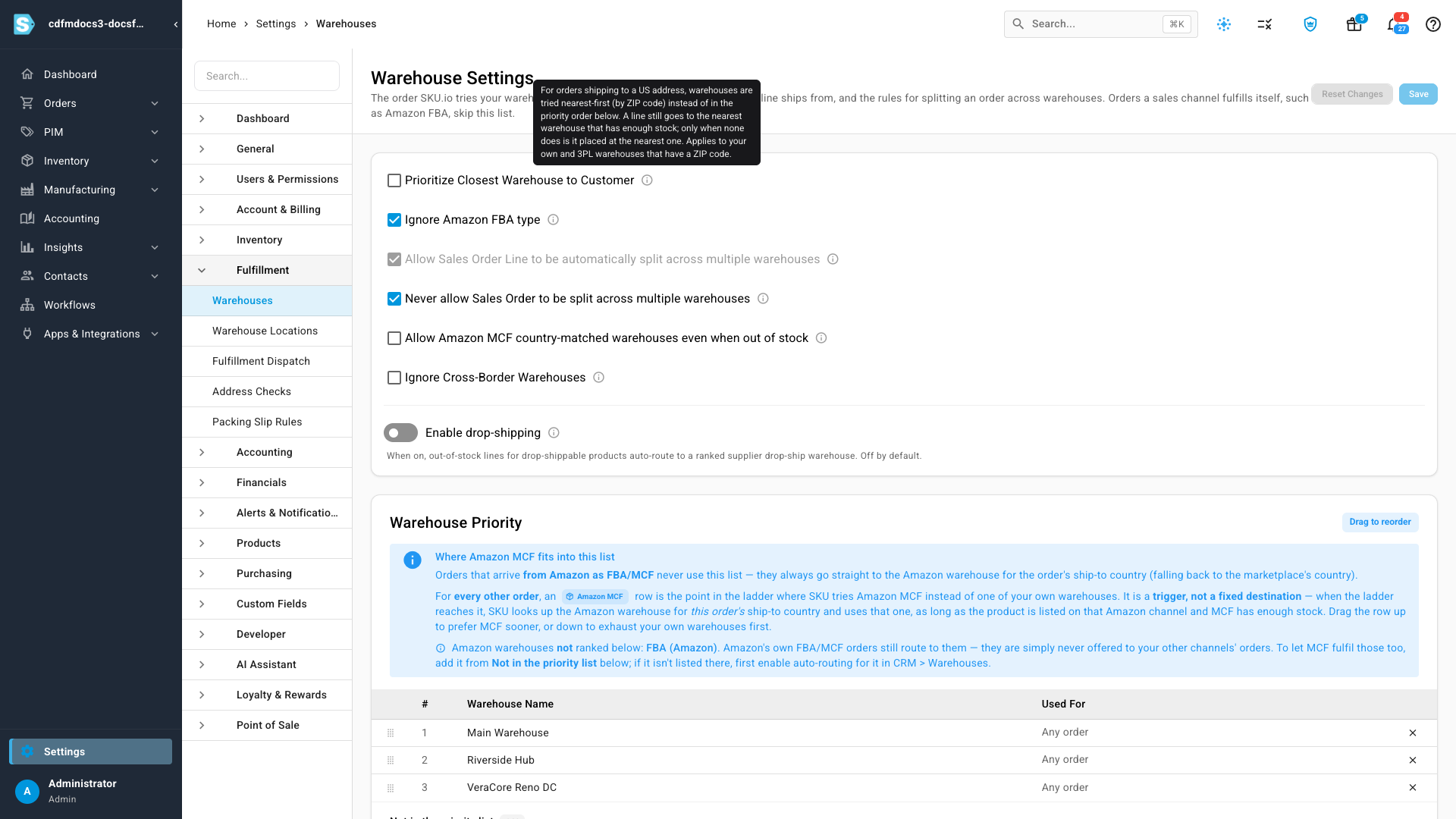
Other routing settings
| Setting | What it does |
|---|---|
| Ignore Amazon FBA type | Shown when you sell on Amazon. Leaves out old, country-less Amazon placeholder warehouses that hold no stock. Your real per-country Amazon warehouses keep their place. Recommended on. |
| Allow Amazon MCF country-matched warehouses even when out of stock | Lets an Amazon warehouse that matches the order's country be chosen even when Amazon shows no stock for the product. |
| Ignore Cross-Border Warehouses | Only warehouses in the same country as the order are considered. |
| Enable drop-shipping | Sends out-of-stock lines for drop-shippable products to a supplier's drop-ship warehouse. See Route out-of-stock lines to dropship suppliers. |
Save your changes
Click Save at the top right. Warehouse settings updated successfully confirms it. Reset Changes discards everything since the last save. New orders are routed with the new settings straight away.
Next steps
- Warehouse routing and the warehouse lock: how a line keeps its warehouse once it starts shipping.
- Approve, reserve, and allocate stock: see which warehouse SKU.io suggests for a line, and why.
- Set up fulfillment dispatch: decide whether each warehouse's orders are sent out automatically.
Video transcript
Warehouse settings decide which warehouse ships each line of a sales order. To get there, open Settings at the very bottom of the left sidebar. Click the Fulfillment card to expand it, and when its list opens below, click Warehouses. Scroll down to Warehouse Priority. Warehouses are tried in this order, from the top. Each order line goes to the first warehouse on the list with enough stock for the whole line. To move a warehouse up or down, drag its row by the handle on the left. Warehouses under Not in the priority list are never picked automatically. This list can be long, so scroll down until you find the warehouse you want. To make it a candidate, click Add to list beside its name. It joins the bottom of the priority list, ready to drag into place. Back at the top, two settings control splitting. When no single warehouse can cover a line, the first lets that line split across warehouses that have stock. Select Never allow Sales Order to be split to ship the whole order from one warehouse. The order then goes to the highest-priority warehouse holding any of its stock, and anything it's short on is backordered at that warehouse. Prioritize Closest Warehouse to Customer changes the order for shipments to a US address. Warehouses are tried nearest first, by ZIP code, instead of in your list order. Each line still goes to the nearest warehouse that has enough stock. When the list looks right, click Save at the top right. New orders use your new settings as soon as you save.