Plan shipments with the ship-by and release schedules
Two reports answer "what has to go out, and when?". The Ship By Schedule lists the days your orders are due to ship, and for each day, the products going out and whether you have the stock for them. The Release Schedule lists orders on hold, grouped by the day each one becomes shippable.
Before you begin
- You need access to Reports.
- Both reports read dates from your sales orders. An order appears on the Ship By Schedule once it has a Ship By date, and on the Release Schedule once it has a Hold Until date in the future. See Set a Hold Until date.
Open the Ship By Schedule
-
Go to Insights → Reports.
-
In the list of reports, choose Ship By Schedule.
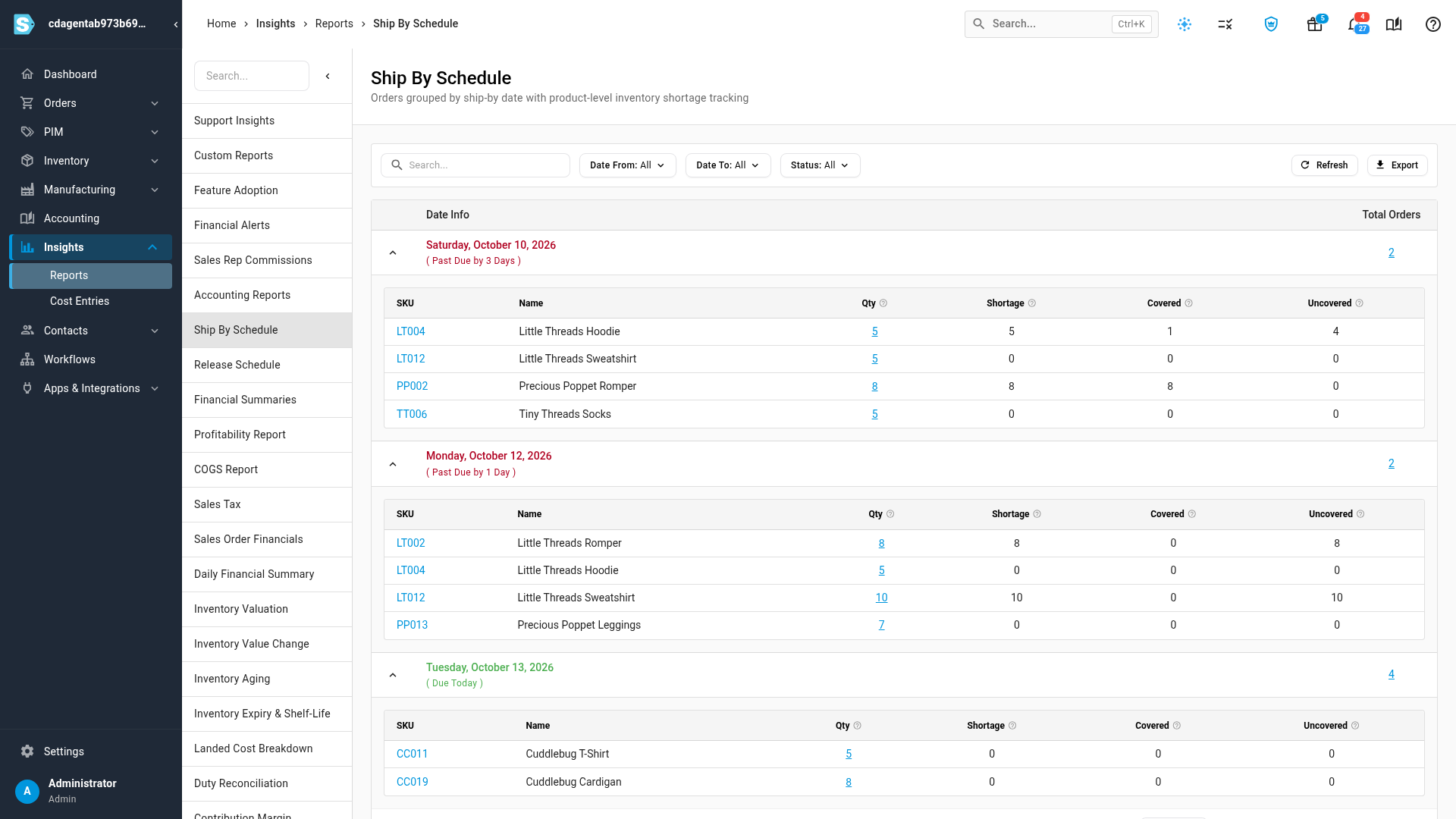
Each row is a ship-by date, with the oldest first. The report covers the last 30 days and every date after today, unless you set your own dates.
-
Read the date on each row:
- A date in red is past due. Under it, Past Due by says how many days late it is.
- Today's date is green and reads Due Today.
- A date in black is upcoming.
-
Click the number under Total Orders to open that day's orders in Sales Orders, in a new tab.
Check the stock each date needs
Under each date, every product shipping that day gets a line. Click the arrow at the start of a row to fold its products away, or to show them again.
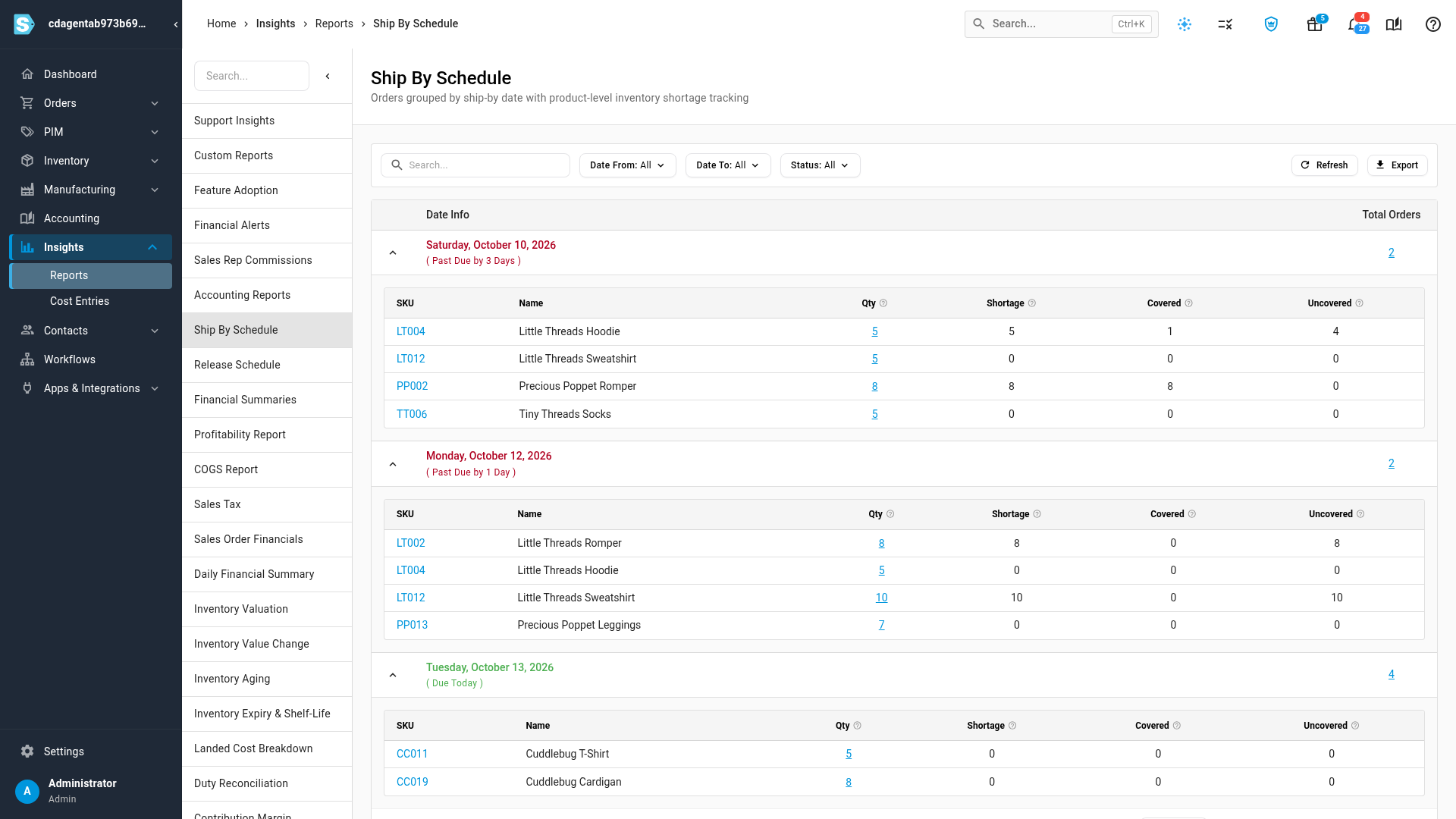
| Column | What it shows |
|---|---|
| SKU | The product. Click it to open the product in a new tab. |
| Name | The product's name. |
| Qty | Units of the product due to ship that day: the ordered quantity less canceled and returned units. Orders you've already fulfilled ahead of the date still count. Click it to open the orders behind it. |
| Shortage | Units still waiting for stock — they aren't allocated from stock on hand yet. |
| Covered | The part of the shortage that's allocated to an open purchase order, so stock is on its way. |
| Uncovered | The part of the shortage with no purchase order behind it. These are the units to order. |
Point at a column's help icon to see the same explanation in the app.
An Uncovered number on a date that's close is the one to act on first. See How allocations work for how SKU.io assigns stock and purchase orders to orders.
Orders on hold aren't on the Ship By Schedule. They join it once their hold-until date passes. Canceled and draft orders never appear.
Filter the schedule
- Status: choose Past Due, Due Today, or Upcoming to show only those dates. All shows every date.
- Date From and Date To: show only ship-by dates in a range. Setting either one replaces the default of the last 30 days and everything after today.
- Search: find a product by SKU or name. Only the dates that ship that product stay on the list.
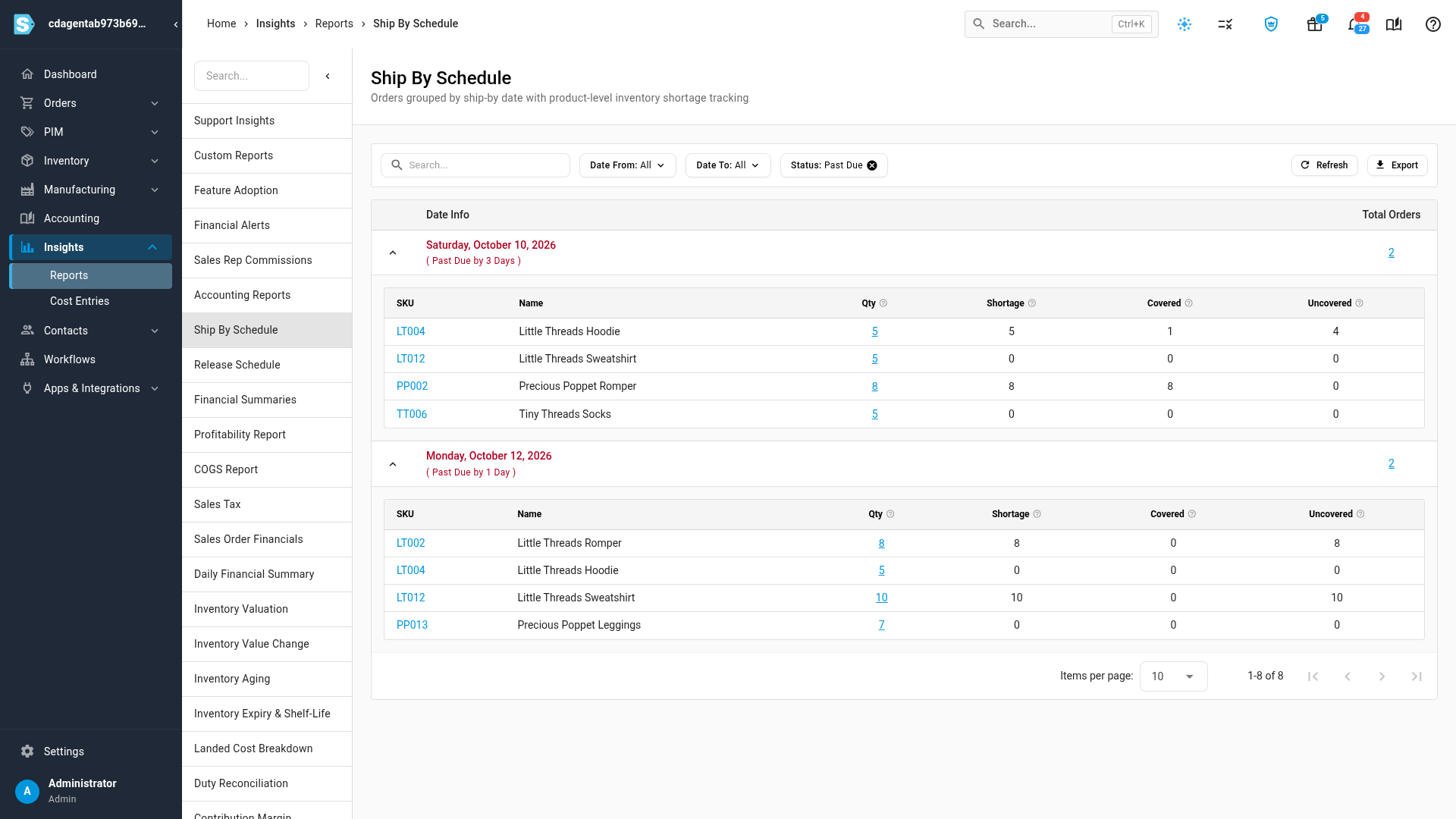
Click Refresh to reload the schedule with the latest orders.
Export the Ship By Schedule
- Click Export. Export Data opens with the number of rows it will export.
- Click Export CSV.
The file has one row per product per ship-by date, for every date that matches your filters, not only the page on screen. Its columns are Ship By Date, Product SKU, Product Name, Total Quantity, Shortage Quantity, Covered Quantity, Uncovered Quantity, and Total Orders. Total Orders is the number of orders due that day, so it repeats on each product row of the same date. Export is unavailable when no dates match your filters.
See held orders on the Release Schedule
-
In the list of reports, choose Release Schedule.
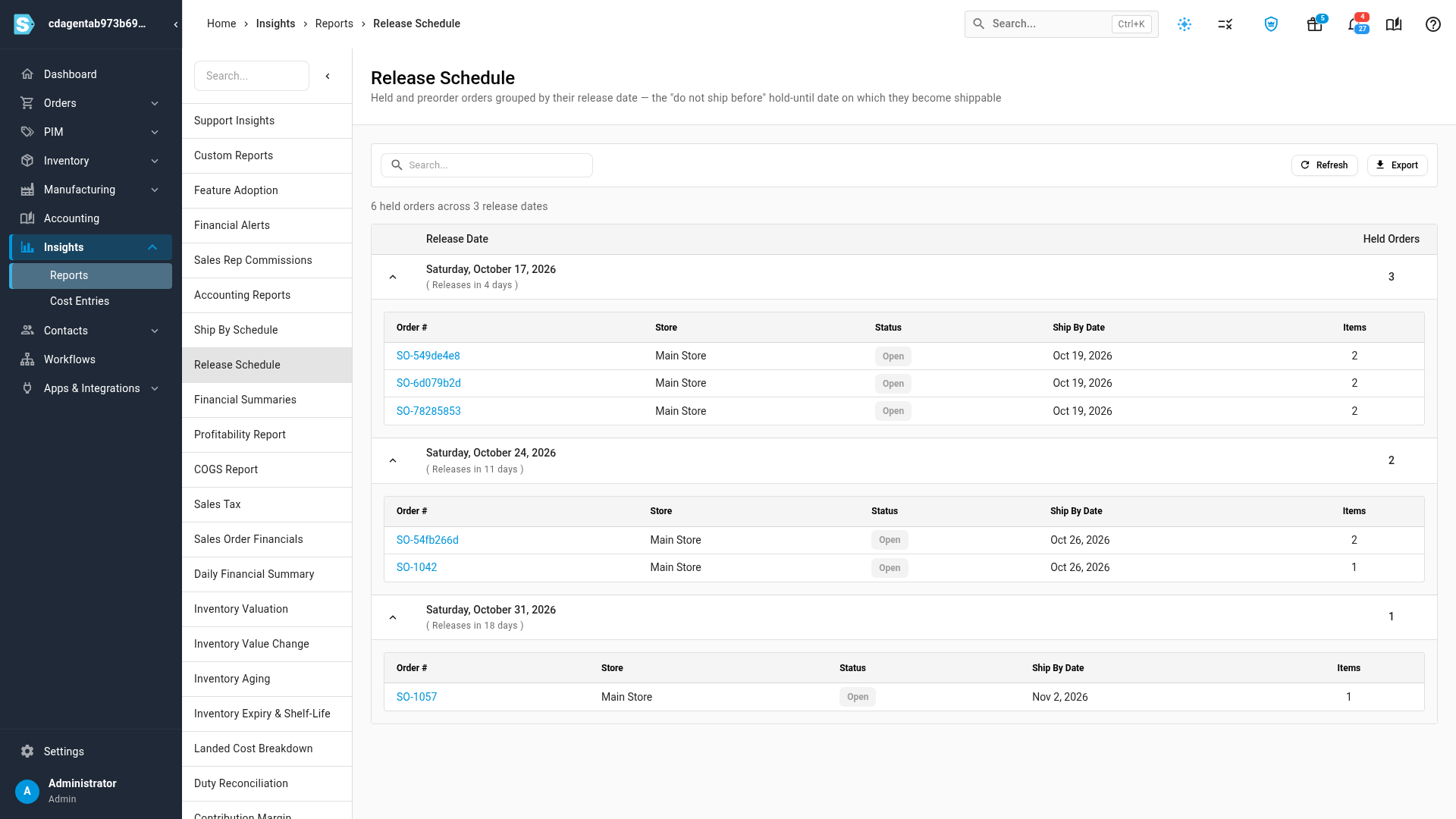
Held orders are grouped by the date they're released, the soonest first. Above the list, a line counts the held orders and release dates.
-
Read each date: Releases in says how many days are left. A date that releases today or tomorrow is green.
-
Read the orders under each date:
Column What it shows Order # The sales order. Click it to open the order. Store The store the order was placed through. Status The order's status. Held orders can still be Open: they're approved, but can't ship before their date. Ship By Date The order's own ship-by date. Items The number of lines on the order. -
To find an order, type its number or store into the search box.
Click Refresh to reload the list. Click Export to download the list as a CSV file, with the columns Release Date, Order #, Store, Status, Ship By Date, and Items. The export includes only the orders your search shows. Export is unavailable when there are no held orders.
On the release date, an order leaves the Release Schedule and appears on the Ship By Schedule, under its ship-by date.
Next steps
- Set a Hold Until date to keep an order from shipping before a date.
- How allocations work: why a line is short, and how purchase orders cover it.
Video transcript
To see what has to go out and when, open Insights in the sidebar, and then choose Reports. In the list, choose Ship By Schedule. It groups your orders by the day each one is due. Each row is a ship-by date, with the oldest first. A red date is past due, and shows the number of days it's late. Today's date is green. Total Orders counts the orders due that day, and opens them in your sales orders. Under each date, every product shipping that day gets a line. Quantity is the number of units due. Shortage is the units still waiting for stock. Covered is the part with a purchase order on the way. Uncovered has nothing coming, so those are the units to buy. To focus on one kind of date, open the Status filter at the top of the report, and choose Past Due. Date From and Date To narrow the schedule to a range of ship-by dates. Orders on hold stay off this schedule until their release date. To find them, choose Release Schedule. Each held order sits under the date it's released, next to its own ship-by date. Refresh reloads the list, and Export downloads it as a spreadsheet.