Close orders that shipped before inventory tracking
When you start using SKU.io, some orders placed before your inventory start date have usually already shipped, but nobody marked them fulfilled. They sit in your list as open orders. Your opening stock count already left those items out, so fulfilling them the normal way would deduct the same stock a second time.
Mark as Shipped Before Tracking closes these orders without touching stock. It records their open items as shipped before tracking and releases any stock reserved for them. This guide also shows how to undo a deduction that already happened, when an old order was marked fulfilled on the sales channel after your start date.
Before you begin
- You need the Fulfill sales orders permission. Without it, the action and the menu items on this page are hidden.
- Your inventory start date must be set. Orders are judged against it: only orders placed before that date qualify.
- The examples below use an inventory start date of June 1, 2026 and a backlog of 16 old orders, most of them from Shopify.
Find the old open orders
- Go to Orders → Sales Orders.
- Click Advanced Filters.
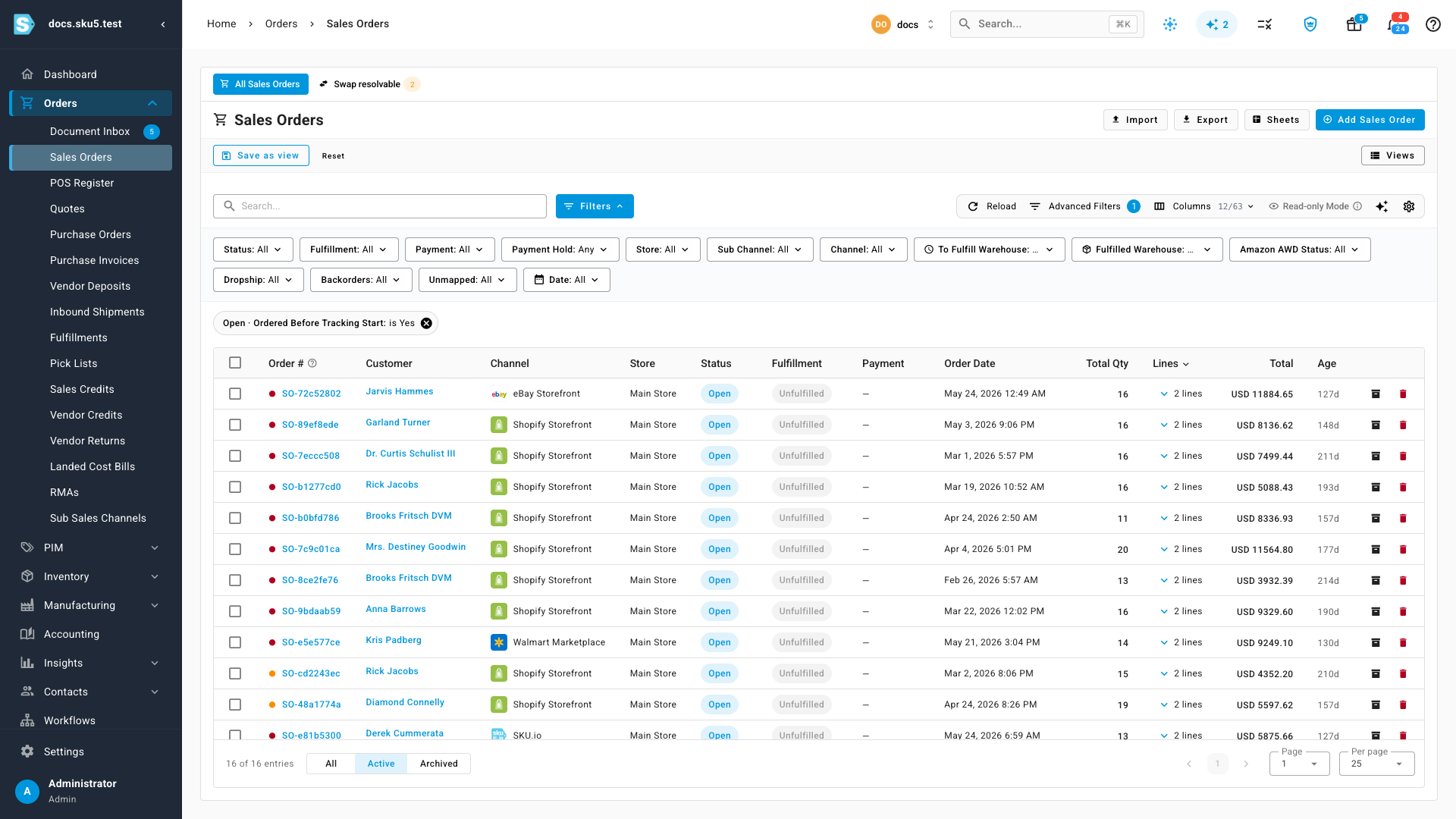
- Under Order Info, choose Open · Ordered Before Tracking Start.
- Set the value to Yes, then click Apply Filters.
What you'll see: the list shows only open orders placed before your inventory start date that still have items left to ship.
An order placed before your start date that still has items to ship shows a banner at the top of its page: Ordered before your inventory start date and still open. Click Mark as shipped before tracking in that banner to close just that order.
Close them in bulk
- Tick the checkbox in the table header to select every order on the page.
- In the selection bar, click All Filtered so the action covers every order the filter matches, not only the page you can see.
- Open More and choose Mark as Shipped Before Tracking.
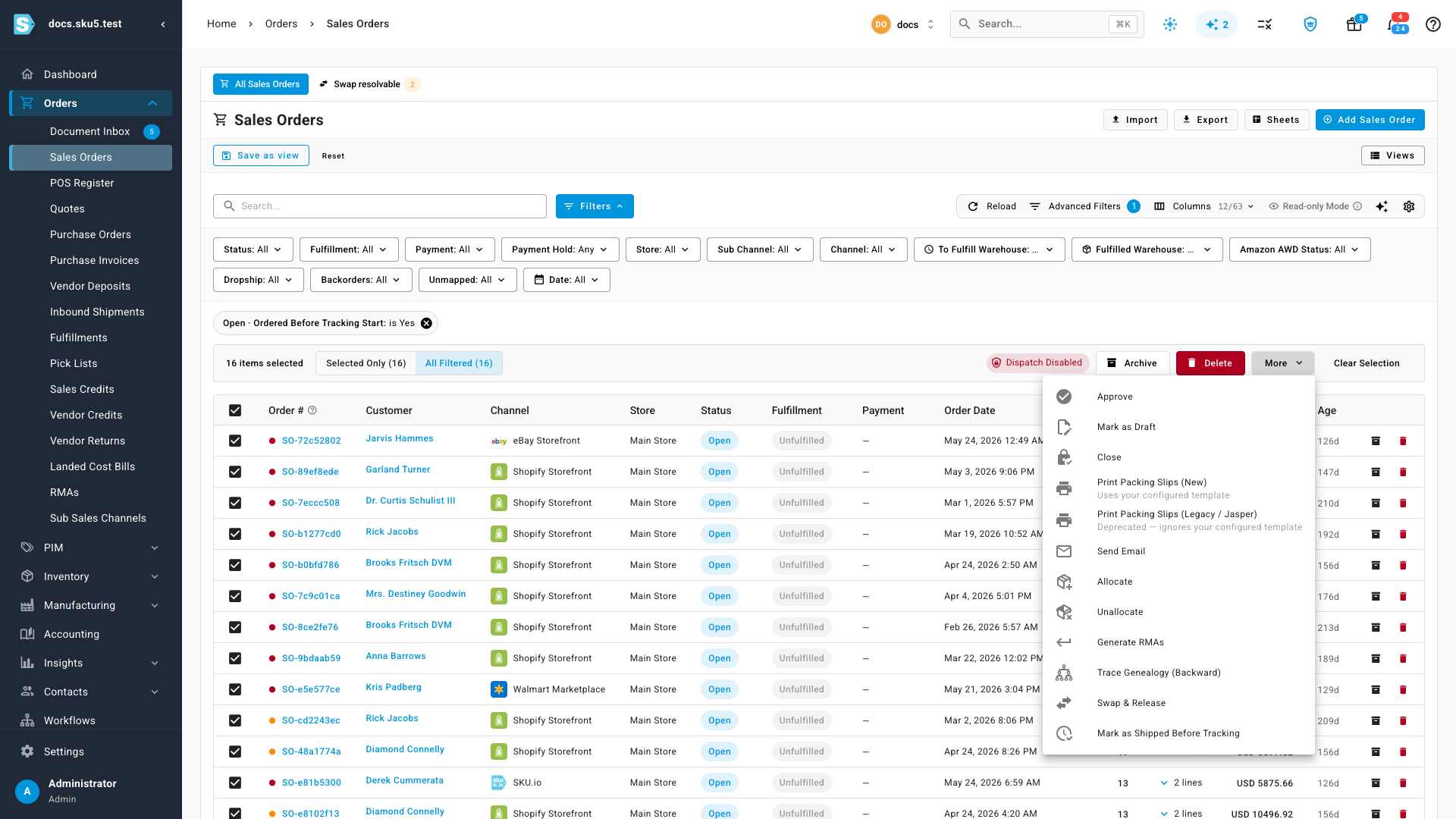
The Mark as shipped before tracking dialog opens with a preview. Nothing has changed yet.
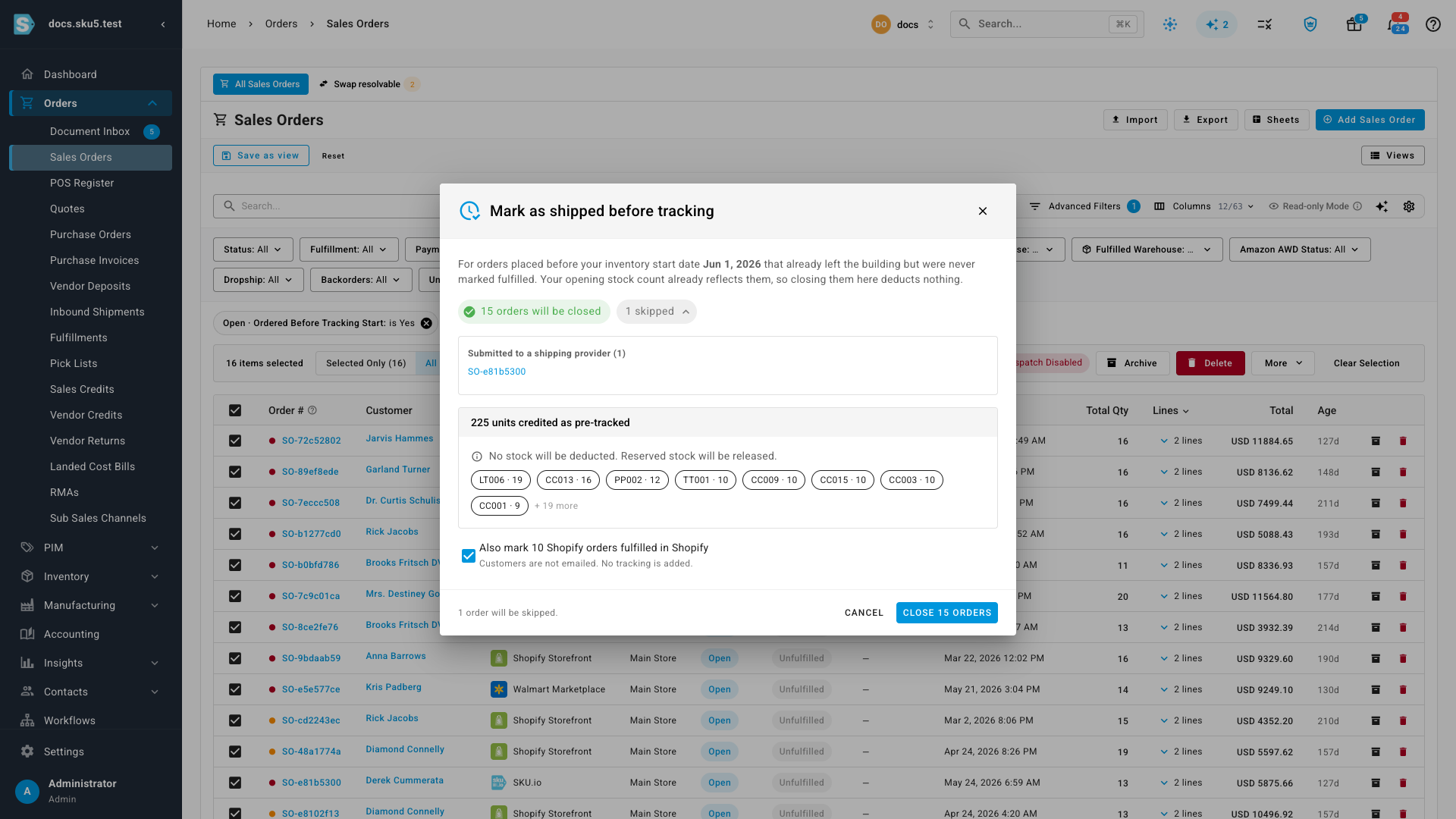
- Check the counts:
- N orders will be closed is how many qualify.
- N skipped lists the orders left alone, grouped by reason. Click it to see them. The reasons are in Why an order is skipped.
- N units credited as pre-tracked totals the items recorded as shipped before tracking, with the products listed underneath. No stock is deducted, and any reserved stock is released.
- For Shopify orders, decide whether to tick Also mark N Shopify orders fulfilled in Shopify. It's on by default. Customers aren't emailed and no tracking is added. Leave it ticked unless those orders are already fulfilled in Shopify.
- Click Close N orders.
What you'll see: the dialog closes and a background job closes the orders. Follow its progress in the job tray. When it finishes, the filtered list holds only the orders that were skipped.
Orders from channels other than Shopify are closed in SKU.io only. You can still mark them shipped on the channel afterward: that won't deduct stock, but until you do, the channel may report the order as open again.
Check a closed order
Open any order you closed. The header reads Fulfilled, the Movements tab shows no inventory movements for it, and on the Fulfillment tab the items appear in a Pre-Tracked Fulfillment card. The Notes tab records who closed the order, the start date it was judged against, and how many units were credited.
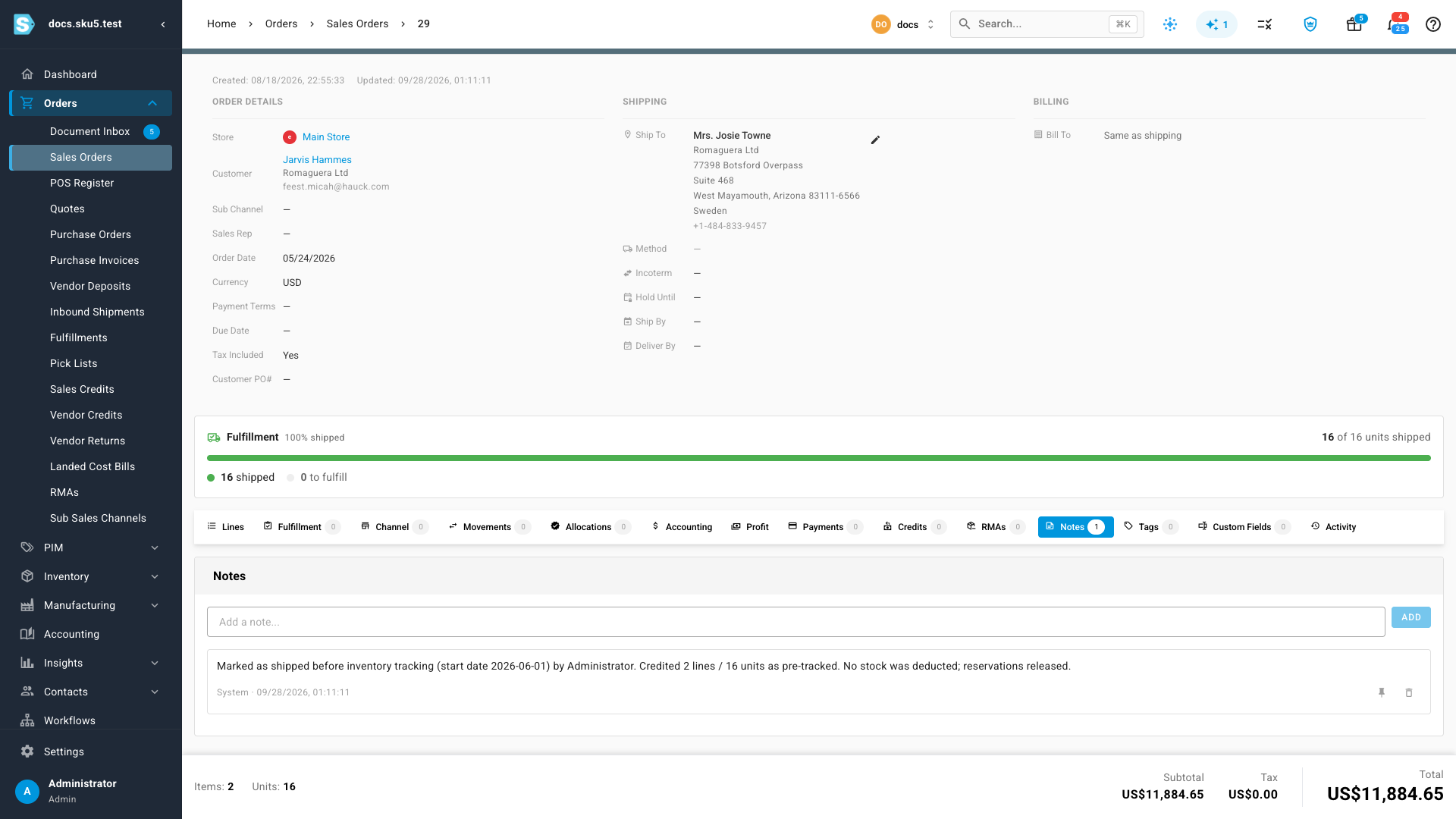
For a Shopify order, a second note says whether Shopify was updated. If the update didn't go through, the Pre-Tracked Fulfillment card has a Mark fulfilled in Shopify button to try again.
Undo a deduction that already happened
Sometimes an old order was marked fulfilled on the sales channel after your inventory start date — for example, someone caught up on a Shopify backlog last week. The channel dates that fulfillment today, so SKU.io recorded a shipment and deducted the stock again. You can reverse that shipment and record its items as shipped before tracking instead.
-
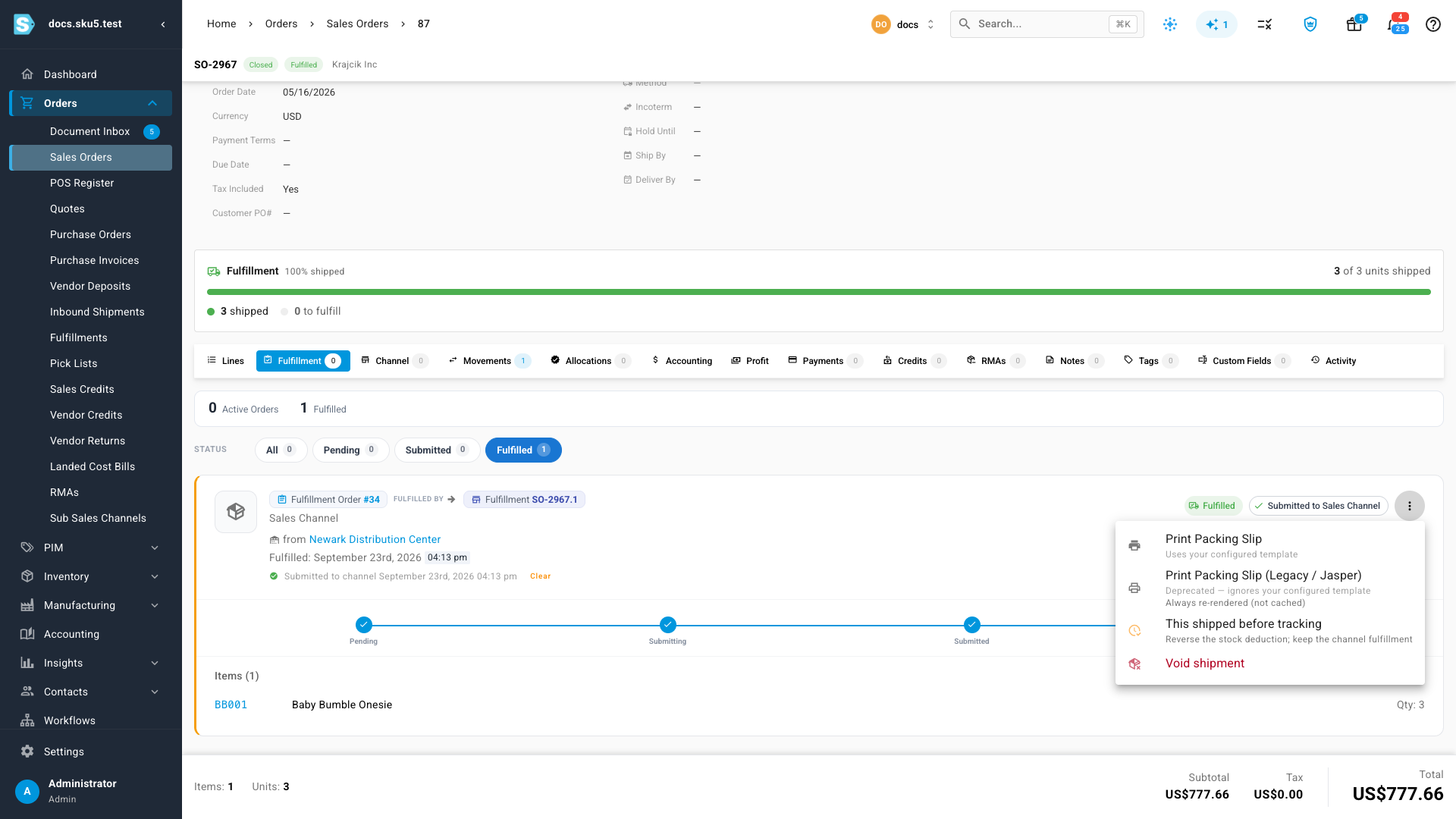
Open the order and go to its Fulfillment tab.
-
Open the shipment's actions menu and choose This shipped before tracking. The option only appears on channel shipments of orders placed before your start date.
-
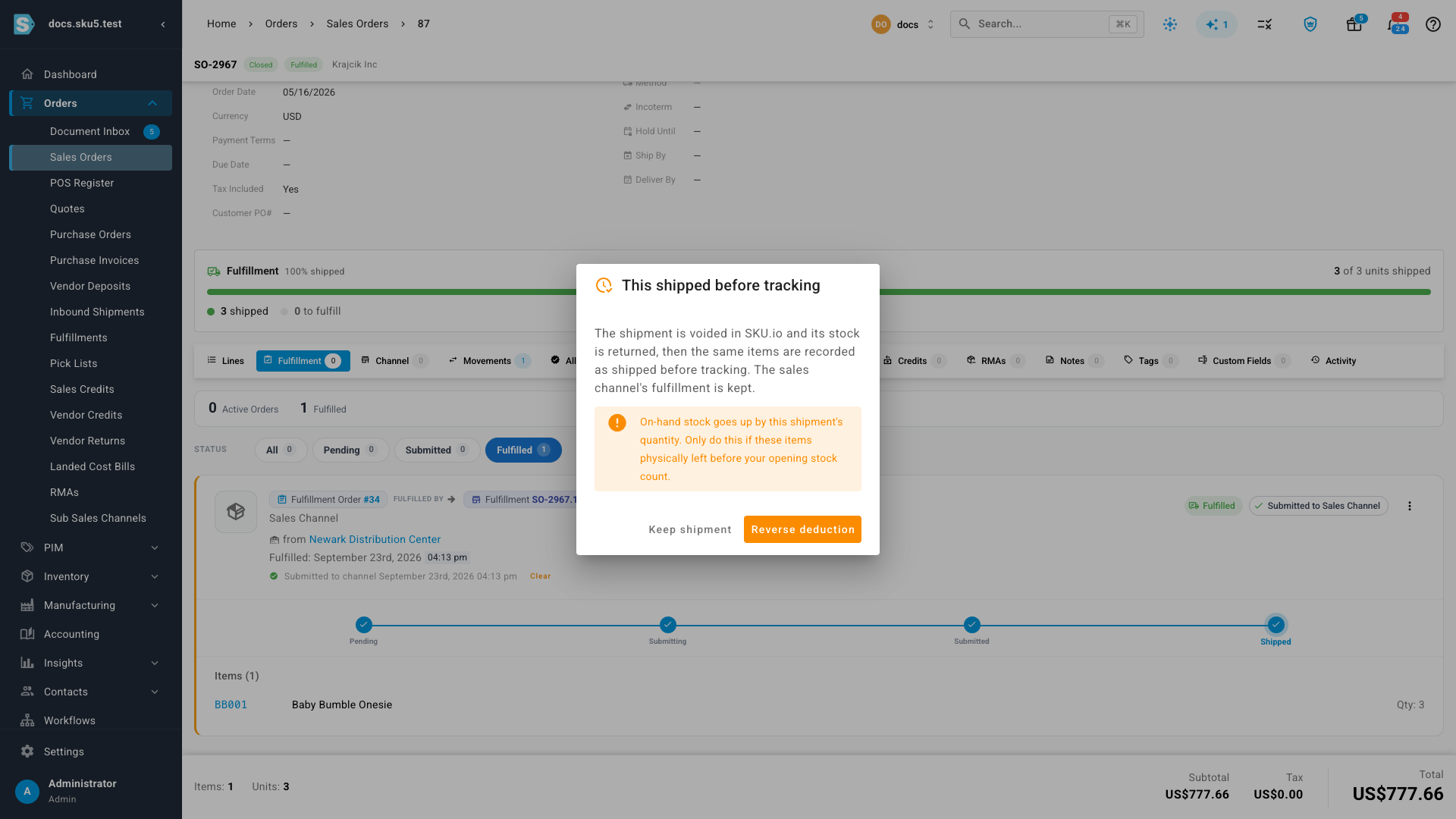
Read the confirmation, then click Reverse deduction (or Keep shipment to back out).
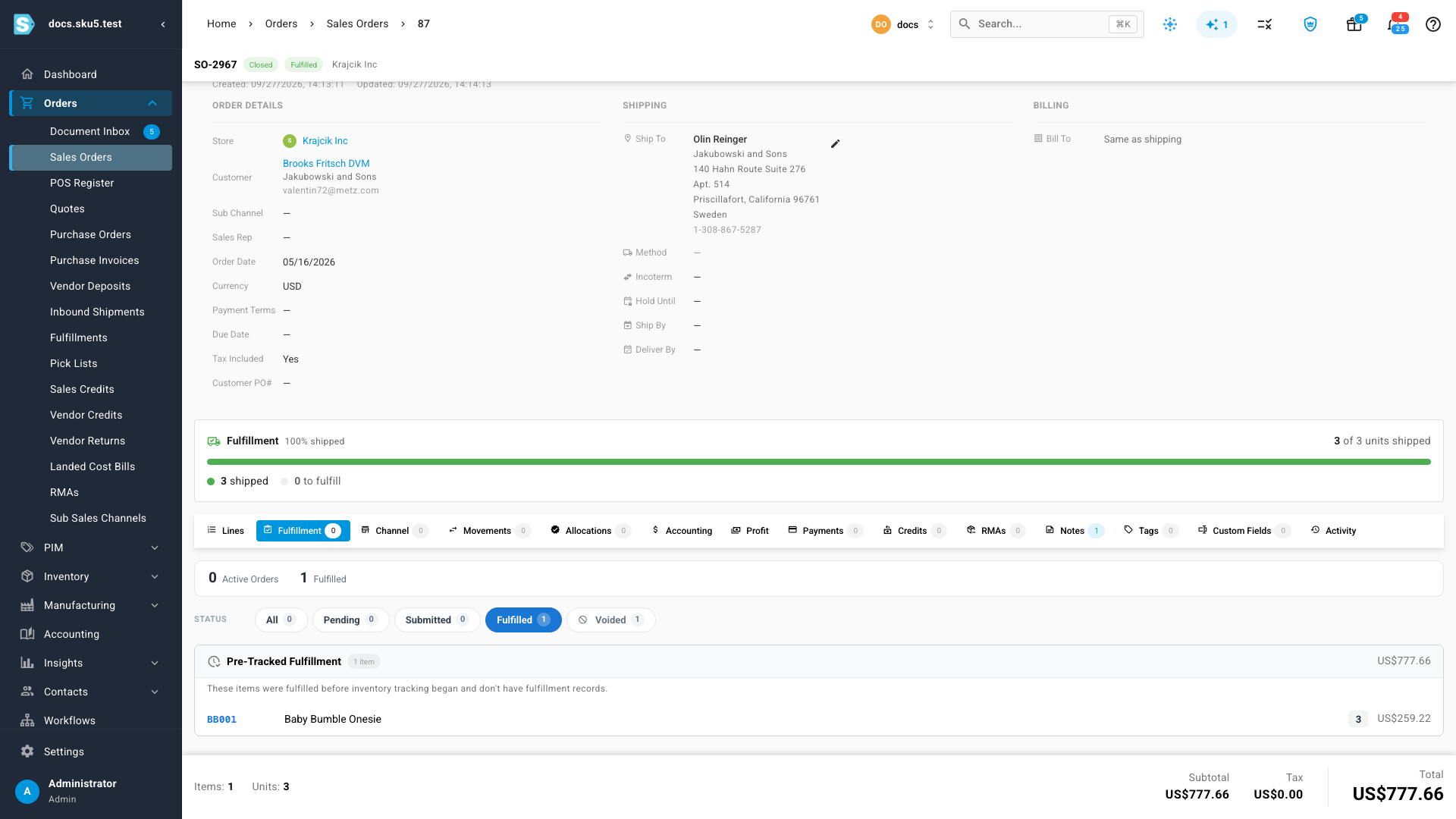
What you'll see: Deduction reversed — recorded as shipped before tracking. The shipment moves to Voided, its stock goes back on hand, and the items appear in the Pre-Tracked Fulfillment card. The fulfillment on the sales channel is kept, and the next channel sync won't bring the shipment back.
Reversing puts the shipment's quantity back on hand. Do it only if those items physically left the building before your opening stock count. If they shipped after the count, the deduction was correct.
A reversed shipment can't be restored the way other voided shipments can, because restoring it would deduct the same stock again.
Reverse several at once
When the orders you select in bulk include some that were already deducted this way, the preview adds a warning: N of these were already deducted when marked fulfilled on the sales channel after your start date. Tick Reverse those deductions to reverse them in the same run, and click Show affected orders to see each shipment's date and the units it returns to stock.
Fulfilling an old order by hand
If you fulfill an order placed before your start date through Fulfill and date the shipment before the start date, the dialog says so: Before your inventory start date: this will be recorded as shipped before tracking — no stock is deducted.
Why an order is skipped
The preview never closes an order that might still ship, or that SKU.io can't safely close. Skipped orders are grouped under these reasons:
| Reason | What it means |
|---|---|
| Ordered on or after the inventory start date | The order is inside your tracked period. Fulfill it normally. |
| Submitted to a shipping provider | A shipping provider already has the order and may still ship it. |
| A shipment is in progress | Part of the order is mid-shipment. |
| Dropship purchase order in progress | A supplier is shipping part of the order. |
| Amazon MCF order in progress | Amazon is fulfilling part of the order. |
| Awaiting customer pickup | The order is staged for collection. |
| In a locked accounting period | The order falls in a period you've locked. |
| Nothing left to fulfill | Every item has already shipped or been cancelled. |
| Cancelled | The order is cancelled. |
| No inventory start date set | Set your inventory start date first. |