Brand your customer portal
Your buyers should see your business when they order from you, not ours. The Appearance tab puts your logo, name and colours on every Customer Portal page, the sign-in page, the browser tab and every email the portal sends them. You set it once, for every dealer, and a live preview shows the result as you type.
Before you begin
- You need permission to manage the Customer Portal (the same permission as its other tabs).
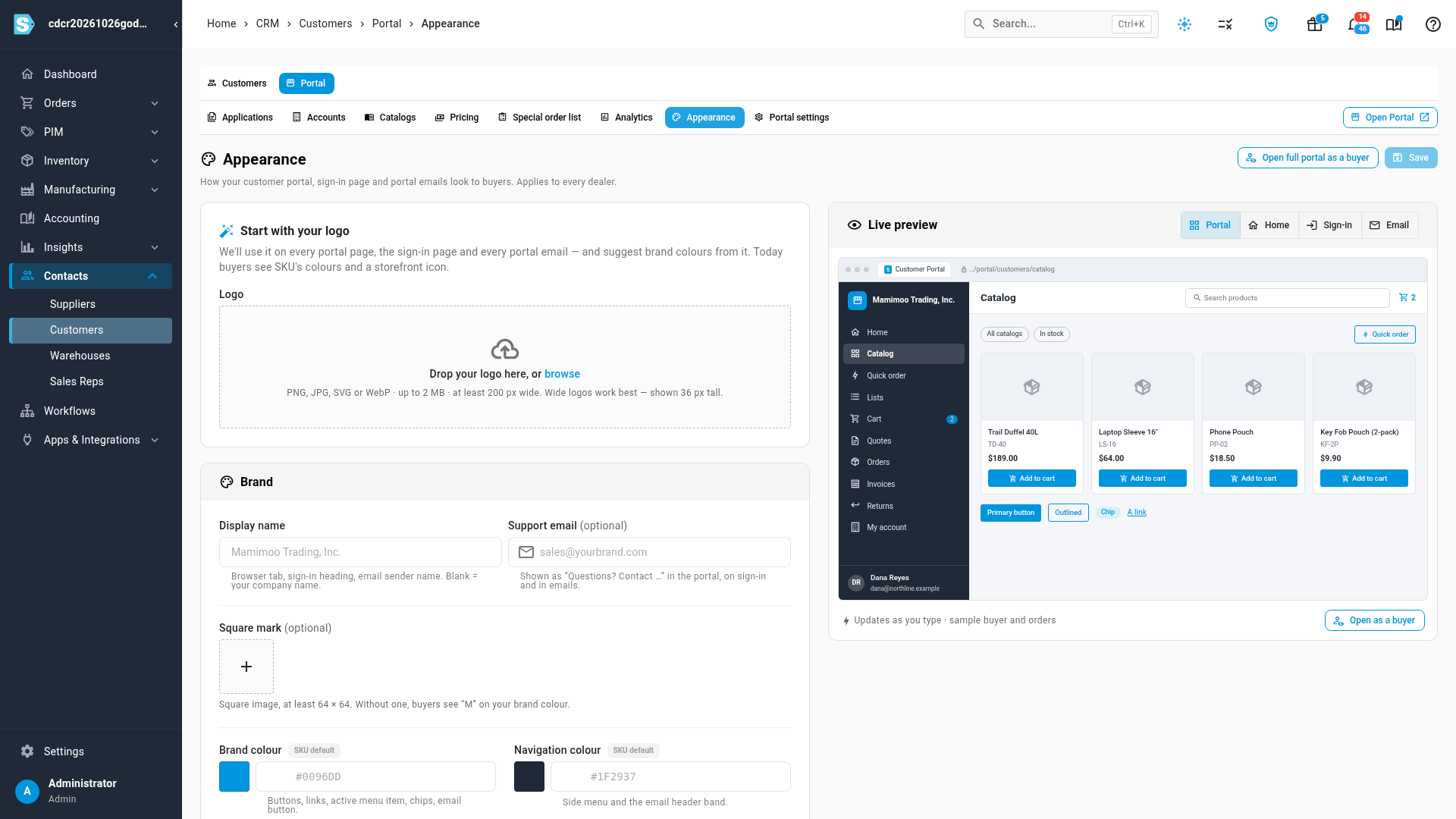
- Have your logo ready as a PNG, JPG, SVG or WebP file, up to 2 MB and at least 200 pixels wide. Wide logos work best: the portal shows the logo 36 pixels tall.
- Optional: a square version of your logo, at least 64 × 64, for the collapsed menu and the browser tab icon.
Open Appearance
- Go to Contacts → Customers.
- Click Portal, then Appearance.
Until you set anything, buyers see the standard colours and a storefront icon, and the page opens with Start with your logo.
Upload your logo
-
Drop your logo file on the Logo box, or click browse and choose it.
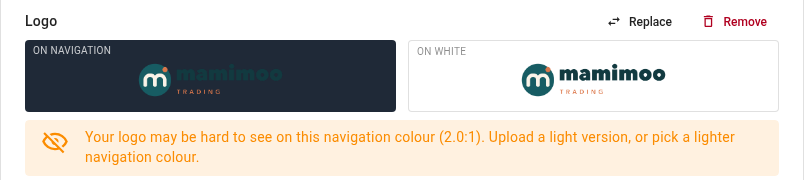
The logo appears twice: On navigation, on your navigation colour, and On white. A dark logo that disappears on a dark menu is easy to spot this way, and the page warns you: Your logo may be hard to see on this navigation colour. Fix it with a lighter navigation colour (below) or a light version of your logo.
-
To change it later, click Replace. To take it off, click Remove.
Uploading, replacing or removing the logo or square mark changes the portal for buyers straight away. You don't need to click Save for it. Your name, colours and support email wait for Save.
Set your name and support email
- In Display name, type the name buyers should see. It's used in the browser tab, the sign-in heading ("Sign in to …") and as the sender name on portal emails. Leave it blank to use your company name.
- In Support email, type the address buyers should write to. It shows as "Questions? Contact …" in the portal, on the sign-in page and in emails.
Pick your colours
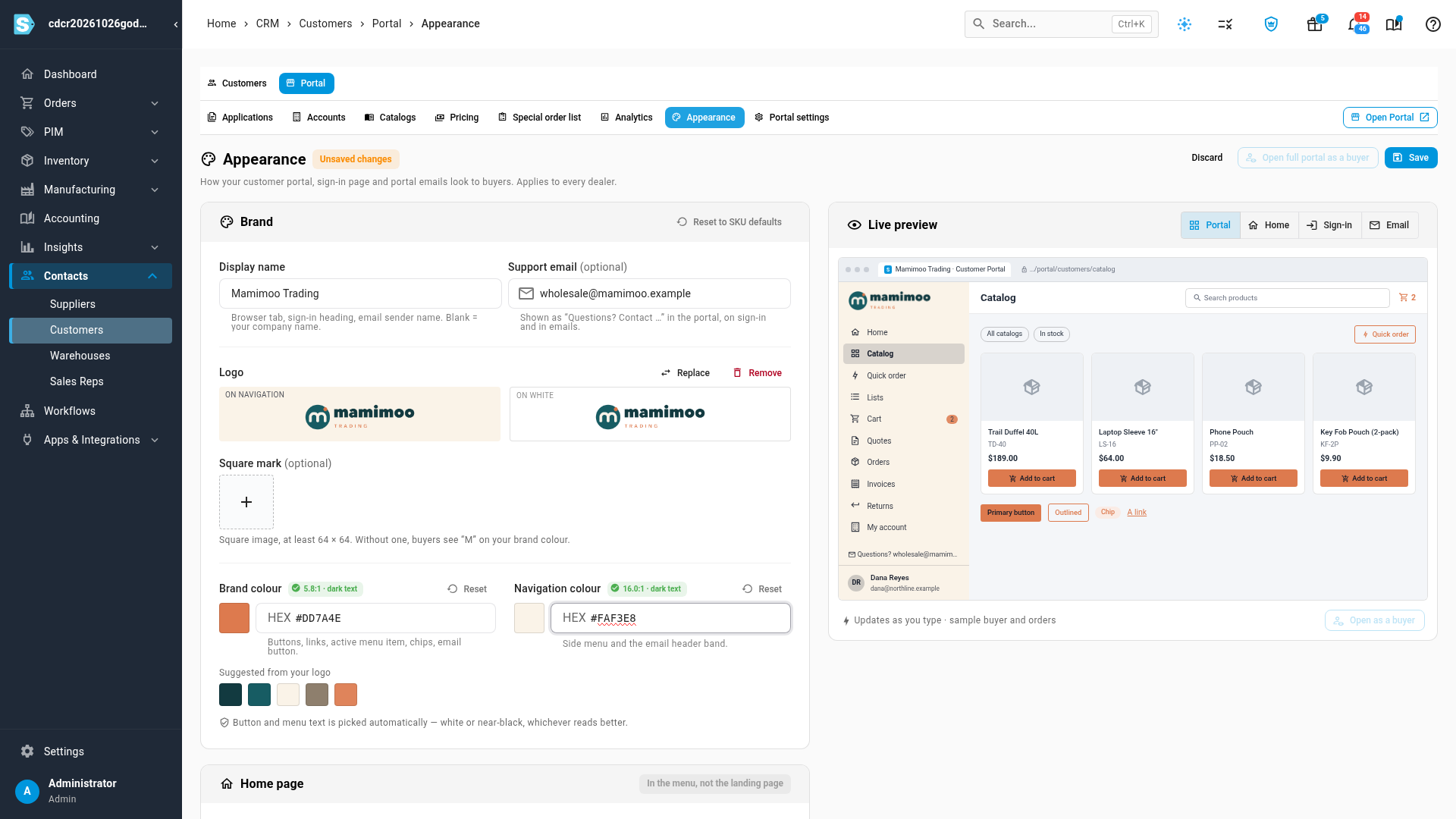
Brand colour paints buttons, links, the active menu item, chips and the button in every email. Navigation colour paints the side menu and the header band of every email.
- Under Brand colour, click one of the colours Suggested from your logo, or type a
hex code (such as
#DD7A4E), or click the swatch to pick one. - Under Navigation colour, do the same. A light navigation colour suits a dark logo.
You never pick a text colour. Text on each colour is set to white or near-black, whichever reads better, and the badge next to each colour shows the result, for example 5.8:1 · dark text.
When a colour is hard to read
Two warnings can appear under a colour. Neither stops you from saving, but each comes with a one-click fix:
| Warning | What it means | Fix |
|---|---|---|
| Links and outlines in this colour are hard to see on white | The colour is too light for links, chips and outlines on the portal's white pages. | Click Use a darker shade. The shade it picks is shown beside the button. |
| Text on this colour is hard to read | Even the better of white and near-black text is hard to read on this colour. | Click Use accessible shade. |
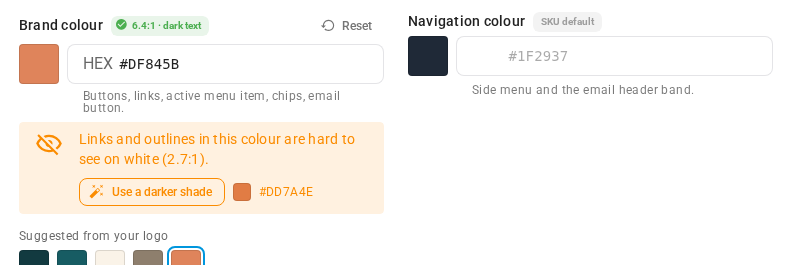
To go back to the standard colour, click Reset next to that colour.
Add a square mark (optional)
Under Square mark, click the box and choose a square image. Buyers see it in the menu when it's collapsed, on small screens, and as the icon on their browser tab. Without one, the collapsed menu shows the first letter of your display name on your brand colour.
Check the preview, then save
-
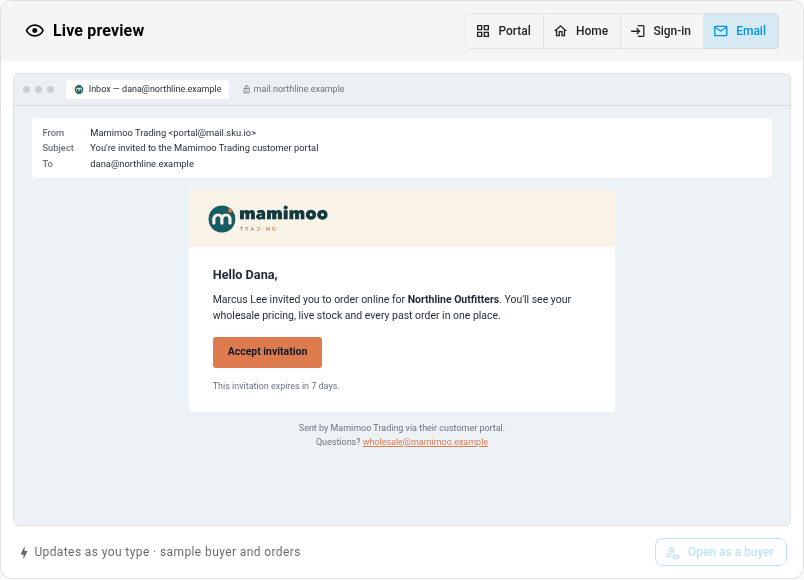
Use the Live preview on the right. It updates as you type. Switch it between Portal, Home, Sign-in and Email to check each one.
-
Click Save. Buyers see the new look on their next page load.
-
To see the real portal through one buyer's eyes, click Open full portal as a buyer. It's available once everything is saved. See View the portal as a buyer.
To start over, click Reset to SKU defaults at the top of the Brand card and confirm. It removes your logo and square mark straight away and puts the standard colours back.
What your buyers see
-
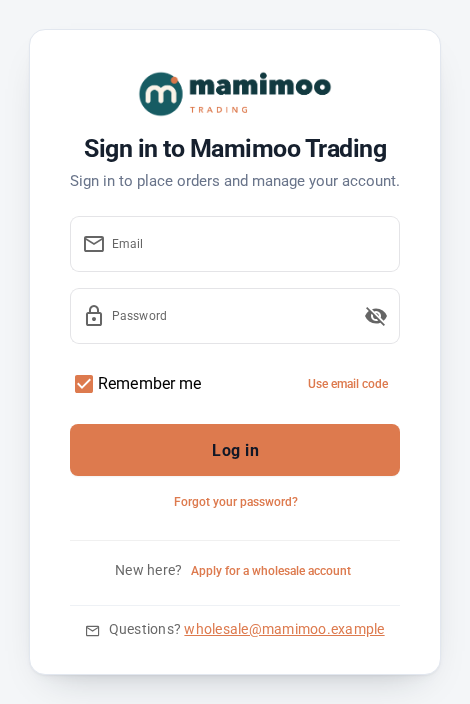
Sign-in page. Your logo above "Sign in to" your display name, buttons in your brand colour, and your support email at the bottom. The same goes for the pages to register, accept an invitation and reset a password.
-
Browser tab. Your display name, followed by "Customer Portal", and your square mark as the tab icon.
-
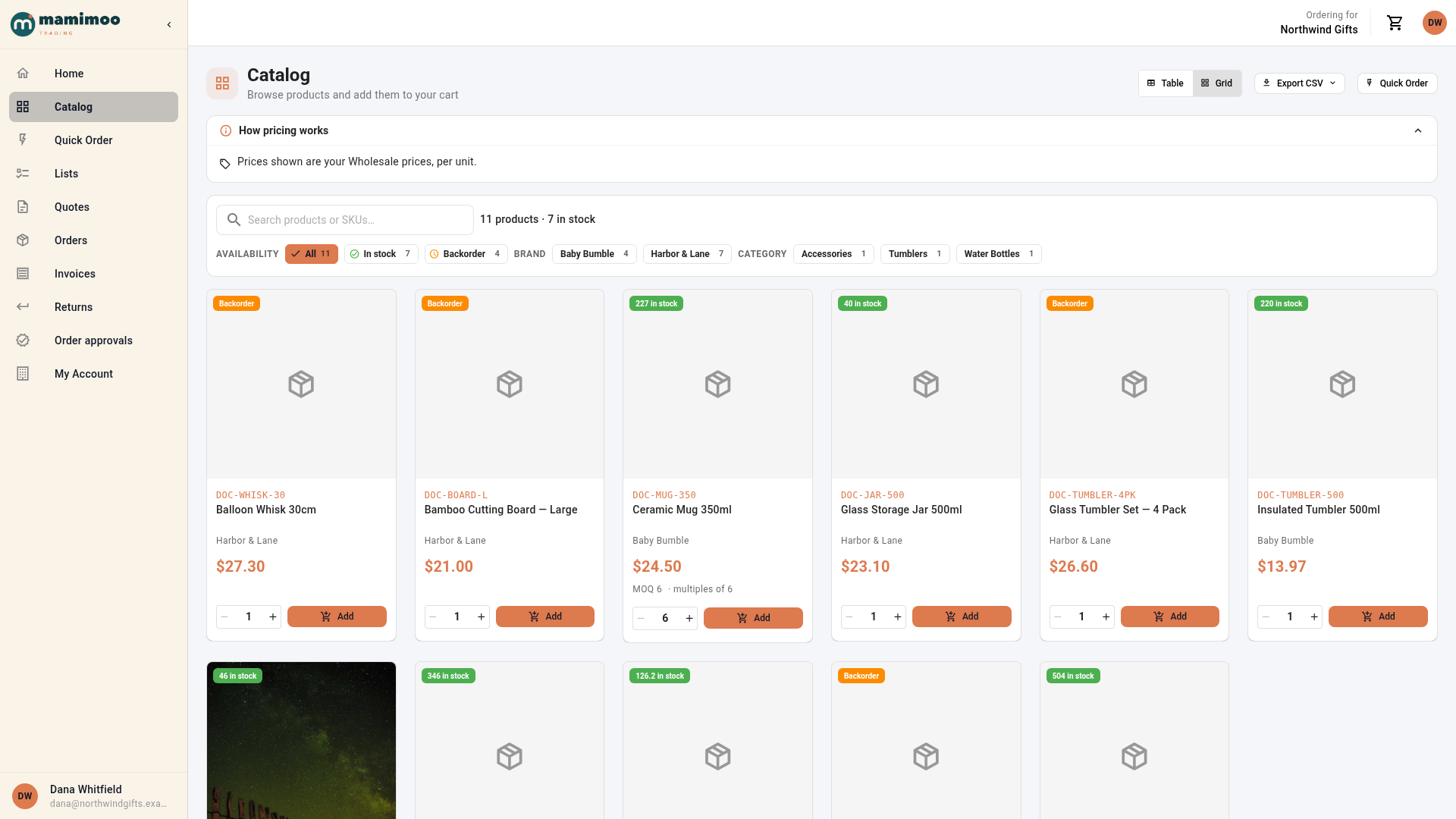
The portal. The side menu in your navigation colour with your logo at the top, and buttons, links and the active menu item in your brand colour.
-
Emails. Every email the portal sends buyers, such as invitations and order updates, has your logo on a band in your navigation colour, its button in your brand colour, and a footer that reads "Sent by" your display name "via their customer portal", with your support email. The sender name is your display name. Emails the portal sends your own team keep the standard look.
Catalog display settings live here too
The bottom of the Appearance tab has the other settings that change what buyers see, which used to be under Portal settings:
- Default catalog view: Grid shows product photos, Table is a compact price list with volume price columns. Buyers can switch.
- Catalog pricing note: a short note shown under "How pricing works" above the catalog.
- Special order list note: shown to buyers on the special order list, when you use one.
They're saved with the same Save button.
Next steps
- Set up your portal Home page: announcements, featured products and the landing page.
- Invite buyers to the Customer Portal.
- How the Customer Portal works.
Video transcript
To brand your customer portal, open the Contacts menu on the left, and choose Customers. Click the Portal tab at the top, then click the Appearance tab beside Analytics. Until you set it up, buyers see default colours and a storefront icon.
Start with your logo. Drop the file on the box, or click browse to choose the file. It appears on your navigation colour and on white, so problems are easy to spot. This dark lettering disappears on the dark menu, so you get a warning.
Type the name buyers see on sign-in, in the browser tab, and in emails. Leave it blank to use your company name. Then add a support email, the address buyers should write to with questions about orders.
Your brand colour paints buttons, links and the active menu item. Below it are suggestions taken from your logo. Click one to make it your brand colour. This one is too light for links on a white page, and an explanation appears. Click Use a darker shade. The colour darkens just enough to clear the warning.
Next, set the navigation colour for the side menu and the email header. Type a hex code, or pick one from the swatch. A light menu suits a dark logo, so the visibility warning disappears from the page. Text on both colours switches between white and near-black automatically, so it always reads well.
Optionally, add a square mark. Buyers see it in the collapsed menu, and as their browser tab icon.
The live preview updates as you type. Switch it to Home to see the page buyers can land on. Then check the sign-in page, and the emails the portal sends.
When it looks right, click Save. Buyers see the change on their next page load. To start over at any time, Reset to SKU defaults restores the standard design.
Here is what your buyers see now. The sign-in page shows your logo and your name. Buyers sign in exactly as before, with the email address and password they already use. Then they click Log in.
Inside, the side menu uses your navigation colour. Buttons, links and the selected page use your brand colour. Every portal email they receive carries the same logo and palette.