Set up your portal Home page
The Customer Portal has a Home page for every buyer. It shows your announcements, the state of their account, the products you want to promote, and a quick way to order again. It works on day one with nothing set up: buyers see their own account summary and recent orders. You add announcements and featured products, and decide whether buyers land on Home after they sign in.
Before you begin
- You need permission to manage the Customer Portal (the same permission as its other tabs).
- Featured products must be in the catalogs your buyers can see. See Restrict what buyers see with portal catalogs.
Open the Home page settings
- Go to Contacts → Customers.
- Click Portal, then Appearance.
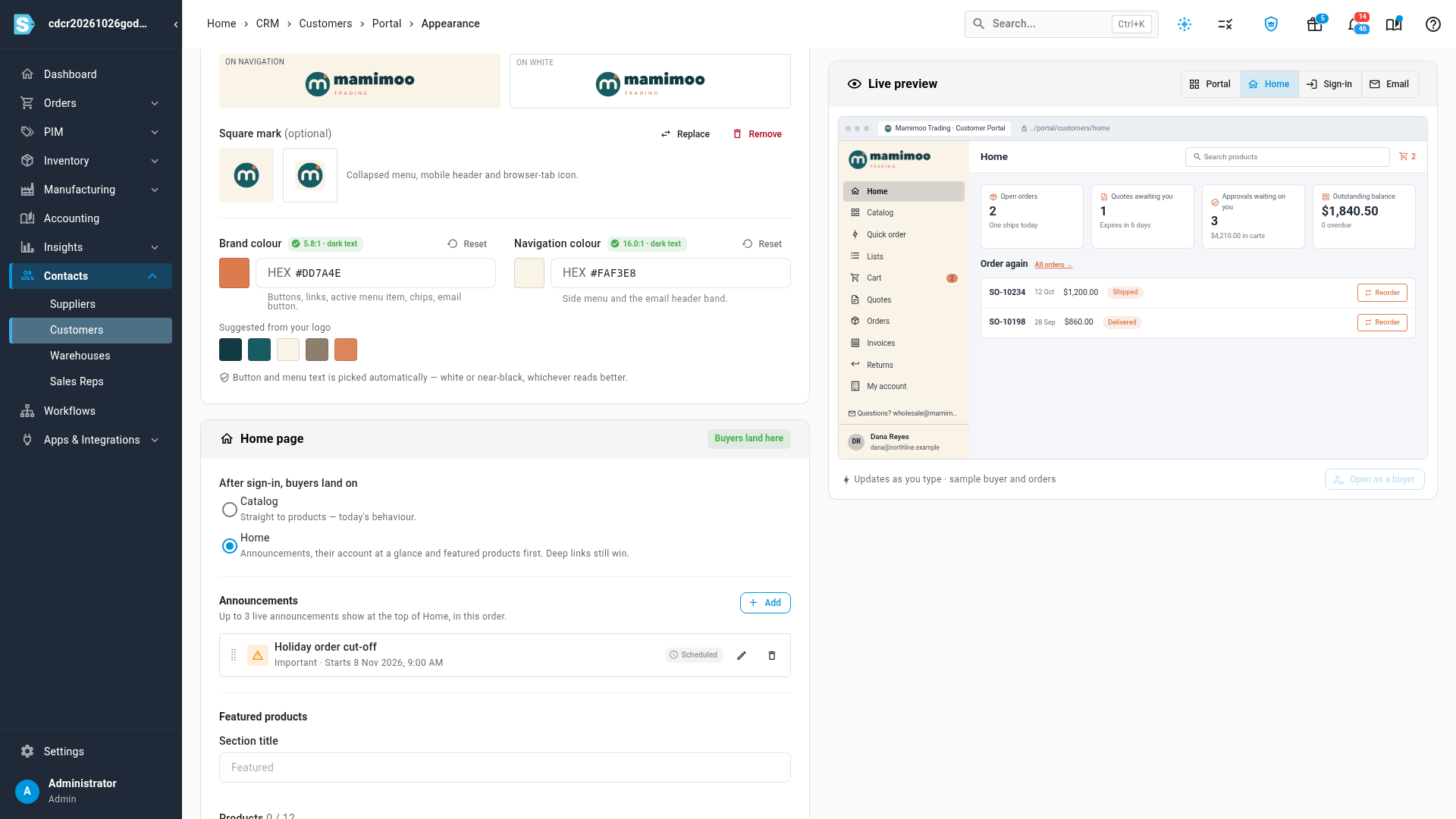
- Scroll to the Home page card.
The badge on the card says whether Home is In the menu, not the landing page or Buyers land here.
Choose where buyers land
Under After sign-in, buyers land on, choose:
- Catalog to send buyers straight to products. This is how the portal starts.
- Home to open on their announcements, account summary and featured products.
A link to a specific page still opens that page. A buyer who follows a link to an order, for example, lands on that order after signing in. Home is in every buyer's menu either way.
Add an announcement
Announcements show at the top of Home, for every buyer. Use them for promotions, holiday cut-offs, a new warehouse, anything buyers should see before they order.
- Under Announcements, click Add (or Add announcement when there are none yet).
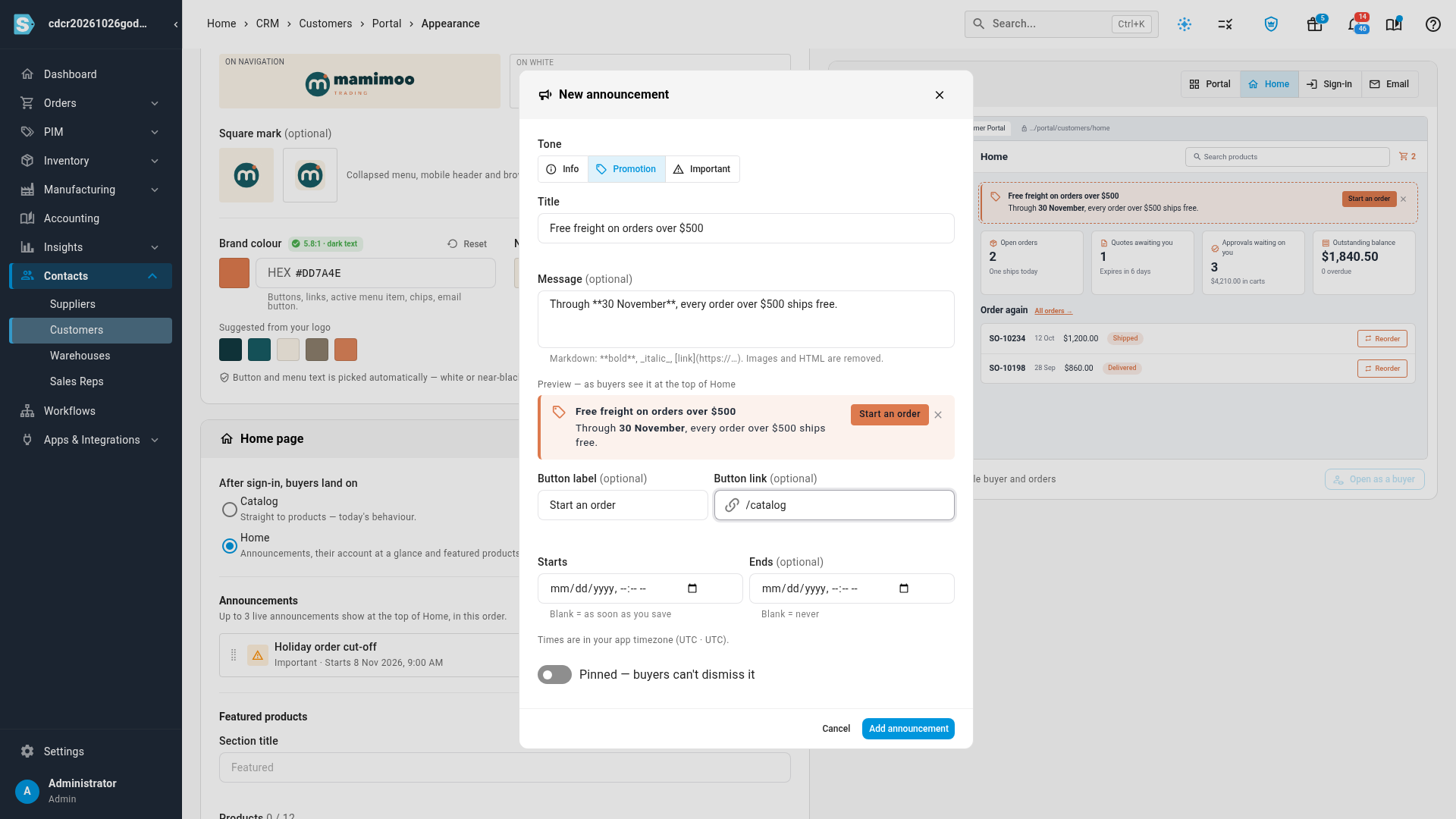
- Choose a Tone: Info, Promotion or Important. Each has its own colour and icon on Home.
- Type a Title (up to 120 characters).
- Optional: type a Message. It takes simple formatting:
**bold**,_italic_and[link text](https://…). Images and HTML are removed. The preview under it shows the announcement as buyers will see it. - Optional: add a Button label and a Button link to send buyers to a page. The link
is either a portal page, such as
/catalog, or a full web address starting withhttps://. Both fields go together. - Optional: set Starts and Ends. Leave Starts blank to show it as soon as you save, and Ends blank to show it until you remove it. Times are in your app timezone.
- Turn on Pinned — buyers can't dismiss it for an announcement buyers must keep seeing. Otherwise each buyer can close it, and it stays closed for them until you edit it.
- Click Add announcement, then Save at the top of the page.
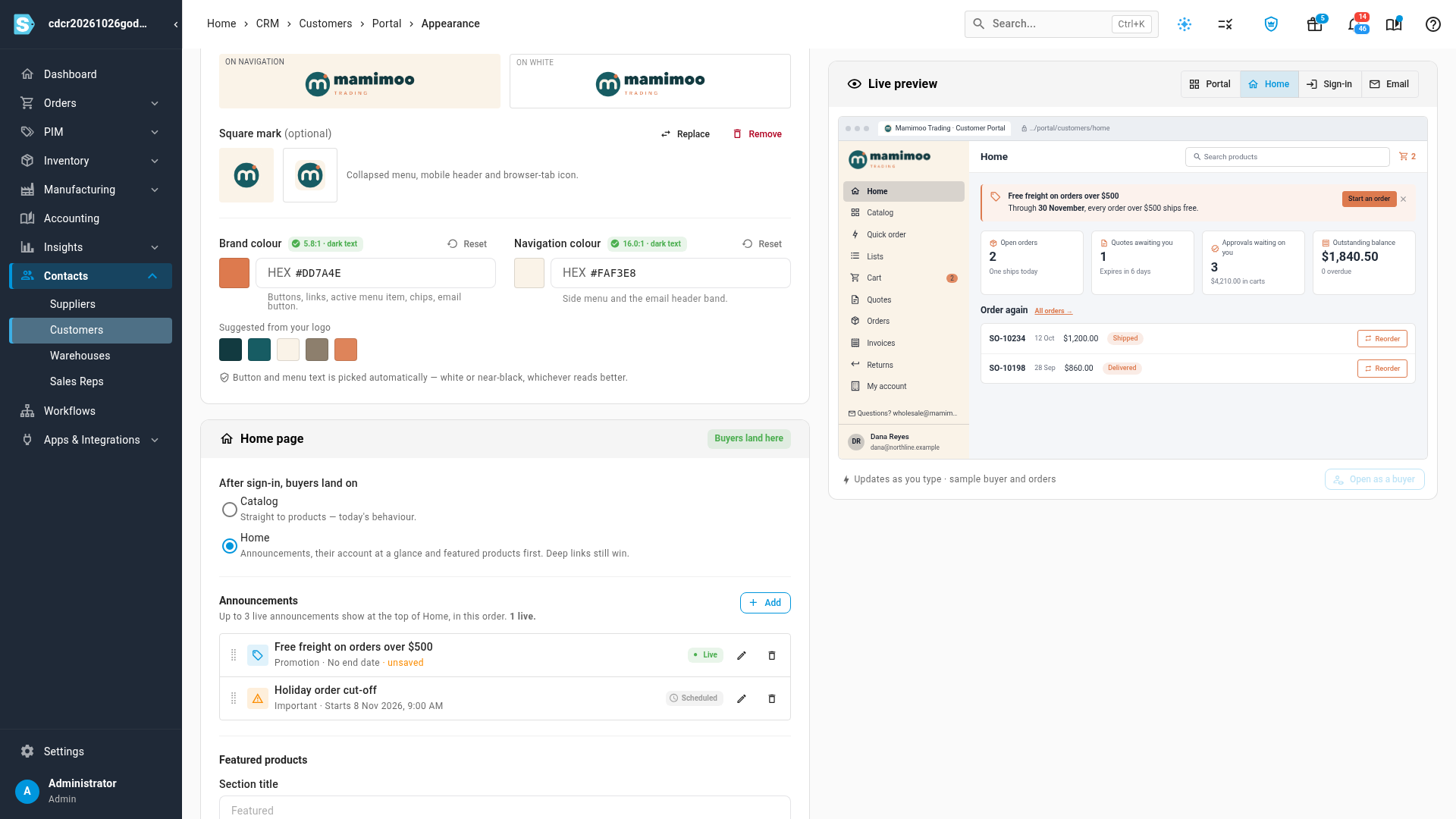
Each announcement in the list has a status:
| Status | Meaning |
|---|---|
| Live | Showing on Home now. |
| Scheduled | Its start date is still to come. It appears on Home by itself from then. |
| Expired | Its end date has passed. Buyers no longer see it. |
Up to three live announcements show at once, in the order of the list. Drag a row by its handle to reorder it. A live announcement beyond the first three is marked Live · not shown (3 max). Use the pencil to edit an announcement and the bin to delete it. You can keep up to ten.
Feature products
- Under Featured products, change the Section title if you like. It defaults to "Featured".
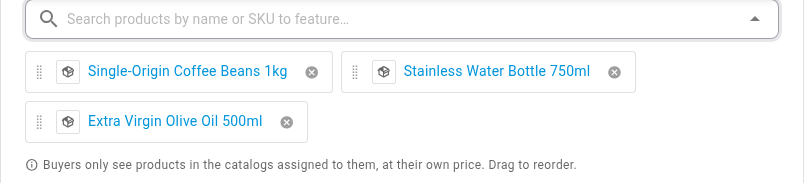
- In the search box, type a product name or SKU and select the product. Repeat for each one, up to 12.
- Drag the products into the order you want them shown. Click the cross on one to remove it.
- Click Save.
Each buyer sees only the featured products that are in their own catalogs, at their own price, with an Add button. A buyer who can see none of them sees no Featured section. A product no buyer can see is marked Not visible to any buyer, with the reason when you hover it: it's archived, or it's in no portal catalog. Unarchive it, add it to a catalog, or remove it from Featured.
What your buyers see
Home is the first item in every buyer's menu, and the page they land on if you chose Home. Top to bottom:
- Your announcements, each with its button. Buyers can close the ones that aren't pinned.
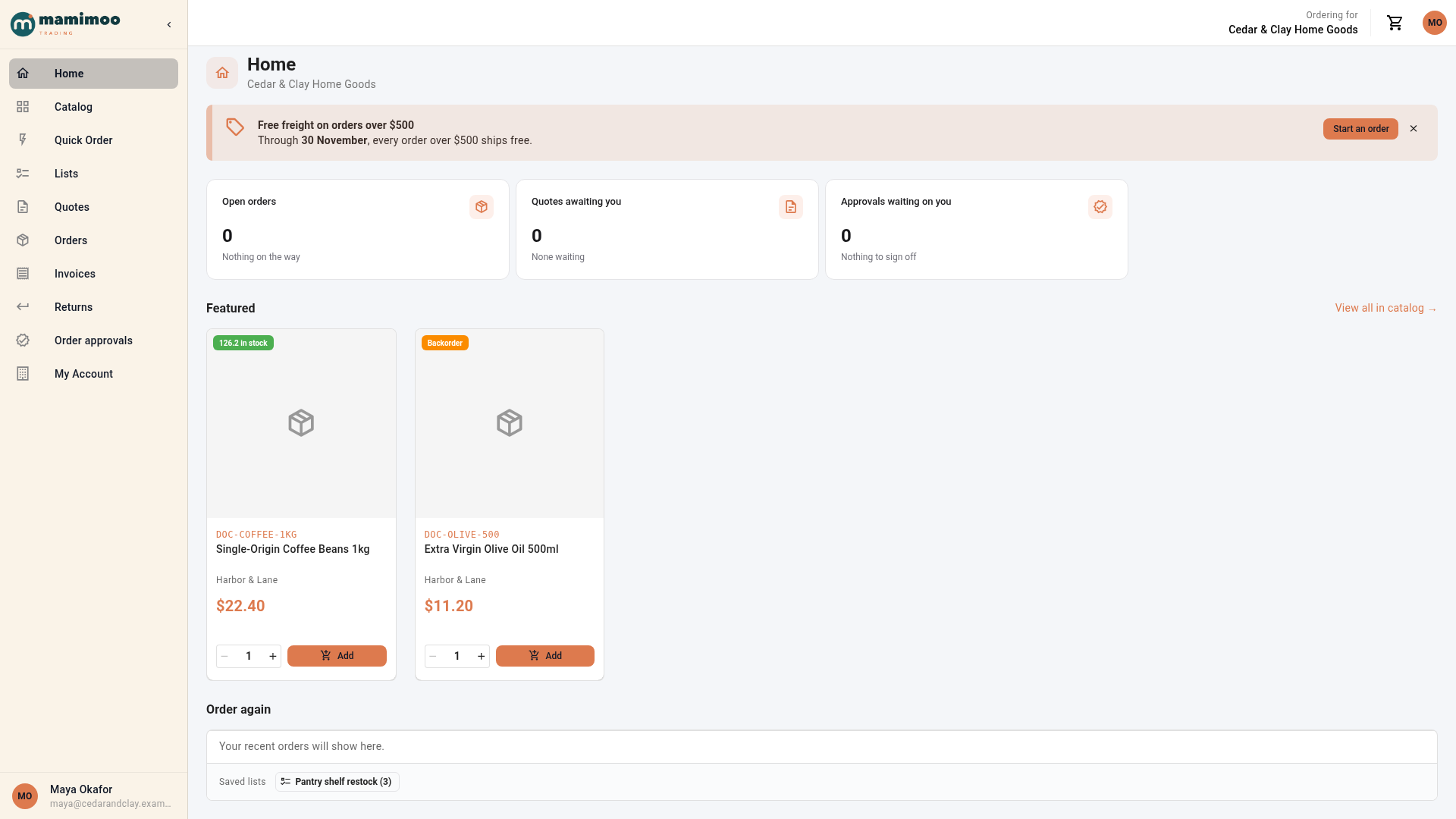
- Their account at a glance. Cards for Open orders, Quotes awaiting you, Approvals waiting on you and Outstanding balance. Each card opens the matching page. A card only appears when it applies to that buyer: approvals only for buyers who can approve orders, and the balance only once the account has invoices.
- Featured products from their own catalogs, at their price.
- Order again: their three most recent orders, each with a Reorder button that puts the order's items back in the cart, and links to their saved lists. A buyer with no orders yet sees "Your recent orders will show here."
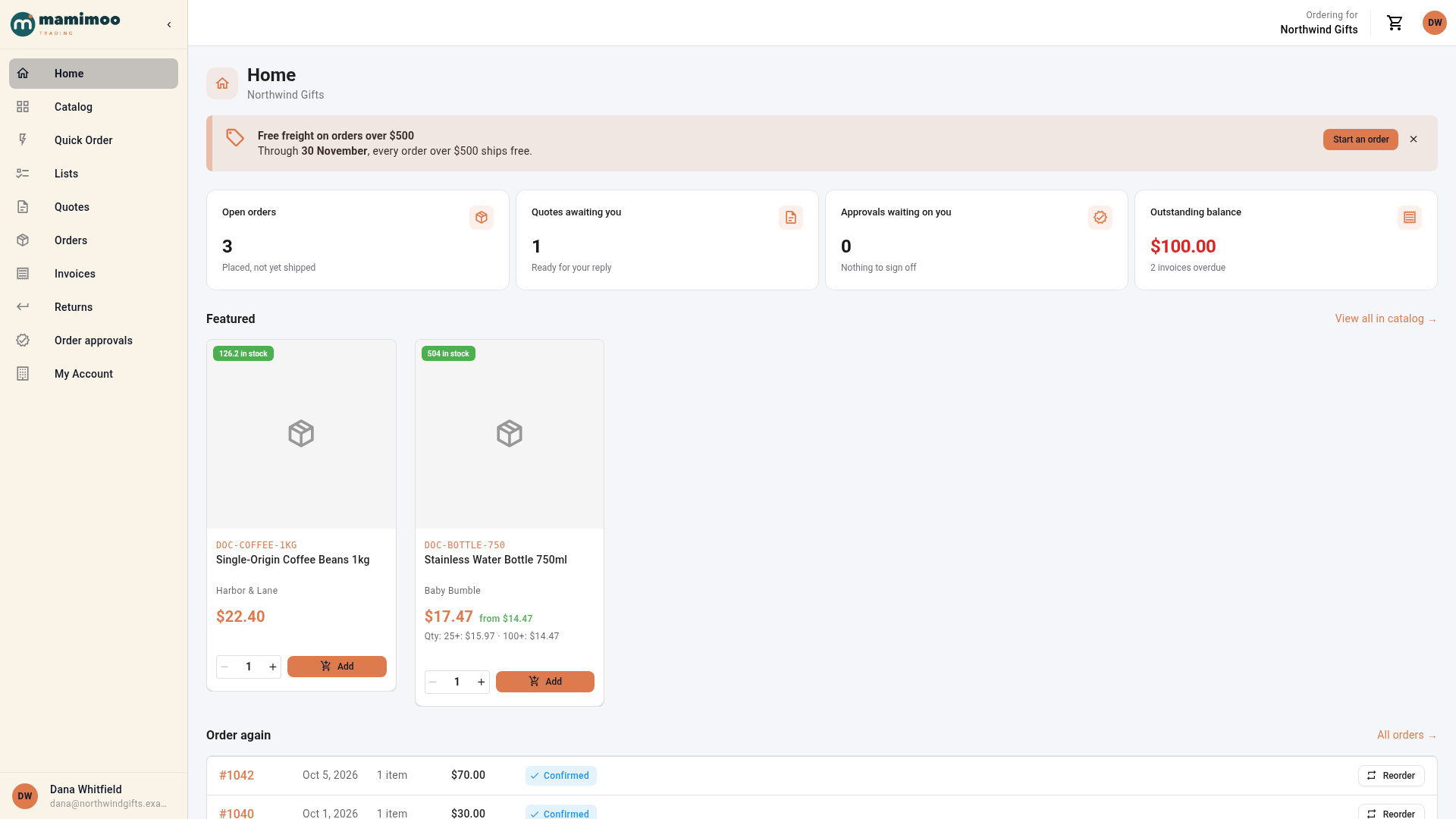
Two buyers on different accounts see the same announcements, but different featured products and their own account numbers:
To check Home through a particular buyer's eyes before telling them about it, use View the portal as a buyer.
Next steps
- Brand your customer portal with your logo and colours.
- Saved lists and reorders on the portal.
- Restrict what buyers see with portal catalogs.
Video transcript
To set up the Home page your buyers see, open Contacts, then Customers. Click the Portal tab, then the Appearance tab, and scroll down to the Home page section.
First, choose where buyers land after they sign in. Catalog keeps them going straight to products. Choose Home to open on their account summary instead. A link to a specific page still opens that page.
Announcements show at the top of Home. This one is scheduled, so buyers see it only from its start date. Click Add to write a new announcement of your own.
Pick a tone, then type a title and a short message. The message takes simple formatting, so two asterisks make text bold. Add a button label and a link to send buyers straight to a page. Leave the dates blank to show it from now until you remove it. Turn on Pinned when buyers should not be able to dismiss it.
When it reads well, click Add announcement at the bottom of the dialog. It is marked Live, next to the scheduled one. Up to three live announcements show at once, in list order.
Next, pick your featured products. Search for a product by name or SKU, then select it from the list. Add as many as you like, up to twelve, and drag them into order. Each buyer sees only the featured products in their own catalogs, at their own price.
Scroll back up to the top of the page. Then click Save, and your Home page goes live for every buyer.
Now a buyer signs in, and Home is the first page they see. Your announcement sits at the top, with its button. Below it, cards show their open orders, quotes awaiting them, approvals and balance. Each card opens the matching page.
Featured shows the products this buyer can order, at their price. Order again lists their recent orders. Reorder puts an order's items straight back in the cart.
A buyer on a different account sees the same announcement. But Featured only shows the products in their own catalog. With no orders yet, Order again simply says their orders will show here.