Set FBA minimum stock levels
An FBA minimum is the least stock you want at one Amazon FBA region for one product. SKU.io compares each minimum with Amazon's inventory every time it updates, shows which products are below it, and sends an FBA Low Stock alert before a product sells out at Amazon. Set a default for each region first, then override the products that need something different.
In the video:
- 0:02 Read the minimum columns
- 0:27 Set a default for each region
- 0:55 Override one product
- 1:24 Set many products at once
- 2:02 Find products below their minimum
- 2:17 Import and export minimums
- 2:51 Act on a low-stock alert
Before you begin
- Your Amazon channel is connected and its FBA inventory is syncing. Each FBA marketplace you sell in is a region: US, CA, GB, and so on. Germany, France, Italy, Spain, the Netherlands, Poland, Sweden, Belgium, Ireland and Turkey share one Pan-European pool, so they're one region, EU.
- Each Amazon listing is mapped to a product. A listing that isn't shows Unmapped; map it in FNSKU Product Mapper first.
- Setting minimums needs the Update FBA stock floors permission. With view access only, you see the columns and chips, but the edit, bulk, import and region-default controls are turned off.
How a minimum is counted
What counts toward the minimum. The Counted column adds up:
- Fulfillable stock: what Amazon can sell right now.
- Inbound shipped and Inbound receiving: stock on its way to Amazon or being checked in. These count while Count inbound is on, which is the default. Shipments still being built in Seller Central never count.
Reserved, unfulfillable and researching units don't count. Inbound stock on a shipment that Amazon hasn't received anything from for longer than Ignore inbound older than (45 days by default, 7 to 180) stops counting, so a stuck shipment can't hide a shortage. When a product has several listings in one region, their stock is added together. Only listings in New condition count. Hover a Counted number for the breakdown.
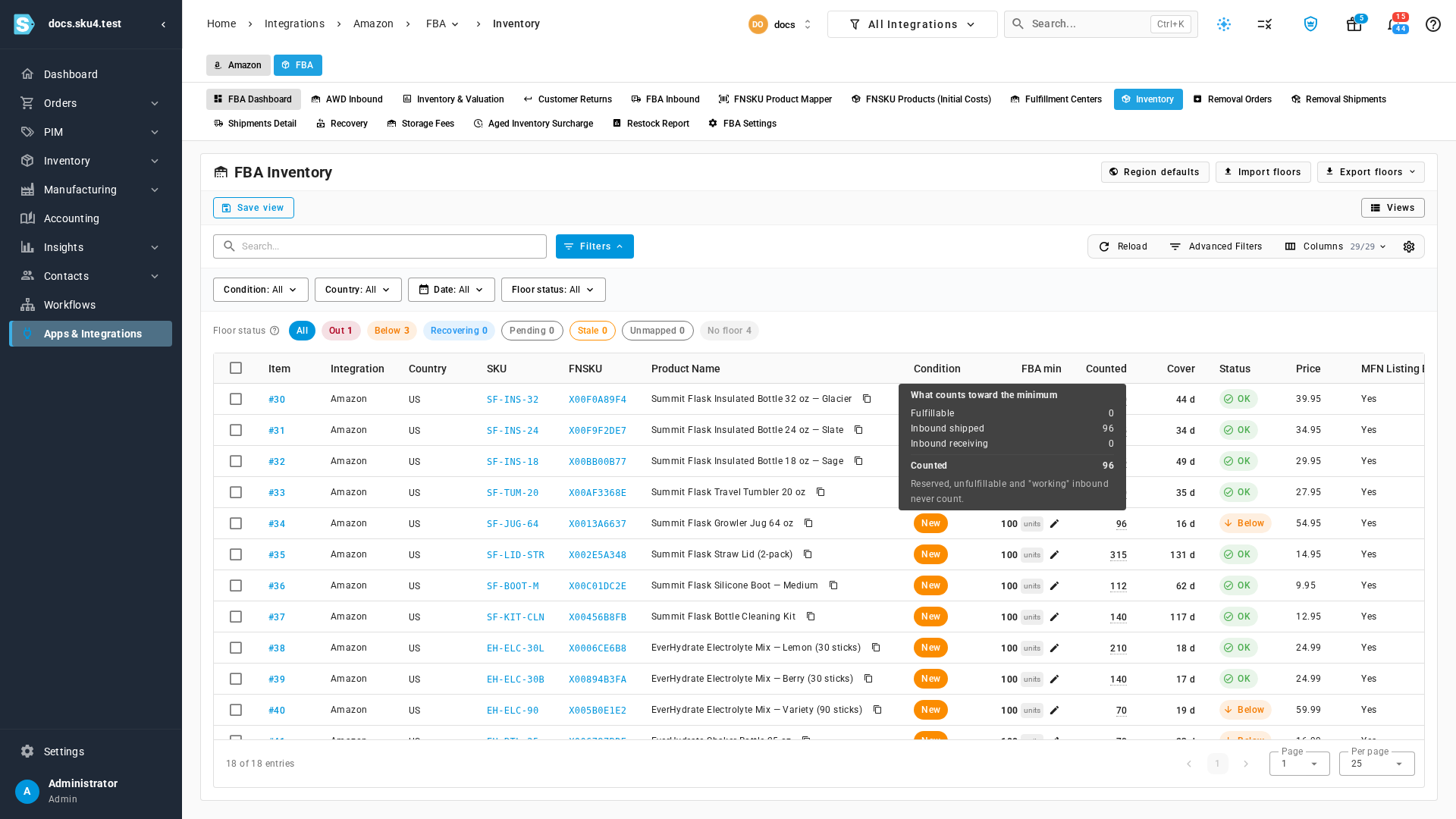
The three modes.
| Mode | The minimum is… | Use it when… |
|---|---|---|
| Units | a fixed number of units. | you want a simple floor, such as 100 units. |
| Days of cover | daily sales × (days of cover + the lead time into FBA), rounded up. | you want the alert early enough for a shipment to land before stock runs out. The minimum works as a reorder point. |
| Greater of both | whichever of the two is larger. | a product sells slowly, and its days-of-cover minimum would shrink to almost nothing. |
Daily sales are the product's sales from that region's FBA stock over the last 30 days, counting only the days it was in stock, so running out doesn't shrink the minimum. The lead time comes from the region's primary route on Lead times into FBA, unless the product picks its own route. A days-of-cover minimum for a product with no recent sales is 0, and it shows No demand.
Cover is how many days the counted stock lasts at the current daily sales.
Set a default for each region
A region default applies to every product in that region that doesn't have a minimum of its own. Until a region has a default, its products show No floor and never alert.
- Go to Apps & Integrations, open your Amazon channel, then FBA → Inventory.
- Click Region defaults.
- If you have more than one Amazon account, choose it in Amazon account.
- For each region, choose a Mode: Units, Days of cover or Greater of both. Not set leaves the region without a default.
- Enter Units, Days, or both, as the mode needs.
- Optional: choose the Primary route (lead). It decides which lead time a days-of-cover minimum adds. Automatic uses the own-warehouse route.
- Optional: change Count inbound, Ignore after (d) and Alerts for the region.
- Click Save defaults.
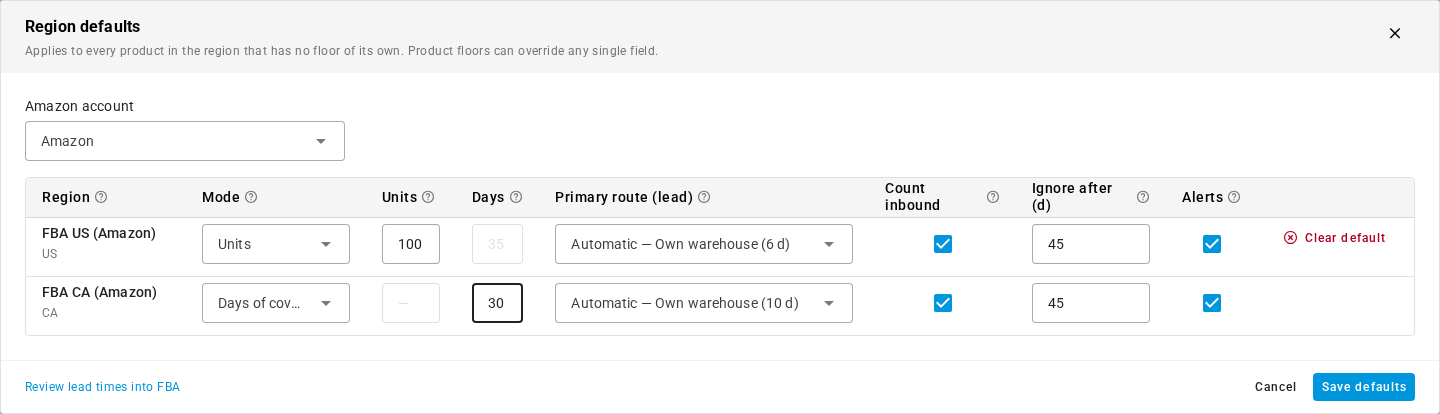
To remove a region's default, click Clear default on its row.
Set a minimum for one product
A product's own minimum overrides any field of its region default. Fields you leave empty keep inheriting from the region, and show the inherited value in grey, such as Region default: 100 units.
- On FBA → Inventory, find the product's row for the region you want.
- Click the pencil in its FBA min cell, or choose Set FBA minimum from the row's menu.
- Choose the Mode, and enter Days of cover, Minimum units, or both.
- Optional: choose the Route that restocks FBA, if this product ships in from somewhere other than the region's primary route.
- Optional: change Count inbound (shipped + receiving) and Ignore inbound older than.
- Optional: turn off Send FBA low-stock alerts for this SKU to keep the minimum but stop its alerts.
- Check the preview. It shows how the minimum is worked out, the stock counted now, and whether the product is OK or Below.
- Click Save. FBA minimum saved confirms it, and the row updates.
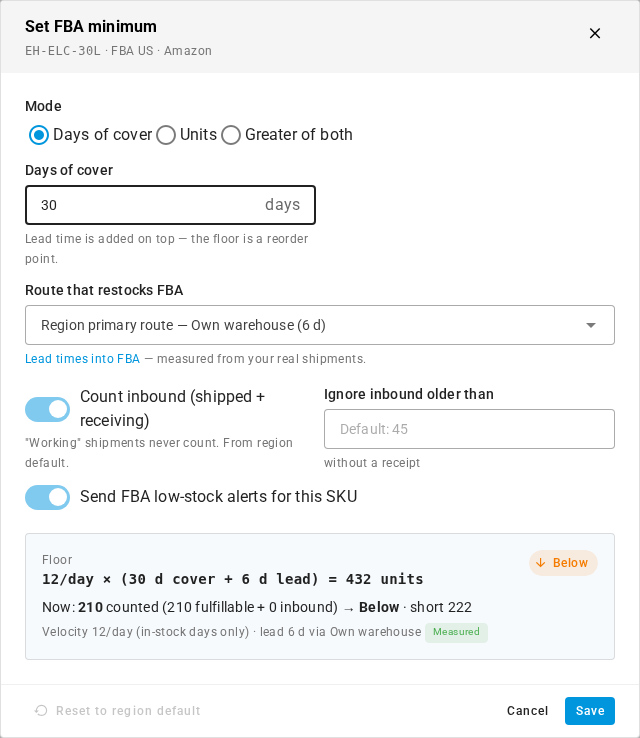
To drop the product's own minimum and go back to the region default, open it and click Reset to region default.
Set minimums for many products at once
- Tick the rows you want. To change every row that matches your filters, tick any row, then click All Filtered.
- Click Set FBA minimum….
- Tick the box beside each field you want to change, and set its value. Fields you don't tick stay as they are on each product.
- Click Apply, then confirm Apply to N SKU × region pairs?.
Changes to more than 500 pairs run in the background, and the job tray shows their progress.
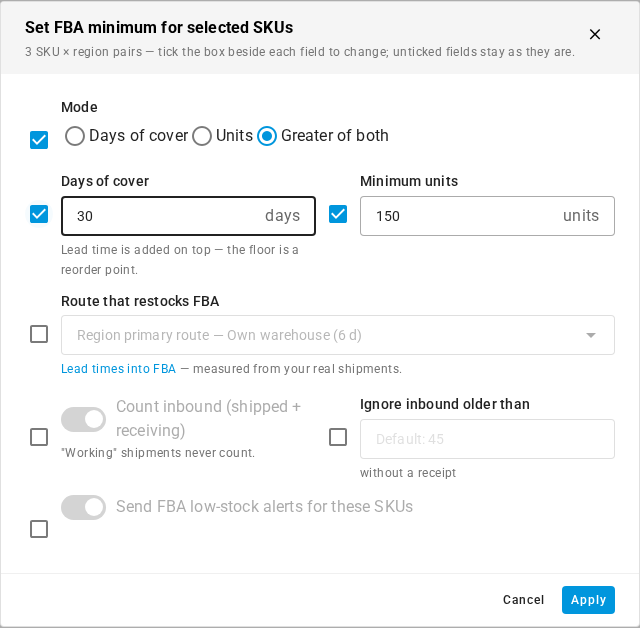
Saving a minimum, in any of these ways, never sends an alert by itself. The next check decides.
Find products below their minimum
The Floor status chips above the table count each status. Click one to list only those rows; click All to clear it. Below and Out together are the products that need stock.
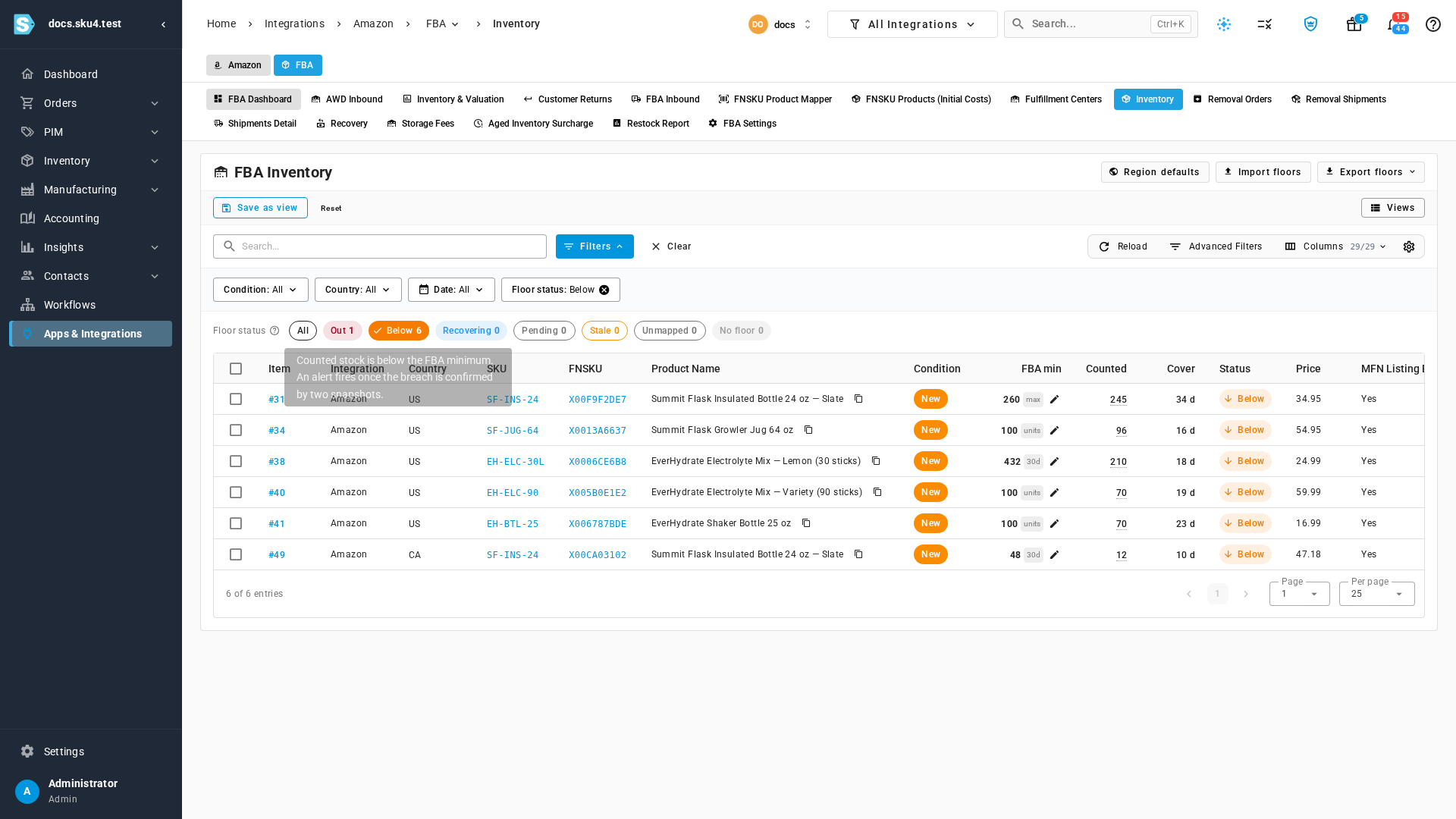
| Status | Means |
|---|---|
| Out | Nothing sellable and nothing counted inbound. The product is out of stock at this region. |
| Below | Counted stock is below the minimum. |
| Recovering | Back above the minimum, but not yet 10% clear of it. An open alert stays open until it is. |
| OK | Counted stock is at or above the minimum. |
| Pending | The minimum is new. It's checked within 15 minutes. |
| Stale | The account's FBA inventory is more than 6 hours old. Alerts are paused until it updates. |
| Unmapped | The listing isn't mapped to a product, so it has no minimum. Map it in FNSKU Product Mapper. |
| No floor | Neither the product nor its region has a minimum. |
| No demand | A days-of-cover minimum with no recent sales in this region. The minimum is 0. |
A product's page also lists its FBA minimums. Open the product, then its Inventory tab, and find the FBA minimums card. Edit opens FBA Inventory filtered to that product.

Import and export minimums
To change many minimums in a spreadsheet, export them, edit the file, and import it back.
To export: click Export floors, and choose the Amazon account. You get a CSV file with every region default and product minimum of that account, in the same columns the import reads, so the file goes straight back in.
To import:
-
Click Import floors.
-
Drop a CSV, TSV or Excel file on Upload, or paste the rows. The first row is the header.
-
Click Next: Map Columns, and check that each of your columns maps to the right field.
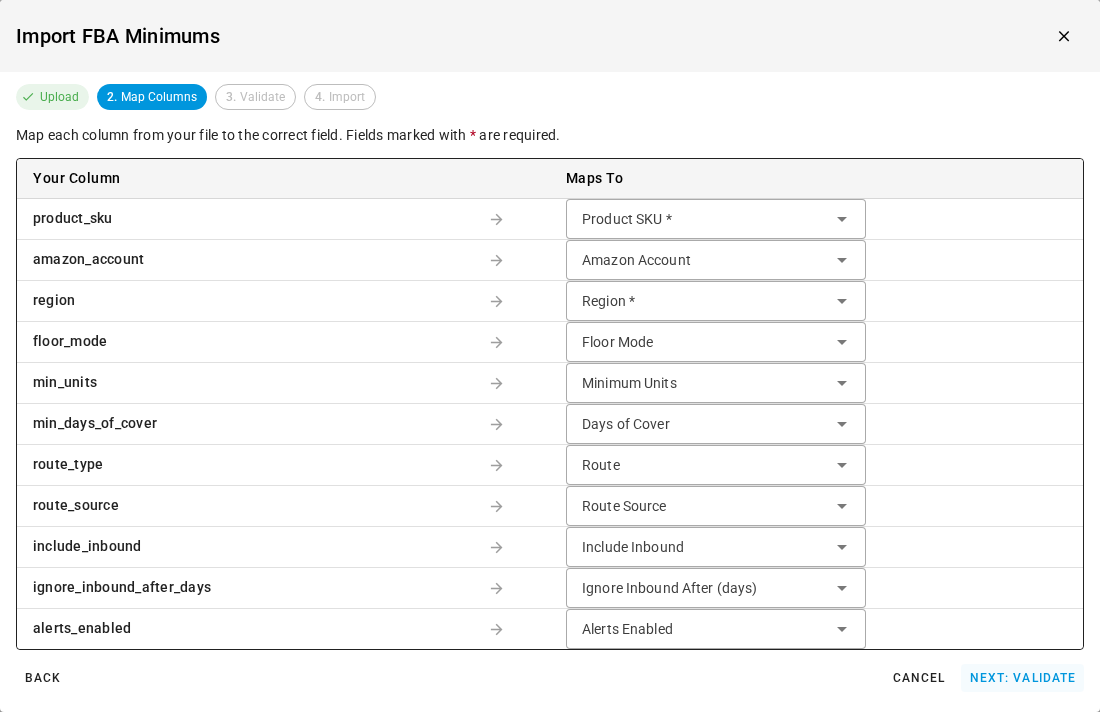
-
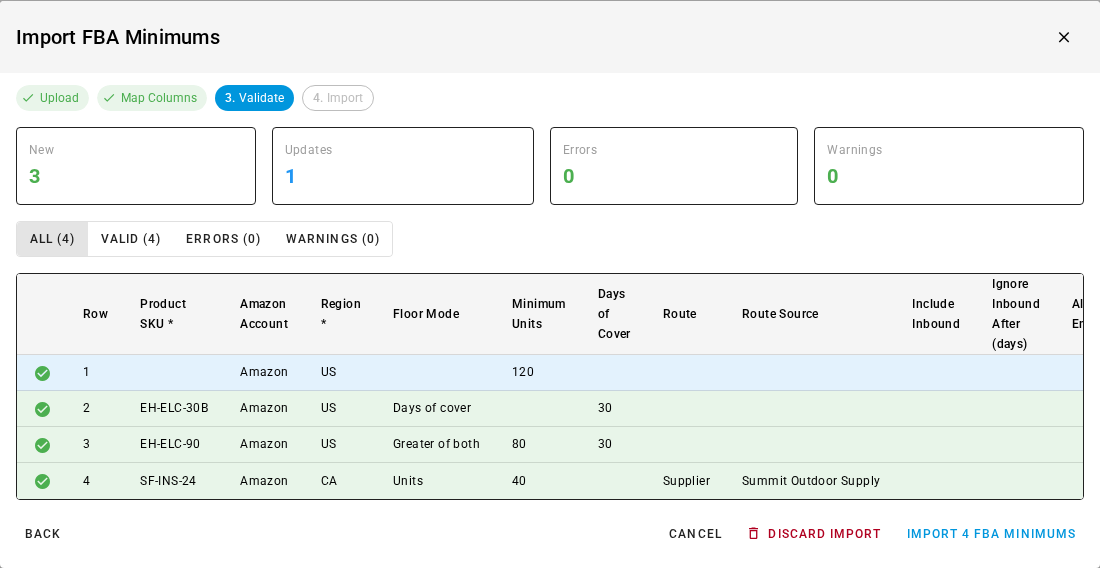
Click Next: Validate. Each row shows as new, updated, unchanged, or with errors.
-
Click Import N FBA Minimums.
Columns. These are the headers an export writes. Type them exactly when you build a file yourself.
| Column | Required? | Accepts | Notes |
|---|---|---|---|
product_sku | Column required, cell optional | A product SKU | Leave the cell blank to set the region default instead of a product's minimum. |
amazon_account | Only with more than one Amazon account | The account's name, as it appears in SKU.io | With one account, leave it blank. |
region | Yes | A region code, such as US, CA, GB, EU | A Pan-European country code such as DE is read as EU, with a warning. The region must be one the account sells in. |
floor_mode | No | Units, Days of cover, Greater of both | The export writes units, days and greater_of. Both spellings work. |
min_units | When the mode needs it | A whole number, 0 or more | Needed for Units and Greater of both, here or on the region default. |
min_days_of_cover | When the mode needs it | A whole number, 1 to 365 | Needed for Days of cover and Greater of both, here or on the region default. |
route_type | No | Supplier, AWD, 3PL, Own warehouse | The route whose lead time a days-of-cover minimum adds. Blank uses the region's primary route. The export writes supplier, awd, third_party_warehouse and own_warehouse; both spellings work. |
route_source | No | A supplier name for Supplier, otherwise a warehouse name | Needs a route_type. Blank uses all sources of that route. |
include_inbound | No | yes or no | Whether inbound stock counts. |
ignore_inbound_after_days | No | A whole number, 7 to 180 | Inbound with no Amazon receipt for longer than this stops counting. |
alerts_enabled | No | yes or no | no keeps the minimum and stops its alerts. |
How rows match. A row matches an existing minimum by Amazon account + region + product SKU (or the region default when the SKU is blank). A match is updated; anything else is created. Importing never makes a second minimum for the same product and region, so re-importing the same file changes nothing, and its rows show as Unchanged.
Blank cells and CLEAR. A blank setting cell leaves that setting as it is. On a new minimum, it
inherits from the region default. To remove a value so it inherits again, type CLEAR in the cell.
Errors. Validation flags every problem with the row it's on, and you can see them under Errors. Common ones:
- Product SKU 'X' not found.
- Region 'ZZ' is not an FBA region of Amazon account 'Amazon' (regions: US, CA).
- Duplicate: the same product and region appear more than once in the file.
- Minimum units is required for Units mode. / Days of cover is required for Days of cover mode.
- Amazon Account is required when there is more than one Amazon account.
- A supplier or warehouse name in
route_sourcethat isn't found, or that matches more than one.
Rows with errors aren't imported. The rest are, when you click Import.
Get alerted, and act on an alert
SKU.io checks every minimum each time Amazon's inventory updates, about every 15 minutes.
- A product alerts once it's below its minimum on two inventory updates in a row, so one late report doesn't page anyone. The alert is titled FBA stock low: SKU in region.
- Running out completely alerts on the first update, titled FBA stock out: SKU in region.
- The alert closes itself once counted stock is back to the minimum plus 10%.
- When more than 10 products drop below in one check, you get one alert, N products below FBA minimum, instead of one each. It lists the lowest 25 and links to FBA Inventory filtered to Below.
- No alerts go out while the account's FBA data is Stale.
Each alert gives the stock counted, the minimum, days of cover, and a suggested quantity to send. To restock from it:
-
Click the bell in the top bar, or open Alerts.
-
On the alert, click Go to source (the arrow at the right of its title).
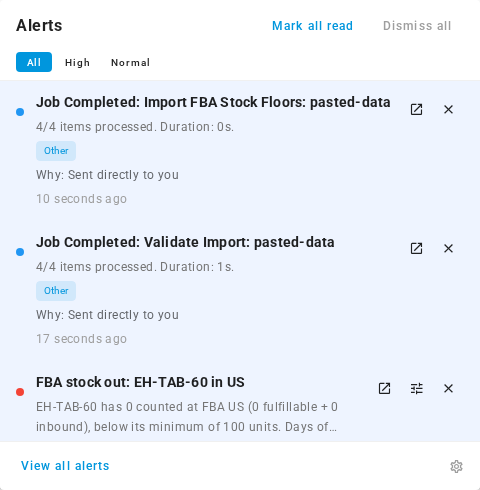
-
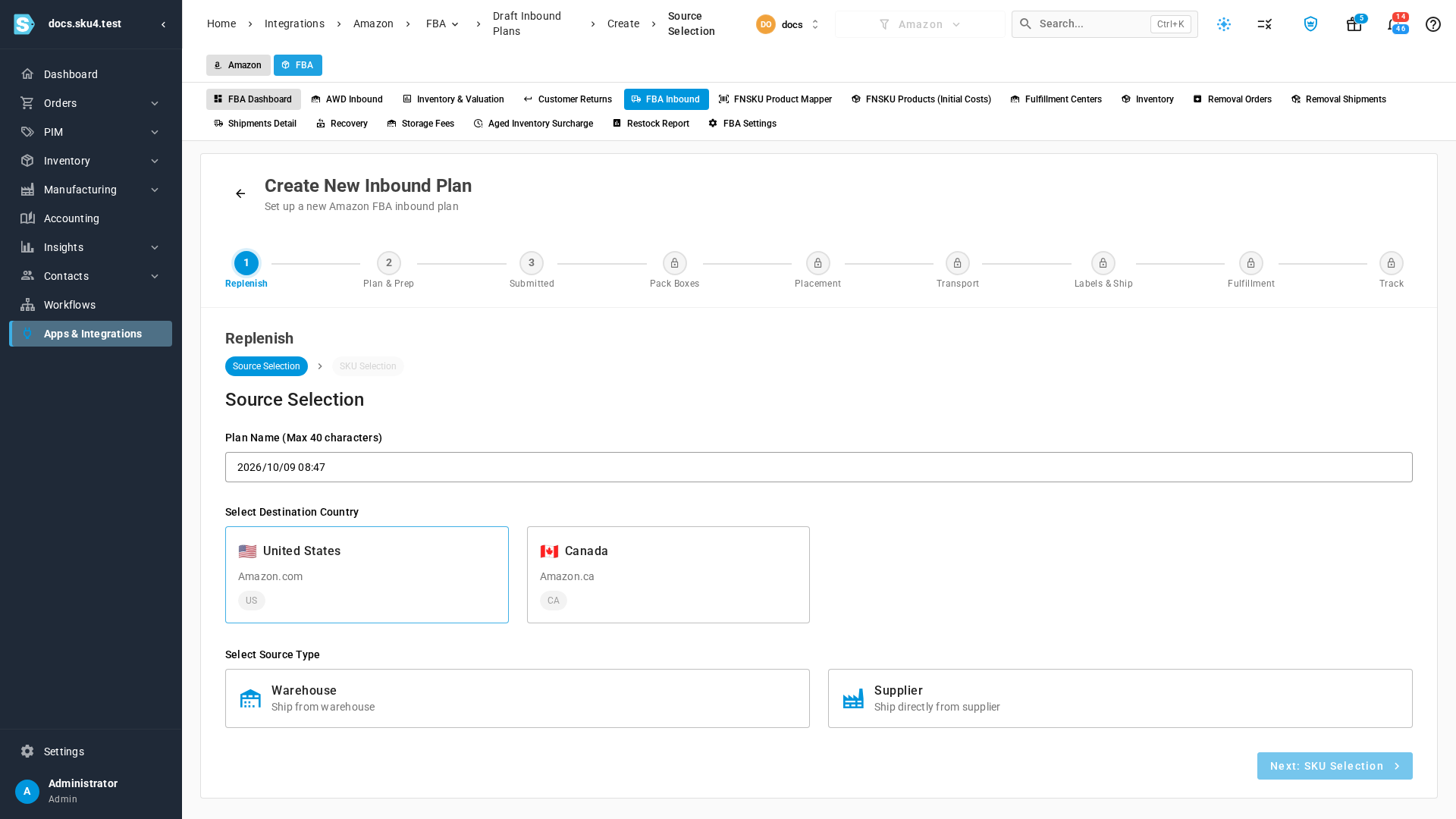
Create New Inbound Plan opens for that account and country, with the product and the suggested quantity ready to add.
-
Choose Warehouse or Supplier under Select Source Type, and carry on with the plan.
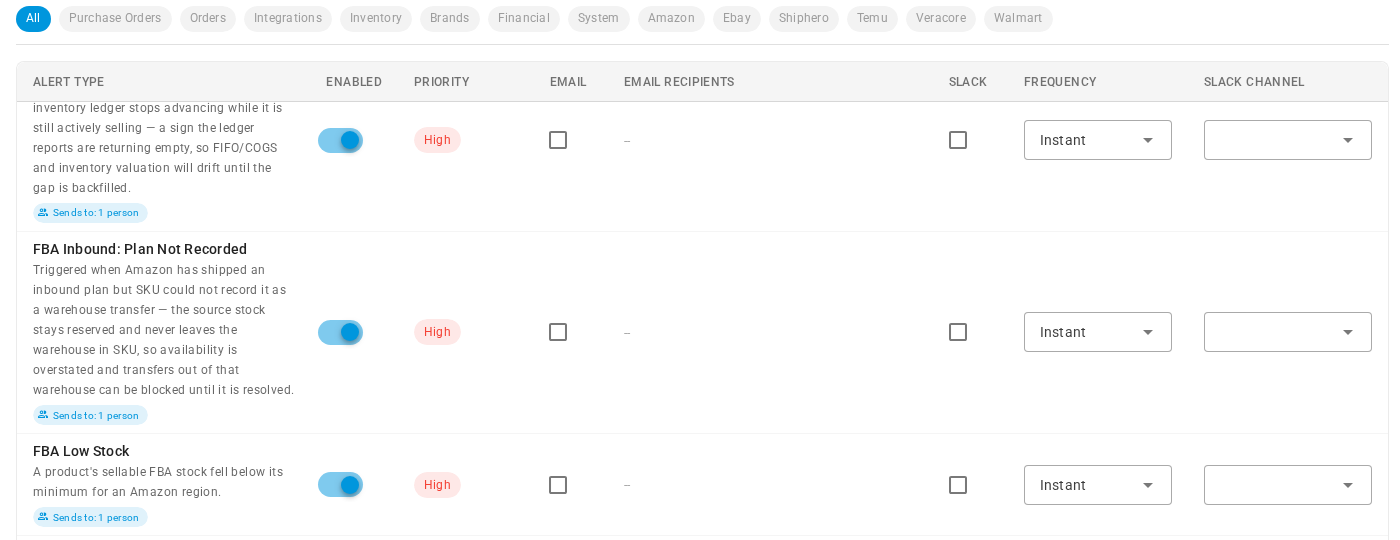
To turn the alert on or off for everyone, or change its priority, email recipients, frequency or Slack channel, go to Settings → Alerts & Notifications → Alert Preferences, click the Amazon filter, and find FBA Low Stock. It's on by default, but a region only alerts once it has minimums. To choose how you get it (in the app, by email, in a digest or in Slack), use My Notifications.
Next steps
- Plan with lead times into FBA: check and override the lead times that days-of-cover minimums add.
- Forecast demand and replenish stock
- Fulfill via Amazon FBA or MCF
Video transcript
An FBA minimum warns you before a product runs out at Amazon. Minimums live on the FBA Inventory page, under Amazon, then FBA. Four columns track them: FBA min, Counted, Cover, and Status. Counted is sellable stock, plus stock already shipped or receiving. Hover a number to see the breakdown. Cover is how many days that stock lasts at the current sales rate.
Start with a default for each region. Click Region defaults, at the top of the page. The US region already uses a fixed 100 units. For the second region, pick Days of cover from the mode list, and type 30 as the number of days of stock to cover. Days of cover adds the lead time into FBA, so the minimum is a reorder point. The primary route decides which lead time it adds. Click Save defaults, and every product in those regions picks them up.
Any product can override its region default. Click the pencil in the product's FBA min cell, on its row. Choose Days of cover as the mode, then type 30 as the number of days. The preview shows the math: daily sales, times days of cover plus lead time. Here the minimum comes to more than the stock counted, so the product is below. Click Save to update the row and close the dialog. The row now shows the product's own minimum, and its new status.
To change several products at once, tick their rows. Then click Set FBA minimum, in the bar that appears above the table once rows are ticked. The dialog lists every setting, each with a tick box. Tick the box beside each field you want to change. Here, choose Greater of both as the mode. Then tick Minimum units and enter 150, and tick Days of cover and enter 30. Greater of both stops a slow seller's minimum from shrinking to almost nothing. Click Apply, then confirm how many products it changes in the next box. All three rows update together, each with its own minimum.
The chips above the table count each status. Click Below to list only the products under their minimum. Out means nothing is sellable, and nothing is on the way. Recovering means stock is back above the minimum, but not yet ten percent clear.
To edit minimums in a spreadsheet, download them with Export floors. Change the file, then click Import floors. Paste the rows, or choose your file. On the next step, check that each column in your file maps to the right setting. A row with a blank SKU sets the region default. Validate shows each row as new, updated, or unchanged. Click Import to apply the new minimums from your file, one row at a time. The import runs in the background, and shows a summary when it finishes. Close the summary, and the table shows each new minimum.
A product that stays below its minimum for two inventory updates sends an FBA low stock alert. For a stockout, there's no second check. Open the alerts bell, at the top right of the screen. On the alert, click Go to source, the arrow at the right of its title. A new inbound plan opens for that country, with the product and a suggested quantity ready to add. Choose where it ships from, and carry on with the plan.