Set network rules
Network rules tell the Send Planner how much each fulfillment network should hold and who comes first when stock is short. You set them once on the Network rules tab, and every calculation after that uses them. Every field starts from the network's default, so you only fill in what you want to change.
Before you begin
- You need the Send Planner → Edit permission. Without it the tab is read-only and says "These rules are read-only for you. Changing them needs the Send Planner edit permission."
- At least one network has to be connected. Until then the tab says "No fulfillment networks are connected yet." See Set up the Send Planner.
Open the network rules
- Go to Inventory → Send Planner.
- Click the Network rules tab.
The tab reads from top to bottom: Planner settings, one card per network, Stock your own warehouses, Ship-from lanes and sources, Capacity limits and Product overrides. This page covers the first two. The others have their own pages, listed under "Next steps".
Links in the plan that point at a rule, for example from a line's explanation or a send-run exception, open this tab scrolled to the network card or table they mean, highlighted for a moment.
Change the planner settings
Planner settings apply to every network.

- Change the settings you need. Each field is described in the table below.
- Click Save changes at the top of the tab.
| Setting | What it does | Default | Allowed |
|---|---|---|---|
| Keep for self-fulfilled orders (days) | Self-fulfilled orders are the ones you ship from your own warehouses: web store, eBay, Amazon FBM, wholesale and the like. This many days of their demand stays at your warehouses, plus open orders and backorders. | 21 | 0–365 |
| Count stock on the way (days) | Production and purchase orders due at your warehouses within this many days are planned as if they were already there. Enter 0 for on hand only. | 0 | 0–180 |
| Sales history to average (days) | How many days of past sales set each network's daily sales rate. Days a SKU was out of stock are left out. | 30 | 7–365 |
| Case rounding | How sends round to whole cases when a network ships in cases: Nearest case, Round down, Round up or No rounding. A network card can use its own rounding. | Nearest case | |
| Network stock is out of date after (hours) | How old a network's synced stock can be. Older than this, working plans and send runs stop with an error instead of planning on old numbers. See Out-of-date network stock. | 24 | 1–720 |
| Release unused allocations after (hours) | Stock you allocate for a send that never becomes a shipment draft is released after this long. | 72 | 1–720 |
| Protect self-fulfilled orders: include forecast demand | On: the days set in Keep for self-fulfilled orders are kept back. Off: only open orders and backorders are protected, not forecast self-fulfilled demand. A network you favor under When stock is short can still take the forecast part. | On |
Out-of-date network stock
The planner never quietly plans on stale numbers. When a network's stock hasn't synced for longer than Network stock is out of date after (hours):
- A working plan or a send run fails. The Plan tab says "The plan could not be calculated: network stock is out of date." and lists each out-of-date network with the reason.
- You then either refresh that network's stock and recalculate, or choose Plan anyway to calculate with the stock as it is. A plan made with Plan anyway says so on its freshness chip, and its lines at that network are flagged, until you refresh and recalculate.
- A scenario always plans anyway, because it's a what-if that never sends anything.
Your own warehouses and 3PLs stocked by transfer are never out of date, because their stock is SKU.io's own record. See Recalculate the plan and fix calculation problems.
When unused allocations are released
Release unused allocations after (hours) is checked once an hour, at about five minutes past the hour. So an allocation made at 9:20 with the default 72 hours goes back to available at about 10:05 three days later. Allocations already handed to a shipment draft follow the draft instead. See Allocate stock for a send.
Change a network's rules
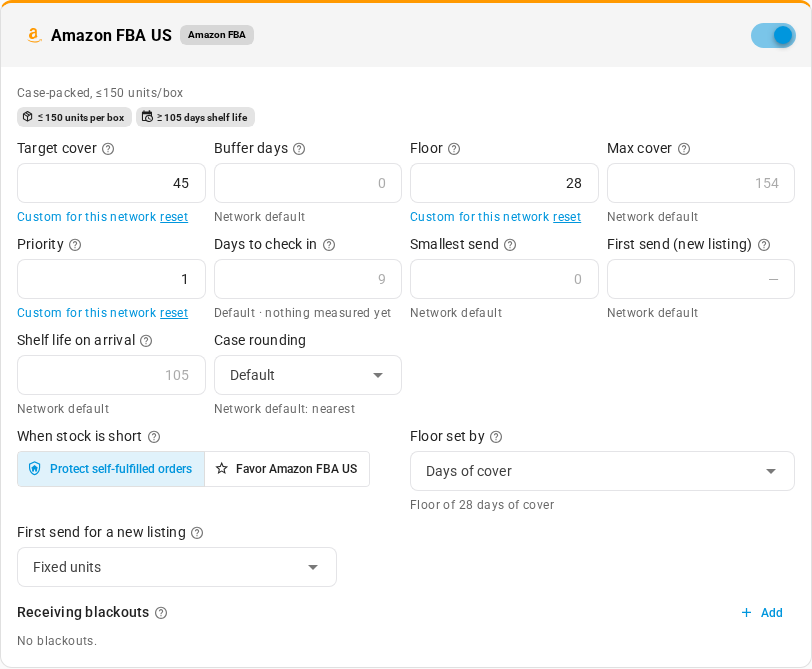
Each network has its own card, for example Amazon FBA US, Amazon AWD US, Walmart WFS or TikTok FBT. A card with a Buffer chip, such as AWD, holds stock that feeds another network.
-
To stop planning sends to a network, switch it off with the switch at the top right of its card. Its fields grey out, and the next plan has no column for it.
-
Type a value in any field you want to change. An empty field shows the network's default in grey and keeps using it.
A value you typed says Custom for this network under the field. Click reset next to it to go back to the default.
-
Click Save changes at the top of the tab.
The planner says "Network rules saved. They apply to the next calculation." Click Recalculate on the Plan tab when you want to see the effect now. A field that the working plan already carries from Tune plan or a promoted scenario keeps that value instead; see What a promoted scenario or applied tuning leaves on the working plan.
Fields on a network card
| Field | What it does | Allowed |
|---|---|---|
| Target cover | Days of sales this network should hold after a send lands. | 1–365 |
| Buffer days | Extra safety days on top of the target, shown as their own step in each line's explanation. The FBA and WFS screens call this the buffer. Not related to a Buffer network such as AWD. | 0–180 |
| Floor | The minimum days of cover. When stock is short, every network gets enough to stay above its floor before anyone gets more. It can't be higher than the target: "The floor can not be higher than the target." | 0–365 |
| Max cover | Never send more than this many days of cover, which helps you avoid storage-fee cliffs. Empty means no cap ("Default · no cap"). | 1–730 |
| Priority | Who gets more when stock is short. Every network first gets enough to reach its floor; the rest is shared by priority. 1 is normal; a network at 2 ends up with about twice the days of cover of a network at 1, but never below either one's floor. Not the same as a ship-from lane's Use order, which decides which warehouse ships first. | 0.1–10 |
| Days to check in | How long a send takes to be available to sell at the network. Leave it empty to use what SKU.io measured from your past shipments; the hint says "Default · measured 9 days", or "Default · nothing measured yet" when there's no history. For Amazon FBA, the measured figure is the lead time into FBA on FBA Inbound → Lead times; see Plan with lead times into FBA. | 0–180 |
| Smallest send | Units per SKU below which a send isn't worth making. Smaller sends are dropped. | 0–100,000 |
| First send (new listing) | Units to send for a listing with no sales history yet. | 0–100,000 |
| Shelf life on arrival | Days a lot must still have before it expires when it arrives. Lots that expire sooner aren't sent here; they stay for your self-fulfilled orders. Amazon AWD needs 185 days and FBA needs 105. "Default · no minimum" means none. | 0–1,095 |
| Case rounding | Default follows Planner settings ("Network default: nearest", for example). Pick Nearest case, Round down, Round up or No rounding to round this network differently. |
Above the fields, chips show the network's packing rules, such as ≤ 150 units per box, Cartons ≤ 23 kg, 66 cm, ITF-14 case labels or ≥ 105 days shelf life. A product that breaks one is flagged on its line. See Send Planner flags.
Each network's defaults
| Network | Target cover | Floor | Max cover | Priority | Days to check in | Other defaults |
|---|---|---|---|---|---|---|
| Amazon FBA | 45 | 28 | 154 | 1 | 9 | 105 days shelf life, 150 units per box |
| Amazon AWD (buffer) | 45 | 0 | no cap | 0.5 | 14 | 185 days shelf life, pallets of sortable items only |
| Walmart WFS | 30 | 14 | no cap | 0.8 | from WFS settings | First send 48, ITF-14 case labels |
| TikTok FBT | 21 | 10 | 60 | 1 | 6 | Smallest send 10, first send 120, cartons up to 23 kg and 66 cm |
| Warehouse transfer | 30 | 7 | no cap | 0.7 | 5 | Measured from your past transfers when there are any |
The 60-day cap on TikTok FBT matches the free storage TikTok gives to day 60.
Who wins when stock is short
Under When stock is short, choose:
- Protect self-fulfilled orders (the default): the stock kept for your forecast self-fulfilled demand stays at your warehouses.
- Favor and the network's name, for example Favor Amazon FBA US: this network may take the stock kept for forecast self-fulfilled demand to cover what it still needs. It never takes the stock kept for open orders or backorders, it only takes from warehouses that may ship to it, and it takes whole cases. It works like Favor Amazon FBA on the FBA replenishment screen.
The When stock is short toggle on the Plan tab can change this for the working plan, and once applied it wins over the card. See Favoring a network for how the three controls fit together.
A favored line explains it with a step such as "Amazon FBA US is favored over self-fulfilled orders: + stock kept for their forecast demand". A few things are never favored: a buffer network (the choice is greyed out on its card), a line the planner already fixed, and extra stock that would still leave the send below the network's Smallest send.
How the floor is set
Under Floor set by, choose:
- Days of cover (the default): the floor is the Floor field, shown as "Floor of 28 days of cover".
- Service level: the floor covers the sales expected until a send lands, plus safety stock for day-to-day swings in demand, at the in-stock chance you enter (95% if you leave it empty). Enter a percentage from 50 to 99.9; outside that range the planner says "A service level is a probability between 50% and 99.9%." A SKU without enough sales history to measure its swings falls back to the floor in days.
Buffer networks always use days of cover.
First send for a new listing
A listing with no sales history at a network has no velocity to plan from. Under First send for a new listing, choose:
- Fixed units (the default): send the First send (new listing) units.
- Copy another network's sales: send a share of what the same SKU sells on another network over this network's target cover plus its check-in days. Enter the share (1 to 500%, 50% if you leave it empty), then pick the network after of sales on, or leave The fastest-selling other network. When First send (new listing) is also filled in, it caps the result.
You can't copy from the same network ("Copy sales from another network, not this one."), and buffer networks don't appear in the list to copy from. On a buffer network, the choice is greyed out.
Receiving blackouts
A receiving blackout is a stretch of dates when a network doesn't accept stock, for example a peak-season pause.
- Under Receiving blackouts, click Add. A new row starts and ends today.
- Set Blackout start and Blackout end. The end must be on or after the start.
- Optionally, type a Label, up to 80 characters, for example "Prime Day freeze". A blackout without a label is called "Receiving blackout" in the plan.
- Click Save changes.
To remove one, click the delete icon at the end of its row, then save. A network can have up to 20 blackouts. With no blackouts at all, the card says No blackouts.
Blackout dates are calendar days in your account's timezone. When a send leaving today would arrive (today plus Days to check in) inside a blackout, its line is flagged Blackout with a note such as "Prime Day freeze (2026-07-08 to 2026-07-12): a send leaving today arrives 2026-07-10". If every remaining day the plan looks ahead is blacked out, nothing is sent to that network, and the line says "Receiving is closed for the rest of the planning horizon, so nothing is sent".
TikTok FBT has a built-in blackout as well: FBT receiving paused from the day after US Thanksgiving for ten days (November 27 to December 6 in 2026). It's added to any blackouts you enter, it shows in the plan's notes, and it moves to the next year on its own. The FBT card lists it as a read-only row with a lock icon, for example Nov 27 – Dec 6 FBT receiving paused (built in). You can't edit or delete it.
Settings that come from the FBA and WFS replenishment screens
If you already set targets on the FBA or WFS replenishment screens, the planner starts from them instead of the network defaults:
- Amazon FBA: the target days of supply, buffer days and minimum shelf life from your FBA replenishment settings. A target inherited this way says From your FBA replenishment settings under the field.
- Walmart WFS: the target, buffer, lead time, case pack and velocity window from your WFS replenishment settings, or their defaults when you never saved any. The WFS card shows them in a box titled Using your WFS replenishment settings, or WFS replenishment settings (defaults), with an Open WFS settings link. The WFS default source warehouse becomes the WFS lane when you haven't set lanes yourself.
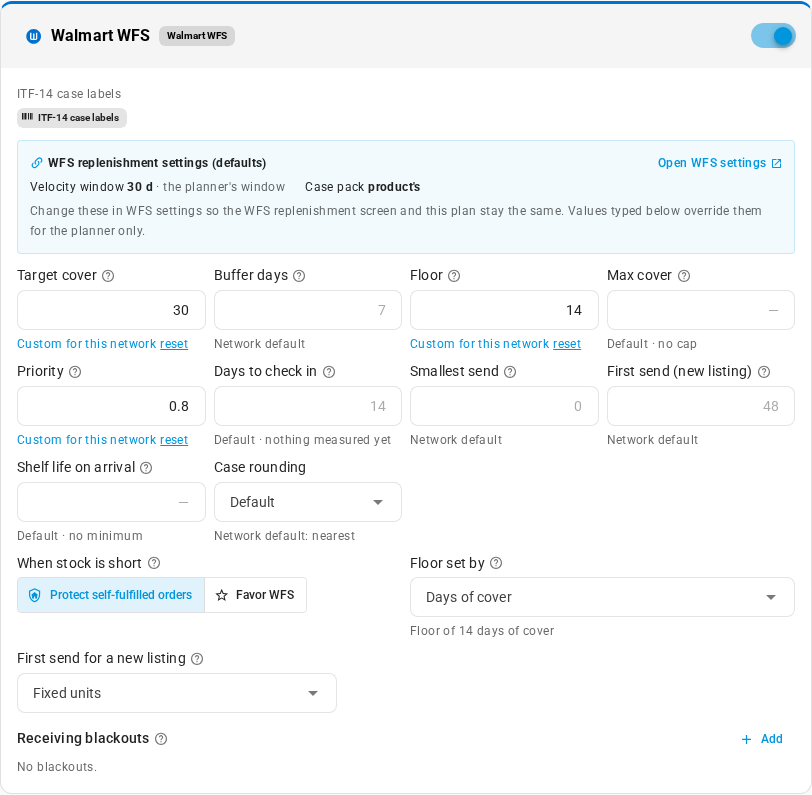
The order of precedence is:
- A value you type on the network card. It applies to the planner only.
- The FBA or WFS replenishment settings.
- The network's default.
To keep the replenishment screen and the plan in step, change the value on the replenishment screen instead of the card. The buffer stays a separate step in each line's explanation, so the planner's totals match the FBA and WFS screens. The WFS velocity window applies to the WFS column only; every other network uses Sales history to average (days). See Set the replenishment targets.
Save, revert and errors
- Planner settings, the network cards and Ship-from lanes and sources save together with Save changes. An Unsaved changes chip shows while you have edits, and Revert puts everything back to the last save.
- Stock your own warehouses, Capacity limits and Product overrides save as soon as you change them, and don't touch your other unsaved edits.
- If part of a save fails, the message names each part that failed, for example "Planner settings: …", "Amazon FBA US: …", "Sources: …" or "Lanes: …". The parts that succeeded stay saved; fix the field and save again.
- On a phone or tablet, Revert and Save sit in a bar at the bottom of the screen while you have unsaved changes.
- If the rules don't load, the tab says "Could not load network rules." Click Try again.