Plan with lead times into FBA
A lead time into FBA is how long a shipment takes to go from where you restock Amazon to stock Amazon can sell. SKU.io measures it per region, per route and per source, from the inbound shipments you've sent, and plans with it in two places: a days-of-cover FBA minimum adds it, so the alert comes early enough for a shipment to land in time, and FBA replenishment in Demand Planning uses it too. The Lead times page shows every measurement and lets you correct it.
In the video:
- 0:02 Open Lead times
- 0:21 Read a region's routes
- 0:51 Check the shipments behind a number
- 1:04 Override a lead time
- 1:21 Choose the primary route and p80
- 1:36 Re-measure
Before you begin
- Your Amazon channel is connected, and you've sent inbound shipments to FBA from SKU.io. Without shipments, every route uses its default lead time until you set your own.
- Changing lead times needs the Update FBA stock floors permission.
Open the Lead times page
- Go to Apps & Integrations, open your Amazon channel, then FBA.
- Click FBA Inbound, then Lead times.
- If you have more than one Amazon account, choose it in Amazon account.
Read a region's routes
Each FBA region has its own table. Each row is a route into that region, and a source on that route:
| Route | Its sources | Which shipments count |
|---|---|---|
| Supplier | each supplier | inbound plans sourced from a purchase order, or shipped from a supplier |
| Own warehouse | each of your warehouses | inbound plans and transfers from your own warehouses |
| 3PL | each third-party warehouse | the same, from a 3PL's warehouse |
| AWD | your AWD stock | none. Amazon moves AWD stock itself, so set this one by hand. It appears only when the account has AWD |
The All sources row of each route combines every source on it.
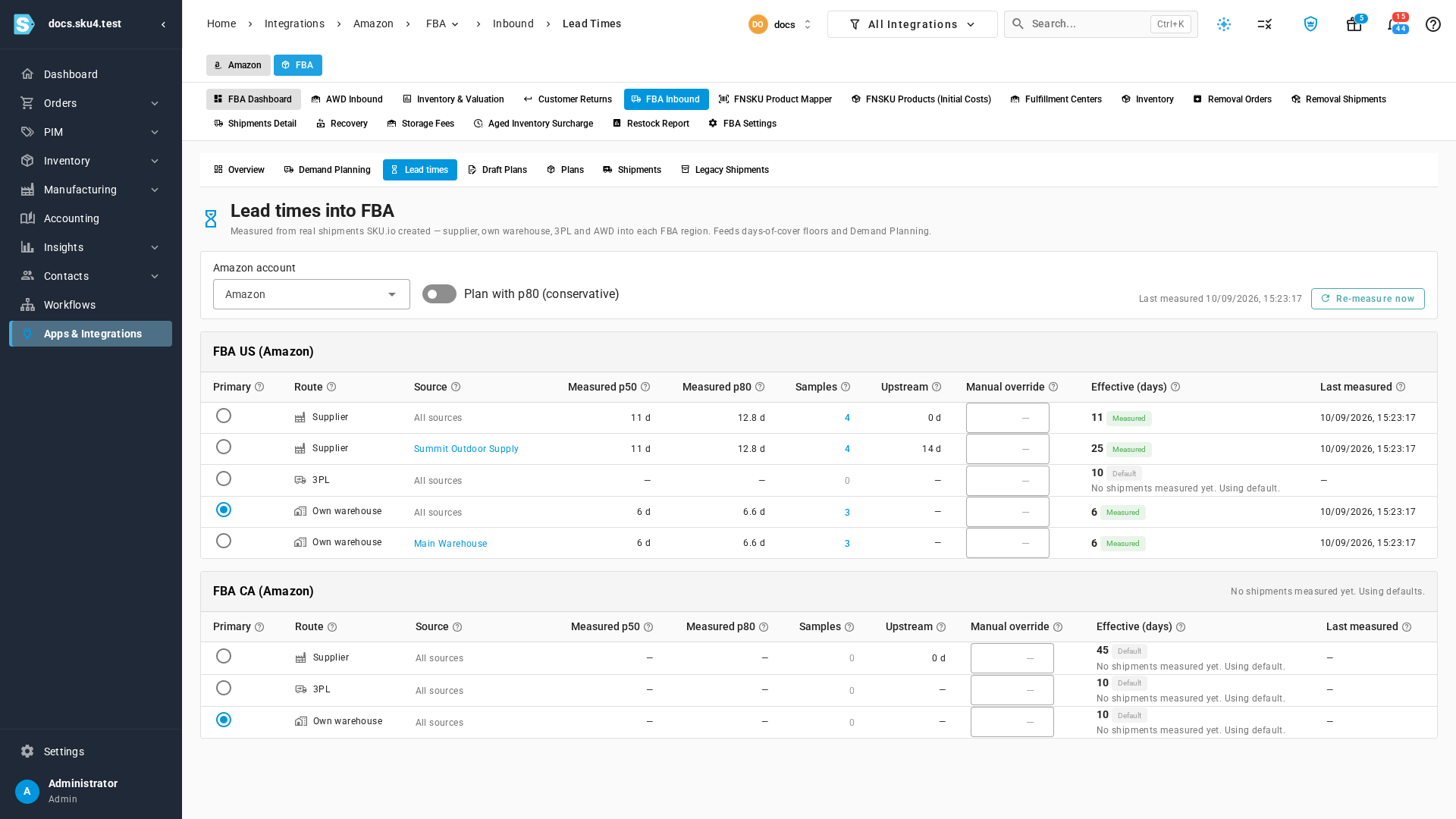
| Column | Means |
|---|---|
| Primary | The route this region's minimums use by default. See Choose the primary route. |
| Measured p50 | The typical number of days: half the shipments were faster, half slower. |
| Measured p80 | The slower end: 80% of shipments arrived within this many days. |
| Samples | How many shipments were measured. Click it to see them. |
| Upstream | Supplier routes only: the supplier's own lead time, from order to ship. It's added on top of the FBA leg. A supplier with no lead time links to Set supplier lead time. |
| Manual override | Your own number of days, which replaces the measured one. |
| Effective (days) | The number SKU.io plans with, labelled Measured, Manual or Default. |
| Last measured | When the route was last measured. |
How a shipment is measured. It starts the day the shipment left: when its warehouse transfer shipped, or when its plan was marked shipped. It ends the day Amazon's receipts took the received units to 95% of what was shipped. SKU.io measures shipments to the region from the last 180 days that are closed or at least 95% received. A shipment that took longer than 120 days, or less than none, is left out as an outlier.
How Effective is chosen. In this order:
- Your Manual override, when you've set one.
- The measured p50, once the route has at least 3 samples. On a supplier route, the supplier's Upstream days are added.
- The route's default: Supplier 45 days, AWD 14, 3PL 10, Own warehouse 10.
A region with no shipments yet shows No shipments measured yet. Using defaults.
Check the shipments behind a number
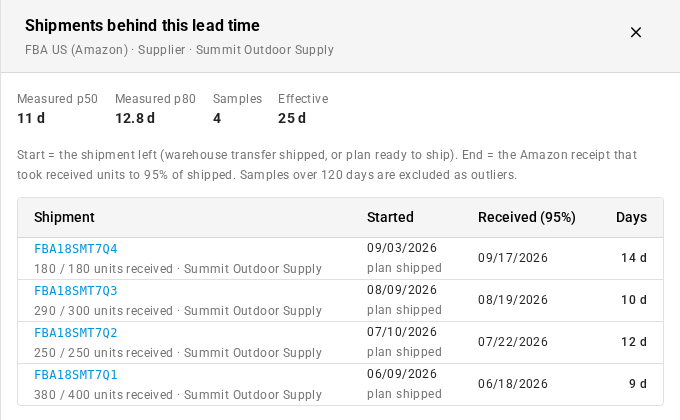
- Click the number in Samples.
- Shipments behind this lead time lists each one, with how many units Amazon received, the day it Started (and what that date is based on), the day it was Received (95%), and its Days.
- Click a shipment number to open the inbound shipment.
Override a lead time
When you know better than the measurements, such as a supplier that has changed carriers, set your own number of days.
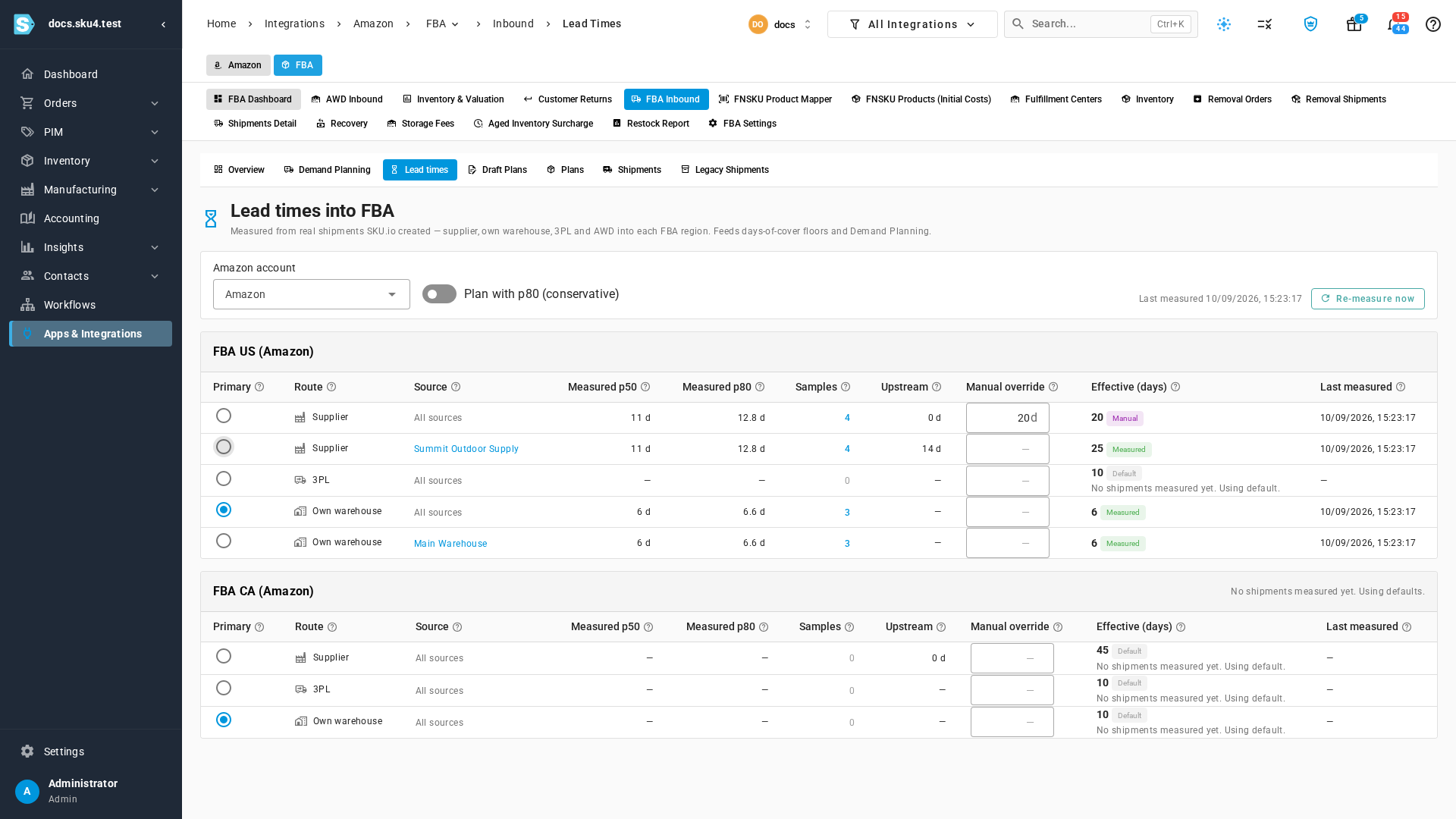
- In the row's Manual override, type the number of days.
- Click away, or press Tab. Lead time saved confirms it, and Effective shows Manual.
To go back to the measured or default value, clear the field.
An override on an All sources row only fills in for the sources on that route that have no measurements of their own. A source with 3 or more samples keeps its measured time. To change that source, override its own row.
Choose the primary route and p80
Primary route. Each region has one. A days-of-cover minimum adds the primary route's lead time, unless the product's own minimum names another Route that restocks FBA. To change it, select the Primary button on the row you restock that region from. Until you choose one, the region uses your own warehouses. You can also set it from Region defaults on FBA Inventory.
Plan with p80 (conservative). Turn it on to plan with the slower Measured p80 instead of the p50, for every measured route of the account. Manual overrides and defaults don't change.
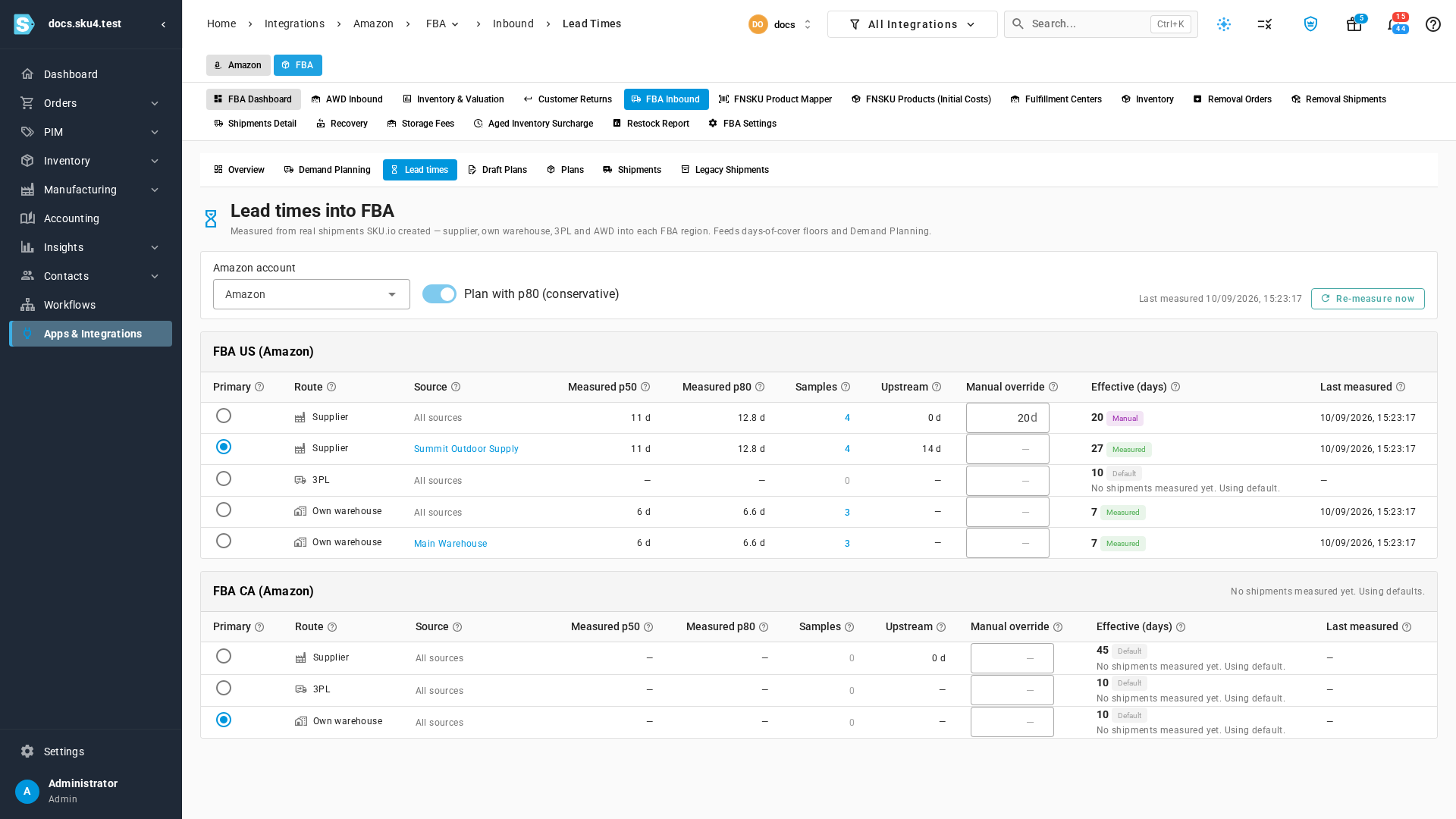
Both changes update the account's FBA minimums straight away. No alert is sent until the next inventory check.
Re-measure
SKU.io re-measures every route each night. After a batch of shipments has been received, click Re-measure now to update them straight away. It runs in the background, the job tray shows it, and the tables refresh when it finishes.
Next steps
Video transcript
Lead times into FBA say how long each route takes to restock Amazon. Days of cover minimums and FBA replenishment both plan with them. From the FBA pages, open FBA Inbound, then click Lead times, in the row of tabs just below it. The page shows one Amazon account at a time.
Each FBA region gets its own table, with one row per route and source. Measured p50 is the typical time, from the day a shipment leaves until Amazon has received almost all of it. Measured p80 is the slower end. Samples is how many shipments were measured. A supplier route also adds the supplier's own lead time, shown as Upstream. Effective is the number SKU.io plans with. A region with no shipments yet uses each route's default.
Click a sample count to see the shipments behind it. Each shipment shows when it started, when Amazon received it, and how many days that took. A shipment number opens that inbound shipment. Close the panel when you're done checking them.
When you know better than the measurements, type a manual override. Click away, and Effective switches to Manual, showing your number. An override on an All sources row only fills sources that have no measurements of their own. Here the supplier you've shipped from keeps its measured time.
Primary picks the route a region's minimums use, unless a product names its own route. Select the route you restock this region from. To plan more cautiously, turn on Plan with p80. Measured routes then plan with the slower figure.
SKU.io measures every route each night. After a batch of shipments is received, click Re-measure now to update them right away. The tables refresh when the job finishes.