Forecast demand and replenish stock
Demand Planning forecasts how much of each product you'll need and recommends what to reorder, so you can turn a forecast into purchase orders in a few clicks. This guide covers the purchase-only forecast, one supplier at a time. If you also make products, use Plan what to make and buy instead: one plan covers builds, purchases and transfers.
Before you begin
Forecasting needs data to work from. A recommendation only appears when there's something to base it on:
- Sales-based forecasts need sales history for the products.
- Target stock level forecasts need a target quantity or each product's minimum stock level.
- Supplier lead times, MOQ, and case pack sizes shape the recommended quantities.
Without any of these, Build Forecast returns "No Forecast Results."
Build a forecast
- Go to Inventory → Demand Planning.
- In Configuration, keep By supplier (purchase only) selected, then pick the Suppliers, a Destination Warehouse, and a Forecast Type:
- Target Stock Level — top every product up to a target.
- Sales Based — project from recent sales over a window you choose.
- Fill Backorders Only — order just what's needed to clear backorders.
- Set the type's inputs (target quantity, sales-history days, or target-stock days) and any options — Include Lead Time, Enforce MOQ, rounding, case-pack rounding.
- Click Build Forecast. Results appear per supplier with summary tiles (line items, units, investment, days of coverage, at-risk and low-stock counts) and a per-product recommendation table.
Adjust for seasonal patterns
A Sales Based forecast projects your recent sales forward. If demand rises and falls with the season, tell the forecast so before you build it. With Sales Based selected, open Demand Modifiers above Build Forecast:
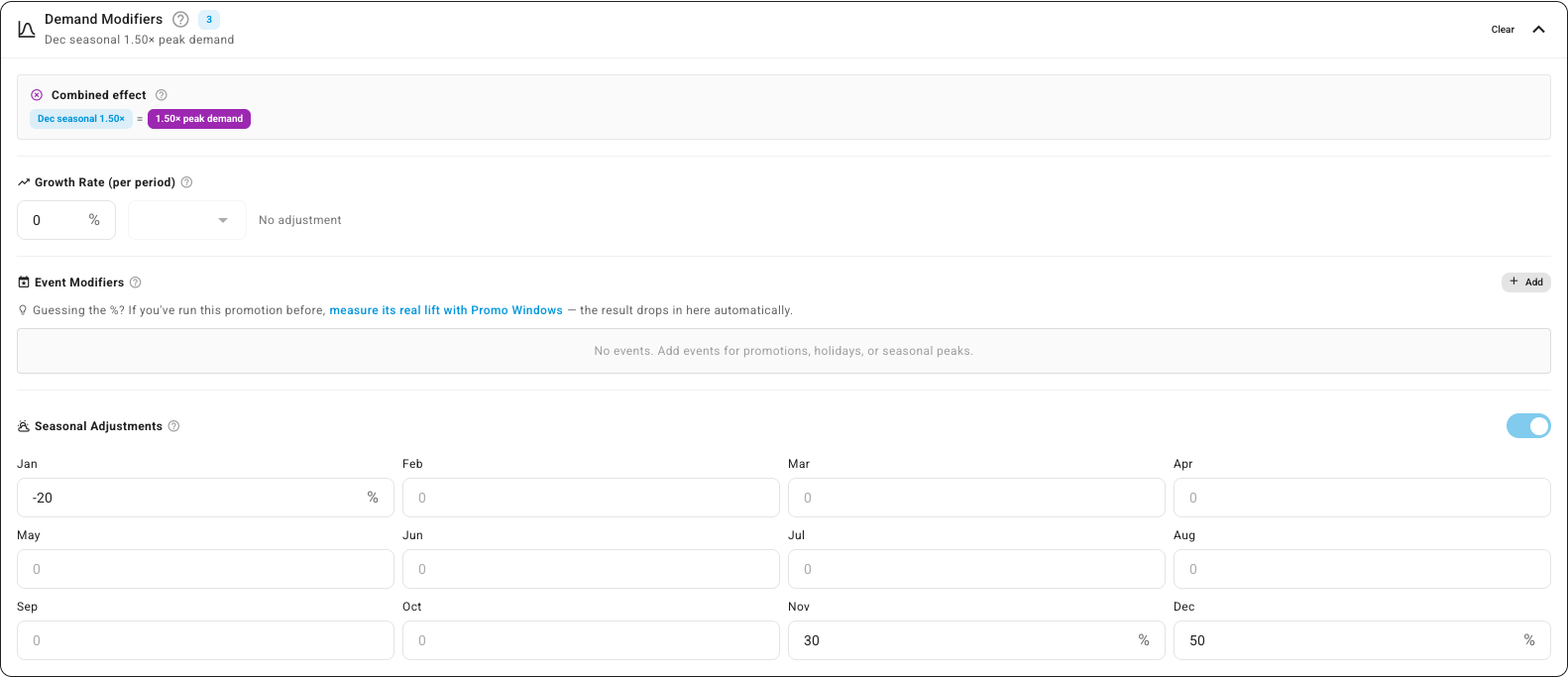
- Turn on Seasonal Adjustments.
- Under each month, enter how much busier or quieter it is than usual, as a percentage: for example 30 for November and 50 for December for holiday items, or -20 for a January lull. Leave months that behave normally at 0.
- Click Build Forecast.
The forecast weights each month's adjustment by how many days of that month fall in the period it's forecasting, then combines them into one factor. So a forecast covering mostly December gets close to the full +50%, while one that only touches December gets a smaller lift. Months are never compounded against each other.
Combined effect at the top of the panel shows the peak: what demand looks like on a day where every modifier applies at once (here, Dec seasonal 1.50×). The panel can also hold a Growth Rate (per period) for a product line that's steadily growing or shrinking, and Event Modifiers for a dated promotion or launch; they multiply together. For a promotion you've run before, measure its real lift instead of guessing: see Plan for promotions with promo windows. Clear removes every modifier.
Turn recommendations into purchase orders
From the results, select the lines you want and use Create PO for Selected, or Create PO for All. Choose the destination warehouse and whether the PO is created as Draft or Approved (and optionally submitted to the supplier). The recommendations become real purchase orders.
To run this on a schedule, use the Auto-Replenishment tab to create a recurring forecast that builds and (optionally) creates POs automatically; the History tab lists past runs. See Replenish stock on a schedule.
Products you make
Builds are planned in the same place now. Select Make, buy & move instead and follow Plan what to make and buy. It proposes draft manufacturing orders from your recipes and orders their ingredients alongside. Manufacturing → Suggestions is being retired and links there.
Next steps
- Create a purchase order — where a forecast's POs continue.
- Plan what to make and buy — plan builds, purchases and transfers together.
Video transcript
Demand Planning forecasts what to reorder, then turns it into purchase orders. Pick a supplier, choose how to forecast — here, from recent sales — and build. The forecast sizes the whole order at a glance: line items, total units, the cash it ties up, and how many products are running low or at risk. Every product gets its own line — its average daily demand, the supplier's minimum order quantity, and a suggested order size, each priced out to a running total. The analytics go deeper — an ABC breakdown, a cash-flow projection, and coverage and risk views that show where your money should go first. When it looks right, set the destination and status, and create the purchase orders in one click. Your forecast becomes real orders, ready to send.