Check the FBA aged inventory surcharge
Amazon charges a monthly aged inventory surcharge on stock that has sat in its fulfillment centers for more than 180 days, and the rate climbs in age tiers as the stock gets older. SKU.io imports Amazon's surcharge report every month, so you can see exactly what you were charged, product by product, and post it to your costs.
Before you begin
- FBA tracking is on for your Amazon connection. See Turn on FBA inventory tracking.
- To see which stock is about to be charged, and act on it before the next tier, use the Inventory Aging report. This page is what Amazon actually charged.
Open the report
- Go to Apps & Integrations, open your Amazon connection, and click FBA.
- Click the Aged Inventory Surcharge tab.
With more than one Amazon connection, use the integration selector at the top of the page to choose which ones to include.
Check the report is current
The strip at the top shows the state of the report for the connections you selected:
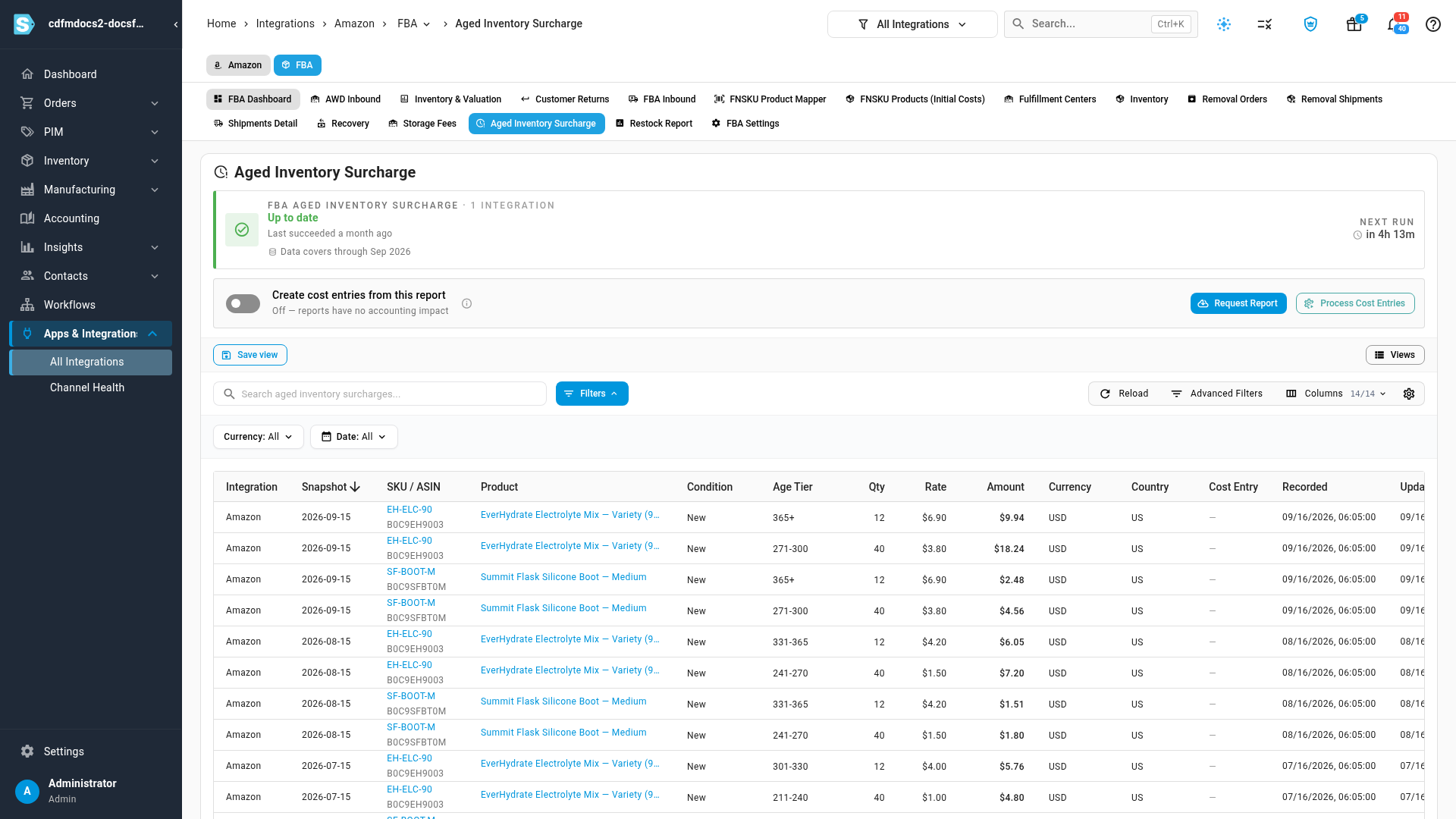
- Up to date with Last succeeded means the latest report imported. In progress means a report is being fetched, and Looks stuck means it has been pending for hours.
- Data covers through names the last month imported.
- A note such as Sep 2026 pending means Amazon hasn't finalized last month yet. Amazon finalizes the report in the middle of the month, and SKU.io asks for it automatically from the 16th.
- Next run counts down to SKU.io's next check.
To fetch the report now instead, click Request Report. Progress shows in the job tray. If there's no new month to fetch, SKU.io tells you the data is already up to date.
Read the charges
Each row is one product, at one age tier, in one month's snapshot.
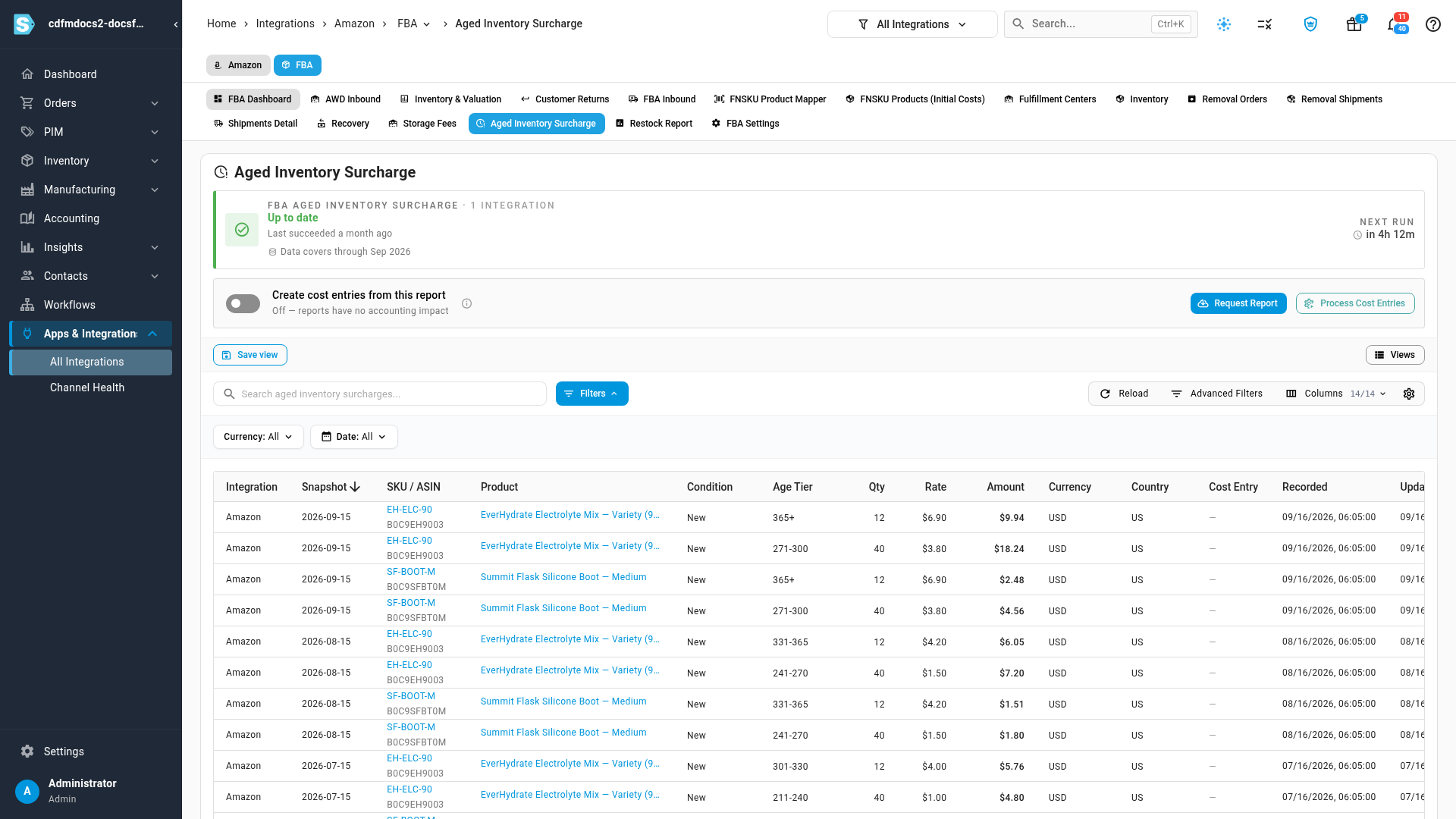
| Column | What it shows |
|---|---|
| Integration | The Amazon connection the charge belongs to. |
| Snapshot | The date Amazon measured the stock's age. |
| SKU / ASIN | The seller SKU, which opens the page for its FNSKU, with the ASIN underneath. |
| Product | The SKU.io product the FNSKU is mapped to. It opens the product. |
| Condition | The condition of the units, such as New. |
| Age Tier | How long the units had been at Amazon, such as 271-300 or 365+ days. |
| Qty | The units Amazon charged for in that tier. |
| Rate | Amazon's surcharge rate for that tier, which it applies to the volume of the units. |
| Amount | What Amazon charged. |
| Currency, Country | The marketplace's currency and country. |
| Cost Entry | The cost entry the charge was posted to, when cost entries are on. |
| Recorded, Updated At | When SKU.io imported the row, and last updated it. |
Use Currency and Date above the list to narrow it, and the search box to find a product by SKU or name.
Follow one product
Search for a product to see its charges month by month. As its units stay at Amazon, they move into higher tiers and the rate climbs. In the example below, the same 12 units went from 301-330 days in July to 365+ in September.
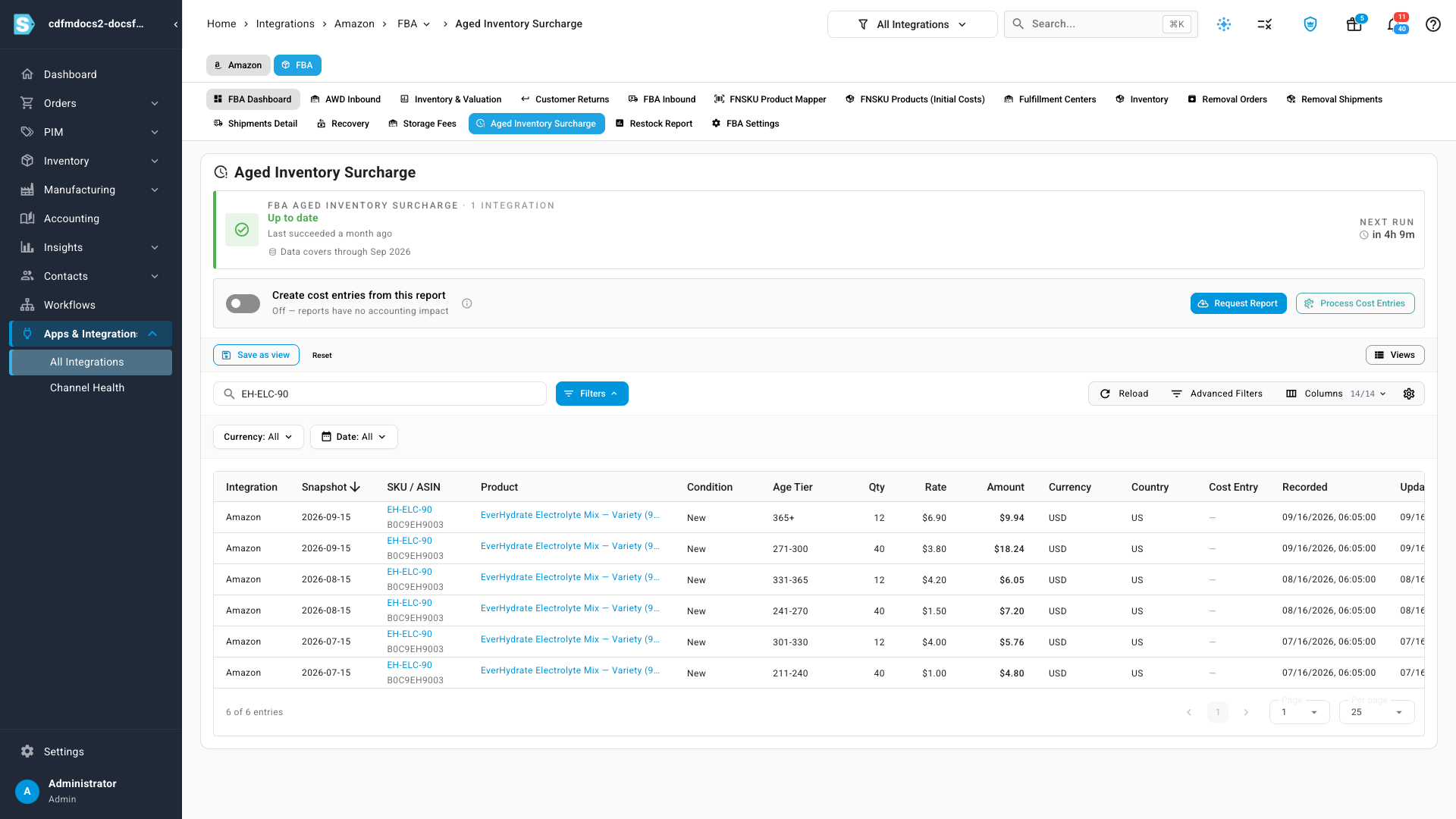
To stop the charges growing, sell the units, or have Amazon send them back or dispose of them with a removal order you place in Seller Central. See Receive FBA removal orders back into stock.
Turn charges into costs
The surcharge is a real cost of the products that caused it. To put it there:
-
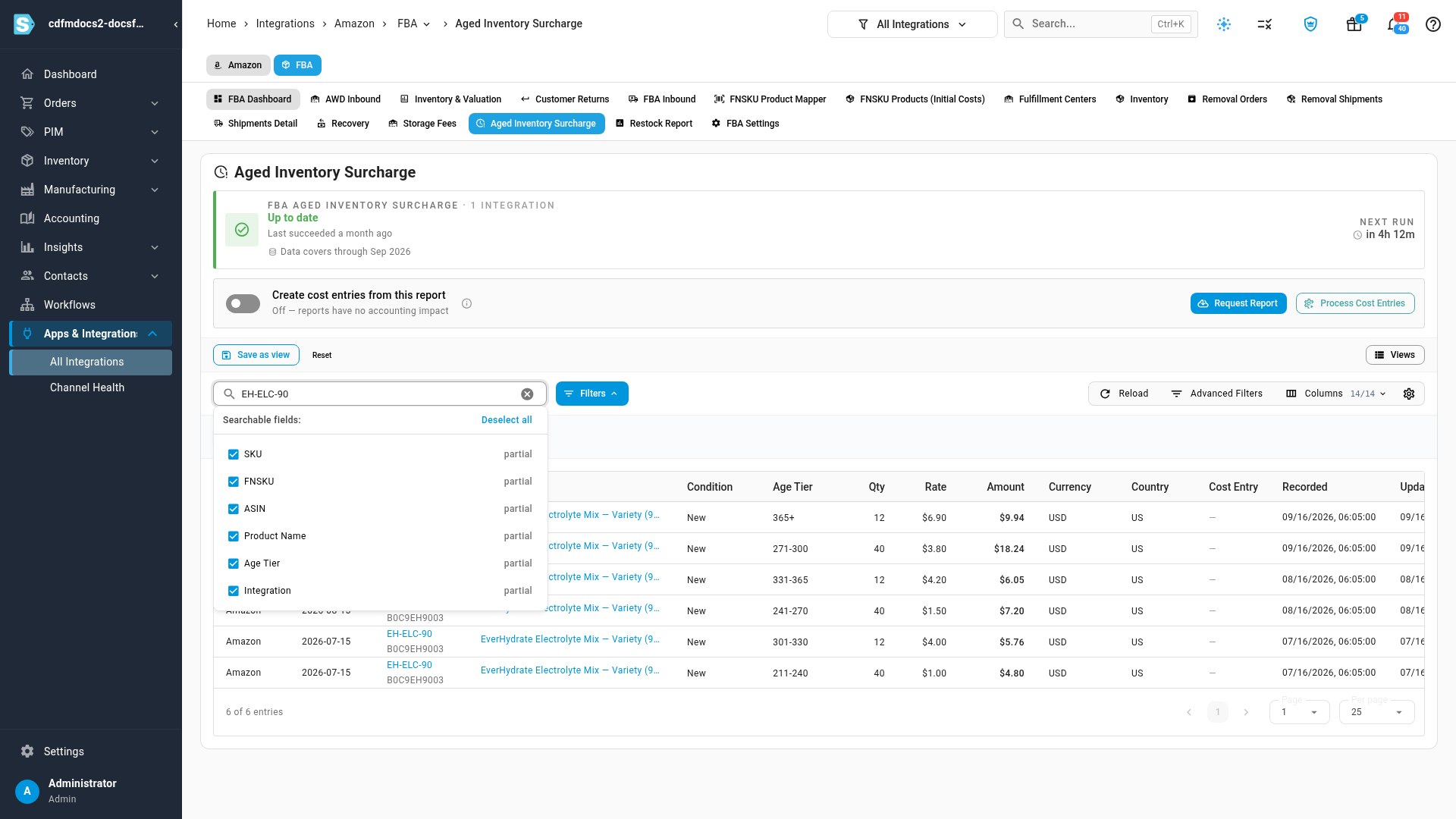
Turn on Create cost entries from this report.
-
To build the entries for months already imported, click Process Cost Entries.
Each month's report becomes one cost entry, allocated across the products in it, so their margins include the surcharge. The switch is the same setting as the one in FBA Settings, and it applies to every Amazon connection you selected. With it off, imported reports have no accounting impact. For how these entries are reconciled with your settlements, see Attribute storage fees and ad spend to products.
Next steps
- Find and clear aged inventory: see which FBA stock crosses its next tier soon, and record what you do about it.
- Value your FBA inventory: see what the stock you hold at Amazon is worth.
Video transcript
Amazon charges a monthly surcharge on stock that sits in its warehouses for more than six months. To see what it charged, start on the FBA Dashboard of your connection. Choose the Aged Inventory Surcharge tab, in the row of tabs across the top. The page lists every charge Amazon has reported. The strip at the top shows whether the report is up to date, and the last month its data covers. SKU.io requests the report each month, once Amazon has finalized it. Next run counts down to the next check. Each row is one product, at one age tier, in one month's snapshot. Next come the units Amazon charged for, and its Rate for that tier. Amount is what Amazon charged you that month. Search for a product to follow its charges month by month. As its stock gets older, it moves into higher and higher age tiers, and the rate Amazon charges climbs with it. Turn on Create cost entries to post each month's surcharge as a cost entry. It's spread across the products that caused it, so their margins show the real cost. Request Report fetches the latest report from Amazon now, instead of waiting for the next run.