Review Trackstar bills and fix unattributed charges
The Bills page lists every charge your warehouse system billed through Trackstar, with where SKU.io put it. Use it to check that fees reach your orders, and to work through the charges that didn't. Some unattributed charges need no fix: fees for orders SKU.io never imports stay as overhead by design. This page helps you tell those apart from the ones you can fix.
Before you begin
- Turn on Trackstar billing. With attribution off, the page still lists the bills it has synced, under Billing attribution is off, but nothing lands anywhere.
- It helps to know the terms on this page. See How Trackstar billing attribution works.
Open the Bills page
- Go to Apps & Integrations → All Integrations and open your Trackstar connection.
- Click Bills in the connection's sections.
The page has four tabs: Reconciliation, Invoices, All bills, and Unattributed. The line under the title says when bills last synced, how many there are, and their charge dates. A chip such as 1 charge type needs review appears when a new charge code needs a decision; click it to open the Billing settings.
Next to the title:
- The period list (All time, Last 30 days, Last 90 days, This month, Last month) sets which charge dates the tabs count. The Invoices tab always covers all time.
- Sync now pulls the latest bills straight away.
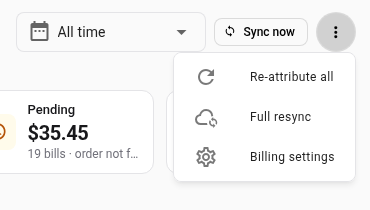
- The more actions button (⋮) has Re-attribute all, Full resync, and Billing settings.
See where the money went
The Reconciliation tab opens first. It answers one question for the period: where did every dollar go?
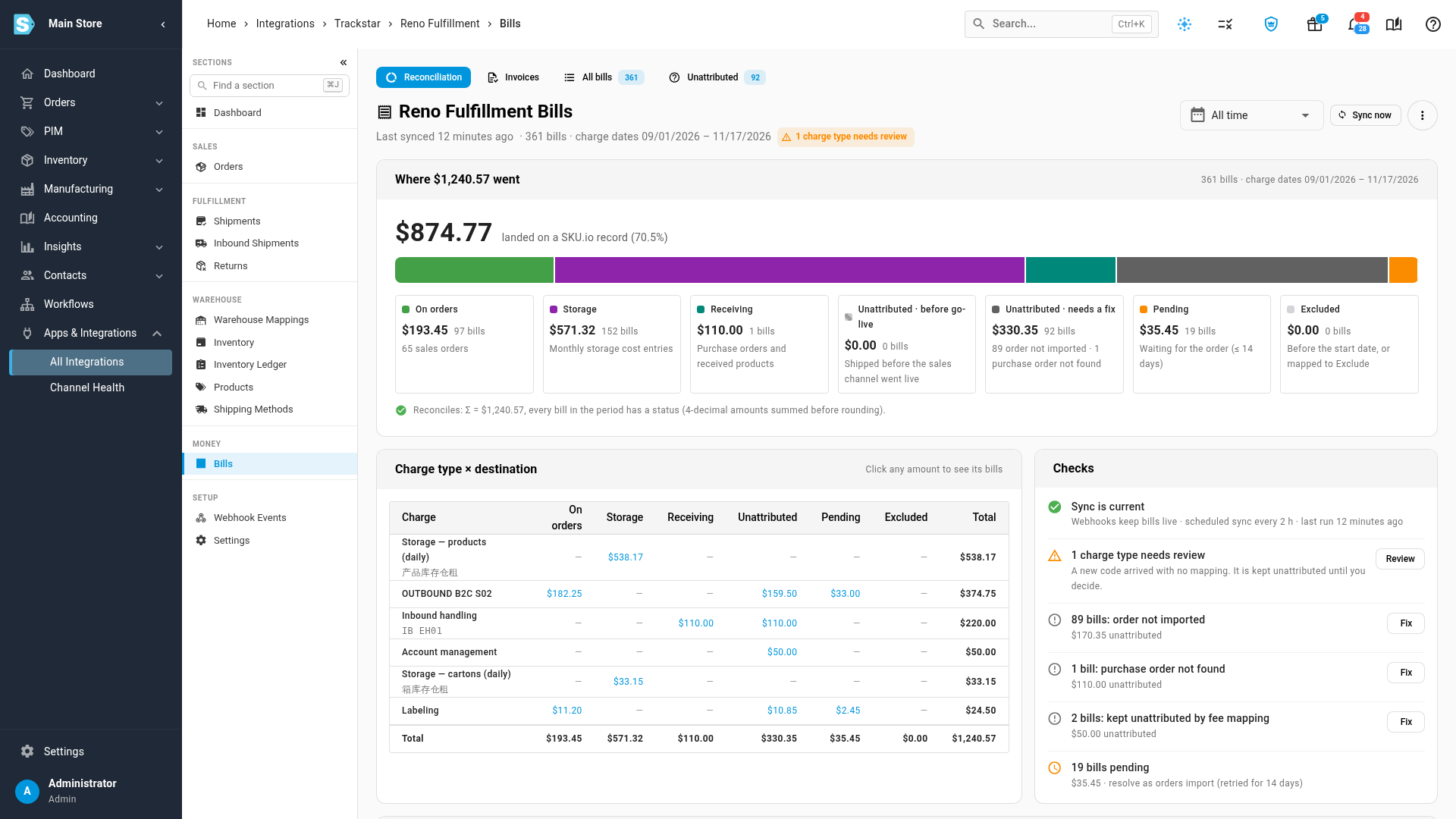
- Where … went shows how much landed on a SKU.io record, then one bar and one card for each destination: On orders, Storage, Receiving, Unattributed · before go-live, Unattributed · needs a fix, Pending, and Excluded. The line under them, starting Reconciles, confirms that every bill in the period has a status and the parts add up to the total.
- Charge type × destination breaks each charge code down by destination. Click any amount to see its bills.
- Checks lists what needs you: whether the sync is current, charge codes to review, each group of unattributed bills with a Fix button, and pending bills.
Read the summary cards
Click the All bills tab.
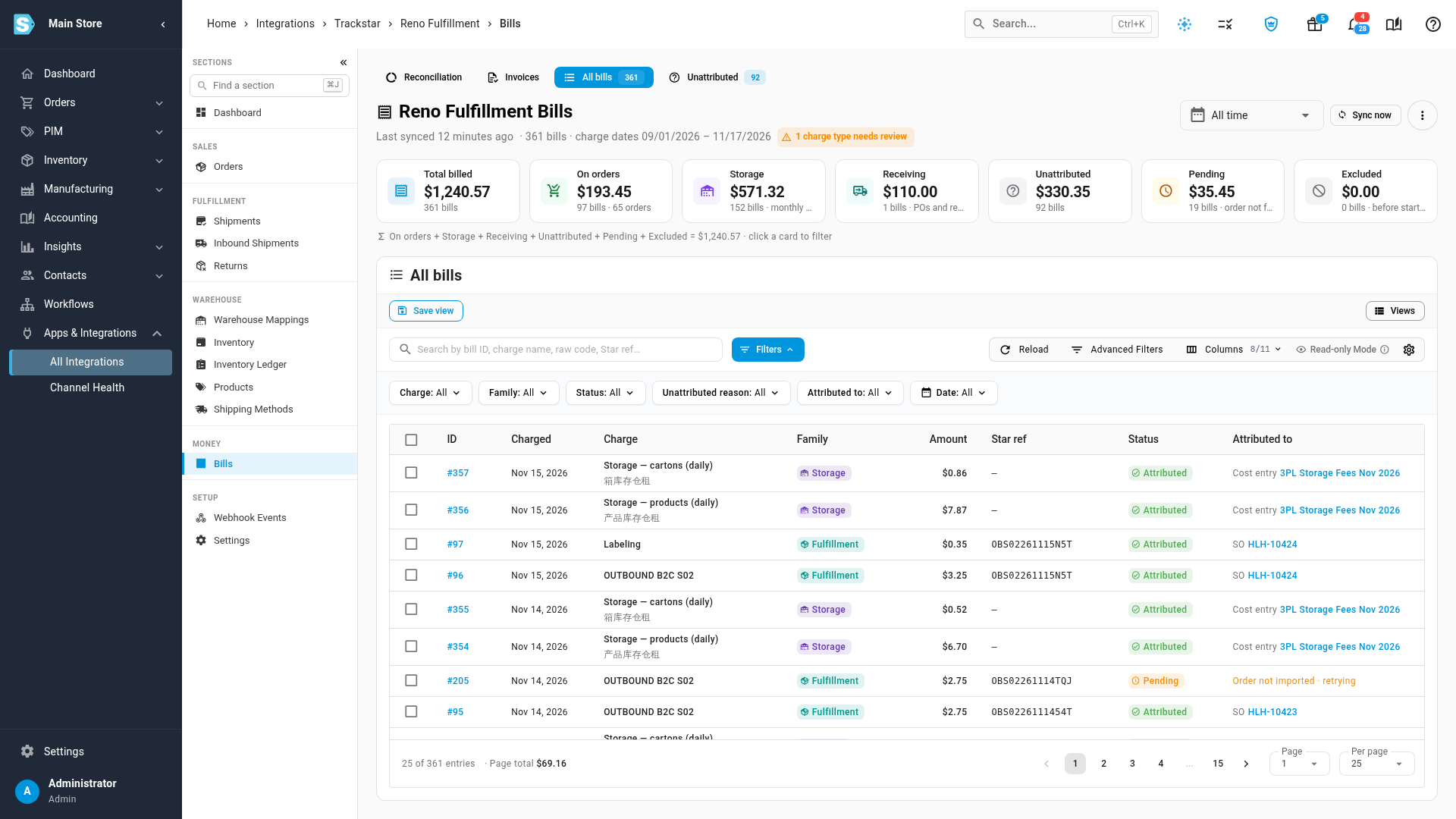
The cards cover the period you chose. All but Total billed add up to it, as the line under the cards says.
| Card | Shows |
|---|---|
| Total billed | Every bill in the period |
| On orders | Fees written as cost lines on sales orders, and how many orders they're on |
| Storage | Storage charges added to the monthly 3PL Storage Fees cost entries |
| Receiving | Inbound handling on purchase orders or received products |
| Unattributed | Charges that couldn't be tied to an order or purchase order, kept as overhead |
| Pending | Charges still waiting for their order or inbound shipment to reach SKU.io |
| Excluded | Charges dated before your billing start date, or mapped to Exclude |
Click a card to show only its bills, and click it again to clear it.
Find bills
The table has one row per charge.
| Column | Shows |
|---|---|
| ID | The bill number in SKU.io. Click it to open the bill. |
| Charged | The charge date. |
| Charge | The display name, with the warehouse system's code under it when they differ. |
| Family | Fulfillment, Storage, Receiving, Returns, Shipping, or Other. |
| Amount | The charge. |
| System ref (for example Star ref) | The warehouse system's own order or inbound shipment number. Storage has none. |
| Status | Attributed, Pending, Unattributed, Excluded, or Re-attributing while it's being redone. |
| Attributed to | The sales order, purchase order, product, or monthly cost entry the charge landed on, as a link. If it landed nowhere, the reason instead, such as Order not imported. A pending charge adds retrying. |
Click Columns to show Invoice #, Qty × Rate (when the warehouse system sends them), and Ingested.
To narrow the list:
- Search by bill ID, charge name, raw code, warehouse reference, or invoice number.
- Use the filters: Charge, Family, Status, Unattributed reason, Attributed to, and Date (the charge date).
- Click Advanced Filters to combine conditions, such as amount or invoice number.
- Click Save view to keep a filter set you use often.
Open a bill
Click a bill's ID to open its drawer.
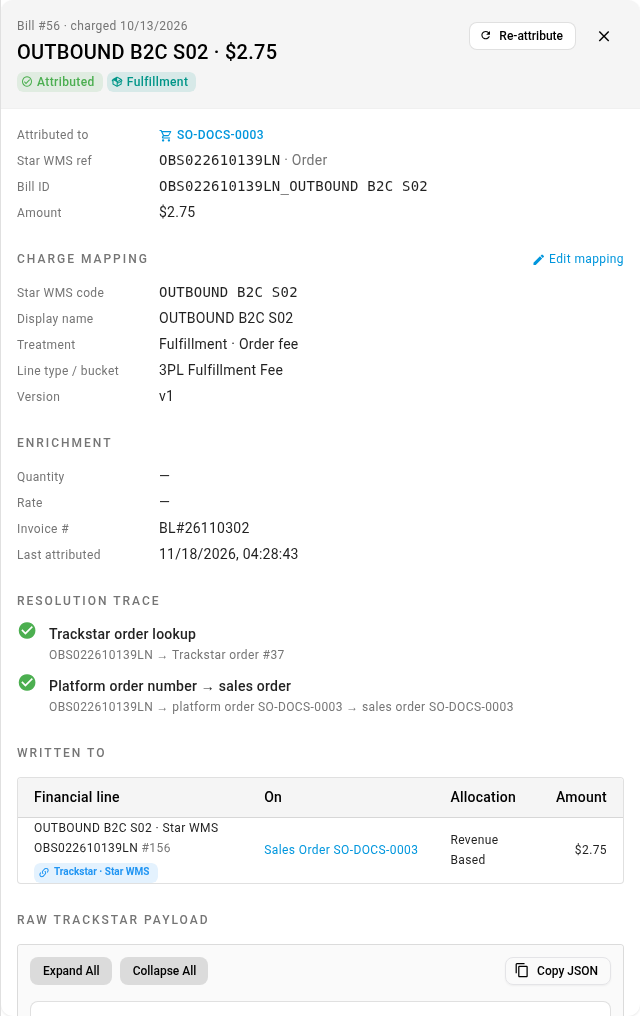
The drawer shows:
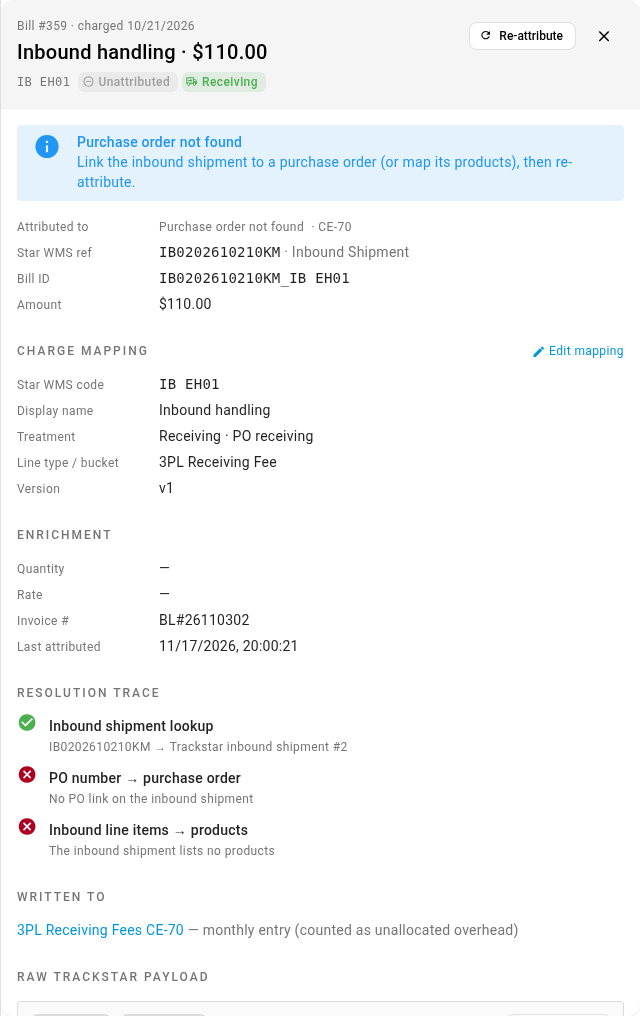
- The facts. Attributed to, the warehouse system's reference, the Bill ID, and the Amount. An unattributed bill opens with an alert naming the reason and what to do.
- Charge mapping. The code's display name, treatment, and line type or bucket. Edit mapping opens the code in the Billing settings.
- Enrichment. Quantity and Rate when the warehouse system sends them, the Invoice #, and when the bill was last attributed.
- Resolution trace. Each lookup SKU.io tried, in order, with a green tick where it matched and a red cross where it didn't, and why. Read this first when a charge didn't land where you expected.
- Written to. The cost line the charge created, the record it's on, how it's allocated, and the amount. Storage and overhead show the monthly cost entry instead, such as 3PL Storage Fees.
- Raw Trackstar payload. Exactly what Trackstar sent. Copy JSON copies it.
Press Esc or click the close button to close the drawer. A bill's link opens the Bills page with its drawer open. That's where the Trackstar chip on a sales order cost line takes you.
Fix unattributed charges
Click the Unattributed tab. It groups every unattributed charge by reason, then by charge code, with the number of bills, the amount, and a suggested action.
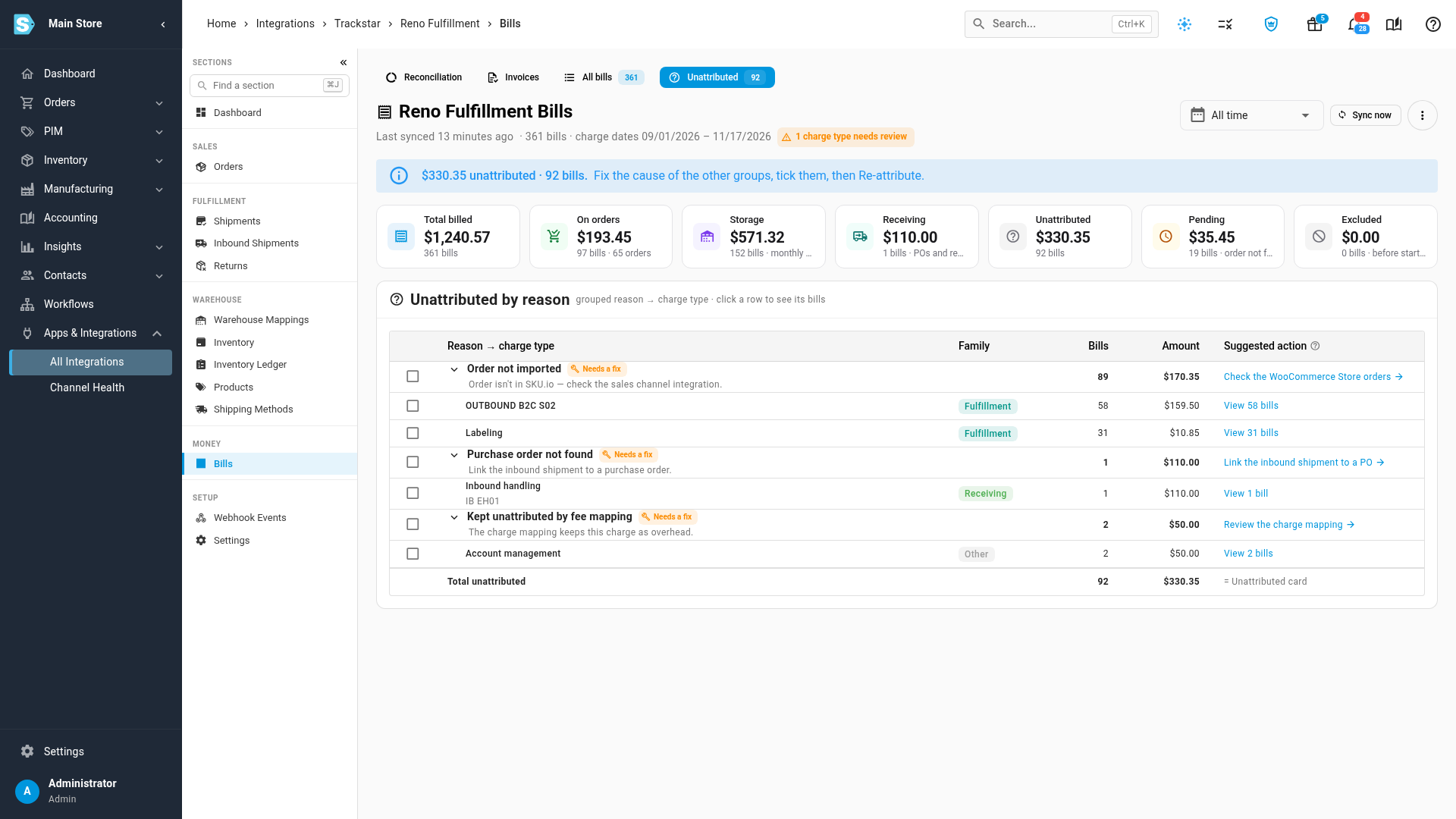
Click a row's View … bills to see its bills. Open a bill to see which lookups failed.
| Reason | What it means | What to do |
|---|---|---|
| Order not imported | The warehouse shipped an order that isn't in SKU.io, and 14 days have passed since the charge. Usually it came from a sales channel you don't import, such as a store the warehouse fulfills directly. | If the channel should be in SKU.io, connect it and import the order, then re-attribute. Otherwise leave it: it's counted as overhead on purpose. |
| Shipped before the sales channel went live | The order was placed before the channel's start date in SKU.io, so SKU.io never imported it. | Nothing. It's kept as overhead. |
| Purchase order not found | The inbound shipment names no purchase order, or a number that matches no single purchase order, and lists no products SKU.io knows. | Link the inbound shipment to a purchase order, or make sure exactly one purchase order carries its number, then re-attribute. |
| Ambiguous order | The channel's order number matches more than one sales order, and their warehouses don't settle which one it is. | Fix the duplicate order numbers, then re-attribute. |
| Kept unattributed by fee mapping | The code is mapped to Keep unattributed, or Attribute to orders or Attribute storage is off. | Change the code's treatment, or turn the switch back on. Both re-attribute for you. |
| No reference | The charge names no order or inbound shipment, so there's nothing to match. | Nothing to match. To make that deliberate, map the code to Keep unattributed. |
| Exchange rate missing | The charge is in another currency and that day's rate isn't published yet. It shows as Pending, not unattributed. | Nothing. It's attributed once the rate arrives. |
Pending charges need no action at first. Attributed to shows what they're waiting for followed by retrying, such as Order not imported · retrying, and SKU.io retries them on every billing run for 14 days after the charge date.
Re-attribute
Re-attributing runs the lookups again and rebuilds whatever the charge wrote. Run it after you fix the cause.
- One bill: open it and click Re-attribute.
- Several bills: tick them in the table, or tick the groups on the Unattributed tab, then click Re-attribute selected.
- Every bill: click the more actions button (⋮), choose Re-attribute all, and confirm. Every bill charged on or after your billing start date is redone, not only the period on screen. Existing cost lines and allocations are rebuilt, and each order is recalculated once.
Re-attributing runs in the background as Attribute Trackstar Bills: and your connection's name in the job tray, and the page refreshes when it finishes. It's unavailable while another attribution is running (Bills are already being attributed — see the job tray).
See the fees on the sales order
Click a sales order in Attributed to to open it. Its Cost Lines card lists each fee as a cost line, tagged with the warehouse system, such as Trackstar · Star WMS, and totals them under 3PL fees. See How Trackstar billing attribution works.