Push products to a Trackstar warehouse
A warehouse can only ship a product that its own system already has on file. When you add products in SKU.io, or connect a warehouse that has never stocked your catalog, push those products from the Trackstar connection instead of keying them into the warehouse system by hand.
Before you begin
- Connect a warehouse through Trackstar.
- You need permission to edit integrations.
- Not every warehouse system lets Trackstar create products. If yours doesn't, the Push to button is greyed out, and hovering over it says why.
Push everything the warehouse is missing
-
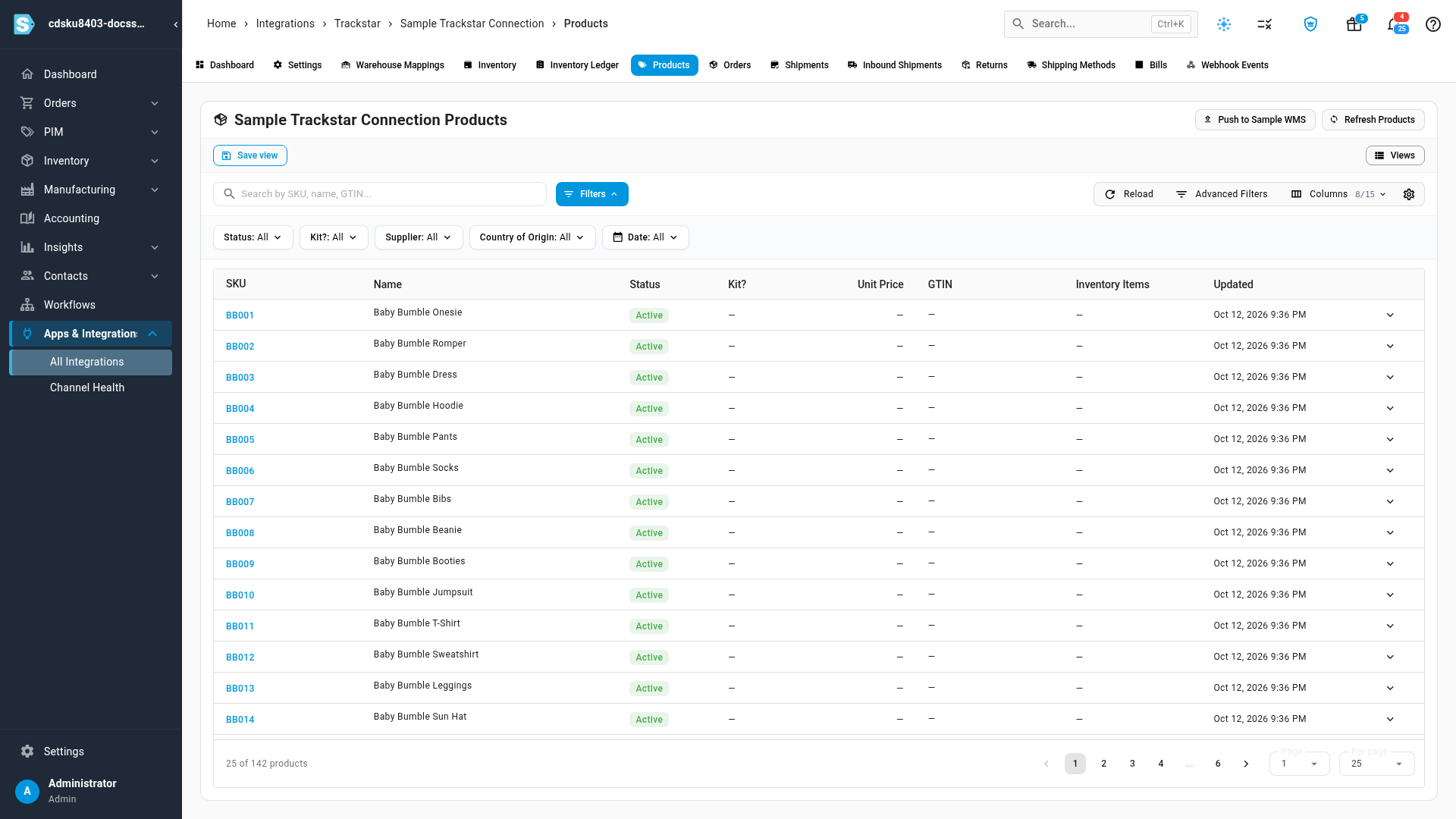
Open the Trackstar connection and go to the Products tab. It lists the products the warehouse already has.
-
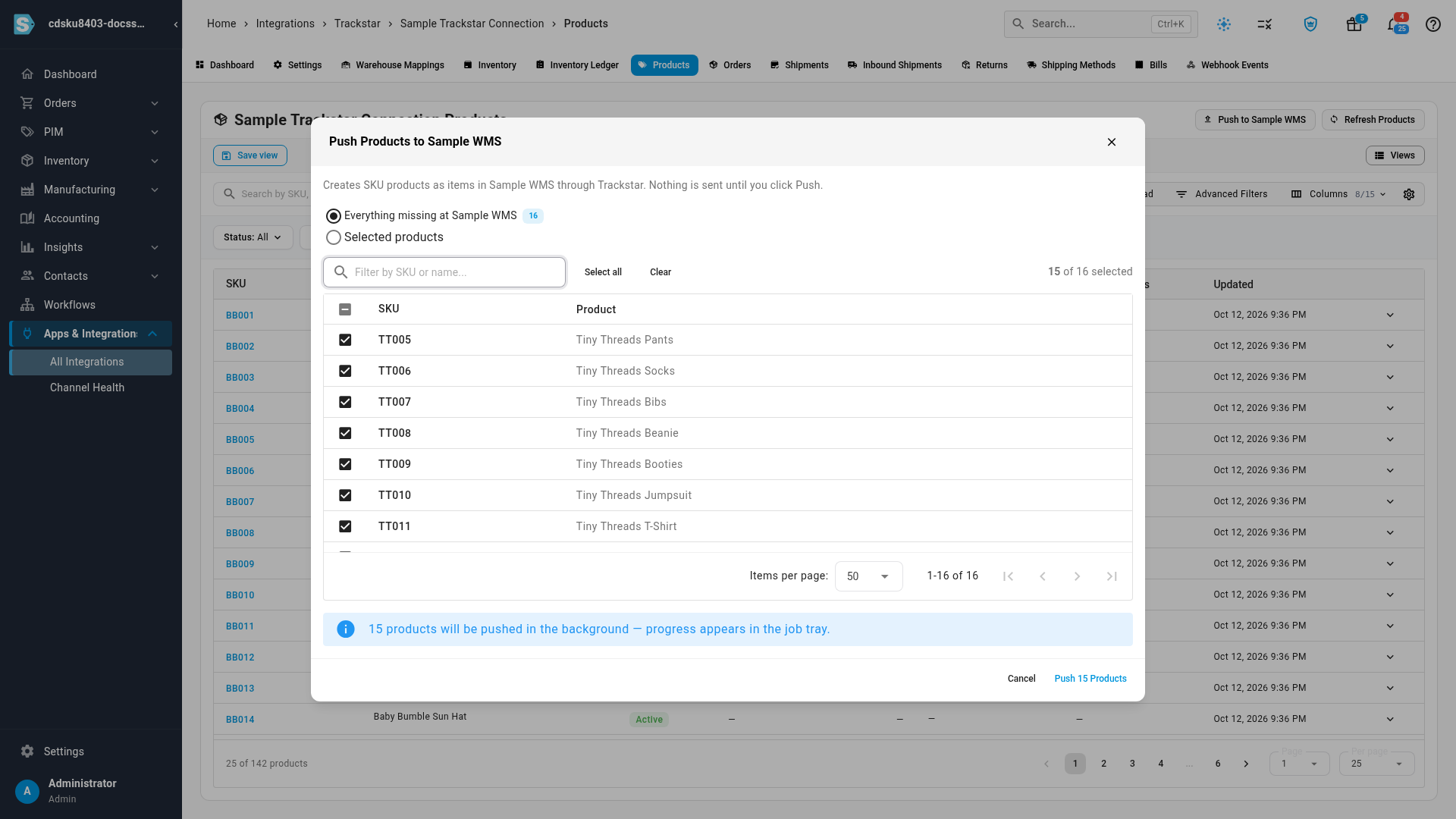
Click Push to, followed by the warehouse system's name. The dialog opens on Everything missing at the warehouse, with a count of the products the warehouse doesn't have yet. All of them are selected.
-
To leave a product out, type in Filter by SKU or name to find it, and clear its checkbox. Select all and Clear change the whole list at once.
-
Click Push. The button shows how many products will go, for example Push 15 Products.
If the warehouse system keeps products for more than one client, the dialog first asks for the Warehouse customer the products belong to, and works out the missing list for that customer.
The list only offers products the warehouse can stock: active standard, blemished, and manufactured products that have a SKU. A product counts as already at the warehouse when the warehouse has an item with the same SKU.
Push products you choose
-
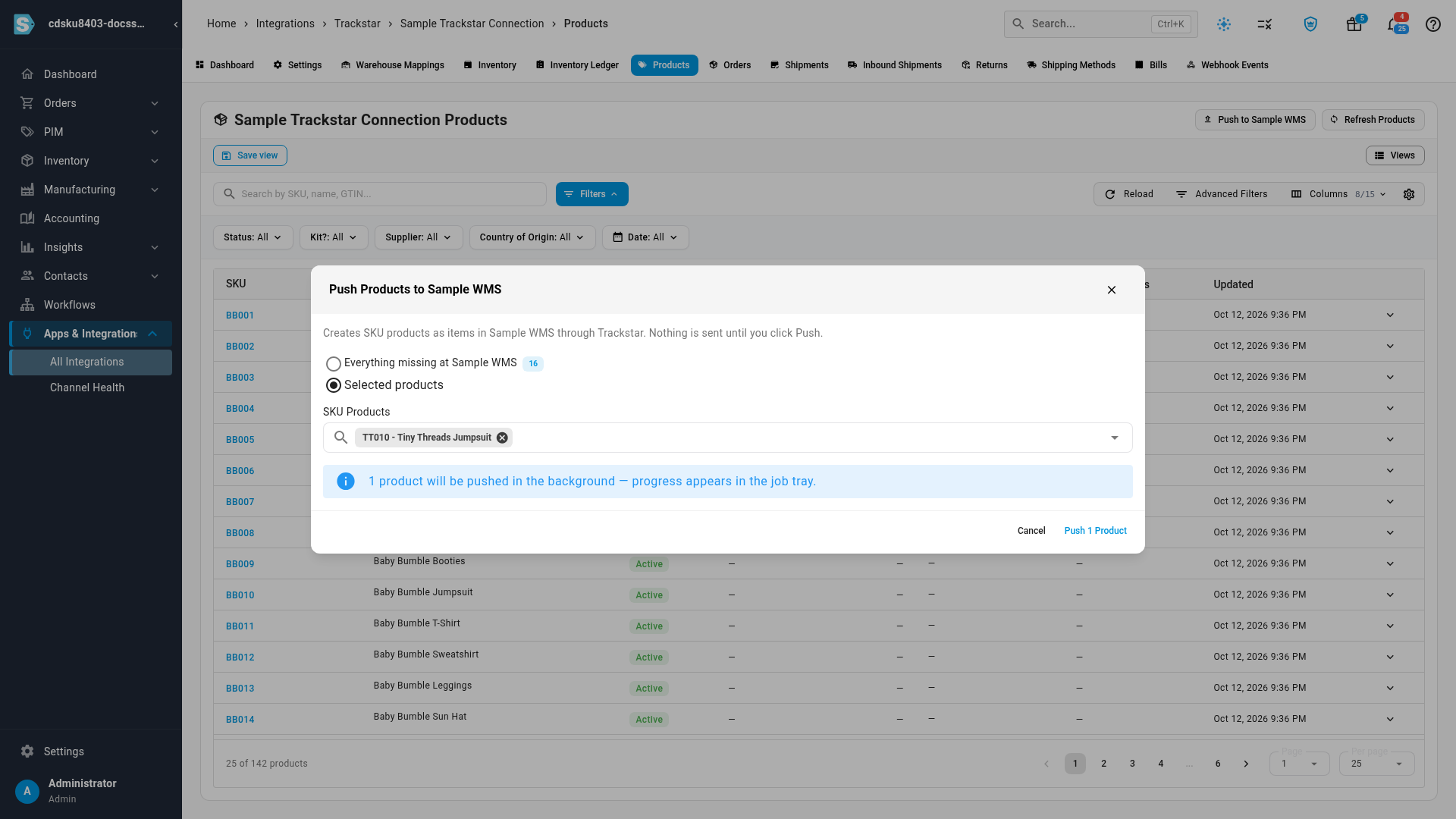
In the push dialog, choose Selected products.
-
Under SKU Products, type at least three characters of a SKU or name, and pick each product from the list.
-
Click Push.
Products the warehouse already has are skipped, as are bundles, matrix products, and archived products.
Follow the push
Nothing is sent until you click Push. The products are then sent in the background, and the push appears in the job tray. While it runs, Push to stays greyed out so the same products aren't sent twice.
When it finishes, the job tray shows how many products were pushed, skipped, or failed, and the reason for each one that wasn't pushed. One rejected product never stops the rest. A few moments after a successful push, SKU.io refreshes the Products tab from the warehouse, so the new items appear there.
SKU.io sends each product's SKU, which becomes its item code at the warehouse, along with its name and barcode.
Logiwa warehouses
When the warehouse system is Logiwa, the dialog has two extra settings:
- Update products already at Logiwa: under Selected products, re-sends products the warehouse already has. Their fields at Logiwa are overwritten with SKU.io's values, so any change the warehouse made to them there is lost.
- Advanced: Logiwa item settings: the Consumer unit, Pack unit, and Item type each item is created with. They start as
UNIT,UNIT, andPurchased. Change them only if the warehouse uses different values.
For Logiwa, SKU.io also sends each product's weight and dimensions, price, brand, harmonized code, and main image, and marks kits as kit items. Logiwa accepts about one request a second, so a large push takes a while.