Connect a warehouse through Trackstar
Each Trackstar connection reaches one warehouse system you've linked in Trackstar. Connect it with your Trackstar access token and that system's connection ID, map its warehouses, and you're ready to send orders.
Before you begin
- You need permission to connect integrations.
- Link your 3PL's warehouse system in your Trackstar account first.
- From Trackstar, copy your access token and the connection ID of that system.
Create the connection
-
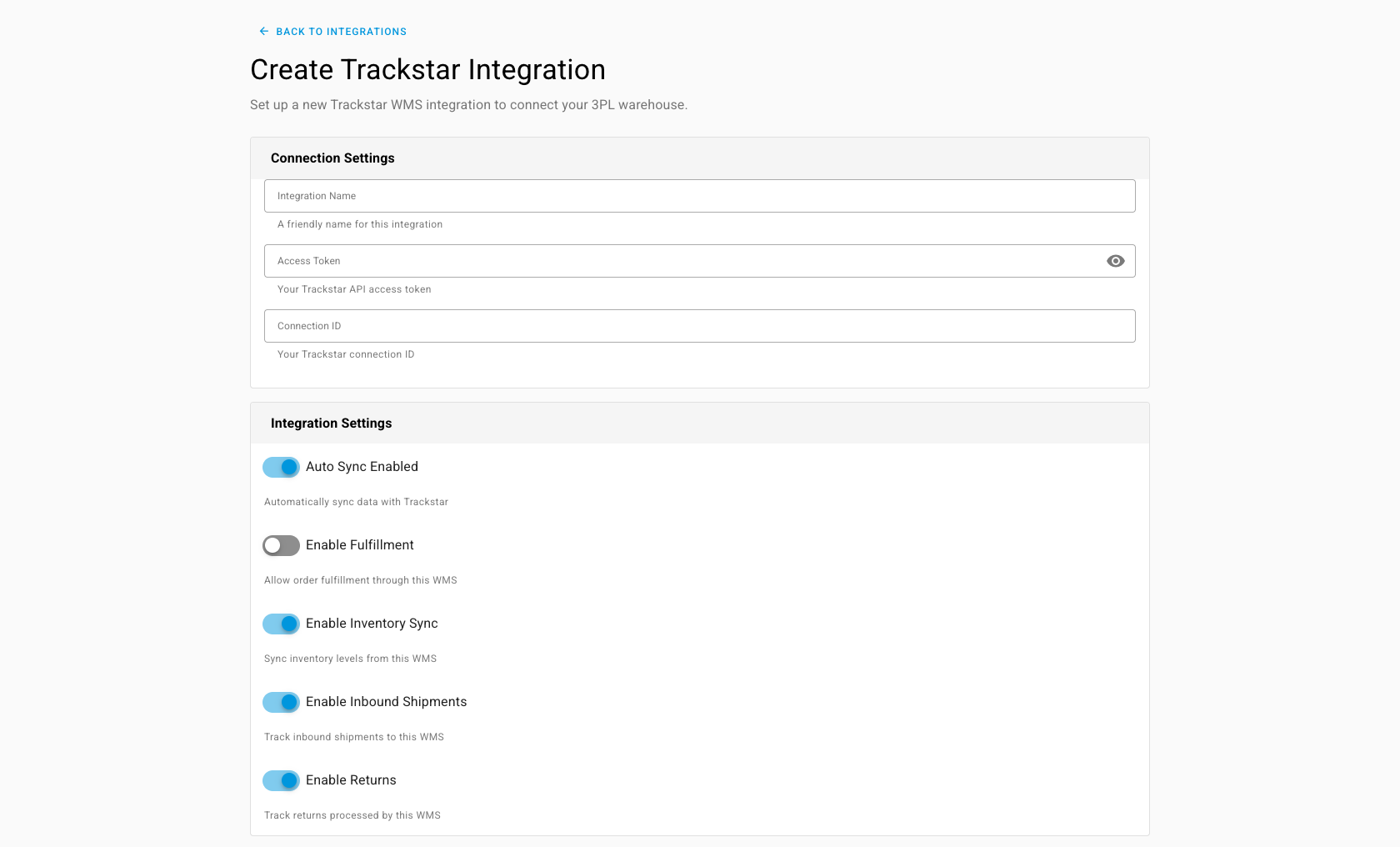
Go to Apps & Integrations, open Shipping & Fulfillment, and choose Trackstar. The Create Trackstar Integration page opens.
-
Paste the Access Token.
-
Paste the Connection ID. When you leave the field, SKU.io looks the connection up in Trackstar and fills Integration Name with the warehouse system's name. Change the name if you like.
-
Leave Auto Sync Enabled on.
-
Click Create Integration.
What you'll see: the Dashboard opens, and an initial sync runs in the job tray: warehouses, shipping methods, products, inventory, orders and shipments, then inbound shipments. Click Test Connection on the Dashboard to check the credentials at any time.
Map warehouses
-
Open Warehouse Mappings. Click Sync Warehouses from Trackstar if it's empty.
-
For each warehouse, pick a SKU.io warehouse under SKU.io Warehouse, or choose Create New 3PL Warehouse and enter a name.
-
Click Save Mappings.
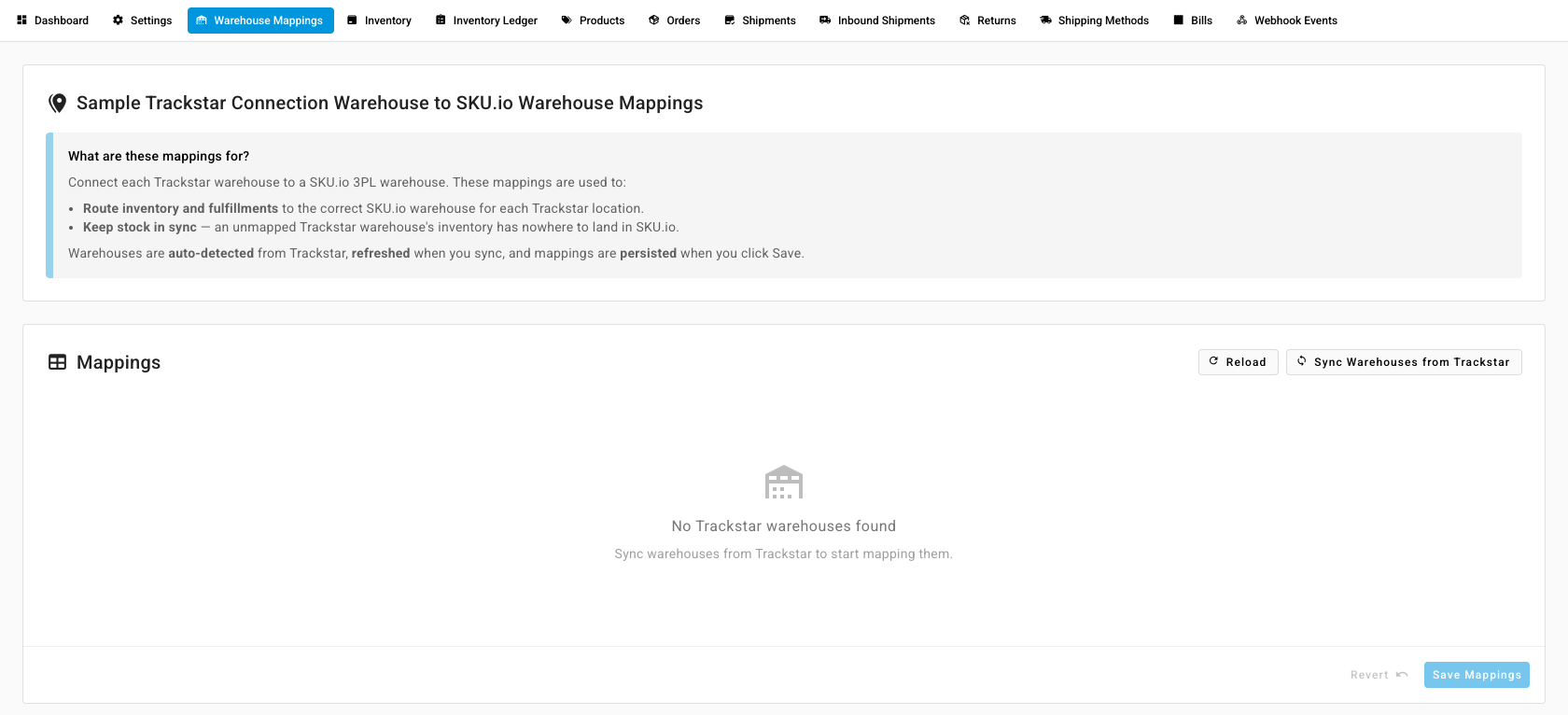
An unmapped warehouse's inventory has nowhere to land in SKU.io. Orders from a SKU.io warehouse with no active mapping are refused, and the message asks you to map it or pick another provider.
Send orders to the warehouse
To send a fulfillment order, open it, click Edit Details, pick the Trackstar connection under Shipping provider, save, and click Submit. See Dispatch to a fulfillment provider.
On Settings → Sync, the Sync Schedule pauses everything, and What syncs turns each part on or off:
| Switch | What it controls |
|---|---|
| Import tracking from Trackstar | Shipments and tracking coming back |
| Import inventory from Trackstar | The warehouse's inventory and ledger updates |
| Push orders to Trackstar | Sending orders. With it off, an order is refused with "Trackstar order push is turned off in Sync settings". |
Reconcile inventory
- Open the Inventory tab and click Refresh Inventory.
- Open Discrepancies. The other tabs are All Inventory, In Trackstar Only, and In SKU.io Only. Each row shows SKU.io Qty, the warehouse's quantity, the Discrepancy, and its Value. Products are matched by SKU.
- Select rows and click Stock Take Selected, or click Stock Take All.
- In Create Stock Take from Trackstar, set the Stock Take Date and a Status: Draft, Open (Initialized), or Closed (Finalized). Choosing Closed applies the adjustments straight away and can't be undone.
What you'll see: a stock take that applies the warehouse's quantities to your SKU.io inventory. To see why a number moved, open the Inventory Ledger tab, which lists each receipt, shipment, adjustment, and return.
Record shipping cost
On Settings → General, the Shipping Cost Financial Line Type chooses the cost line SKU.io records for each shipment's shipping cost. Changing it updates every past fulfillment from this connection, so SKU.io previews the effect and asks you to Apply & reconcile.