Map Trackstar charges
Every warehouse system bills under its own charge codes. Star WMS, for example, sends OUTBOUND B2C S02 for an outbound order, Labeling for a label, Chinese codes for storage, and IB EH01 for inbound handling. The Charge mapping card lists every code your connection has billed and says what SKU.io does with each one. The first bill sync fills it in, so you only change a row when you want a charge named or handled differently. For background, see How Trackstar billing attribution works.
Before you begin
- Turn on Trackstar billing and let the first sync finish. Until then the card says No charge types yet. They are created from your system's codes on the first bill sync.
- You need permission to edit integrations.
Read the charge mapping
- Go to Apps & Integrations → All Integrations and open your Trackstar connection.
- Click Settings, then Billing.
- Scroll to the Charge mapping card.
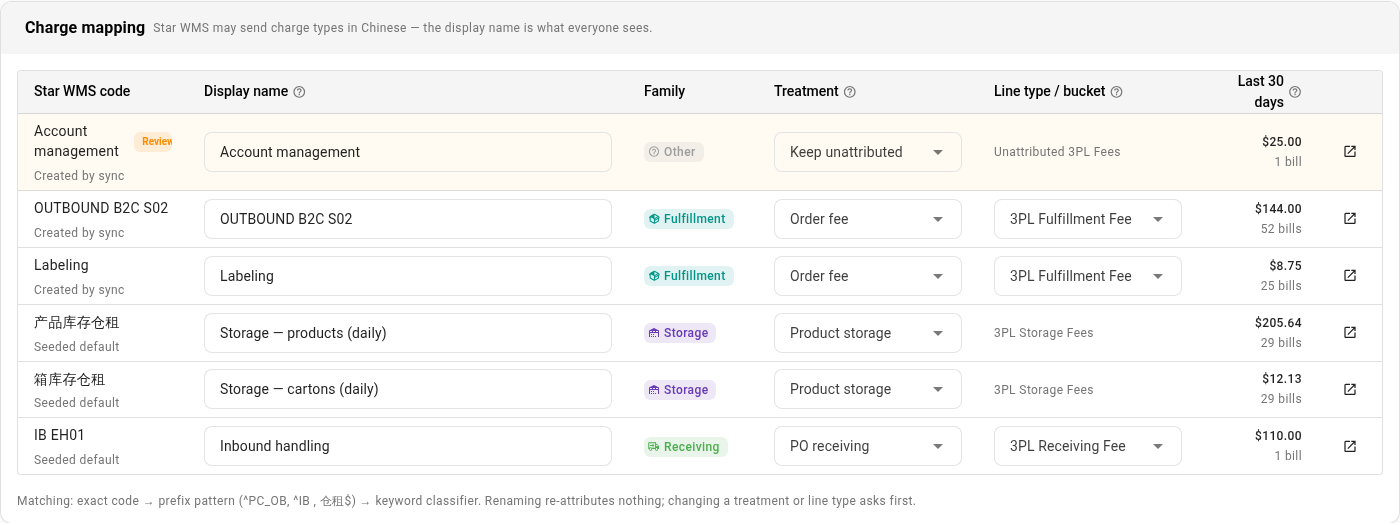
There's one row per charge code:
| Column | Shows |
|---|---|
| System code (for example Star WMS code) | The code exactly as the warehouse system sends it. Under it, Seeded default means SKU.io knew the code already, and Created by sync means a sync added it. A Review chip marks a code that needs your decision. |
| Display name | What everyone sees in SKU.io: on the Bills tab, in the bill drawer, and in each cost line's description on the sales order. |
| Family | The kind of charge: Fulfillment, Storage, Receiving, Returns, Shipping, or Other. |
| Treatment | What SKU.io writes for each bill with this code. |
| Line type / bucket | The cost line type an order or purchase order cost is written as, such as 3PL Fulfillment Fee, or the monthly cost entry the charge joins, such as 3PL Storage Fees. |
| Last 30 days | The total and the number of bills with this code charged in the last 30 days. |
The arrow button at the end of a row opens the Bills tab filtered to that code.
What each kind of charge means
Warehouse systems word their codes differently, but most fall into these groups. Here's how the Star WMS codes map by default:
| Code (Star WMS) | Display name | Family | Treatment | What it is |
|---|---|---|---|---|
OUTBOUND B2C S02 | OUTBOUND B2C S02 | Fulfillment | Order fee | Outbound handling for one shipped order, charged per order. Lands on that order. |
Labeling | Labeling | Fulfillment | Order fee | Labeling for an order. Lands on that order. |
产品库存仓租 | Storage — products (daily) | Storage | Product storage | A day of storage for your products, charged for the whole account. Joins the month's 3PL Storage Fees cost entry. |
箱库存仓租 | Storage — cartons (daily) | Storage | Product storage | A day of storage for cartons. Often $0.00. Joins the same monthly entry. |
IB EH01 | Inbound handling | Receiving | PO receiving | Handling for one inbound shipment the warehouse received. Goes to the purchase order behind it. |
Account management | Account management | Other | Keep unattributed | An account-level charge that isn't about any order, product, or receipt. Counted as overhead. |
Rename a charge
Rename any code to what you call it, for example OUTBOUND B2C S02 to Outbound handling (B2C).
- Click in the code's Display name box and type the new name.
- Press Enter or click outside the box.
SKU.io confirms with Display name saved — "…". Nothing to re-attribute. A new name changes no figures. It shows everywhere straight away, including the cost lines already on your sales orders. A display name can't be empty.
Choose a treatment
The treatment decides what kind of record each bill becomes.
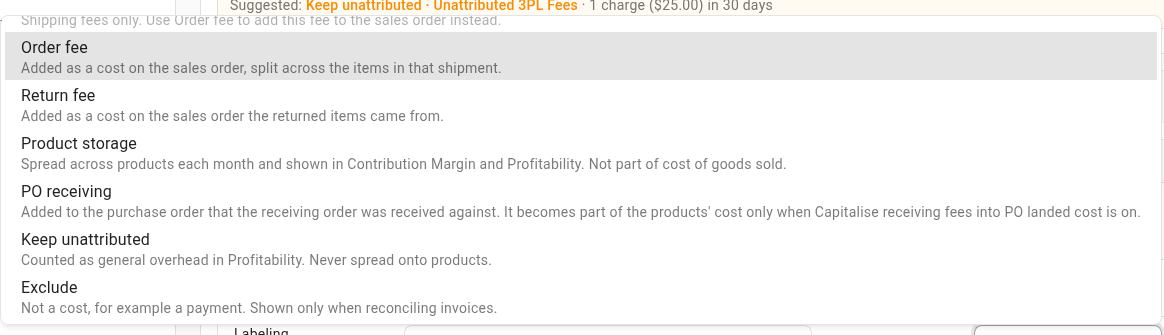
| Treatment | Use it for | What SKU.io writes |
|---|---|---|
| Order fee | Outbound handling, pick, pack, labeling, packaging, and inserts | A cost line on the sales order, spread across the order's lines |
| Return fee | Return processing | A cost line on the sales order the returned items came from |
| Product storage | Storage | The month's 3PL Storage Fees cost entry. It isn't part of cost of goods sold. |
| PO receiving | Inbound handling and receiving | The purchase order the inbound shipment was for |
| Order freight | Shipping charges only | The order's freight line, replacing the shipping cost recorded when it shipped |
| Keep unattributed | Account fees, minimums, and anything you don't want on orders | The month's Unattributed 3PL Fees cost entry, counted as overhead and never spread onto products |
| Exclude | Anything that isn't a cost | Nothing |
To change a code's treatment:
- In the code's Treatment list, choose the new treatment.
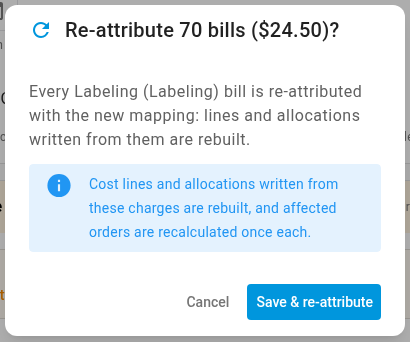
- Read the confirmation. Its title gives how many bills, and how much, are re-attributed, for example Re-attribute 70 bills ($24.50)?
- Click Save & re-attribute. Cancel keeps the current treatment.
Choose a line type
The line type is what an order cost line is called on the sales order, how it's spread across the order's lines, and which account its type points to. It applies to Order fee, Return fee, and PO receiving. Product storage and Keep unattributed show their monthly cost entry instead.
- In the code's Line type / bucket box, choose a cost line type.
- To make a new one, type its name and click Create. SKU.io confirms with Cost line type "…" created and selects it for this code.
- Click Save & re-attribute in the confirmation.
If a code with one of those treatments has no line type, the row says Choose a line type — these bills stay unattributed until you do.
To have these fees show in each product's margin, the line type must be set to allocate to products. 3PL Fulfillment Fee is, by default.
What a mapping change does to past bills
A treatment or line type change isn't only for new bills. When you click Save & re-attribute:
- Every bill with that code is attributed again under the new mapping.
- The cost lines and allocations written from those bills are removed and rebuilt, and each affected order is recalculated once.
- The work runs in the background. SKU.io confirms with the code's name and saved — re-attributing, followed by the number of bills and their total. Follow Attribute Trackstar Bills: and your connection's name in the job tray.
Only that code's bills are touched.
Review new charge codes
When the warehouse system bills a code SKU.io doesn't recognize, the sync adds it as Keep unattributed in the Other family, so its bills are counted as overhead until you decide. It's flagged for you:
- The Bills tab header shows a chip such as 1 charge type needs review. Click it to open the Billing settings.
- The Billing tab shows a card above Charge mapping, headed with the number of new codes that need a decision, such as 1 new Star WMS charge type needs a decision. Each one shows the suggested treatment and its charges in the last 30 days.

For each new code, either:
- Click Accept suggestion to keep it as overhead, or
- Click Choose… to jump to the code's row in Charge mapping, then rename it and pick a treatment and line type.
Either way the Review flag clears.