Reconcile Trackstar invoices
Your warehouse sends you an invoice file each month, and some warehouse systems also put that invoice's number on every bill they send through Trackstar. Star WMS does, with numbers such as BL#26110302. The Invoices tab groups your bills by that number, shows where each invoice's money landed in SKU.io, and compares the bills' total with the amount on the warehouse's invoice file. When they agree to the cent, the invoice is Reconciled.
Before you begin
- Turn on Trackstar billing. Invoices appear once bills with an invoice number have synced.
- Have the warehouse's invoice file for the month at hand. You type its total in.
- You need permission to edit integrations to enter statement amounts. Without it, the Statement amount box is unavailable.
Read the Invoices tab
- Go to Apps & Integrations → All Integrations and open your Trackstar connection.
- Click Bills in the connection's sections.
- Click the Invoices tab.
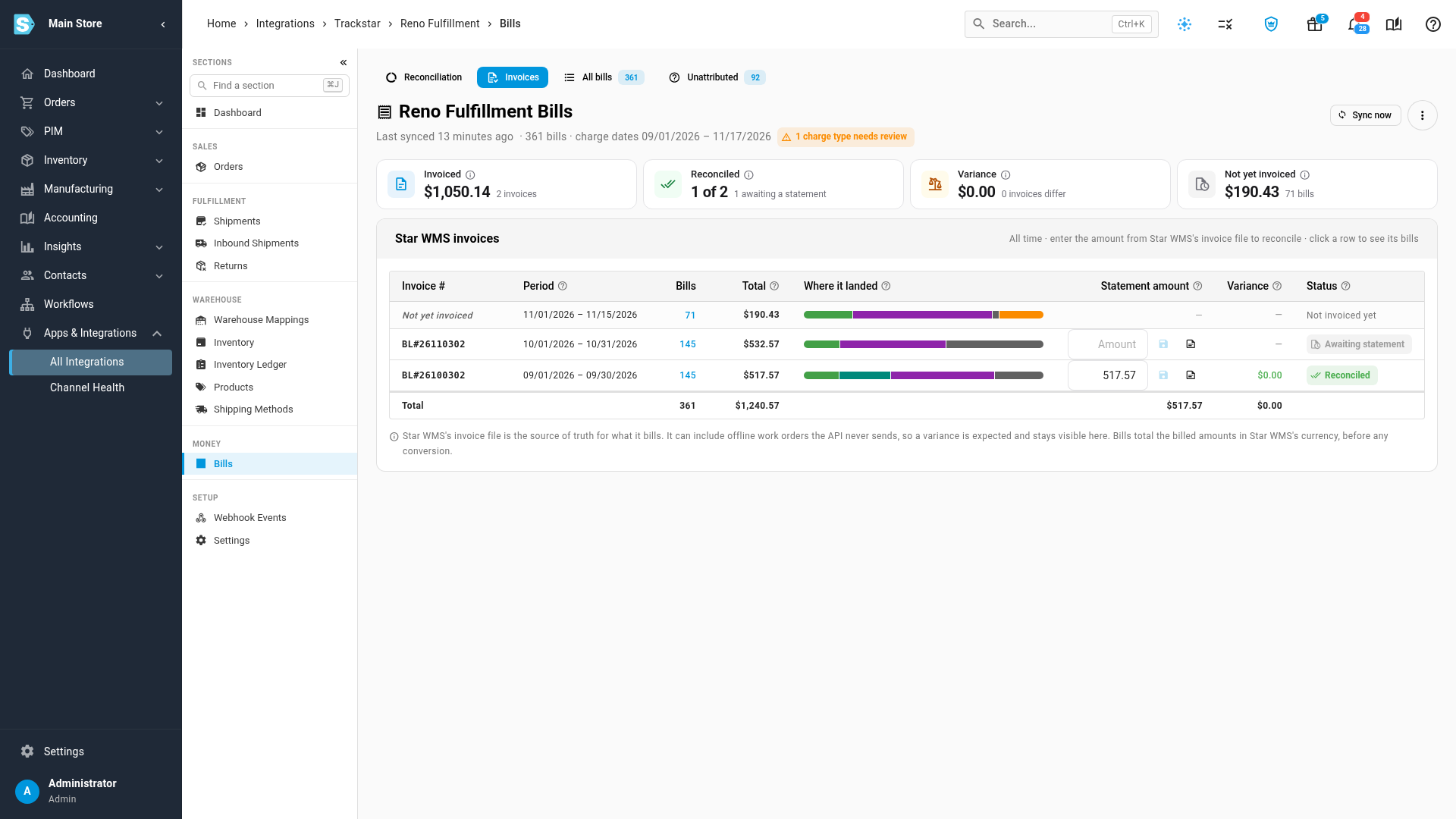
The tab always covers all time. The cards sum up the invoices:
| Card | Shows |
|---|---|
| Invoiced | The total of every bill that's on an invoice, and how many invoices there are |
| Reconciled | How many invoices agree with their statement, such as 1 of 2, and how many are awaiting a statement |
| Variance | The total difference across invoices whose statement doesn't match, and how many differ |
| Not yet invoiced | Bills the warehouse hasn't put on an invoice yet, and their total |
The table has one row per invoice, newest first:
| Column | Shows |
|---|---|
| Invoice # | The warehouse's invoice number. |
| Period | The first to last charge date of the bills on the invoice. |
| Bills | How many bills are on the invoice. Click it to see them. |
| Total | The bills' total, added up from their exact amounts before rounding, in the warehouse's currency. |
| Where it landed | A bar showing how the invoice's bills were attributed: on orders, on products, on purchase orders, to cost entries, unattributed, pending, or excluded. Click a segment to see those bills. |
| Statement amount | The total from the warehouse's own invoice file, once you've entered it. |
| Variance | The statement amount minus Total. Positive means the warehouse billed more than the bills SKU.io received. |
| Status | Reconciled, Variance, or Awaiting statement. |
A Total row at the bottom adds up every column.
Enter the statement amount
- Find the invoice's row. Until you enter an amount, its status is Awaiting statement, and the box shows Amount.
- Click the Statement amount box and type the total from the warehouse's invoice file, such as
551.07. Type the number only: no currency sign or thousands separator. - Press Enter, or click the save button next to the box.
SKU.io confirms with the invoice number and statement saved, for example BL#26110302 statement saved. To start over before saving, press Esc. If the amount isn't a number, the box says Enter an amount like 3266.41.
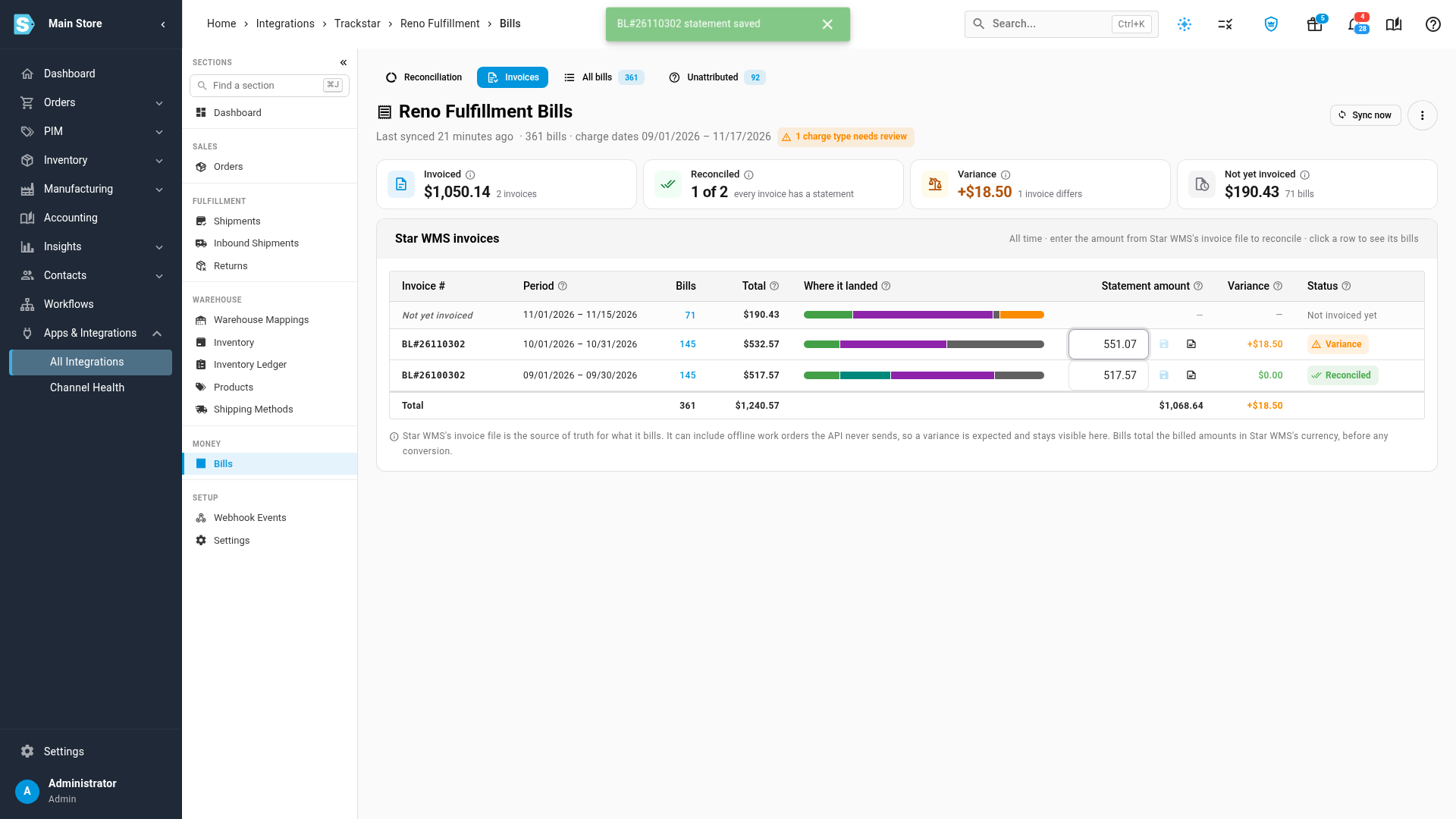
The status updates straight away:
| Status | When |
|---|---|
| Reconciled | The statement amount and Total agree to within a cent. |
| Variance | They differ by a cent or more. Variance shows the difference. |
| Awaiting statement | No statement amount has been entered yet. |
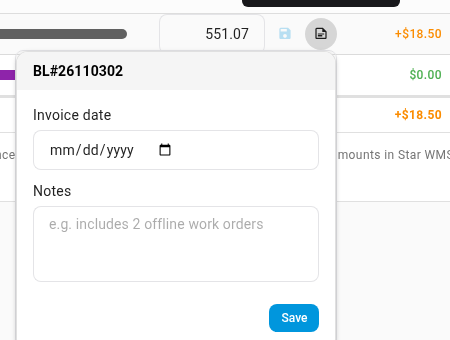
To record the invoice's date or a note, click the notes button next to the box, fill in Invoice date and Notes, and click Save. A note such as "includes 2 offline work orders" explains a variance to whoever looks next, and shows when you point at the button.
Explain a variance
The warehouse's invoice file is the source of truth for what it bills you. It can include work the warehouse system never sends through Trackstar, such as offline work orders, special projects, or manual adjustments, so a variance is normal. SKU.io shows it and never spreads it onto orders or hides it.
To find the cause:
- Compare the line count and charge types on the invoice file with the bills on the invoice. Click the invoice's row to see its bills.
- If the invoice file has charges SKU.io doesn't, they're offline work. Note them in Notes.
- If you think bills are missing, click Sync now on the Bills page, or choose Full resync from the more actions button (⋮), then check the invoice again. Warehouse systems sometimes add offline orders to a bill after it was first sent, and the sync picks up the change.
See an invoice's bills
Click an invoice's row, or its Bills count. The All bills tab opens filtered to that invoice, with Showing: Invoice … above the table. Click a segment of the Where it landed bar instead to see only, for example, that invoice's unattributed bills.
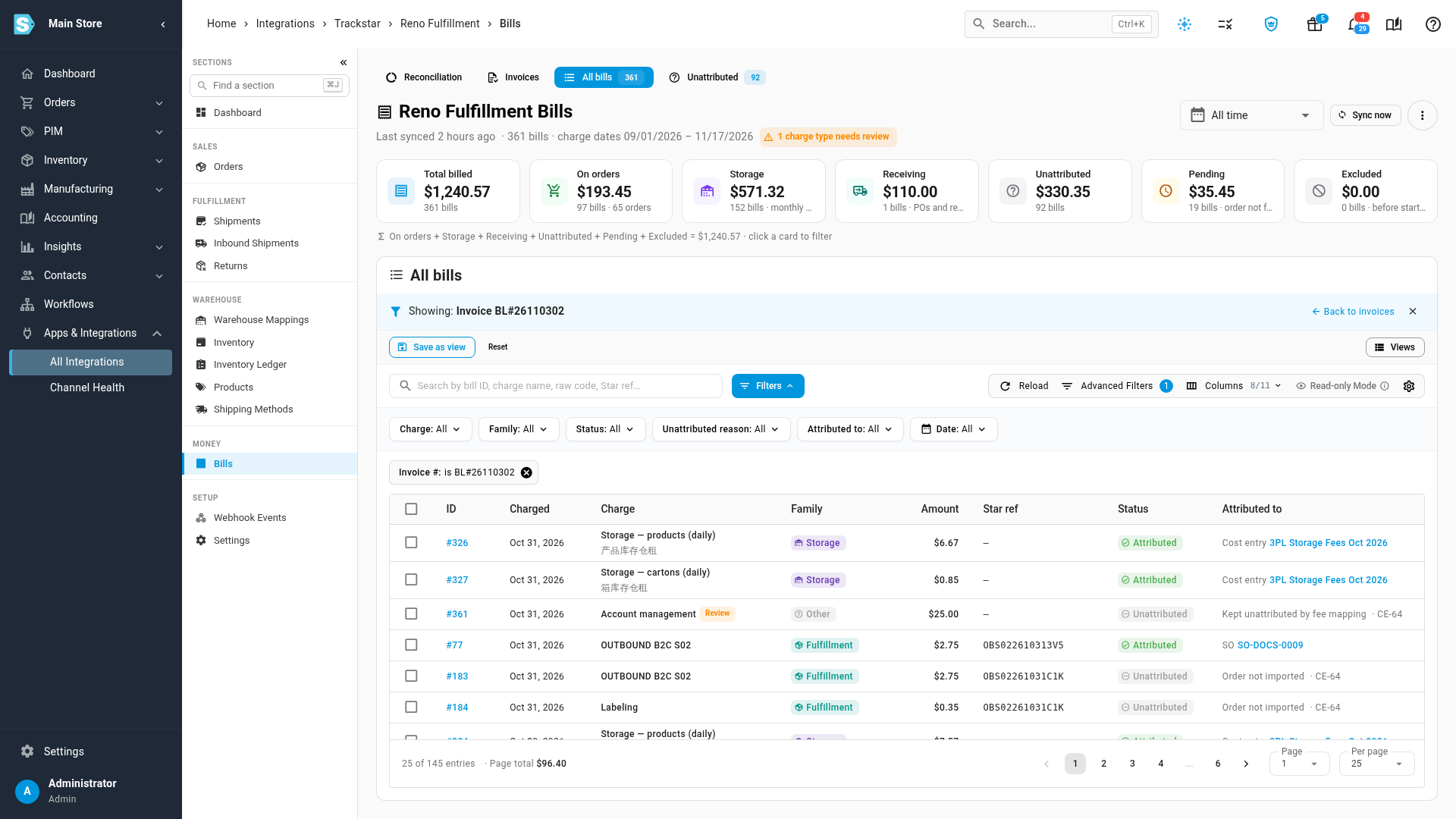
Click Back to invoices to return, or the close button on the Showing bar to clear the filter. On the All bills tab you can also show the Invoice # column from Columns: each number links back to its row on the Invoices tab.
Bills that aren't on an invoice yet
The warehouse invoices after the month ends, so recent bills have no invoice number yet. They're grouped in a Not yet invoiced row at the top, covering the charge dates since the last invoice, and counted on the Not yet invoiced card. They have no statement amount. Once the warehouse invoices them, the next sync brings in the number and they move to that invoice's row.
If your warehouse system started sending invoice numbers after you connected, older bills have none. They're grouped in a No invoice number (before backfill) row at the bottom.
If none of your bills carry an invoice number, the tab says Your WMS doesn't send invoice numbers yet and fills in by itself once they arrive. Until then, reconcile by charge date on the Reconciliation tab.