Turn on Trackstar billing
Billing attribution takes every charge your warehouse system bills through Trackstar and puts it on the sales order, purchase order, or monthly cost entry that caused it. You turn it on, and decide how it behaves, on the connection's Billing settings tab. To learn where each charge lands before you start, read How Trackstar billing attribution works.
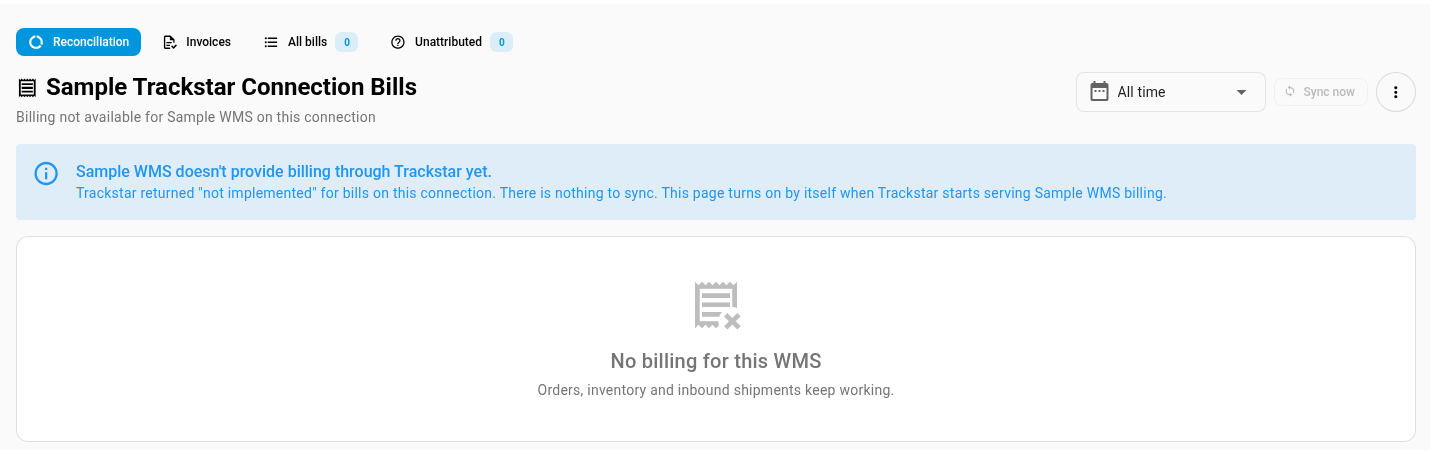
Billing works only for warehouse systems that send their billing through Trackstar, such as Star WMS. See If your warehouse system doesn't send billing.
Before you begin
- Connect your warehouse through Trackstar.
- You need permission to edit integrations to change billing settings, and permission to sync integrations to run a sync.
- Bring in the sales channels whose orders the warehouse ships, so their orders are in SKU.io for fees to land on.
Open the Billing settings
- Go to Apps & Integrations → All Integrations and open your Trackstar connection.
- In the connection's sections, click Settings, then Billing.
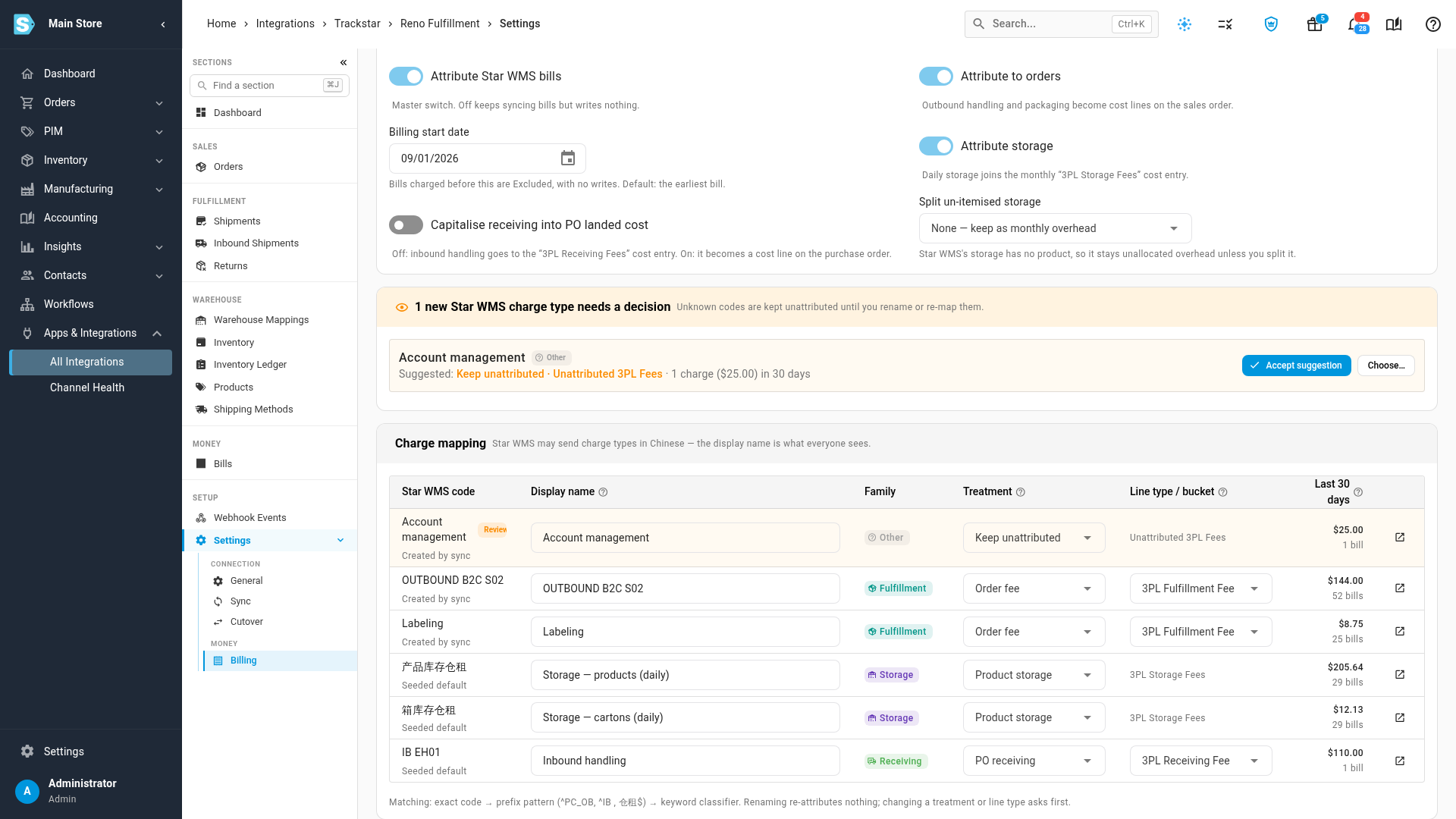
The tab has a Billing attribution card and a Charge mapping card. A card that asks you to review new charge types appears between them when a new code arrives.
Turn on billing attribution
-
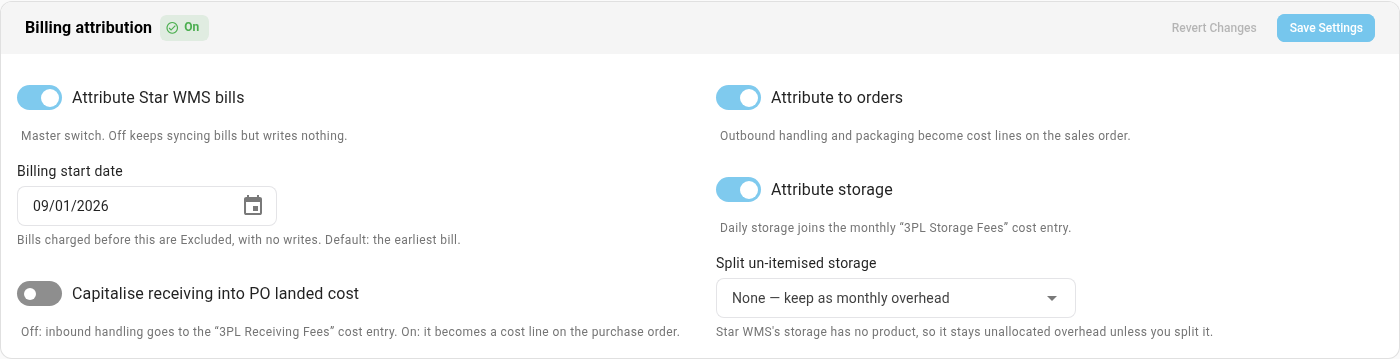
Turn on Attribute your warehouse system bills, for example Attribute Star WMS bills. This is the master switch. With it off, bills still sync and stay on the Bills tab, but nothing is written to orders, purchase orders, or cost entries.
-
Set Billing start date. Bills charged before it are Excluded: they're kept and counted, but write nothing. Until you choose a date, it's the charge date of the earliest bill, and the hint under the field adds Default: the earliest bill. Pick the first day you want 3PL costs in your margins, such as the day you moved fulfillment to this warehouse.
-
Choose where fees land:
Setting Default When on When off Attribute to orders On Outbound handling, labeling, and packaging fees become cost lines on the sales order. Those fees stay unattributed, as overhead, with the reason Kept unattributed by fee mapping. Attribute storage On Daily storage joins the monthly 3PL Storage Fees cost entry. Storage stays unattributed, as overhead. Split un-itemised storage None — keep as monthly overhead By on-hand units — allocate to products spreads each month's storage across your products by the units the warehouse holds. Storage stays on the month's entry, unallocated, because the warehouse system doesn't say which product it was for. Capitalise receiving into PO landed cost Off Inbound handling becomes a cost line on the purchase order, part of the stock's cost. Inbound handling goes to the 3PL Receiving Fees cost entry, allocated to the purchase order for reporting. Split un-itemised storage is unavailable, with the tooltip Turn on Attribute storage first, while Attribute storage is off.
-
Click Save Settings. Revert Changes undoes anything you haven't saved, and Unsaved changes shows until you save.
When the save changes where bills land, SKU.io confirms with Billing settings saved — re-attributing every bill (see the job tray), and every bill is attributed again under the new settings in the background. Follow Attribute Trackstar Bills: and your connection's name in the job tray. A save that changes nothing about where bills land says Billing settings saved.
Run the first sync
Bills reach SKU.io in two ways: Trackstar sends each new or changed bill as it happens, and a scheduled sync runs every 2 hours while the connection's automatic sync is on. You don't need to wait for either.
- Click Bills in the connection's sections.
- If nothing has synced yet, the tab says No bills synced yet. Click Run first sync.
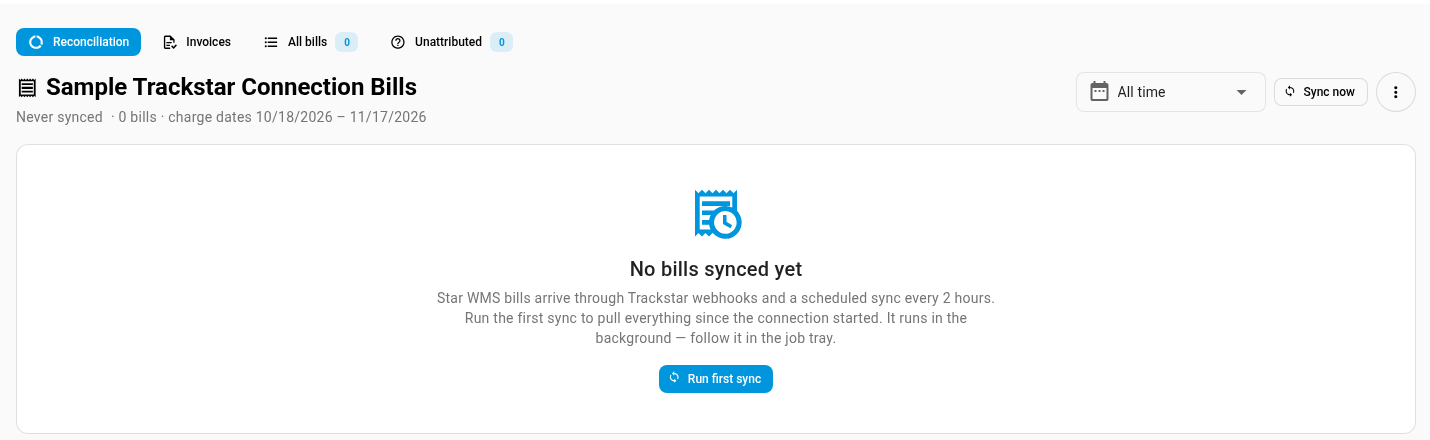
The sync runs in the background, and SKU.io confirms that it started. Follow Sync Trackstar Bills: and your connection's name in the job tray. When it finishes, Attribute Trackstar Bills: runs next and places each new bill. The tab fills in when both are done.
The first sync also fills the Charge mapping card with every charge code it finds. Check those mappings next: see Map Trackstar charges.
After that, click Sync now on the Bills tab whenever you want the latest bills straight away. To read every bill again from the start, open the more actions button (⋮) and choose Full resync. Both are unavailable, with the tooltip A bill sync is already running — see the job tray, while a sync is running.
If billing attribution is off
If the master switch is off, the Bills tab shows Billing attribution is off, with how many bills are stored and their total. Click Enable billing attribution to turn it on from there, or Review settings first to open the Billing tab. Turning it on from the alert confirms with Billing attribution is on — attributing every bill now.

If your warehouse system doesn't send billing
If the warehouse system doesn't serve billing through Trackstar, the Bills tab says so, for example Sample WMS doesn't provide billing through Trackstar yet., and Sync now is unavailable. There's nothing to set up: the page turns on by itself when Trackstar starts serving that system's billing.