Manage financial line types
An order carries more than products. Shipping charged to the customer, a handling fee, a marketplace commission, a payment fee: each of these sits on the order as a revenue line or a cost line, and every one of those lines has a financial type. The type decides three things: which account the line posts to, whether it counts as revenue or cost, and how its amount is shared out across the order's products in profit reporting.
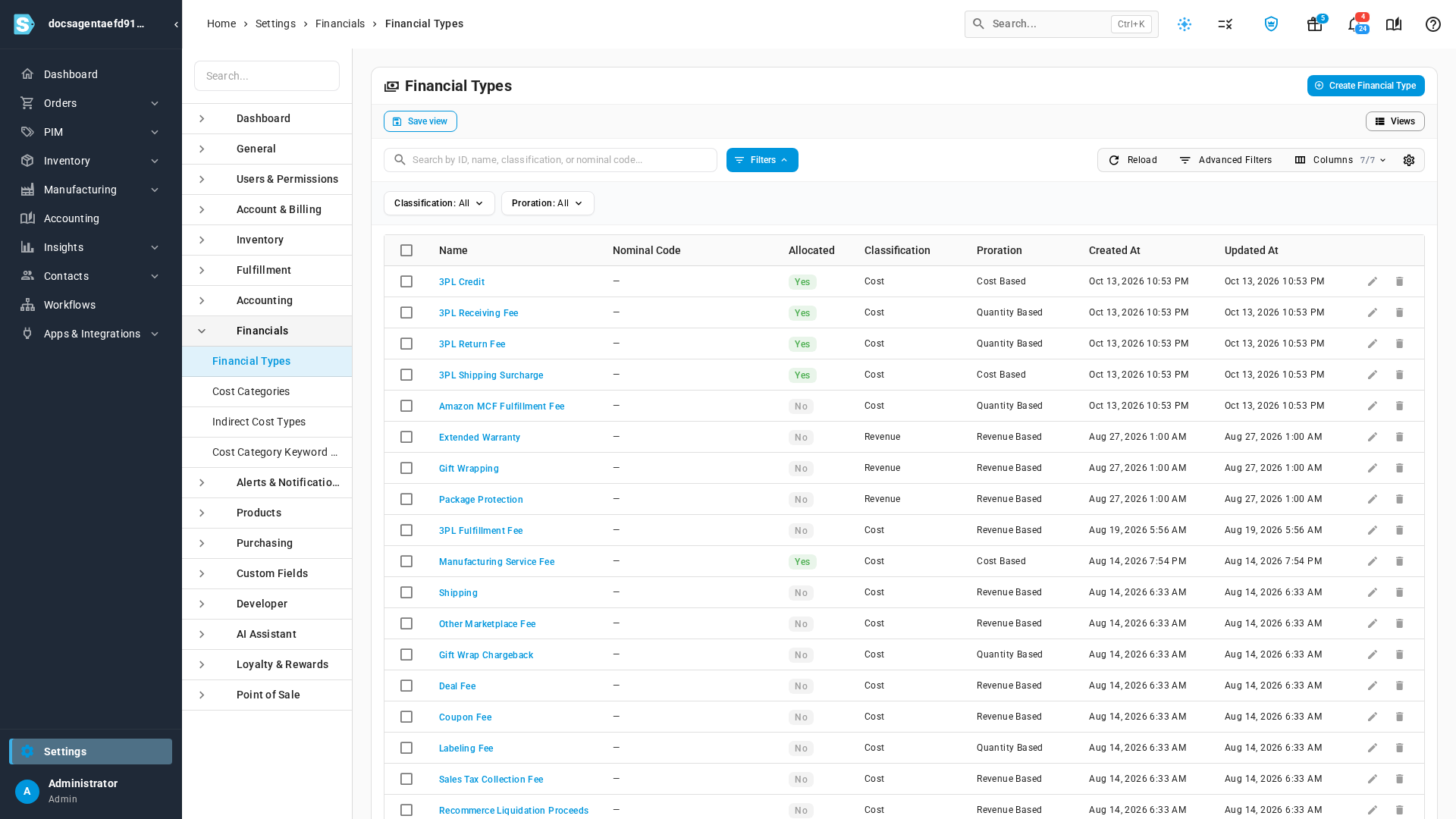
You manage the list of types under Settings → Financials → Financial Types. Many are created for you as your sales channels import orders. You add your own here, or on the fly from an order.
Before you begin
- To create, edit or delete a type you need the matching Financial Line Types
permission:
financial_line_types.create,financial_line_types.updateorfinancial_line_types.delete. - Set up your chart of accounts first, so the account you want is there to pick. See Chart of accounts reference.
Steps
-
Go to Settings, click the Financials card, then click Financial Types.
-
Click Create Financial Type.
-
In Name, enter the name your team will see on orders, for example Handling Fee.
-
In Classification, choose Revenue for money the customer pays on top of the products, or Cost for money you pay to make the sale.
-
In Proration Strategy, choose how the amount is shared out across the order's product lines. The note under the field explains the option you pick; the table below has all of them.
-
In Nominal Code, choose the account lines of this type post to.
-
For a cost type, optionally choose a Cost Category to group it in margin reporting.
-
Leave Allocate to Products on to count the amount toward each product's profit, or turn it off to keep it at the order level.
-
Click Create.
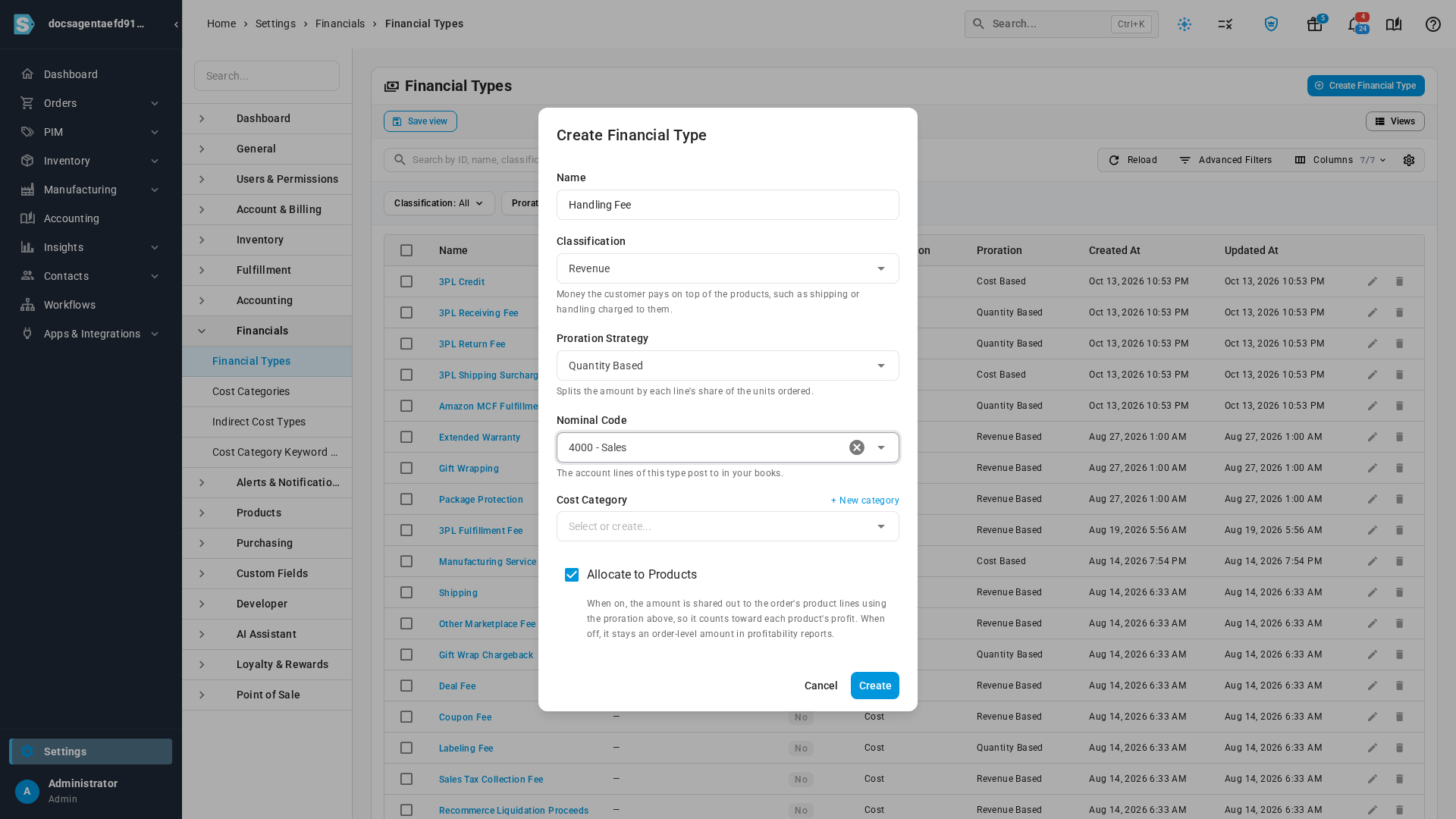
What you'll see: the new type at the top of the list. It's ready to pick on any order's Revenue Lines or Cost Lines, according to its classification.
The fields
| Field | What it does |
|---|---|
| Name | The label on the order's revenue or cost line, and in reports. |
| Classification | Revenue adds to what the customer pays and to the order's revenue. Cost records an expense against the order without changing the customer's total. A revenue type appears only under Revenue Lines on an order, and a cost type only under Cost Lines. |
| Proration Strategy | How the amount is shared out across the order's product lines for profit reporting. See Proration strategies. |
| Nominal Code | The account a line of this type posts to. A line copies it when it's added to an order. If you leave it blank, lines your sales channels import post to that channel's sales account. |
| Cost Category | Groups cost types for margin reporting and landed-cost breakdowns. See Manage cost categories. |
| Allocate to Products | When on, the amount is shared out to the order's product lines using the proration strategy, so it counts toward each product's profit. When off, it stays an order-level amount in profitability reports. The list shows this as Allocated: Yes or No. |
Proration strategies
| Strategy | How the amount is shared across product lines |
|---|---|
| Revenue Based | By each line's share of the order's product revenue. |
| Cost Based | By each line's share of the order's product cost. |
| Weight Based | By each line's share of the order's total weight. |
| Volume Based | By each line's share of the order's total volume. |
| Quantity Based | By each line's share of the units ordered. |
| Specific Line | The whole amount goes to the one product line the charge is tied to, instead of being split. |
| Manual | Never split across product lines automatically. |
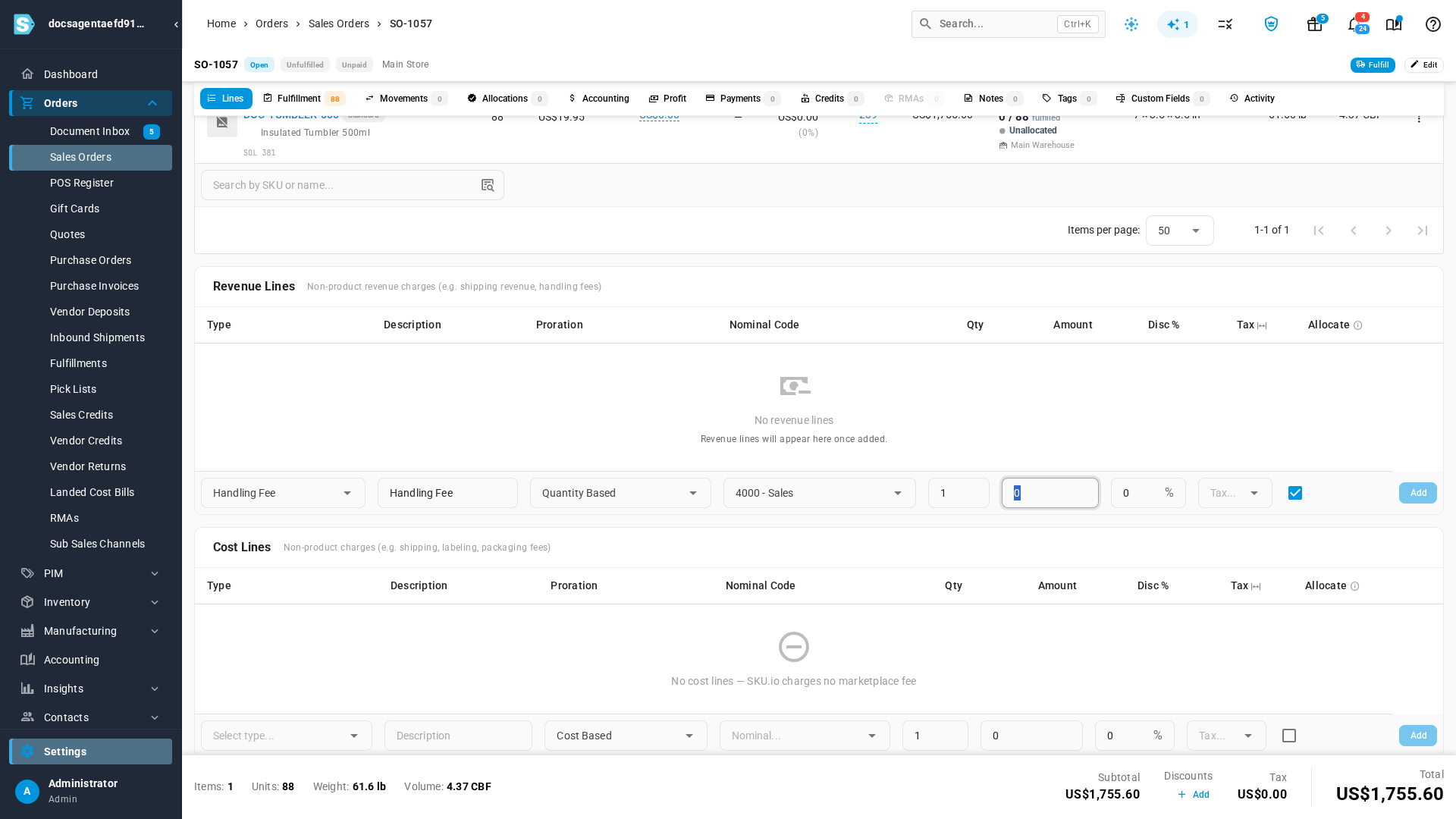
The type's settings are the starting point. When you add a line to an order and pick the type, the line's proration, nominal code and Allocate box fill in from it, and you can still change them on that one line.
Edit or delete a type
- To edit a type, click the pencil icon on its row, change the fields, and click Update. If you change the Classification, Proration Strategy, Nominal Code or Allocate to Products of a type that past sales orders already use, SKU.io asks Apply changes to past sales orders? and tells you how many orders have lines of that type. Choose Recalculate past sales orders now to recompute them in the background, or Only apply to new sales orders to leave past figures as they are. Then click Confirm & Save.
- To delete a type, click the trash icon on its row. You can't delete a type that any order line still uses; the message reads Cannot delete this financial line type because it has financial lines associated with it.
Where financial types are used
- Sales orders list their non-product charges under Revenue Lines and Cost Lines on the Lines tab. To add one, see Add a charge line. You can also create a new type straight from the order's type picker.
- Purchase orders use cost types for freight, duty and other landed costs. See Add landed costs.
- Products use a revenue type as their default revenue line in revenue recognition. See Set a product's accounting & financial line type.
- Profitability reports spread allocated lines across products and show unallocated ones at the order level. See Analyze profitability.
Next steps
- How order financials flow to accounting: where revenue and cost lines land in your books.
- Accounting settings at a glance: the rest of the settings that shape your books.
Video transcript
Financial types label the extra charges on an order, like shipping, handling, or marketplace fees. To manage them, open Settings at the very bottom of the left sidebar. Click the Financials card in the list of settings to expand it. When its list opens, click Financial Types. The page lists every financial type in your account, including the ones your sales channels created. Each row in this list is one financial type. The columns show its nominal code, and whether it's allocated to products. Then come its classification, and how its amount is prorated. To add a new type, click Create Financial Type in the top right corner. Give it a name your team will recognize on an order, like a handling fee. Next, click the Classification field. Choose Revenue for money the customer pays you, or Cost for money you pay out. The note under the field now describes the classification you picked. Below it, Proration Strategy decides how the amount is shared out across the order's products. Pick one, and its own note explains exactly how it splits the amount. Under Nominal Code, search for the account these lines should post to in your books. Then pick it from the list that appears. Leave Allocate to Products on to count the amount toward each product's profit. When everything looks right, click Create at the bottom of the dialog. The new type now sits at the top of the list, ready to use. Next, put the new type to work on a sales order. Click Orders in the left sidebar, and its menu expands underneath it. Then choose Sales Orders from that menu. The list shows your most recent orders at the top. Click an order number to open it. The order opens on its Lines tab, so open Revenue Lines. In the add row at the bottom, pick the new type from the Type menu. Its proration, nominal code and allocation fill in for you.