Account for Shopify and eBay payouts
With Per order accounting, each Shopify or eBay order posts to your books as its own invoice for the order total. Your bank sees something else: one payout every few days, net of fees, refunds and adjustments, so the invoices never match the deposit. Per payout accounting posts each payout instead, as invoices and bills whose net equals the deposit exactly. Shopify Payments and eBay payouts work the same way.
A Shopify store you connect now starts on Per payout. Stores connected earlier, and eBay accounts, stay on Per order until you switch them. Reconnecting a store keeps the mode it has.
Before you begin
- Connect the Shopify store or eBay account. Shopify payouts need Shopify Payments. eBay payouts come from eBay's own payments.
- Set up the accounts you'll post to, such as sales, refunds and payment processing fees, under Accounting → Settings → Nominal Codes.
- Pick the date to start from. Payouts issued before it are left out, so choose the first day of a period your books haven't already covered with per-order invoices.
- Shopify only: if your previous system already booked Shopify sales up to that date, know which account it booked them to (often a "Shopify Payments clearing" account). The first payouts after the start date carry some of those sales, and SKU.io books them against that account instead of counting the revenue twice.
Open the channel's finance settings
-
Go to Apps & Integrations, open Shopify or eBay, and choose the store in the integration selector.
-
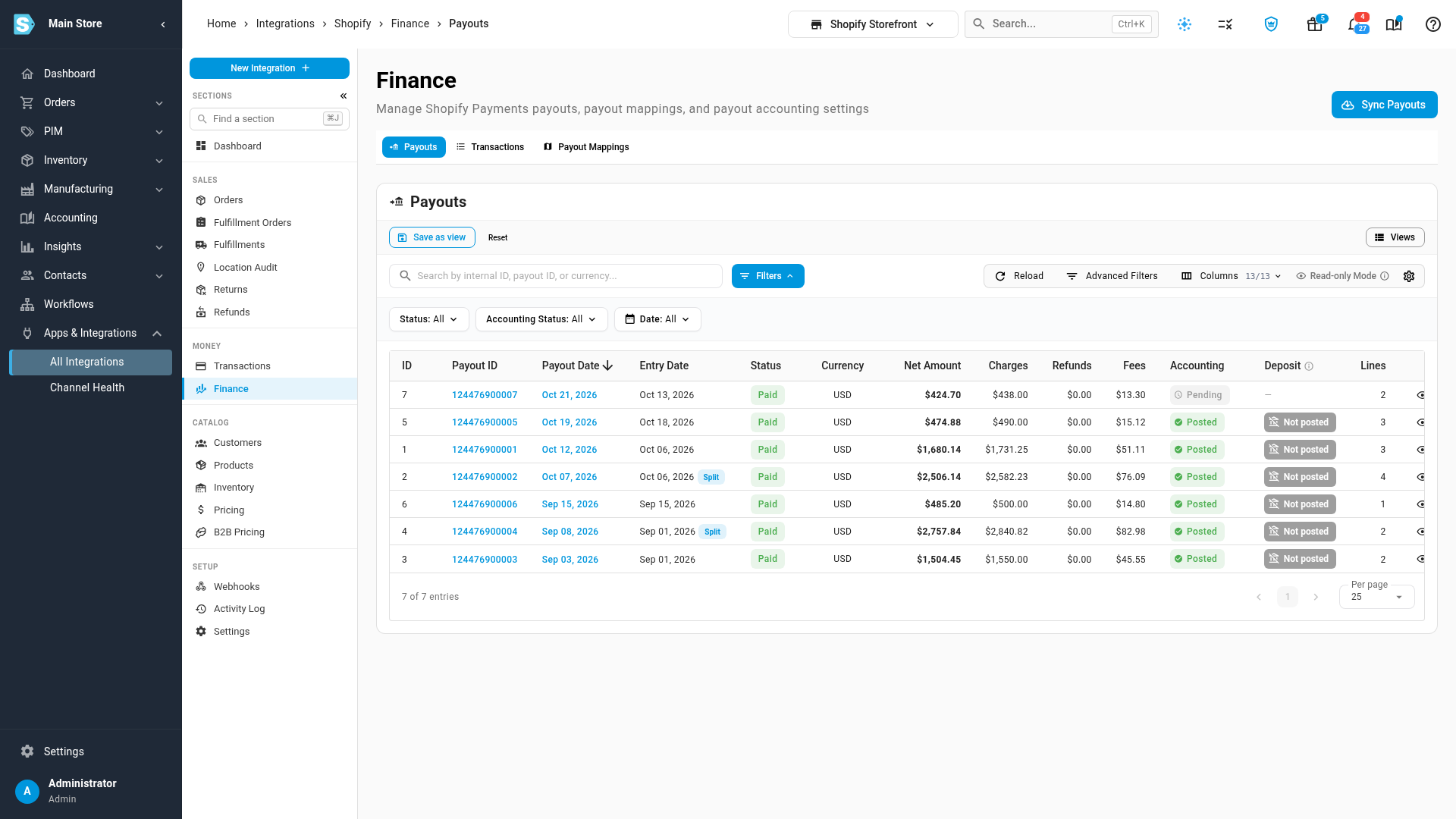
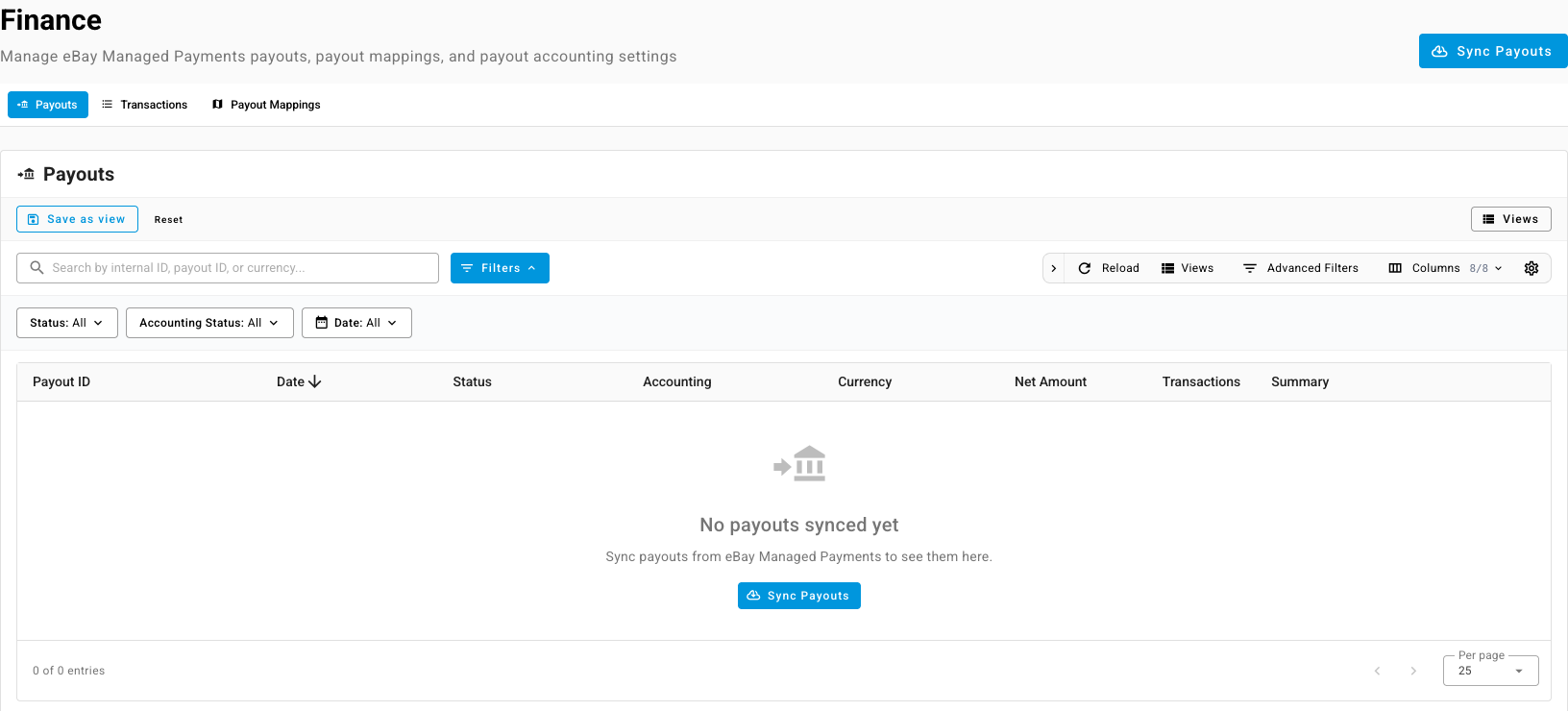
Open the Finance tab. Payouts lists every payout with its Payout Date, its Entry Date (the date its documents post on, see below), its status, net amount and an Accounting status.
-
If the list is empty, click Sync Payouts to pull them in.
-
Open Payout Mappings.
Set up the mappings
-
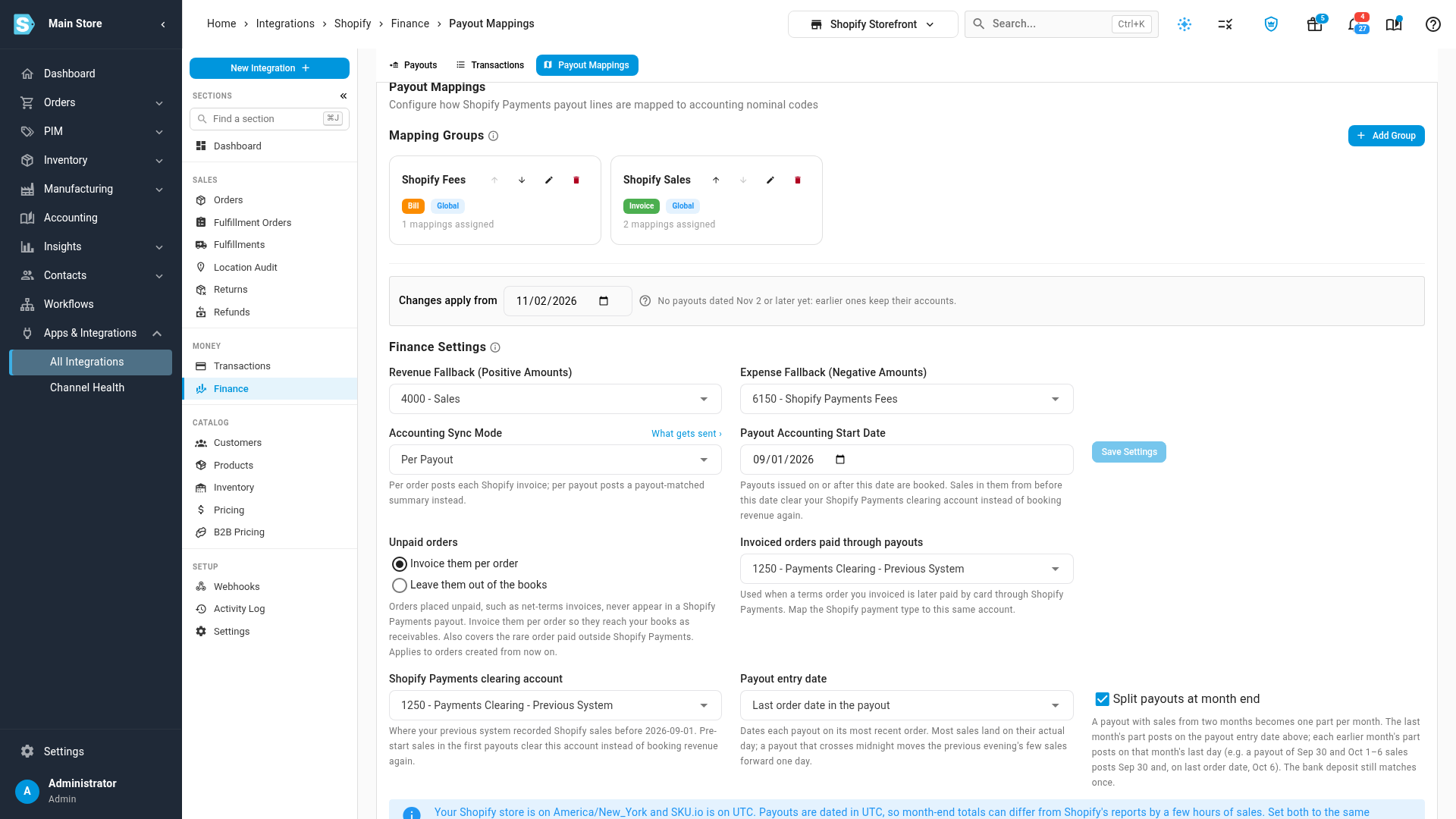
Under Mapping Groups, check the groups. Each group becomes one document per payout: an Invoice for money you receive, or a Bill for money kept back, such as fees. A new store starts with a sales invoice group and a fees bill group. Click Add Group to add another, and choose whether it applies to every store (Global) or only this one.
-
Under Type Mappings, give each kind of payout line, such as charges, refunds, fees and adjustments, a Nominal Code and a Mapping Group. A mapping for this store overrides a global one.
Each change starts on the Changes apply from date, today unless you pick another, so payouts dated earlier keep their accounts. To split sales into product, shipping, discounts and tax, or to correct past payouts, see Change payout mappings from a date.
-
Under Finance Settings, set Revenue Fallback (Positive Amounts) and Expense Fallback (Negative Amounts). Any line you haven't mapped posts to these, so a new kind of line never holds a payout up. The payout's invoices and bills post through Accounts Receivable and Accounts Payable like any other invoice or bill.
Finish setting up a new Shopify store
A newly connected Shopify store is already on Per payout, so you don't switch it. SKU.io sets it up like this:
- Payout Accounting Start Date is the store's order history start date, the date you chose when you connected it. Orders from before it aren't imported, so payouts start where your orders do.
- Unpaid orders is Invoice them per order, Payout entry date is Last order date in the payout, and Split payouts at month end is on.
- The fallback accounts are picked for you when your chart of accounts has them: your sales account for Revenue Fallback, and an account named for merchant or payment processing fees for Expense Fallback.
- SKU.io never creates an account in your books on its own. The clearing accounts are yours to add, from the setup card below.
The store uses Per payout even if it doesn't take Shopify Payments. Its orders are then all paid outside Shopify Payments, so each one is invoiced on its own, and no payout has anything to wait for.
While an account the store needs is missing, three places tell you:
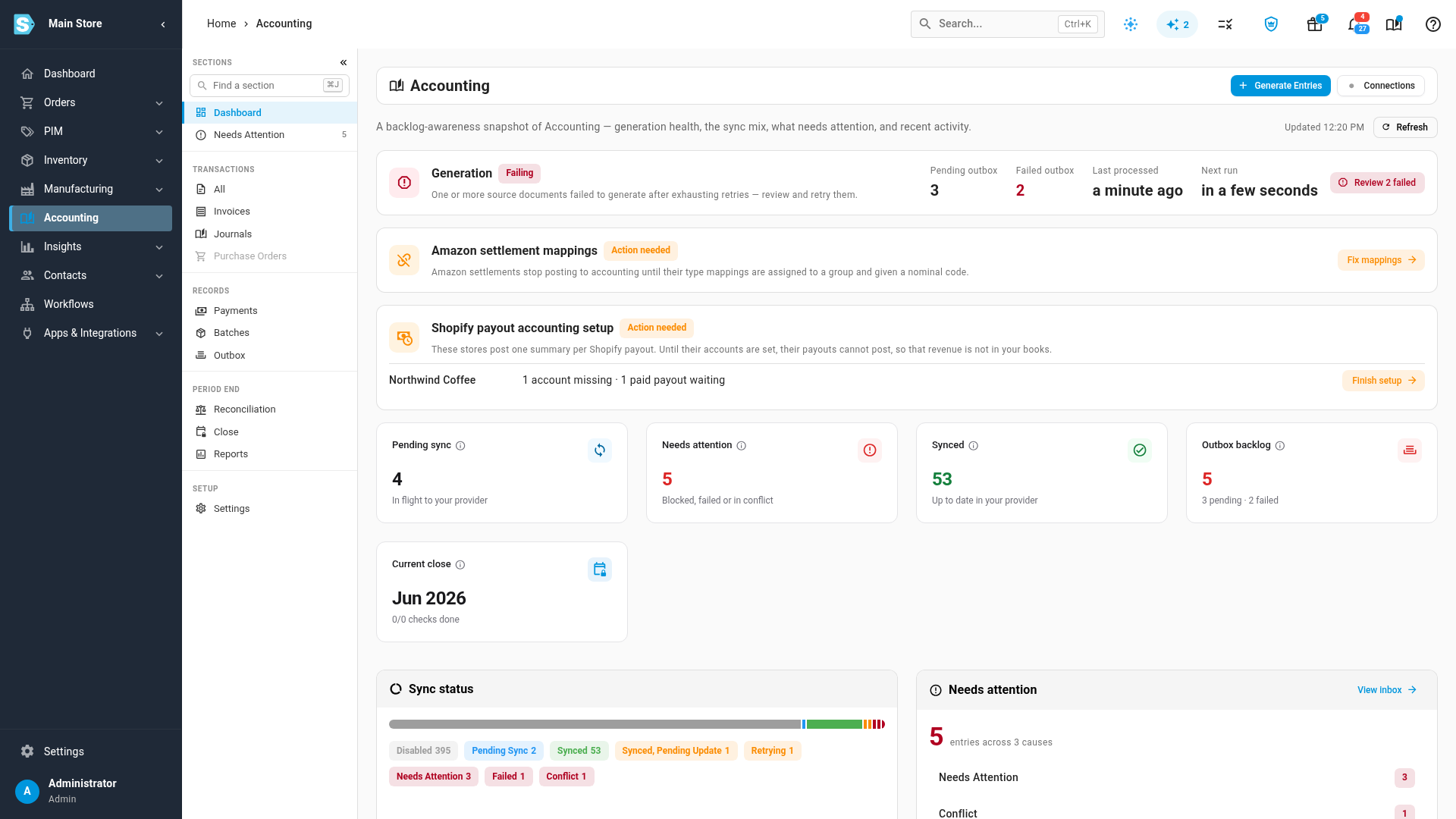
- The Accounting dashboard shows a Shopify payout accounting setup card that lists each store with its missing accounts and the paid payouts waiting.
- The store's Dashboard shows Finish payout accounting setup with the missing accounts.
- Payout Mappings shows the full card, with every account a payout needs.
-
Click Finish setup on either card, or open the store's Finance tab and then Payout Mappings.
-
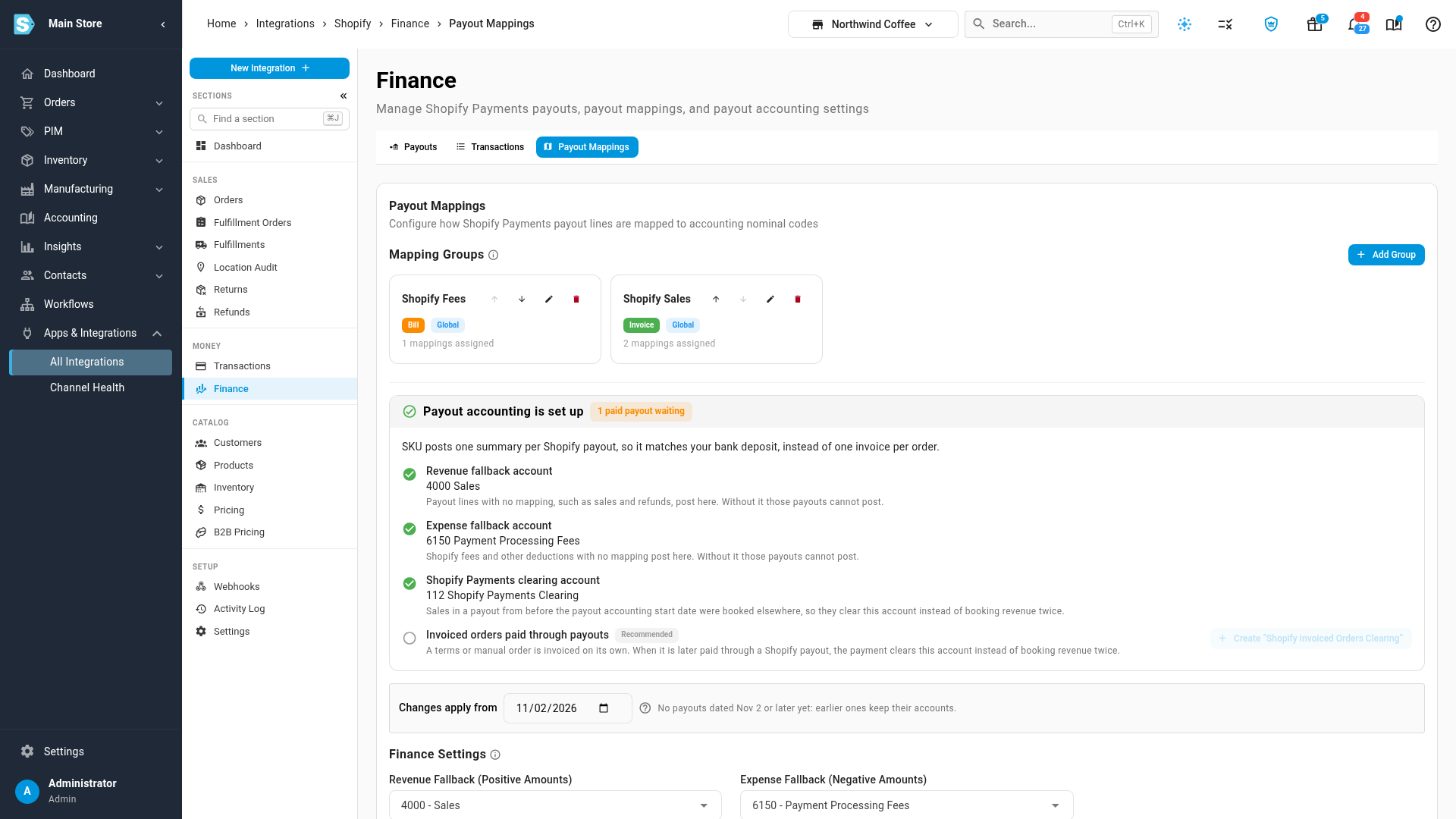
Read the Finish payout accounting setup card. Each account shows a green check when it's set, Required when payouts can't post without it, or Recommended. Holding 1 payout (or more) means paid payouts are waiting for that account.
Account What it's for Revenue fallback account Payout lines with no mapping, such as sales and refunds. Always required. Expense fallback account Shopify fees and other deductions with no mapping. Always required. Shopify Payments clearing account Sales in a payout from before the start date. Your previous system already booked them, so they clear this account instead of counting twice. Invoiced orders paid through payouts Terms or manual orders invoiced on their own, then paid by card through a payout. The payment clears this account instead of counting twice. Shopify Payments reserve account Money Shopify holds back from a payout and releases later. Offered once Shopify has held funds back from the store; Recommended, never required. See Track Shopify Payments reserves. -
For either clearing account, click Create "Shopify Payments Clearing" or Create "Shopify Invoiced Orders Clearing". SKU.io creates a current-asset account and selects it for the store. With QuickBooks Online or Xero connected, it's created in your accounting provider too. Payouts that were waiting on it are queued to post, and the card's count of waiting payouts drops once they have.
-
To use an account you already have instead, pick it under Finance Settings further down the page.
If the store takes payments through other processors, such as PayPal or Sezzle, the card also lists them with a Map payment methods › link. Those orders aren't in Shopify payouts, so each processor needs its own payment type; see Map Shopify payment methods.
Create is unavailable, and hovering over it says why, when:
- An account with that name already exists. Select it in Finance Settings rather than creating a second one.
- Your role can't create accounts. Creating one needs the Nominal Codes → Create permission as well as permission to edit integrations. Ask an administrator, or select an existing account.
When every required account is set, the card reads Payout accounting is set up, and the cards on the Accounting dashboard and the store's Dashboard go away.
Switch an existing store to per-payout accounting
Stores connected before Shopify stores started on Per payout, and eBay accounts, need the switch:
- In Finance Settings, set Payout Accounting Start Date.
- Change Accounting Sync Mode from Per Order to Per Payout.
- Click Save Settings, read the warning, and confirm.
From then on, invoices and credits for orders paid through Shopify Payments or eBay stop posting to your books and stop syncing to your accounting provider, because each payout already carries that revenue. The invoice stays on the order for your records. See Payout channels and order invoices.
SKU.io never voids a document in your accounting provider on its own. If order invoices from after the start date already reached it, the Payout-channel order AR report lists them under Still in provider, where you can void them after confirming the count. Or set the start date after the last order you synced.
Decide what happens to unpaid orders (Shopify)
Orders placed unpaid, such as net-terms invoices, never appear in a Shopify Payments payout. Once the store is on Per Payout, Finance Settings shows Unpaid orders:
- Invoice them per order: each unpaid order posts its own invoice and credits, so it reaches your books as a receivable. This also covers the rare order paid outside Shopify Payments.
- Leave them out of the books: unpaid orders aren't booked at all.
The choice applies to orders created from then on. If orders were left out since the start date, a notice counts them and links to a list to review.
When you invoice unpaid orders, also pick an account under Invoiced orders paid through payouts. If a customer later pays one of those invoices by card through Shopify Payments, the payment shows up in a payout; SKU.io books it to this account rather than as a second sale. Map the Shopify payment type to the same account.
Choose the date each payout posts on (Shopify)
A payout gathers several days of sales and arrives about six days after them, so "the date of a payout" is a choice. Under Payout entry date, pick one:
| Option | Each payout posts on | Use it when |
|---|---|---|
| Last order date in the payout | Its most recent order. Most sales land on their actual day. | You want sales in the right day and month. This is the default for a store switched to Per Payout. |
| First order date in the payout | Its earliest order. Shopify starts each batch the previous evening, so most sales post a day early. | You've always dated payouts this way. |
| Payout date | The day Shopify issued the payout, about six days after the sales. | You want documents dated like the bank deposit. |
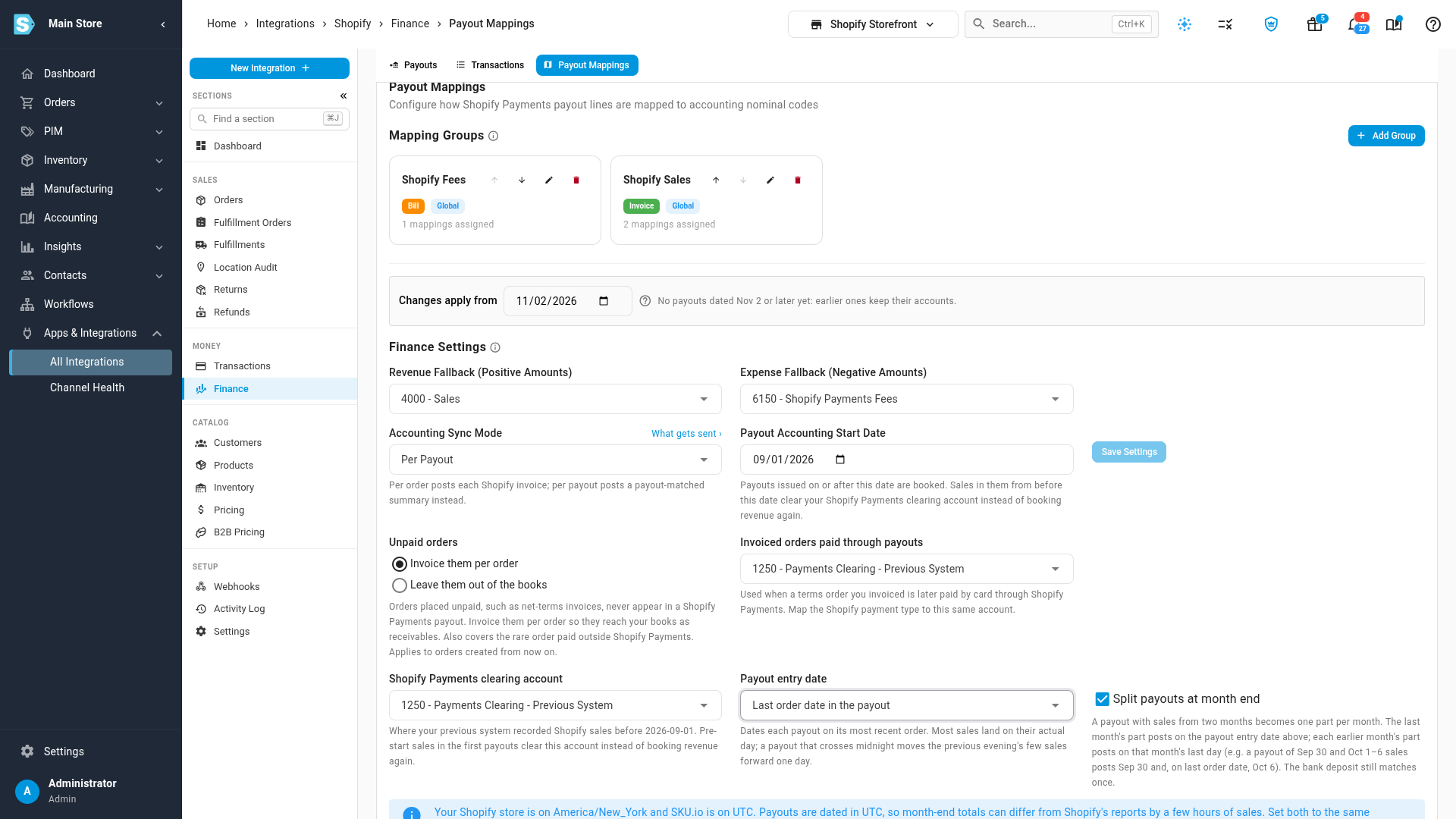
Then decide on Split payouts at month end. When it's on, a payout with sales from two months posts as one part per month: each earlier month's part on that month's last day, and the last month's part on the date you chose under Payout entry date. A payout holding September 30 and October 1–6 sales, with Last order date in the payout, posts on September 30 and October 6. The parts still add up to the one bank deposit.
If you pick First order date in the payout with splitting off, a warning explains why: a payout that starts on the last evening of a month is dated in that month, along with the next day's sales, and at year end that crosses your fiscal year.
If Payout Accounting Start Date is set, pick a Shopify Payments clearing account too. A payout's sales from before the start date post on the start date, to that account, so revenue your previous system already booked isn't counted again.
Payouts are dated in SKU.io's timezone. If your Shopify store uses a different one, a notice says so: month-end totals can then differ from Shopify's reports by a few hours of sales. Set both to the same timezone to match.
Saving a change here re-dates every payout whose documents haven't reached your accounting provider yet, and the message after saving says how many. Payouts already synced keep their dates.
Check what gets sent (Shopify)
What gets sent to your accounting provider shows how the store sends each kind of document to your accounting provider:
| Shown as | Covers |
|---|---|
| Payout invoices & bills | Sales, refunds, fees, chargebacks and adjustments in each payout. |
| Unpaid sales invoices | Invoices for orders paid outside Shopify Payments. |
| Unpaid sales credits | Credits on those orders. |
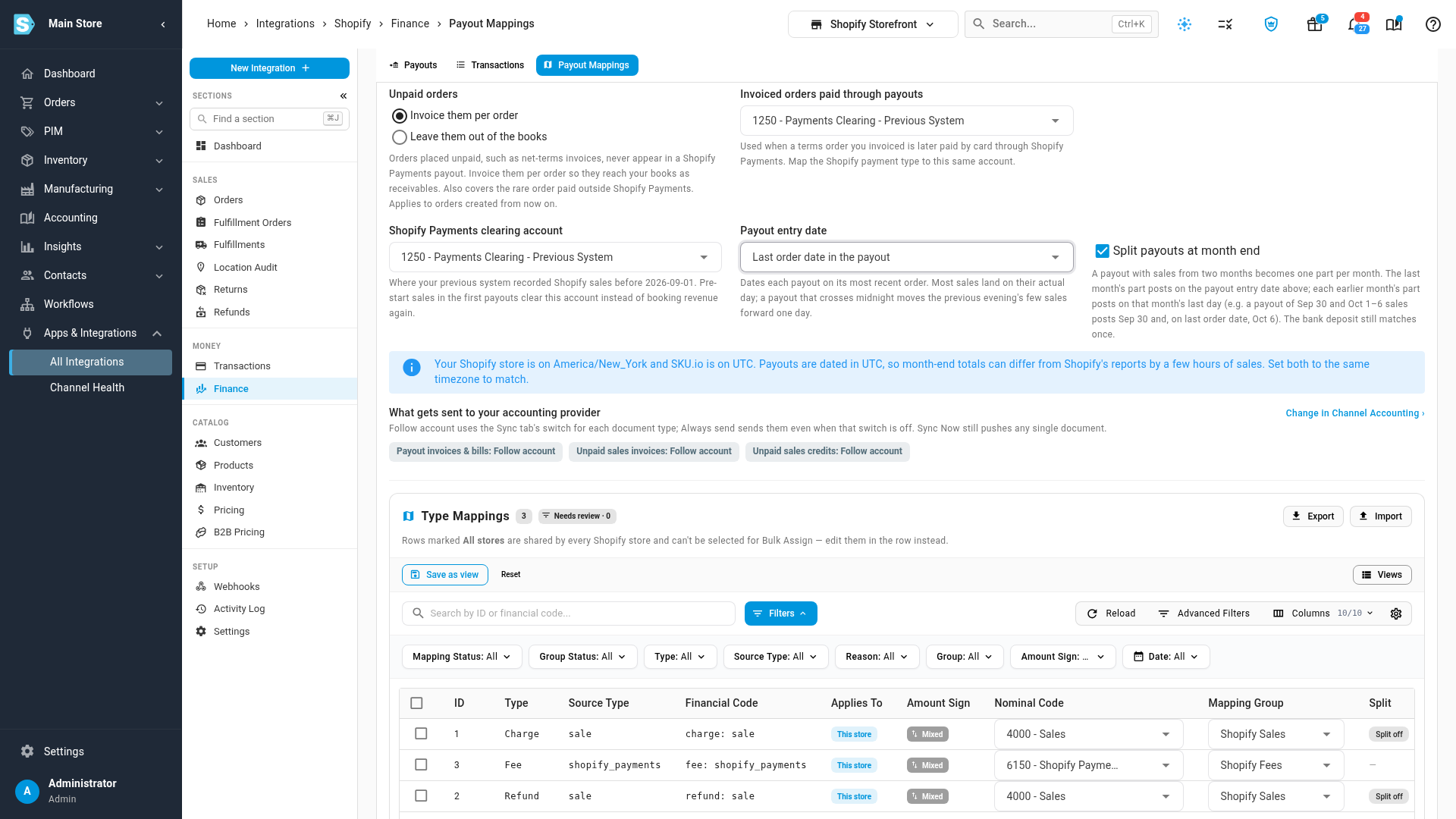
Each one reads Follow account, Always send or Never send:
- Follow account sends the documents when that kind of document is switched on under Accounting → Settings → Sync.
- Always send sends them even when it's switched off there.
- Never send keeps them in SKU.io until you push one with Sync Now.
To change them, click Change in Channel Accounting ›. It opens the store's What gets sent panel. See What syncs to your accounting provider.
Check each payout posts
Each payout's Accounting status shows where it is:
| Status | What it means |
|---|---|
| Pending | The payout isn't paid out yet, the store isn't in Per Payout mode, the payout is dated before your start date, or, for Shopify, its sales' dates haven't arrived yet. |
| Posted | Its documents are in your ledger. |
| Held | Something blocks it, such as a missing clearing or fallback account, a missing exchange rate, or lines that don't add up to the deposit. A held payout waiting on an account is counted on the setup card. |
In the Shopify payouts list, Entry Date shows the date the payout posts on, and a Split label marks a payout that posts in parts.
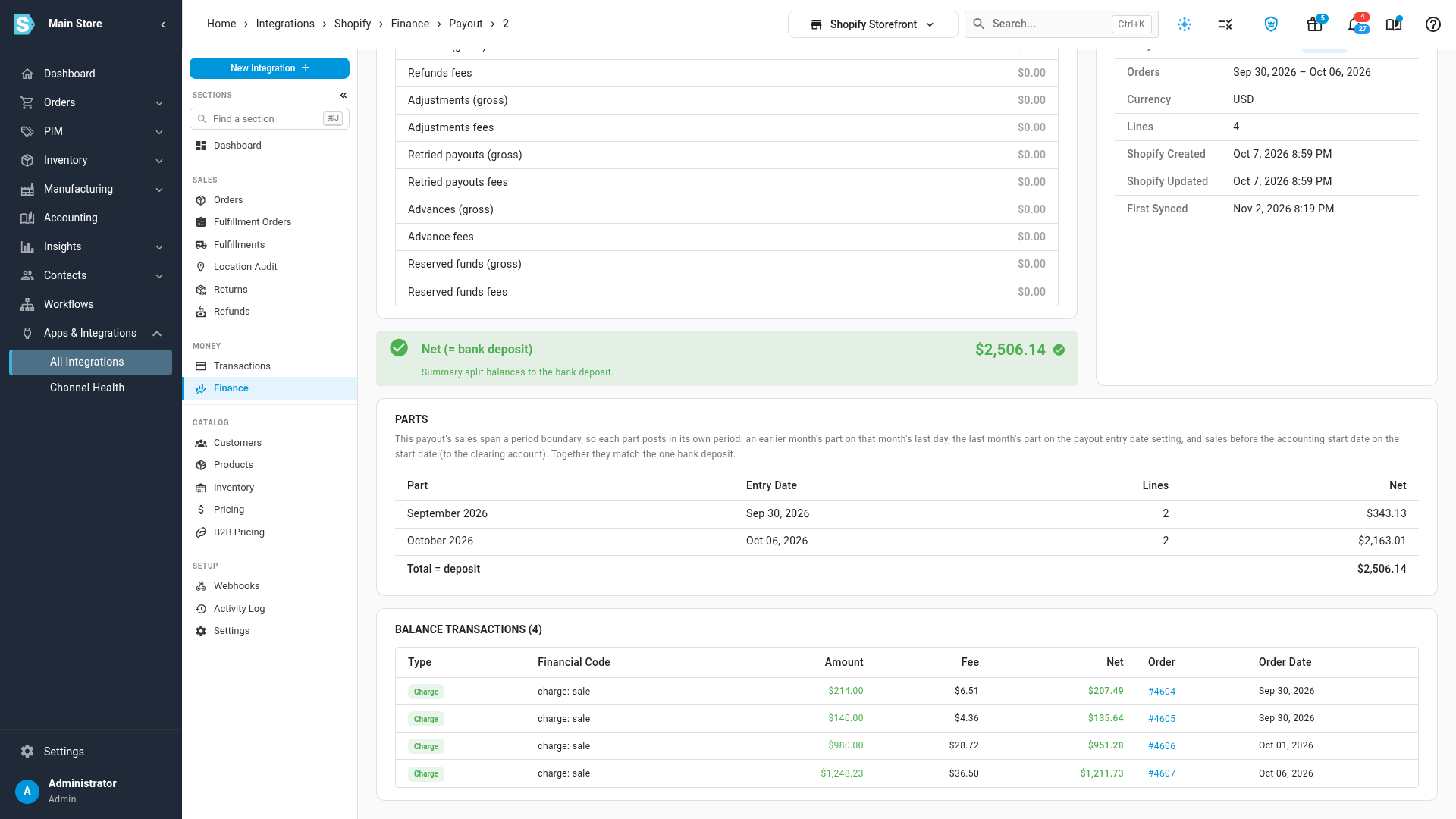
Open a payout to see its breakdown, ending in Net (= bank deposit), and the lines behind it. For Shopify payouts:
-
The entry date shows how it was chosen. A lock means its documents are already in your accounting provider, so the date no longer changes.
-
A split payout lists its Parts: each part's period, date, amount and how its date was chosen, with a total equal to the deposit.
-
Each sale shows its Order Date, so you can see where the payout's date comes from.
-
If the payout can't post yet, Not posted yet says why:
| Reason | What to do |
|---|---|
| Transaction dates synced | Some lines have no date yet. Click Sync Payouts to fetch them. |
| Shopify Payments clearing account | The payout has sales from before the start date. Pick the clearing account in Finance Settings. |
| Synced documents unchanged | The payout's lines now fall into different periods than the documents already in your accounting provider. Review those documents first. |
| Entry dates in an open period | A part is dated on or before your hard close date. |
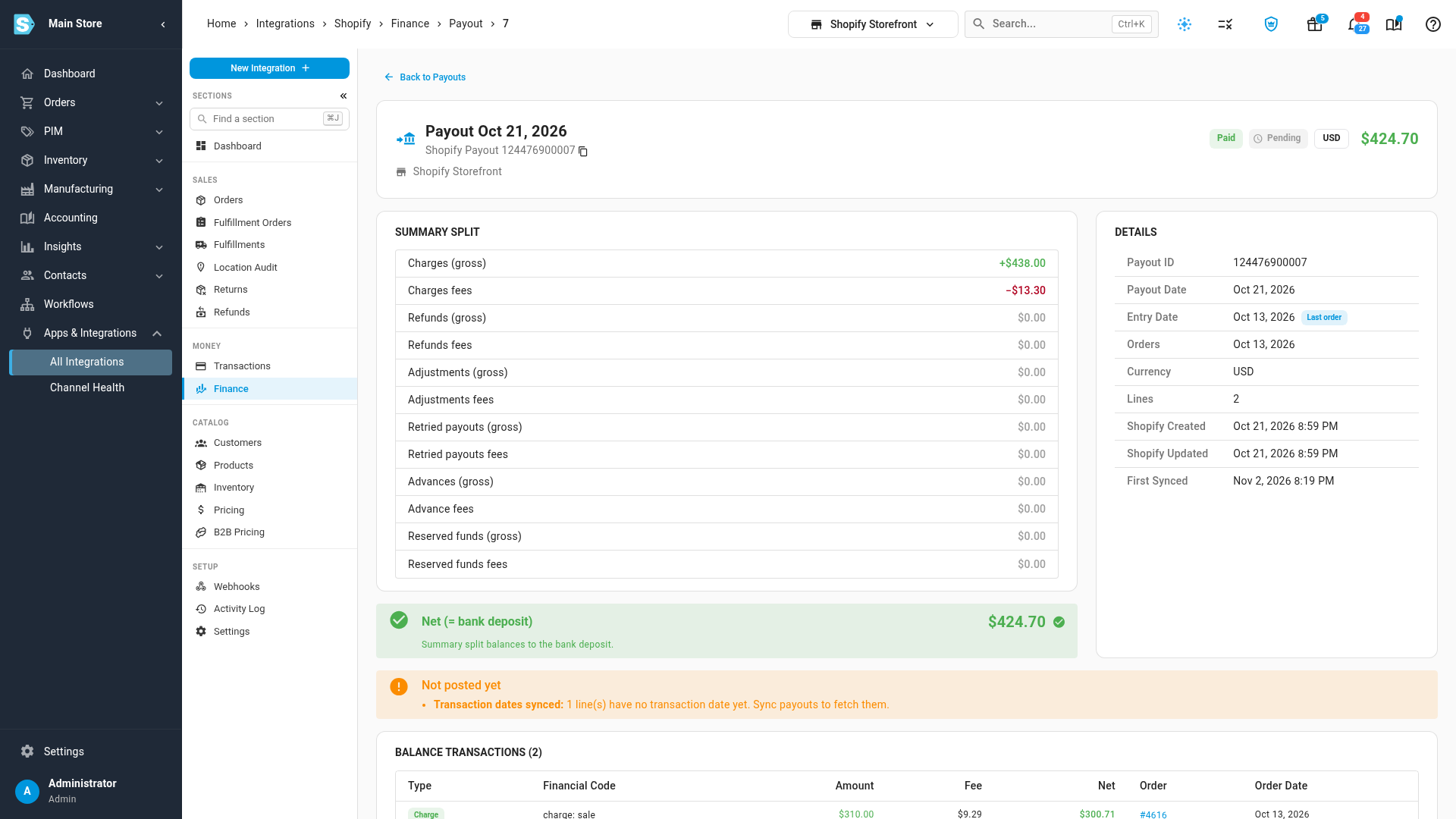
A payout only posts when its documents add up to the deposit to the cent. A difference of up to one cent is absorbed; anything larger holds the payout.
Match the payout to your bank
- Shopify: in Statement Match, a bank line can match a whole Shopify payout in one step. See Match bank statement lines.
- eBay: the payout's documents are matched one at a time. Statement Match doesn't offer an eBay payout as a single match yet.
Next steps
- Track Shopify Payments reserves: book the money Shopify holds back to a reserve asset account.
- Map Shopify payment methods: give PayPal, Sezzle and other gateways their own payment type.
- Split settlements and payouts at month end: split eBay payouts at month end too, from the card on eBay's Payout Mappings tab.
- How entries are grouped by sales channel: how a channel's entries reach your books.
- Map Amazon settlements to your accounts: the same idea for Amazon.
- Account for Walmart settlements: the same idea for Walmart's bi-weekly deposits.
Video transcript
A Shopify store you connect now starts on per-payout accounting, from the start of its order history. Until setup is finished, this dashboard lists it with what's missing. This one needs a clearing account before its waiting payout can post.
Finish setup opens this store's mappings page, with a setup card at the top. The Shopify Payments clearing account is holding a payout. One click creates it in your books and selects it here, and the held one is queued to post. For invoiced orders, a matching name already exists, so the button tells you to select the existing account.
This list shows each Shopify payout and its accounting status. Entry Date is the day its documents reach your books. A Split label marks a payout that posts in two or more parts.
In Payout Mappings, Finance Settings switches the store to Per Payout, from a start date. Then choose what happens to unpaid orders, such as invoices on net terms for business customers. Billing each one separately books it as a receivable.
Payout entry date sets the posting day for every payout. Last order date keeps most sales on their actual day, so it's the usual choice. Below it is the option Split payouts at month end. It books each month's share in that same month. The parts still add up to the one bank deposit.
Sales from before the start date land in the Shopify Payments clearing account, so they aren't counted twice. A notice appears when your store uses a different timezone. What gets sent shows how Payout invoices and bills reach your books. The two chips beside it cover unpaid orders. To change any of them, use the Change in Channel Accounting link.
Back in this list, payouts marked Split are booked in parts. Open one of them to see exactly how that works. Its Parts list shows each period, the date that part posts, and its amount. Every share lands in its own month, and the total matches the deposit. Further down, every sale shows its order date, the source of those dates.
Some payouts have to wait before they can post. Open one from the list to see why. Not posted yet explains exactly what's still missing before it can post. Here, the transaction dates for one sale haven't arrived yet. A payout sync from the list fetches them, and then it posts.