Map a channel product to a revenue line
Not everything you sell is a physical thing. Package protection, gift wrapping, extended warranties, service fees and rush-handling charges all arrive on your orders as products, but none of them has stock to count, cost, or ship.
Mapping one of these to a revenue line tells SKU.io to book it as money rather than as inventory. Orders containing it create a revenue financial line instead of a sales order line, and no SKU product is created — a revenue line never touches inventory, so there is nothing to keep in stock and nothing to reconcile.
This works the same way on every connected sales channel.
Before you begin
- You need at least one revenue line type set up. If the picker in step 5 is empty, add one under Settings first.
- You need permission to manage the channel's products.
- The product must already have synced in from the channel, so it appears in the channel's product list.
Find the product
- Go to Apps & Integrations and select your sales channel — this guide uses Shopify.
- Open the Products tab. If you have more than one store connected, pick the right one from the store selector at the top.
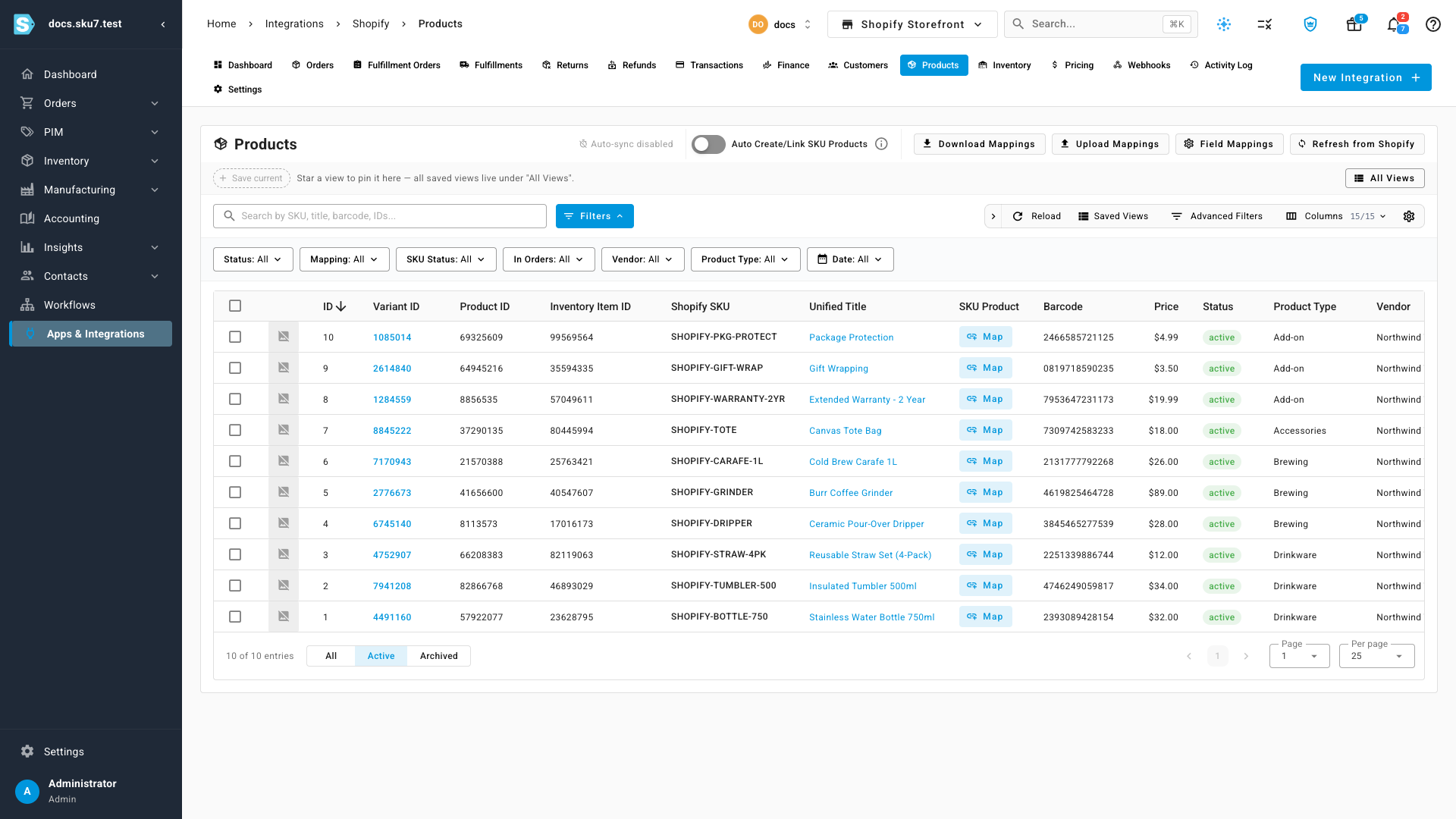
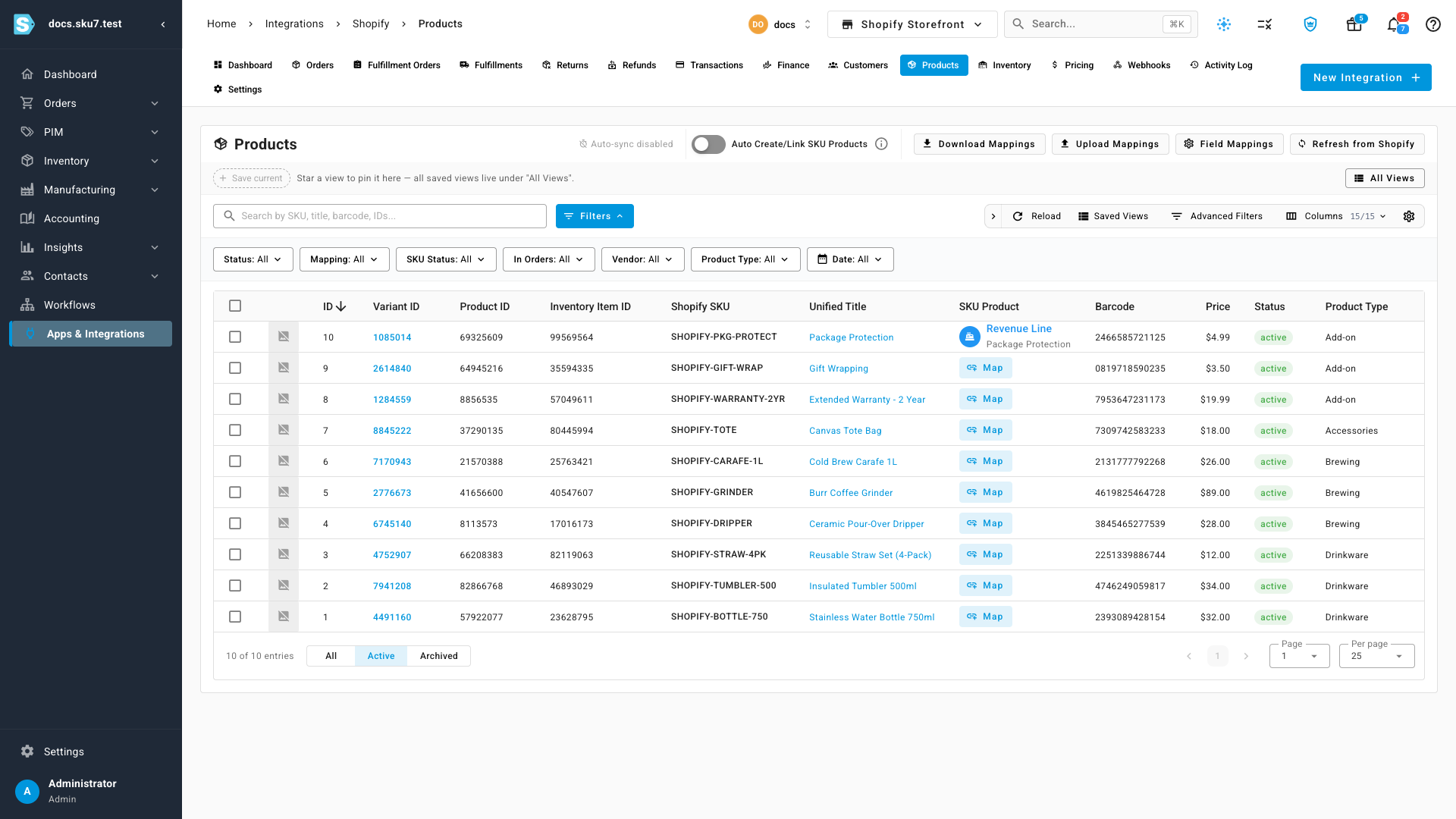
- Find the product you want to route to revenue. To narrow the list to products that aren't mapped yet, set the Mapping filter to Unmapped.
Map it to a revenue line
- In the SKU Product column, click Map on that product's row. The mapping window opens on Map to Product, the usual choice for physical goods.
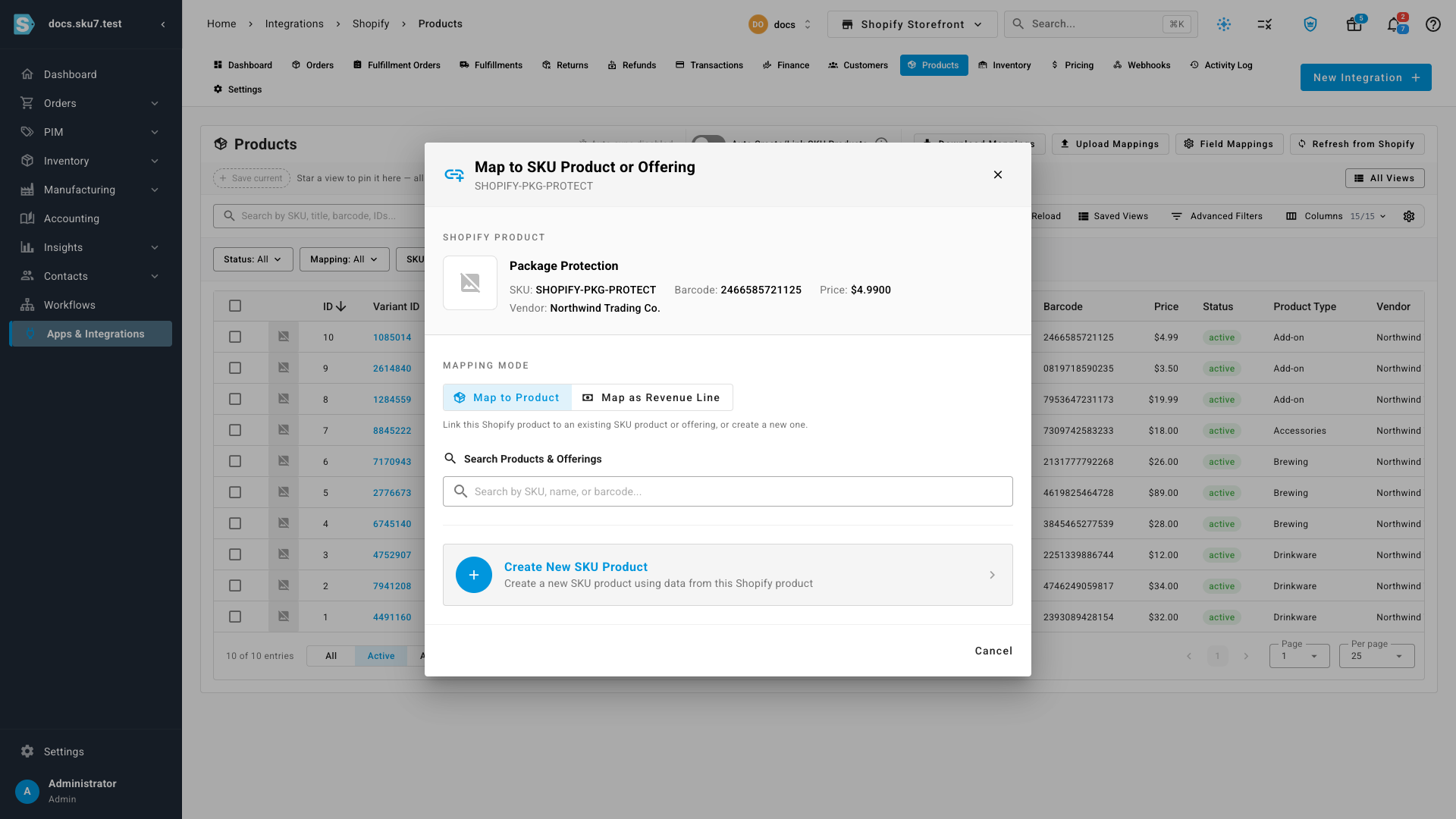
- Switch to Map as Revenue Line. The window explains what the change does and confirms that no SKU product is created.
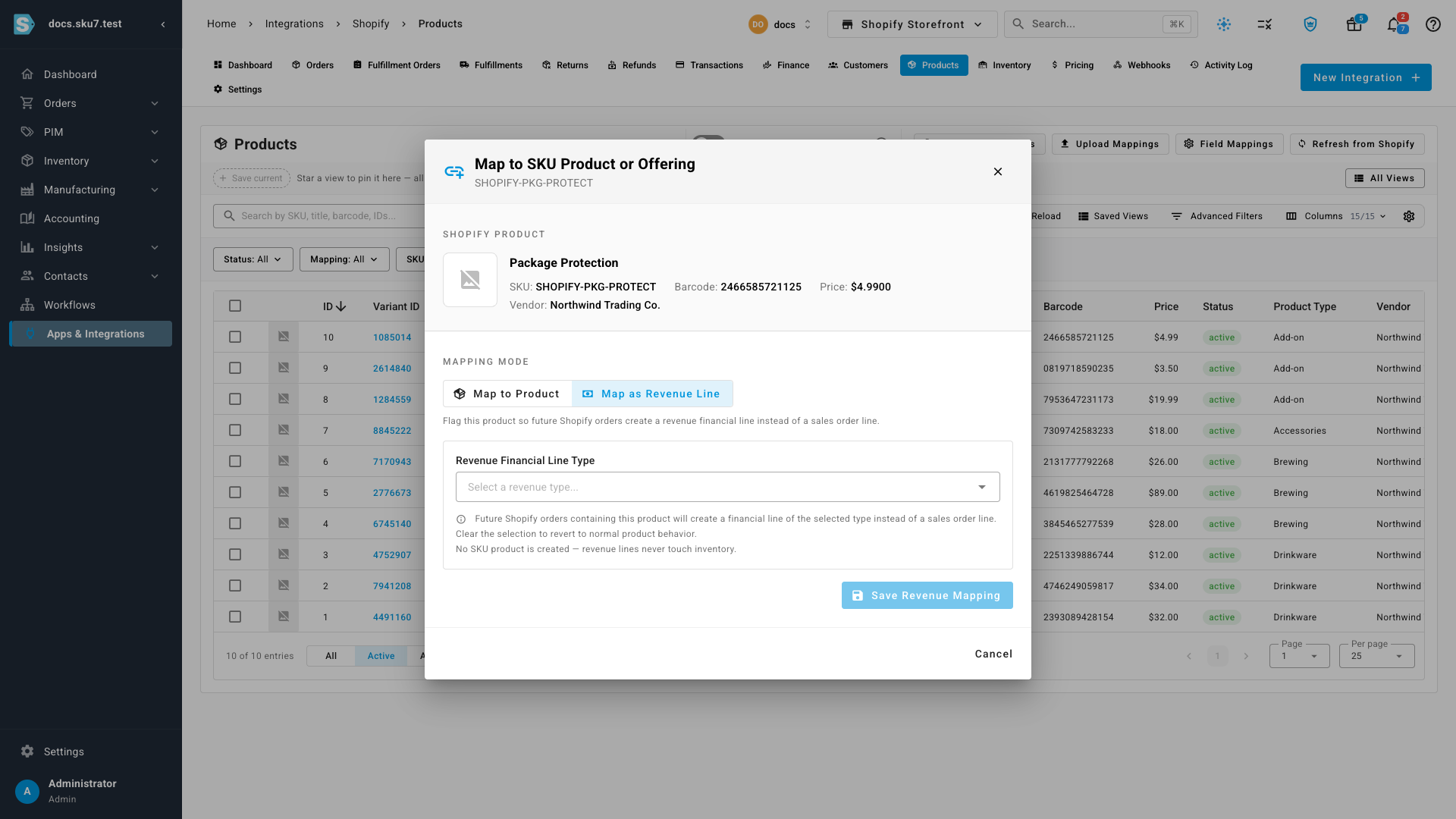
- Open Revenue Financial Line Type and choose the type that fits — for example Package Protection. This is what the amount is booked against, so pick the one you want to see it under in your reports.
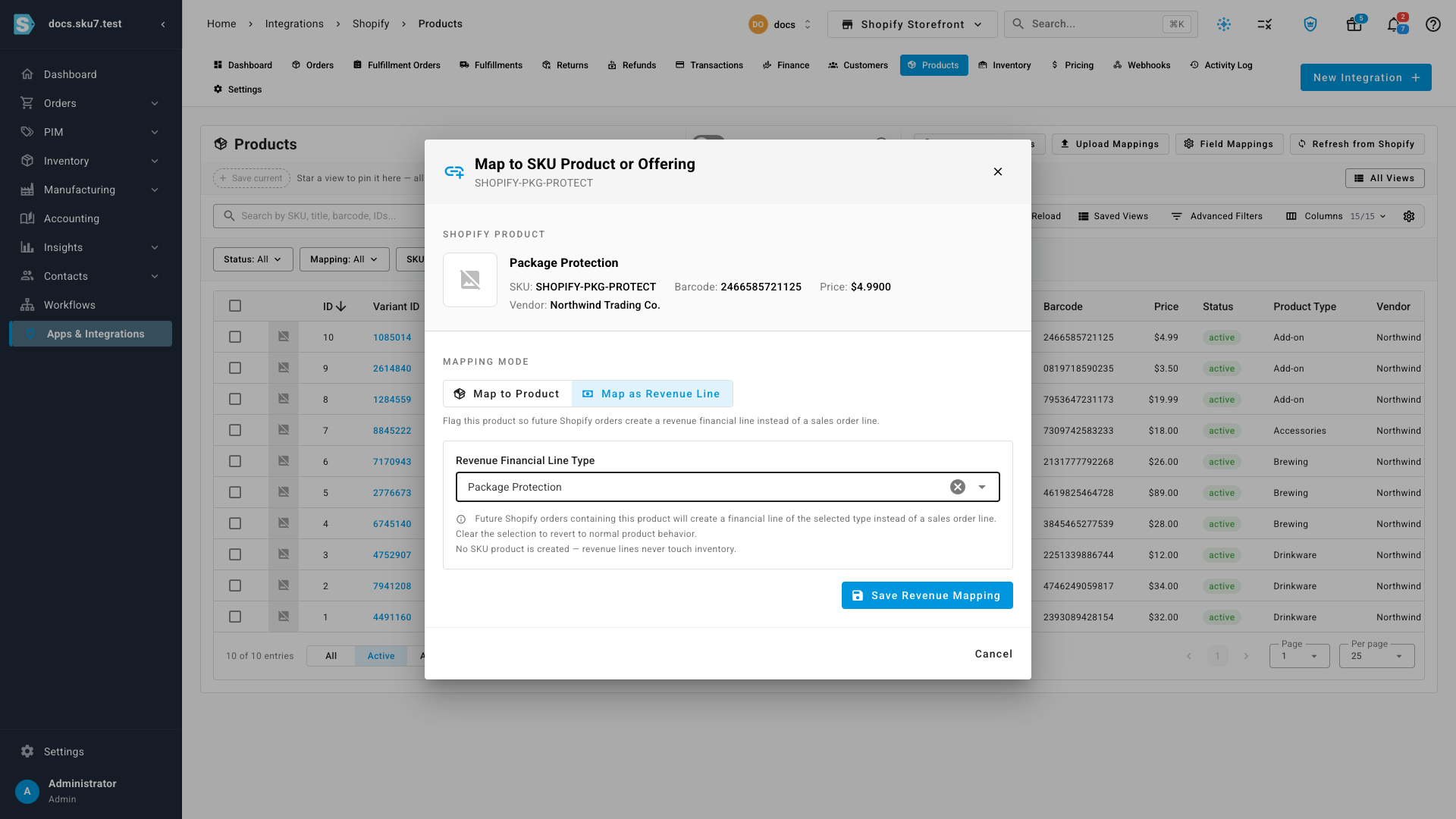
- Click Save Revenue Mapping.
The SKU Product column now reads Revenue Line with the type beneath it, instead of a Map button. That's how you tell at a glance which listings are revenue rather than stock.
What changes from here
- New orders containing that product create a revenue financial line of the type you chose, instead of a sales order line. Nothing is allocated, picked or shipped for it.
- Your catalog stays clean. No product is created, so the item never appears in stock counts, valuation or reorder reports.
- The mapping is per store. Mapping a product on one connected store doesn't change how the same product behaves on another.
- Orders already imported aren't rewritten. The mapping applies to orders that come in after you save it.
Map several products at once (Shopify)
On a Shopify store's Products tab you can map many products in one go. Tick the box on each product, or choose All Filtered in the bar to take every product your search and filters match. Click Map in the bar above the list, and switch to Map as Revenue Line. Choose the revenue type and click Map with the product count. Products already on that type are skipped, and from 20 products the mapping runs in the background. The same window's Clear revenue mapping option removes the mapping from every selected product.
For shipping insurance and package protection added by a Shopify app, see Book shipping insurance as revenue.
Change or remove the mapping
Reopen the mapping window from the same row and either pick a different revenue type, or clear the selection to return the product to normal behavior. Once cleared, you can map it to a SKU product instead.
When a channel product is mapped to a SKU product, the SKU in the SKU Product column is a link to that product, and so is the SKU under Current mapping in the mapping window. Click it to open the product, or Cmd-click (Ctrl-click on Windows) to open it in a new tab and keep your filtered list. Click anywhere else in the cell to open the mapping window.
Next steps
- Manage a connected app — control what a connection syncs.
- Book shipping insurance as revenue — the bulk mapping, step by step, for a Shopify insurance app's items.
- Map channel fields to products — line up the rest of a channel's product data with SKU.io.