Payout channels and order invoices
On Amazon, Shopify, eBay, Walmart, TikTok Shop and Temu, the marketplace pays you in batches. Each payout (Amazon and Walmart call it a settlement) carries the revenue of the orders it pays, along with fees and refunds. If each order's own invoice posted its revenue too, every sale would be counted twice, and its receivable would never clear. So on a channel whose payouts book its sales, SKU.io books each sale once: from the payout. The order's invoice stays on the order for your records, but it posts nothing to your ledger and isn't sent to Xero or QuickBooks.
This page shows where that's decided, how to switch a channel, and how to find and clear order invoices left over from before the switch.
Before you begin
- You need the Manage accounting settings permission to change how a channel books its revenue, and the Accounting sync permission to run a repair or a void from the report.
- Map the channel's payouts or settlements first, so they book order sales and refunds to a revenue account. See Map Amazon settlements to your accounts and Account for Shopify and eBay payouts.
- Pick a start date: the first day your payouts should carry the revenue. Orders sold before it keep their own invoices.
Check how a channel books its sales
-
Go to Accounting → Settings → Channel Accounting. Each channel's row shows what reaches your accounting system. Order invoices: Booked by settlements (or by the payout) means the channel is on Per payout.
-
Click Why & change on the channel's row. The drawer lists every setting that affects the channel.
-
Scroll to How is sale revenue booked?
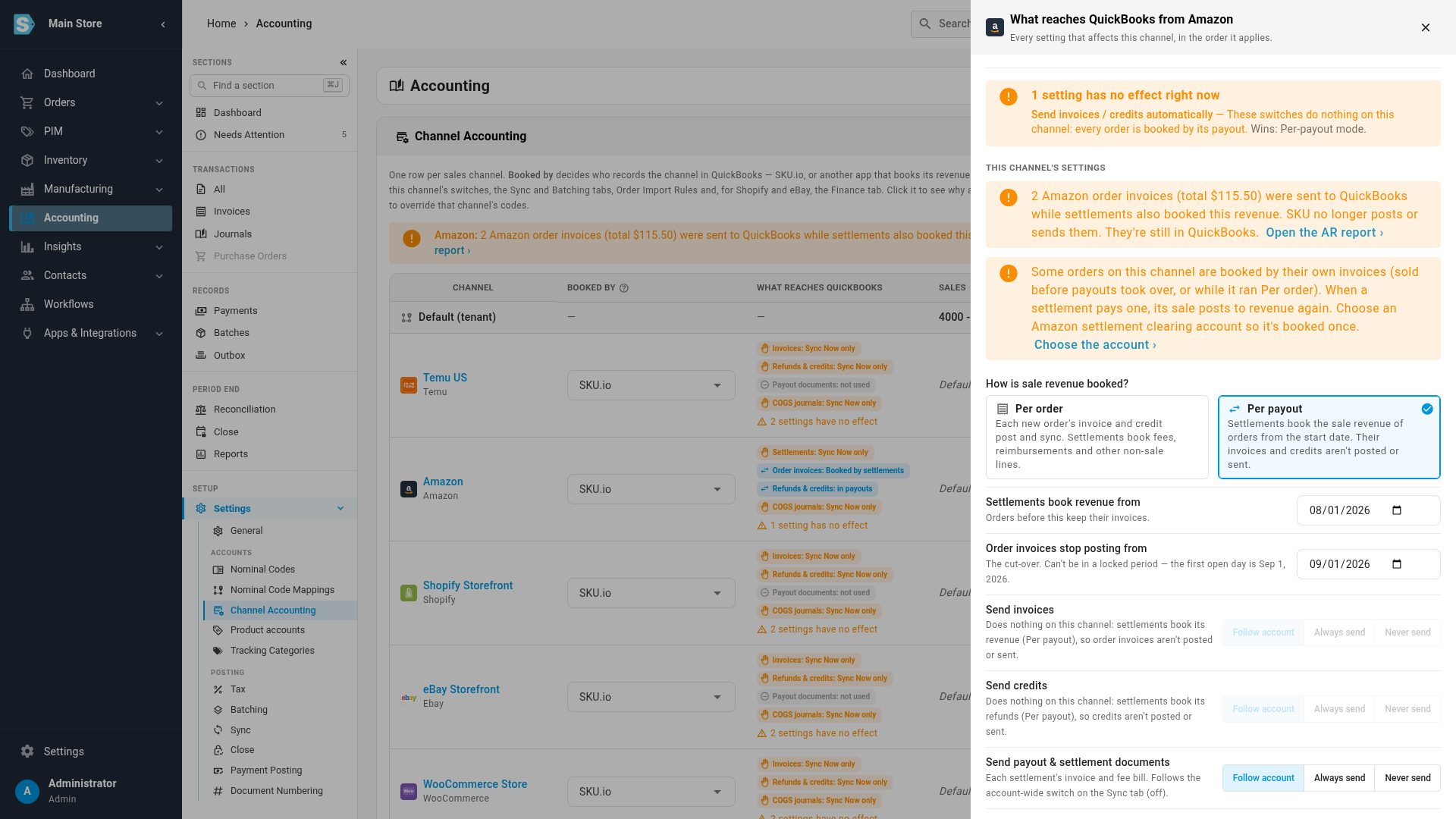
Option What posts Per order Each new order's invoice and credit post and sync. Payouts book fees, reimbursements and other lines that aren't sales. Per payout Payouts book the sales of orders from the start date. Those orders' invoices and credits aren't posted or sent. - Settlements book revenue from is the start date. Orders sold before it keep their invoices.
- Order invoices stop posting from is the cut-over: the first day order invoices stop posting. It can't fall in a locked month, so it's the start date or your first open day, whichever is later. The months your lock already covers never change on their own.
On an Amazon channel you change the mode right here. On Shopify, eBay, Walmart, TikTok Shop and Temu the drawer shows the mode and links to the channel's Finance tab, where it's set. See the channel's payout guide under Next steps.
Amazon channels start on Per payout, including every channel connected before this setting existed. If a channel's settlements don't map Order and Refund sales (ItemPrice Principal) to a revenue account yet, its drawer on Channel Accounting shows a warning, and its settlements that include sales or refunds are held, not posted, until you map them. Click Map them › in the warning to open the settlement mappings. Once the lines are mapped, the held settlements post.
While a channel is on Per payout, the drawer's Send invoices and Send credits switches show as disabled: they'd have nothing to send.
Switch a channel between Per order and Per payout
-
In the channel's drawer, choose the other mode under How is sale revenue booked?
-
Amazon only: the settlement mappings have to agree with the mode, so a step appears when they don't.
- Switching to Per payout needs Order and Refund sales (ItemPrice Principal) to post to a revenue account in an invoice group. Choose the Revenue account and Invoice group.
- Switching to Per order needs those lines moved off revenue, or each sale would be booked by both the invoice and the settlement. Choose the Account the lines post to instead and a Bill group.
The mappings change together with the mode, so you can't end up with one without the other.
-
Check Settlements book revenue from and Order invoices stop posting from, then click Save. Save stays disabled, with a tooltip saying why, until the step has its account.
-
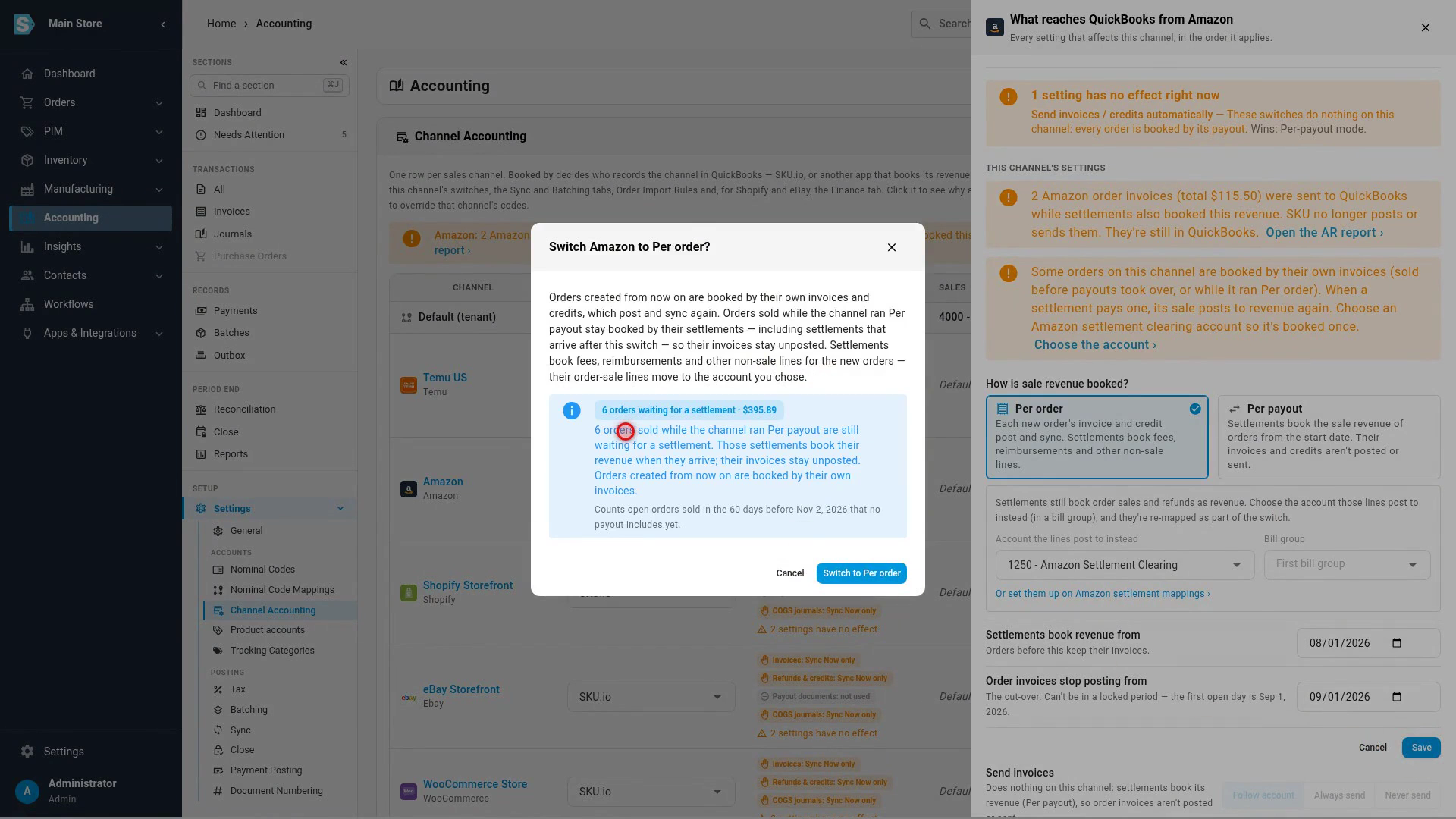
Read the confirmation. It counts the open orders sold in the 60 days before the switch that no payout includes yet, and says what happens to them.
-
Click Switch to Per order or Switch to Per payout, or Cancel to keep the current mode.
Each order stays with the book it started in. SKU.io decides when an order is created whether its payout or its own invoice books it, and a later switch doesn't move it:
- Switching to Per payout, orders already sold keep their invoices. When a settlement pays one of them, its sale goes to the clearing account (see below).
- Switching to Per order, orders sold while the channel ran Per payout stay booked by their payouts, including payouts that arrive after the switch. Their invoices stay unposted. Orders created from then on are booked by their own invoices.
The same confirmation appears when you change the mode on a channel's Finance tab.
Choose a clearing account for orders booked by their invoices
Orders sold before the start date, or while a channel ran Per order, were booked by their own invoices. When a later payout pays one of them, its sale would post to revenue a second time. A clearing account takes those sale lines instead, so the sale is booked once. Its fees still post as fees.
When a channel needs one, its drawer shows a warning with Choose the account ›:
-
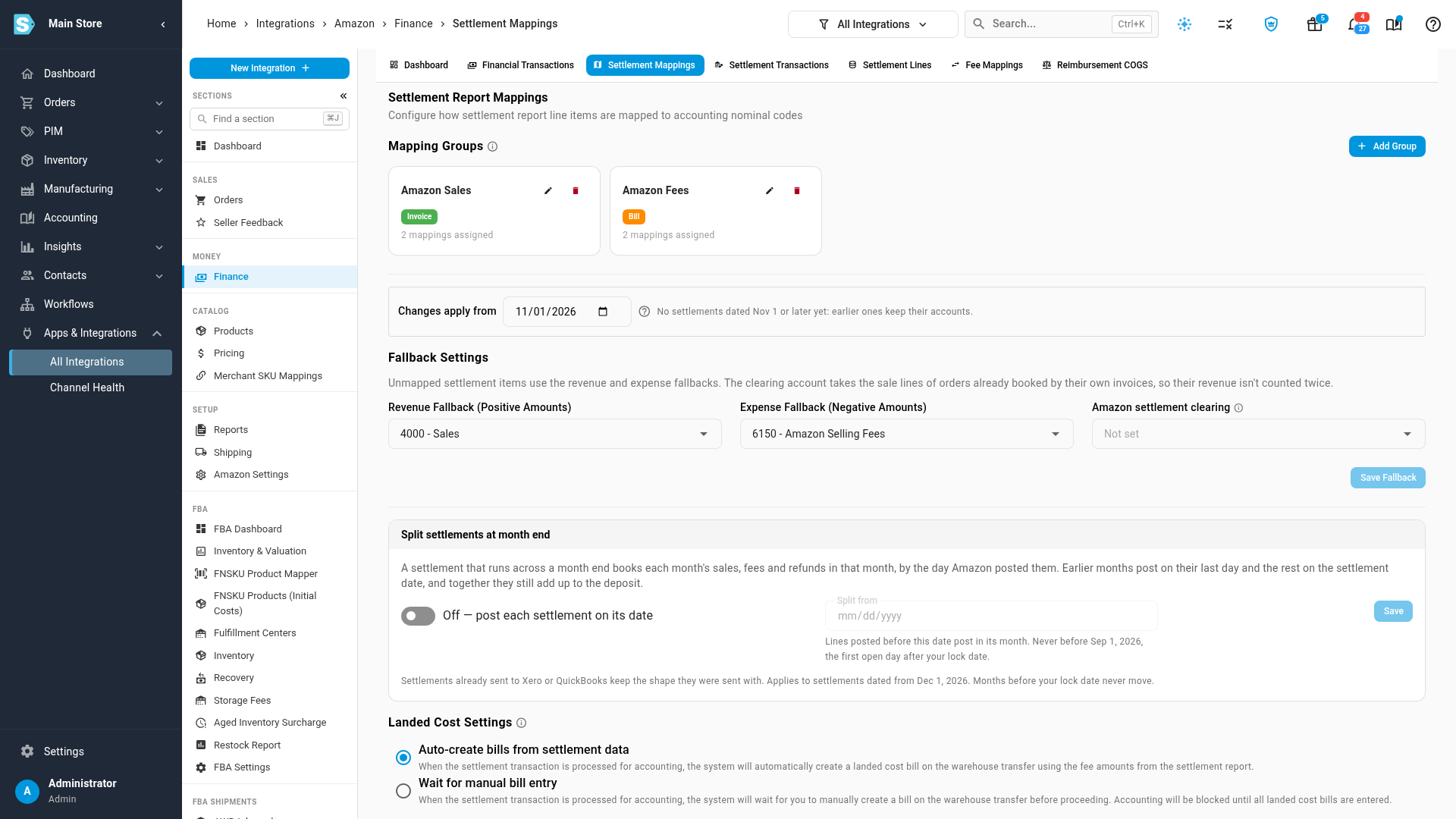
Amazon: Apps & Integrations → Amazon → Finance → Settlement Mappings, under Fallback Settings: Amazon settlement clearing. Click Save Fallback. Like the other accounts there, it applies to settlements dated from Changes apply from.
-
Shopify, eBay: the Finance tab's Invoiced orders paid through payouts.
-
Walmart: the Finance tab's Invoiced orders paid through settlements.
Leave it empty only if those earlier invoices never reached your books: then the payout is the only place their revenue appears.
Find order invoices that counted a sale twice
Order invoices posted before this behaviour existed may still carry revenue and a receivable that their payouts also booked. Payout-channel order AR finds them.
-
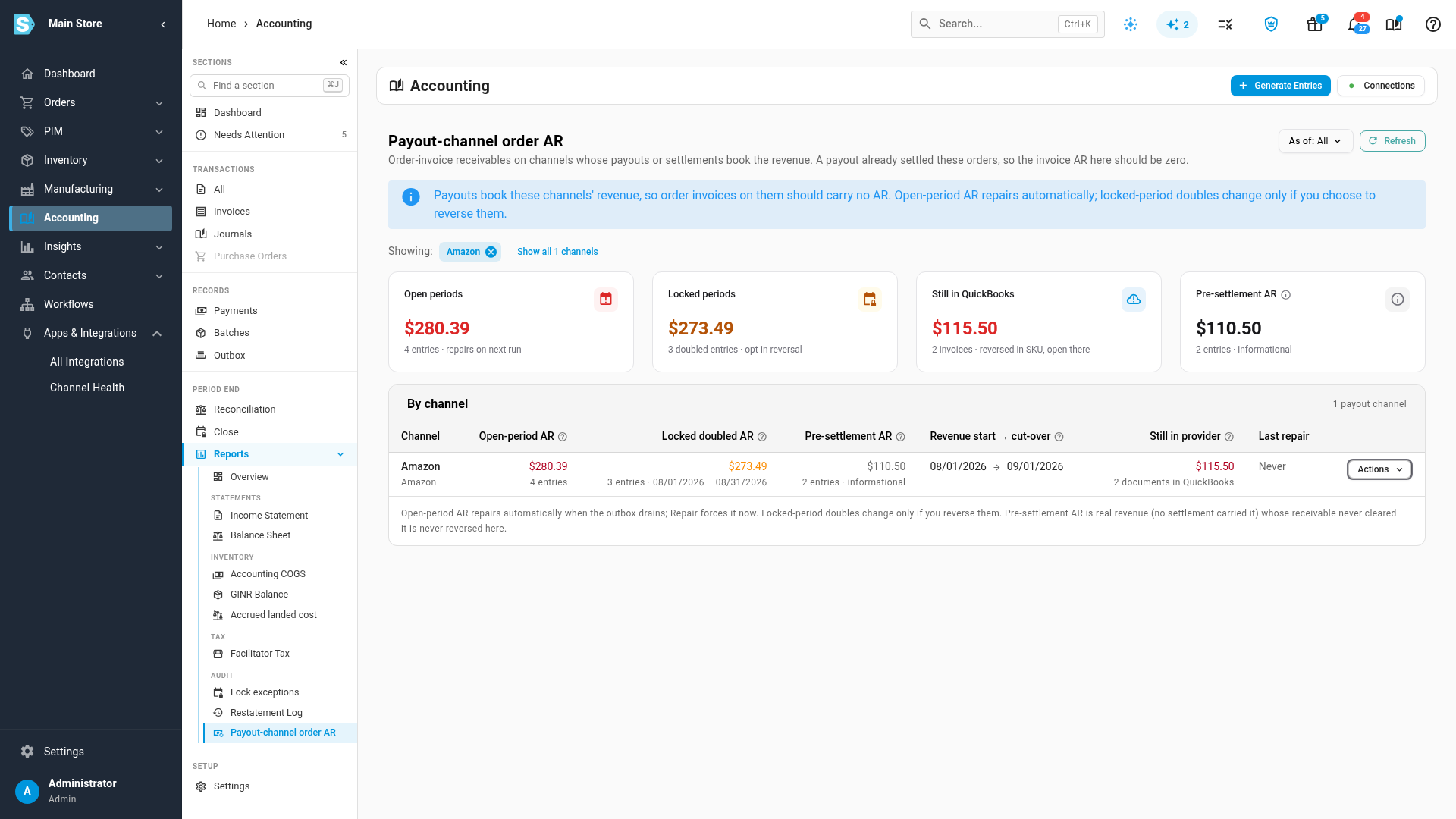
Go to Accounting → Reports → Payout-channel order AR. It also opens from the month-end check below, and from Open the AR report › in a channel's drawer.
-
Read the totals. On a channel that's been repaired, every column is zero.
Column What it holds What happens to it Open-period AR Order invoices dated on or after the cut-over, in months that aren't locked. Removed automatically. Repair open periods does it now. Locked doubled AR Order invoices between the start date and the cut-over, in months that are locked. Changes only if you reverse it. Pre-settlement AR Order invoices dated before the start date. No payout carried that revenue, so it's real. Never reversed here. Only the receivable never cleared. Revenue start → cut-over The two dates from the channel's settings. — Still in provider Invoices SKU.io removed that are still open in Xero or QuickBooks. Stays until you void them. Last repair The last repair run for the channel and its result. — -
Open the channel's Actions menu. View N entries lists each invoice with its order, date, amount, and whether it's in a locked month or was sent to your accounting system. An action that has nothing to do is disabled, and its tooltip says why.
Repair open periods
- Choose Repair open periods.
- Click Repair N entries. A background job withdraws the entries: drafts are discarded, posted ones reversed in the same open month. Follow it in the job tray.
Nothing is sent to or voided in your accounting system.
Reverse doubled revenue in locked months
Locked months never change on their own. To correct them anyway:
- Choose Reverse in first open period.
- Check the Doubled window, the entries and the amount. The reversals are dated on your first open day, so the locked months' statements stay as they were, and the correction lands in your first open month.
- Tick I understand … revenue will drop by …, and click Reverse N entries.
This is internal to SKU.io: nothing is sent to your accounting system. If your lock policy is Block, the dialog says this action overrides it for these reversals only, and the override is recorded.
Void invoices that are still in Xero or QuickBooks
SKU.io never voids a document in your accounting system on its own. To void the ones under Still in provider:
- Choose Void N in Xero (or in QuickBooks).
- Check the documents and the total. See every invoice in the drill-down › lists them.
- Type the number of documents to confirm, and click Void N in …. The count is checked again when you confirm. If it changed, nothing is voided and the dialog shows the new count.
A voided invoice can't be un-voided, and revenue in your accounting system drops by the total. The void runs as a background job. If a document fails, the job reports it, the others are still voided, and the report keeps counting it.
A batch document or a consolidated invoice can hold one order a payout now books, alongside other orders. Those are never voided or updated automatically: Still in provider shows them as need a confirmed update. Open each one from the channel's entries and run Sync Now to update it.
The month-end check
When you close a month, the close checklist includes Payout-channel order AR cleared, a blocking check. It fails while order invoices dated in that month, on a channel whose payouts book its sales, still carry a receivable. The row reads, for example, 280.39 of AR on 4 order invoices that payouts already booked. Click its arrow to open the report on that channel, then repair it.
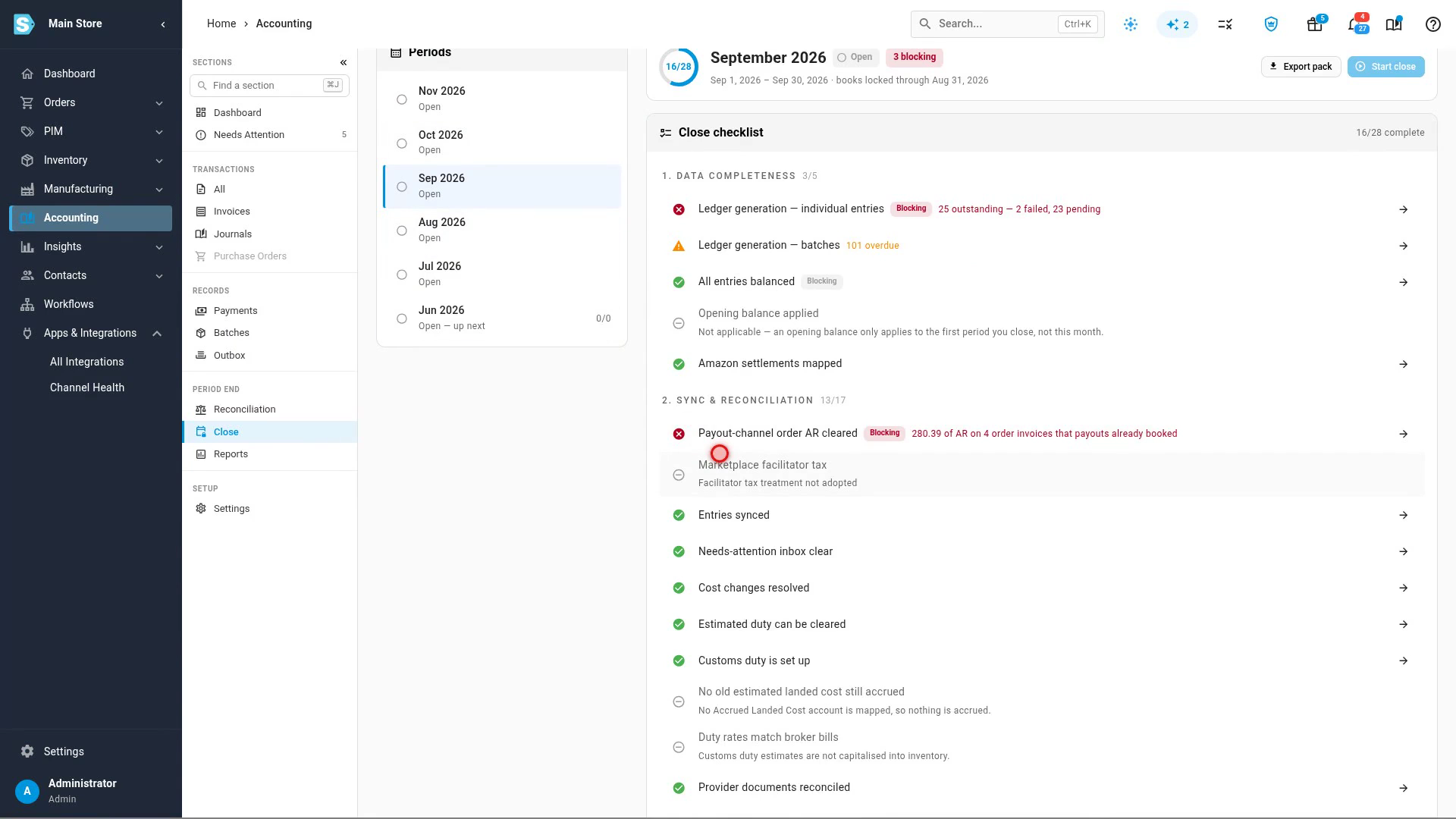
If no channel books its revenue through payouts, the check stands aside.
See which settlements booked an order
Open an order from a payout channel and choose its Invoices tab.
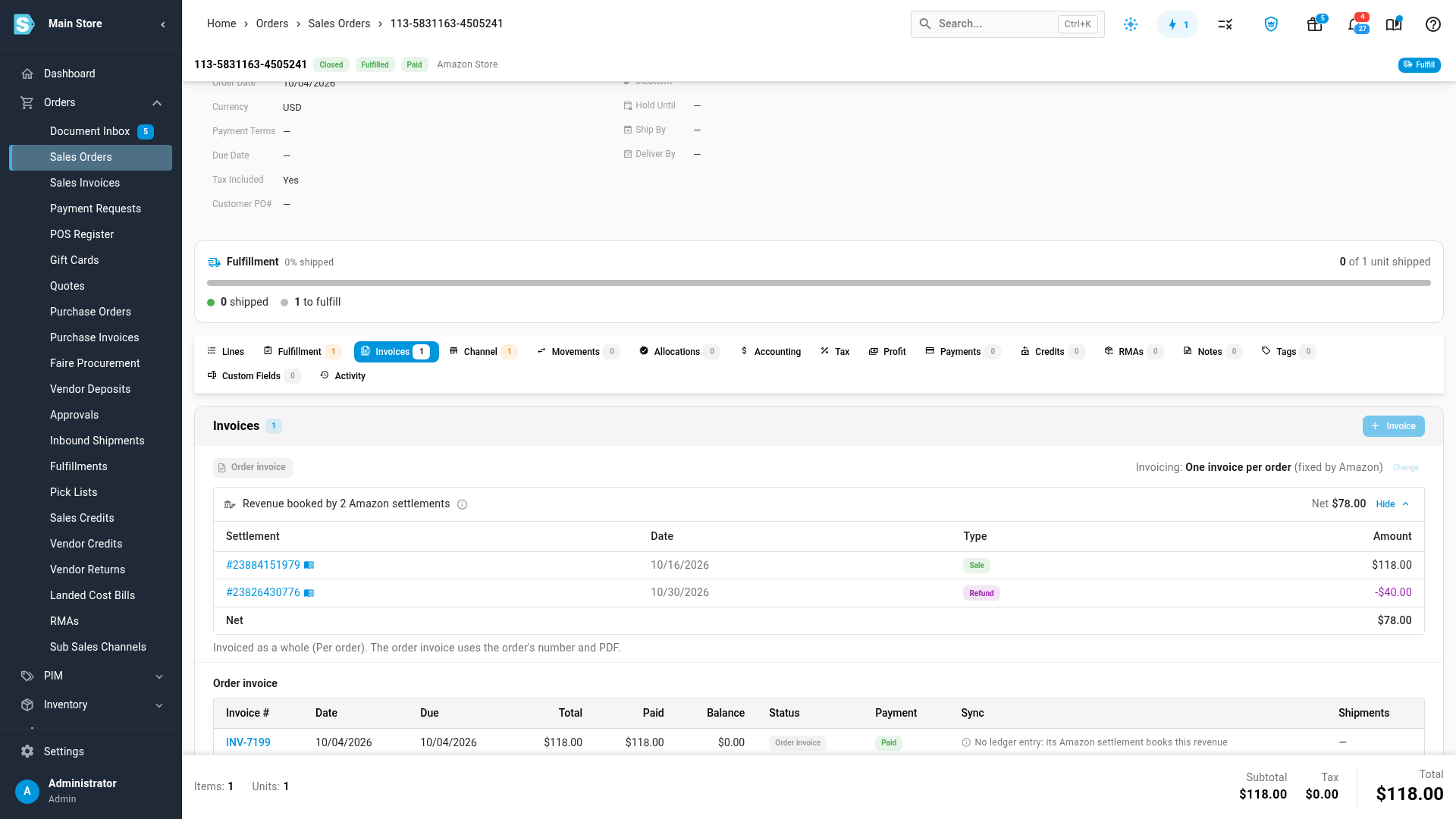
- Revenue booked by N Amazon settlements lists each settlement (or payout) that carries the order, with its date, whether it's a Sale or a Refund, the order's amount in it, and the Net. Each links to the settlement, and the book icon opens its ledger entry. A settlement that hasn't posted yet reads Not posted yet.
- Before any settlement arrives, the line reads Revenue will be booked by its Amazon settlement.
- The order invoice's Sync column reads No ledger entry: its Amazon settlement books this revenue.
An order sold before the start date, or paid outside the payouts (an unpaid or invoiced order on Shopify, for example), shows its own invoice and ledger entry as usual.
Next steps
- Map Amazon settlements to your accounts
- Account for Shopify and eBay payouts
- Account for Walmart settlements
- Account for TikTok Shop payouts
- Account for Temu payouts
- Close checks reference
- Recognize revenue at fulfillment
Video transcript
When a marketplace pays you in batches, each payout or settlement carries the revenue of the orders it pays. If the order's own invoice posted too, the sale would be counted twice, so SKU.io records it once. To see how a channel books its sales, open Accounting Settings, then Channel Accounting.
Each channel's row shows what reaches your accounting system. Here, order invoices are booked by settlements. Click Why and change to open the channel's settings. Scroll down in the drawer to the question, How is sale revenue booked. Per payout means settlements book the sales of orders sold from the start date. Order invoices stop posting from the cut-over, which can't fall in a locked month.
To switch the channel, choose the other mode under How is sale revenue booked. The settlement mappings have to agree with the new mode, and here settlements still book order sales as revenue. Search for the account its order sales should post to instead, then choose it from the list that appears. When the account is set, click the Save button at the bottom of the section. The confirmation counts the open orders still waiting for a settlement. Each order keeps its original book. Click Cancel to keep the current mode.
Orders sold before the start date keep their own invoices. When a settlement later pays one of them, its sale would post to revenue again, so choose a settlement clearing account. Click Choose the account to open the settlement mappings. Pick the account in the settlement clearing field, and save it with the fallback accounts. Those sale lines then post there, and the sale is booked once.
When you close a month, start by opening Accounting from the sidebar on the left. Its checklist confirms this revenue was booked once, so choose Close in the section menu. Pick the month to close from the list of periods. Payout-channel order AR cleared fails while order invoices on these channels still carry a receivable. Click the arrow at the end of its row to open the report on that channel.
The report lists every payout channel's order invoices that still carry a receivable. Open periods clear on their own, without you doing anything. In the Actions menu, Repair open periods removes those entries now. Locked periods change only if you choose to reverse them, dated in your first open month. Still in QuickBooks counts invoices that already reached your accounting system. You void them there only after typing the count to confirm. Pre-settlement receivables are real sales from before the start date, so the report leaves those sales alone.
Each Amazon order's Invoices tab shows the settlements that booked its revenue. This order's sale is in one settlement and its partial refund in a later one, each linked to its ledger entry. The order invoice itself posts no ledger entry, so the sale counts once.