What syncs to your accounting provider
Once Xero or QuickBooks Online is connected, SKU.io sends the entries it generates to your provider as native documents, so your accountant sees real invoices and bills, not only journals. Sync runs both ways: SKU.io also reads back payments, edits and lock dates from your provider. This page explains what goes where and which settings control it.
What each entry becomes
| In SKU.io | In Xero | In QuickBooks Online |
|---|---|---|
| Sales order invoice, batch sales order invoice | Sales invoice | Invoice |
| Supplier bill, purchase order invoice, landed cost bill | Bill | Bill |
| Sales credit | Sales credit note | Credit memo |
| Vendor credit | Supplier credit note | Vendor credit |
| Vendor credit applied to a bill | Credit note allocation | Bill payment linking the credit to the bill |
| Vendor deposit paid | Prepayment | Expense (purchase) to the deposit account |
| Vendor deposit applied to a bill | Prepayment allocation | Journal |
| Vendor deposit refunded | Prepayment refund | Deposit |
| Payment on a synced invoice or bill | Payment | Payment or bill payment |
| Everything else: fulfillment COGS, receipts, adjustments, transfers, FBA and manufacturing | Manual journal | Journal entry |
A document that's already paid in your provider can't be rewritten there. SKU.io can still update its number and reference.
Purchase orders and bills
Bills always sync as bills: supplier invoices, purchase order invoices and landed cost bills all arrive in your provider as bills against the supplier.
A purchase order itself isn't a financial event, so by default nothing reaches your books until the supplier invoice is recorded. You can change that under Accounting → Settings → General, in When does a purchase order hit your books?:

| Option | What reaches your books |
|---|---|
| Nothing until the supplier invoice is recorded (default) | Nothing from the order. Receipts and the bill post as usual. |
| A non-posting commitment entry per purchase order | A commitment entry that shows open orders in SKU.io without touching your P&L or payables. It reaches your provider as a journal only if you also turn on Send purchase order commitment entries to your accounting system. |
| A committed-spend bill when the order is submitted | A temporary bill for the unbilled amount, which syncs like any other bill and shrinks as real supplier invoices arrive. See Committed spend billing. |
SKU.io doesn't create purchase order documents in Xero or QuickBooks. The Purchase Orders tab on the Xero and QuickBooks pages lists purchase orders read from your provider.
Orders you create in SKU.io
Manual and B2B orders, and any order that doesn't come from a connected channel, belong to the built-in SKU.io channel. Their invoices and credits post exactly like channel orders. Two switches under Accounting → Settings → General decide whether they're sent:
- Sync sales order invoices for orders without sales channels
- Sync sales credits for orders without sales channels
Both are on by default. When one is off, the entry is still created in SKU.io, but it isn't sent, and its sync status says why. The same two settings appear on the SKU.io (internal) row's What gets sent panel in Channel Accounting, as the Never send choice. Orders from a connected channel follow that channel's own settings in Channel Accounting. See How entries are grouped by sales channel.
Which entries are sent automatically
Under Accounting → Settings → Sync, Automatic Sync by Transaction Type lists every kind of entry with an Auto-sync switch and an optional Auto-sync start date.
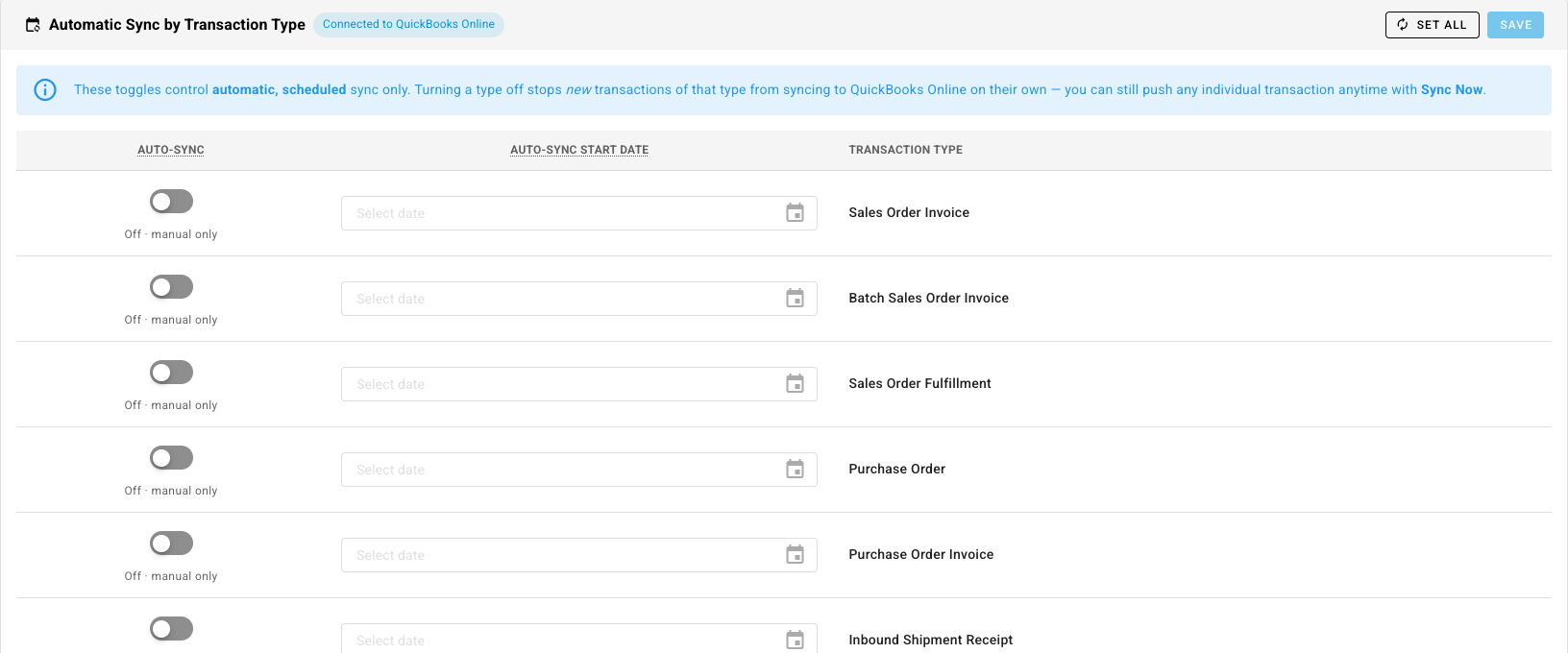
A type that's off reads Off · manual only. Its new entries wait in SKU.io until you push one with Sync Now. Set All switches every type at once. Set All → Turn on inventory journals switches on every inventory, cost of goods sold and Amazon FBA/AWD type, including the revaluation types (FBA Revaluation, AWD Revaluation, Inventory Revaluation), and leaves sales invoices, credits, bills and purchase orders as they are. Use it when you start sending inventory journals, so no type is missed. Click Save Changes afterwards. An entry is only sent when all of these allow it:
- Accounting entry generation is on.
- Its channel sends it (see the next section). For a channel that follows the account setting, that means its transaction type is set to auto-sync and it's dated on or after that type's start date.
- It's dated on or after the connection's sync start date, the first day of your books in your provider.
- Its channel isn't booked by another app. A channel that A2X, Link My Books or another app books never sends the documents that app covers — see Let another app book a sales channel.
- Every account and tax rate on it is mapped to your provider.
Send one channel's documents whatever the account setting says
Each sales channel decides how its own documents are sent. Open Accounting → Settings → Channel Accounting, click the channel's row and use the What gets sent panel. It has one choice for each kind of document: Send invoices, Send credits and, for channels that pay you in payouts or settlements, Send payout & settlement documents.
| Choice | What it does |
|---|---|
| Follow account | The channel follows Automatic Sync by Transaction Type above. This is the default. |
| Always send | The channel's documents are sent even when that type's Auto-sync switch is off, and the type's start date doesn't hold them back. |
| Never send | The channel's documents aren't sent automatically. Sync Now still sends one. |
Use Always send when you want one channel's documents in your books without switching a type on for every channel. For example, invoice a single store's unpaid orders while your other channels' invoices stay out.
When you switch a kind of document to Always send, choose Only documents dated from today to leave older documents where they are, or Everything not yet sent to release them too. Older documents left behind can still go one at a time with Sync Now.
Always send never overrides these:
- Your provider's sync start date.
- Another app booking the channel.
- A per-payout store's paid orders, which their payout books.
- A paused accounting connection.
When an entry can't go, it shows a sync status saying why. Read See why entries haven't reached your provider.
What SKU.io reads back
- Payments. A payment you apply in Xero or QuickBooks to an invoice or bill that SKU.io sent is recorded on the original sales order or bill. See Sync payments with your accounting provider.
- Changes and deletions. Edits to invoices, bills, credit notes and journals that SKU.io sent are picked up nightly, and straight away where your provider sends live updates.
- Lock dates. Your provider's lock date is read daily and shown on Accounting → Connections. With Enforce locally turned on for the connection, SKU.io won't post into the period you've locked there. See Provider lock dates. SKU.io never changes your provider's lock, so set it there to follow your hard close date. Accounting → Settings → Close shows Provider lock alignment for each connection, Aligned, Behind or Later than your hard close date, and warns you when they disagree. See Keep your provider lock aligned.
- Chart of accounts, tax rates and tracking categories or classes, when you connect and whenever you refresh them.
Next steps
- Connect Xero: link Xero and run the setup wizard.
- Map your accounts to QuickBooks Online: link each account to QuickBooks.
- How purchases reach your books: deposits, receipts, bills and the clearing accounts between them.