Map Shopify payment methods
Every Shopify payment comes in through a payment gateway: Shopify Payments, a gift card, PayPal, Sezzle, a manual method such as bank transfer. SKU.io records each payment under a payment type, and the payment type decides which account the money lands in. On the Shopify connection's Settings → Payment Methods tab, you tell SKU.io which payment type each gateway belongs to.
Shopify settles its own gateways in its payouts, so they need nothing from you. Any other gateway pays its money somewhere else, such as your PayPal balance or your bank, so it needs a payment type of its own. Whether SKU.io waits for that mapping before booking those payments is up to you, with Hold payments from unmapped gateways.
Before you begin
- Connect your Shopify store. The tab lists gateways once orders with payments have been imported.
- The payment types you'll map to exist, or create them as you go. See Manage payment types.
- You need permission to manage integrations to save the mappings. Without it, Save Mappings doesn't appear. Turning Hold payments from unmapped gateways on or off needs the Integrations Edit permission; without it the switch is greyed out.
How each payment gets its payment type
| Gateway | Recorded as |
|---|---|
| A gateway you've mapped | The payment type you chose. |
| Shopify's own gateways (Shopify Payments, Shop Pay Installments, gift cards, Shop Cash, Shopify Store Credit), not mapped | Shopify Payment. |
| Any other gateway (PayPal, Sezzle, a manual method), not mapped | Depends on Hold payments from unmapped gateways, below. |
Choose whether unmapped gateways hold their payments
Hold payments from unmapped gateways is a switch on the Payment Methods tab, below the warning, set per store. It's on for stores connected from now on, and off for stores connected earlier until you turn it on. Changing it applies to payments recorded from then on; payments already recorded keep their type.

| Switch on | Switch off | |
|---|---|---|
| The gateway's row | Needs mapping | Needs mapping |
| Its payments are recorded as | Unmapped Payment Processor | Shopify Payment |
| In your books | They wait in Needs Attention and are never booked as Shopify Payments. | They post as Shopify Payments money. |
| When you map the gateway | Its waiting payments move to the type you chose and post. | Payments from then on use the type you chose. |
| At month end | Payment gateways mapped lists the waiting payments. | Payment gateways mapped warns about the payments that posted as Shopify Payment. |
While the switch is off, each unmapped gateway's row says how many of its payments in the last 90 days were recorded as Shopify Payment, and the warning says those payments won't match your Shopify Payments deposits. The switch's description also says how many would have waited if it had been on.
Turn the switch on, and map every gateway, to keep your Shopify Payments clearing account honest. A PayPal or Sezzle payment booked as Shopify Payments money sits in that account for good, because no Shopify payout ever carries it.
Find the gateways that need a mapping
-
Go to Apps & Integrations, open your Shopify connection, then Settings, and choose Payment Methods under Money.
-
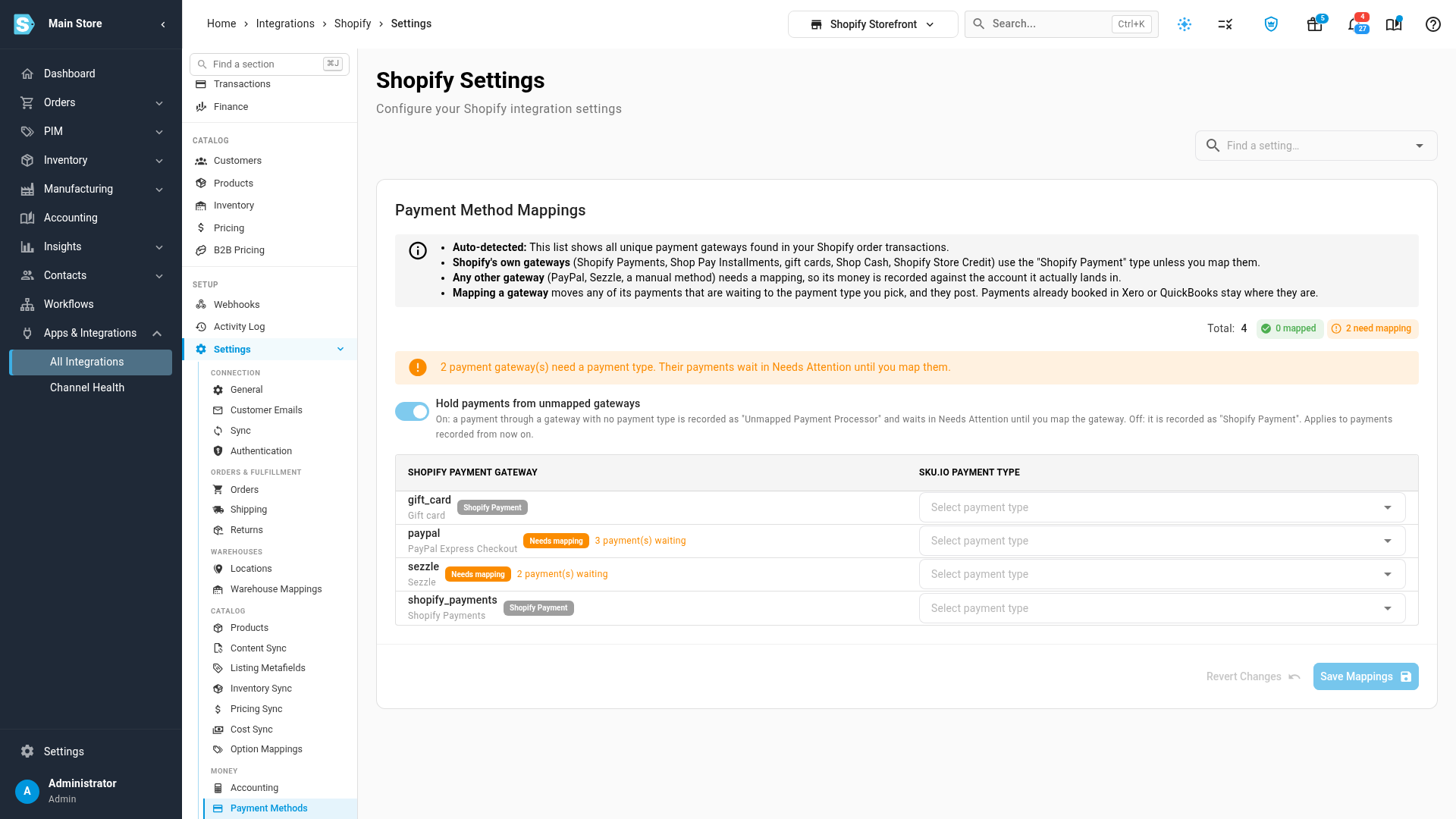
Under Payment Method Mappings, each gateway found on your orders has a row, with its Shopify name and the name Shopify shows customers below it. Above the table, Total counts the gateways, and the chips count how many you've mapped and how many still need mapping. Shopify's own gateways count in neither until you map them.
-
Read the rows:
- Shopify Payment next to a gateway means it's one of Shopify's own and already uses the Shopify Payment type.
- Needs mapping means no payment type is mapped yet. With Hold payments from unmapped gateways on, N payment(s) waiting says how many of its payments are waiting.
- The warning above the table, N payment gateway(s) need a payment type, counts the gateways still to map.
Map a gateway
-
On the gateway's row, click SKU.io Payment Type and pick the type its money belongs to. To add a type, type a new name and choose Create.
-
Click Save Mappings.
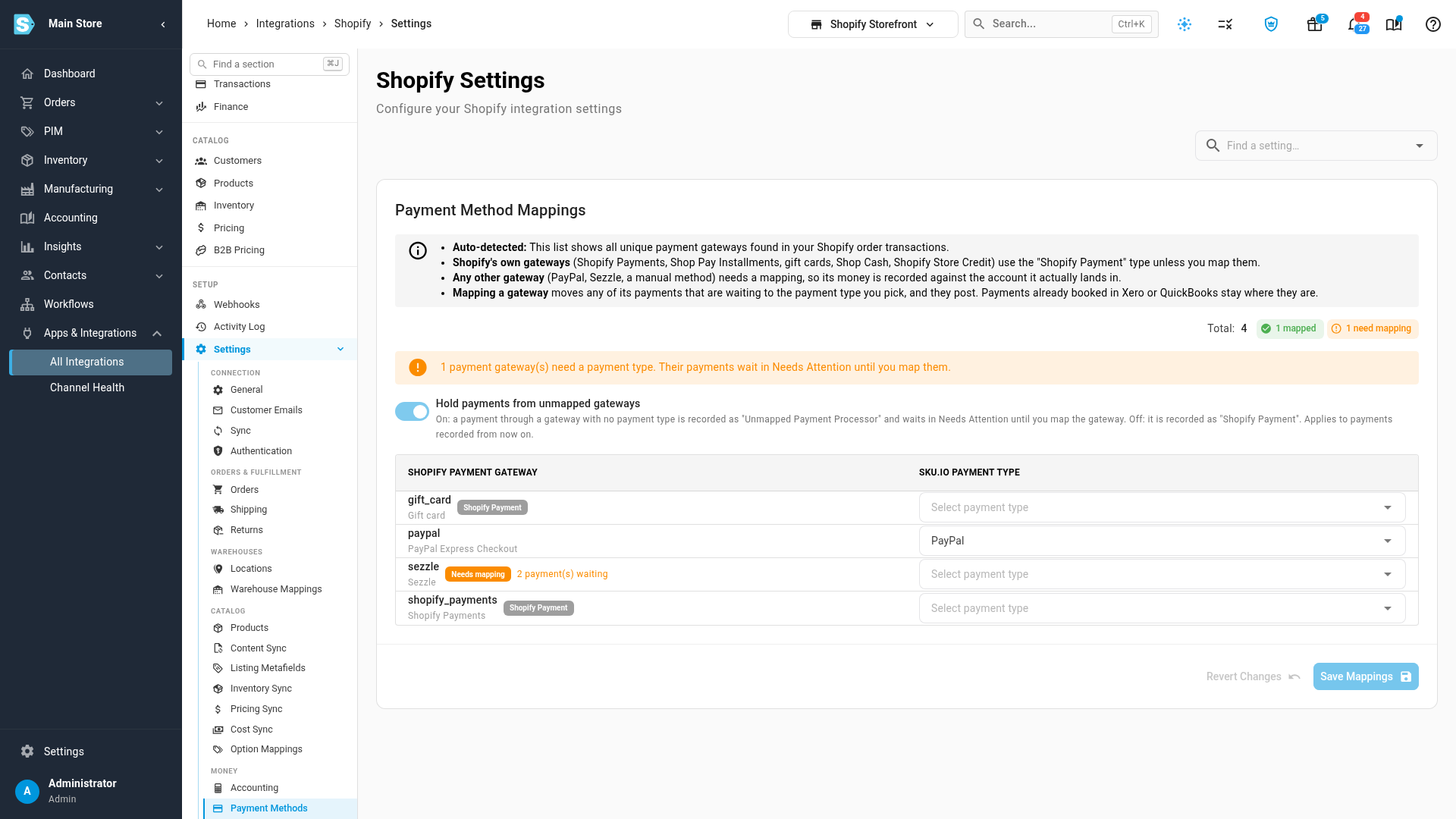
Payments imported from now on use the type you chose. With Hold payments from unmapped gateways on, the message after saving also says how many waiting payments moved: N waiting payment(s) moved to the mapped type. They post to that payment type's account from there.
Payments already booked in Xero or QuickBooks stay where they are. Only payments your accounting provider hasn't recorded yet are moved.
To undo a mapping, clear the field and click Save Mappings. Revert Changes discards edits you haven't saved.
Post waiting payments to a suspense account meanwhile
This applies with Hold payments from unmapped gateways on. If you can't map a gateway yet, for example while you find out where its money goes, you can still get its payments into your books. Map the Unmapped Payment Processor payment type to a suspense account, the same way you map any payment type to an account; see Map payment types to your accounting provider. Its payments then post there instead of waiting. Once you map the gateway, new payments use its own type.
Check before you close the month
The month-end close checklist includes Payment gateways mapped (a warning). It lists, by gateway, the payments whose gateway isn't mapped yet, with how many and how much: the ones waiting when the switch is on, or the ones that posted as Shopify Payment when it's off. Its link opens this tab. See Close checks reference.
Next steps
Video transcript
Your Shopify store's settings have a Payment Methods tab. It lists every gateway found on your orders. Shopify's own, such as Shopify Payments and gift cards, use the Shopify Payment type. PayPal, Sezzle and other processors need a mapping, so their money reaches the right account. Below the warning, a switch decides what happens until then. Turn on Hold payments from unmapped gateways, and those payments wait in Needs Attention. With it off, they are recorded as Shopify Payment, and the close checklist flags each gateway. Every store you connect from today starts with this switch enabled. To map a gateway, open the list on its row, and pick the right type for its money. You can also create a new type by typing its name. When you are done, click Save Mappings at the bottom of the card. Its waiting payments then move to that type and post to your books. The warning now counts the gateways still left to map. Payments already booked in Xero or QuickBooks keep their original account.