Map Amazon settlements to your accounts
Every two weeks or so Amazon pays you one deposit: your sales, less dozens of kinds of fee, refund, reserve and adjustment. To book that deposit properly, each line of the settlement has to land in the right account. SKU.io reads your settlement reports, and you map each kind of line to an account once. After that, every settlement posts to your books as a sales invoice and a fee bill that add up exactly to what reached your bank.
Before you begin
- Connect your Amazon account and let SKU.io import a settlement or two, so there are lines to map.
- Set up the accounts you want to post to, such as Amazon Sales, Amazon Selling Fees and FBA Fulfillment Fees, under Accounting → Settings → Nominal Codes.
Open the settlement mappings
-
Go to Apps & Integrations → Amazon and open the Finance tab.
-
Choose your Amazon account in the integration selector at the top, or leave All Integrations to work across them.
-
Open Settlement Mappings.
Group the lines into documents
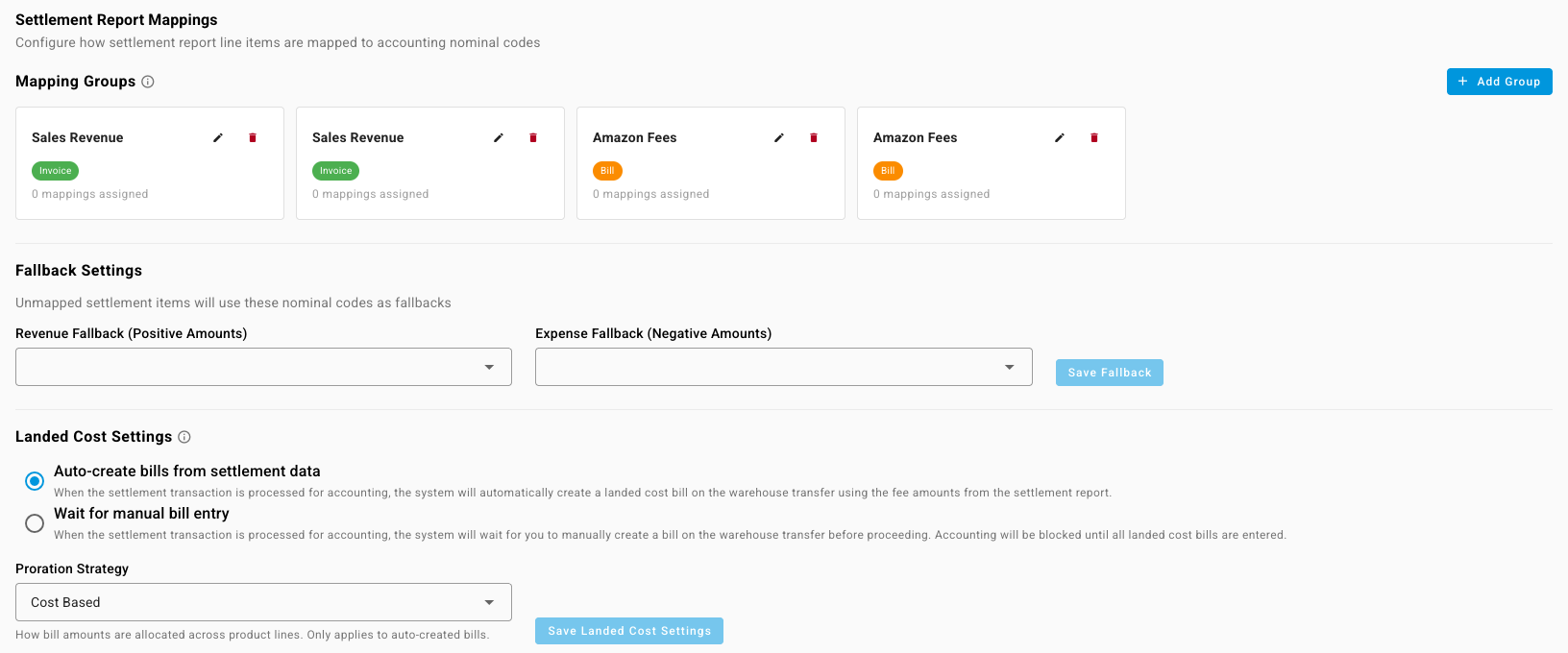
Mapping Groups decide which document each line ends up on. A group is either an Invoice, for money Amazon pays you, or a Bill, for money Amazon keeps. Most sellers need two: Sales Revenue as an invoice and Amazon Fees as a bill.
- Click Add Group, name it, and choose Invoice or Bill.
- Use the pencil to rename a group, or the bin to delete one.
If an invoice group's lines add up to a negative amount, SKU.io posts it as a sales credit instead.
Map each kind of line
Type Mappings lists every kind of settlement line SKU.io has seen, by Transaction Type, Amount Type, Description and Financial Code, with its usual Amount Sign.
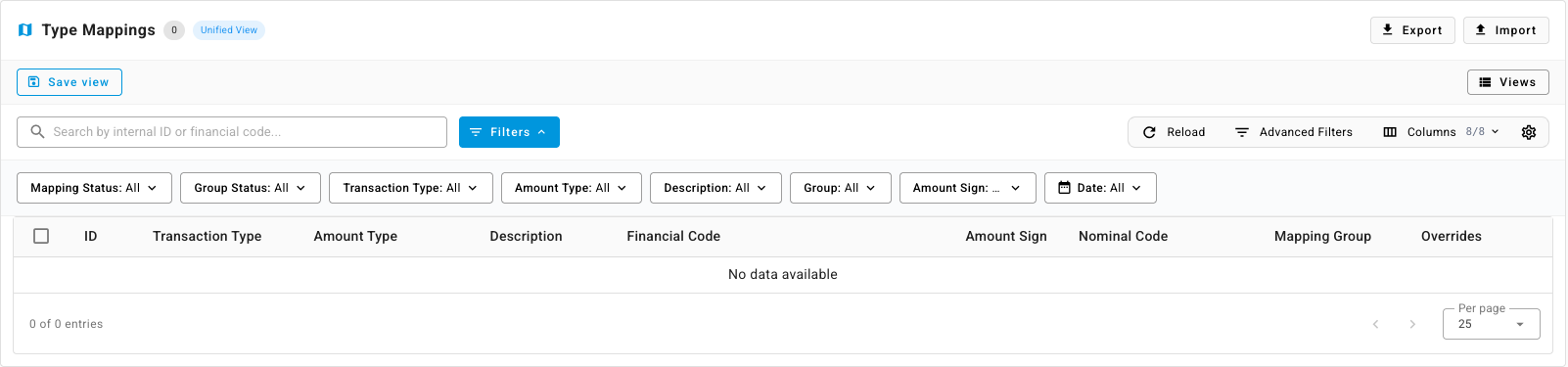
- Set Mapping Status to Unmapped to see what still needs an account.
- Tick the rows you want to map, then choose Assign Nominal Code and pick the account.
- With the same rows ticked, choose Assign Group and pick the document they belong on.
- To see real lines behind a row, open its actions menu and choose View settlement data examples.
To set up many mappings at once, or copy them from another account, use Export and Import on the Type Mappings card.
Catch anything you haven't mapped
New kinds of line appear when Amazon introduces a fee. So that a new line never stops a settlement from posting, set the fallbacks under Fallback Settings:
- Revenue Fallback (Positive Amounts): where unmapped money in goes. It's posted on its own invoice.
- Expense Fallback (Negative Amounts): where unmapped money out goes. It's posted on its own bill.
Click Save Fallback. Review the fallback accounts every month and map anything that has landed there.
Choose how FBA inbound fees become landed cost
Some settlement fees are the cost of sending stock into Amazon. Under Landed Cost Settings, choose:
- Auto-create bills from settlement data: SKU.io creates a landed cost bill on the warehouse transfer from the fee amounts in the settlement, and spreads it over the products by your Proration Strategy: Cost Based, Weight Based, Volume Based or Quantity Based.
- Wait for manual bill entry: the settlement waits until you've entered the landed cost bills yourself.
Click Save Landed Cost Settings.
Check each settlement posts
-
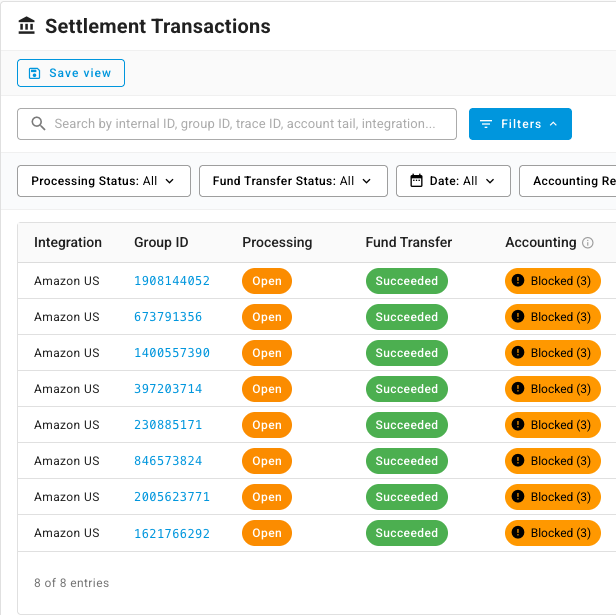
Open Settlement Transactions. Each row is one settlement, with its Group ID, Processing and Fund Transfer status and an Accounting status.
-
Filter Accounting Readiness to find settlements that can't post yet:
Status What to do Ready Nothing. The settlement posts on the next run. Blocked — Mapping Gap Map its unmapped lines, or set the fallbacks. Blocked — Needs Exchange Rate Add the exchange rate for the settlement's currency. Ineligible — Failed Transfer Amazon's payout failed, so there's no deposit to book. Done Posted. Hover a Blocked chip to see every reason the settlement is waiting. A settlement also waits until Amazon closes it, its fund transfer succeeds, and its lines add up to the settlement total.
-
Open a settlement to see its lines and the documents it posted. If you change a mapping after a settlement posted, click Regenerate Accounting Transactions on the settlement to post it again with the new accounts.
Each settlement's documents carry the settlement ID as their reference in Xero or QuickBooks. Together they equal the deposit, so you can match them to the bank line in one step. See Match bank statement lines. The month-end close also checks that every settlement is mapped.
Fee Mappings are for order profit, not the books
The Fee Mappings tab does a different job. It sorts the fee breakdown on each Amazon order into financial lines, such as Commission or Coupon Fee, so each order's profit is right. It doesn't change the settlement mappings above.
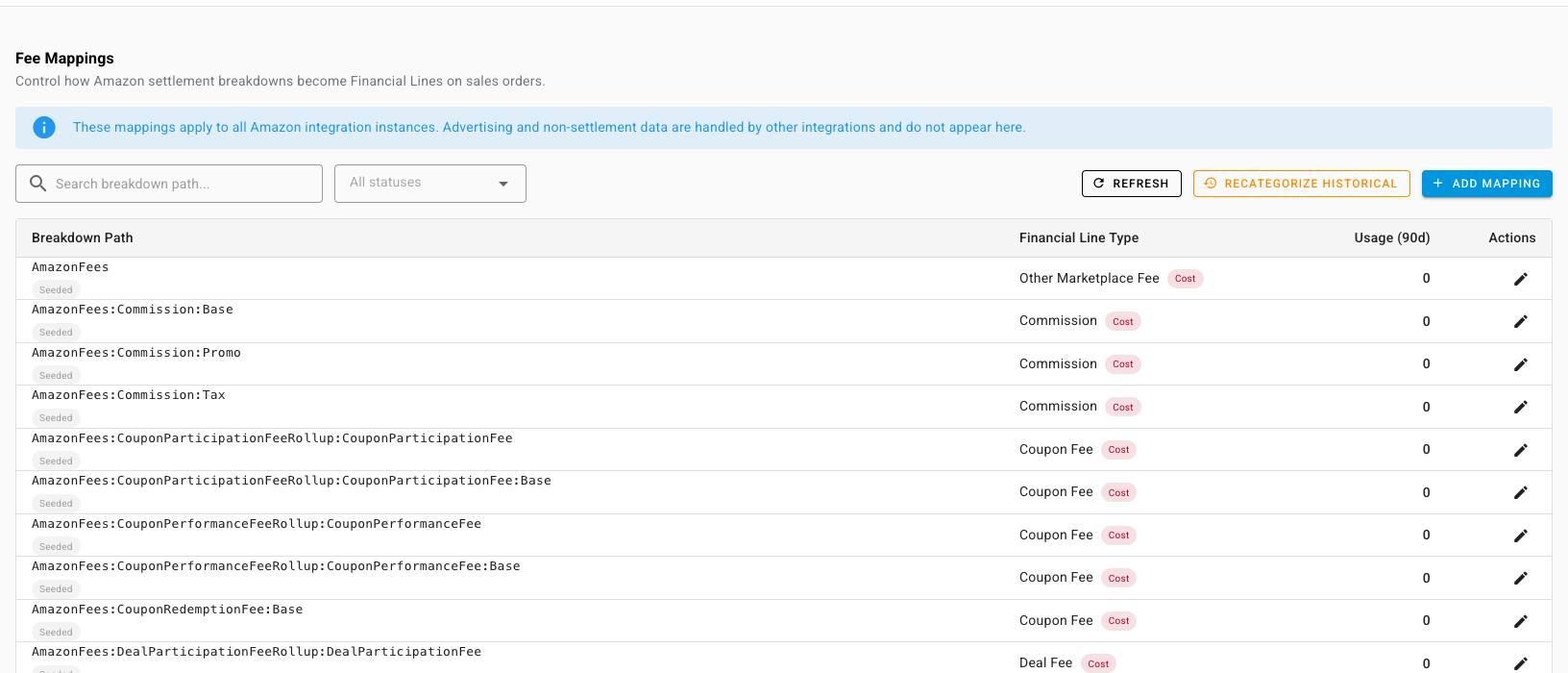
Most fee types come mapped. Click the pencil on a row to change its Financial Line Type, or Add Mapping for a new one. After changing mappings, click Recategorize Historical to apply them to past orders.
Next steps
- How FBA reimbursements are accounted for: what happens to the reimbursement lines in a settlement.
- Match bank statement lines: match each settlement to its bank deposit.