Track AWD inventory
AWD is Amazon's bulk storage: you send pallets into AWD, and Amazon tops up your FBA stock from it. SKU.io keeps an AWD stock location for each connection and country, fills it from the shipments you send in, empties it as Amazon moves units on to FBA, and values it with FIFO cost layers, so the cost follows the units all the way to FBA.
Before you begin
- Your Amazon connection is in North America, FBA tracking is on, and your seller account is enrolled in AWD. If Amazon refuses access, the page says AWD access denied by Amazon and offers Re-check Access.
- You can download reports from the AWD section of Seller Central.
Set your starting point
AWD sync stays off until SKU.io knows what you held in AWD the day before your FBA tracking start date.
-
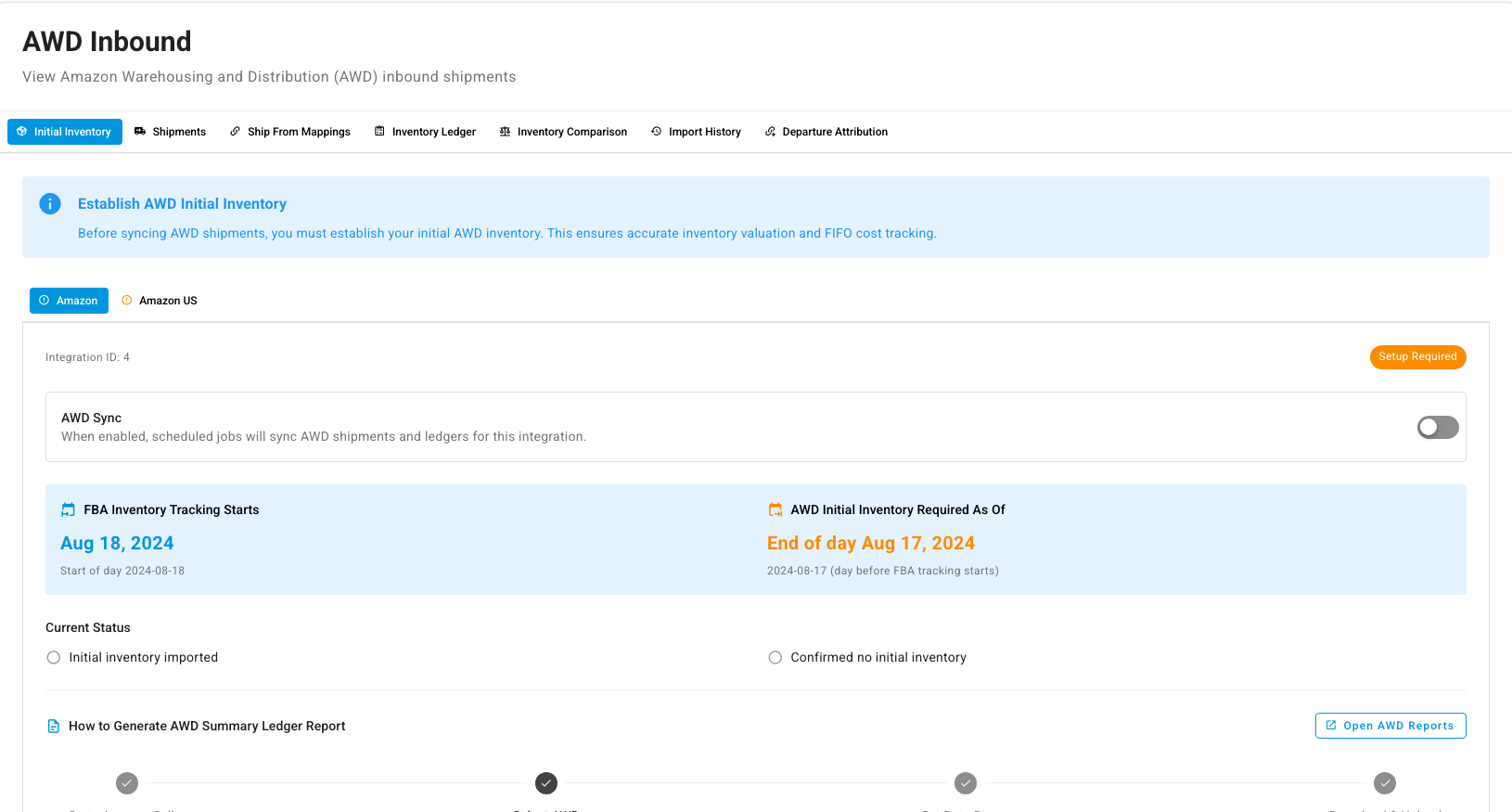
Go to Apps & Integrations, open your Amazon connection, click FBA, then open AWD Inbound. The Initial Inventory tab opens, with one tab per Amazon connection and a Setup Required chip until you finish.
-
Check the dates: FBA Inventory Tracking Starts, and AWD Initial Inventory Required As Of, which is the day before.
-
If you held AWD stock on that day, follow How to Generate AWD Summary Ledger Report: in Seller Central, download the AWD inventory ledger summary for that date (Open AWD Reports takes you there), then use Import Initial Inventory to upload it. Check the imported rows and their Unit Cost.
-
If you held none, click Confirm No Initial Inventory.
-
Turn on AWD Sync. The chip changes to Ready to Sync, and scheduled jobs start syncing AWD shipments and ledger entries for the connection.
Process the shipments you send into AWD
-
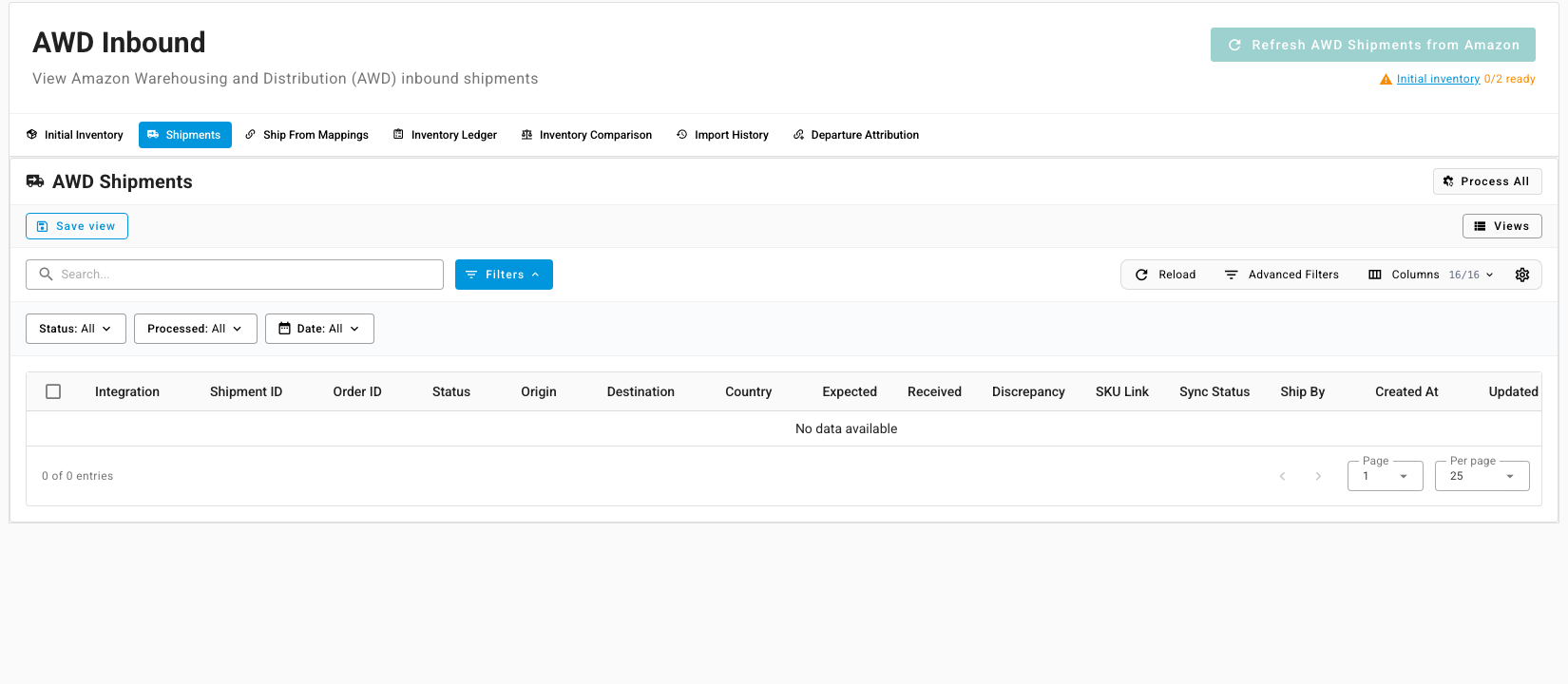
Open Shipments. AWD Shipments lists each shipment with its Origin, Destination, Expected and Received quantities, and any Discrepancy. Click Refresh AWD Shipments from Amazon to pull new ones now.
-
Make sure each shipment's origin is mapped under Ship From Mappings: Set Warehouse for stock that leaves one of your warehouses, or Set Supplier for stock a supplier ships straight to AWD.
-
Click Process on a shipment, or Process All. A warehouse-sourced shipment gets a warehouse transfer into the AWD location. A supplier-sourced shipment needs Link to PO, so the units come in at the purchase order's cost. SKU Link then shows what it's tied to.
Keep the AWD ledger current
Open Inventory Ledger to see each AWD event: Received, Departed, Lost, Found, Other or Unknown, with its cost. If scheduled sync can't reach a period, click Import AWD Ledger and upload the ledger report from Seller Central. Import History lists every upload with how many rows were created, already in, or rejected.
Units Departed from AWD are on their way to FBA. Departure Attribution matches each departure to the FBA shipment that received it, so the cost moves with the units. SKU.io does this every day; the tab shows anything still Unattributed.
Bring the count back in line
- Open Inventory Comparison. It sets SKU.io's AWD on-hand against Amazon's own figures, product by product, with the difference in units and value.
- If SKU.io reads high or low, select a single connection and click Re-anchor to Amazon's count.
- On Re-anchor to Amazon's Count, check that every precondition passes, review the correction per SKU, tick the confirmation, and click the Apply button, which names the size of the correction. You can reverse it later from the same page.