Map Shopify shipping methods
Each Shopify order carries the shipping option the customer chose at checkout, such as "Standard Shipping". SKU.io turns it into one of your own shipping methods, which is what your warehouse or fulfillment provider ships with. You set this up on the Shopify connection's Settings → Shipping tab: a default mapping for each Shopify method, rules that send some orders elsewhere by destination, weight or value, and a fallback for orders that arrive with no shipping method at all.
Before you begin
- Connect your Shopify store.
- Your shipping methods exist in SKU.io, under Settings → General → Shipping Methods.
- You need permission to manage sales channel mappings to add rules or re-resolve orders, and permission to update integrations to save the mappings and the fallback method. Without it, Save Mappings and Save Settings don't appear.
How an order gets its shipping method
SKU.io checks these in order, and the first match wins:
- Rules on the Shopify method, top to bottom. A rule can match the method's name, the destination country, state or postcode, and the order's weight or value.
- The method's default mapping in Shipping Method Mappings.
- Fallback rules, for orders that steps 1 and 2 left without a method.
- The fallback shipping method.
- Nothing. The order has no shipping method.
Changes apply to orders imported from now on. To apply them to open orders already in SKU.io, use Re-resolve open orders.
Map each Shopify method
- Go to Apps & Integrations, open your Shopify connection, then Settings and the Shipping tab.
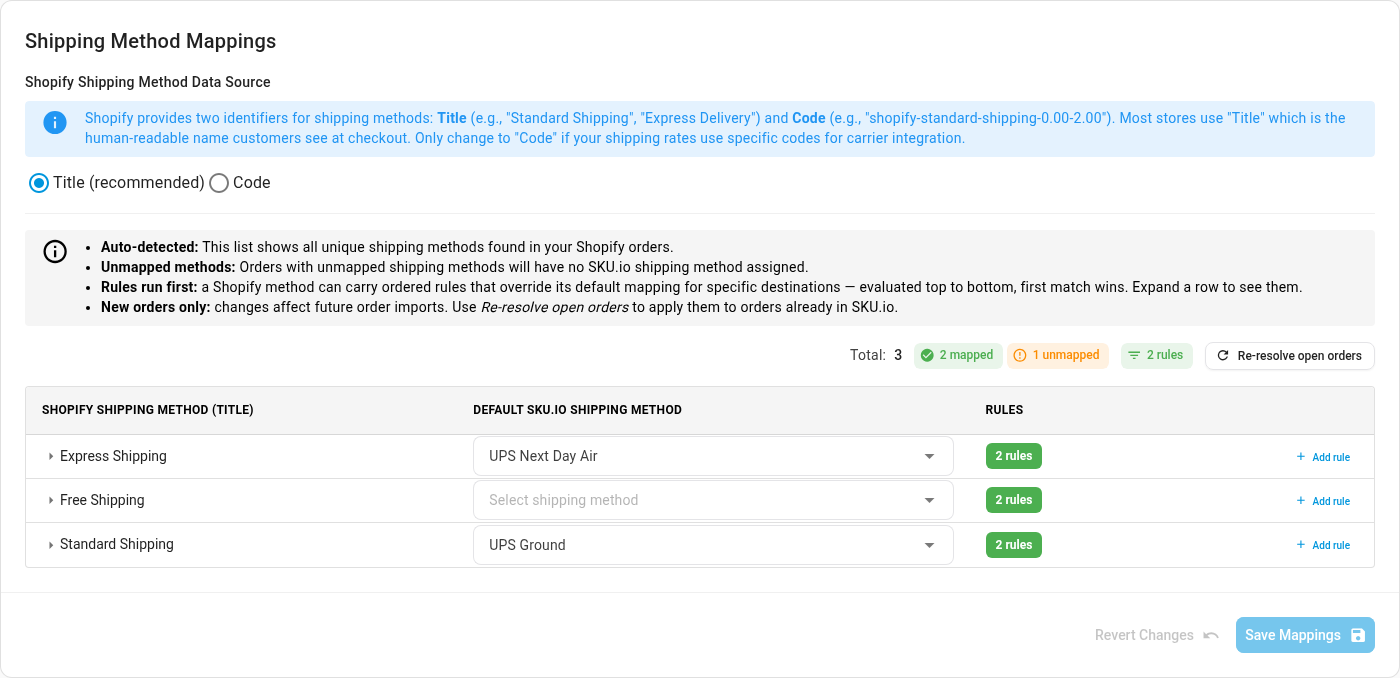
- Under Shipping Method Mappings, choose the Shopify Shipping Method Data Source. Keep Title (recommended), the name customers see at checkout, unless your rates use carrier codes.
- Every Shopify method found on your orders is listed, marked Unmapped until you map it. Pick a Default SKU.io Shipping Method for each.
- Click Save Mappings.
Add a rule for some destinations
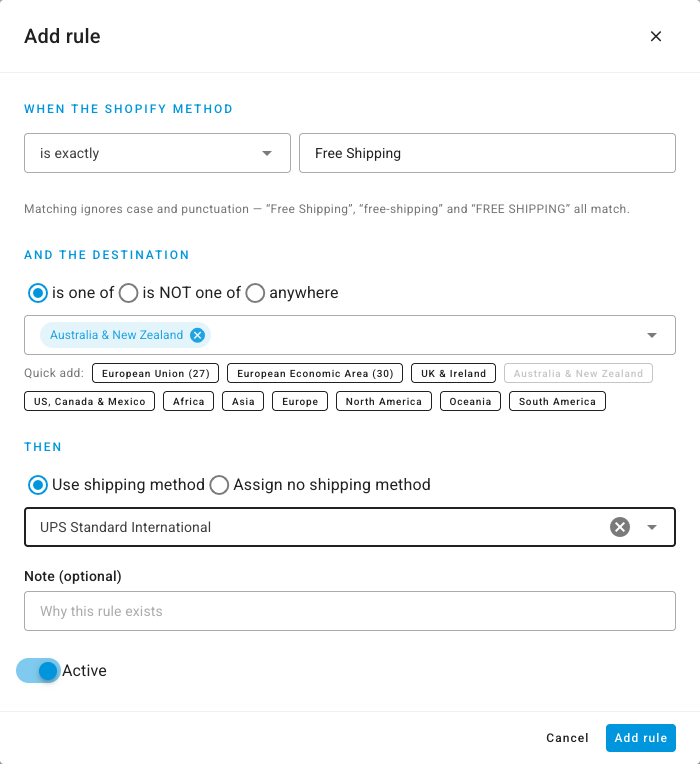
Use a rule when one Shopify method should ship differently to some countries, for example "Free Shipping" to Australia and New Zealand.
- On the Shopify method's row, click Add rule. For a method that hasn't appeared on an order yet, click Add rule under Other rules.
- Under When the Shopify method, choose is exactly, contains, starts with, or is anything, and enter the text. Matching ignores case and punctuation, so "Free Shipping" and "free-shipping" both match.
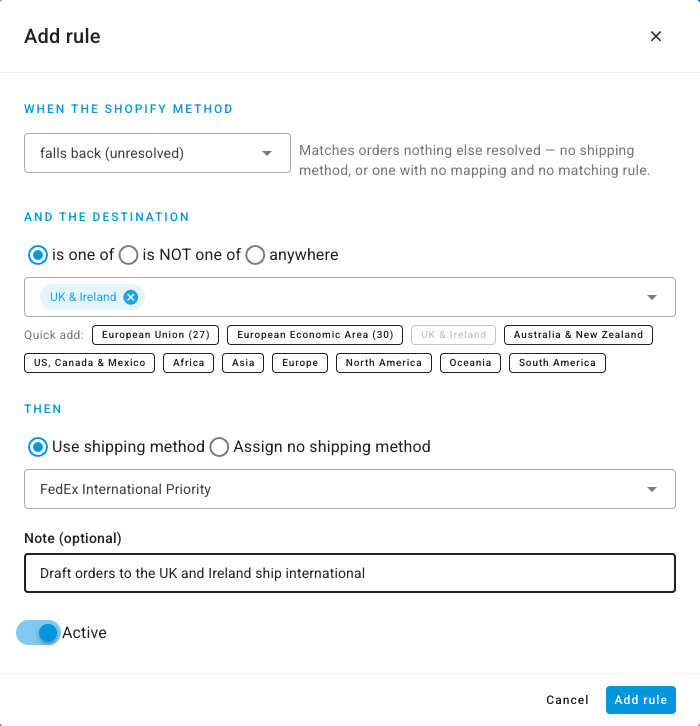
- Under And the destination, choose is one of, is NOT one of, or anywhere, and add countries. Quick add fills in a group, such as European Union (27) or US, Canada & Mexico.
- Under Then, choose Use shipping method and pick one. Assign no shipping method stops here: the order gets no method, and the fallback isn't used.
- Optionally, add a Note saying why the rule exists.
- Click Add rule. Rules save straight away.
Narrow a rule by state, postcode, weight or value
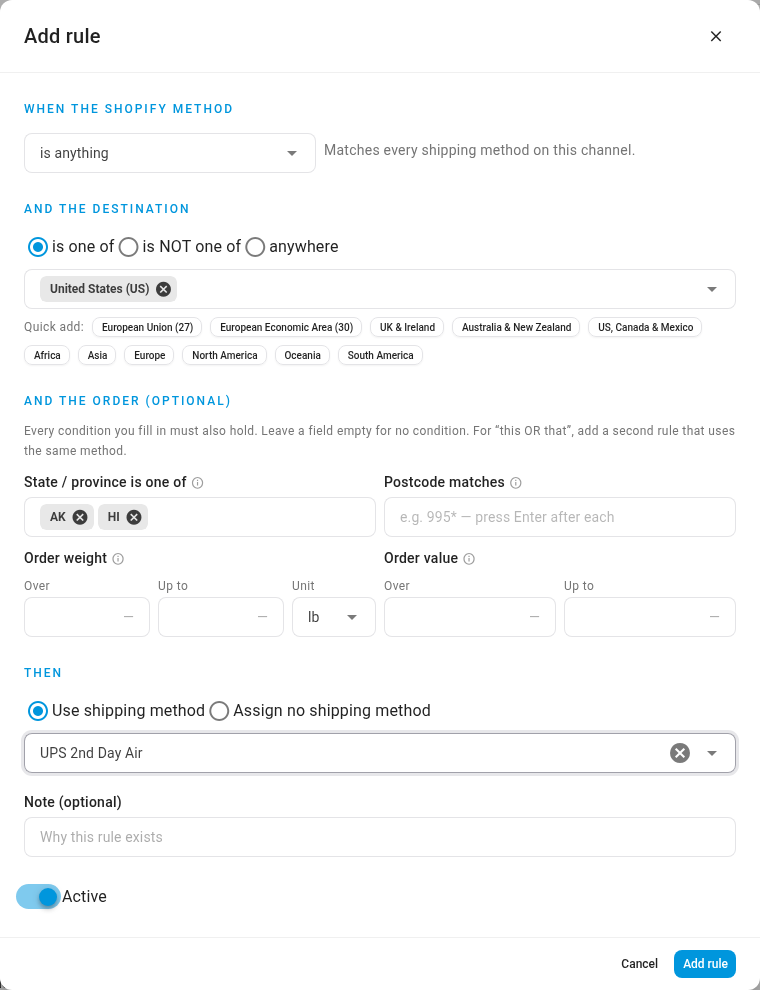
Under And the order (optional), a rule can also test the order itself. Leave a field empty and it isn't checked.
| Condition | Matches when | Example |
|---|---|---|
| State / province is one of | The shipping address's state or province is in the list. Type each code and press Enter. The full name works too. | AK, HI |
| Postcode matches | The postcode starts with the text, or matches a pattern. * stands for any characters and ? for one. | 995* |
| Order weight | The order's total product weight is over the first number and up to the second, in the unit you pick. | Over 20 lb |
| Order value | The order's subtotal (quantity × price, before discounts, tax and shipping) is over the first number and up to the second. | Over 250 |
Every condition you fill in must hold, together with the method and destination above. To say this OR that, add a second rule that uses the same shipping method. For example, to send orders to Alaska or Hawaii, or any order over 20 lb, by 2nd Day Air:
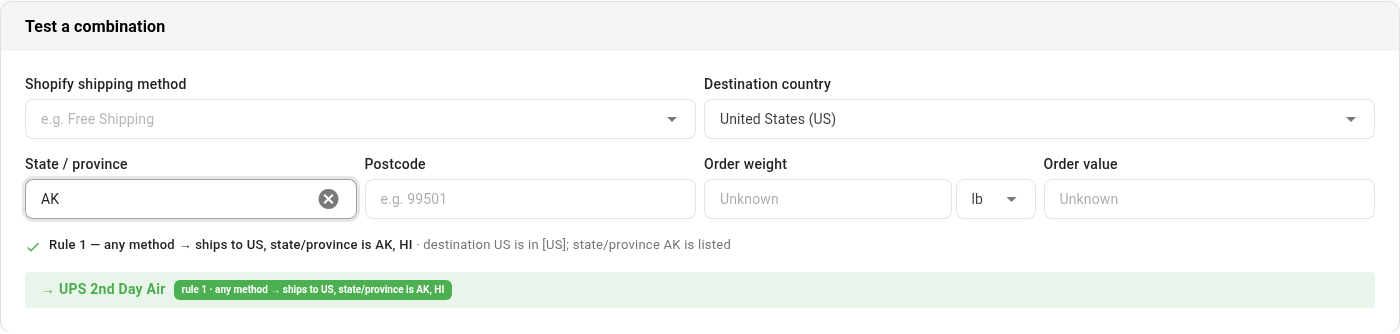
- Add a rule: is anything, destination United States, states
AKandHI, use UPS 2nd Day Air. - Add a second rule: is anything, destination anywhere, order weight over
20lb, use UPS 2nd Day Air.
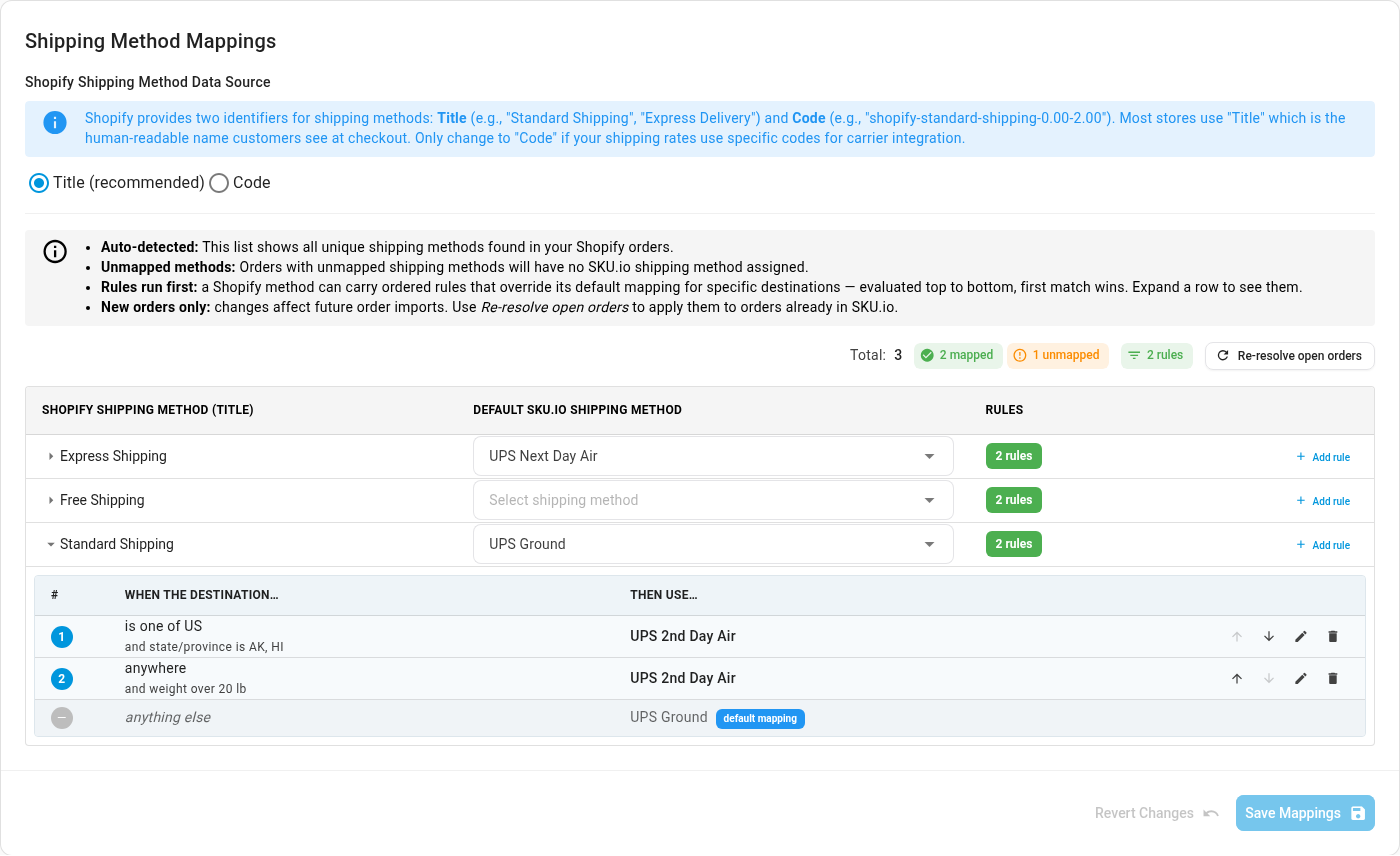
Both rules use is anything, so every method's row shows them. Click a method to see its rules in the order they run, ending with anything else, which is the method's own mapping.
Because over excludes its own number and up to includes it, tiers such as "up to 20 lb" and "over 20 lb" never overlap.
A rule with a weight condition doesn't match an order whose weight isn't known: a line with no product yet, or a product with no weight. A bundle weighs what its components weigh. Likewise, a state or postcode condition doesn't match an order with no state or postcode.
Rules run top to bottom. Use the arrows to reorder them, the pencil to edit, and the bin to remove one. Removing asks you to confirm first, and orders already imported keep their method. A rule shows a warning when its shipping method doesn't serve those countries, when it points at an archived method, or when a rule above already catches everything it would.
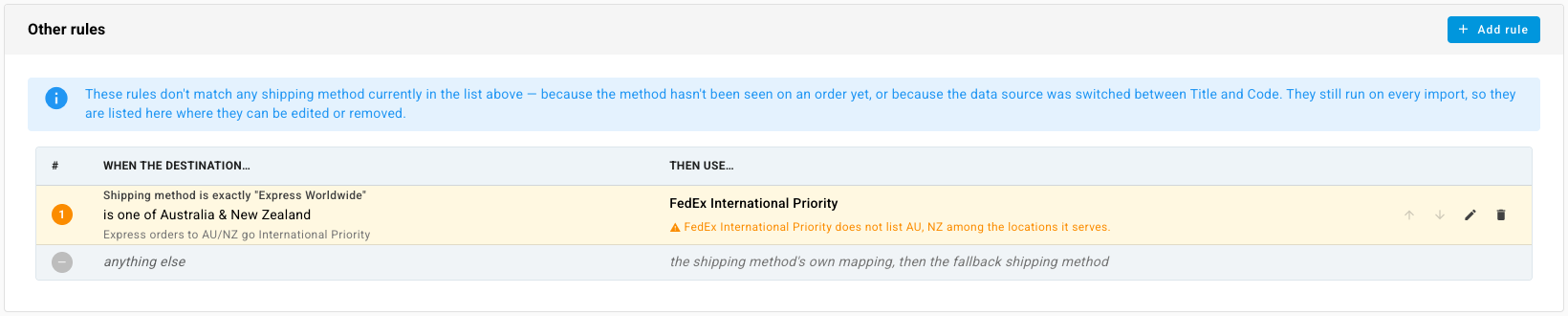
Other rules lists rules whose Shopify method isn't in the mapping list, because no order has used it yet or because you switched between Title and Code. Each row names the Shopify method it matches, such as Shipping method is exactly "Express Worldwide", above its destinations and order conditions. They still run on every import. A rule that matches is anything is listed under every method in the mapping list, or under Other rules while nothing is mapped yet.
Set a fallback for orders with no shipping method
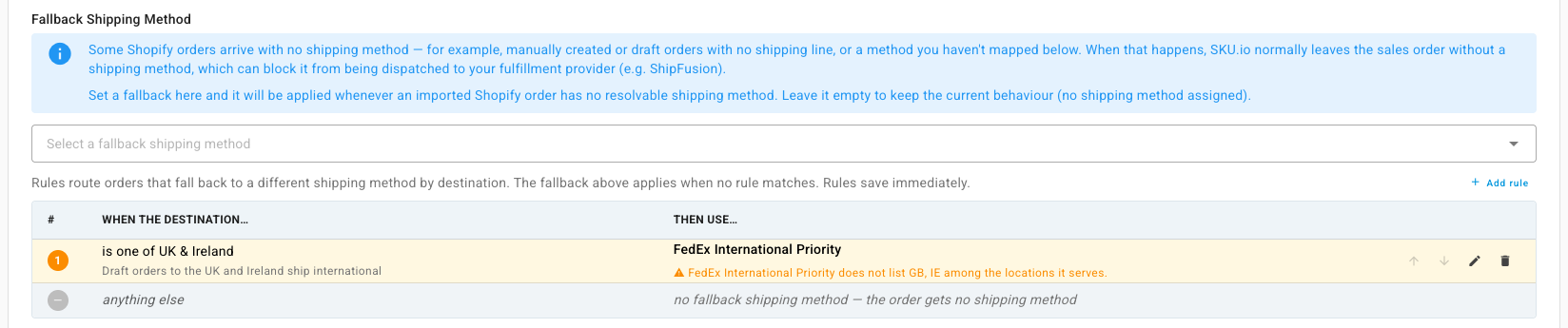
Some Shopify orders arrive with no shipping method you can map, such as draft or manual orders with no shipping line, or a method you haven't mapped. Without a method, the order can be held back from your fulfillment provider.
- Under Shipping Settings, pick a Fallback Shipping Method.
- Click Save Settings.

To send fallback orders to different methods by destination, click Add rule below the field. The rule starts as falls back (unresolved), which matches only orders nothing else resolved. Choose the countries and the method, then click Add rule. The fallback method applies when no fallback rule matches.
Test a combination
Under Test a combination, enter any of: a Shopify shipping method, a Destination country, a State / province, a Postcode, an Order weight and an Order value. SKU.io walks the steps above and shows which one handles it and the shipping method the order would get. Leave a field empty to test an order that doesn't have it.
What's actually arriving lists the method and country combinations on recent orders, and what each one resolves to. Change the window from Last 180 days to look further back. It groups orders by method and country only, so its Resolves to column doesn't reflect rules on state, postcode, weight or value. Use Test a combination for those.
Apply changes to open orders
- Under Shipping Method Mappings, click Re-resolve open orders. SKU.io works out what would change and shows how many open orders would get a different method, with examples.
- Click Re-resolve N orders. The work runs in the job tray.
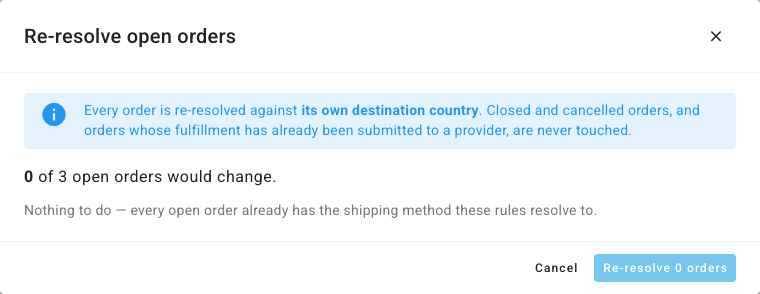
Each order is re-resolved against its own destination, weight and value. Closed and cancelled orders, and orders whose fulfillment has already gone to a provider, are never changed.