Connect a Shopify store
Connecting Shopify lets SKU.io sync your products, orders, and inventory with your store. You connect it with a custom app that you create in Shopify's Dev Dashboard. SKU.io walks you through it and gives you every value to copy.
Before you begin
- Sign in to Shopify as the store owner, or as a user with the App developer role. Collaborator accounts can't open the Dev Dashboard.
- You need permission to add an integration in SKU.io.
Open the setup guide
- Go to Apps & Integrations and select Shopify.
- Click Connect Shopify. If you already have a Shopify store connected, click Add Instance instead. The New Shopify Integration page opens with a Shopify Setup Guide.
Keep this page open beside your Shopify admin, because you'll copy values from it.
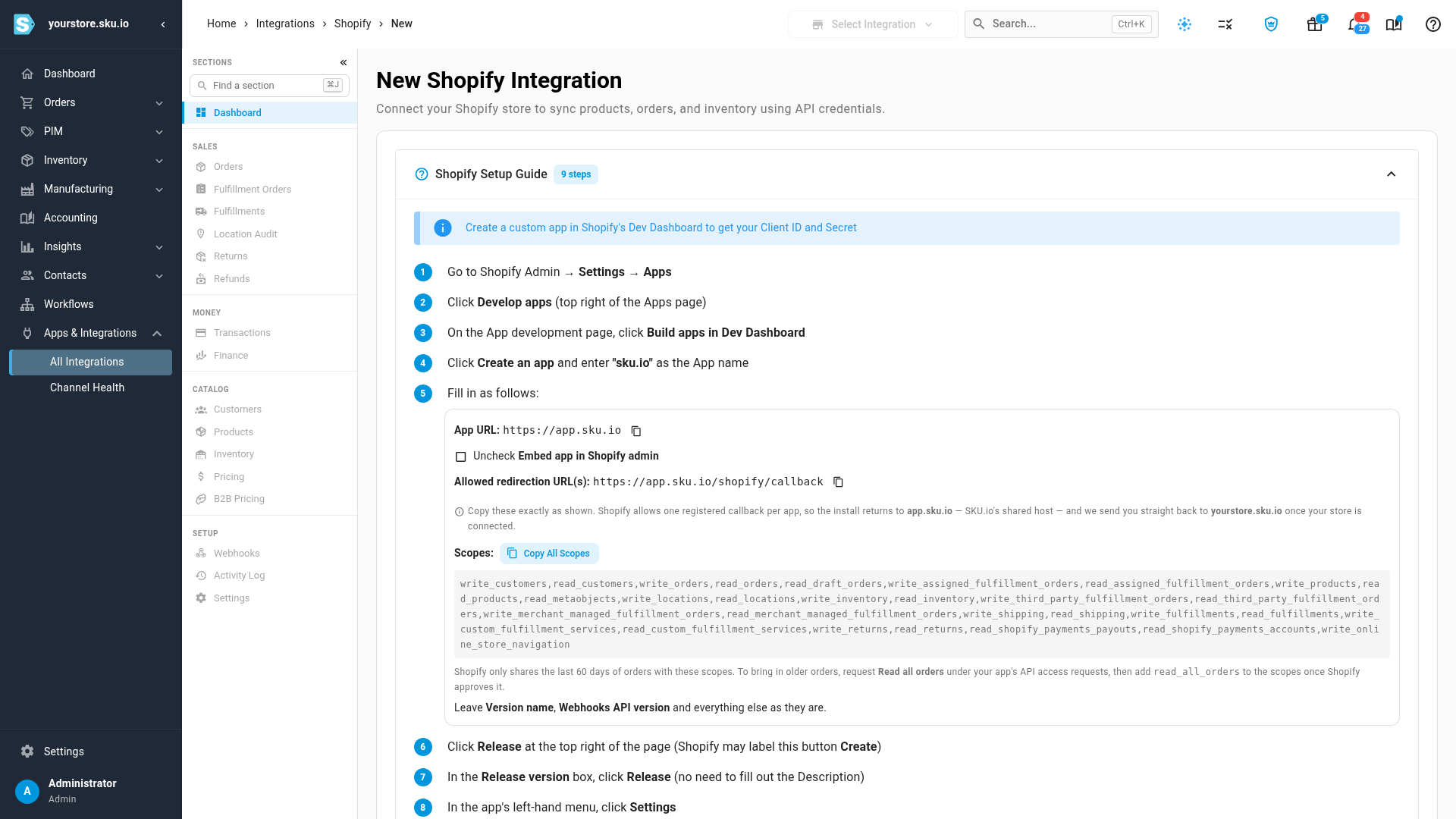
Create the custom app in Shopify
- In your Shopify admin, go to Settings → Apps.
- Click Develop apps at the top right of the page. The App development page opens.
- Click Build apps in Dev Dashboard.
- Click Create an app.
- Enter a name in App name, such as
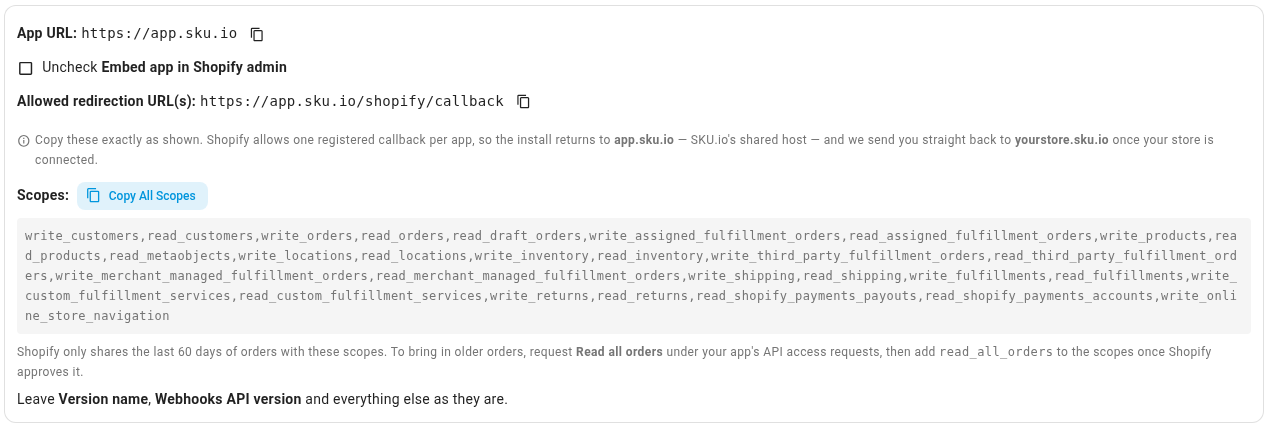
sku.io. Leave Version name blank. - In App URL, paste the App URL from the setup guide.
- Uncheck Embed app in Shopify admin.
- In Allowed redirection URL(s), paste the URL from the setup guide. It names SKU.io's shared address, not your own. After you connect, SKU.io sends you back to your workspace.
- In the setup guide, click Copy All Scopes, then paste them into Scopes.
- Leave Webhooks API version and the other fields as they are.
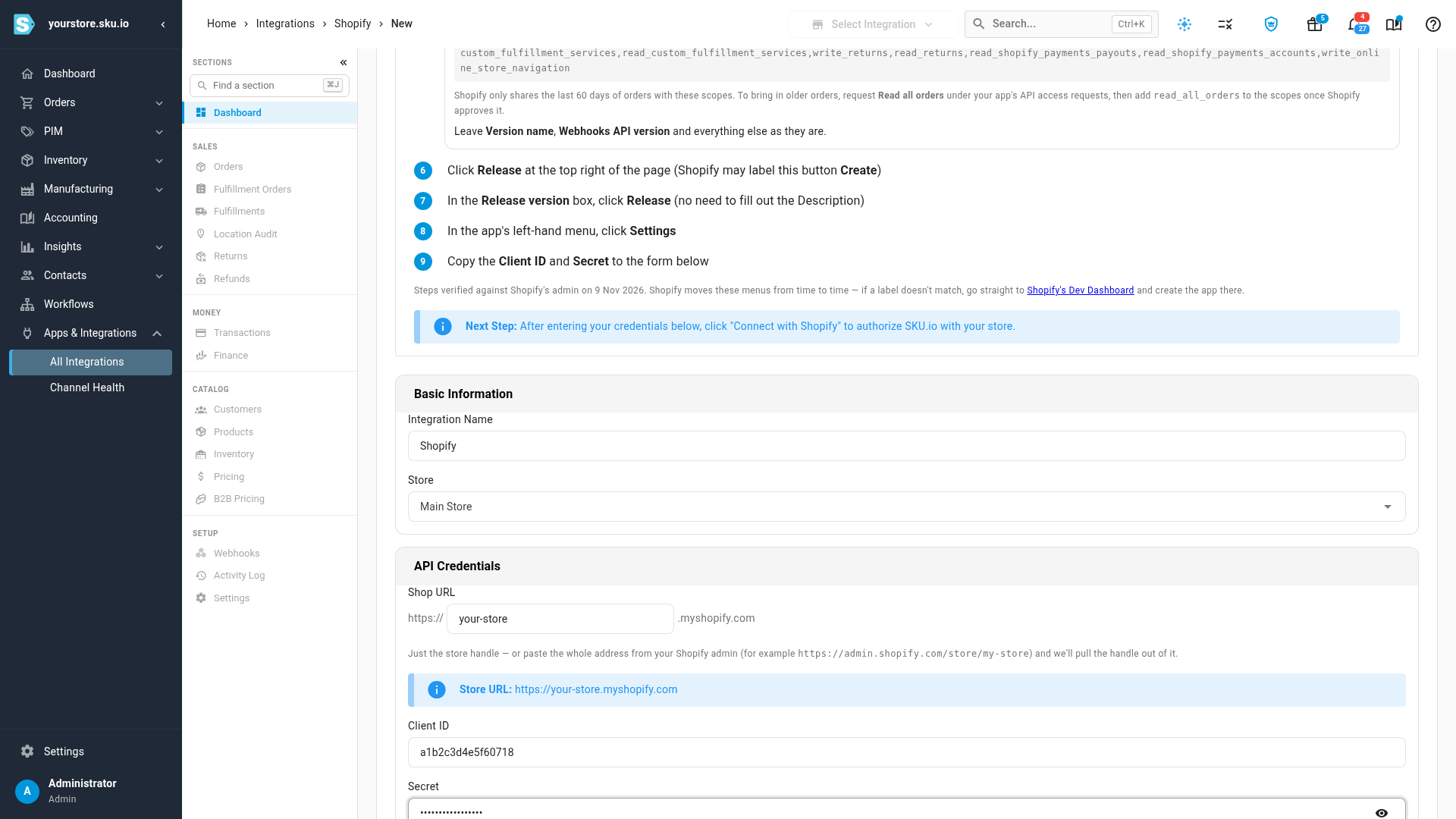
- Click Release at the top right of the page. Shopify may label this button Create.
- In the Release version box, click Release. You don't need a description.
- In the app's left-hand menu, click Settings, then copy the Client ID and Secret.
If a Shopify label doesn't match, go straight to the Dev Dashboard and create the app there.
Enter your credentials in SKU.io
- Back on the New Shopify Integration page, under Basic Information, choose the Store this connection belongs to. If your account has only one store, SKU.io selects it for you.
- Under API Credentials, enter your Shop URL. Type the
your-storepart ofyour-store.myshopify.com, or paste the address from your Shopify admin. - Paste the Client ID and the Secret from your app.
Choose your options and connect
- Under Advanced Settings, set a Start Date. Orders and inventory changes before this date aren't synced.
- Choose whether to Download Archived Products and Download Draft Products, and leave Auto Sync Enabled on to keep the store syncing automatically.
- Click Connect with Shopify.
- In Shopify, approve the install. SKU.io connects the store and brings you back to finish setup.
Next steps
- Map Shopify locations to warehouses — do this next: you can't download orders until at least one Shopify location is mapped to a warehouse, and shipments from an unmapped location can't be recorded.
- Manage a connected app — control what the store syncs once it's connected.
- How apps and integrations work — the model behind connections and syncing.
Video transcript
To connect your store, open Apps and Integrations, and choose Shopify. Then click Add Instance, or Connect Shopify on your first store. The setup guide lists every step in order. Work beside your admin window, because you'll copy several values from this page. The guide starts in your admin, on the Apps page under Settings. Next is Develop apps, in the top right corner. On the App development page, click Build apps in Dev Dashboard. Then click Create an app, and give it a name. Now fill in Shopify's form, copying each value from this guide. Paste the App URL. Uncheck Embed app in Shopify admin. Paste the allowed redirection URL. Last, click Copy All Scopes, and add them under Scopes. Click Release at the top right of the form, then Release again to confirm. Settings is in the app's left-hand menu. That page holds your Client ID and Secret. Back in SKU.io, pick the Store this connection belongs to, from the list under Basic Information. With just one on your account, it's already selected. Then type your Shopify handle as the Shop URL. Paste the Client ID and the Secret. Set a Start Date, because earlier orders aren't synced. Then click Connect with Shopify, and approve the install in Shopify. SKU.io then brings you back here to finish setup.