Choose which emails your Shopify customers get
A Shopify customer can get several emails about one order. Shopify sends some of them, and SKU.io can send one of its own. The Customer Emails tab of your Shopify settings lists every one of them in one place, says who sends it, and has the one switch that SKU.io controls.
Before you begin
- Your Shopify store is connected. See Connect a Shopify store.
- To change the switch, you need permission to edit integrations.
Open the Customer Emails tab
- In the sidebar, open Apps & Integrations and choose your Shopify store.
- Open Settings, then the Customer Emails tab.
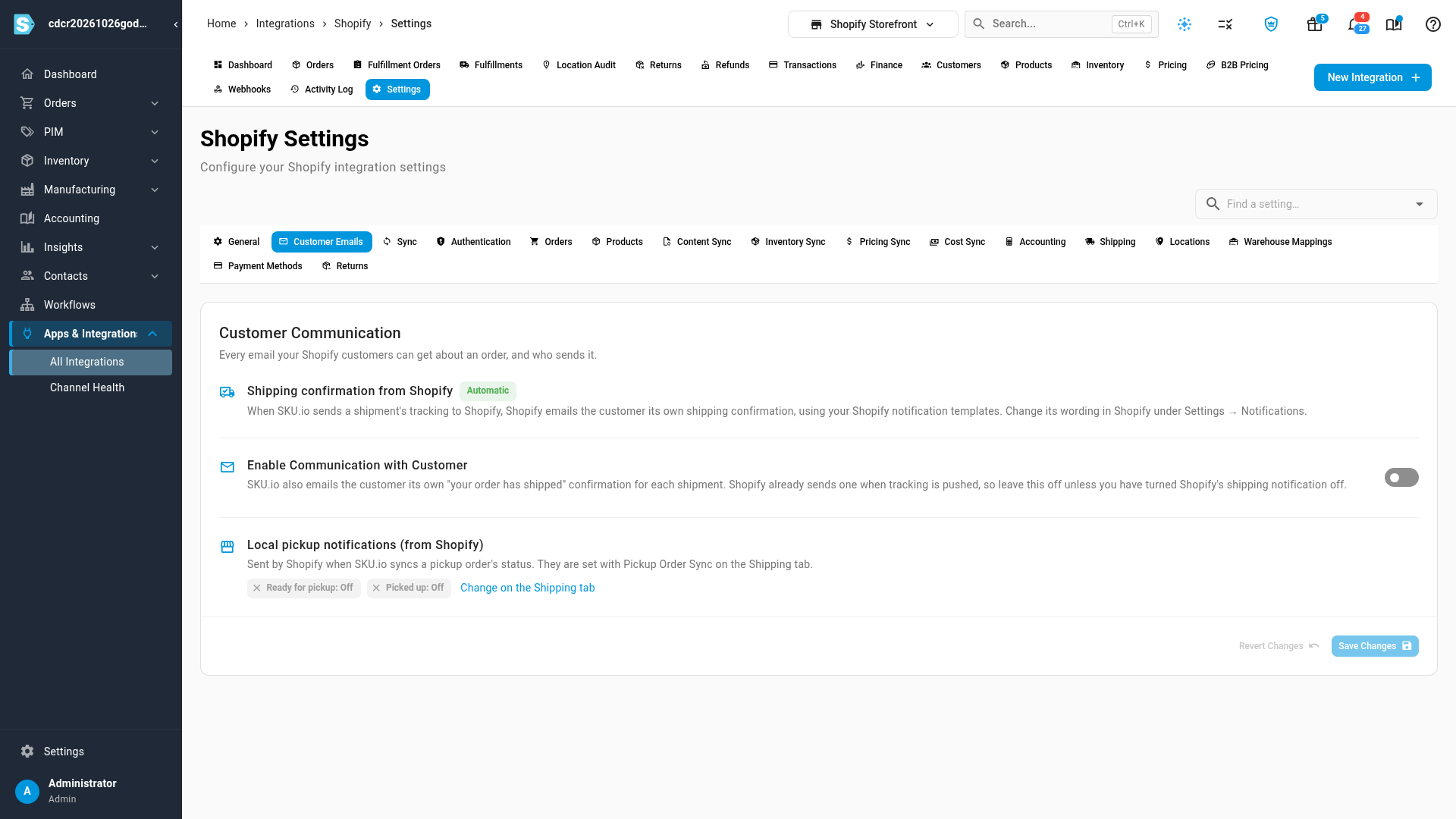
The tab lists three kinds of email.
| Sent by | What controls it | |
|---|---|---|
| Shipping confirmation from Shopify | Shopify | Always on. It goes out when SKU.io sends a shipment's tracking to Shopify. Change its wording in Shopify, under Settings → Notifications. |
| SKU.io's own shipped email (Enable Communication with Customer) | SKU.io | The switch on this tab. Off unless you turn it on. |
| Local pickup notifications | Shopify | Pickup Order Sync on the Shipping tab. This tab shows whether each one is on. |
Turn SKU.io's own shipping email on or off
Enable Communication with Customer makes SKU.io email the customer its own "your order has shipped" message for each shipment, on top of Shopify's.
- On the Customer Emails tab, turn Enable Communication with Customer on or off.
- Click Save Changes.
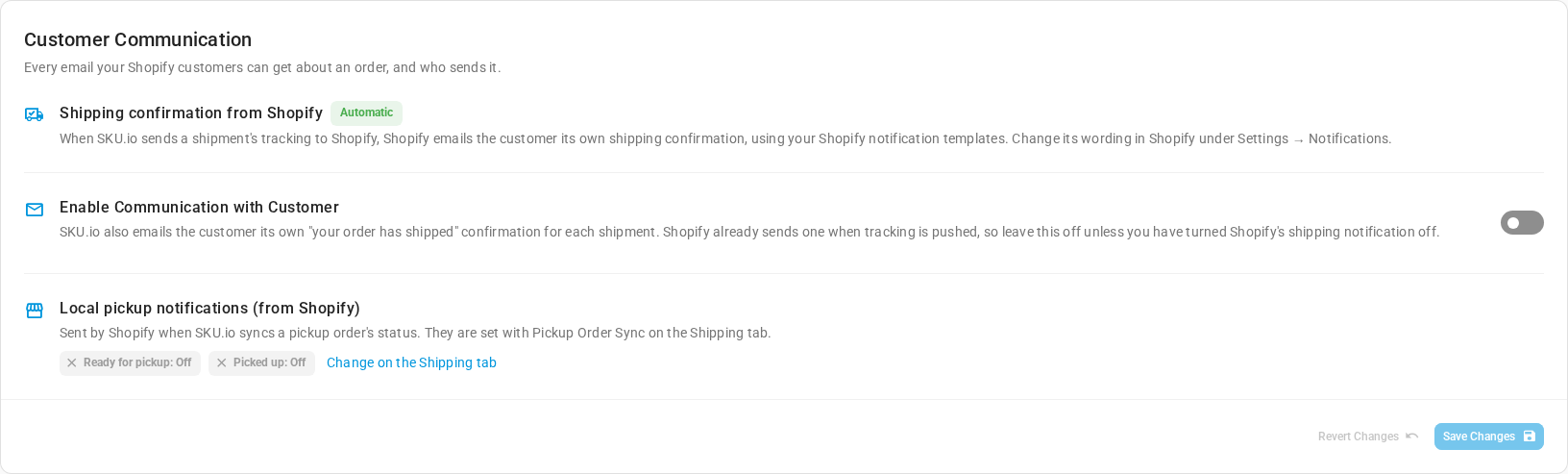
Shopify already emails the customer when SKU.io sends the tracking. Leave this switch off unless you have turned off Shopify's shipping notification. Otherwise every shipment sends your customer two emails.
This switch used to be on the General tab. General now has a link to the Customer Emails tab instead.
Change the pickup notifications
The Ready for pickup and Picked up notifications belong to Pickup Order Sync, so they are set on the Shipping tab. Click Change on the Shipping tab to go straight there. See Sync Shopify Click & Collect orders.
Find any Shopify setting by name
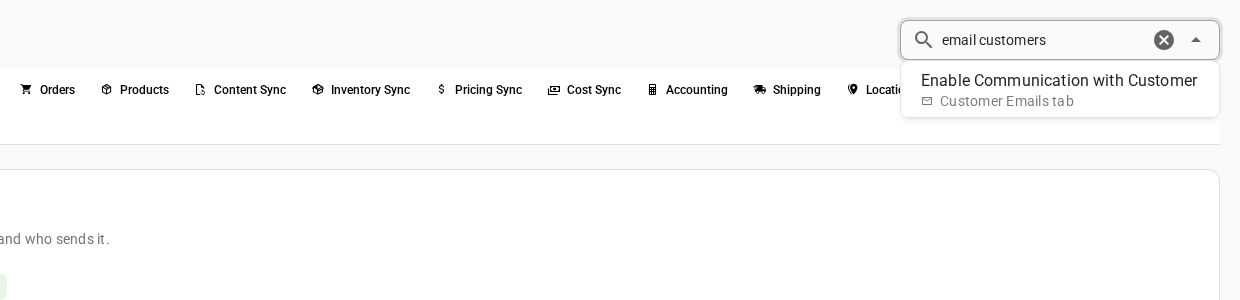
When you're not sure which tab a setting lives on, use Find a setting… above the tabs.
- Click Find a setting… and type what you're looking for, for example master of price, email customers or pricing tier.
- Pick the result. Each result names the tab it's on.
SKU.io opens that tab, scrolls to the setting and highlights it for a moment.
Next steps
- Sync Shopify Click & Collect orders
- Hold Shopify fulfillment until ship day: send the tracking, and Shopify's shipped email, only on the order's ship day.
Video transcript
Your customers can get several emails about each order, some from Shopify and one from SKU.io. To see them all in one place, open Apps and Integrations in the sidebar, and choose your store. Then open Settings, in the row of tabs along the top of the page. There are a lot of tabs here, so pick the second one, Customer Emails. The first row is the one people expect most. When SKU.io sends a shipment's tracking to Shopify, Shopify emails the customer its own shipping confirmation. Edit its wording under Notifications in your store's admin. Below it, Enable Communication with Customer makes SKU.io send its own shipped email as well. Shopify already covers that, so leave this off unless you have turned Shopify's notification off. Otherwise your customers get two emails for every shipment. Last, the local pickup notifications. Shopify sends these when items are ready to collect, and again once they are collected. They are set with Pickup Order Sync, so click Change on the Shipping tab to open those settings. If you are not sure which tab a setting is on, use Find a setting, above the tabs. Type what you are looking for, like master of price, then pick the match from the short list that appears under the box. SKU.io opens the right tab, and highlights the setting.