Map Shopify locations to warehouses
Shopify assigns every order to one of its locations. SKU.io keeps your stock in warehouses. A mapping tells SKU.io which warehouse stands behind each Shopify location. It's the first thing to set up after you connect a store.
Until at least one Shopify location is mapped to a warehouse, Download Orders stays off. Orders that sync automatically still arrive, but SKU.io picks their warehouse with its own routing, and a shipment from an unmapped location can't be recorded. Map your locations before your first download. The store's Dashboard tab shows a Warehouse Mappings Required banner while nothing is mapped.

What the mapping decides, and what it doesn't
Two separate settings connect your Shopify locations and your warehouses:
| You want to decide… | Where | Covered in |
|---|---|---|
| which warehouse ships an order Shopify assigned to a location, and which warehouse a shipment from that location came out of | Settings → Warehouse Mappings | Map each location to a warehouse |
| which warehouses' stock SKU.io counts for the quantity a Shopify location shows | Settings → Inventory Sync → Location-Specific Settings | Choose which warehouses' stock each location shows |
Once a location is mapped, SKU.io uses the mapping to:
- Download orders. Mapping the first location turns on Download Orders for the store.
- Route new orders. An order Shopify assigned to a mapped location goes to that location's warehouse. An order from a location that isn't mapped still comes in, and SKU.io picks the warehouse with its own routing instead.
- Record shipments. When an order ships from a location in Shopify, SKU.io records the shipment against the mapped warehouse. A shipment from a location that isn't mapped can't be recorded, so the order is marked "out of sync". When you map that location later, SKU.io re-syncs those orders for you.
Before you begin
- Your Shopify store is connected. See Connect a Shopify store.
- A warehouse exists in SKU.io for each place you ship from. See Create and edit a warehouse.
- You need permission to update integrations to save mappings, and permission to sync integrations to refresh locations.
A Shopify location is a place Shopify keeps stock, such as a warehouse, a store, or a 3PL. It isn't the same as a warehouse location in SKU.io, which is a bin or shelf inside one of your warehouses.
Bring in your Shopify locations
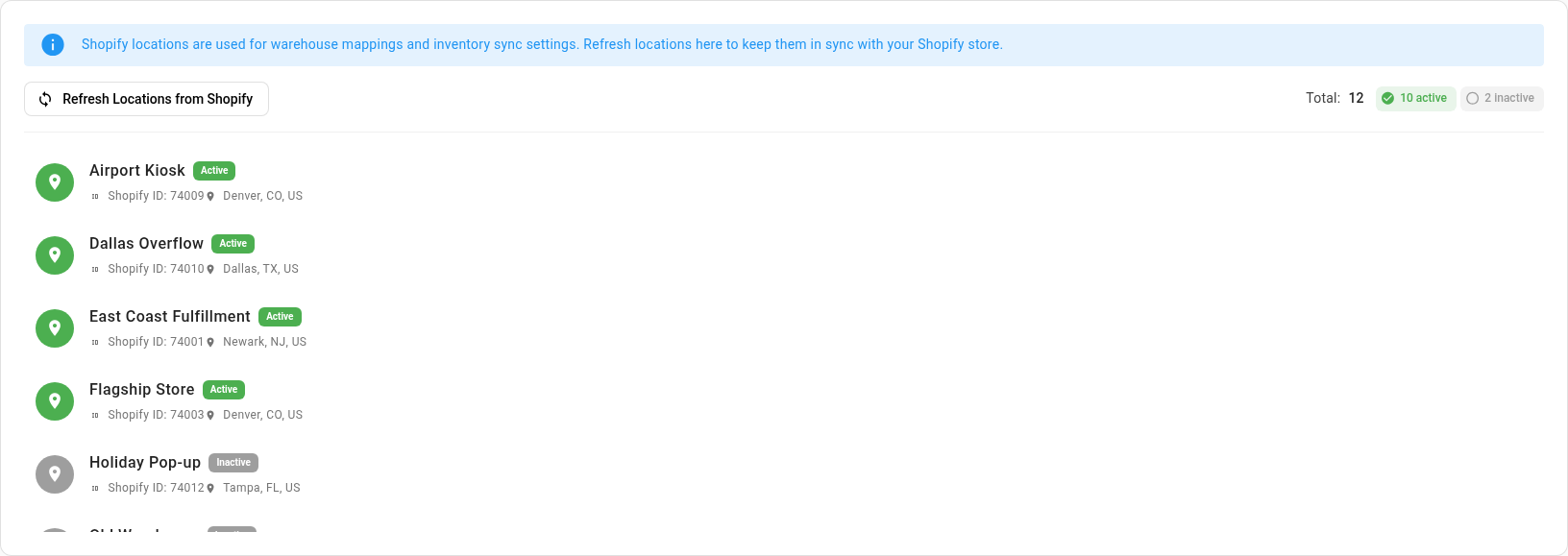
SKU.io downloads your Shopify locations when you connect the store. Refresh them after you add, rename, or deactivate a location in Shopify.
- In the sidebar, open Apps & Integrations and choose your Shopify store.
- Open its Settings tab, then Locations.
- Click Refresh Locations from Shopify. SKU.io confirms with Locations refreshed from Shopify.
The tab lists every location with its Shopify ID and address, and counts how many are active and inactive.
Map each location to a warehouse
- On the store's Settings tab, open Warehouse Mappings. You can also click Configure Warehouse Mappings on the dashboard banner. On a newly connected store, the Finish connecting Shopify checklist has a Map locations button for the same page.
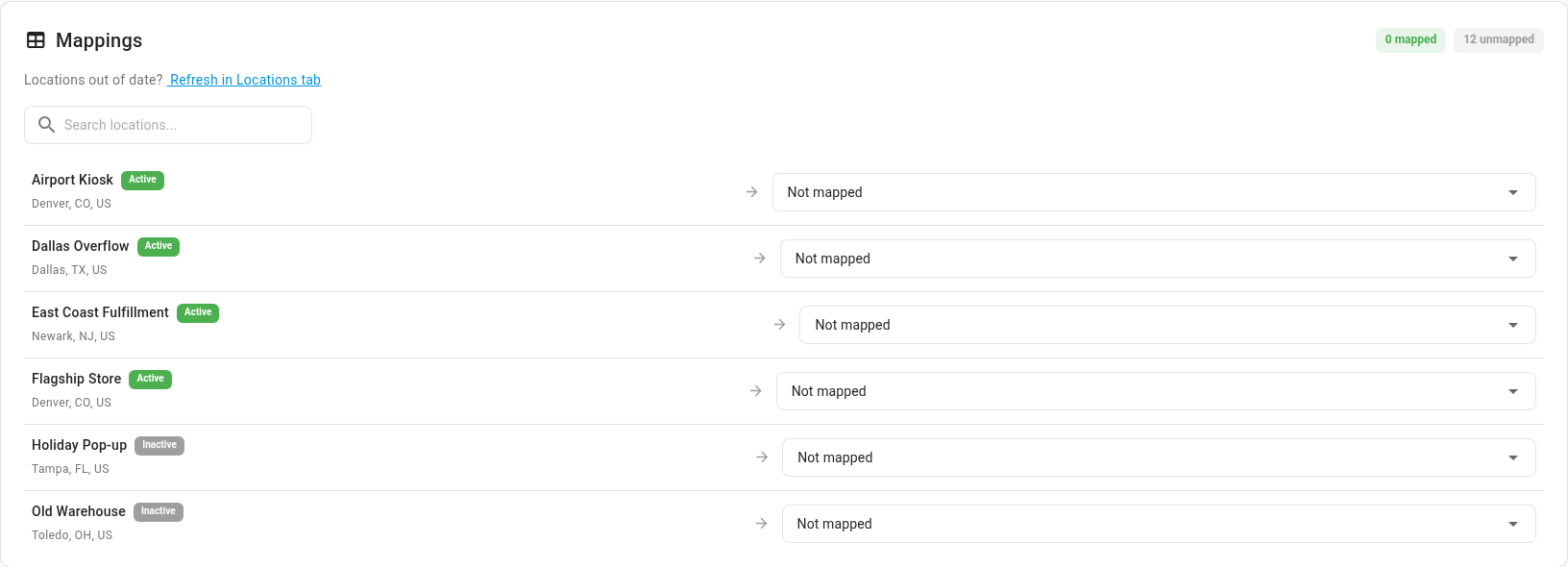
- In the Mappings card, find the location. With more than 10 locations, type part of its name in Search locations....
- Click the Not mapped field next to the location, type the warehouse's name, and choose it.
- Repeat for every location that ships orders.
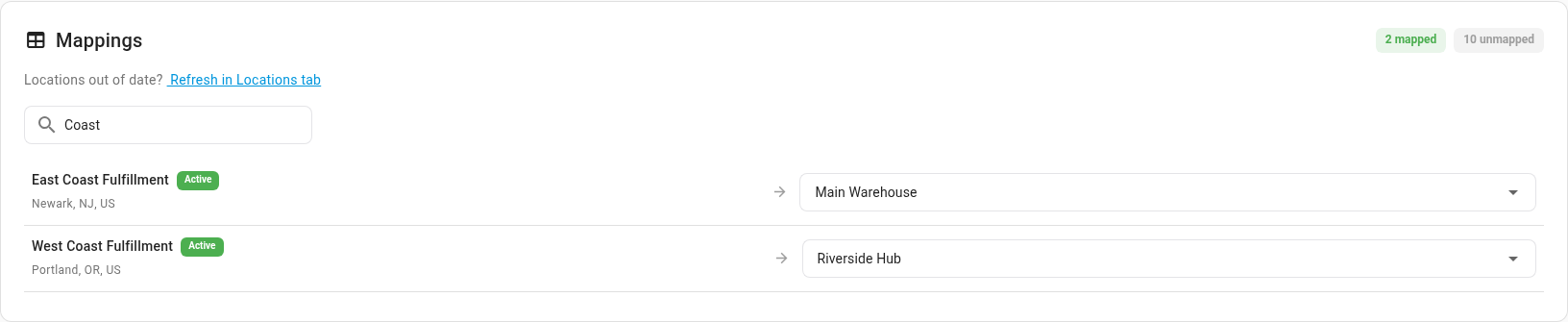
- Click Save. SKU.io confirms with Settings saved, and the mapped and unmapped counts at the top of the card update.
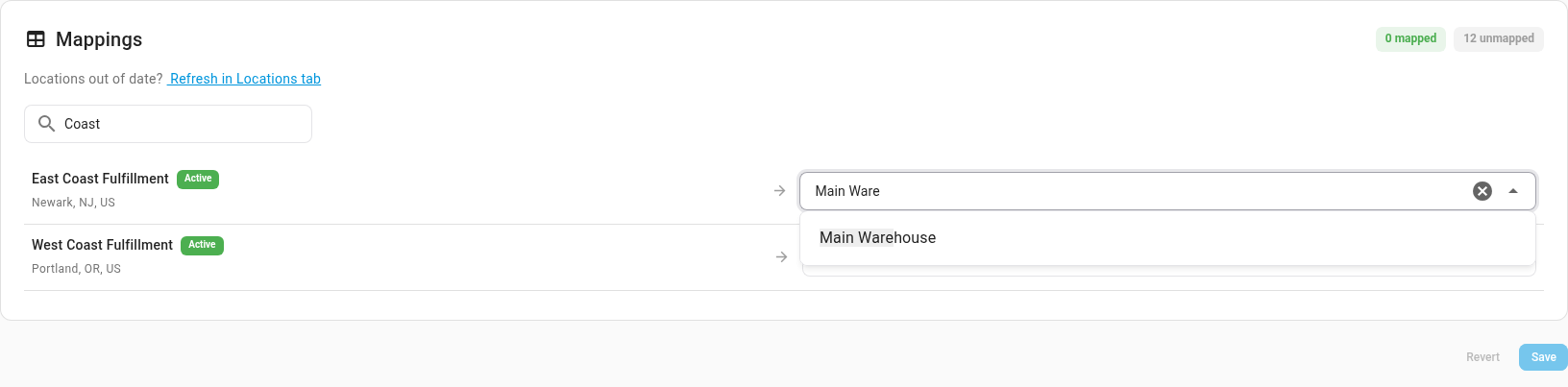
Until you click Save, the bar under the card says You have unsaved changes. Click Revert to discard them.
Which locations to map
- Map every active location that ships orders: your own warehouses, a 3PL, a store that ships online orders. Each location maps to one warehouse, but several locations can share a warehouse.
- Leave a location unmapped when it never ships an order, such as a location you only use for samples or events. Orders assigned to it still come in, but its shipments can't be recorded.
- Inactive locations show an Inactive chip. Shopify no longer uses them, so you can leave them unmapped.
- With only one warehouse, there's nothing to choose. SKU.io maps every active location to it for you.
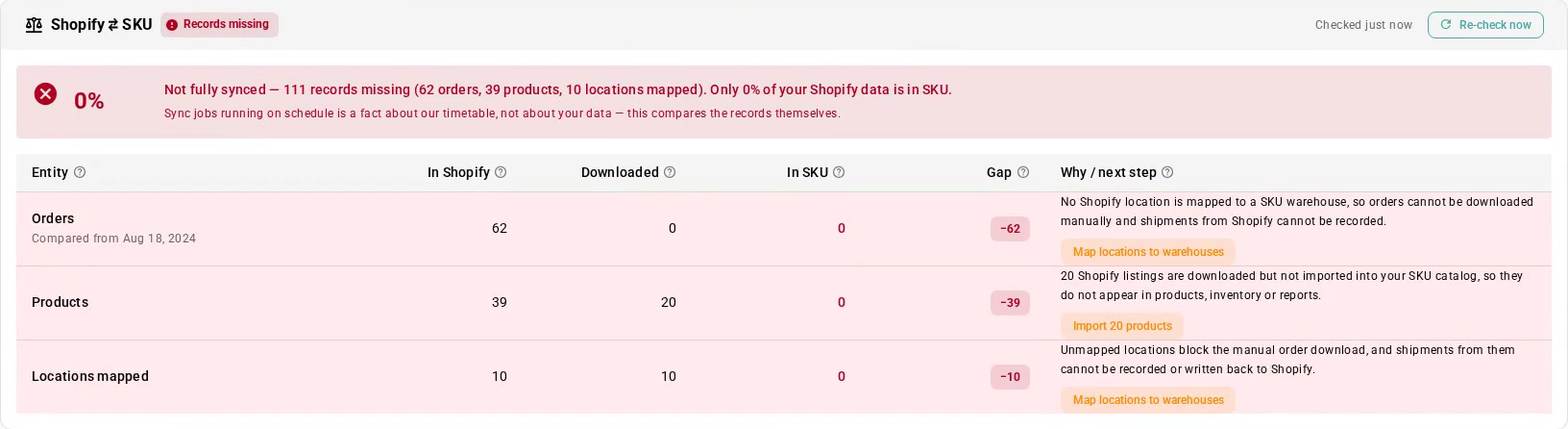
To check your progress, the Shopify ⇄ SKU card on the store's dashboard has a Locations mapped row, with a Map locations to warehouses button while any active location is unmapped.
Choose how new orders pick a warehouse
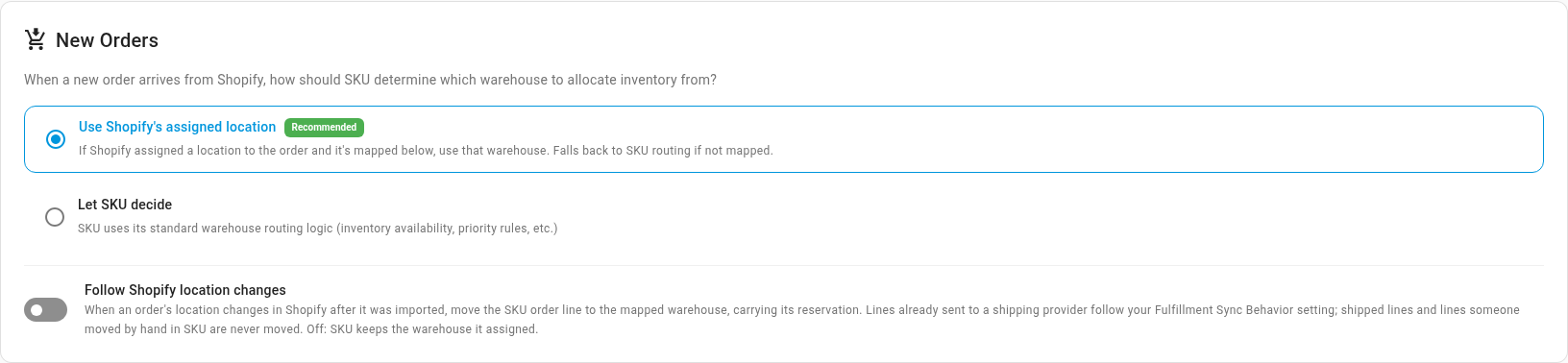
The New Orders card on the same tab decides whether the mapping routes new orders:
| Option | What happens |
|---|---|
| Use Shopify's assigned location (Recommended) | A new order goes to the warehouse its Shopify location maps to. If that location isn't mapped, SKU.io routes the order itself. |
| Let SKU decide | SKU.io ignores Shopify's location and routes every new order with its own rules, such as stock on hand and your warehouse priority. |
Shipments are recorded against the mapped warehouse either way. Click Save after you change the option.
If Shopify can move an order to another location after it arrives, see Let orders follow Shopify location changes.
Choose which warehouses' stock each location shows
A mapping doesn't decide the quantity Shopify shows at a location. That's set per location on the Inventory Sync tab, and every new location starts at Neither, so SKU.io sends it no stock.
- On the store's Settings tab, open Inventory Sync.
- Under Location-Specific Settings, expand the location. Under its name, each location shows the warehouse its orders ship from, or Not mapped to a warehouse.
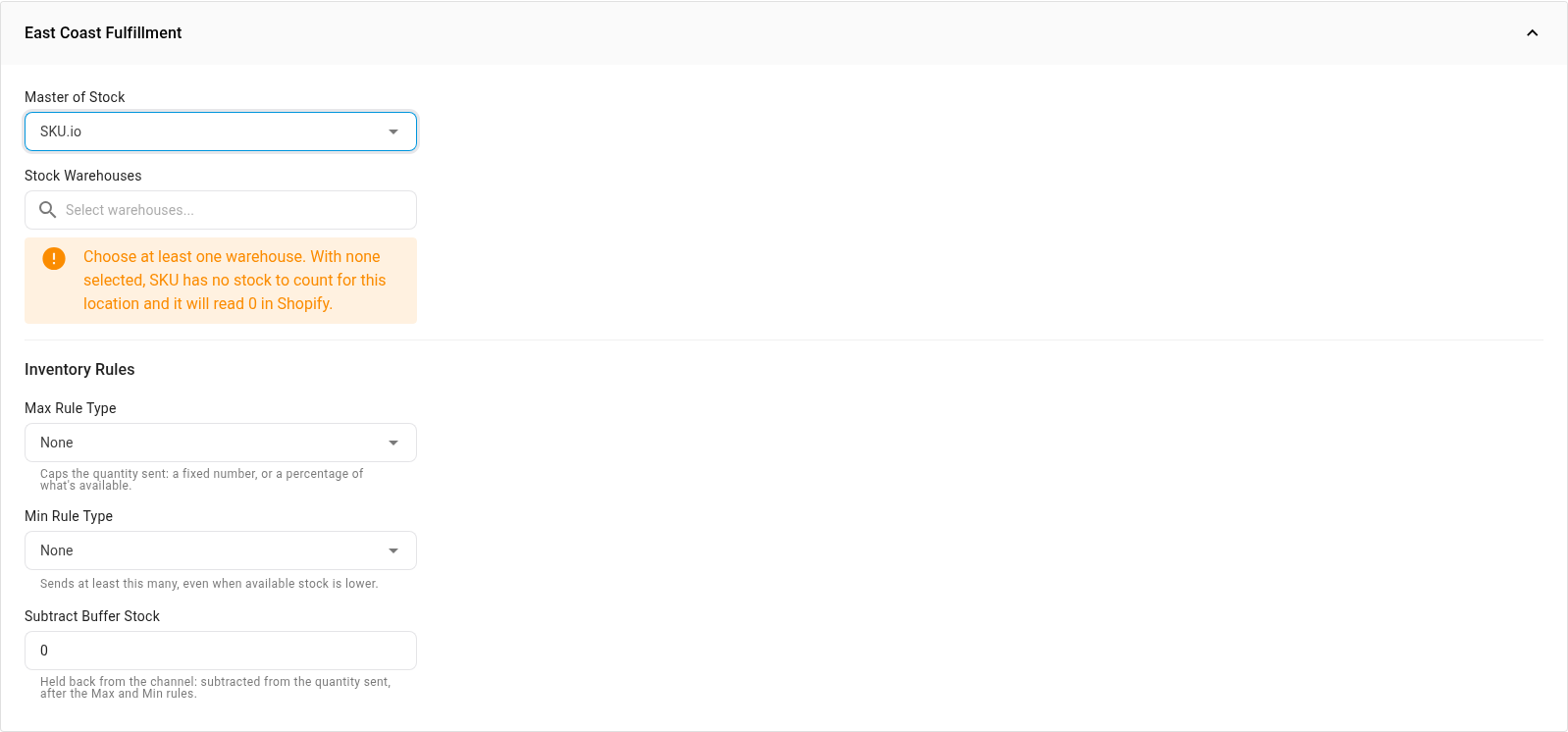
- Set Master of Stock to SKU.io.
- Under Stock Warehouses, choose the warehouses whose stock this location may sell. Usually that's the warehouse you mapped it to. Add more to let the location sell stock held elsewhere.
- Click Save Changes.
With no warehouse chosen, SKU.io warns you that the location reads 0 in Shopify.
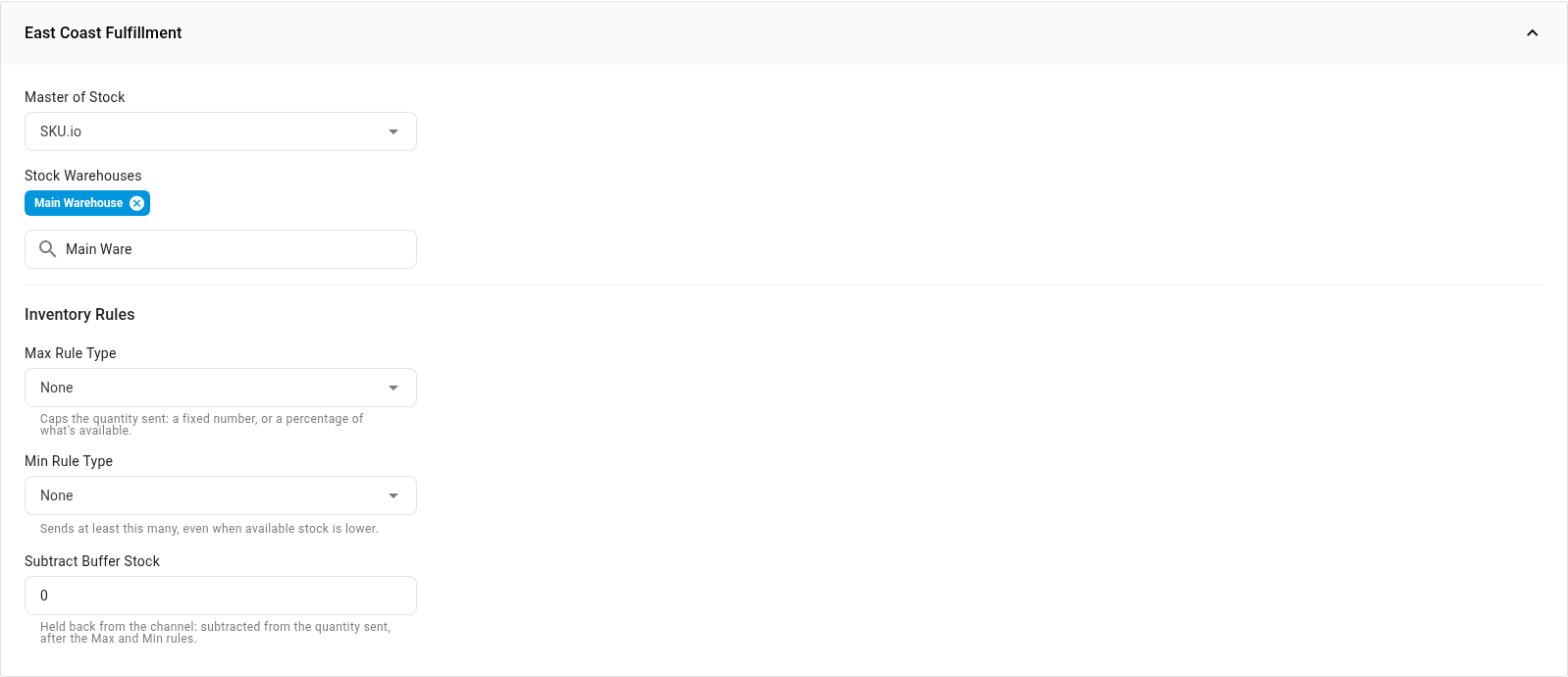
For inventory rules, buffers and how the quantity is worked out, see Set the stock each channel sees.
Next steps
- Find orders in the wrong warehouse with the Location Audit: check orders that came in before you mapped a location.
- Let orders follow Shopify location changes
- How the stock each channel sees is calculated
Video transcript
To get started, open Apps and Integrations in the sidebar, where your connected stores are listed. Then choose your Shopify store from the list. Each order there is assigned to a location, but your stock lives in warehouses. Until at least one location is mapped, you can't download orders, and shipments can't be recorded. The dashboard warns you while nothing is mapped, with a Warehouse Mappings Required banner. Open the store's Settings tab, along the top of the page. Then choose Locations, in the second row of tabs. They come in automatically when you connect the store. If you add or rename one later, click Refresh Locations from Shopify. Next, open the Warehouse Mappings tab, and scroll down to the Mappings card. It lists every location, and shows that none are mapped yet. With many locations, search for the one you want. Click the Not mapped field beside that location. Then type the warehouse name, and choose the warehouse from the list. Repeat for every location that ships orders. Several locations can also share one warehouse, if they ship from the same place. Click Save, at the bottom right, to keep your changes. The mapped count goes up, and you can now download orders. If you map a location later, its waiting orders are brought up to date. A location that never ships orders can stay unmapped. You can also skip any location marked Inactive. Above the mappings, New Orders decides how new orders are routed. Use Shopify's assigned location sends each order to its location's warehouse. A mapping doesn't decide how much stock Shopify shows at each location. For that, open the Inventory Sync tab, and find the location. Each one shows the warehouse that ships its orders. Open the Master of Stock menu, and set it to SKU.io. With no warehouse chosen yet, a warning asks you to choose at least one warehouse. Under Stock Warehouses, choose the warehouses whose stock this location may sell. Usually, that's the warehouse that ships its orders. Close the list, and scroll down to the bottom of the location. Then click Save Changes.